Midterm – Spirals

Idea: topographic memory
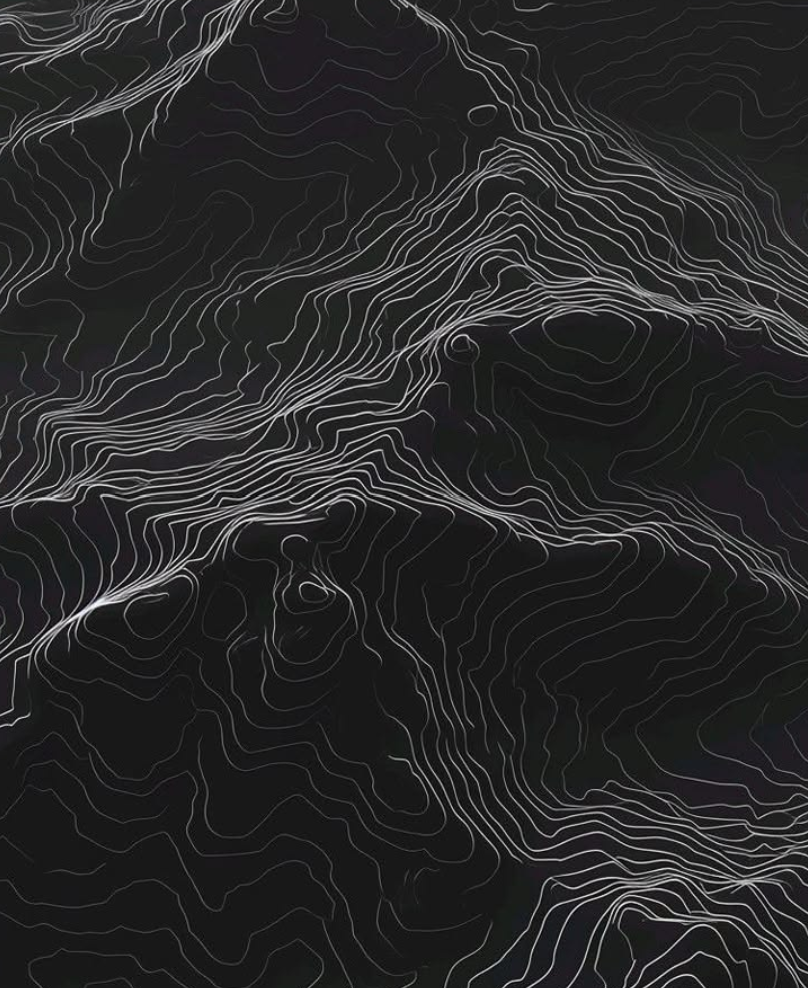
image.png
image.png

Concept

For the concept of this assignment, I wanted to explore how I can play around with noise and topographic memory to create some compelling visuals. I am still contemplating how I can add personal touch/ a unique variety to each itration.

Algorithm

after getting second last image, tried adding a new feature to the code. that is storing each line as two numbers [ the angle the line points in, how far the line is shifted sideways from the canvas center]

P5.js

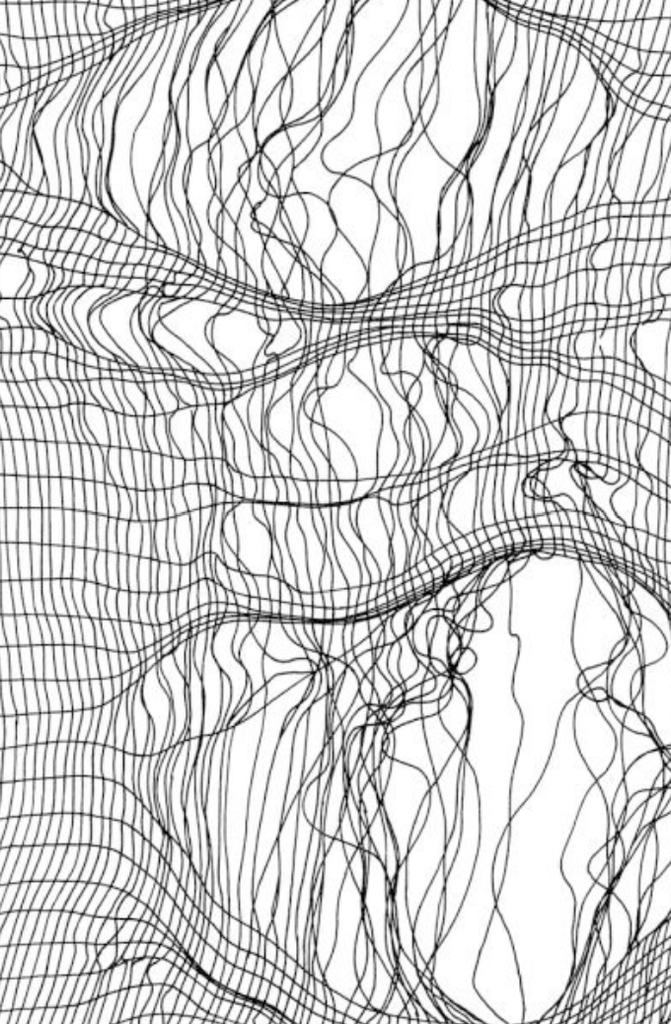
My initial idea for this project was to make a visual very similar to memory topographic. But I also know how with making a grid and adding some noise a smooth silk cloth like effect can be achieved.
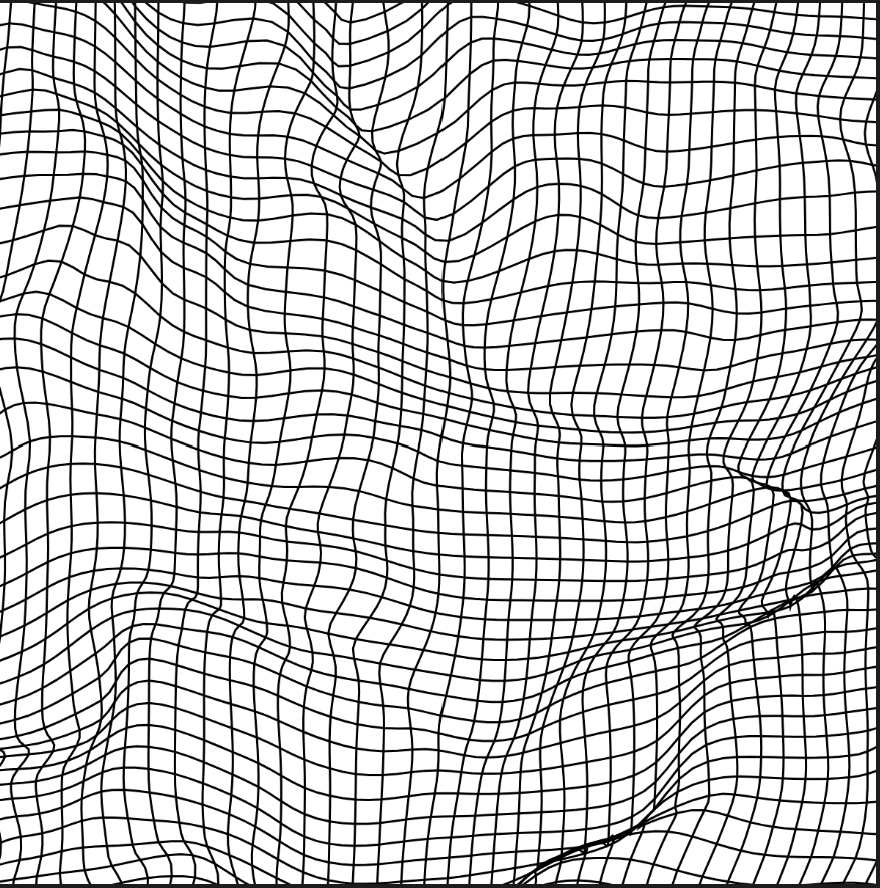
For the code for the picture on the left I added a function called wrap. This function first gets random numbers on the canvas using map. it also adds 50 to each number to that the numbers are different. Then it takes those points and apply noise again, this helps to make the wobbly kind of effect. At the end it adds or subtracts 0.5 so that each value goes in a different direction. This is done to the whole x and y grid and hence the result on the left is achieved.
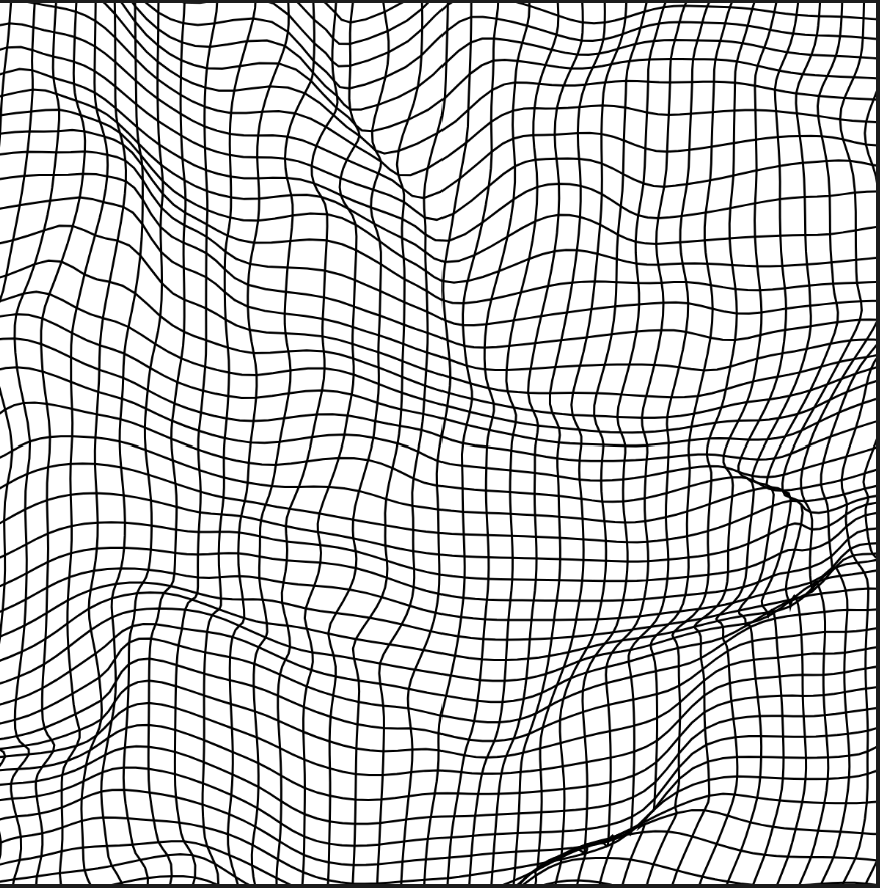
The same is done here but instead a focal pint is added. So now each point is moved closer to the focus along the straight line between them. The point’s direction stays the same, and only its distance shrinks. with each line going through the same wrap function as described above. Inside the wrap function here, two more things happen. The first one is pinch. It pulls the point toward the focus, so lines squeeze together. The second one is turn the point around the focus, so lines swirl.

At this point I was still not sure where the code would be going and how I can play around it to get the memory topographic result. I also wasn’t sure if the approach that I have taken is going to take me closer to my initial idea or to something totally different. After looking at the above code, I realized there was a small bug in it. I was converting the angle from degree to radians but instead dividing it by 180 I was dividing it by 90. [code 6] I also played around with the pinch and focus settings. By decreasing the pitch, I was able to get more lighter attraction force and by increasing it the attraction force became stronger.

I tried Appling the same new updated wrap function to the original x and y grid that I had made was pretty surprised the results. However, it still wasn’t going anywhere. And i also felt completely lost in terms of ideas and what to make next.

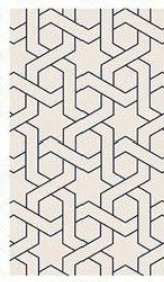
While scrolling on Pinterest I saw this image of Islamic Geometric pattern and was wondering what if by converging and diverging the lines at specific angles I can make them look like the pattern on the left
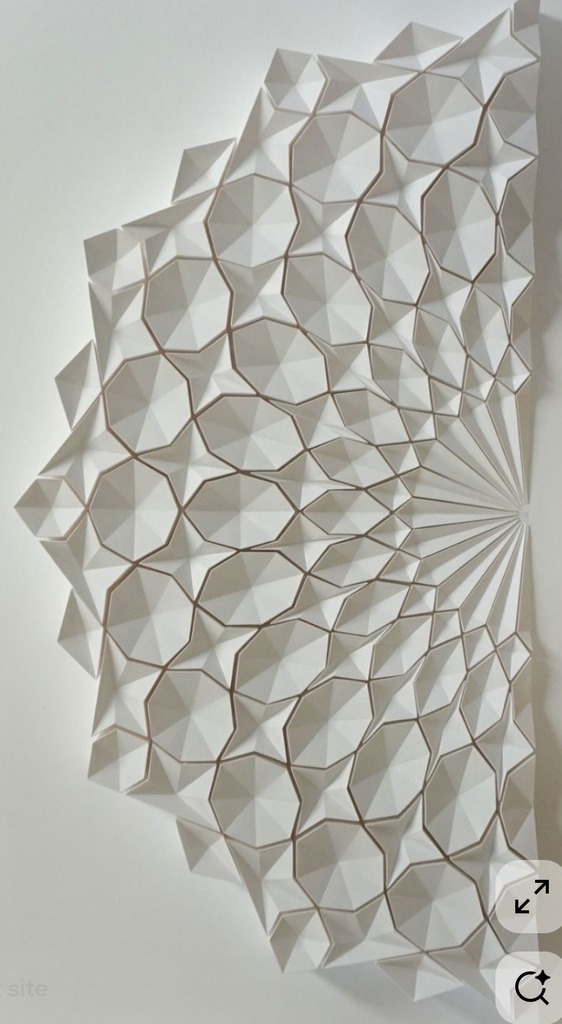
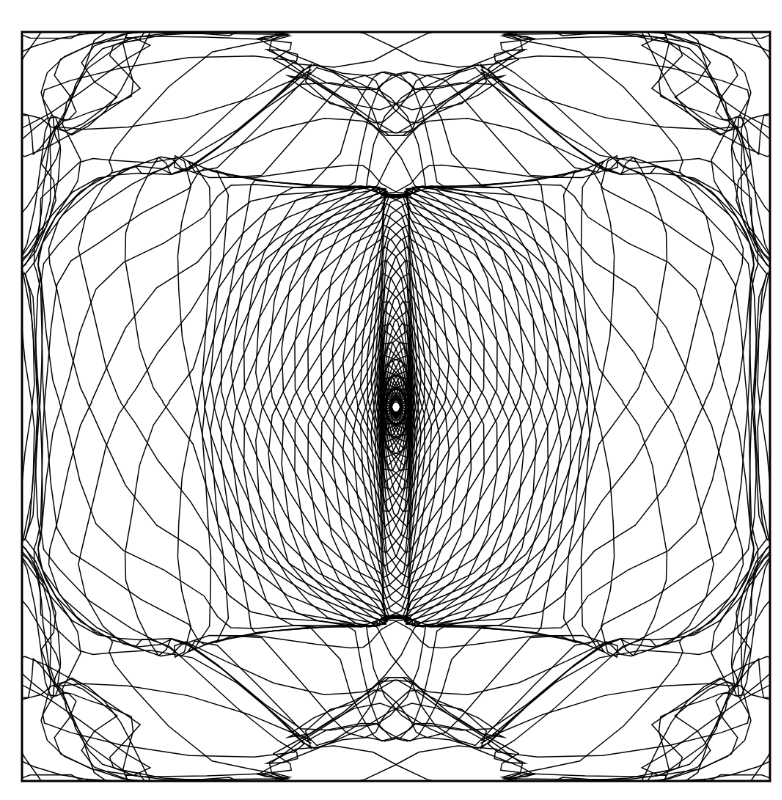
A main thing about Islamic geometric pattern is how they replicate and mirror themselves. So, for instance, what is on the left side of the pattern, would also be on the right side of the pattern. The very initial warp function that I made, I used that here. This was done because it had more smoothness to it compared with the one that was using focus and pinch. The focus version bends everything toward a few set points, so the lines get squeezed hard in some places and stay plain in others. The noise version has no set points. It pushes every line a little by smooth random waves, so the bending flows gently across the whole picture with no sudden tight spots. On top of that, I made the picture a mirror image across the middle, both up-down and left-right, so it looks balanced and a bit like a kaleidoscope. To keep the mirror clean, the push fades to nothing right at the center lines, so the two halves meet smoothly with no gaps or overlaps.
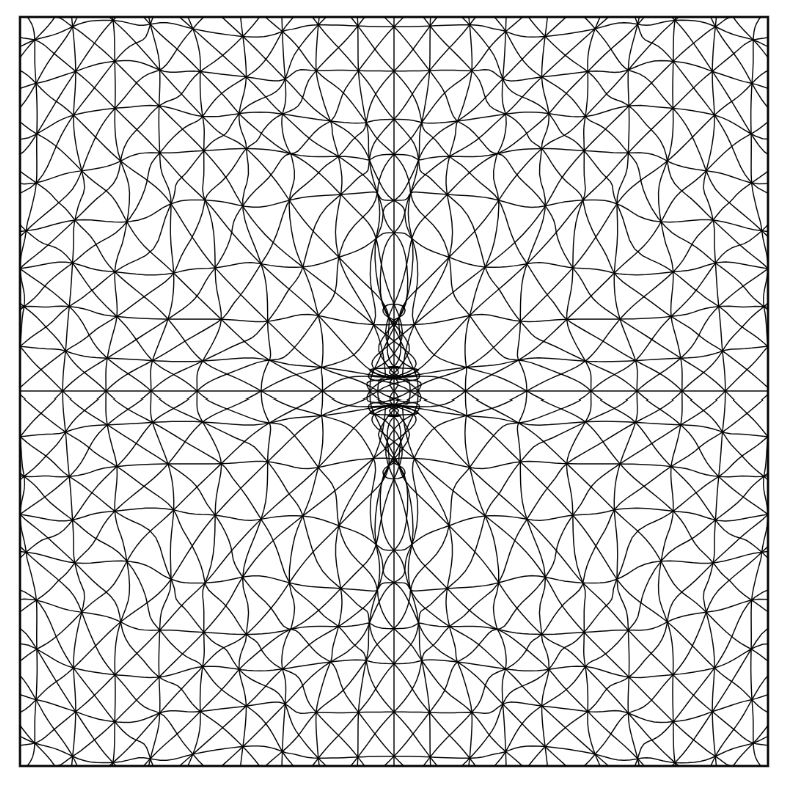
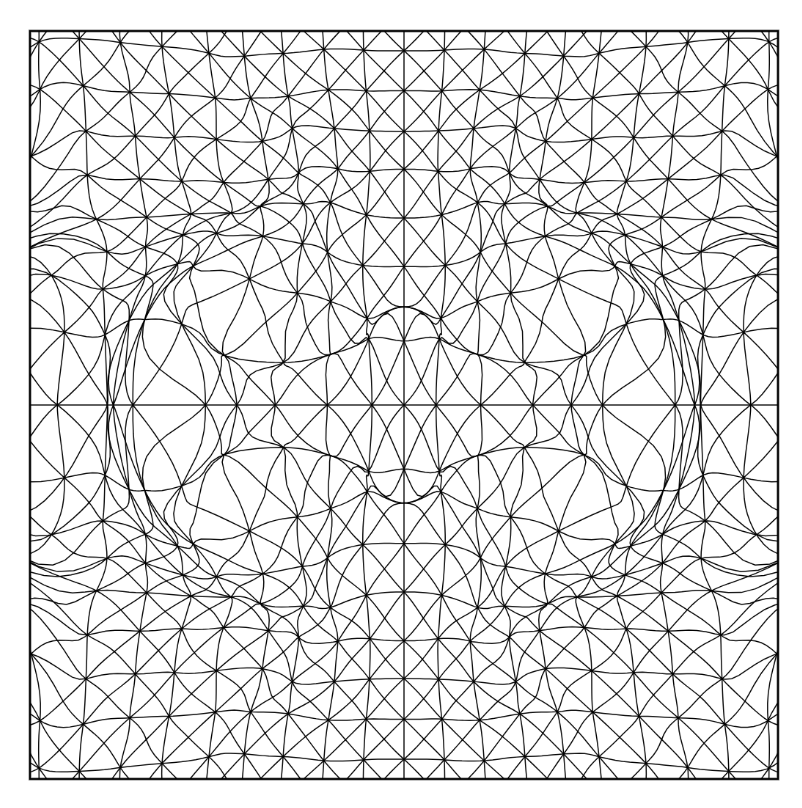
To make it look neater and smoother, I tried playing around with the attraction force. I set it very high to 10000 to see how tightly to converge with each other. I actually really liked the output the code gave here.

But the only problem was for each output, I kept thinking how it would look with drawn with the pen plotter. The problem with the results right now is that there are two many lines mostly straight, curved or bending a bit. In my vision I kept thinking how it would look very messy with drawn from the pen plotter.

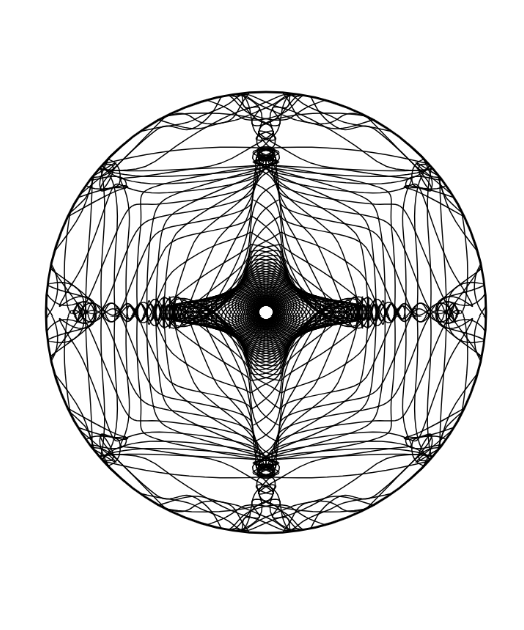
I tried changing the ways the lines were drawn. So instead of them being straight lines, I tried how they would look if they were a bit more curved or circular. I tried with some spiral lines. Instead of straight up-down, side-to-side, and diagonal lines, it makes curved lines that wind outward from the center. Each one starts near the middle and swirls out like a snail shell. The farther out it goes, the wider the turns get. The way I was approaching this was kind of messy and kept giving an error of infinite loop being runned. I took some help from AI here to help me in achieving the results.
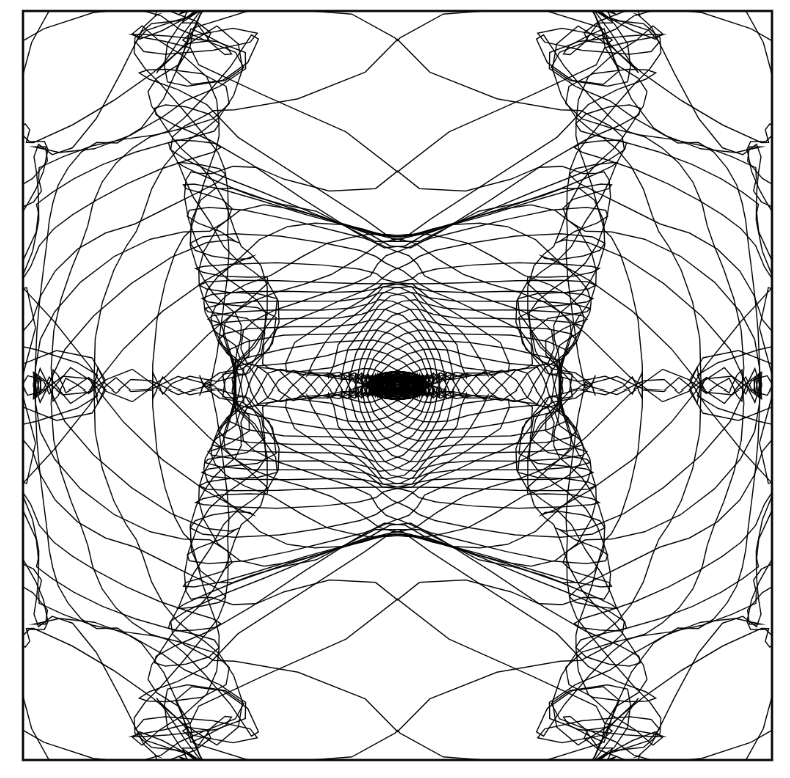
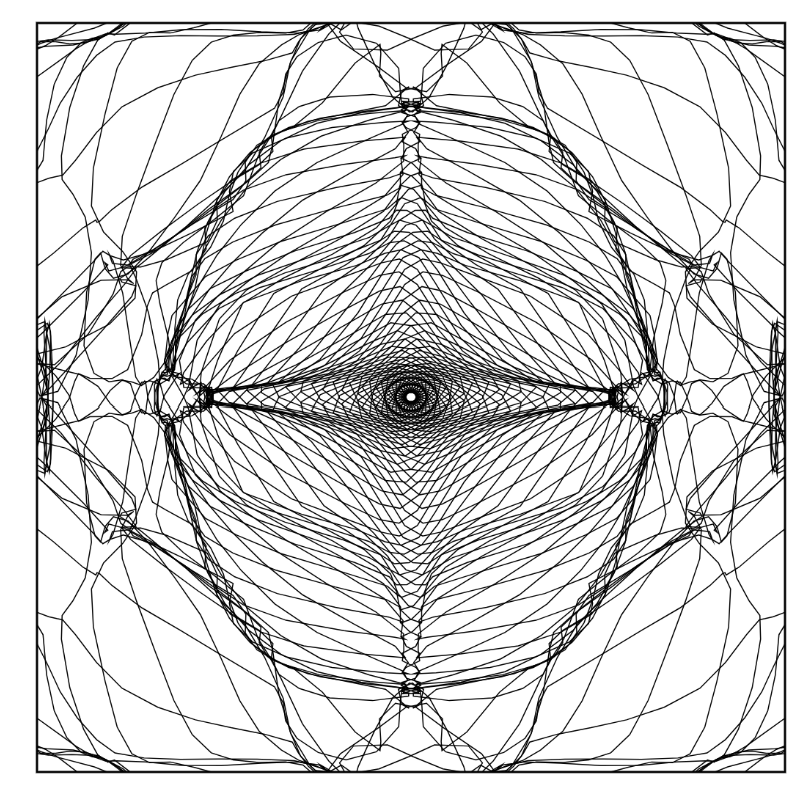
At this stage, I wondered how it would look like if I only took the middle part and the same code is used twice: it draws the border, and it hides anything that spills outside of it. I was pretty much satisfied with how the output looked right now and decided to make these the final drawings that i would give to the pen plotter
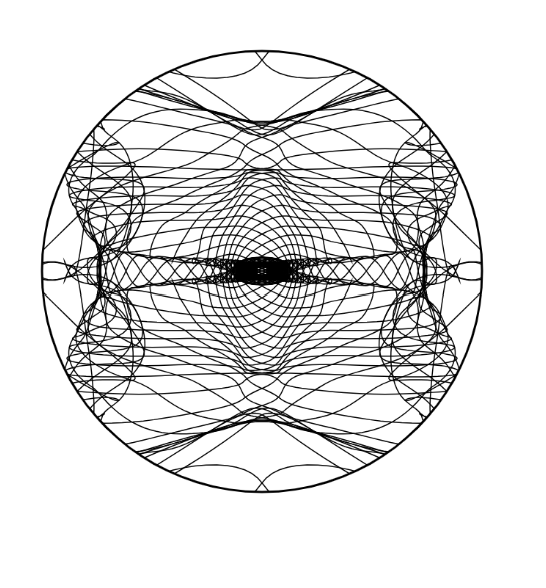
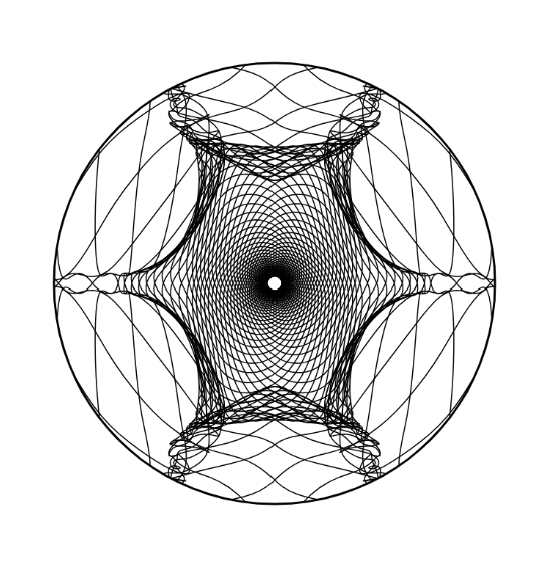
SVG/G-code workflow,

After finalizing with the drawing in p5.js, I saved it as SVG. Then i put the file in Inkscape and saved it as the G-code. This was done by downloading the extension, saving it there and then turning it into g-code using the help of the extension. Before turning the file into g-code I changes the dimension of the paper. Initially i kept it 280 to 260 as told by the professor. But for most of my drawings, I felt they would work fine too of I made the page smaller. So, the final page dimensions that i decided on were 180×160.

test drawings and iterations

The first time when I uploaded the code to the Universal G-code there was a technical problem. The code kept stopping midway repeatedly every time after running a couple of lines. Professor Jack suggested that this might be an Arduino problem and we changed the Arduino. It worked after that!!

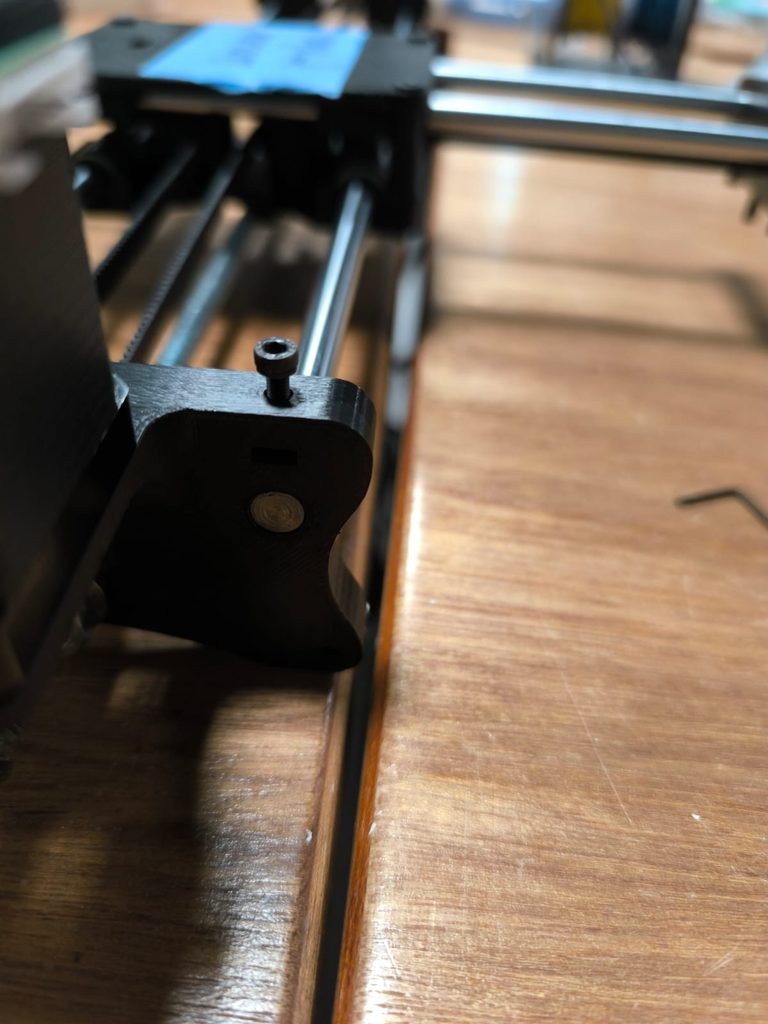
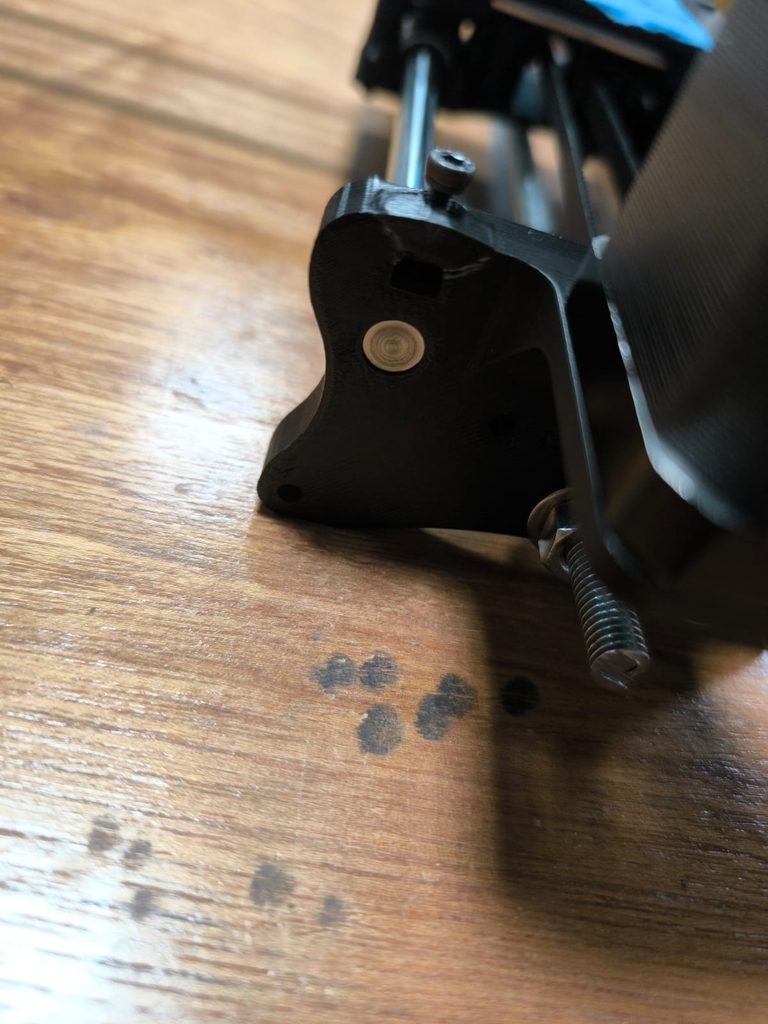
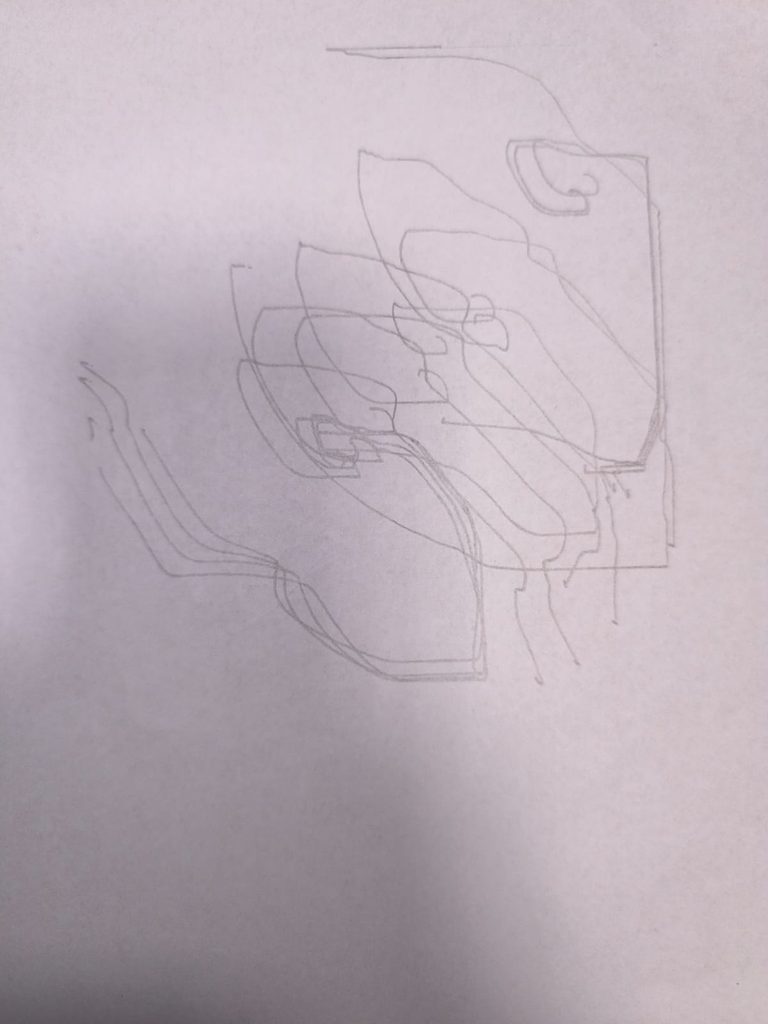
After changing the Arduino, the next time when I was using the pen plotter to draw the code it was acting in a very interesting way. Instead of drawing in a designated area on which it was supposed to draw, it kept going down and down. So, each stroke after the other was drawn at a bit lower position. I tried changing everything here and I think there was the problem with the g -code. After changing that, the pen plotter drew pretty smoothly. The below picture shows what the plotter was doing.
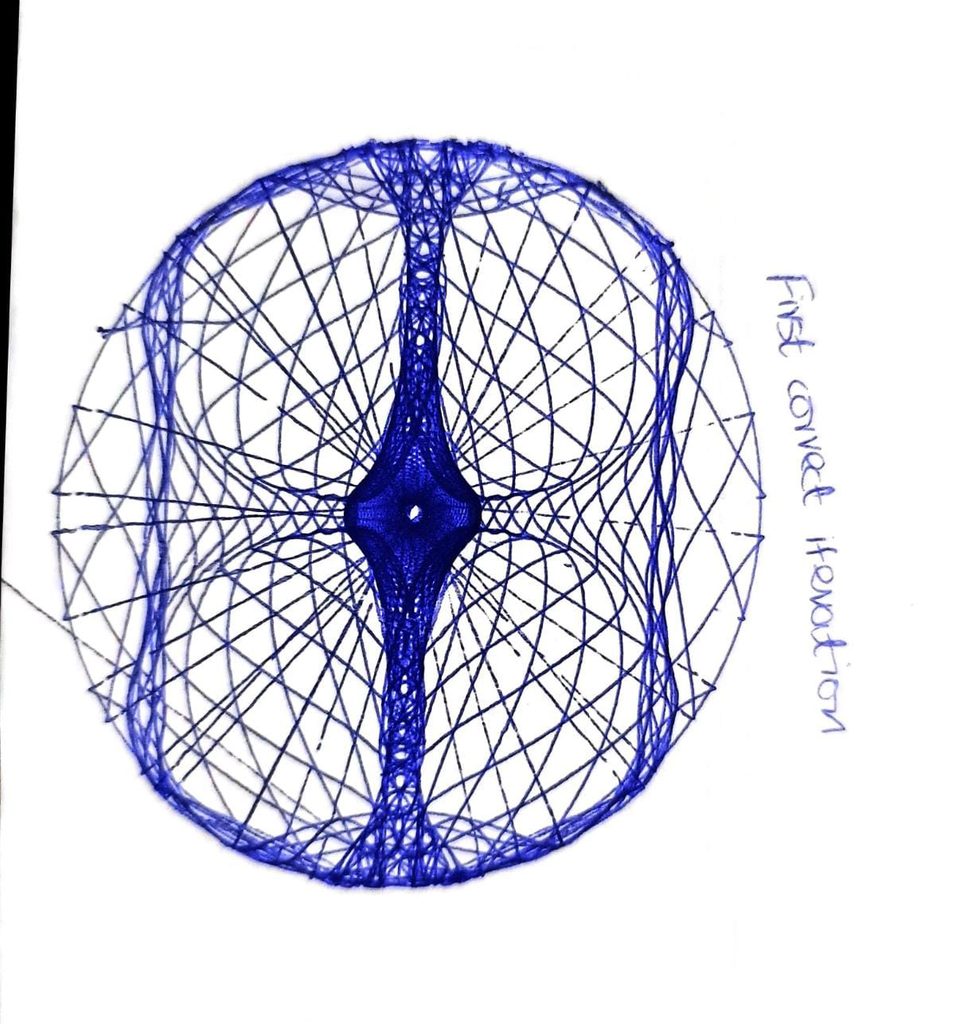
Now that i had gotten the plotter to work, I tried using different pens and different types of paper. I first tried a ball pen on a normal A4 sheet. this drew a very interesting pattern and I really liked it. especially given that this was the first successful attempt after a dozen unsuccessful ones.
After that the next iteration, i tried switching to a different thicker paper but the same pen. The problem here was that the pen got lighter at some parts while it stayed dark at others.
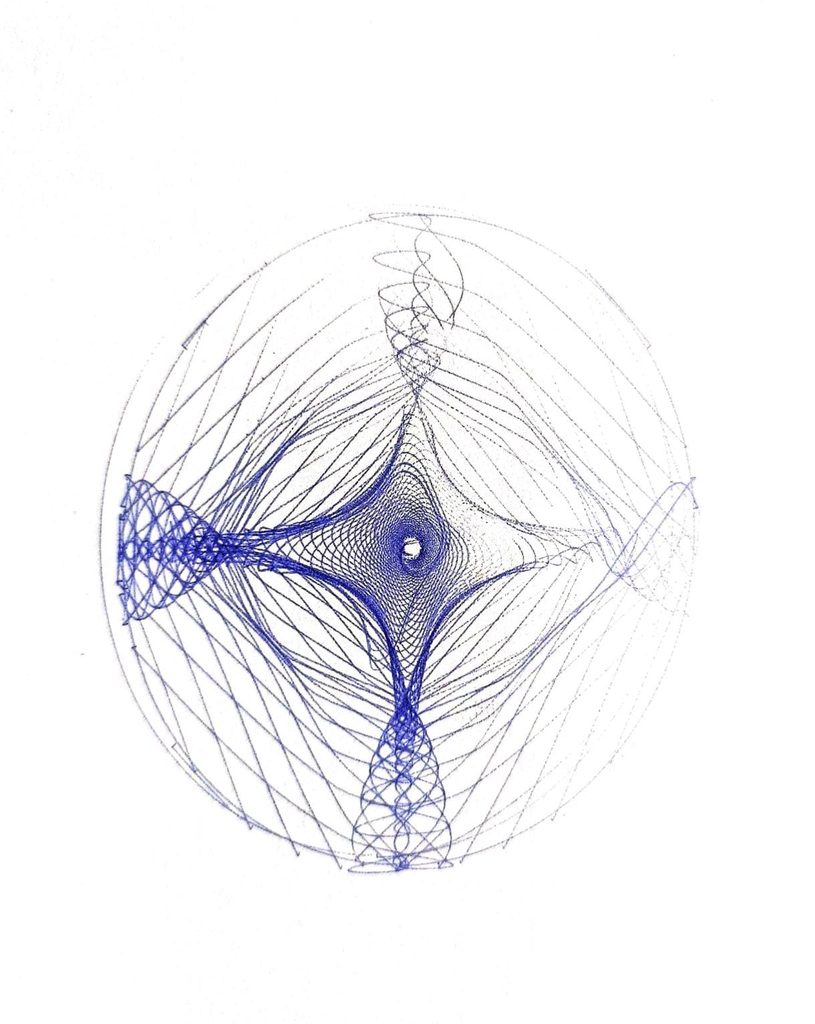
Spo i tried the same paper but different pen. This was a pointer. Since in my patter it requires some part of the pattern to be drawn repeatedly, the paper kind of started to get soften and tear down from the center.
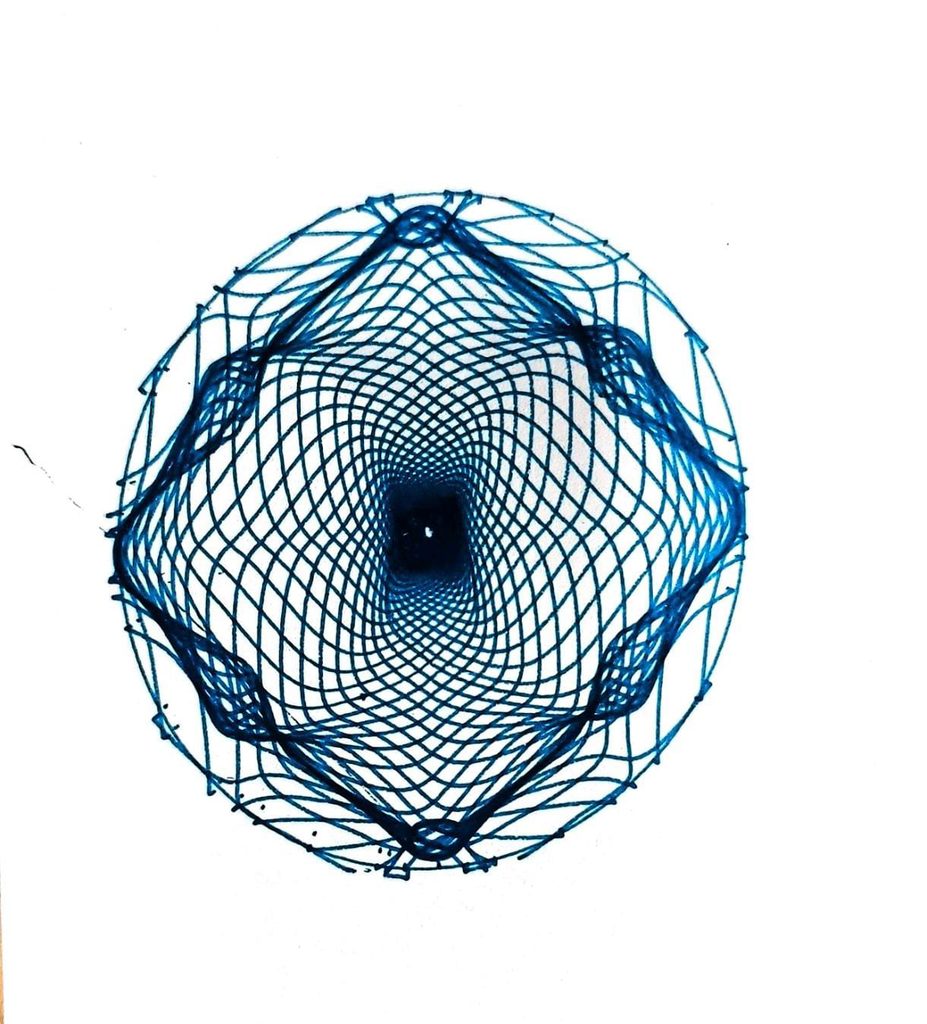
So I changed to a pink ballpointer with the same thick paper. And I think I really liked how the results started to look. Hence my four final drawings are by the same colroed pen.
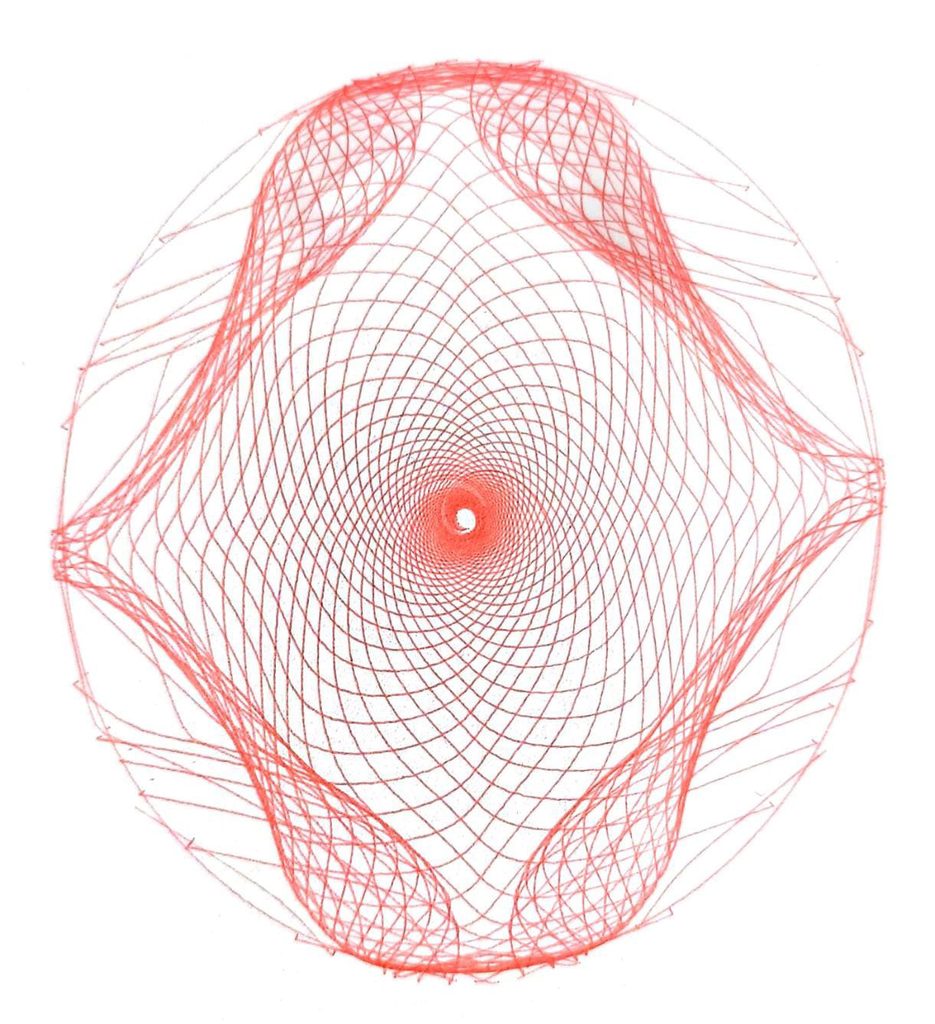
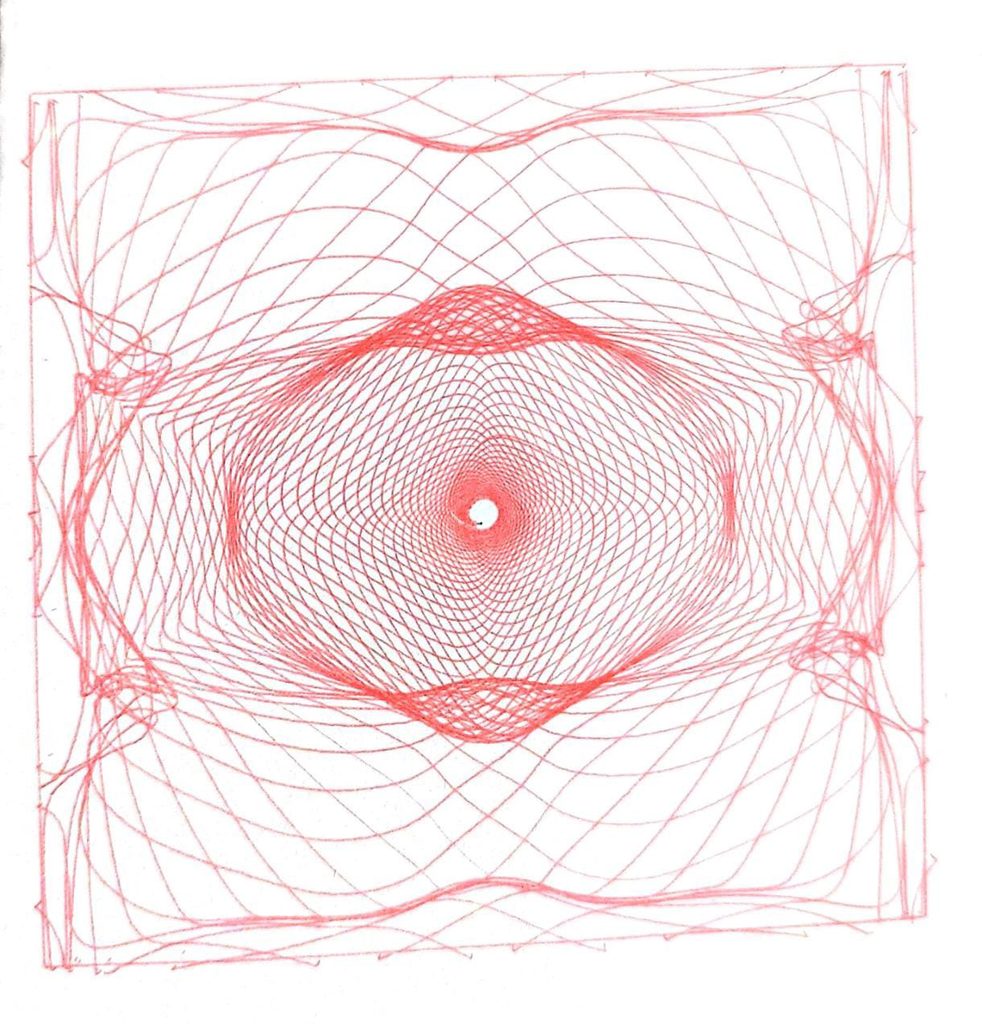
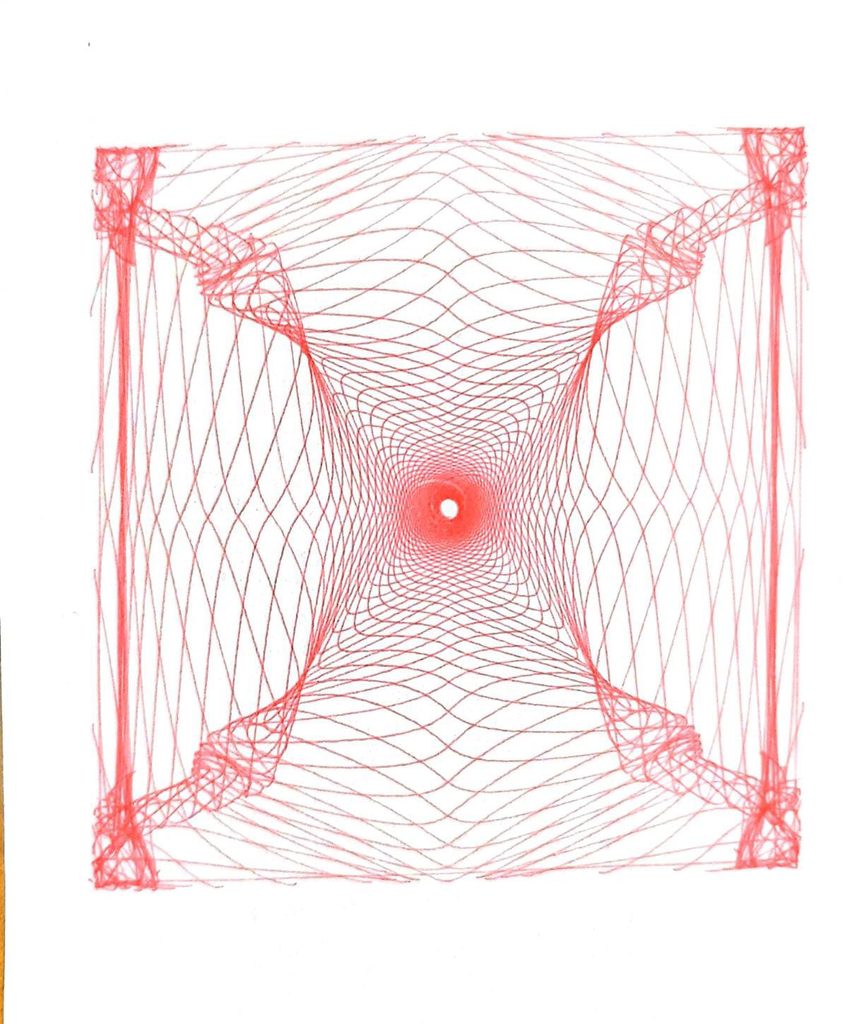
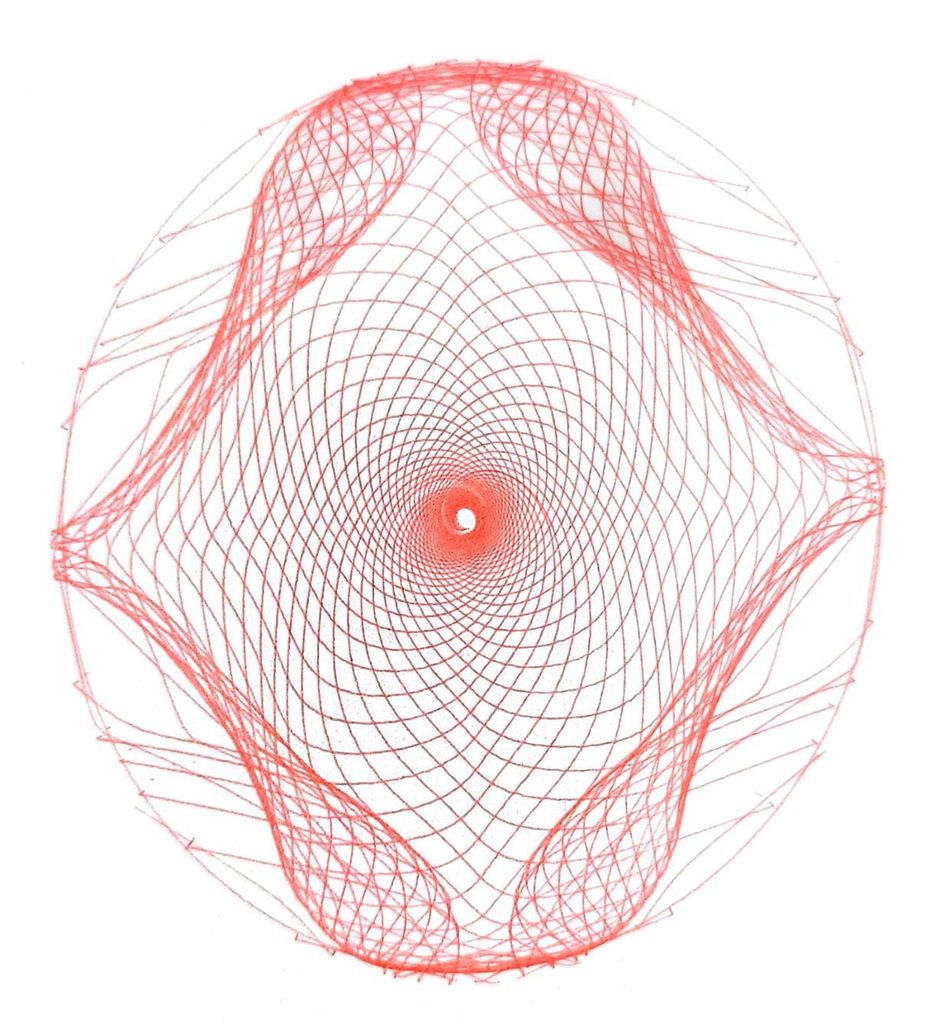
the final series of at least three drawings

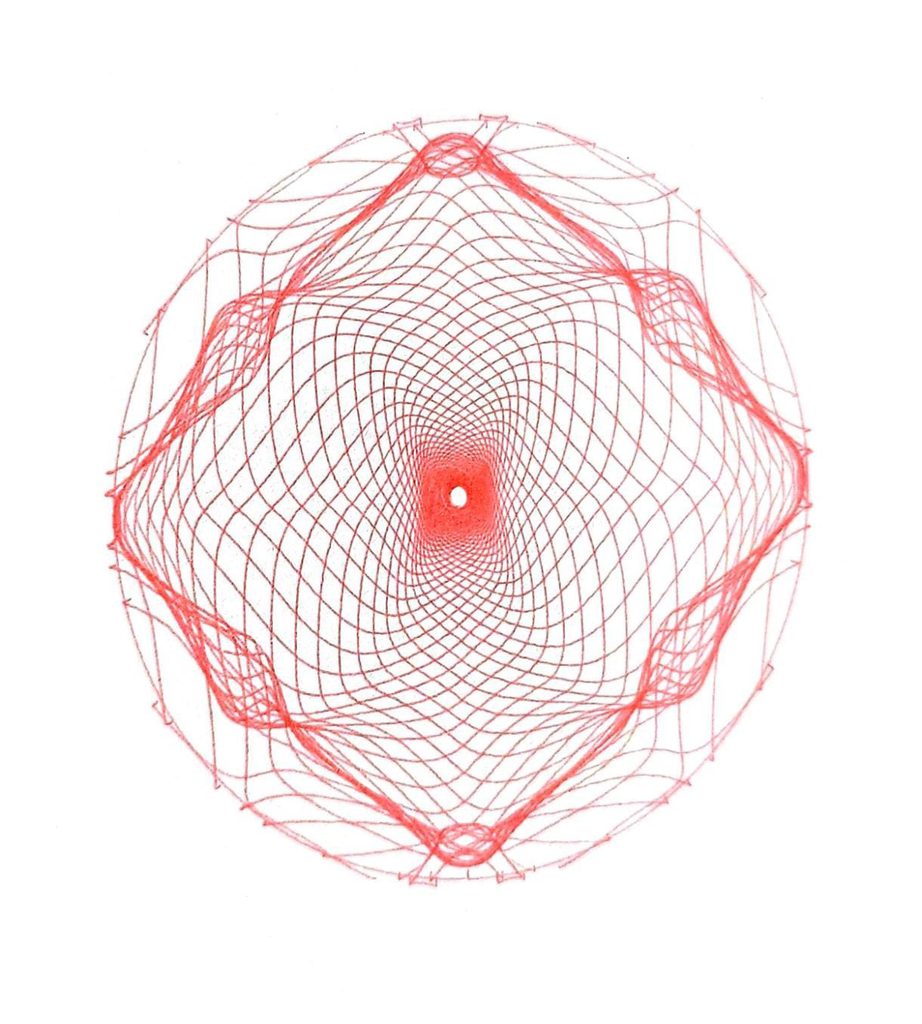
So in the final series I chose my four most favorite patterns generated by the code. I love how at the end, they all have a perfect circle in the center. For the third image, my friend said this kind of reminded her of the sunrise. I particularly love the last one, because all of the other patterns were being generated the same in both circle and rectangle. but the last one I only saw being made in the rectangular mode. I am guessing this is because in the rectangle mode, it was able to cover some more area hence it got the curves. It kind of reminds me of DNA which is pretty cool. I still am not sure if I had more time how i would be developing it more. Also, I know these images kind of loom skewed here, but ig that if because of the formatting.
critical reflection on how the pen plotter, color, layering, and physical materials shaped the final work.

I think a critical part of a pen plotter is how all of the lines of the drawing have the same strike width because of the same pen it uses. I love how in p5js you can play with the stroke width and get different interesting visuals. If I had more time i would definitely love to explore that more and see how it would look to use different pens. But ig there is still the problem that if a thicker pen is used its ink kind of spreads. Also, I tried two different kind of papers with different thickness. I think keeping the pattern that i made in p5.js in mind, for my patterns the thicker the paper, the more interestingly and smoothly the pen was able to draw the patterns.

Overall, this was a very fun experience, and I really loved assembling the pen plotter and then figuring out how it draws and then watching it draw. This was so satisfying to see a whole week’s hard work come into life.
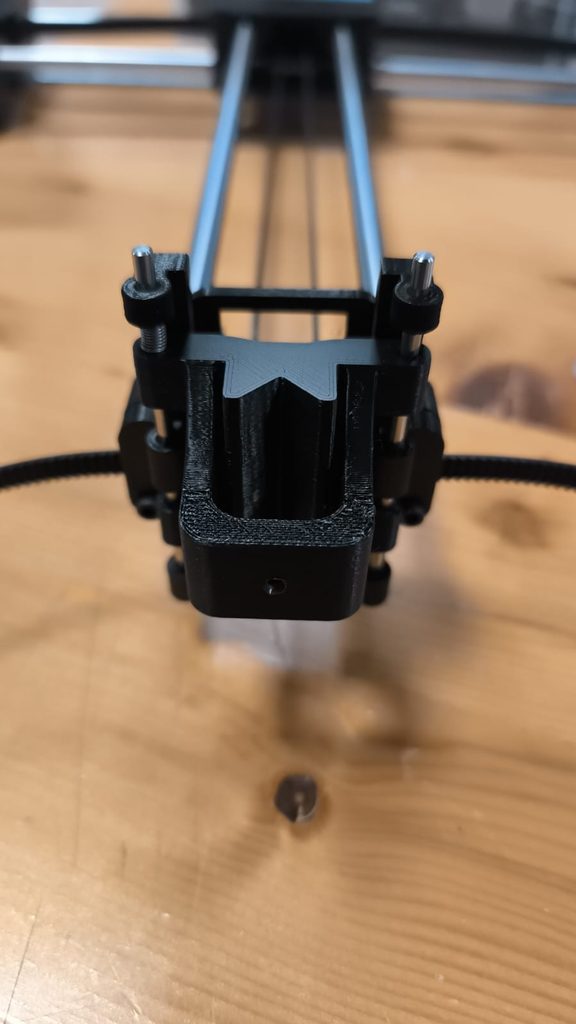
Assignment # 5: Pen plotter assembly

By Mariam and Haya

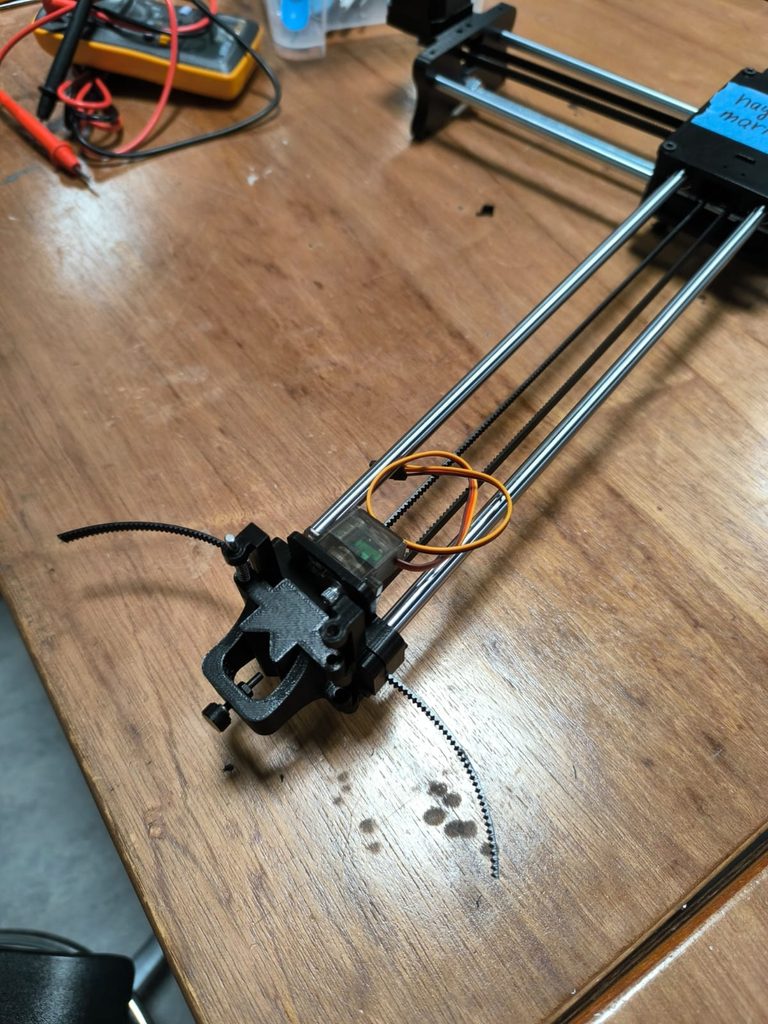
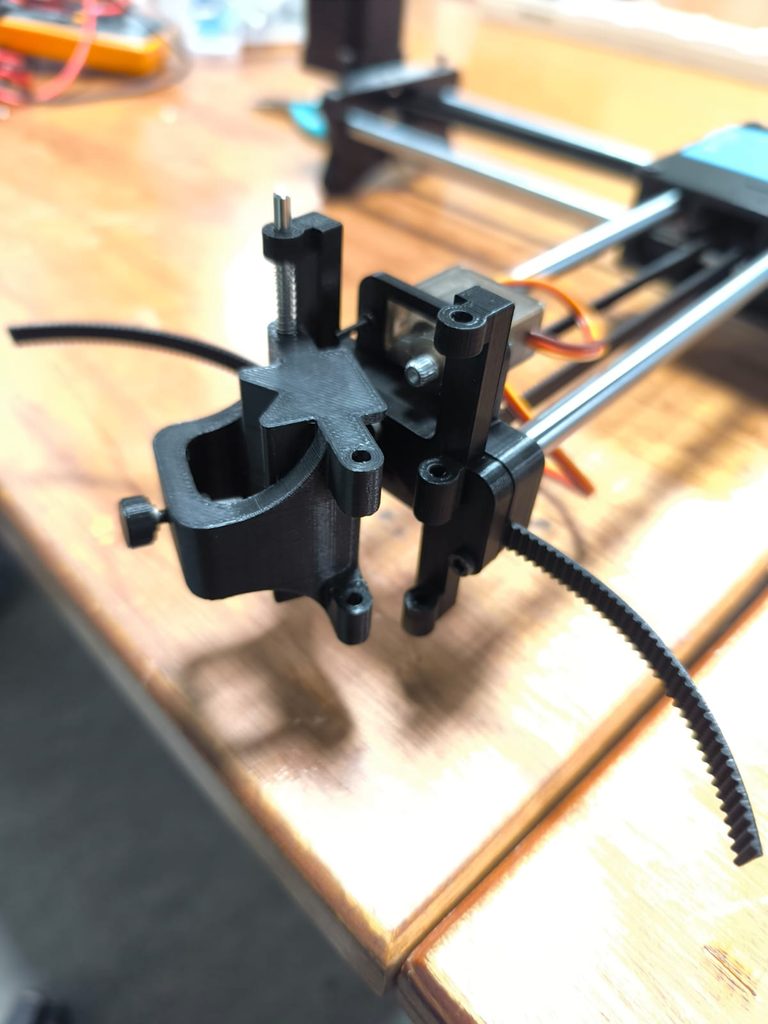
Assembling this pen plotter wasn’t as difficult as understanding the instructions. We started the assignment by first putting together the X-axis. It took us some time to understand what the instructions were asking us to do, but the images were really helpful in guiding us through the process.

After the very first step, we learned about the wonderful properties of the mallet. At some point, using it almost felt like therapy. Once we had placed the X-axis rods into the X supports, we added the bearings. This took us quite a while because we had to remove the supports from the 3D-printed parts, figure out which screws and bearings went where, and understand how all the pieces fit together.

While putting the rods into the Y-axis, I used the mallet a little too forcefully, which caused one of the bearings to come out. We also spent a good amount of time figuring out what the 20-tooth pulley was and how it was supposed to attach to the stepper motor. Referring to the professor’s assembled pen plotter was very helpful during this process, as it gave us a better idea of how the different parts were supposed to fit together.

Another time-consuming step was inserting and tightening all the bolts. While inserting one of the bolts into the x-axis holder, the plastic started bulging out. This made it look like the plastic was about to rip into two parts. Eventually we ended up not screwing the bolts completely and letting it go just before it started to feel tight.

Assignment 1

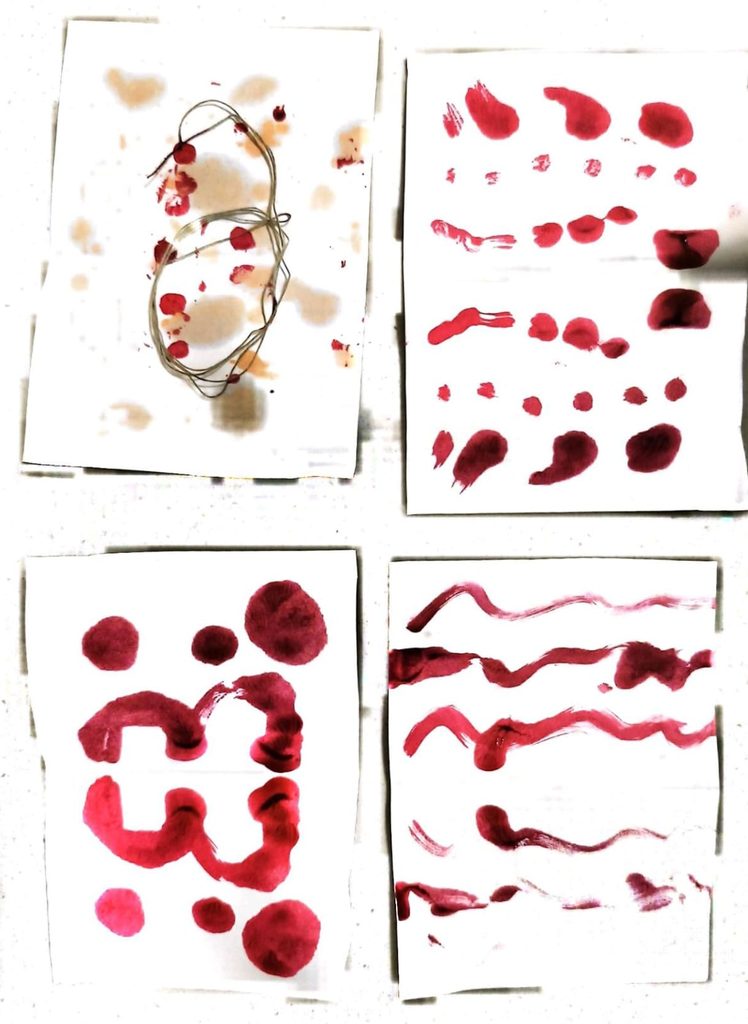
I wanted to experiment the Rorschach test for this assignment. My main objects were my lip stain, concealer a paper and a thread. The variables that I kept changing was the amount of pressure I applied to get the color on the paper. In the very initial trial, i used both the lip stain and a concealer and tapped very lightly on the paper. The lip stain worked very fine but the concealer left no color and only an oily stain. For the first trail I also had a thread laid out that I then pulled out to see if the color would flow across the paper. It did flow but it wasn’ t a very successful one. I then folded the paper in half and pressed it to get the final pattern. For the following ones I kept on trying with different angles of dropping the lip stain and with different hardness to see how it looked and then after each experiment I folded the paper in half for the final result.

Assignment 4

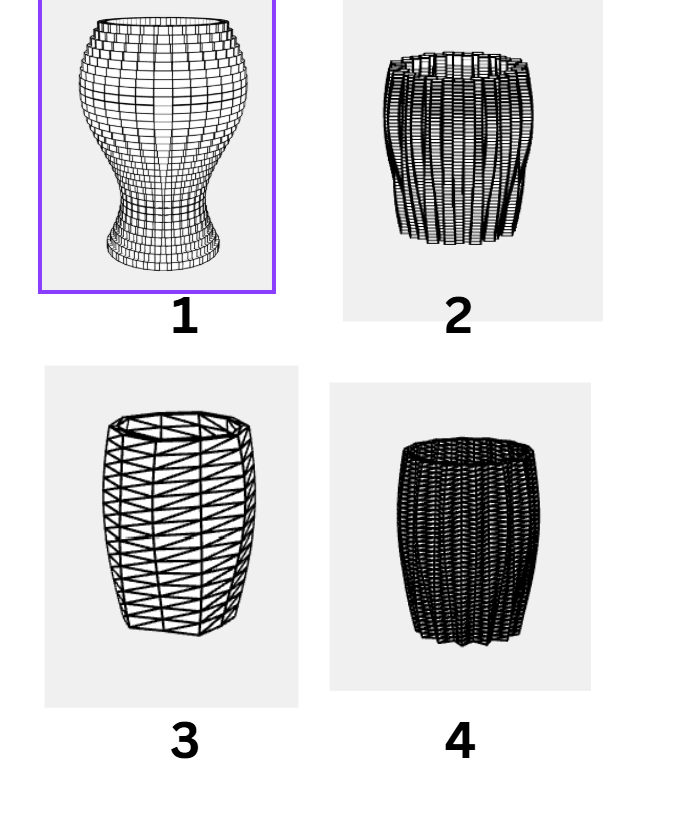
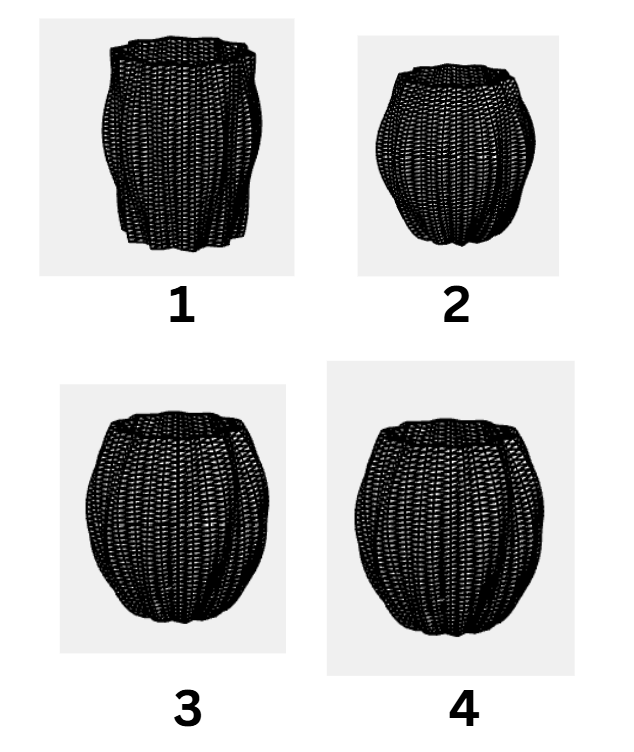
For this assignment, I played off with the ways WEBGL can make different cylindrical shapes with waves, twists and barrel-like structures. I started off with changing each and every one of the variables from the code that we had done in class. But the variable that worked the most was deleting the theta offset.

let outer = [], inner = [];
  for (let i = 0; i <= N; i++) {
    let theta = map(i, 0, N, 0, 360);
    let r = profile(v) + sin(K * theta + twist * v) * 2.2;
    let x = cos(theta), z = sin(theta);
    outer.push(createVector(r * x, y, r * z));
    let ri = r - wall;
    inner.push(createVector(ri * x, y, ri * z));
  }

The profile(V) function defines the radius of the shape at the very bottom and the top. The 3*(1-V) helps to pull in the radius by 3 units at the base and extruding it outwards at the top. The sin function helps in determining how many times the shape will pulsate by moving out and then coming back in. Or in other words that will give it a barrel shape

return 26 + 6 * sin(v * 160) - 3 * (1 - v);
function outerR(theta, v) {//for the ridges
  let r1 = sin(K * theta - twist * v);//twist clockwise
  let r2 = sin(K * theta + twist * v);//twist anticlockwise
  let weave = (r1 + r2) * 1.6;//put them together
  return profile(v) + weave;
}

To make the ridges twist, I again applied the sin function and added for the clockwise twist and subtracted for the anti clockwise twist. r1 and r2 are identical ridge patterns that twist in opposite directions as v increases. Summing them creates a weave look. 1.6 scales the depth of the weave texture.

The third image looks most different because I had decreased the scale depth and also tried changing the shape from box to triangles for smoother movements and curves. I figured the easiest way to draw the triangle would be by using the vertex function. In the build function, it draws each layer at a time. So what happens is that for every segment, it takes the previous point and the next point in terms of a and b and then sends it to the strip function. The function below draws the shape in the format of a triangle strip. and by giving each point a value of x, y and z. I took some help from this documentation on the p5.js reference page : Triangle Strip

function strip(a, b) {
  beginShape(TRIANGLE_STRIP);
  for (let i = 0; i <= N; i++) {
    vertex(a[i].x, a[i].y, a[i].z);
    vertex(b[i].x, b[i].y, b[i].z);
  }
  endShape();
}

I also wanted to test how it would look like if I only kept one of the rings. Doing that added alot of simplicity to the shape. I decided what if the radius of the shape increased till 36 in the middle to see how it would look. It looked the exact same with only the sin function and no matter how many large number I kept adding there wasnt much difference. So i decided to mulpiply the result with the power ranging from 0.4 to 0.9, just below 1. The best result that I liked was at power 0.6

let belly = pow(sin(v * 160), 0.6);
return 14 + 22 * belly;

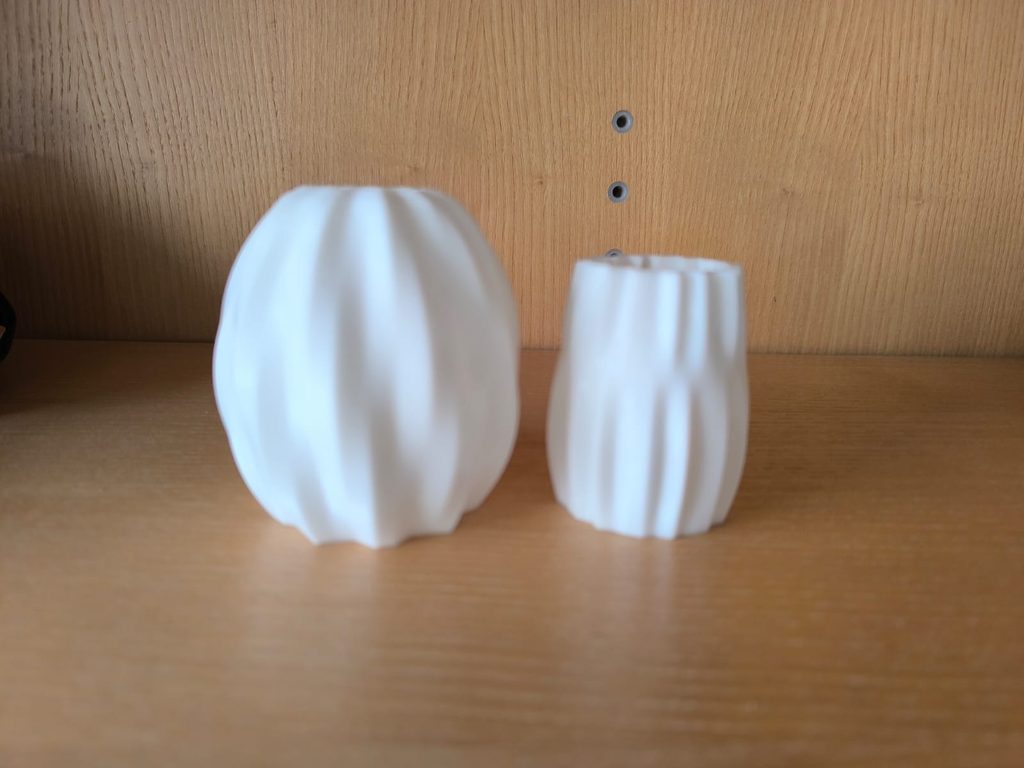
The rest of the code is pretty much the same. In the beginning I changed the shape of the object to a triangle so that the curves are a lot more smoother with getting the barrel kind of a shape. The below shows the different iterations and the final look after getting it printed.

Below are how the final prints look like:

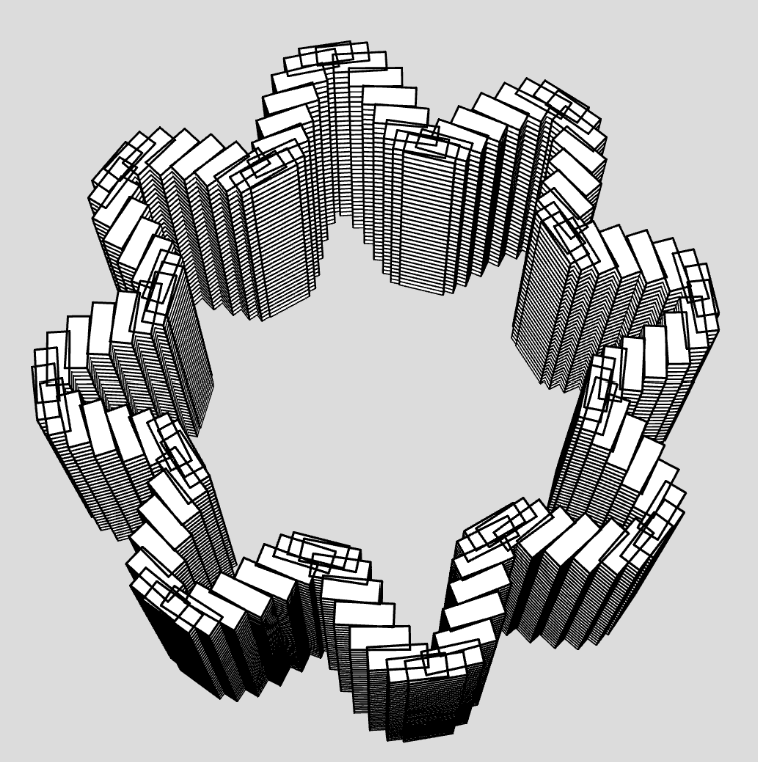
A very interesting thing that I noticed after I had downloaded the stl file and opened it in the Prusa for slicing is that the object was enormous. I wonder if this is because we have multiple layers, or if it is because of the box size that we initialize in p5.js for the drawing. But I’m glad that we have the option to scale the object down in Prusa and by doing so the prints came out all right.

I had initially planned to just have the above two objects as the final prints. (They also look very nice as my drom decor 🙂 ). But after Mondays class, I was wondering if I could make another one with the sin function in a shape of a flower. Not the map function because with the map the starting and ending points arent the same and the 3d printer wont be a big fan of that.

So I started off with having the y axis work in a very similar manner the way it was working for the above two prints. That is by building one layer at a time. The main changes that I made were in the x-axis where I added an angle variable that would rotate it around and the radius variable that would help it in getting the shape of the flower. This is very similar to what professor has taught us in class. And then it just drew it in the shape of the boxes.

function build() {
  for (let l = 0; l < layersNum; l++) {
    let y = map(l, 0, layersNum - 1, 0, 150);
    for (let i = 0; i < boxesNum; i++) {
      let angle = map(i, 0, boxesNum, 0, 360);
      let radius = map(sin(angle * 8), -1, 1, 100, 150); // flower logic
      push();
      rotateY(angle);
      translate(radius, y);
      box(10, 10, 25);
      pop();
    }
  }
}

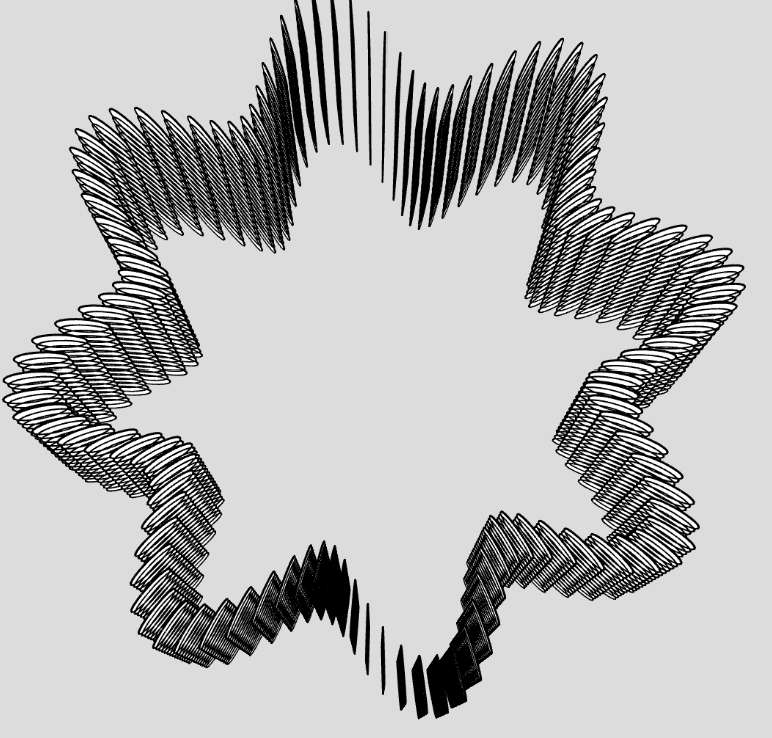
You see how in the above image since its made out of boxes, the curves aren’t very smooth, I wondered how it would look like if I changed it into ellipsoid. Very interestingly, it drew it from up to down with the layers not joined together. I wonder if it is because I was using the function in the wrong manner or the way the for loop was running. Because when I saw how its been drawn, I did start to doubt my own understanding of how these for loops build the figure.

Assignment 3-Pulsating curves

Inspiration and initial idea

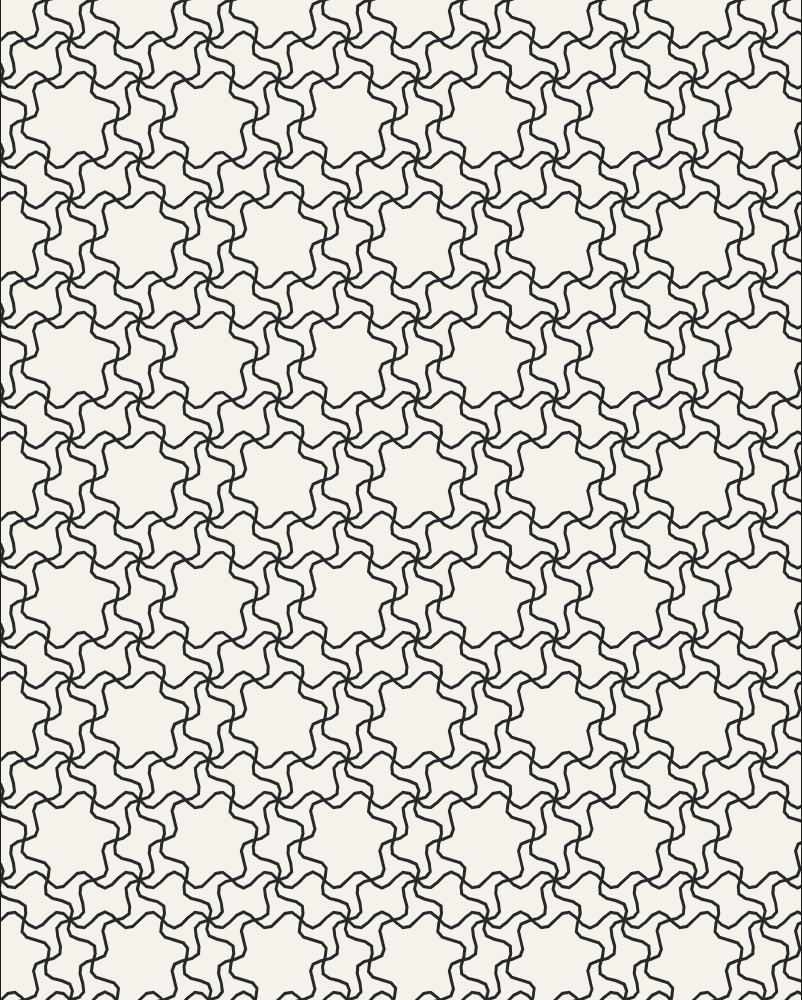
I took my initial inspiration from the image below. Some people classify it as the Moroccan geometric pattern while others consider it within the category of Islamic geometric pattern.

P5.js sketch

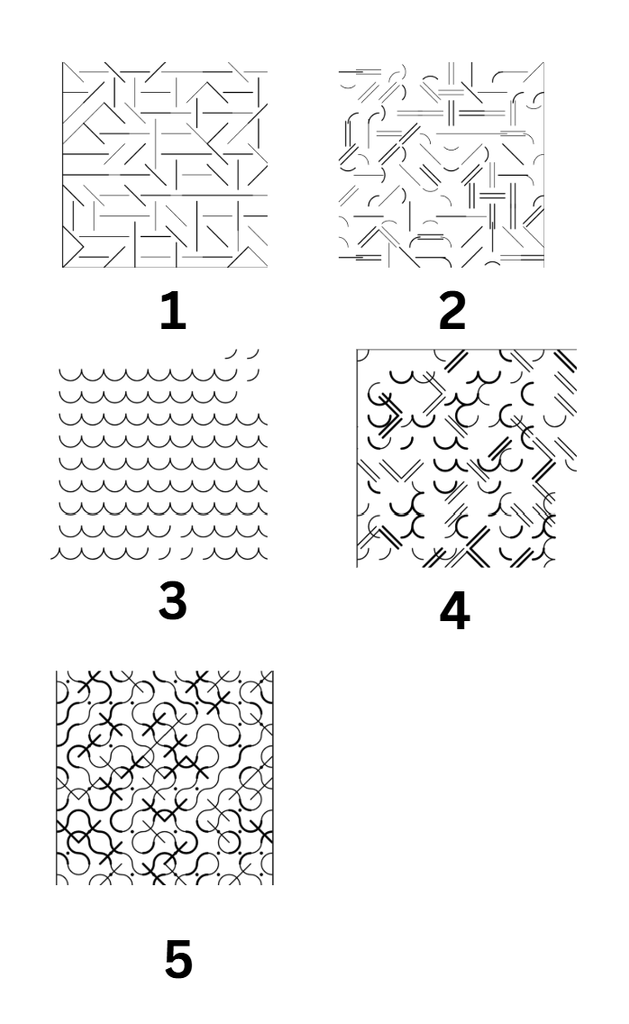
I started off by first playing with the angles on the lines by randomizing them and seeing how they looked. then I added some arcs with the lines and double lines at different stroke weights. I tried to see how it would all look in the case where I only added the arcs and then used that with the lines to make some kind of very random patterns. At this point I attached put all of the next to each other so that they make a random grid and then added lines and dots at random places to add some more diversity.

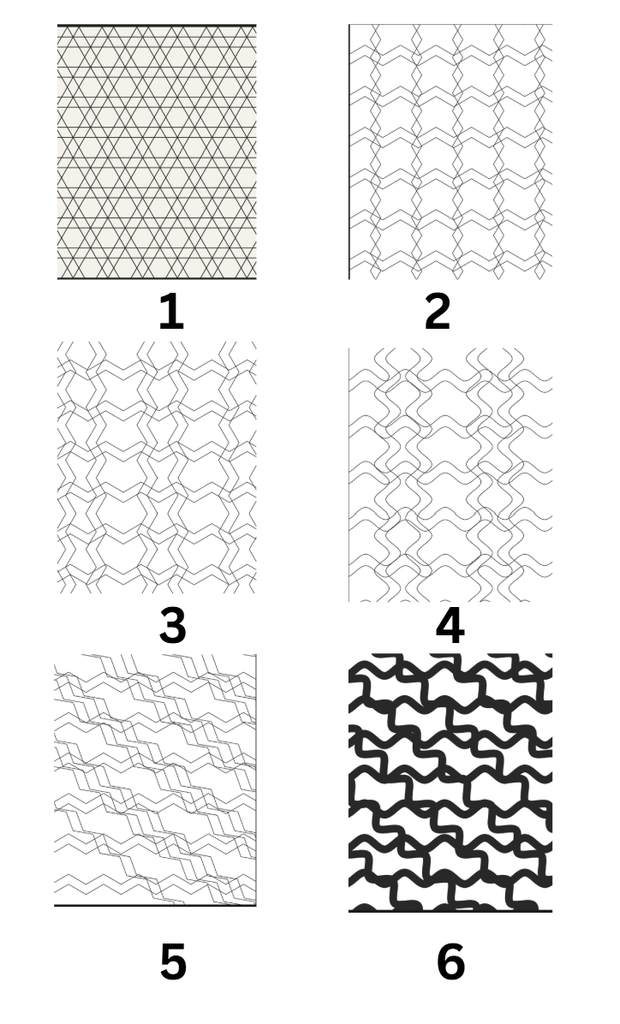
Now I decided what if I removed the element of randomness from my code and experiment with zigzag lines since that is the main element from my inspiration. In the very first image, you can see how there are horizontal lines and then lines going diagonal. This was achieved by drawing a repeating grid of 6-pointed starts. The code first figured the spacing between the star center (hexW, hexH) using hexagon geometry, hen it just looped through the columns and rows by placing the hexagon star at the middle. Every other row, it shifts a little sideways so that it looks like an interlocked honeycomb. The Drawstar() function drew the star by overlapping two triangles and rotating the second one at 60 degrees.

Since I wanted the lines to be zigzag on their own, I used the cos and sin function to make them wave line. If you look closely one verticle line faces left while the next one faces right. I was able to achieve this by using a vector direction concept. So whatever way the prev line was facing the next line would be multiplied by -1. The second one the very next line the direction concept was applied to, while since I was drawing double lines, I wanted the next two lines to be in the opposite direction. This was very had to achieve, because if I am using the if statement, how do I make it work on the every third and fourth line only. I was able to resolve this by using another variable that kept track of it and updated accordingly with the space between two lines. In the fourth trial, I tried making the zigzag lines into the curves by adding a new function that stored all of the points in an array first and then applied Bezier curve to it. In my inspiration the curved lines are going diagonal. In the first trail this was easy to achieve because the zigzag and curve logic wasn’t being applied. But now I played with angles and the starting point of the vertical lines. By making them to start drawing before the x axis, I got the diagonal curved lines. I tried playing with the stroke Weight here and removed the double line concept to see how it works. I think this was pretty successful.

Finally, I combined this logic of zigzag diagonal lines into the very first trail where the lines were been drawn to make the hexagon. And the below is the final result.

You can see all of the codes here: p5.js Web Editor | trunchet tiles

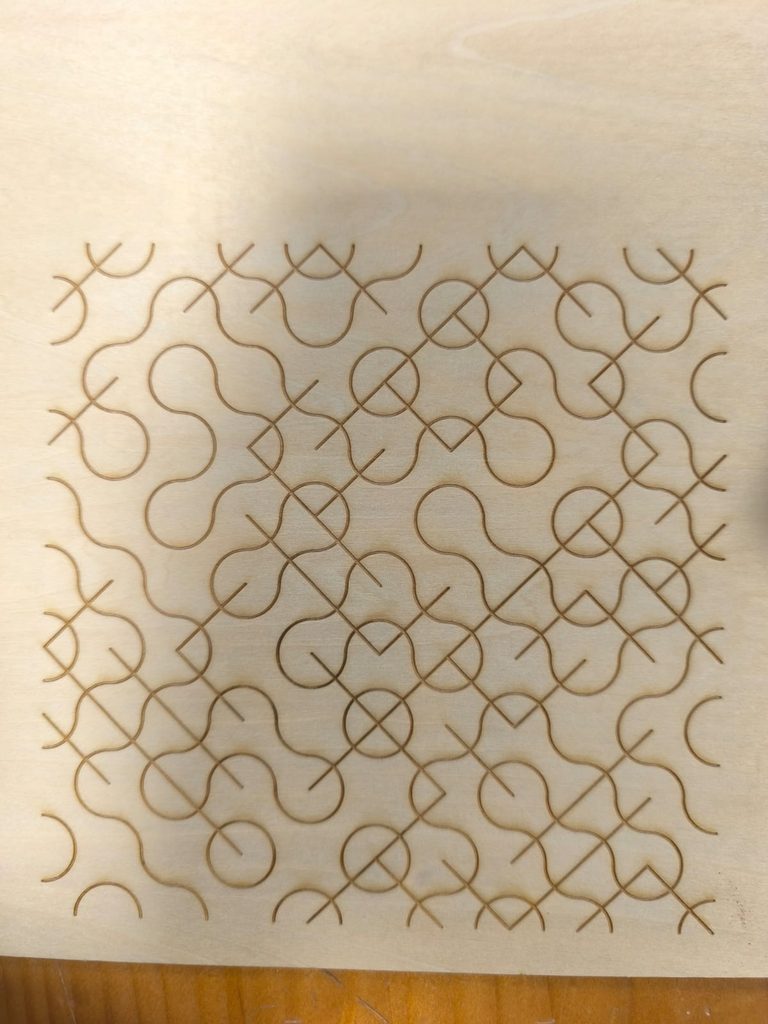
Laser cut

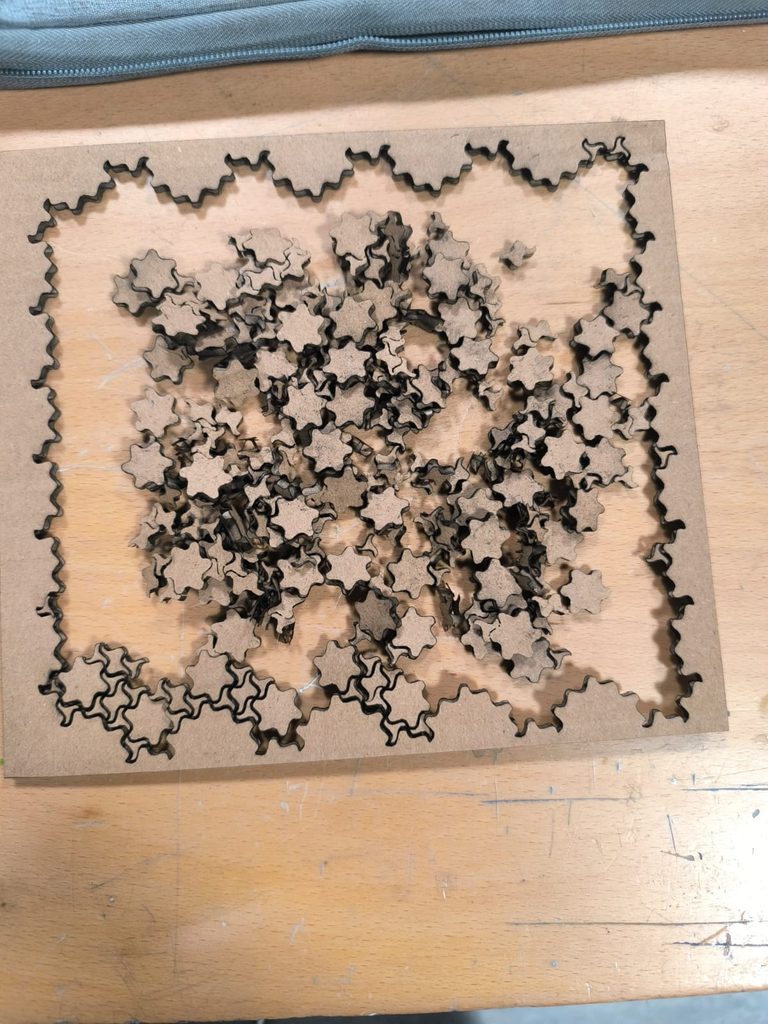
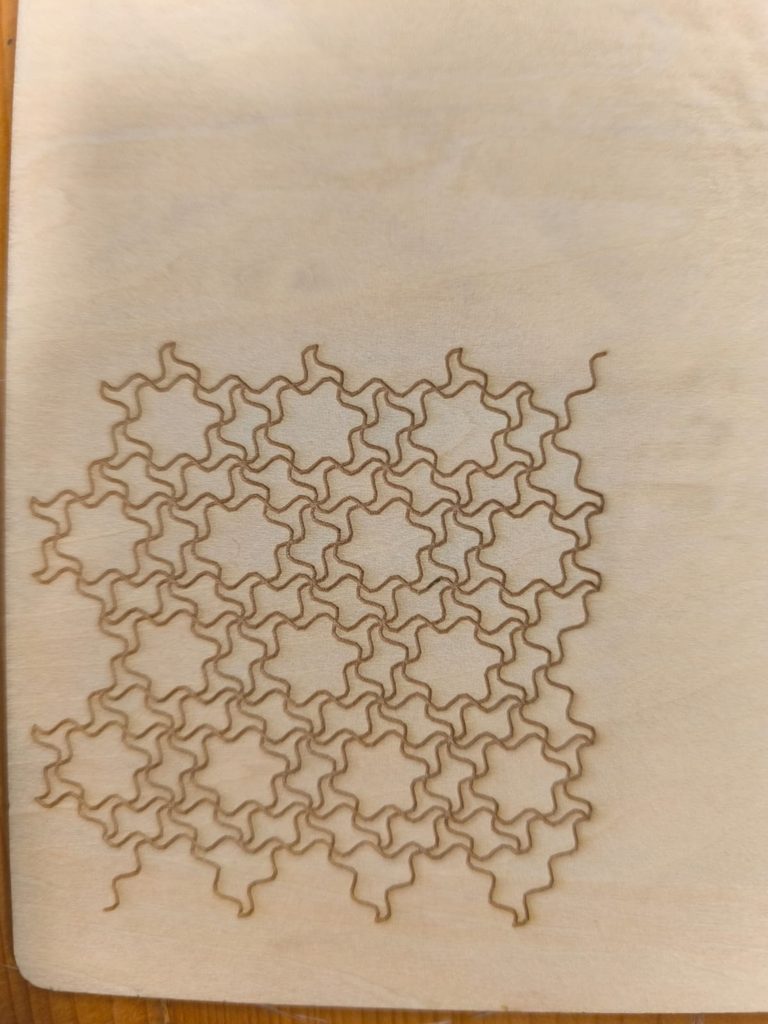
For the very first laser cut of the above image, the laser cut through it completely which resulted in the small pieces falling off. So, for the next two laser cuts that I did, instead of having the laser cut through it completely, it engraved the piece.