Week 8: Mobile Robot Research (Hubert & Marcos)

A. What the machine is and how it draws

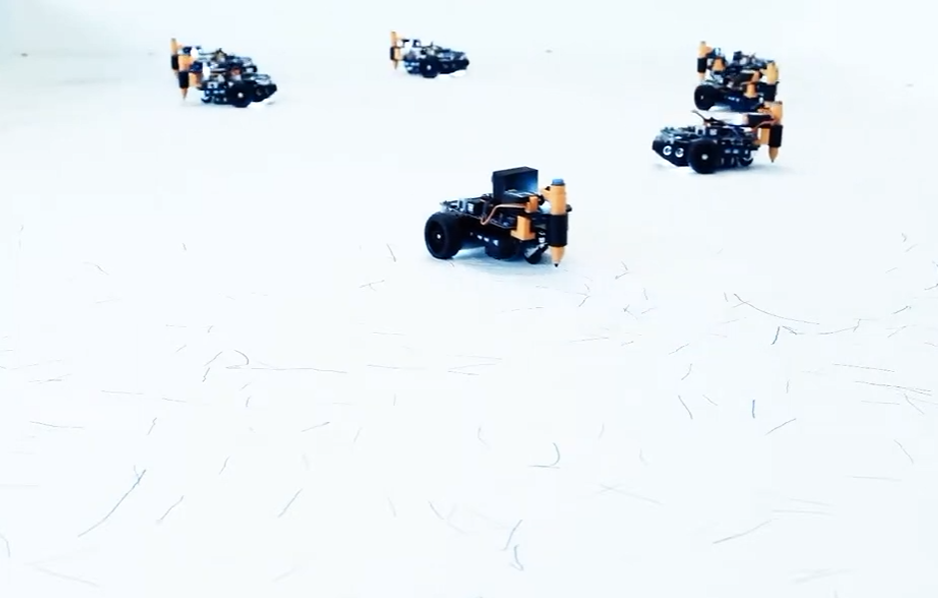
The category of robots we decided to research was mobile drawing robots. We started by taking a look at the given example, “Bebot”, created by Leonel Moura. This category of robots is essentially small scale robots with wheels that kind of resemble a remote control car; they usually have some type of brush or pen attached to them that can trace the ground beneath them.

Many of the robots in this category were mobile with omni-directional wheels. That is, it can move in any direction despite the number of wheels it has. In fact, we found many people selling kits for this type of robot. Here’s an example of a mobile drawing robot we found online being sold by Nexus robots.
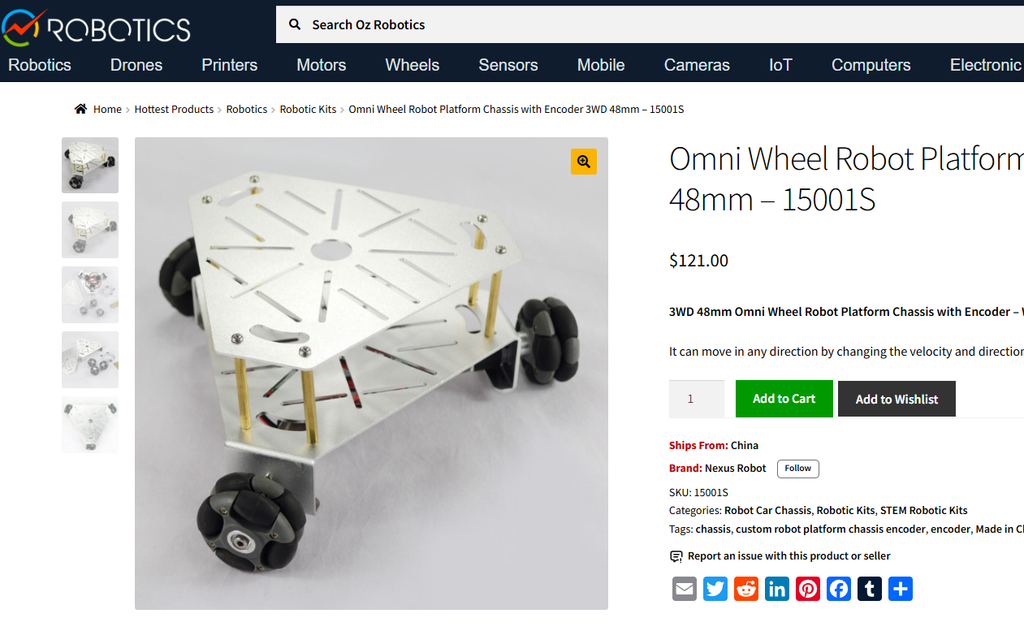
Figure 1.

B. What makes its approach to drawing interesting

This approach could make drawing more interesting by creating patterns shaped by the movement of omni wheels and input from various sensors. At first, we might imagine that such a machine could produce only simple lines connecting one point to another, or endless circles drawn in either direction.

However, our research suggests that a device like this can draw with some degree of precision while also allowing us to introduce an element of randomness. A mobile drawing machine could therefore produce interesting results by attempting to follow a specific drawing path while introducing unexpected variations along the way. Alternatively, we could make its movements entirely random and explore the patterns that emerge from the erratic movement.

And although we thought the function of an omni wheel was really impressive—it might’ve almost been a bit too perfect. We thought about “Bebot” by Leonel Moura and we thought there was a certain expression in its limited mobility with just three non-omnidirectional wheels. The full robot would have to turn in order to change which direction it wanted to draw. There is a fun layer of expression in its limitation.

C. The essential mechanical, electronic, and software components needed to build it

When it comes to materials, here’s what we were guessing a project would need:

  • Arduino Uno or equivalent.
  • Board to solder the cables to.
  • Cables (the ones used to connect and solder).
  • Three 3D-printed omni wheels.
  • At least two 3D-printed bases that we need to design on our own.
  • Portable Batteries.
  • Screws to connect the pieces.
  • Three servo motors to connect to the 3D omni wheels.
  • At least 3 pens or markers to draw.
  • Probably other pieces that we are not sure.

We were thinking that if we were to build our own mobile robot later on, we were envisioning using some pre-done 3D-printed assets since we are not expert enough to design these in our own.

Browsing on the internet, we found some websites that can help with this, such as the following website: https://www.yeggi.com/q/omni+wheel/ 
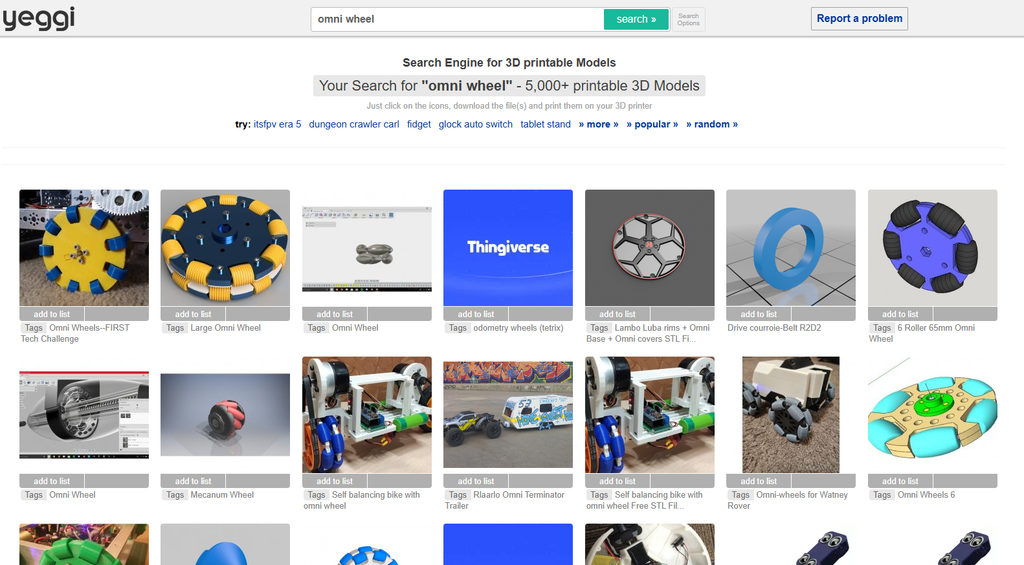
Figure 2. The results that appear when searching for 3D-printed omni wheels.

For the base, Figure 1 shows several custom shapes, although we expect to design our own. We will probably use Tinkercad or another design program for this.

Regarding the software, our research suggests two possible approaches: using a workflow similar to that of a pen plotter or writing custom code for an Arduino. Neither approach appears to require highly specialized software beyond the tools we already use. The software we choose will depend on our final approach.

D. Examples of drawings

From the videos we explored, it appears that this mobile drawing robot can mimic the drawings of a pen plot, that is, it can draw with the precision of one. Check the following video from Thanos Eleftherakos for an example:

However, we are not searching to create another pen plotter that can draw with a lot of precision. We are mostly looking for a machine that can produce erratic results. Such as the following videos and images:

Video by Amy Poehler’s Smart Girls.

Video by scanlime.
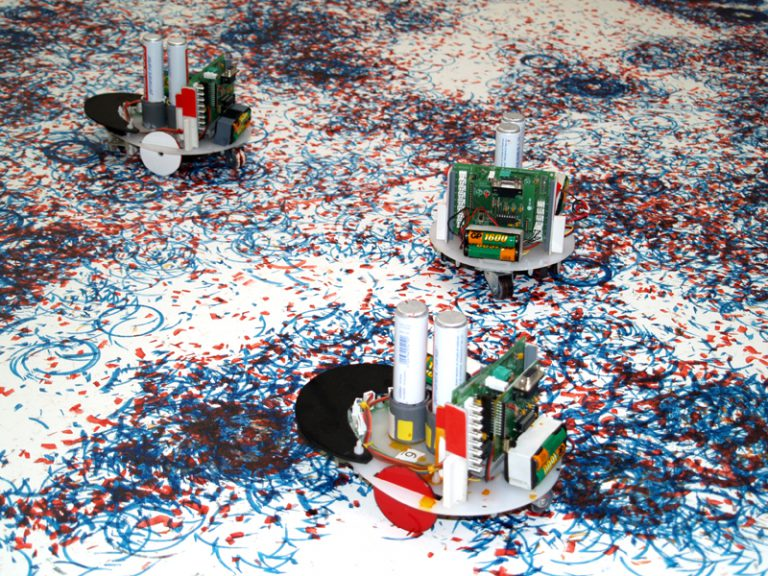
Figure 3. Artsbot-2003 by Henrique Garcia Pereira, Vitorino Ramos and Idmind.

E. Relevant references, projects, or artists/designers who have explored similar systems

One of the first projects we came across in this category of drawing robots was by user “lingib” on the Autodesk Instructables website. This was simply titled “Omni Wheel CNC Plotter V2” and

https://www.instructables.com/Omni-Wheel-CNC-Plotter-V2

Another project we found was called “The Butterfly-Infinity Plotter” by Basil Abraham. It seems like this one was a final project for some coursework. It’s very well documented. They also use the same omniwheel piece as the previous designer.

https://fabacademy.org/2024/labs/kochi/students/basil-abraham/project.html
Week 6: Creating Retro with Code (Midterm)

Concept: 

The primary concept at play here is the idea of creating 70s retro-inspired designs with an exclusively modern system—including an element of chance to the mix.

My motivating drive for this concept was because this game I’m developing right now with my friends involves combining Frank Baum’s “The Wizard of Oz” novel with the setting of a cyberpunk world. I wanted to play with this theme of a vision of the future using material from the past.

Brainstorming: My Original Concept

I originally wanted to visualize the feeling of a strong, lingering sense of emptiness within—a common symptom of depression. I’ve spent the past year writing a fictional story about navigating depression, much of it reflecting my own lived experiences. To say the least, depression is a very personally important topic for me. I spent a good while pondering how I could best convey that—and one of the themes I found very conceptually intriguing was visually representing a “void.” To create the “void” within my drawing I originally wanted to use an old circular candle dust cover I had lying around; the idea would be to place it on the paper the pen plotter was working on. I initially retired this idea sinceI didn’t want to risk damaging the machine in any way but then I thought this physical barrier would add an extra dimension to the drawing process by actively hindering it. I thought that— afterall, this physical barrier is sure to cause a disruption—much like how symptoms of depression disrupt your day-to-day life. I went online and searched for PHQ9 textual responses and created a left-to-right gradient.

I ended up scrapping this completely because the candle dust cover obstruction thing wasn’t working as I expected, and I was overall just unhappy with the visual result. 

Process: Designing on p5

Learning from my mistake during the laser cutting assignment, I made sure to include a noLoop() to make sure the vector only has one layer on export. I don’t know if that truly made any difference this time around but better to be safe than sorry.

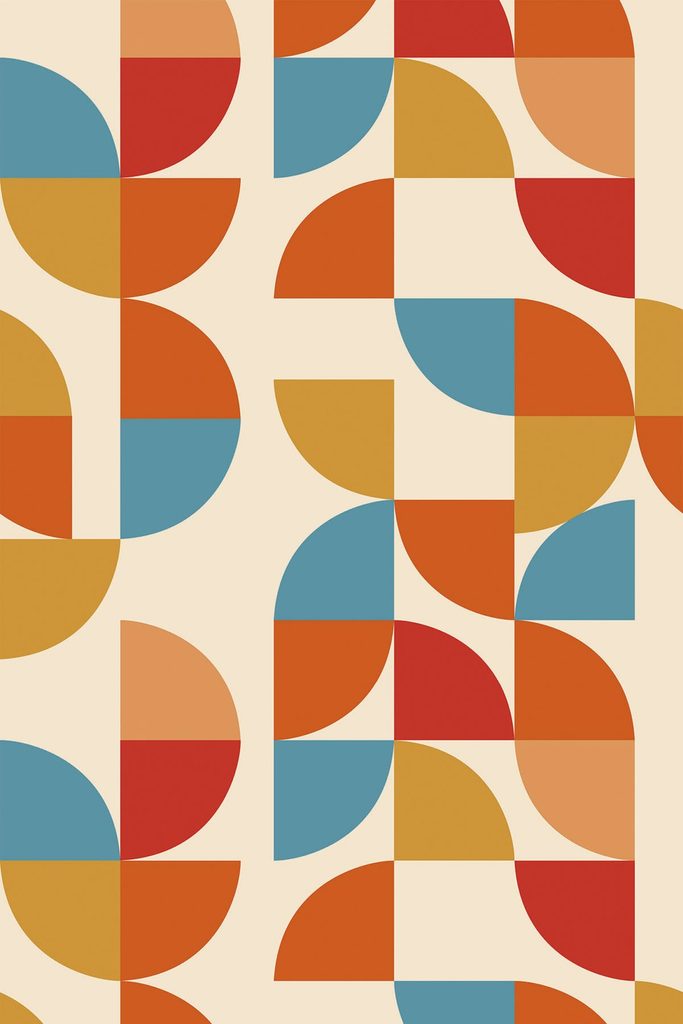
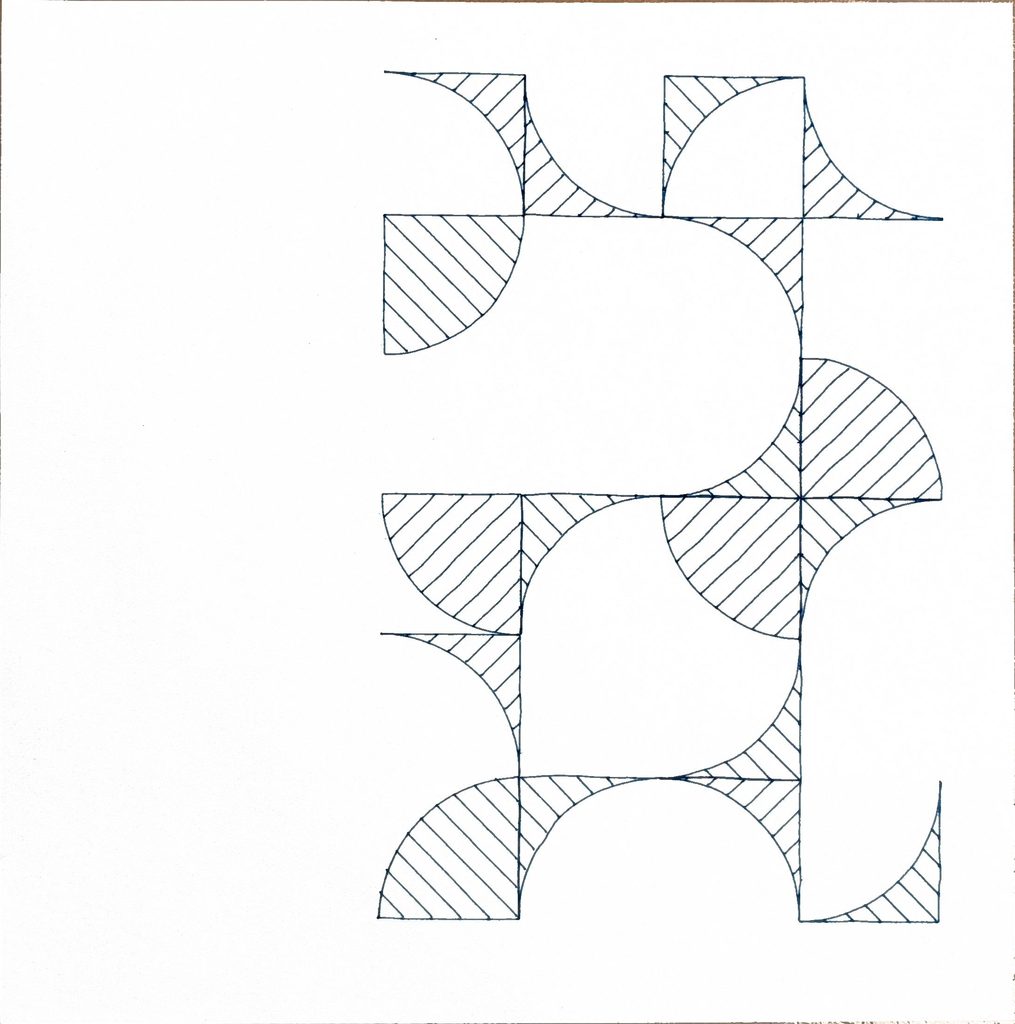
The particular design language I was referencing is very Bauhaus-like. This is an example here of a design that featured a tile-like pattern I can recreate. 

Bauhaus Retro Design I found on Pintrest

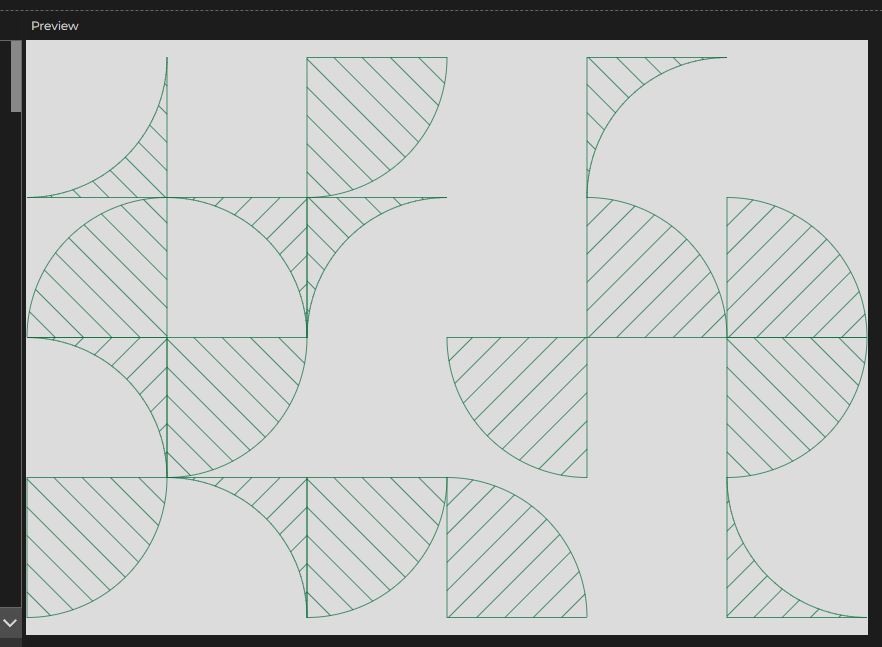
Originally I didn’t set the chance of each tile being a repeat of the previous orientation, or even the chance of it being empty. After the first few tests I recognized that I should manipulate the odds a little bit to make it look more interesting. I’m quite proud of how it turned out.

I must say, during this process where I was refreshing the generation to find something that looked aesthetically pleasing, I found it very amusing. I thought to myself this must be what self-proclaimed “AI artists” do all day with their midjourney-equivalent generative AI services—they just sit there and press restart until the computer poofs up something fun. 

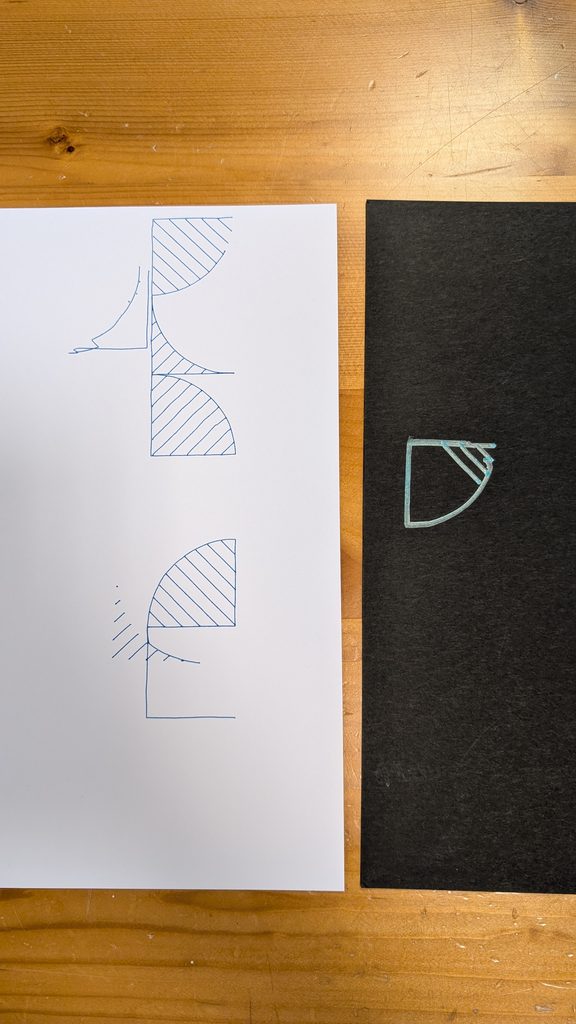
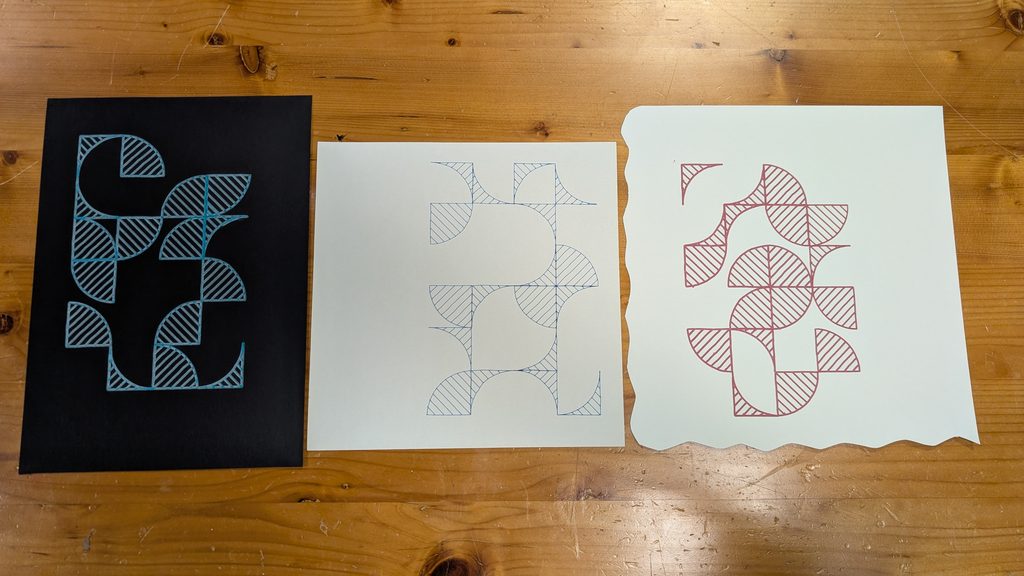
After receiving feedback from Professor Jack on Wednesday, I realized that I need to make the design more my own rather than just simply recreating it. I asked myself how I could make this design more interesting and I landed on creating another potential shape that could be included in the tile system. The second shape would be the inverse of the quarter circle shape—basically a square with the quarter circle cut out. You can see an example here:

Process: Pen Plotter

This step of the process was incredibly challenging because I continuously faced a “Connection Closed” error. This connection error seems to have meant the Arduino serial connection was severed somehow. It would usually happen around 3-4 minutes into the pen plotting process and reconnecting the Arduino would make the G-Code sender freeze and reset. Originally I suspected that perhaps my G-code file was too overwhelming in its size so I tried a different design with just the word ‘HELLO!” but it crashed before it even finished the letter E.

I tried isolating the issue by having Mariam plug in her Macbook into our pen plotter (successful) and having my Macbook plugged into Professor Jack’s pen plotter (unsuccessful); I also saw Marcos use the pen plotter just fine with his laptop so the only conclusion to make here was that it was something specific to my Macbook. I eventually figured out the USB-A dongle converter I borrowed from the IM lab was unstable and it worked perfectly when I used my own USB hub.

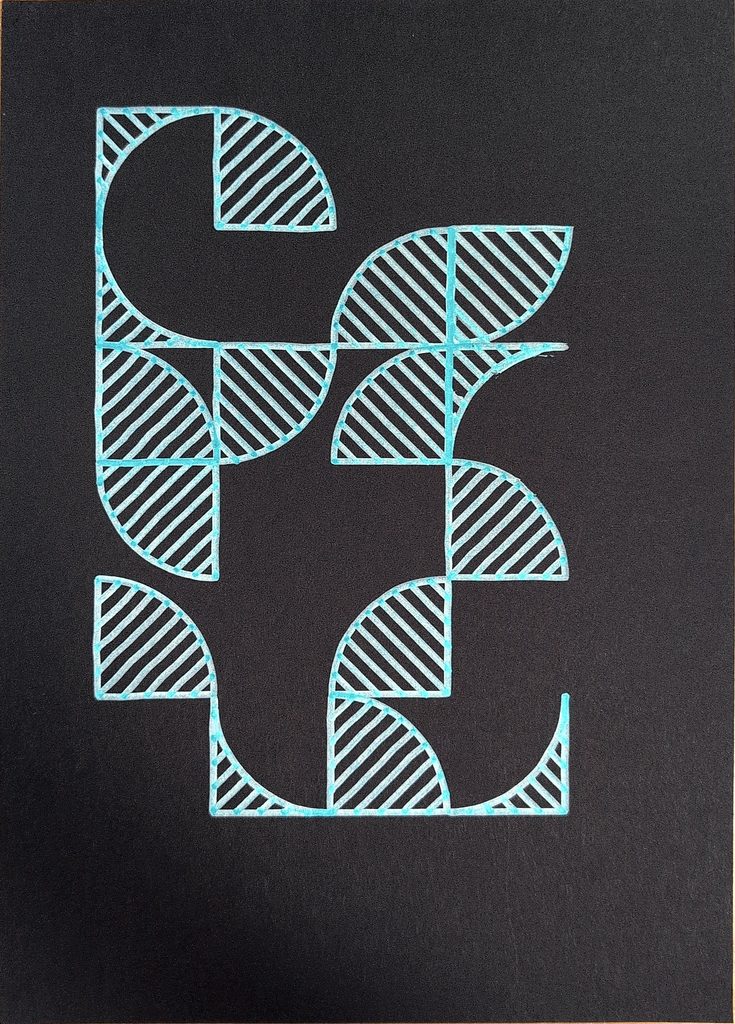
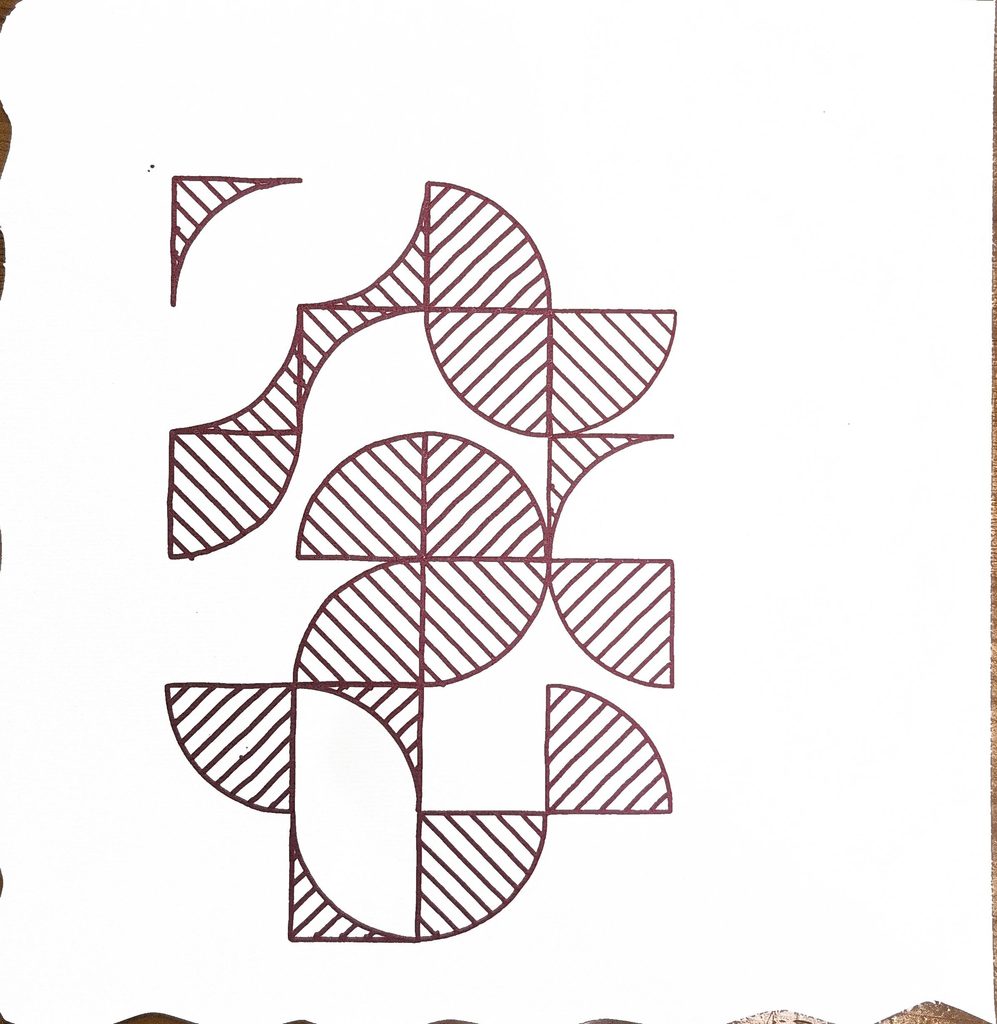
I think the final result turned out really great! Don’t think the photos capture it that great but I actually like them so much I’ve hung them up on my dorm wall.

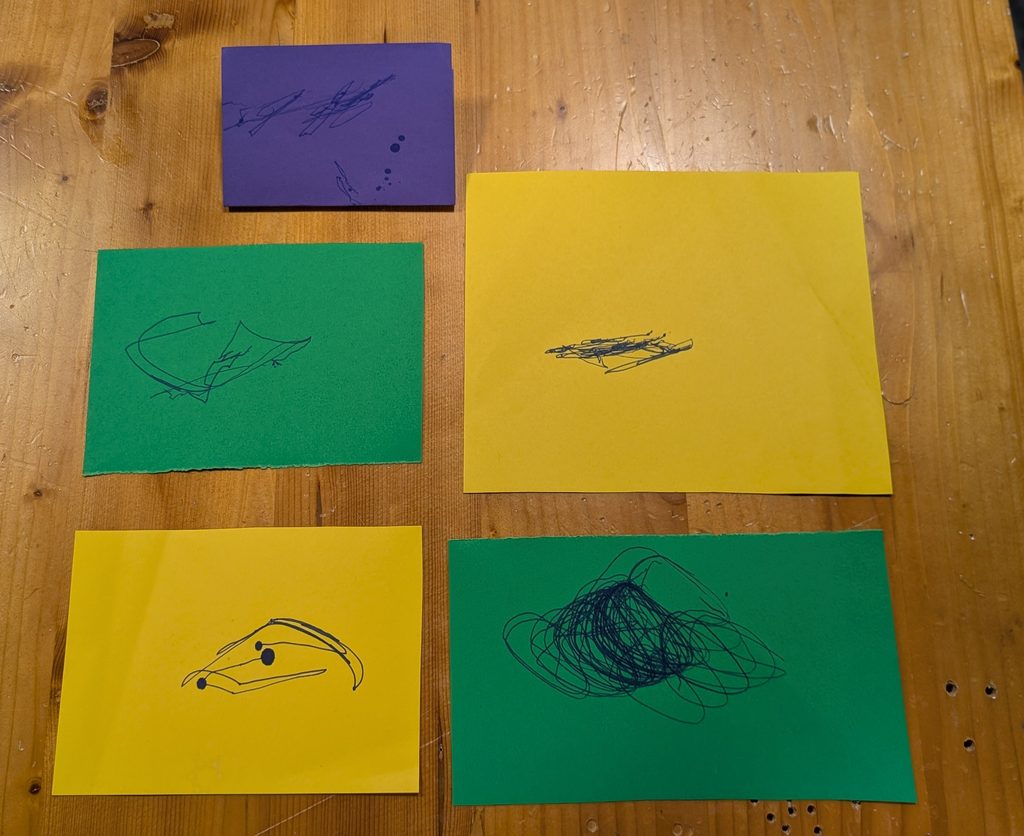
These were some of the experimental pieces I did; unfortunately I threw the rest away on Wednesday because I didn’t think to keep it for documentation.

I also want to recognize Marcos for being incredibly helpful in this process. 

https://editor.p5js.org/hc4127/full/zzTRoqjou

Week 4: 3D-Printed Fidget Toy

Concept

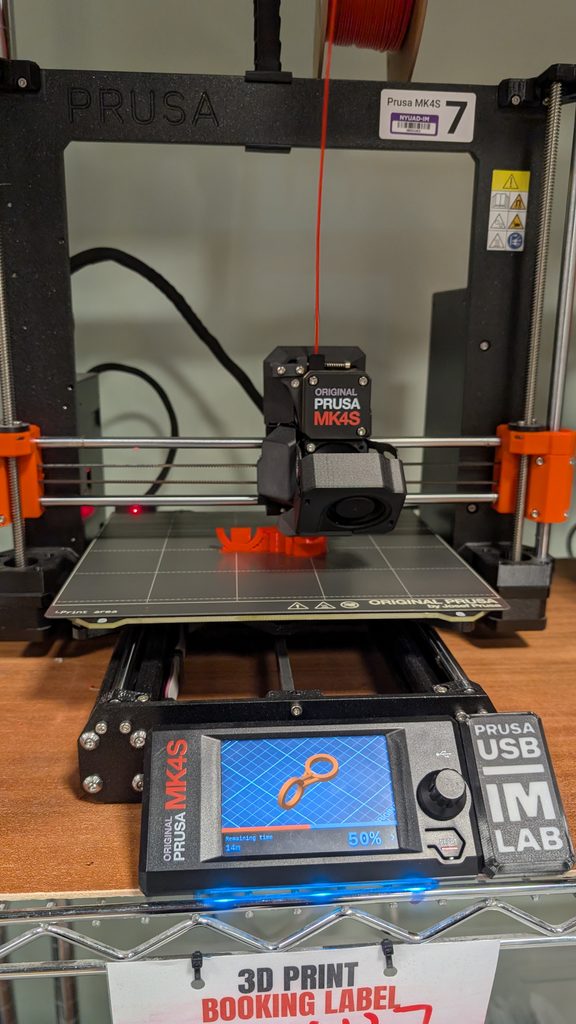
This is my first proper time designing something for the purpose of 3D printing, so I wanted to make something relatively simple. I forgot my little fidget toys when I was packing for this semester so they’re currently underutilized back home and my hands are currently understimulated here. I have a preference for making things I would actually utilize so why not use this opportunity to make my own fidget toy?

The concept I eventually landed on was a fidget toy with no moving parts; this led me to think about what type of play factors I can make without any moving parts. It would just be something I could twirl around using my fingers. 

Process and challenges

I didn’t have a good grasp of scale when I was designing in p5 but what mattered for now was that I understood the relative size of each segment compared to the others. 

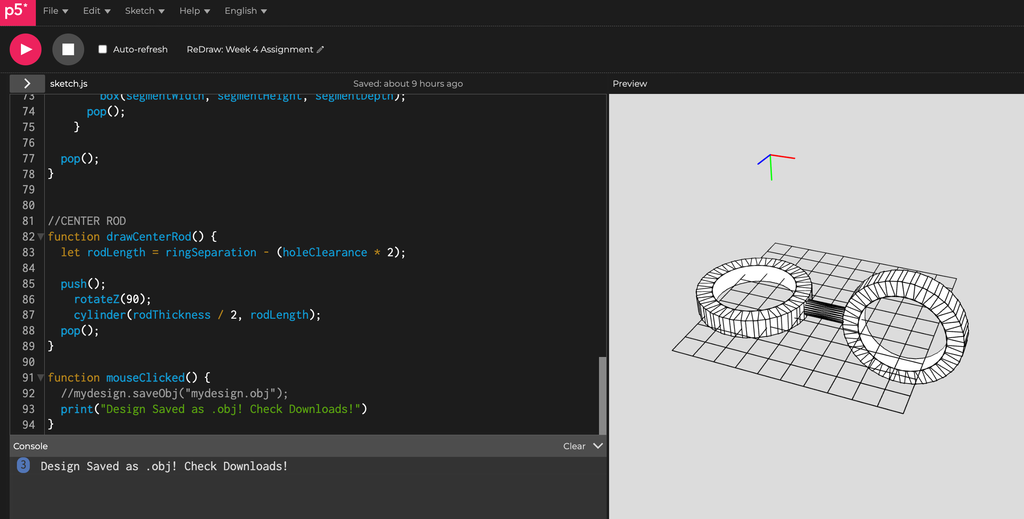
I started the design process with a for loop to create the ring just like the one I made during class time, then I created a cylinder to connect the two.

Originally I only had one singular cylinder connecting the two rings; I wanted to make sure that there were no parts that would potentially snap under pressure. This is what it looked like earlier on.

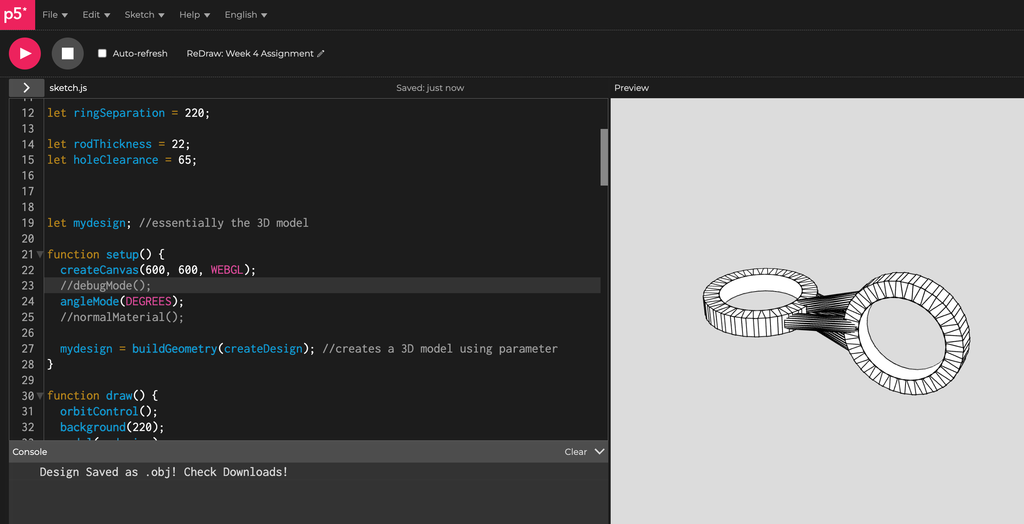
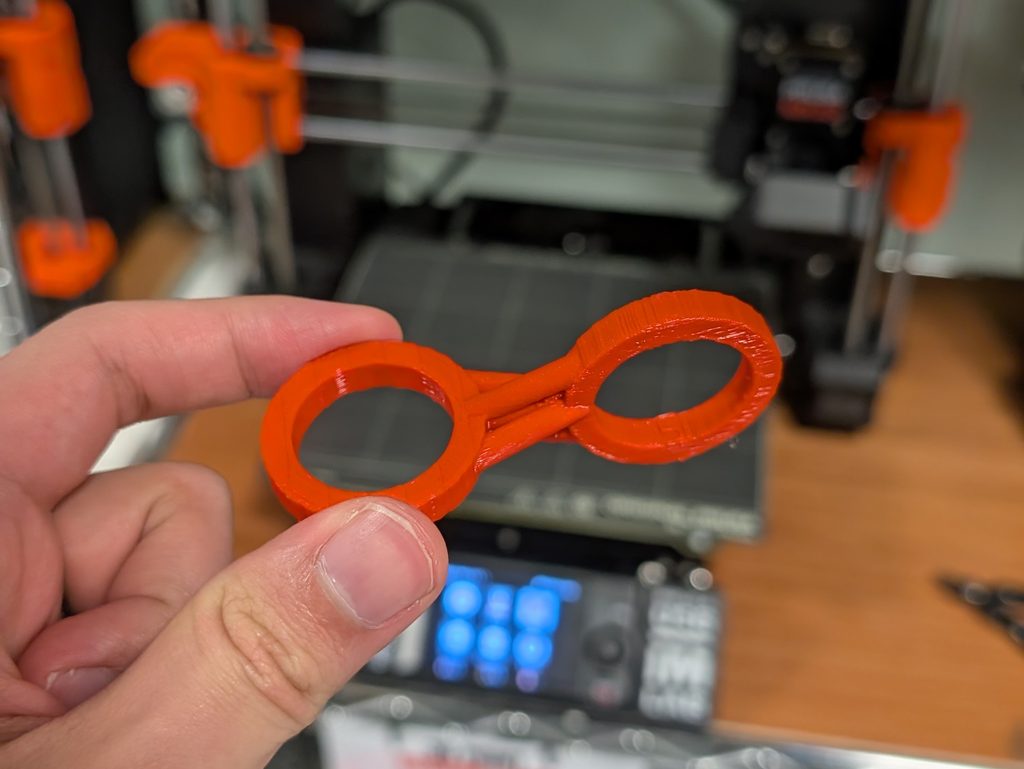
However, even if the durability wasn’t a concern I just thought the model looked like it was missing something. I didn’t want to complicate the design too much but I did want to make it more structurally sound. This led me to come up with the design I have now; afterall, triangles are the sturdiest support structure.

When I loaded up Prusa I still had a little bit of doubt regarding what size it should be. I only really figured out what size it should be when I referenced the grids on the 3D printer compared to the software preview.

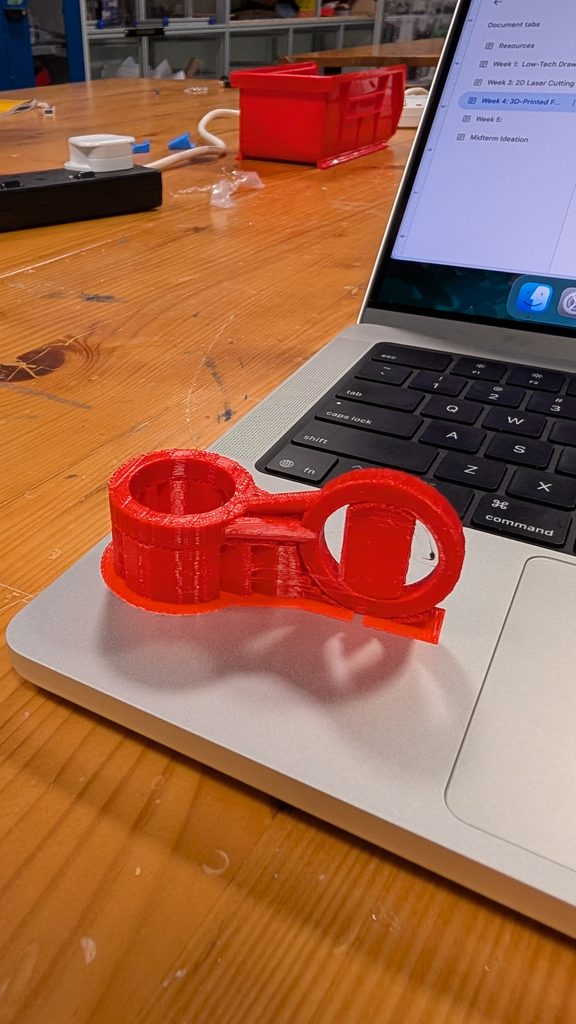
Since my design was a bit unorthodox and lacked a base, the IM assistants were a little concerned whether it would print properly but choosing “Everything” for the supports ended up working great.

On the p5 side, Marcos advised me to set up my system with multiple functions and saving it in a variable “mydesign”, then create “mydesign” with buildgeometry().

Photos of Final Print

Reflection on how 3D printing changed or shaped your computational design

Since I was designing what’s essentially a toy, as opposed to an object designed for display, the design itself would have to be structurally sound to sustain continued touch and usage. I also had to consider the weight of the ring so it would have some momentum when I spun it.

It was a bit intimidating at first to design a 3D model using p5.js but I actually quite enjoyed the process. It was a very different thought process from designing on blender.

Week 3: Laser Cut Chun Lian

https://editor.p5js.org/hc4127/full/X_kBemr2d: Week 3: Laser Cut Chun Lian

Concept

So in Taiwanese/Han culture we welcome the Lunar New Year with “chun lian”, long pieces of bright red paper, on our door frames. I believe they’re officially called spring festival couplets in English but I’ve never called them that before; their purpose is to ward off misfortune and bring in good vibes for the upcoming year. 

We write short poems/sayings on these long rectangular pieces of red paper with black or gold ink and usually put one or two next to our doors; however, there’s a few characters that we write on squares by themselves as well. 

So ever since I moved out, I’ve forgotten to buy chunlian for the new year 3 years in a row. For this week I decided to create a laser-cut chunlian by myself; this way when Lunar New Year approaches, I’ll have a physical reminder to buy some chunlian this year and in the worst case scenario I’ll still have this.

Vector Design

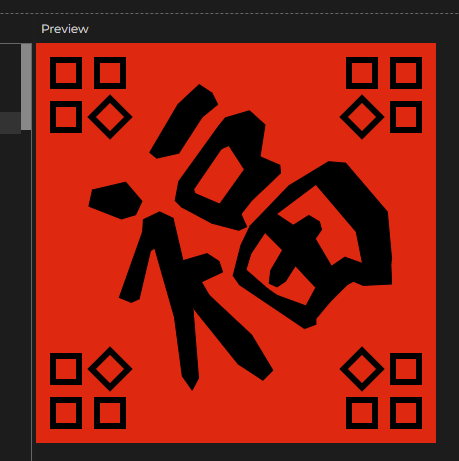
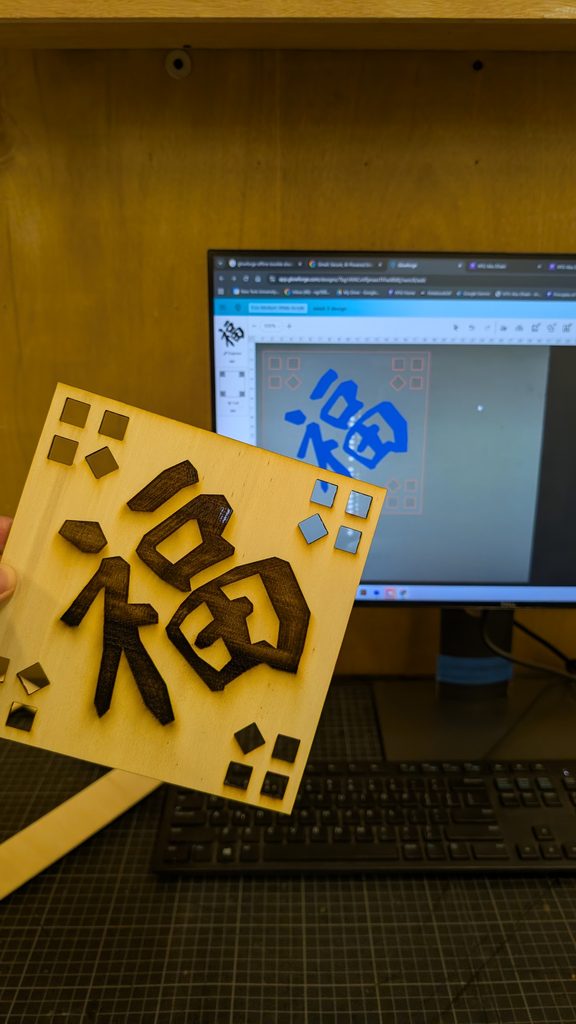
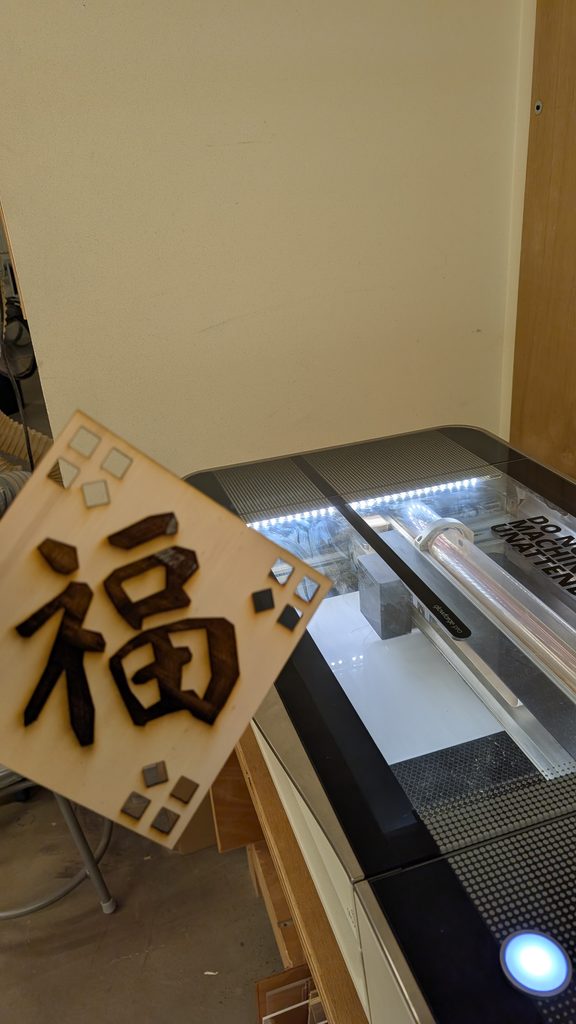
The specific character I wanted to create was 福, which signifies fortune and wellbeing. I think my life’s been lacking in the fortune and wellbeing department recently because of three continuous years of forgetting to ward off the bad spirits. 

You can find my code in the embed sketch I attached; I don’t want to take up all the space here.

Final Design with the red background for contrast

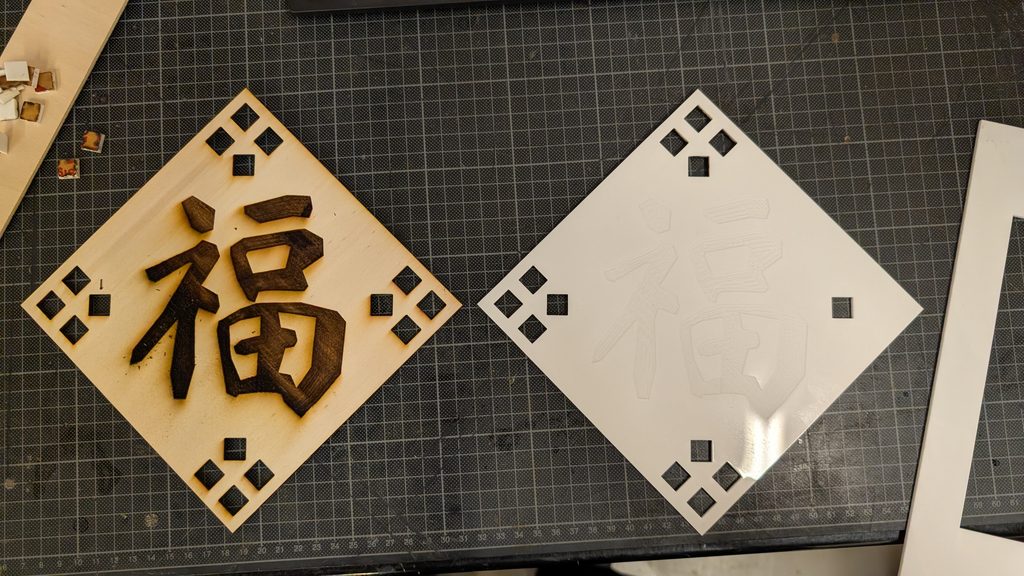
Photos of Final Fabricated Result

The acrylic one didn’t turn out very legible

Process and challenges

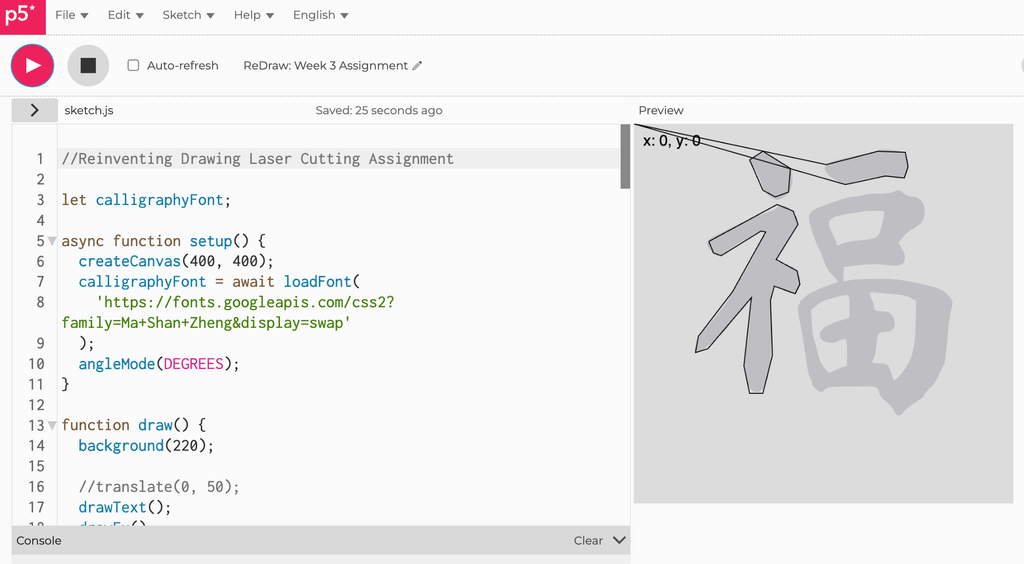
So I knew this was going to be rather difficult even before I started but Chinese calligraphy is pretty hard to recreate using vector points. It was a bit frustrating to just draw it by memory I had a nice idea to load up a real calligraphy font with the text() function to put 福 there. I would then display the mouse position coordinates to draw using the beginShape() function.

Matching Mouse Coordinates to the point I wanted to draw

Once I had the character there in the center, I could decorate the negative space around it. While I was thinking of how to decorate it, I was inspired by the draggable windows file explorer handle on the bottom right corner. That’s how I got the ideas for the corner designs.

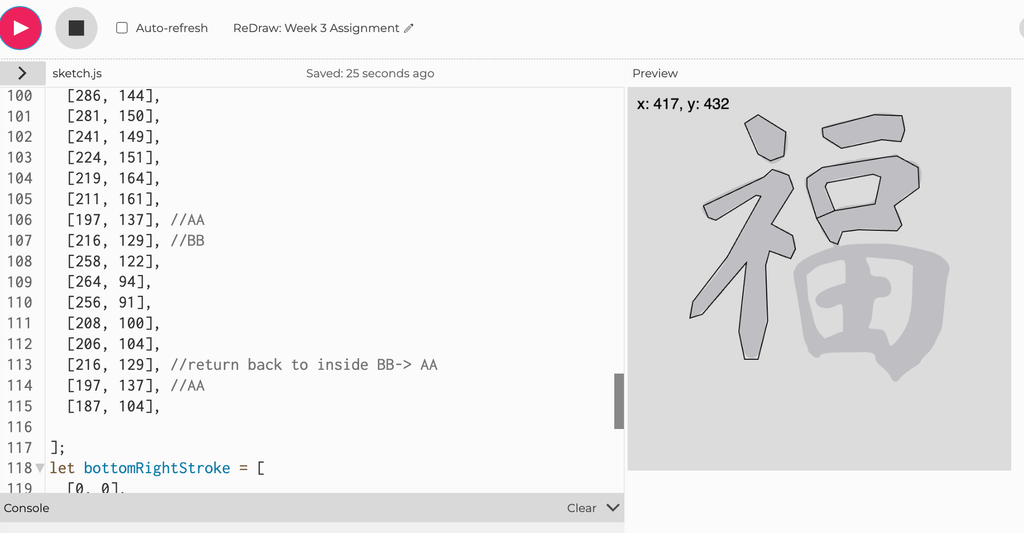
When I started doing the vector for the 口 (kǒu) stroke on the right hand side, I realized I’m going to have to do something tricky by “weaving” the vector outline inside the character because the character has negative space inside. I did the same thing again for 田 (tián) but thankfully in calligraphy form there’s only two “gaps” for me to weave in and out of.

A glimpse of the array for the 口 (kǒu) part, where I had to weave the line in to keep it all one shape.

Reflection on how laser fabrication shaped my computational design.

I was initially wary of the precision the laser cutting was capable of but I was told by my peers that they were surprised by how accurate and intricate the laser cutter was. However, a difficulty that remained for me was getting the character to look “flowy” like it was written using a calligraphy brush; I thought perhaps changing my function to use splineVertex() instead of vertex() would approach the effect I desired but it just looked kinda off.

So as you can see, I ended up sticking with the hard vertices I started with, I think there’s a unique quality to it being a vector drawing I did point by point. I might actually hang it up somewhere once the laser cutter is operational again.

During the laser cutting process, Dustin realized that the reason why my laser cutting process was taking such a long time (nearly 40 minutes each) was because the vector file I had exported from p5.js had at least thirty “layers” so it would trace each cut over thirty times before moving onto the next one.

Since this was my first time laser cutting I thought all laser cutters are very thorough, let’s say; however, it turns out the vector file was just incredibly unoptimized. It’s completely unnoticeable until you reach the laser cutting software. My theory is that the svg export from p5.js didn’t take just one snapshot of the canvas but multiple frames based on draw() function’s framerate.

The engraving ended up very burnt and it cut very deeply into the plywood but I think it actually looks pretty good.

Week 2: Our First Drawing Machine (Hubert & Marcos)

Concept:

For this week’s project we wanted to create a drawing machine that is both random and autonomous. In other words, one that’s able to create new and unique drawings on its own every time it’s turned on. 

How the Machine Operates

As far as how the machine operates, we assigned multiple variables in the code to create an interesting drawing pattern that is able to produce random results in a coherent way. For example, there is a 45% chance that one of the two servo motors will move alone for a random amount of time and within a random range, and a 10% chance that both will move.

This was coded this way, as mentioned, to create interesting results that are not too limited by the 180-degree range of the servo motors.

However, as our pals in IM lab witnessed over the weekend, our left servo would have a mind of its own and starting spinning beyond the 180 degree limit occasionally when powered on. This happened both with the old code and the new code, and we cannot understand why this happens, but it is very interesting. We could never figure out why exactly this happened but here’s a video attached.

Drawing Outputs

Process and Challenges

As for the process of building this machine, it was rather difficult at first. We found that our initial idea of building extended arms caused it to have so much weight that the pen was always going down, which made it unable to move at all. 


Not only this, but during the assembly process, there were many small details that caused problems, such as the wheels on the servo obstructing the path of the arms. There were also random parts breaking out of nowhere, as well as fasteners securing the servo motors getting unscrewed unexpectedly and frequently.

Now, as for the code, we initially tried to make it so that both arms moved at a specific speed and range during each iteration, which later caused some problems. Since our goal was to make a machine that seemed autonomous and was able to produce random results, this initial code only made either V or U shapes constantly, with almost no variation in where they would go. It would essentially draw a shape and then retrace that shape immediately but just slowly.

So while we were unsatisfied with this initial behavior, we later modified the code to give the machine more freedom of movement and the almost autonomous-like movement and randomness that we were striving for.

As an experiment, we also added an ultrasonic sensor as a form of activation. The idea was that if the user removed their hand from the sensor, it would pause the drawing process; however, we sadly found the interaction to be terribly inconsistent with this and later decided that it did not really change the result that much compared to if the user were to simply turn the machine off by disconnecting it from power.

Reflection

During our process of building this drawing machine, we found that changing even the tiniest part of the drawing machine or the code generated different results, or even unexpected ones. For example, we found that having code that limits the movement while the mechanism is able to produce more results was frustrating, since we knew there was a greater degree of freedom that we could later achieve.

Also, despite only focusing on this type of movement for our machine, we recognize that there is an almost endless amount of combinations that this drawing machine could produce. There are many unexplored shapes or drawing results that we know are possible given the range of movement that the servo motors offer. Nevertheless, for this time, we focused on getting our initial idea of autonomy and randomness working.

Week 1: Draw to the Whims of the Dice

Concept

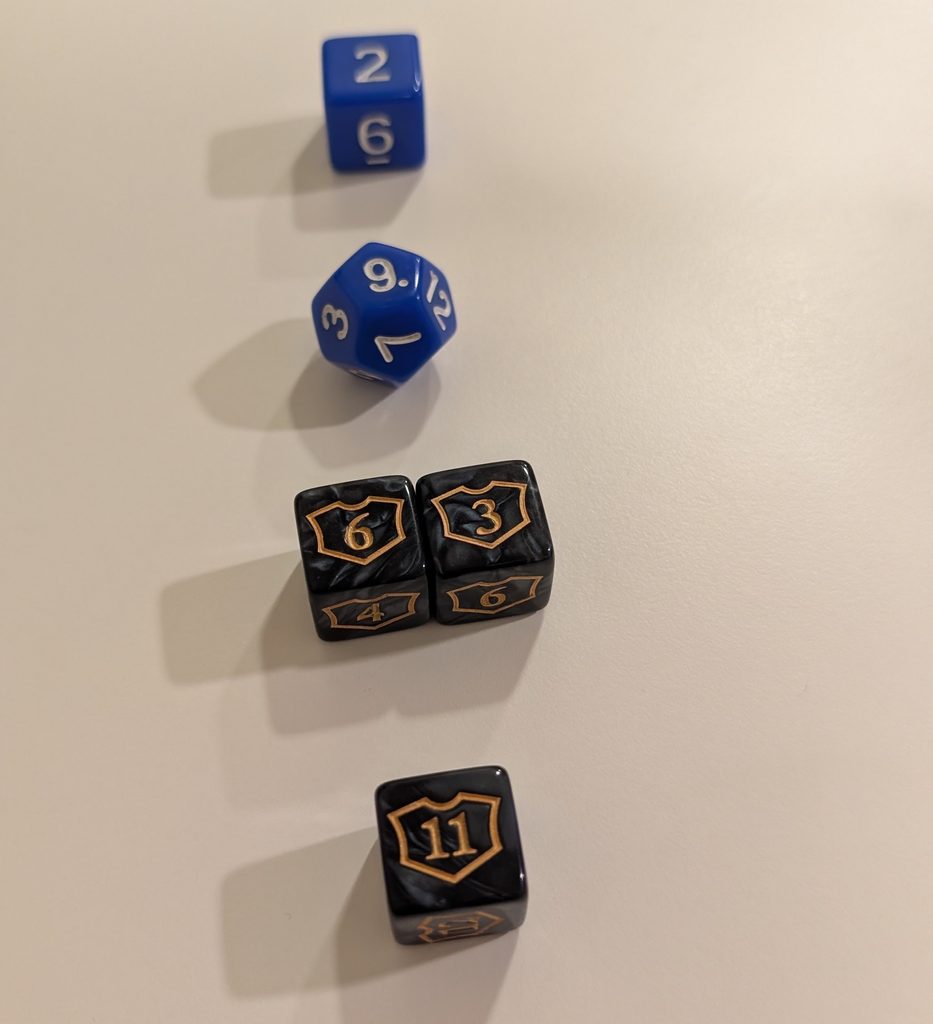
To recreate my method, the user needs a few D6 dice and at least one D12 dice. One of the D6 should preferably be numbered 7 to 12 instead of the usual 1 to 6 but you could just remember which one is supposed to be different.

Step 1: Set Up Paper

On a piece of paper, I would ask someone else to draw points as tiny circles labelled 1 through 12.

Step 2: Rolling the Dice

I will determine four individual values indicated as points A, B, C, and D. This is how the values of ABCD are determined:

Point A = Result of Blue D6 

Point B = Result of Blue D12

Point C = Sum of Two Black Marble D6

Point D = Result of unique D6 (7-12)

Step 3: Connect the Points

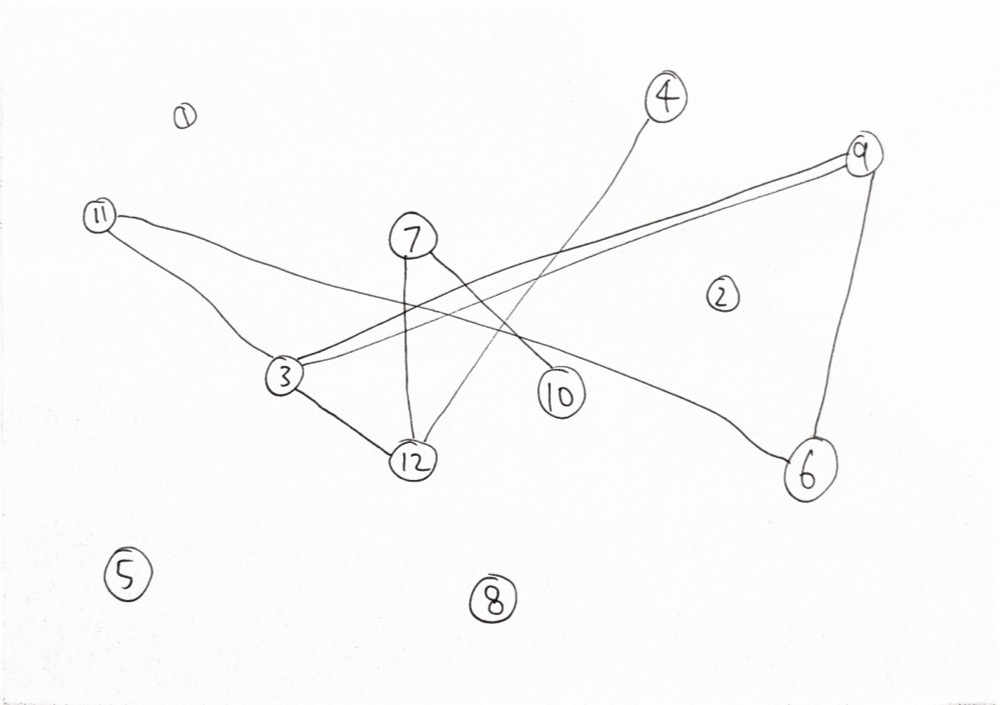
Let’s say for example point A is 3 and point B is 12, I’m going to draw a straight line from the point labelled “3” to the point labelled “12”. If point C is also “12” then that’s where I came up with a new rule:

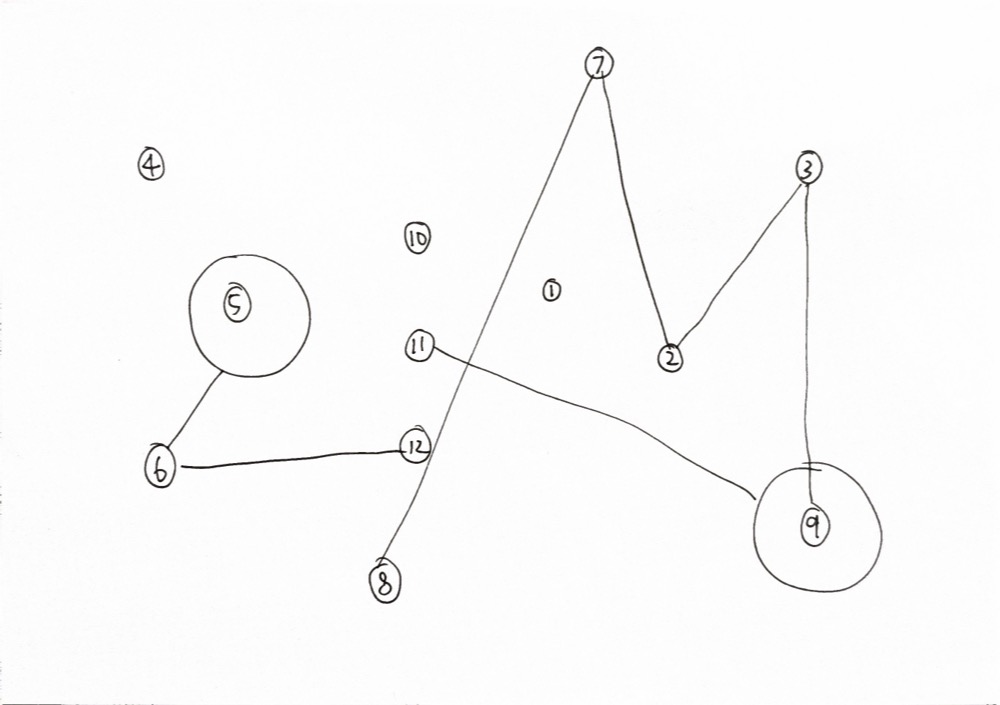
If any two numbers overlap back to back, I would draw a circle around that point.

Step 4: Repeat

Repeat Step 2 and Step 3 again two more times. That should create a pretty interesting visual.

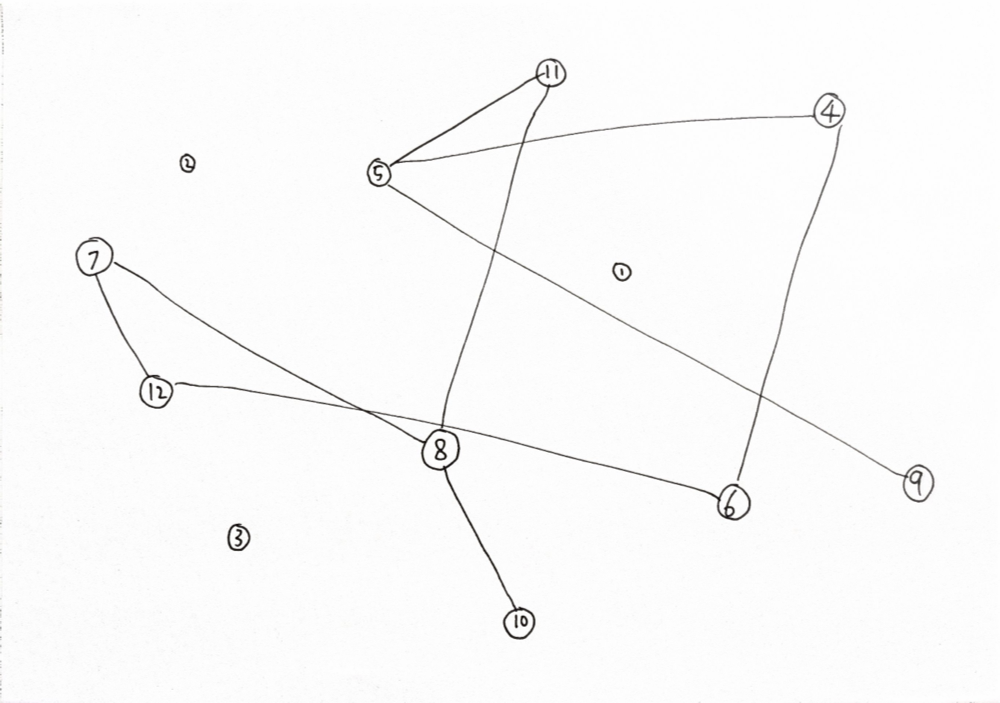
Result:

Process & Challenges

Originally I was pretty perplexed on how to approach this project. I think the example video with the oscillating fan led me seeking out something mechanical throughout the week. I had considered my skateboard trucks, the A5C dorm elevator door, and even some gym equipment (which they definitely would not have allowed haha).

So I got my current idea when I met up with a friend to play a card game, Magic the Gathering, and remembered I had some pretty interesting dice at my disposal. Specifically I had dice that were D6 but started from 7 and ended at 12. They’re usually used to track planeswalker loyalty (a variable stat that’s basically their health points), but they could definitely make for something interesting here.

Reflection on Control, Chance, and Authorship

When I first designed this system, I actually was expecting a lot more repeating numbers so I could create interesting patterns with stacking circle shapes, but in practice it only showed up twice and only in the third attempt. 

The dice introduced chance into the whole equation but perhaps if I wanted a specific aspect of the result to appear more often(such as the circles), then I needed to adjust the number of potential outcomes and the probability of each outcome to create something more visually riveting. For example, Maybe I should have just used 6 points instead of 12 points.

In Response to Sol LeWitt

I believe LeWitt would agree that the idea of my drawing lies in the rules of my system that I designed– the repeatable process that anyone can perform. It’s obvious that no two people and not even two different results will appear the same.