Concept
When I sit down at my computer to work on assignments, I put on my headphones and listen to chill music, usually synthwave. Two things inspired me to create drawings based on Alice in Wonderland. The first was a song by Memorex Memories called “Curious Alice.” The second was my work in Introduction to Digital Humanities, a class where we analyze data from texts. When we were introduced to Project Gutenberg, I thought, “Hey, why not do something with the text of Alice in Wonderland?” And that’s how Alice in Textland came about: a series of illustrations depicting key moments from the story, each shaped from the text of its corresponding chapter.
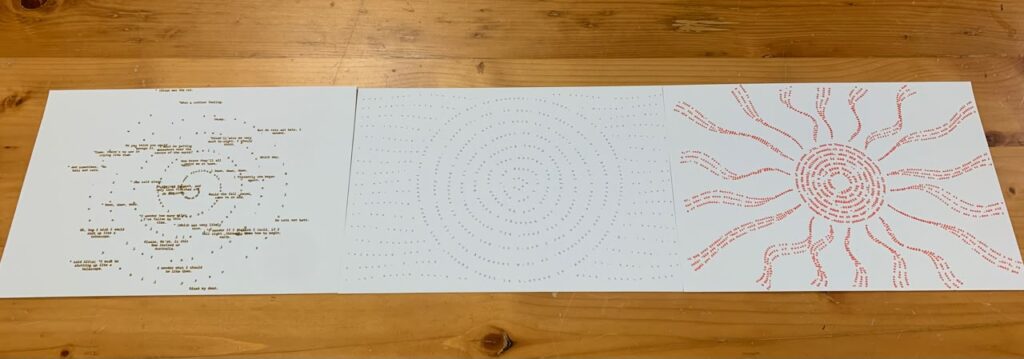
Figure 1. Final plots in one figure.
Algorithm and p5.js code
Note: Copilot helped me program since there were things I did not know how to do it.
The overall algorithm for this works in the following way:
- First, we load the three-chapter text files. These text files come from a single source (click me for the source!). Although, to be able to get clean text that makes sense according to the specific figure that will be drawn into the SVG, I had to manually copy this text three times. On each text file, I cleaned it so that the text that it contains is specific to its chapter. Also, an important note, since p5.js v2.0, it is necessary to use
function async setup(). - After it loads the text files, it will randomly select one chapter.
- After it selects the chapter, it will clean the selected text by removing extra spaces and line breaks. This is essential because we do not want some kind of extra noise in the text. It should be ideally just cohesive written text.
- Then, it will choose one of the three visual styles based on the selected chapter: Chapter 1 becomes a spiral. Chapter 2 becomes a lake. Chapter 3 becomes a dodo.
- Then, it will place letters from the book text at calculated positions.
- It will create the drawing under the
function async setup()withcreateCanvas(resolutionX,resolutionY, SVG)as an SVG so that it can be used for the pen plotter.
After all of this, it is just a matter of clicking anywhere to save the .SVG file!
For more details of the code, please check the p5.js sketch.
SVG/G-Code workflow
This part took me some significant time, why? Well because for some reason, the dimensions in Inkscape when generating the G-Code always end up being weird. For example, I tried to set up the program to keep in mind the dimensions for an A4 Paper, and I made sure to also have the correct settings on the extension itself. But again, did not work and I had to resort to come up with some dimensions that actually in good dimensions without causing chaos.
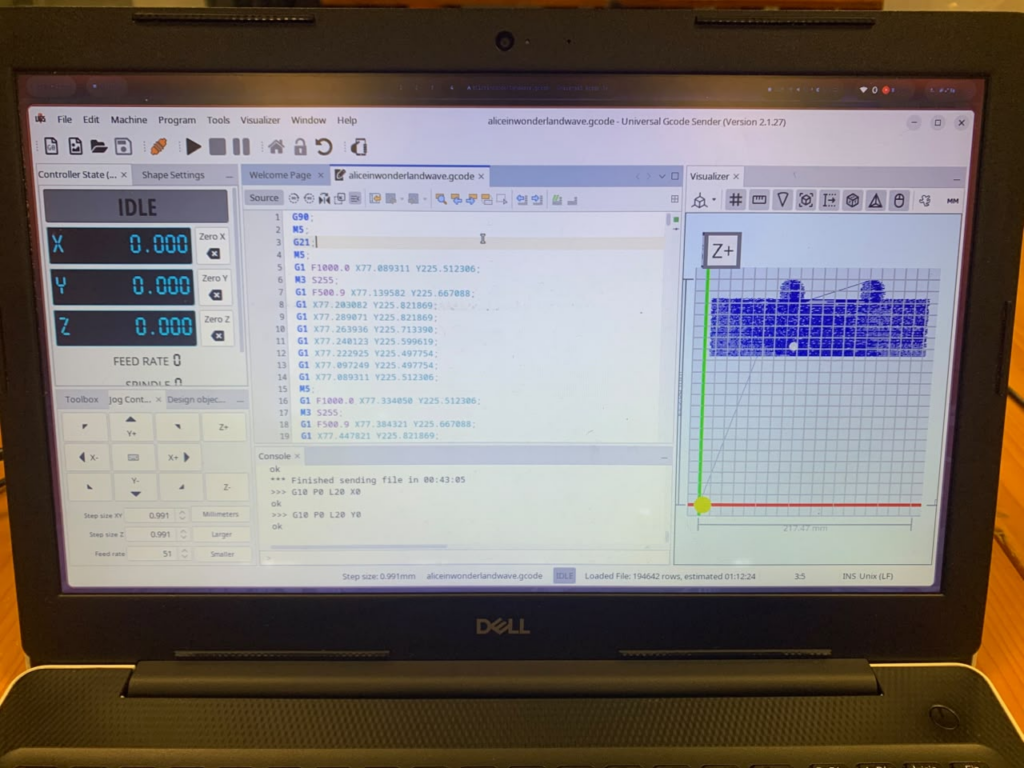
Figure 2. The gcode for the letter lake is just way too past to the top.
In this example, you can see that in some of my tests, the pen plotter tried to draw the G-code far above the intended position. I eventually found that placing the SVG in the bottom-left corner of a 230 × 200 mm page in Inkscape allowed it to draw properly without errors.
I’m sure there was a better way to set it up. I checked the example files provided in our class’s Google Drive folder and tried to replicate their settings, but they still didn’t work reliably with A4 paper. The pen plotter almost always tried to draw beyond the edge of the page.
Update: There was indeed a way! The solution to have the plots be correctly plotted was to set up the page dimensions in Inkscape to be exactly those of a A4 paper in landscape mode. As well as making sure the settings on the plotting extension are similar to the ones in the document properties. The final iterations will show how nicely they look once all the paper is used.
Test Drawings and Iterations
Before proceeding to make the final 3 pen plots, I had to first test some settings as well as general aesthethics.
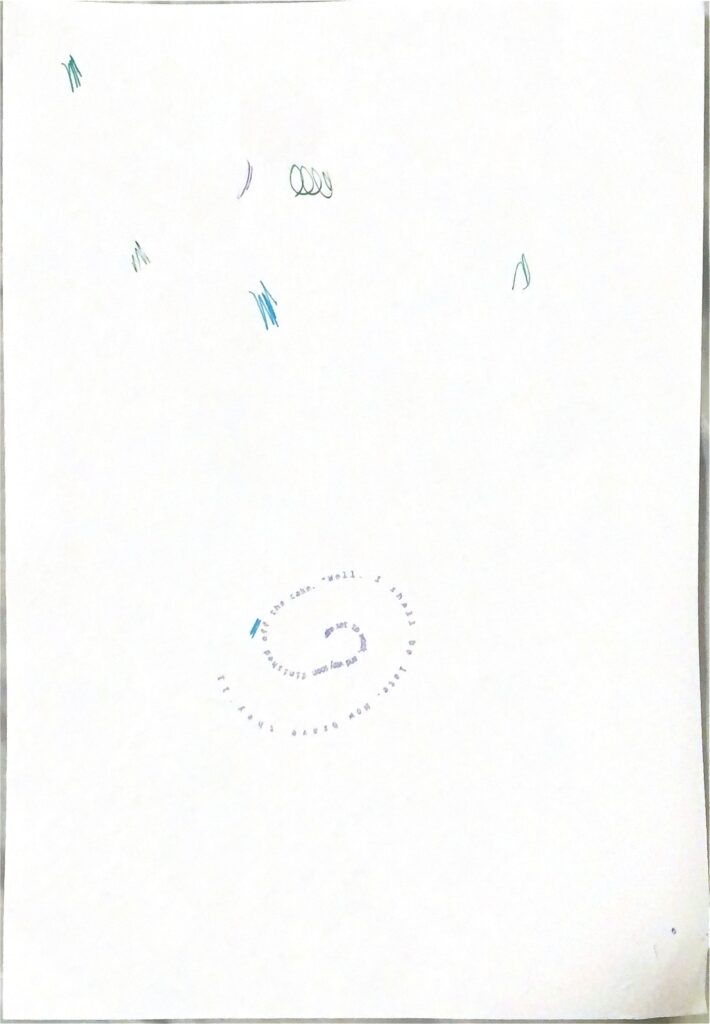
Figure 3. First test.
The intention of this test was to actually draw one final iteration, but what I noticed is that the drawing was going to be too big for the A4 paper to contain, so I had to stop it. After this, I went to configure some settings to test again.
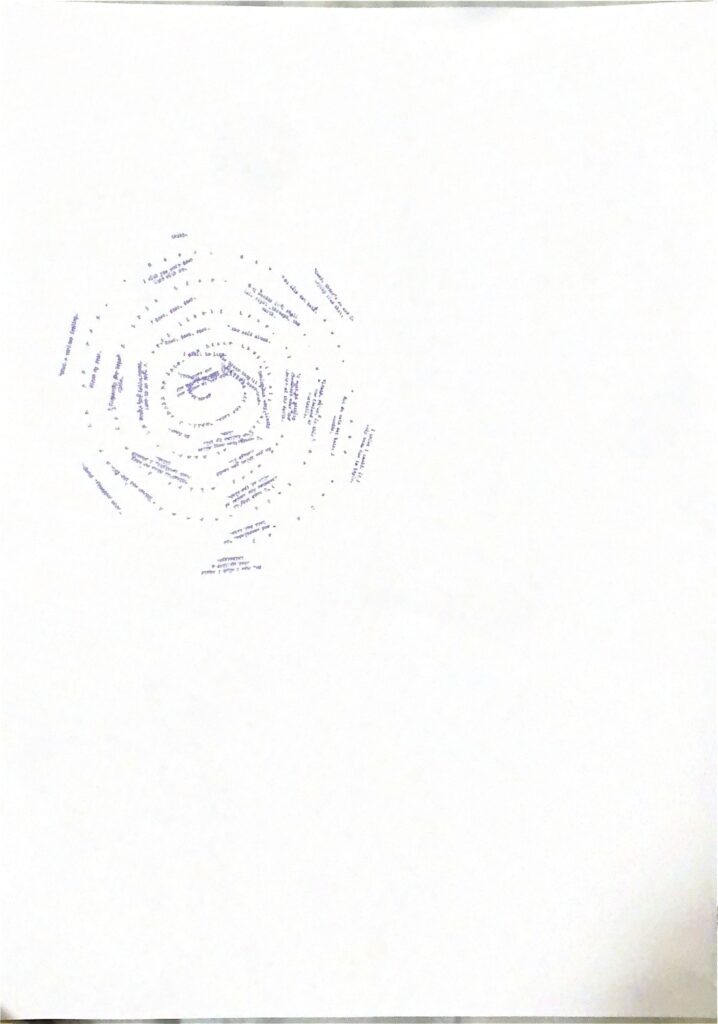
Figure 4. Second test.
The second test went nicely, but if you notice, it is located to the very bottom-left. I tried to make it center, but it proved to be difficult for whatever reason, as if I tried to do that, the pen plotter dimensions would go away from the A4 paper. Not only that, but it is also very small.
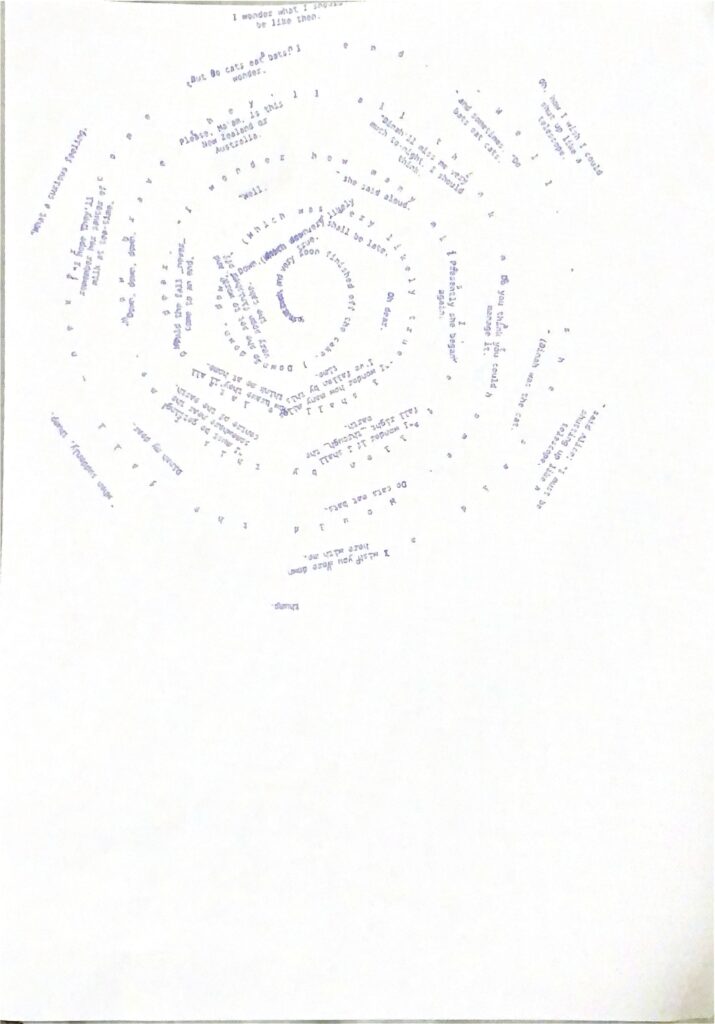
Figure 5. Third test.
After plotting this one, I had a better idea of what worked and what did not.
The 3 initial results
After testing out, I felt confident in that the final iterations will look good. However, if you notice on these 3 first results, none of them are consistent
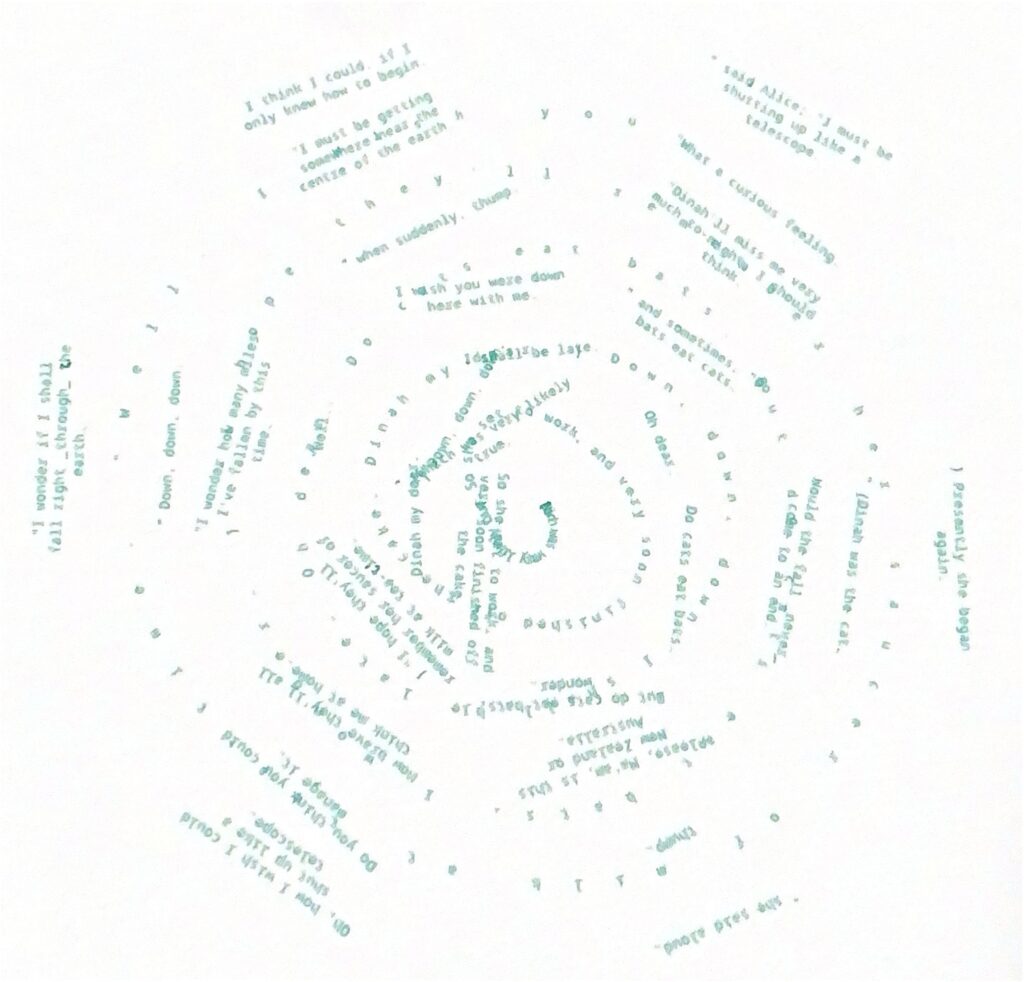
Figure 6. Spiralling into Wonderland. From the first chapter of the book: Alice falls into the rabbit hole.
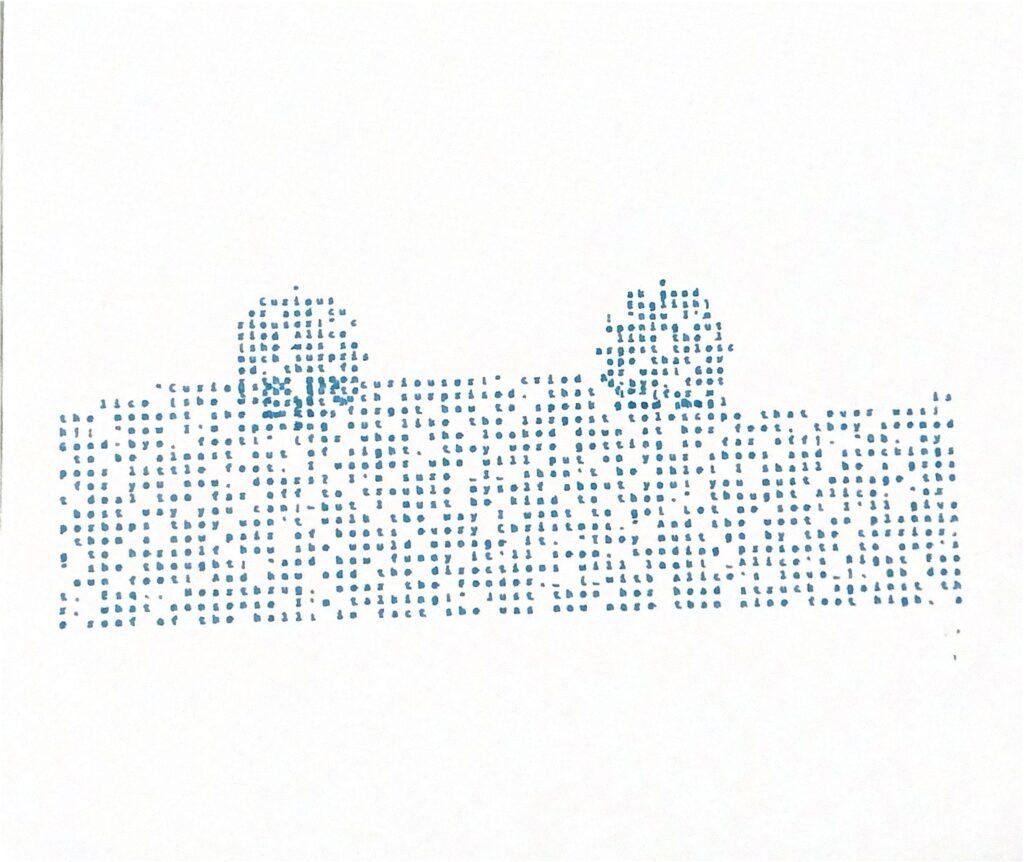
Figure 7. The Pool of Tears. From the second chapter of the book: Alice and a mouse swim on it (represented as two circles).
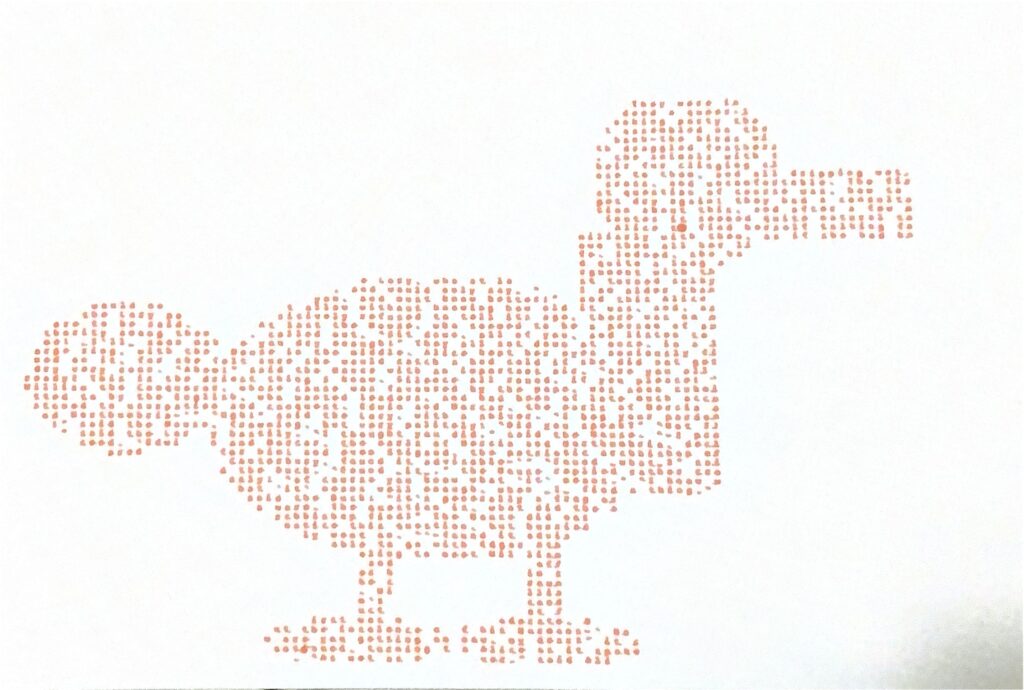
Figure 8. Dodo. From the third chapter of the book: There is a dodo that Alice meets.
There are a lot of inconsistencies when it came to pen plotting these. Even though they are in chronological order with the contents of the book, they could be improved aesthetically. Therefore, I decided to plot 3 more with a focus on making circles and spirals.
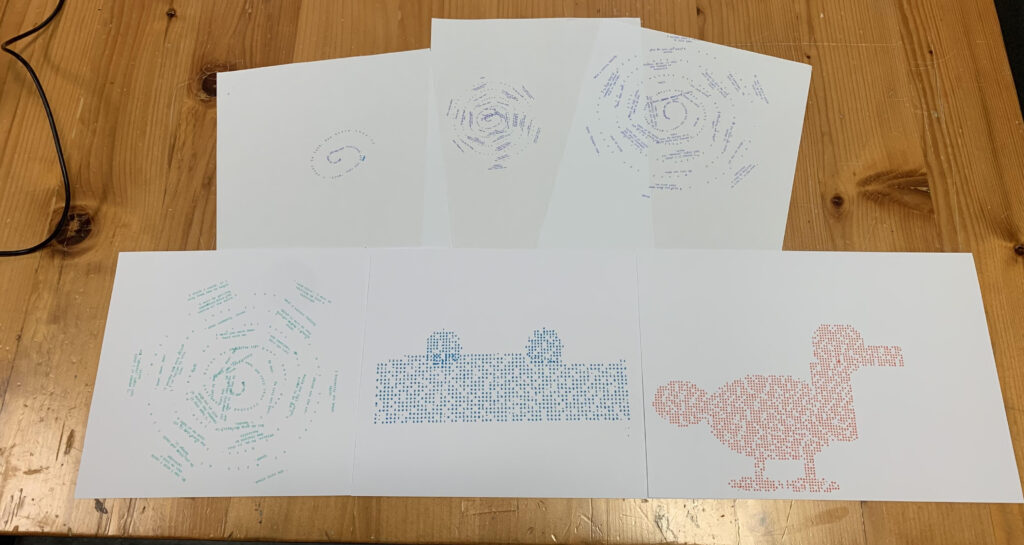
Figure 9. The test iterations. Intended to be final but it could improve!
The Final 3 iterations
The final 3 iterations try to look as similar as possible: There is almost some kind of visual trick happening with the circumference in the middle of the page.
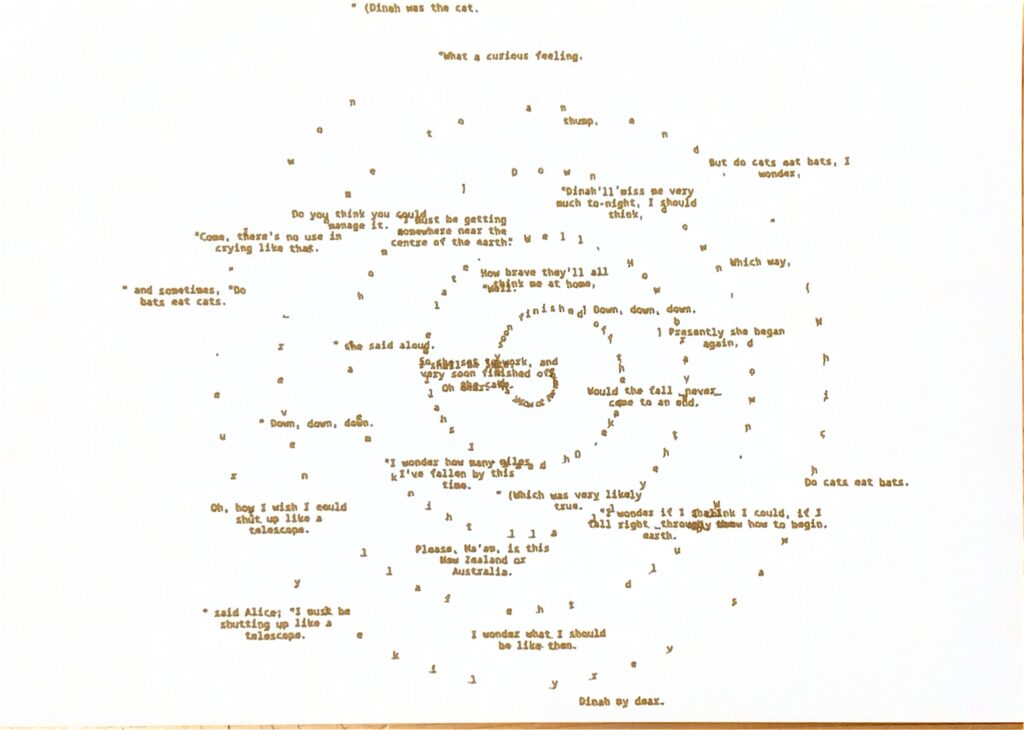
Figure 10. Spiralling into Wonderland. From the first chapter of the book: Alice falls into the rabbit hole. Final.
When Alice falls into the rabbit hole, generally on media representations of this is represented as some sort of spiral. Therefore, I wanted to communicate this idea of Alice going into wonderland with a spiral.
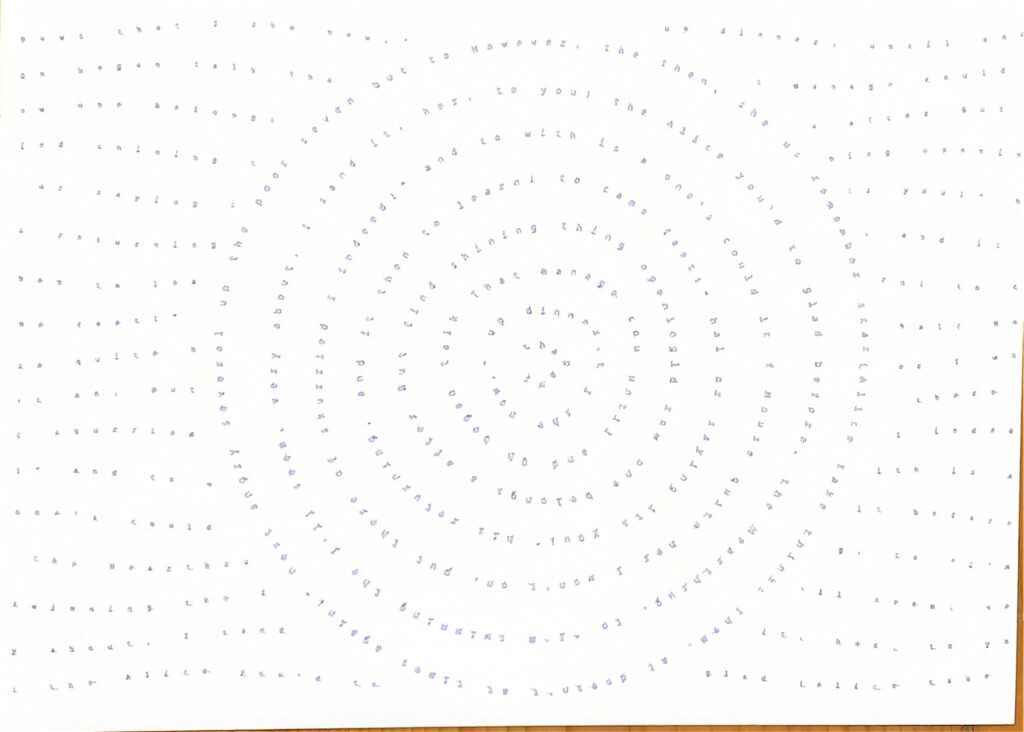
Figure 11. The Pool of Tears. From the second chapter of the book: Alice and a mouse swim on it (represented as two circles). Final.
During chapter 2, Alice travels on the lake with a mouse. I wanted to showcase this idea with some sort of water ripple that leaves a wave in the middle.
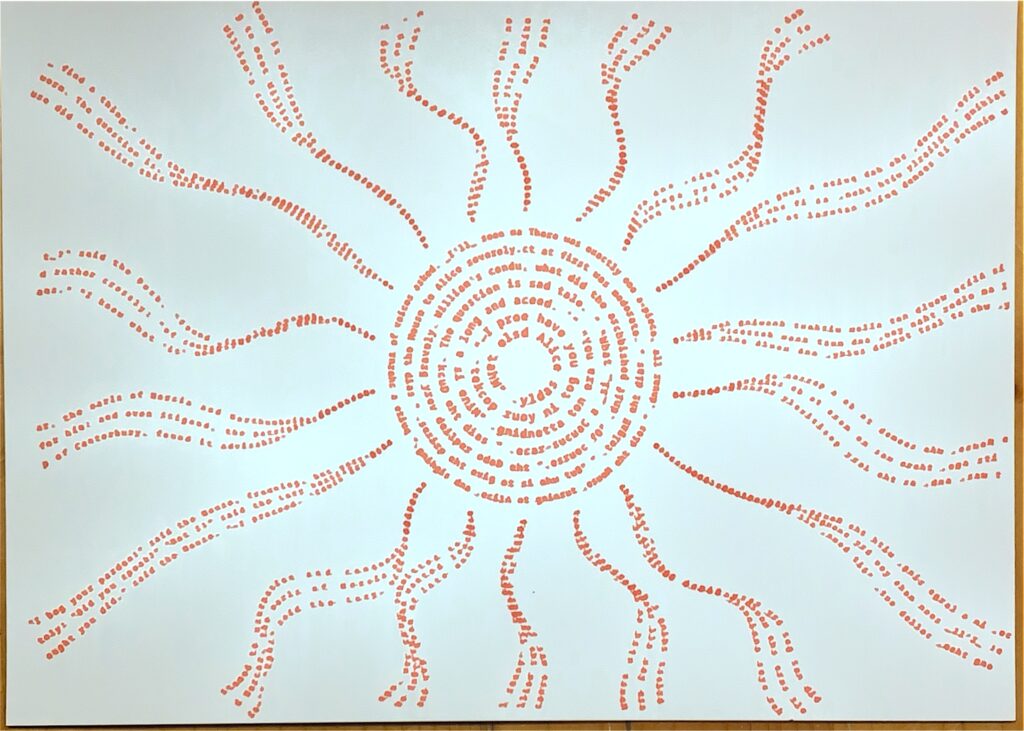
Figure 12. The race. From the third chapter of the book: There is a race that happens and these trails represent the flow of movement.
During chapter 3, there is some sort of race going on, but if you notice, there are some patterns that are emerging from the sides of the page. These are inspired by these kinds of lines that are visible in the book:
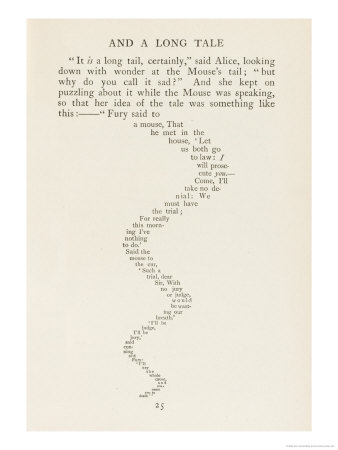
Figure 13. How these lines look in the third chapter of the book.
I am happy with the final results of these pen plots. I believe that the only way I could see the potential in this was through feedback. And I am happy I did get feedback. Also, pen plotting these was easier now that I figured out the settings on.
Reflection
This midterm project was fun, painful and time-consuming (especially when building the pen-plotter), but still fun. I learned so many new things about DIY Arduino that did not imagine before, as well as build up a bit more of persistence when debugging problems.
Using this machine made me think differently of my plotting. Of course as with previous assignments, I was conscious that I had to make a design under certain limitations, but this time, these limitations were very hidden, and I honestly did not know what and where to look for them. The only way to notice these limitations was through testing: I had to check whether the pen was appropriate for drawing small letters, whether the speed was appropriate and if the decision to use A4 paper was the ideal one (at the end I ended up using something with similar dimensions but a bit more thick).
There are some changes and experimentation that I would have to equally try, for example, making the pen plotter draw quicker with a pen to see what kind of results it produces. Or try to plot something that can take up to 2 hours. This at least I did not try to do since it was risky and time-consuming.
But well, answering the question of how the pen plotter, color, layering, and physical materials shaped the final work, it did ultimately shape how it looks. If I happened to use a very precise pen, then the letters would have been more visible, but I found that it would have a texture that is not very appealing. And also, if I happened to use the A4 paper that I was using at first, I noticed that again, the results were not as appealing, and the letters did not stand out much. So there were many factors at play that again, for me the only way to notice was through testing.
I wish and expect that, for future plotting that I do, I try to do more complicated designs instead of playing “safe” for saving time. Of course, there are some realistic expectations to keep in mind, but that is, a wish and an expectation that I hope it comes into fruition.
Extra: Video of a plotting
This is just a small video of the process of plotting the gcode for the spiral (test plot result #1).
And this one below is from the final plot #3 from the third chapter of the book.