AxiDraw – Hay & Saeed

What the machine is and how it draws

The AxiDraw is a pen plotter is a simple robot whose only job is to move a pen along the vector lines, curves and paths you give it. Writing, drawing and signing are all expressions of that one function. Using it is much like using a printer, except the document must be made of paths rather than pixels. It is made by Evil Mad Scientist in Sunnyvale, California, in collaboration with Lindsay Wilson of IJ Instruments Ltd. AxiDraw Writing and Drawing Machines +2

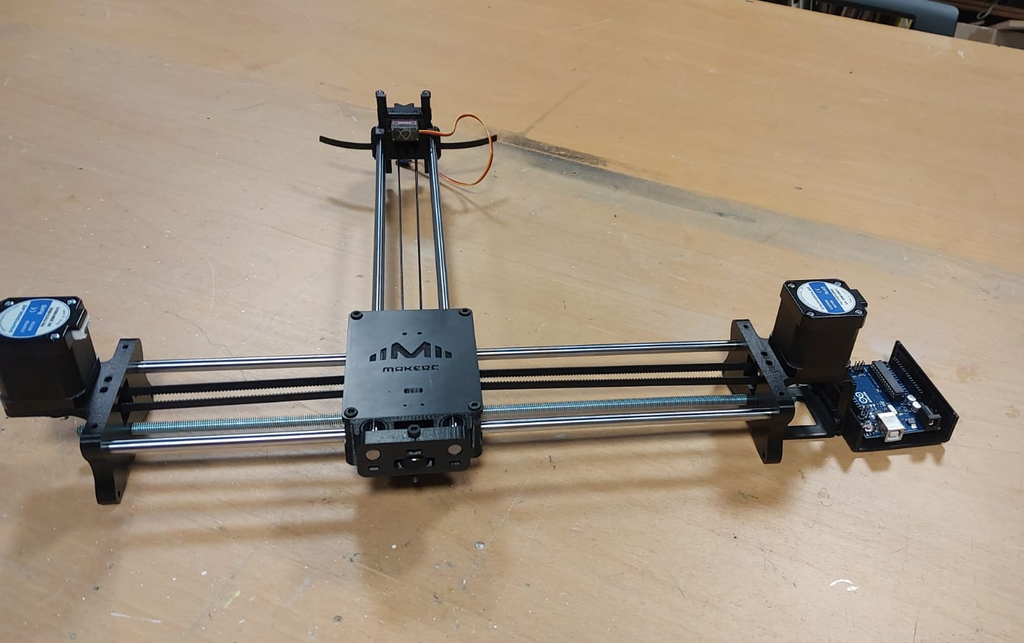
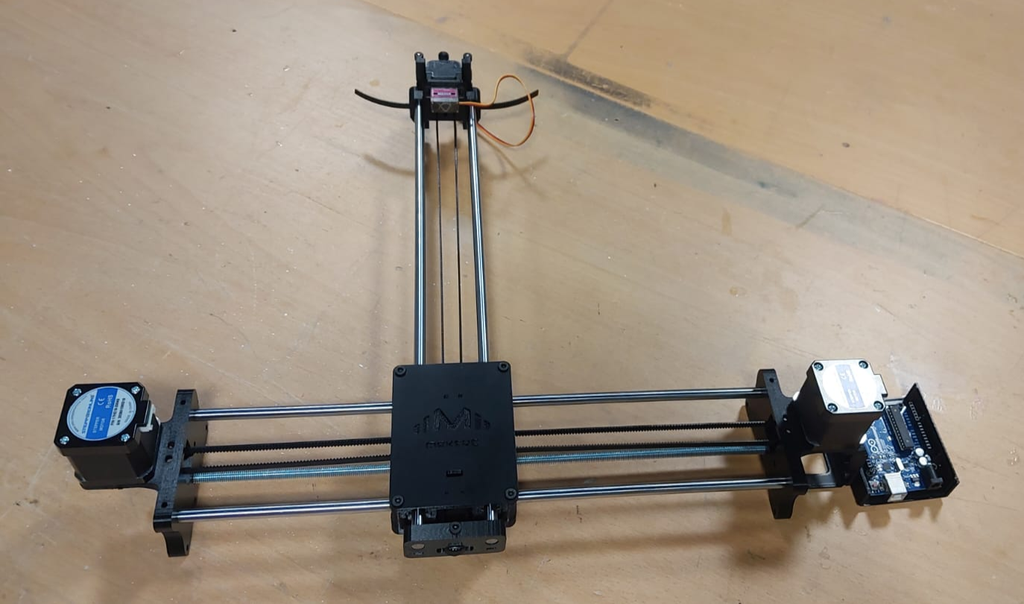
Mechanics: Two stepper motors in the base drive a single looped belt that moves the carriage in the XY plane, on linear stages with custom wheels rolling on aluminum extrusions. A smaller third motor lifts the pen off the page. It works pretty similar to the pen plotter we made for our midterm

What makes its approach to drawing interesting
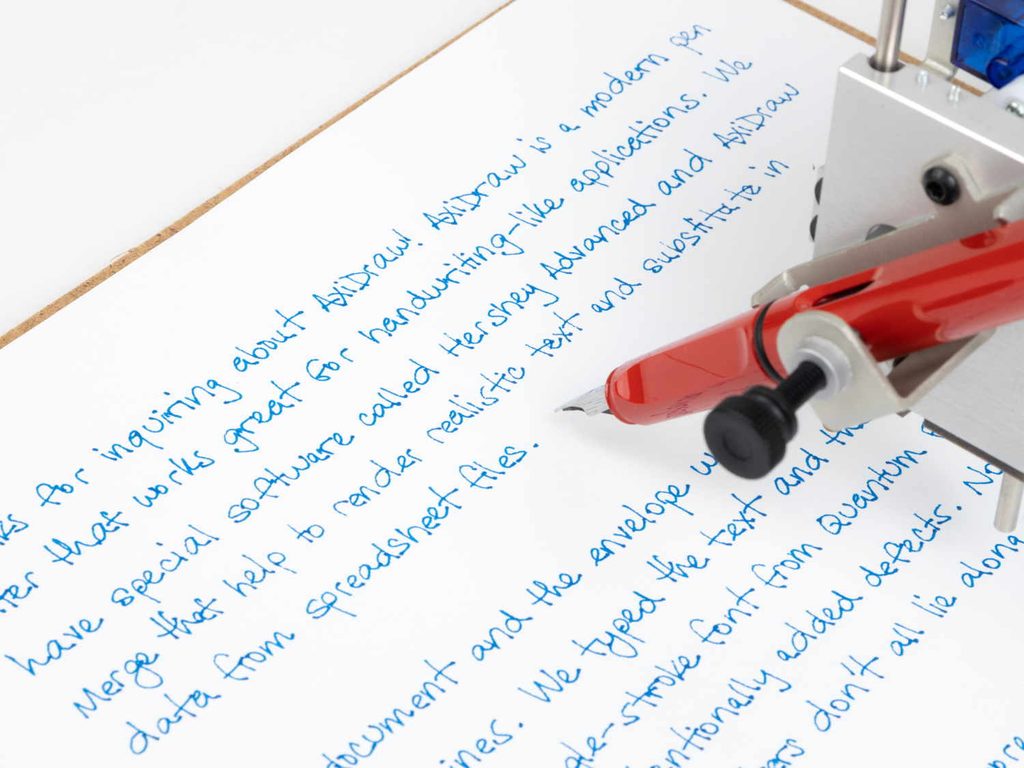
Many of its qualities are pretty similar to the one that we made in class. For instance, its speed can be adjustable, different writing tools can be used to draw it etc. However, one interesting thing is that Matt DesLauriers notes that a plotter produces prints with a strangely human quality: the pen can catch an edge or run dry, and the ink has a texture and emboss you normally only see in an original drawing.

The essential mechanical, electronic, and software components needed to build it
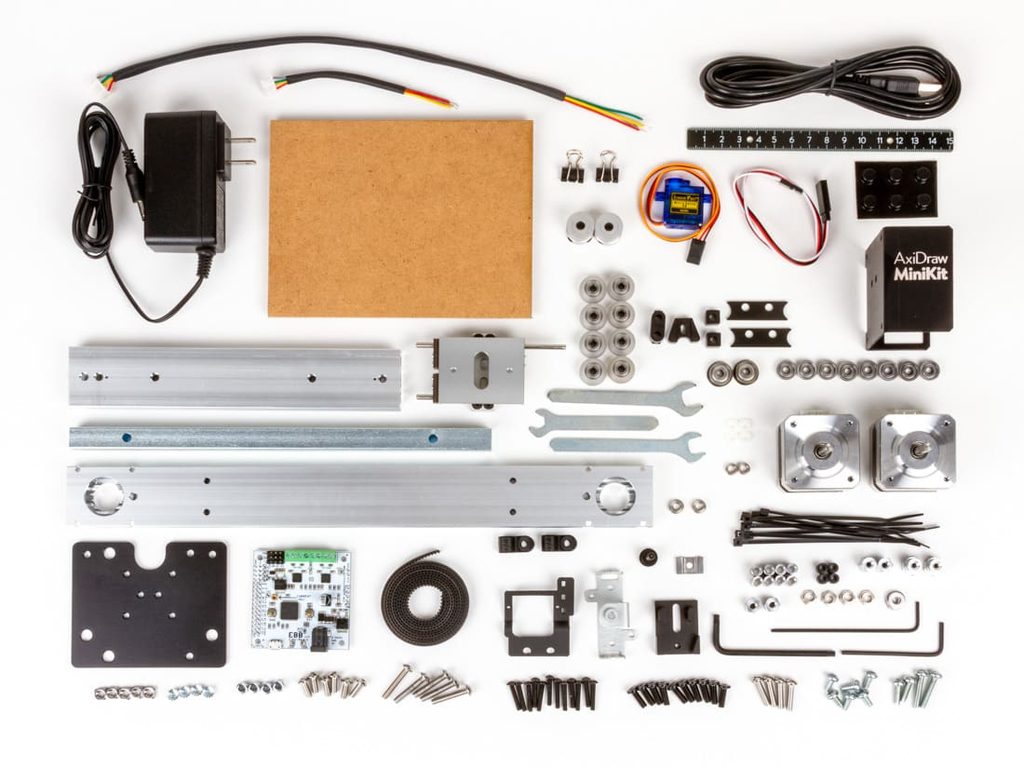
Mechanical

  • Motion stage. The two steppers share one belt, as described above. In the MiniKit, both motors sit at opposite ends of one long fixed x-axis rail, so each motor’s rotation does not map directly to the x or y axis.
  • Rail. The MiniKit 2 replaced the original extruded base rail with a solid 6061-T6 aluminum bar, machined like the SE/A3 and anodized.
  • Pen holder. It holds pens up to 5/8″ (16 mm) in diameter. A larger XL clip is available. In the MiniKit you can mount the pen vertically or slanted, and the slant suits fountain pens.

Electronic

  • Controller. The EiBotBoard (EBB) is a USB dual stepper controller designed by Brian Schmalz. It is open source in hardware and software and built around a PIC18F46J50. It has two Allegro A4983 microstepping drivers and a separate regulator for up to two hobby servos. It was originally designed for the EggBot and also runs the AxiDraw and WaterColorBot.
  • Motors. The NEMA 17 bipolar stepper is the same motor used in the EggBot kit and the AxiDraw.
  • Power and USB. The EBB runs from a 9 V, 1.5 A supply. Each AxiDraw ships with a universal-input power supply, a 2 m USB cable and a paper-holding easel.

Software

  • The usual workflow is a set of extensions for the free Inkscape vector editor, which acts like a printer driver. No other software purchase is needed.
  • Alternatives include a stand-alone CLI, two Python APIs (one plots SVGs, the other is interactive moveto/lineto), the low-level EBB serial protocol, cncserver REST APIs, and AxiDraw-Processing for real-time generative work.
  • The software normally plots elements in file order, so poor ordering can make pen-up travel dominate plot time. AxiDraw’s SVG ordering tool reduces this, and it can also name machines or plot to several at once.
  • vpype is a popular third-party tool. It is a command-line pipeline utility for creating, modifying and optimizing plotter-ready vector graphics, with plug-ins for custom generative commands.
  • AxiDraw Merge handles mail-merge style handwriting from CSV data and adds small variations so text doesn’t sit on perfectly straight lines.
  • Examples of drawings or artworks produced with it
  • Relevant references, projects, or artists/designers who have explored similar systems
  • Include images, videos, diagrams, and links where appropriate, and cite your sources.

Examples of work made with it
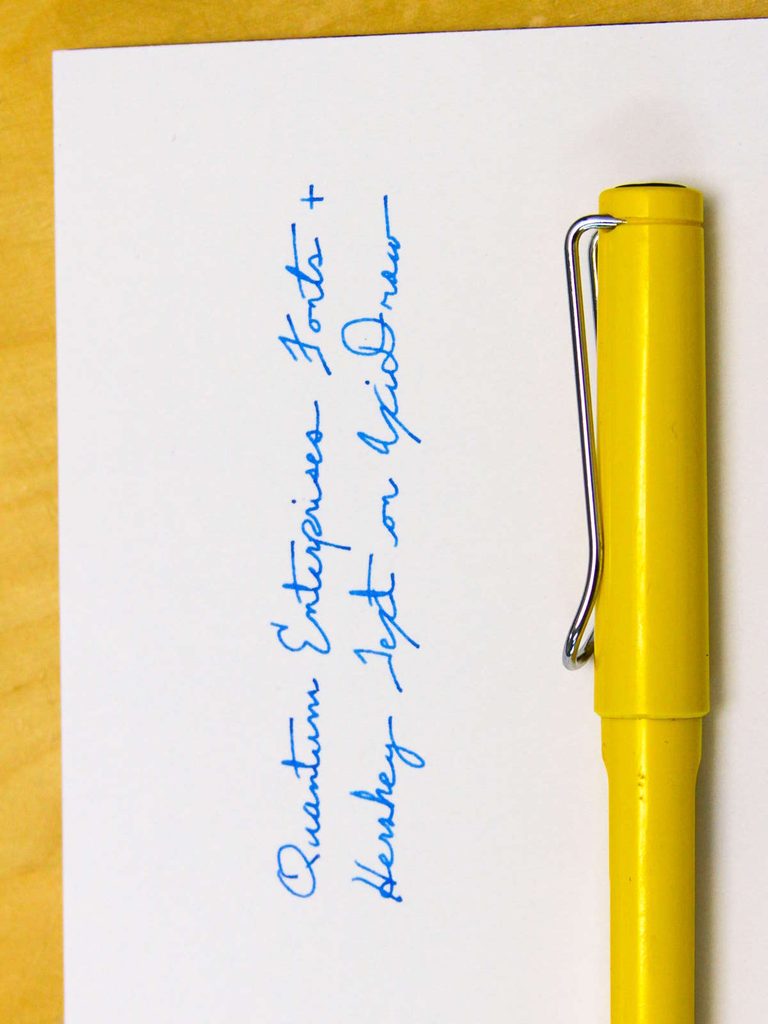
  • Signatures, envelopes and handwriting. These are the most common uses, along with place cards and numbering limited-edition artwork. axidraw
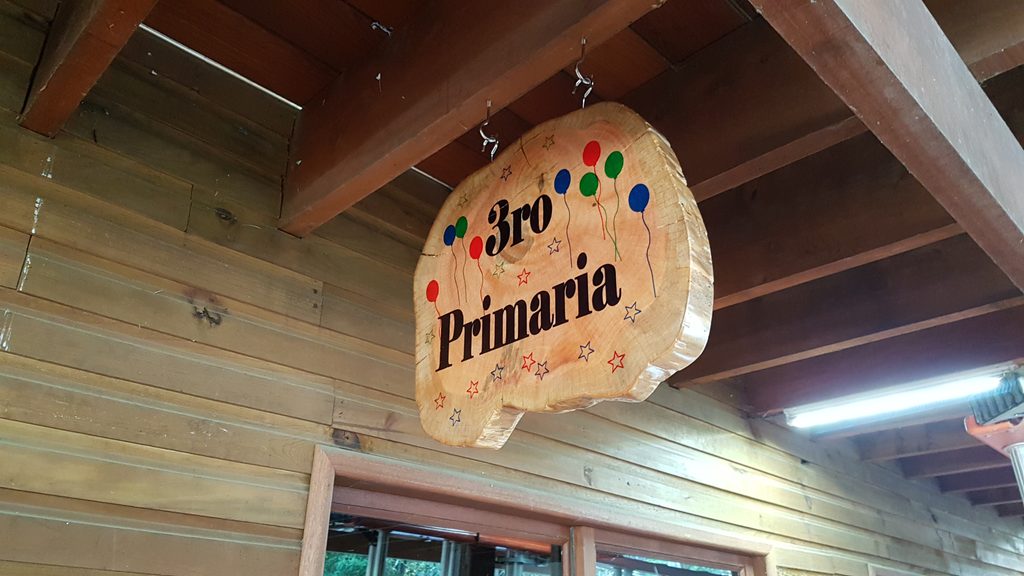
#plottertwitter Sharpie on T-shirt for the win! #mtbos #iteachmath https://t.co/gYwj4cFArM— Mark Kaercher (@shskaercher) June 6, 2018

  • Fabric and wood. The Evil Mad Scientist blog shows AxiDraw on t-shirts, wooden signs, and a brewery tap list. evilmadscientist
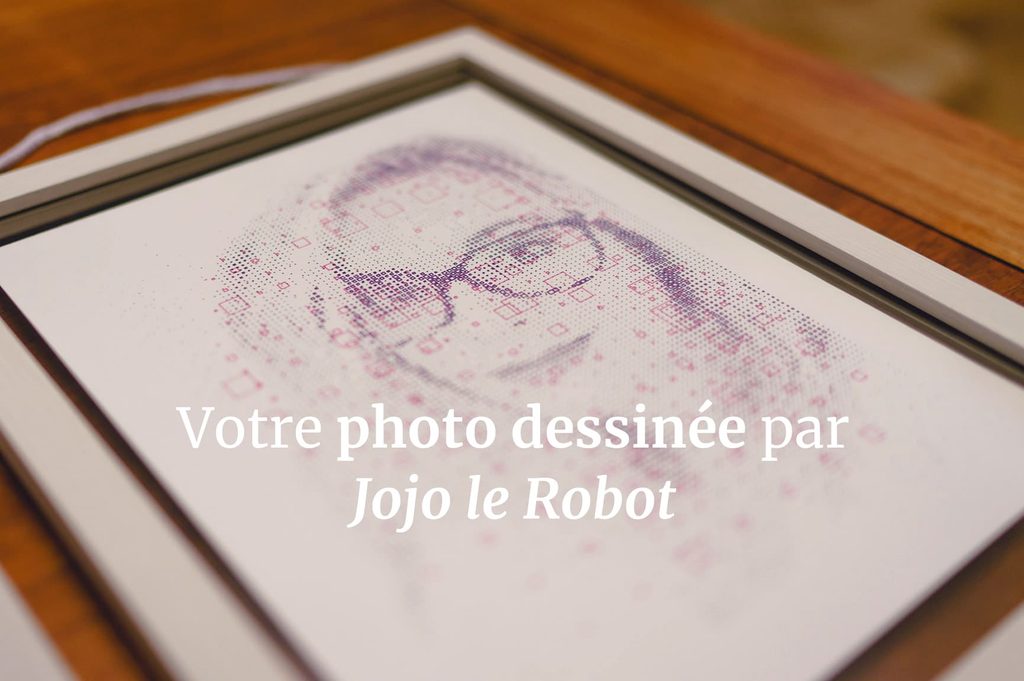
  • Custom portraits. Makio&Floz offer plotted portraits drawn by their AxiDraw, which they named Jojo the robot. evilmadscientist
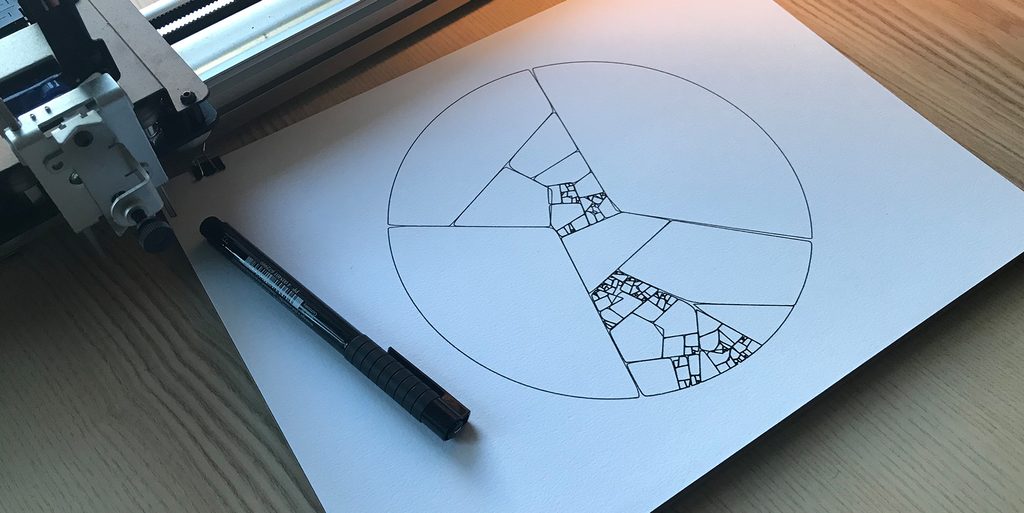
  • Generative art. DesLauriers wrote a two-part blog post on his JavaScript workflow, starting with Delaunay triangulation and moving into algorithm design. Designer Sash Zats plotted map-based drawings using vector map tiles and a spatial-sort step to speed up plotting. He uses bold papers and subtle pen colors. evilmadscientistevilmadscientist
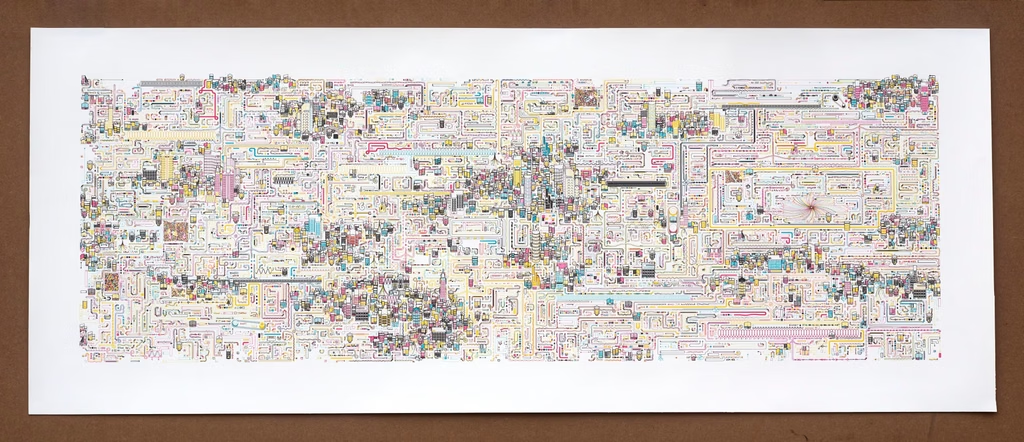
  • Large multi-pen pieces. In a post on his piece “Busiest” (2025), artist Lost Pixels describes using AxiDraw A3 and A1 plotters. He also describes custom queue software, vpype path optimization, and an LED matrix synced to the plotter that fills as the drawing progresses. lostpixels
  • The artwork and artists section of the AxiDraw wiki and blog has many more user projects.

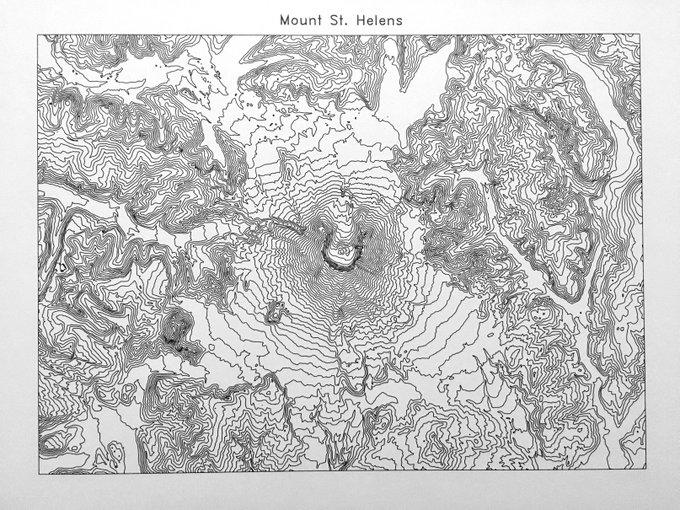
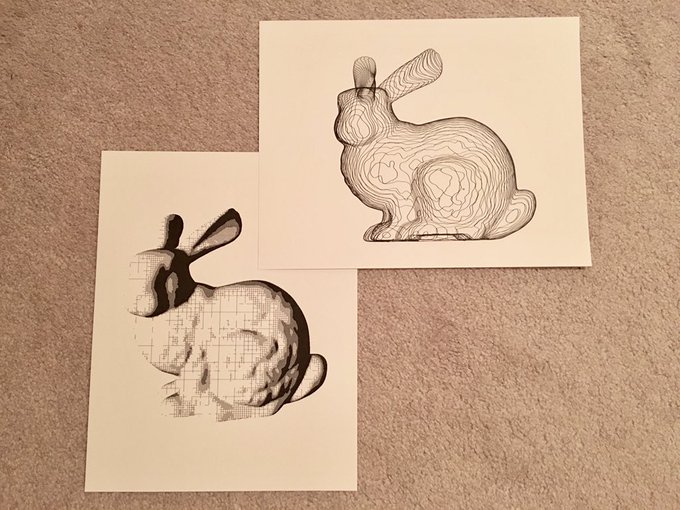
Examples from Artist Michael Fogleman
Related systems, projects and artists

Pioneers of plotter art
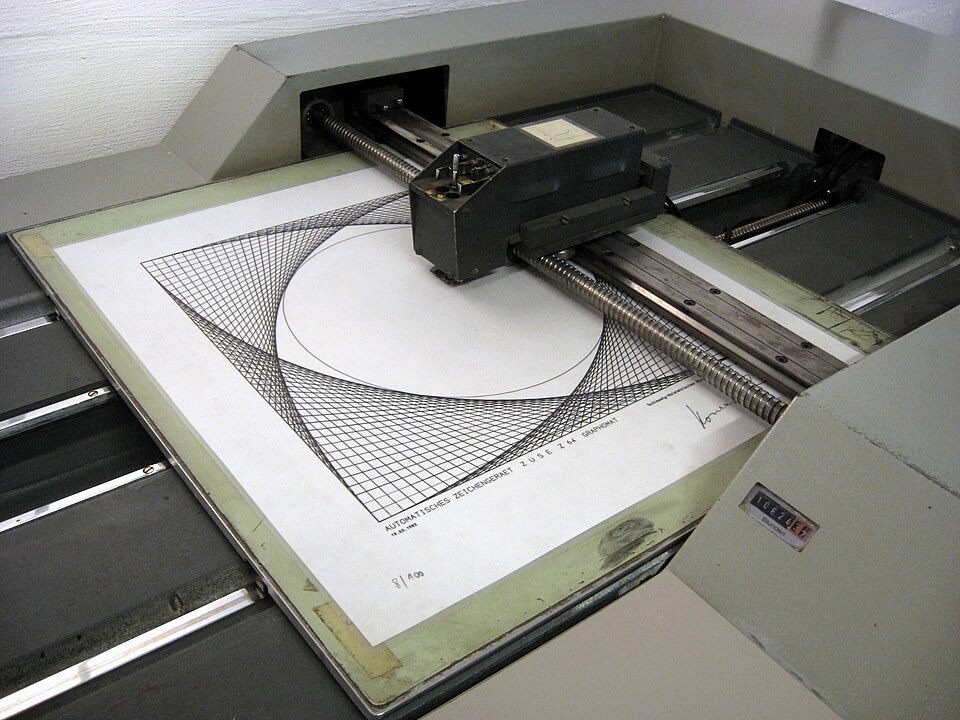
  • One of the earliest computer art publications, Rot 19 (1965), featured Georg Nees’s work drawn on a Zuse Graphomat Z64 flatbed plotter. stylecampaign
  • Frieder Nake’s 1965 “Polygon Drawings” used an algorithm and a Zuse Graphomat. wearepatchworks
  • Vera Molnár generated thousands of plotter drawings in the 1970s on an IBM mainframe at CIRCE near Paris. She mostly used a drum plotter, while Manfred Mohr and Nake used flatbeds. Artforum’s feature on Molnár and HOLO’s piece on her plotters cover this in depth. vandorenwaxterholo
  • The plotter displaced the artist’s hand, which appealed to researcher-artists like Nake and Mohr who wanted to suppress gesture and individual authorship. AxiDraw users mostly pursue the opposite, valuing the pen’s physical traces. artforum
  • The DAM Gallery exhibition “Aesthetica” also lists Peter Beyls, Roman Verostko and Mark Wilson among artists who drew for decades with pen plotters. bpigs

Contemporary artists

  • The book Tracing the Line: The Art of Drawing Machines and Pen Plotters features 100 artists, including Matt DesLauriers, Tyler Hobbs, Alida Sun, Joanie Lemercier, Sougwen Chung, Rev Dan Catt and Jürg Lehni. See the Draw Down listing. draw-down
  • Tyler Hobbs’s Pace Gallery show “QQL: Analogs” was 12 paintings made with generative code and a plotter. The plotter he used is custom-made. See ARTnews. artnews
  • Matt DesLauriers’s work is covered in Right Click Save, which describes his plotter practice as predating the NFT form.

Related machines
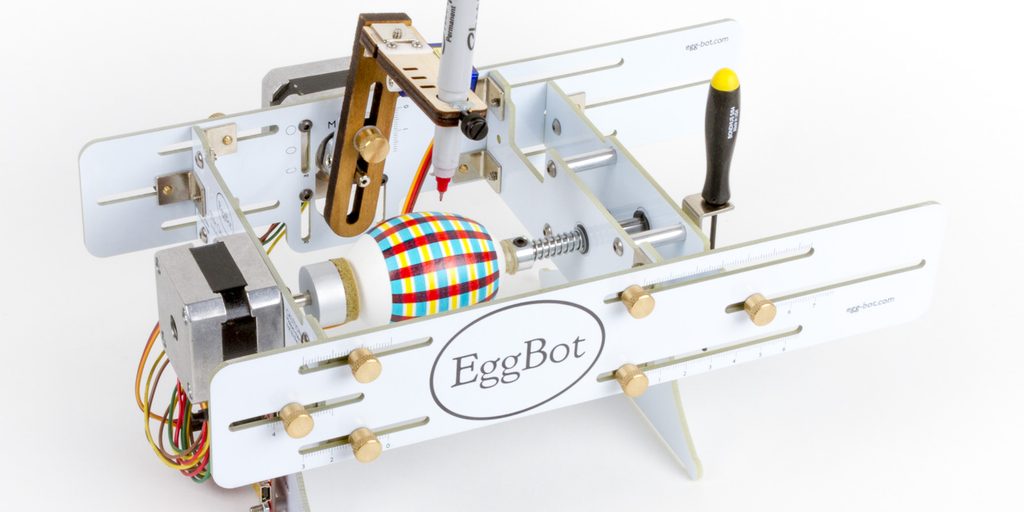
  • The EggBot shares the same EBB controller and stepper motors.
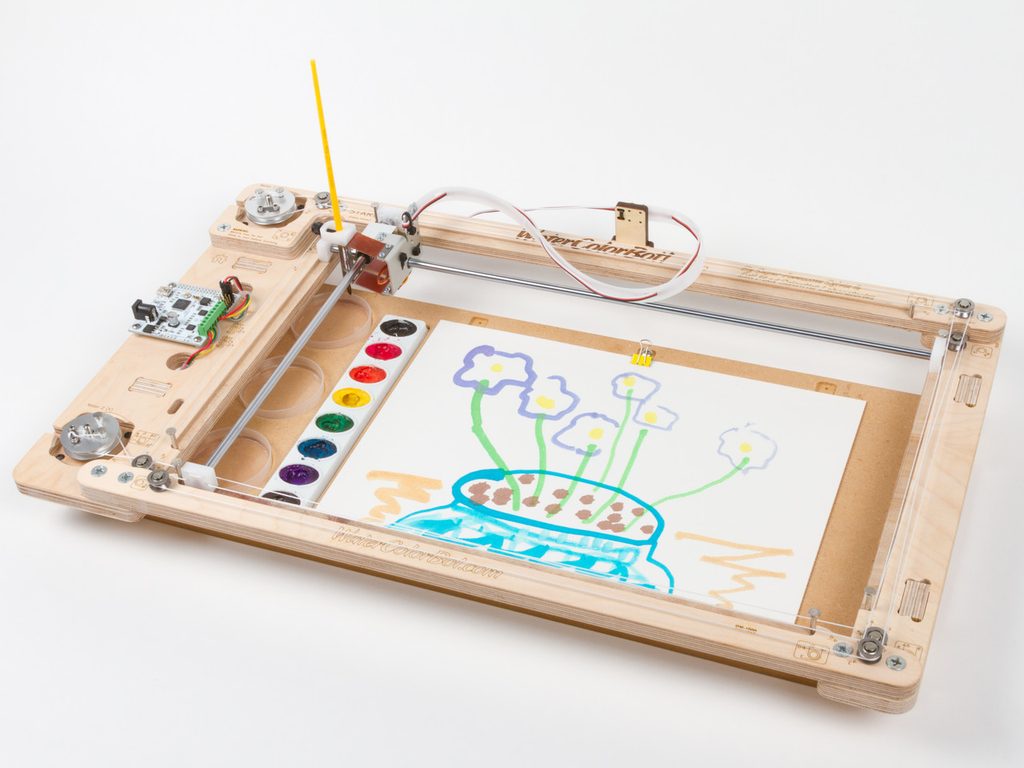
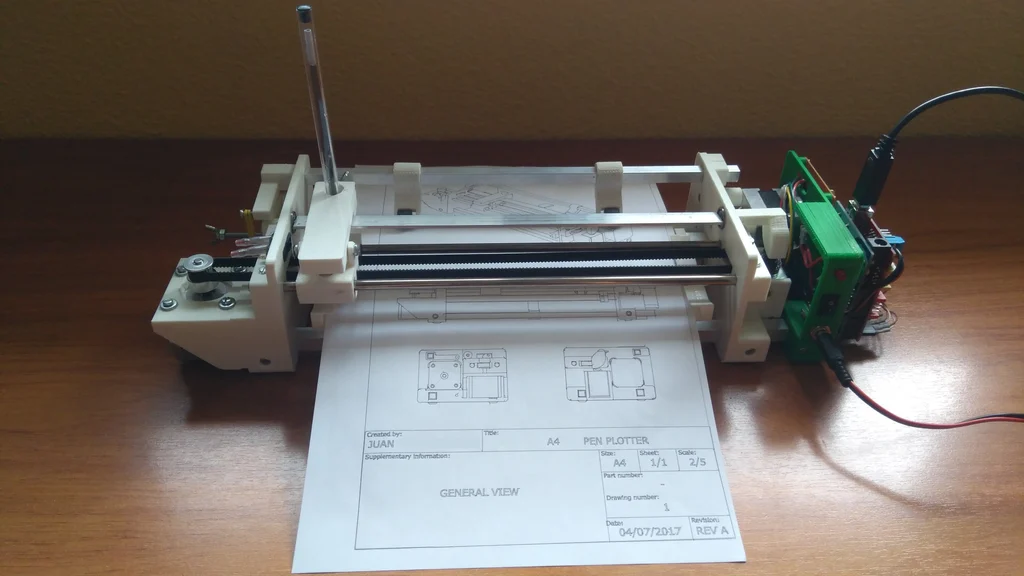
  • The A4 Pen Plotter made by JuanGg which moves the pen along one axis and the paper underneath it to plot in the X and Y directions
ieee

https://axidraw.com

Midterm Project – Saeed Lootah

Introduction

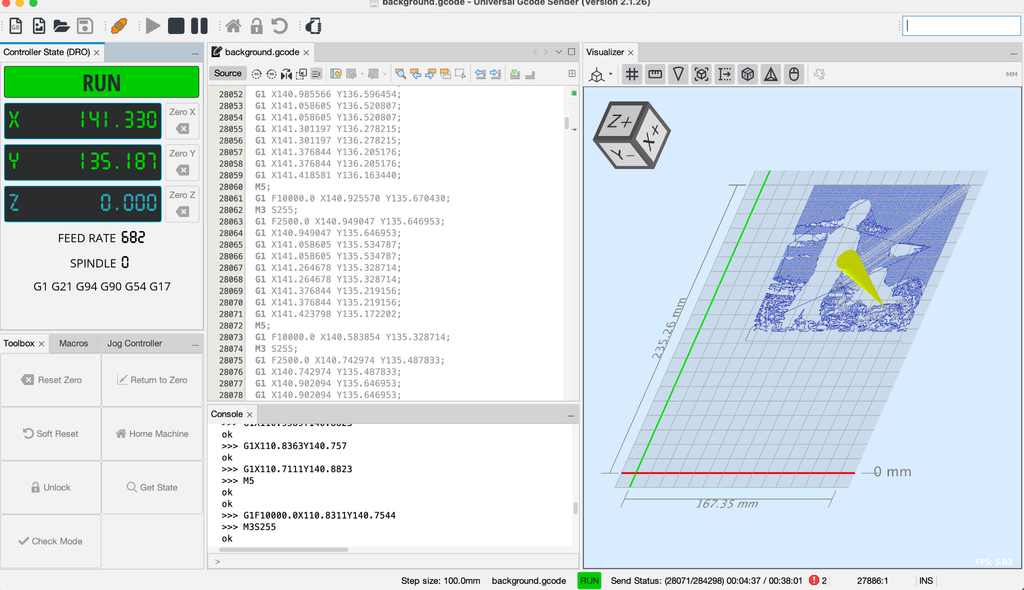
Going into this I made a mistake in how I managed my time and energy. Joud and I had been struggling to get our pen plotter to work ever since we first plugged it in. Unfortunately, we were never able to fix it but in hindsight I should have asked my peers to use theirs or especially Professor Du to use his. In the end I ended up using Professor Du’s plotter which worked without issue. During our troubleshooting I hoped at every moment that it would work so that I could use it as much as I wanted to but it wasn’t meant to be. I hope to make my own pen plotter over the fall break.

After a brief discussion with Professor Du I realized I had to think more deeply about the concept this time. In previous years I would focus almost exclusively on the technique beginning to end. The result would therefore be less meaningful than it could have been.

Inspiration

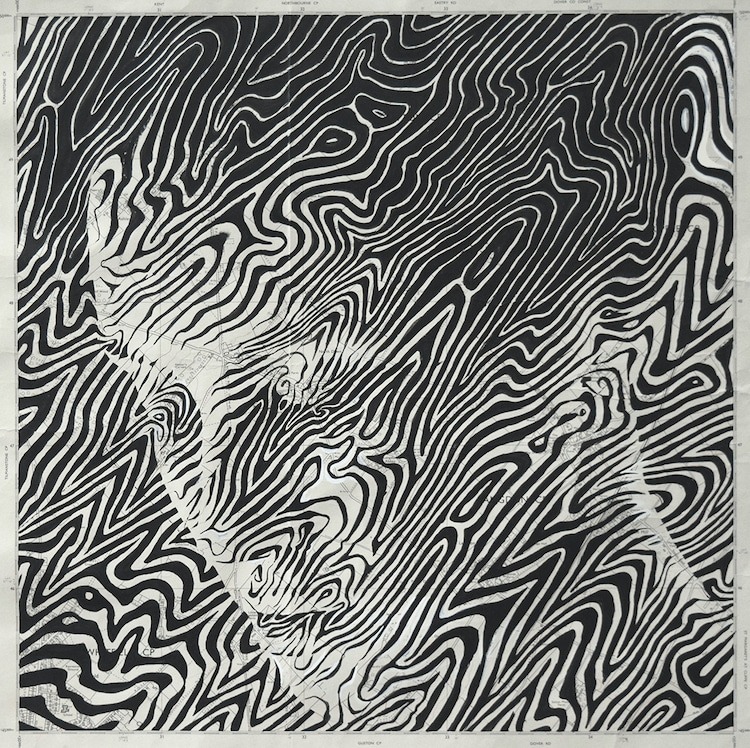
https://mymodernmet.com/map-art-ed-fairburn/

Seeing the picture of a topographic design overlayed someone caught my attention immediately. Amazingly the artist drew this by hand. Clearly they have an innate understanding of the curves and features of the human head that they could create this design and have it follow the natural curves and the thickness of some of the lines and frequency was done to create darker and brighter areas. I felt that this was something that could easily be made programmatically (foreshadowing) then created through a pen plotter.

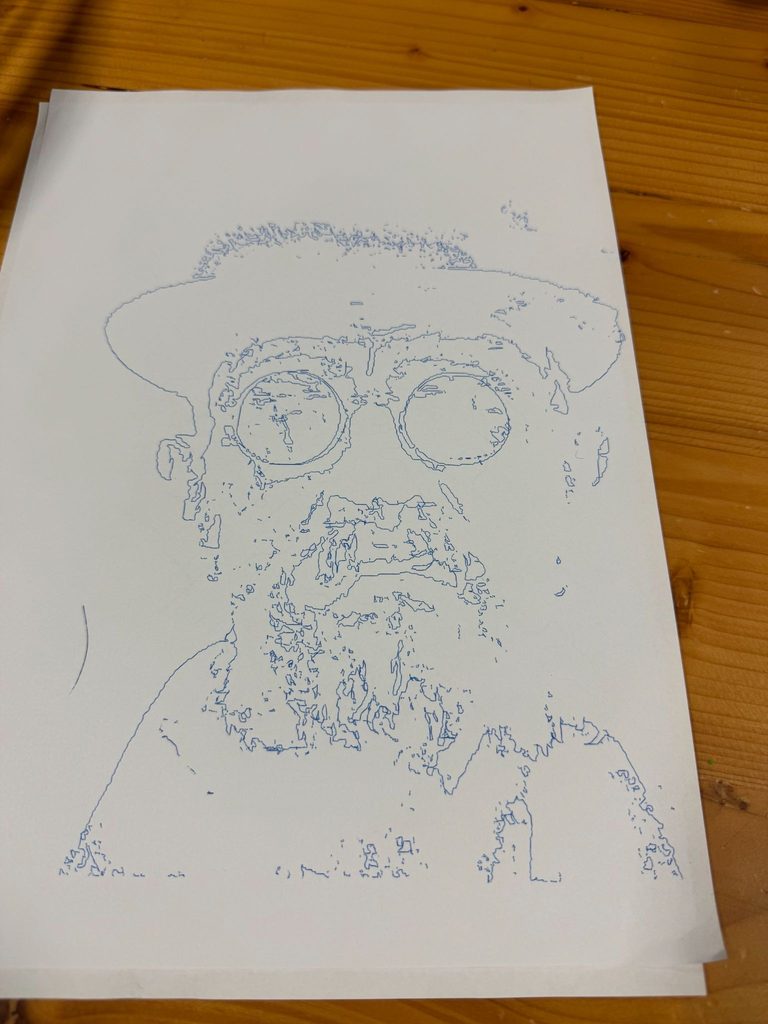
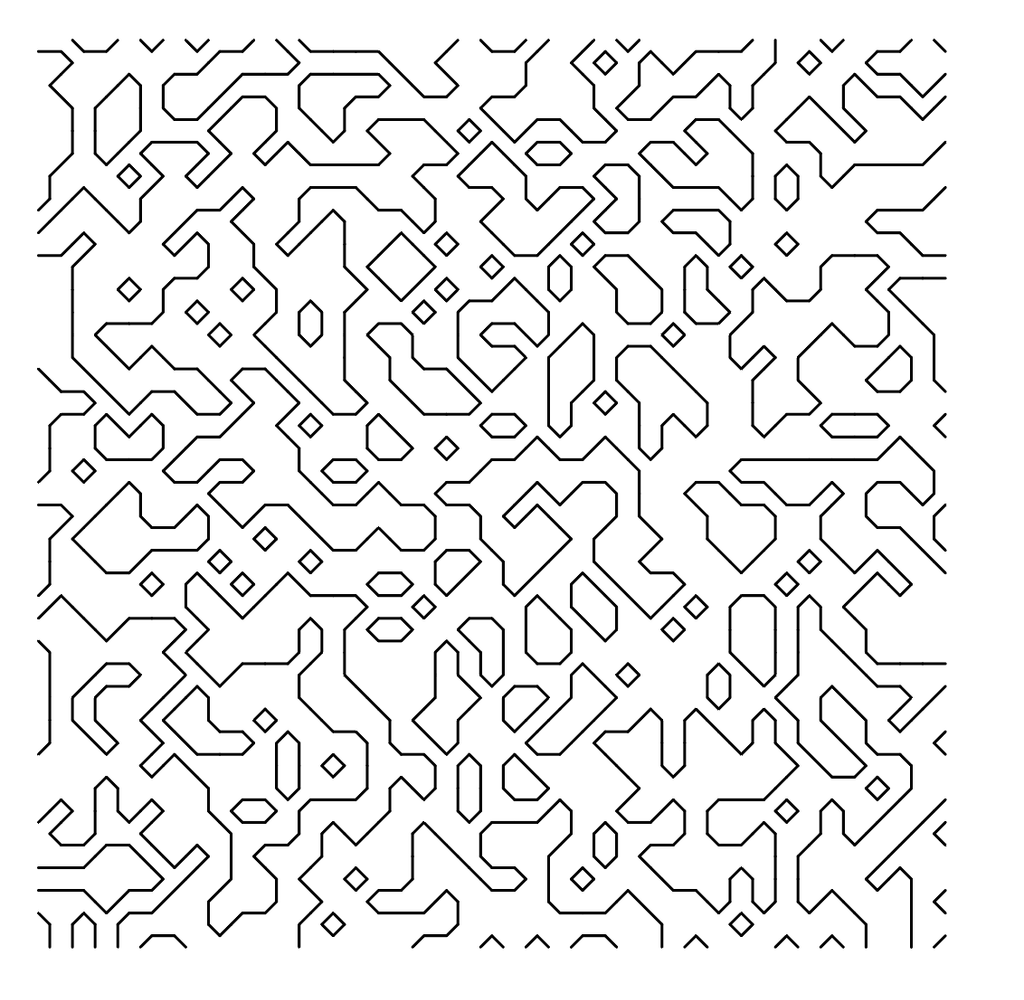
I learned that the way to do this is through marching squares. I have used it in previous projects but haven’t looked into it very deeply and I only ever used it to create topographic lines but nothing more. Seeing the picture made me realize that I could use it for something more. I’ve been interested lately in depicting faces in interesting ways because as human beings we’re naturally programmed to see human faces even where there aren’t any.

Technical Implementation

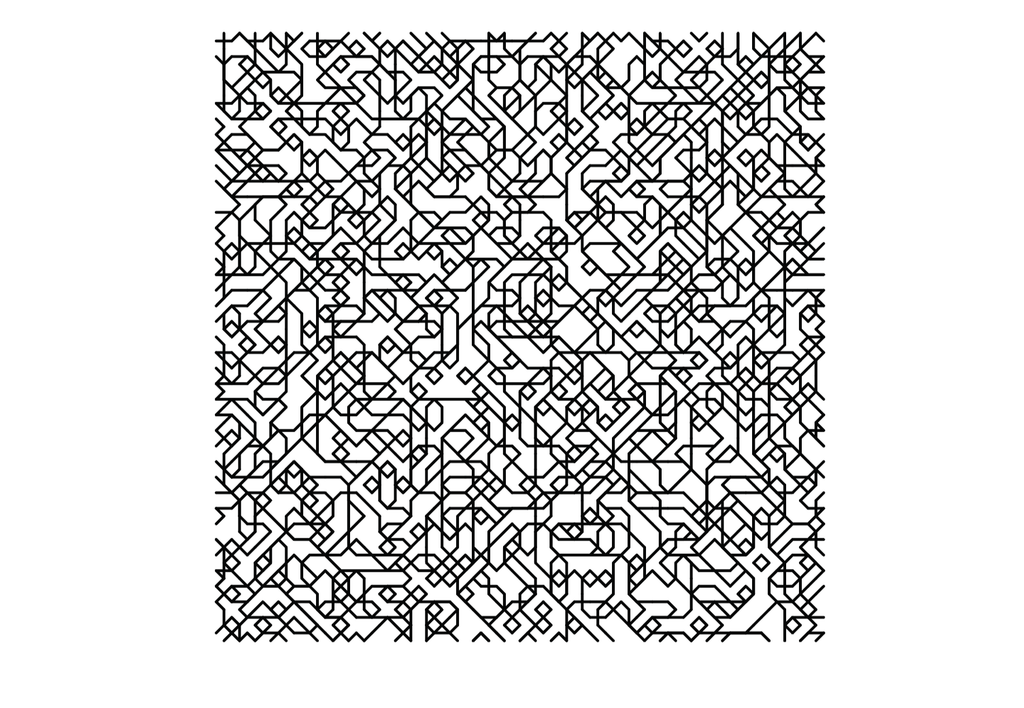
I followed a Coding Train video by Daniel Shiffman on Marching Squares (https://youtu.be/0ZONMNUKTfU?si=pRFAoJ2crTdrO4af) to finally understand marching squares rather than copying the code of others. I created a simple sketch and got something that worked

Also by accident I got this above. I accidentally put the code in the draw loop and commented out the background. I cant seem to find the original svg for when I got this effect but it’s the same look.

However, I decided not to do linear interpolation because I liked the angular design. And I decided to continue with it for now.

Why not try curved lines? Then try depth mapping to create a design like what we saw on the inspiration? Part of me still wishes I did but I couldn’t make the same mistake again; putting all my attention into one thing preventing myself from making the next step.

Some of my experiments (See more at the end)

I went ahead and created some more or less random designs just to see how things would go. I learned to use vpype to optimize my drawings, and I became certain that I wanted to continue. I just needed to add crosshatching to improve the effect.

It was around this time that I had my discussion with the professor. At the end of it I realized what I would do next to make the final series of images.

I have some family pictures on my phone and some of my favorites are with me and my brother. Now that he’s in NYUAD with me I thought it would be fun to recreate some with the plotter. I would represent each of us with different colors. Whether others would like them I don’t know but within my family I know we would love to keep them maybe even hang them somewhere which was more than enough incentive for me.

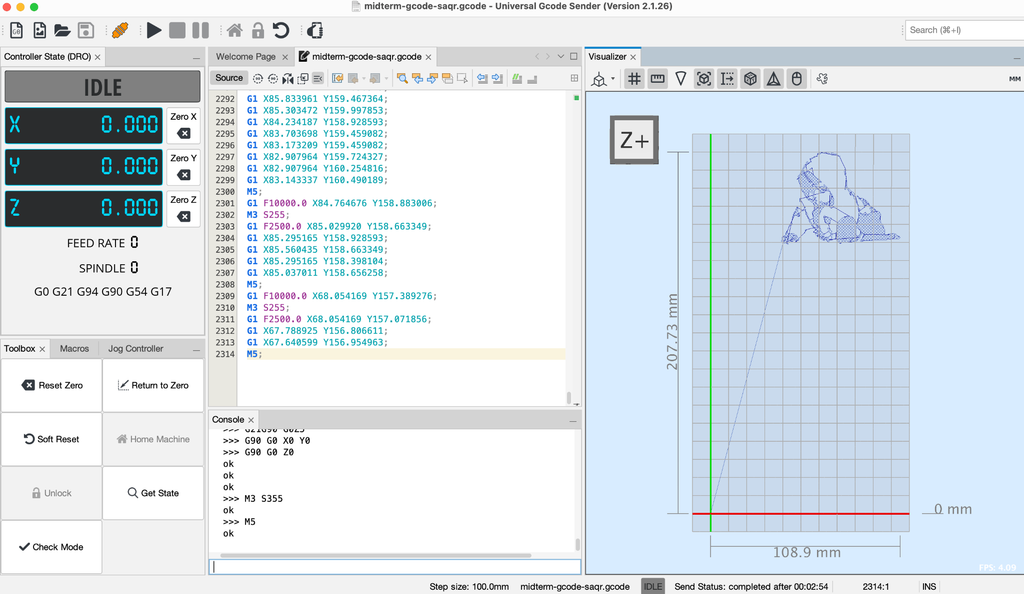
I took images that I liked and I used Illustrator to separate the subject from the background or other parts. After separating I could bring it into my program and edit the cross hatching and resolution since the same settings for the entire image produced mixed results. Then I would create separate Gcodes for each and have the pen overlap the drawings.

Final Result

For personal reasons I’m not going to upload the original family pictures online so you won’t be able to see the reference image for the pen plotter.

I don’t know what to name this series but the theme is our relationship as we’ve grown. I also switched from a normal A4 paper to card paper which was also A4. This was to prevent any warping of the paper from having a lot of ink close together.

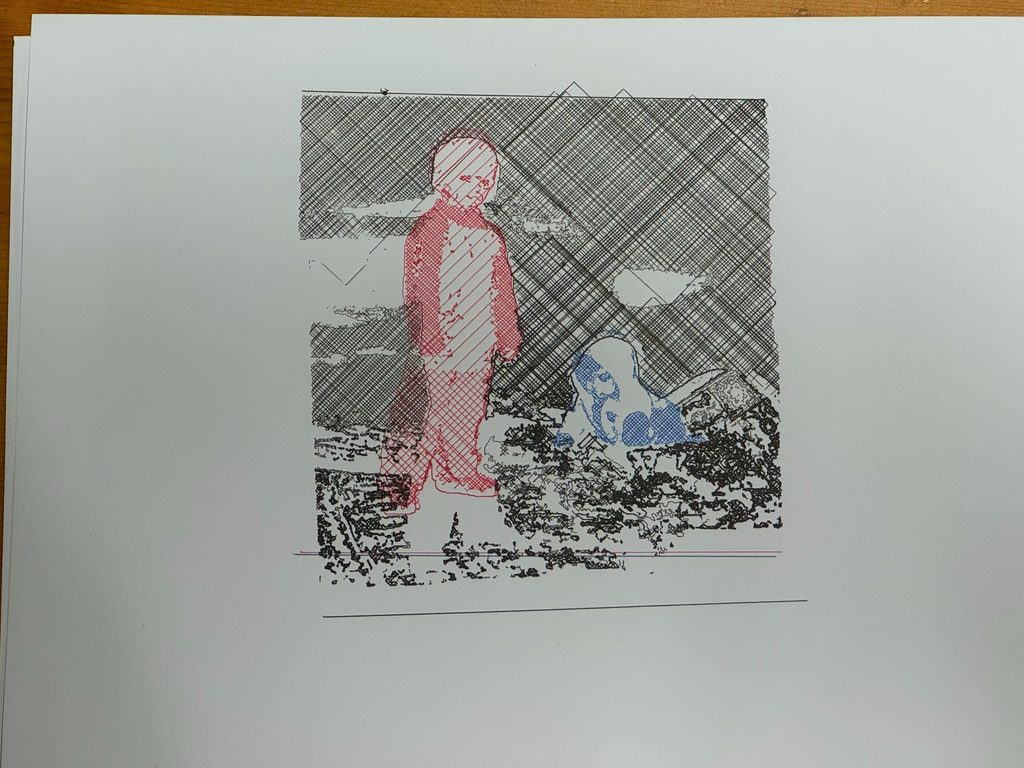
Picture 1

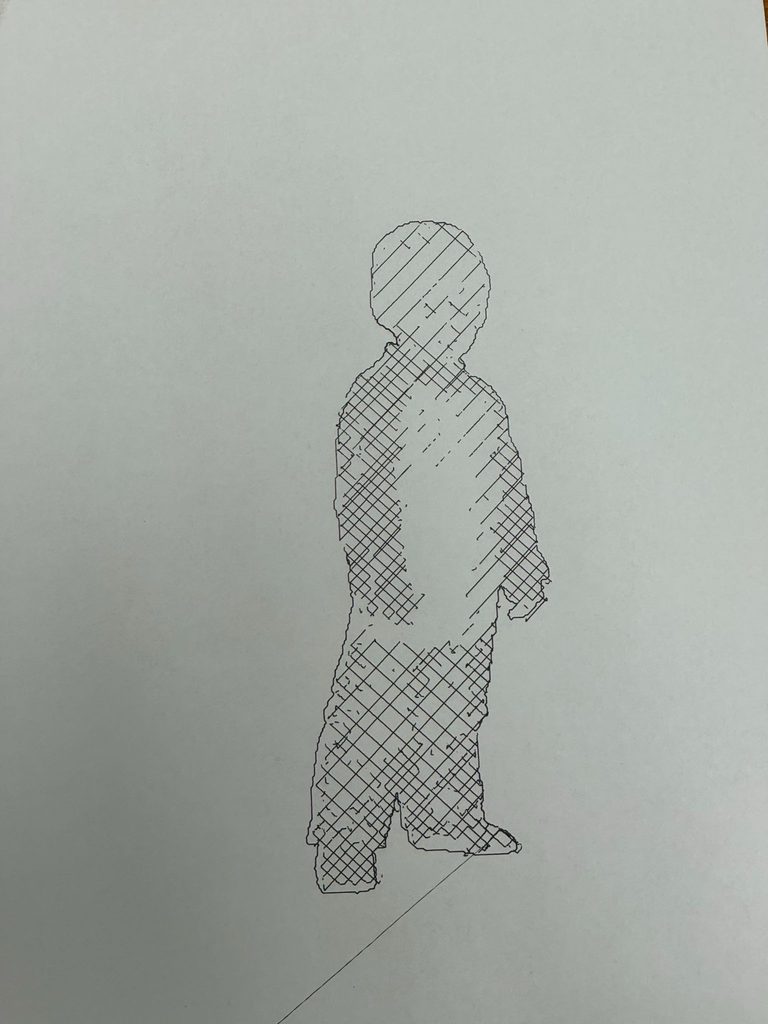
I’m in red, my brother is in blue. I chose these colors because those are the colors we were wearing in the original picture. Personally, red is my favorite color so that’s probably why I was wearing red.

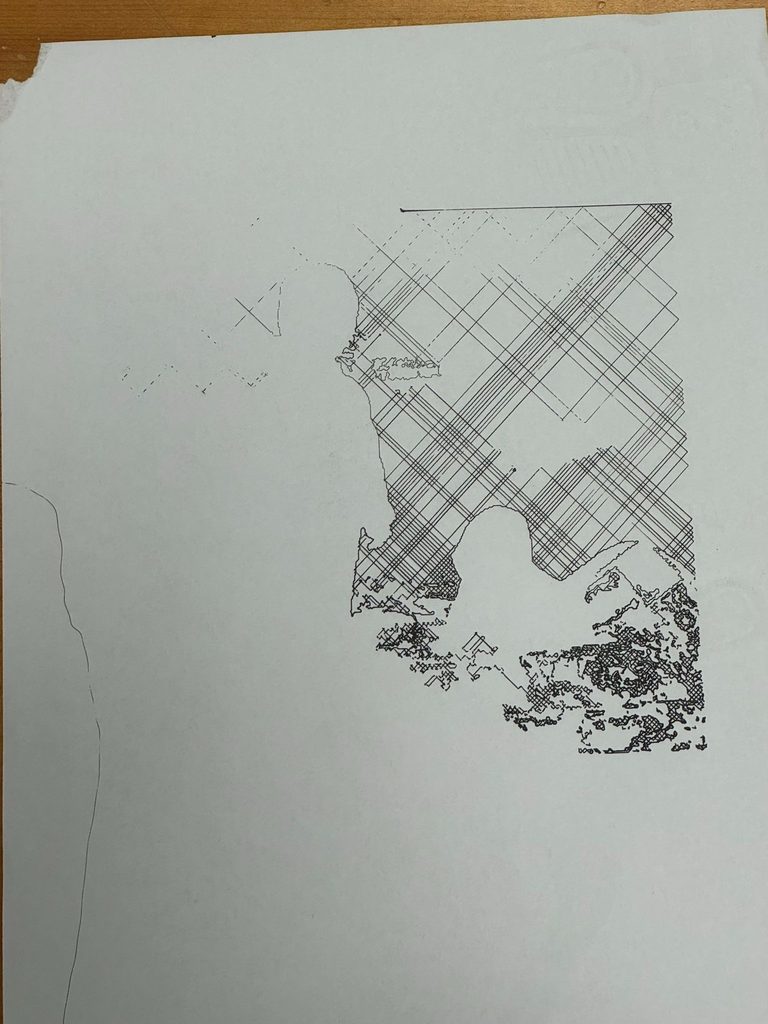
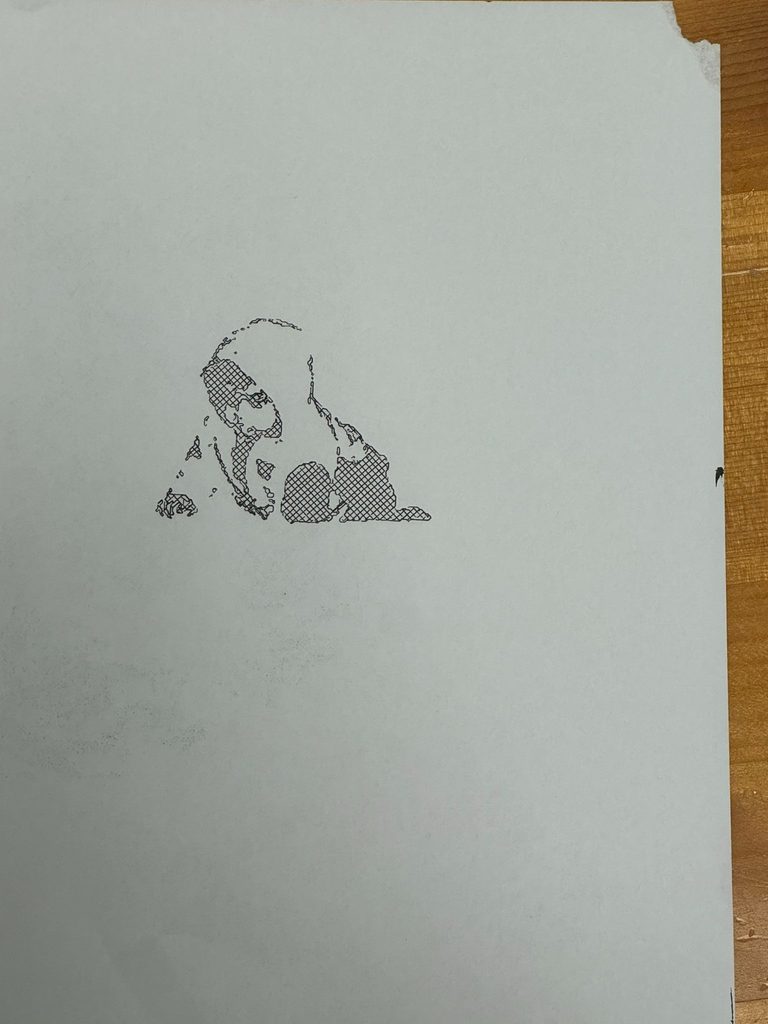
I tried to include the background but the plotter moved far too much and lost alignment. You can see what the alignment should look like based on the lines below the sketches. Moreover because of the density of the cross hatching it took WAY too long. I actually included the line after a couple failed attempts earlier but it draws that line at the end.

I’m not sure how to feel about the misalignment but it is certainly unique.

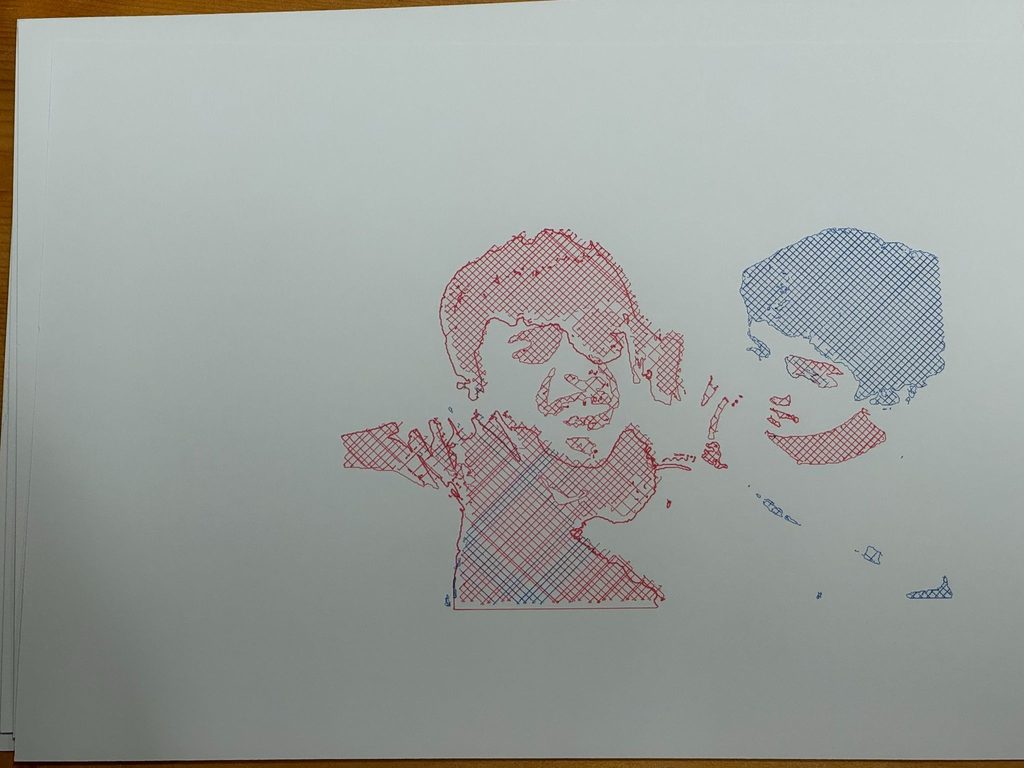
Picture 2

Having grown up we became closer to each other. Rather than limiting red to myself and blue to my brother I decided to mix it a bit more. I made the mistake of not swapping pens soon enough but regardless I think it’s an interesting result.

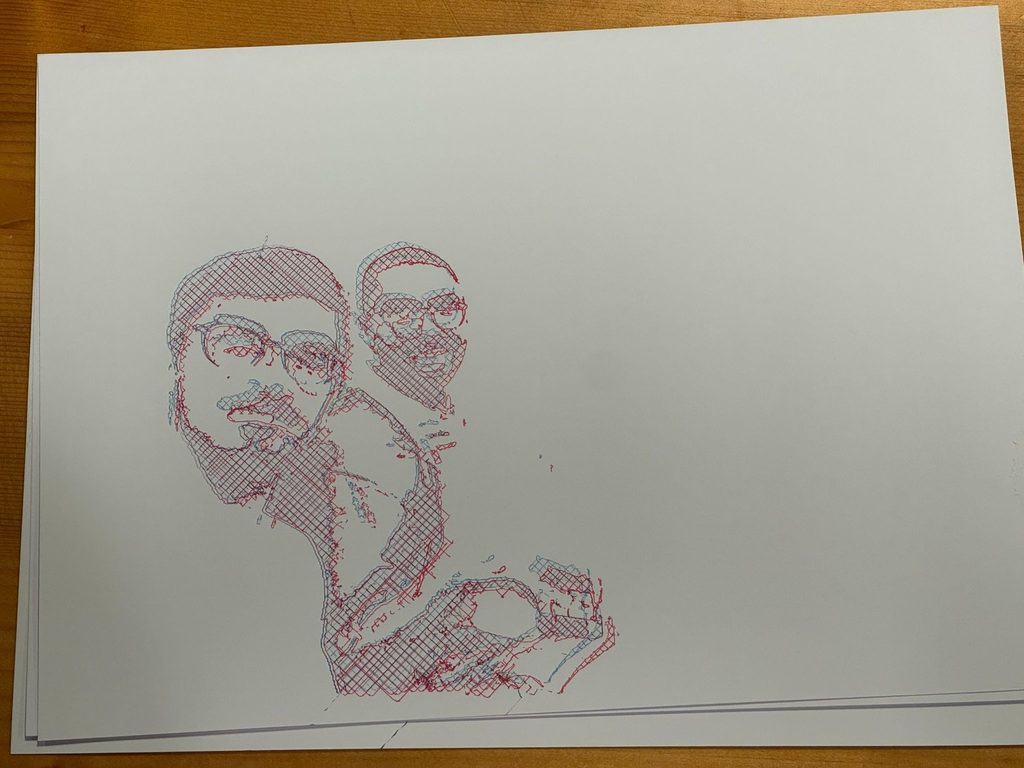
Picture 3

Most recently this summer we’ve travelled to London and this is one of the pictures we took together. I felt it only made sense to use both colors and it made this kind of 3D effect which I learned is called a 3D anaglyph. I did this by having the same Gcode but on the second pass I adjusted the plotter slightly so that the second pass would be slightly up and towards the left.

Overall I’m really happy with how the final images came out. I’m glad this time that I decided to do something different, something more personal, more meaningful to me.

Room for Improvement

Alignment
As previously mentioned the issue with the first picture with the background was the alignment. The pen moving up and down caused a lot of shaking. This was because when screwing in the pen I had to make it lower than it would be normally so that it could press on the page but when it would retract then come back down it would almost push against the page moving seamlessly placing the pen on the page. I tried to mitigate this by using my hand and a little bit of tape to keep thing in place but only so much is possible.

3D objects rather than just 2D: Images feel flat
In the future I would still love to try and make that marching squares effect on a 3D object this time rather than translating the brightness of pixels in an image to marching squares.

Pen switching
I believe it’s possible but I don’t know how: Having the plotter stop at certain points waiting for you to switch pens then you can press a button and have it continue. Again, I don’t know how to do this but in the future I think this would be a way of speeding up the process.

Additional Images during the process

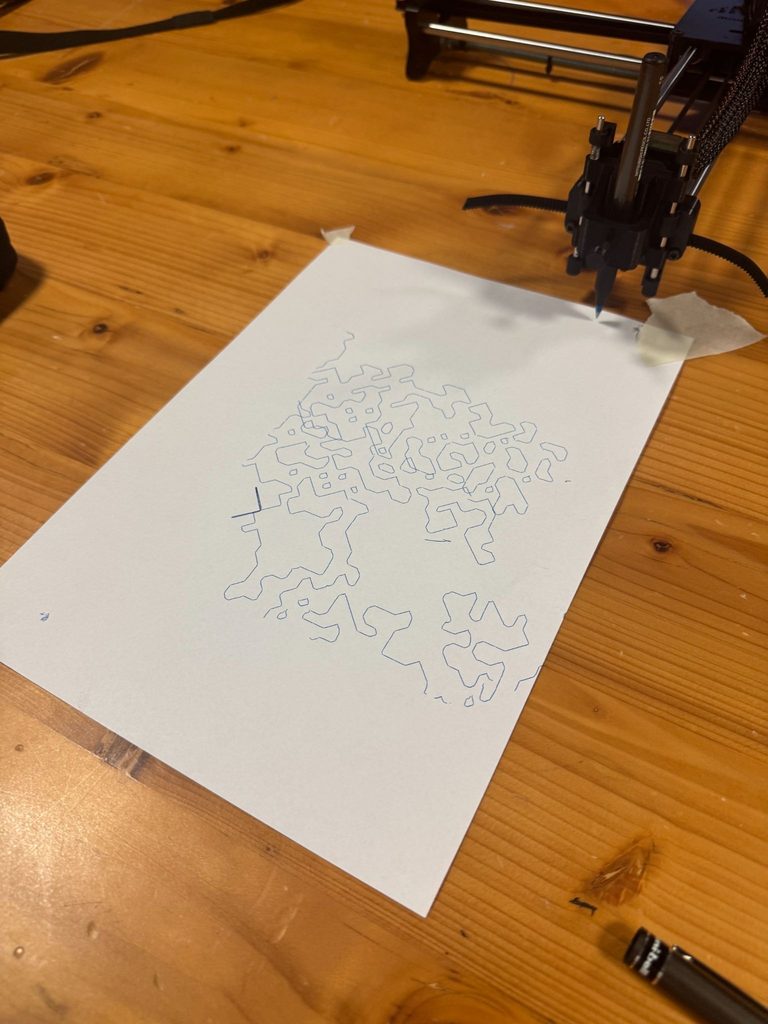
Before creating the first picture I plotted each element separately to get an estimate of how things should look afterwards.

Assignment 5 – Saeed & Joud

Introduction

Going into this assignment felt intimidating. Looking at the PDF with the steps it seemed like it might be hard to follow. Moreover, there were a lot of 3D printed parts and it wasn’t clear at first what went where. It wasn’t easy, it did take a lot of time, but it was simpler than it seemed.

Assembly

Beginning

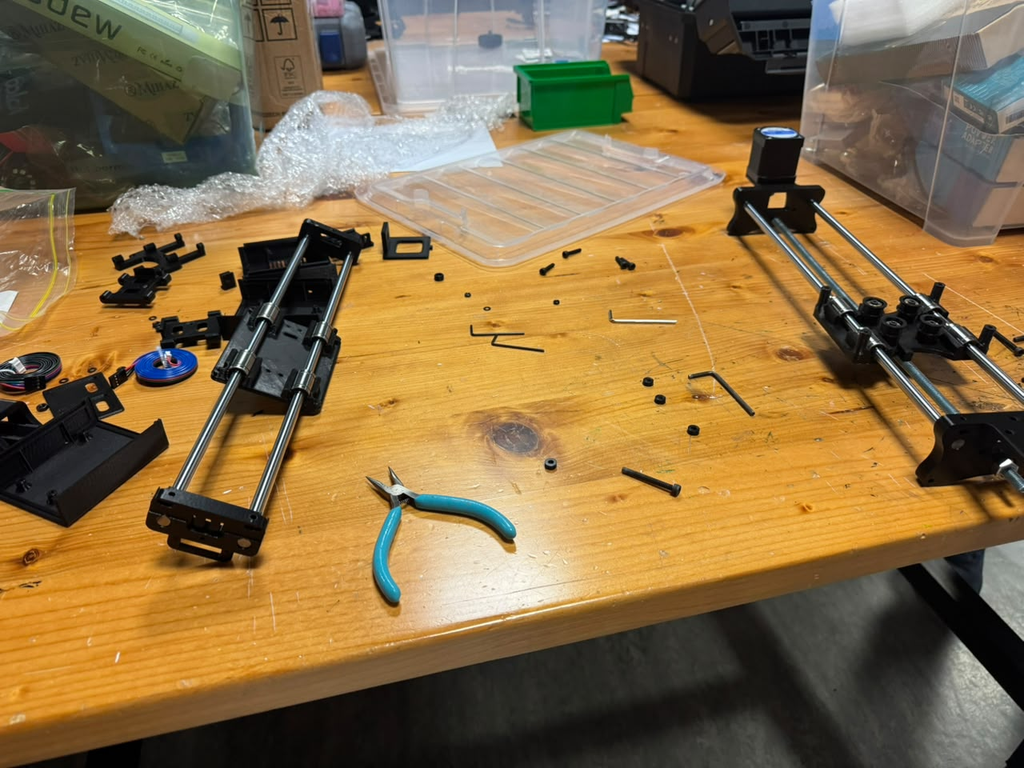
The beginning was fairly straightforward. The images on the PDF with the instructions were often more helpful than the worded instructions. However, it was useful to look back and see if we had the right screws with the right lengths so that we knew we were doing it right.
Installing the large rods, attaching the bearings, installing the servo motors. None of it was very difficult. It took some time but fortunately nothing went wrong during this part.

Halfway there

It was at this point that we had our first most frustrating part of this entire project: Assembling the y-axis. This was the first indication that some of the holes in the 3D printed parts were not correctly sized for the bolts. All of them were too small. Moreover, specifically for this part, there were plastic washers that we had to install as well.

The way we approached this was by first using one of the screws to tap each hole including the plastic washers. Then when first placing the screws into the top half we screwed the washers onto it. Only after that were we able to screw it in.

As we were screwing it in we realized that we were tightening the corners in the incorrect order. Tightening one corner too much than the others meant the plate would start to warp. I was glad that I realized this somewhat early and that the plate didn’t snap during this process. It took some time, and patience, to screw the plate down evenly.

Installing the belt, the z-axis, and the CNC shield

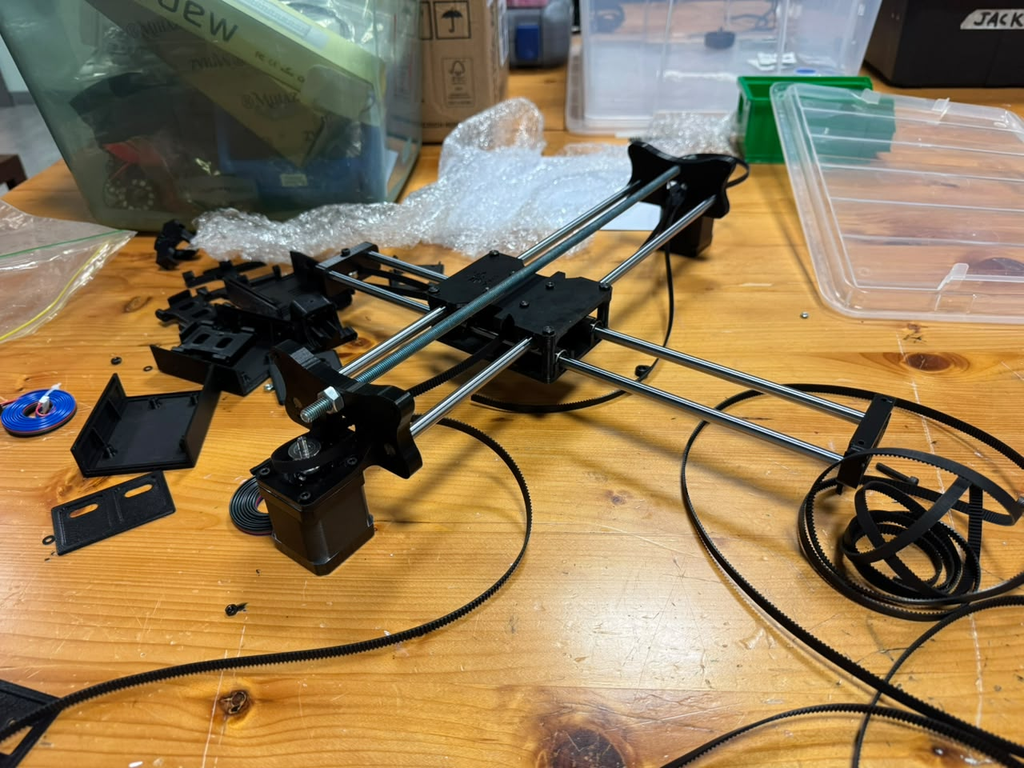
Installing the belt was the next most difficult part of this entire process. The professor had mentioned that most people find installing the belt to be the most difficult. I thought it wouldn’t be that hard. Fortunately, following the steps was simple. But, reaching through the middle to grab the belt was more irritating than I imagined. Irritating because: The belt was too long, reaching through the middle plates was difficult, and because the belt was long sometimes you’d get the orientation wrong and would only realize later on.

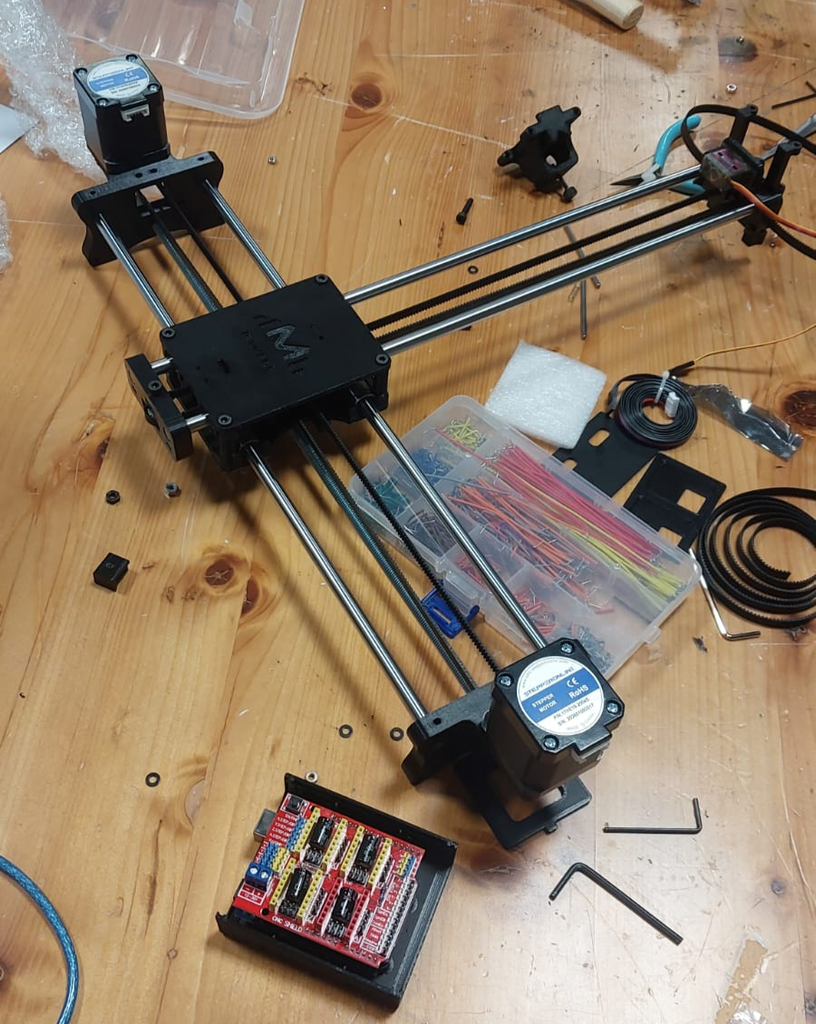
After this the other steps were straightforward. Installing the Arduino UNO then the CNC shield on top was perhaps the easiest part of this entire process, and installing the z-axis was also straightforward.

We had one problem early on and that was the linear rods for the z-axis. They were shorter than the ones in the images. It still seemed to work

Completed Assembly

Problems Encountered

3D Printed Rods:

3D printed parts were not as smooth to work with when installing any kind of screws; for some parts, we needed to go through the part with a screwdriver so it is easier to insert the screw later on.

Belt installation:

As mentioned before it was difficult to pass the belt through the middle and to get the orientation right. This was largely due to the belt being so long. In hindsight, maybe we should have installed at least part of the belt through the middle before attaching the top plate.

Linear Rods:

By the time we reached installing the linear rods for the pen holder, the rods we found were shorter than expected.

Assignment 4 – DNA Strand

Introduction

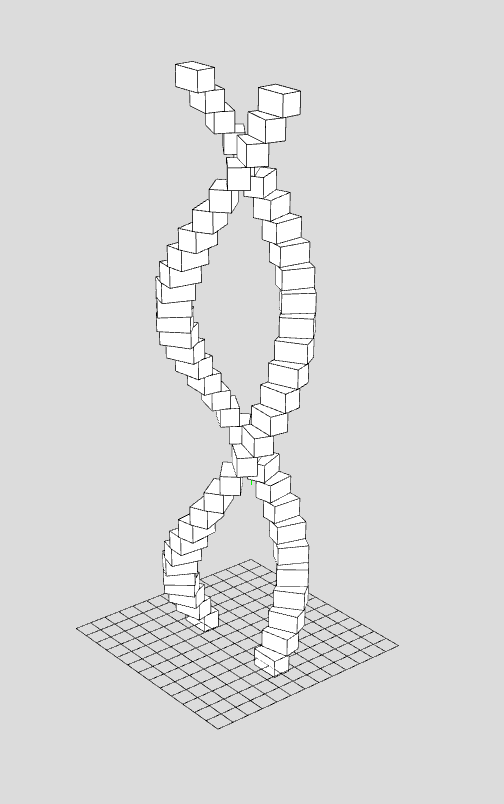
Before I talk about what I made, I had some experience in 3D printing and modelling but only ever using Fusion Autodesk. I never made something programmatically. Most of the time I’ve made things that have some functional use of real life rather than purely aesthetics. I would have never known that you could use p5.js to create models which could be exported as STL’s or Obj’s. 

Concept

https://www.istockphoto.com/photo/digital-dna-strand-representation-in-blue-with-particle-effects-gm2188060332-606604549
Credit goes to bymuratdeniz for the image.

For this project going into it I had the idea of doing something biological. I wasn’t sure what just yet, but one of my favorite ideas was to create a DNA strand like the ones you see online. I felt it was a shape which would be hard to create manually and using a 3D printer would be perfect. I don’t know whether they look like that in real life.

Implementation

Step 1

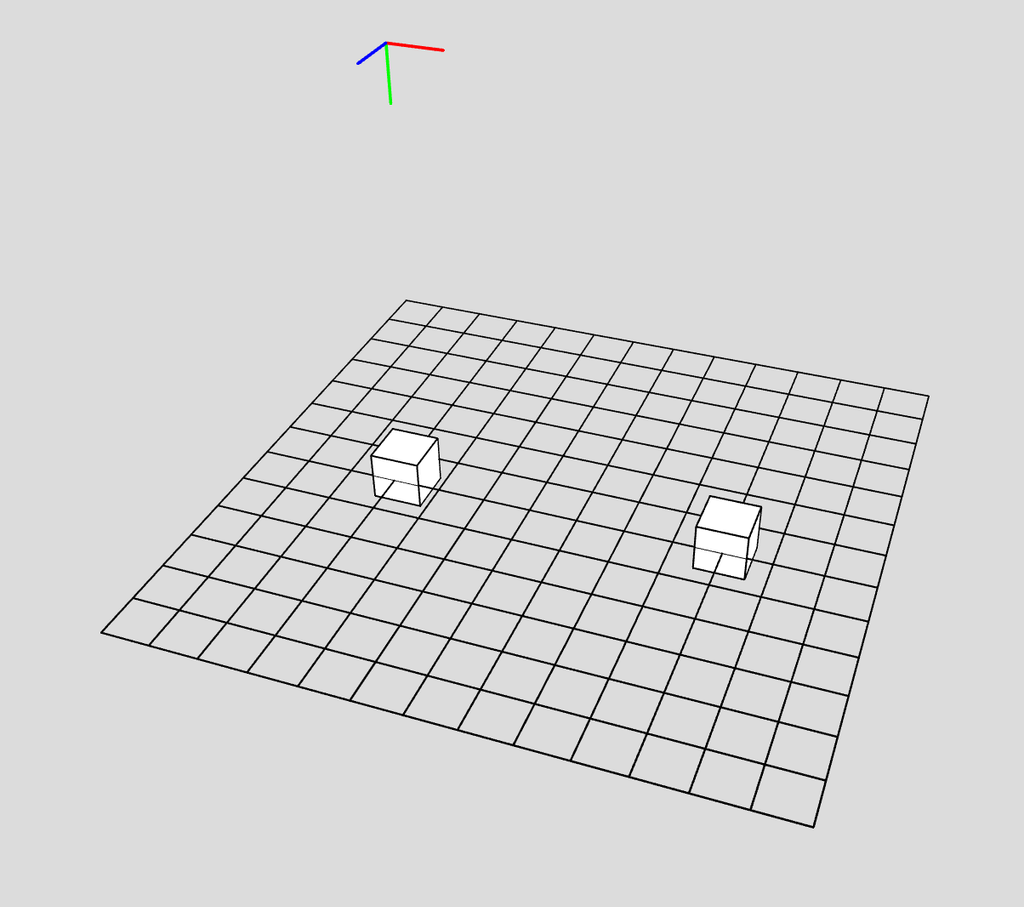
I started by creating two boxes with a gap in the middle. It took some getting used to having to use translate more often and starting from the center. I haven’t programmed in WEBGL in a while

Step 2

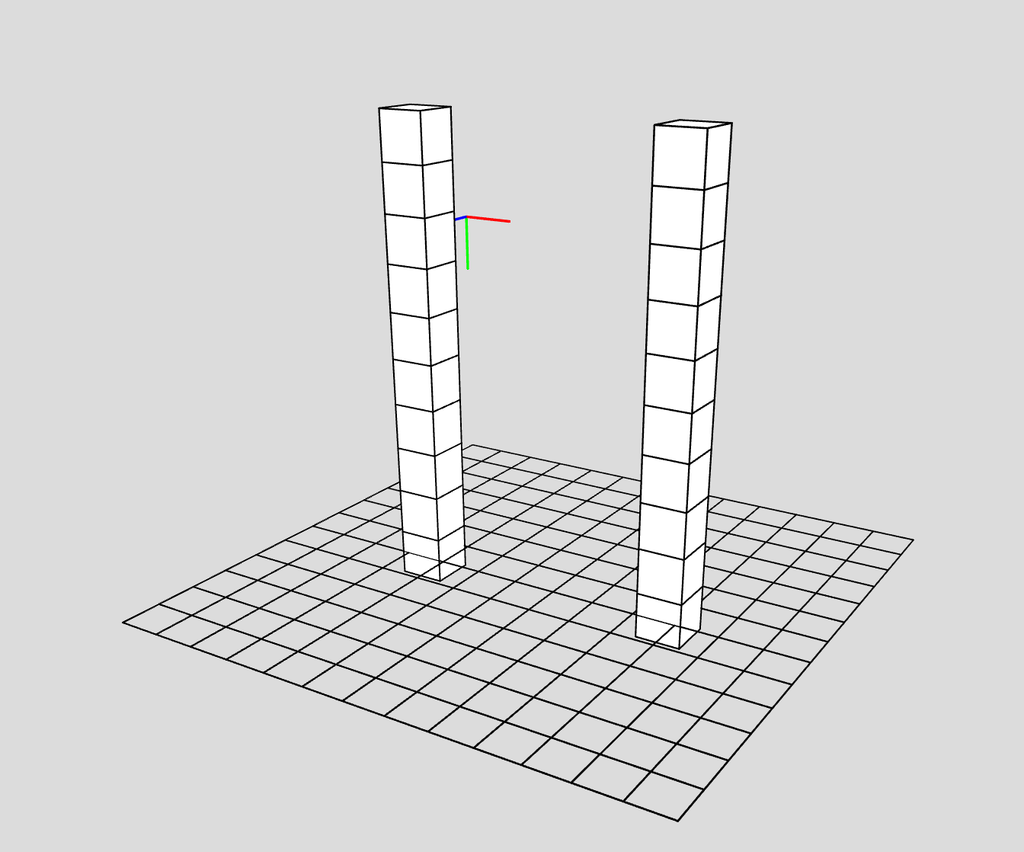
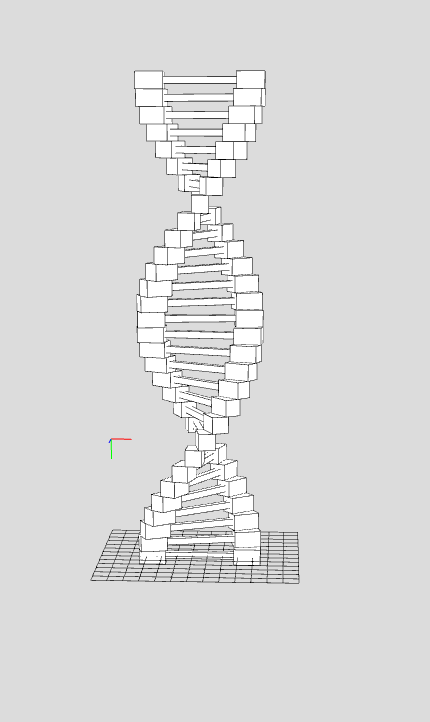
I then started by stacking them on top of each other. The way I did it I don’t think was what we had done in class exactly. Rather than decide the height and the height of each rows are mapped to be evenly spaced to fit in the height (which leaves gaps). I instead had each row stack on the previous one.

Step 3

Then to program the rotation of each row I originally thought I may need to use a sin wave somehow and do some complicated math but it was far easier than that. I made a rotation variable which mapped the index (which goes from 0 to rows-1) to 0 to TWO_PI. I tried just PI at the beginning which made one twist of the strand which looked interesting but I wanted more.

Step 4

After creating the helical shape I had to create the line that connects across from one side to the other in each row. This was fairly straightforward, I created a box with a width that fits the gap. I originally thought I might have to center the box somehow but I forgot that the boxes are moved and translated from the center point and not from a corner like I got used to.

Step 5

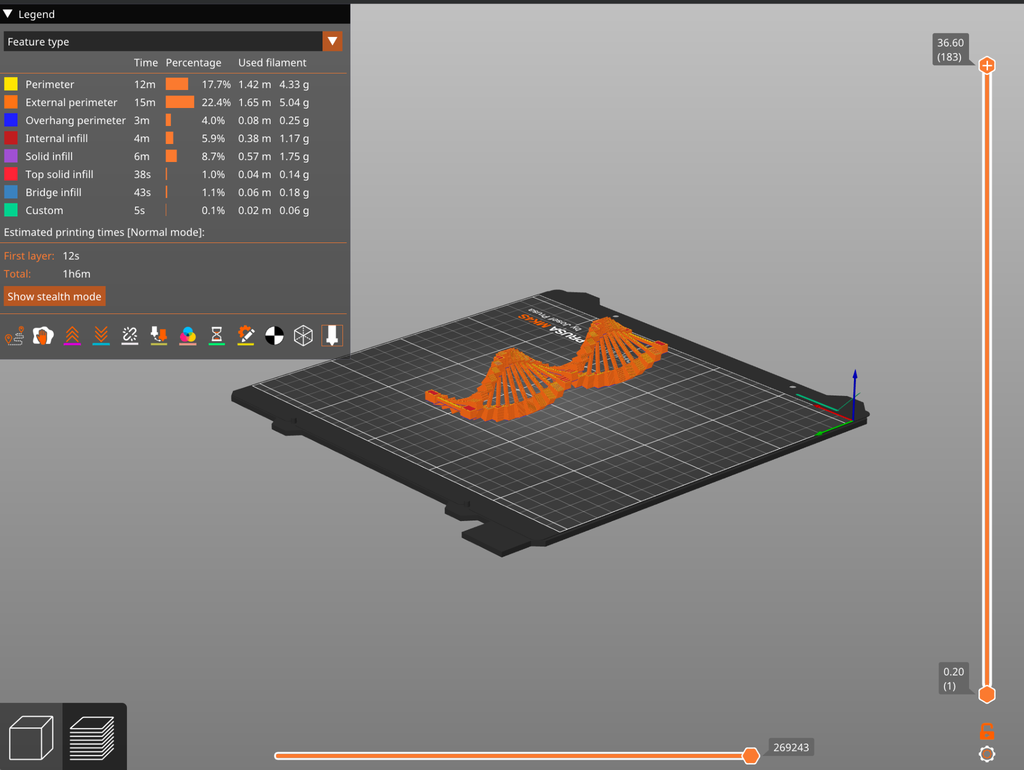
After this I made the function keypressed and had it such that when you press a key it saves the model. The reason I used keypressed was because I liked using orbitControl a lot and viewing the model from different angles, but that meant clicking the screen a lot. After saving the model I took it into PrusaSlicer. For whatever reason STL didn’t work so I had to use Obj.

End Product

When putting the STL into PrusaSlicer I learned that it had to be placed on its side to have the lowest print time. I originally thought that there may be no difference. I can’t explain why exactly but I assume it’s partly because there didn’t need to be any support.

Conclusion

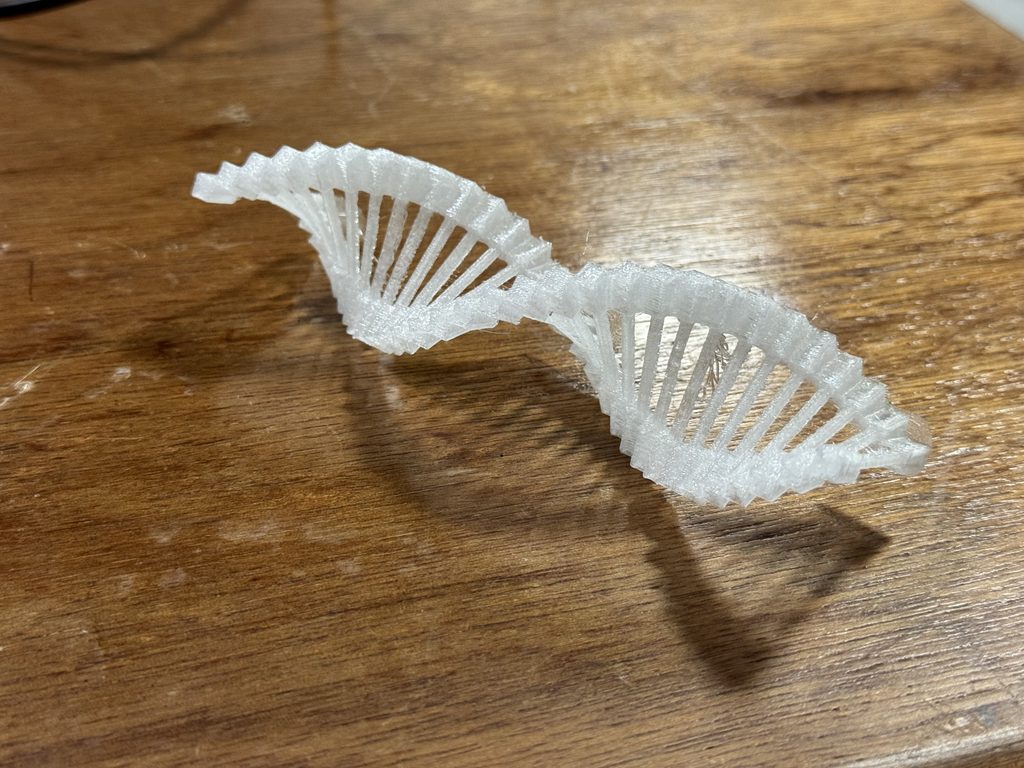
I’m happy with how everything turned out but in the future I would like to continue the biological theme. Maybe I’ll try something related to the brain next time. I was worried that because I was using boxes in WEBGL that it may not print well. I thought there may have to be smooth transitions but it came out feeling solid.
The filament I used wasn’t as good as I thought it might be. it’s a transparent filament but it looked foggy. I hoped that maybe it may look crystal clear or at least clearer than what it ended up being. I guess because some parts of the print are thicker than others. I would like to try other filaments in the future.

It’s nice to have a project that goes well the first time every so often but that’s probably a sign that I’m not experimenting enough. In the future I’d also like to create models that are thinner/slimmer and use other shapes than boxes.

Assignment 3 – Saeed Lootah

Introduction

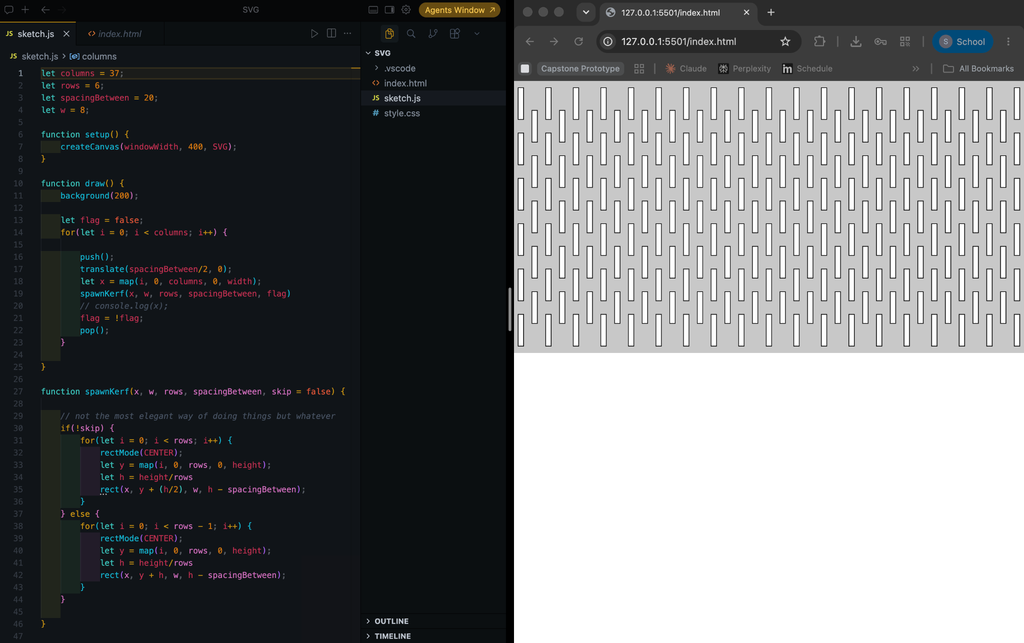
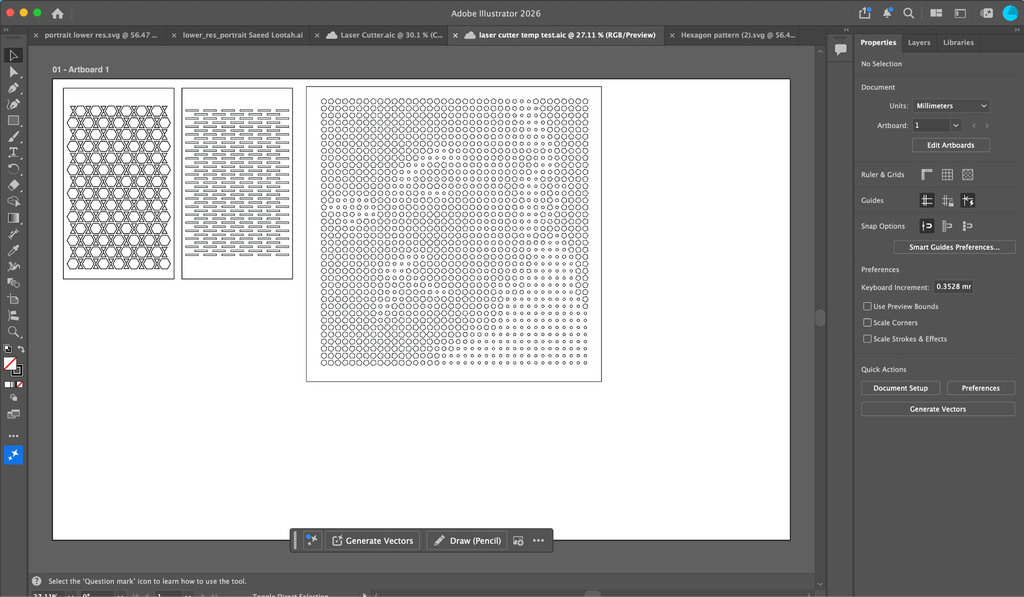
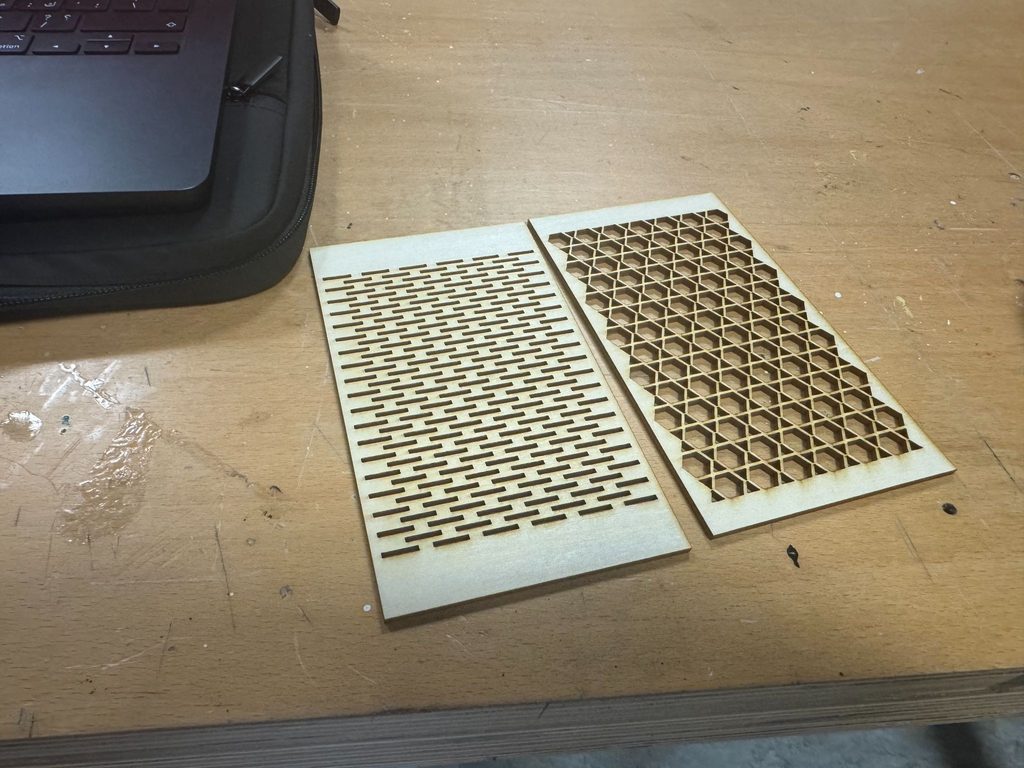
I wanted to try out three different designs. Two were related to kerf bending my own design compared to the kind of kerf bending using plywood and another using acrylic which I based off of a portrait.

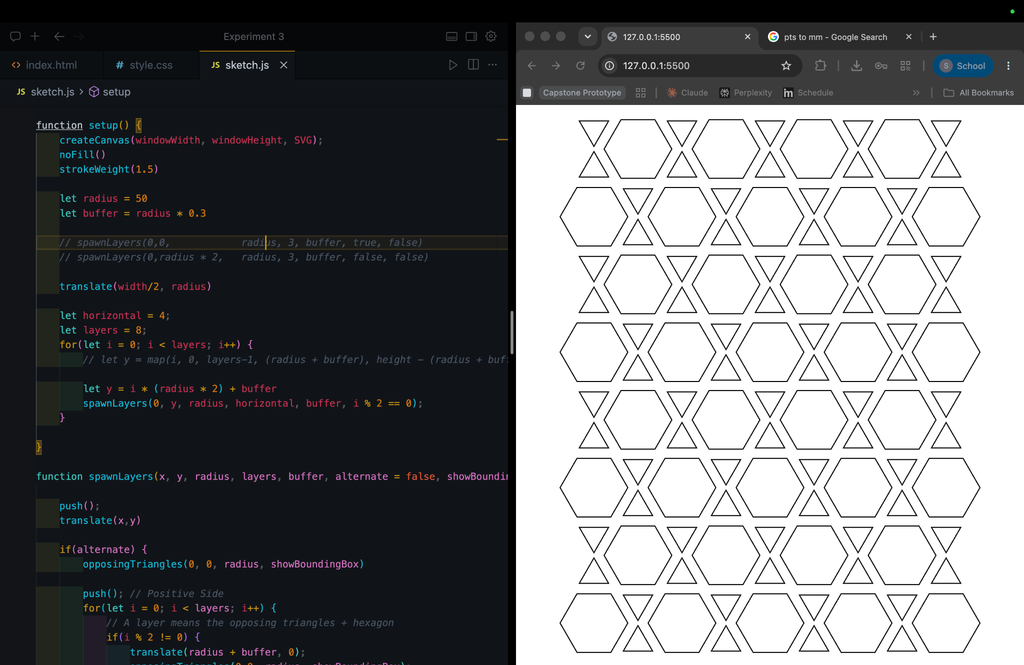
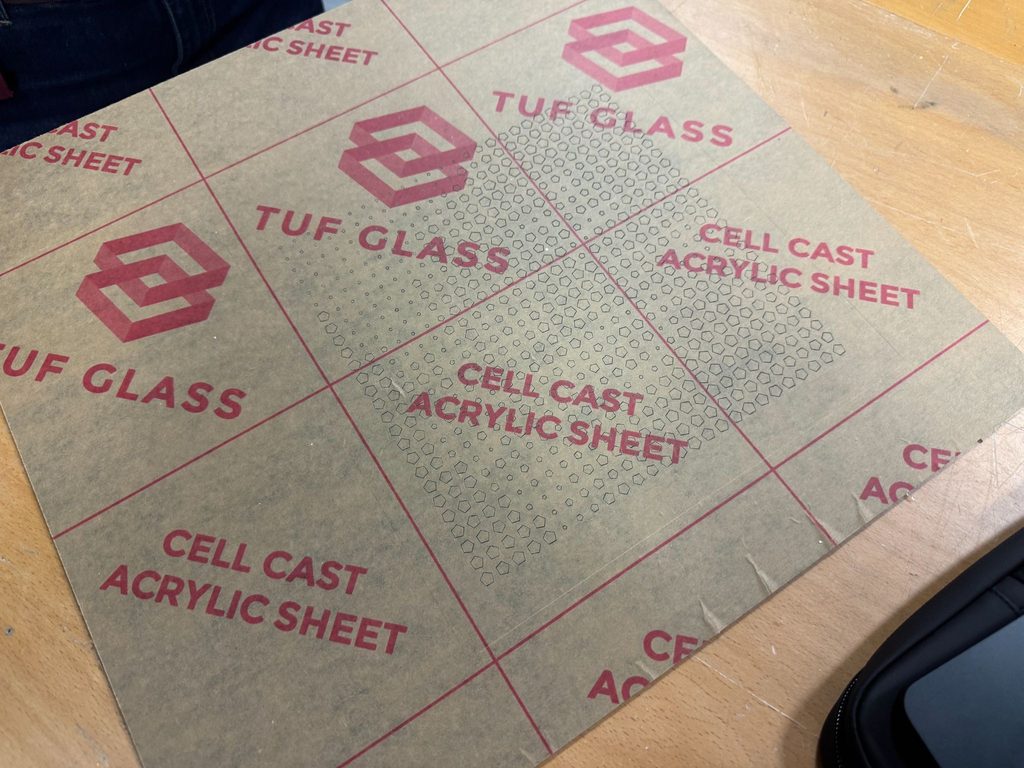
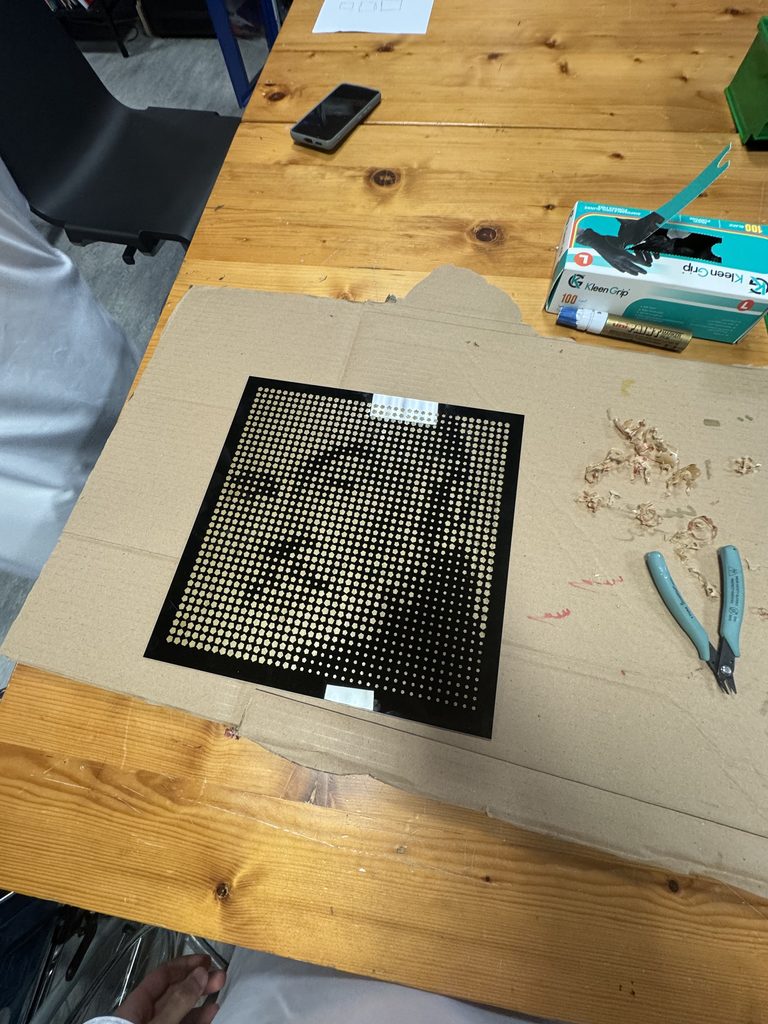
For the kerf bending I tried to experiment with hexagons and triangles to make a repeating pattern. I hypothesized that by using such a pattern not only would it become more flexible but also could bend from other directions. As for the acrylic design, I would use engraving rather than cutting and my hope was that because I would use a black acrylic the engraving would come out as white making an interesting pattern.

Designs

Design 1: Generic Kerf Bending

let columns = 37;
let rows = 6;
let spacingBetween = 20;
let w = 8;


function setup() {
   createCanvas(windowWidth, 400, SVG);


   noFill()
   let flag = false;
   for(let i = 0; i < columns; i++) {


       push();
       translate(spacingBetween/2, 0);
       let x = map(i, 0, columns, 0, width);
       spawnKerf(x, w, rows, spacingBetween, flag)
       // console.log(x);
       flag = !flag;
       pop();
   }
}


function draw() {
   // background(200);
}


function spawnKerf(x, w, rows, spacingBetween, skip = false) {


   // not the most elegant way of doing things but whatever
   if(!skip) {
       for(let i = 0; i < rows; i++) {
           rectMode(CENTER);
           let y = map(i, 0, rows, 0, height);
           let h = height/rows
           rect(x, y + (h/2), w, h - spacingBetween);
       }
   } else {
       for(let i = 0; i < rows - 1; i++) {
           rectMode(CENTER);
           let y = map(i, 0, rows, 0, height);
           let h = height/rows
           rect(x, y + h, w, h - spacingBetween);
       }
   }
  
}


function mouseClicked() {
   save("Kerf-bending test")
}

For this design I just wanted to make a design similar to what we saw in class but without using online resources . I wanted to experiment, figure it out myself, I thought it wouldn’t be that hard (foreshadowing). I did make a mistake however: I should have been more brave and made more rows and columns, I worried that the plywood may break or the laser cutter may not be able to cut so close to other lines and it may break during the process.

The next design used lines that were far closer to each other and that was when I really learned what was possible. It was also while I was in the IM Lab that I saw someone write on the wall that the laser cutter kerf was 0.2-0.3mm. If I understood that correctly it means that the thickness of the cut left behind by the laser is 0.2-0.3mm which I will keep in mind for future projects.

Design 2:

Initial attempt: See more below

Second attempt: Trying out a new technique which ended up working out

Final result: Removed the red and blue lines indicating how the polygons were drawn, and I removed the background.

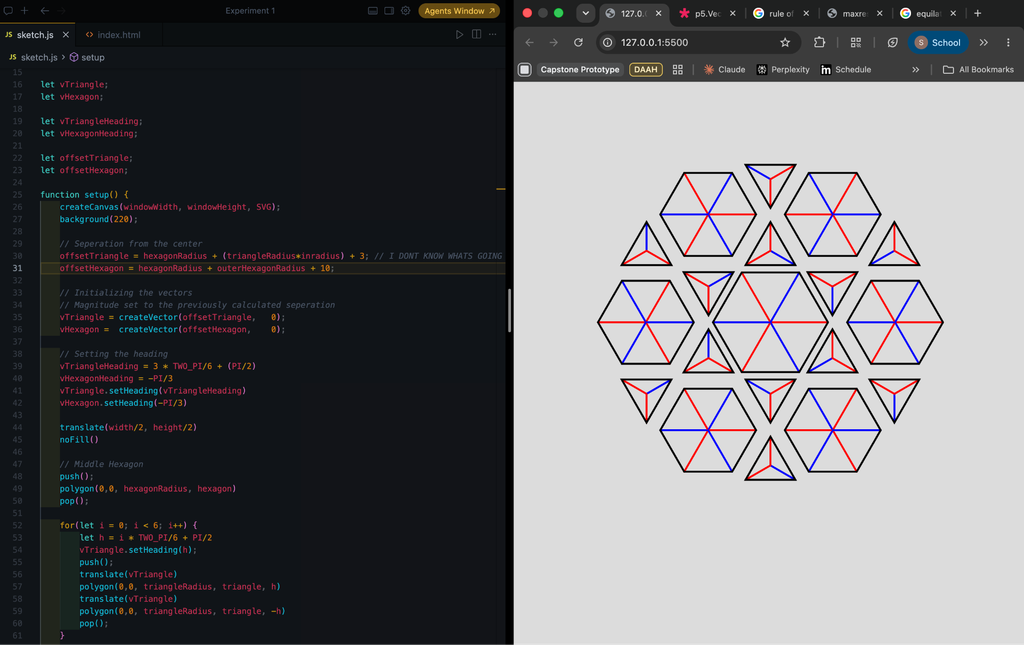
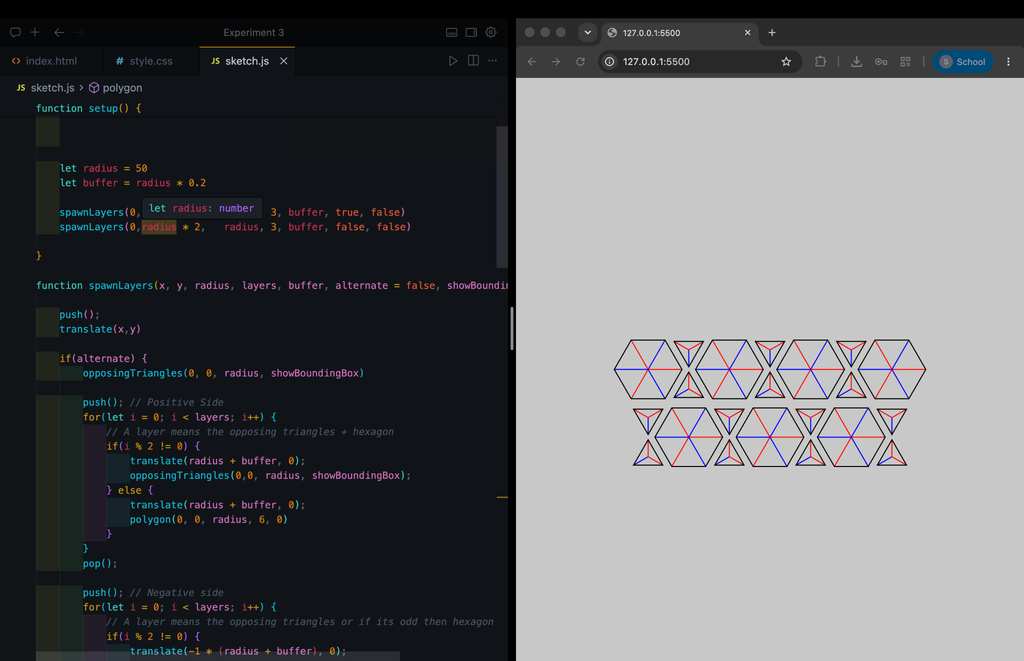
You may have noticed that I tried two different methods of achieving this pattern. Put simply, I was overthinking it. In the beginning I tried starting from the center, and spawning the hexagons and triangles outward from the center. Doing this for n layers was much harder than I thought it would be, the first image was as far as I got. In desperation I started using vectors and the translate function more often but to no avail.

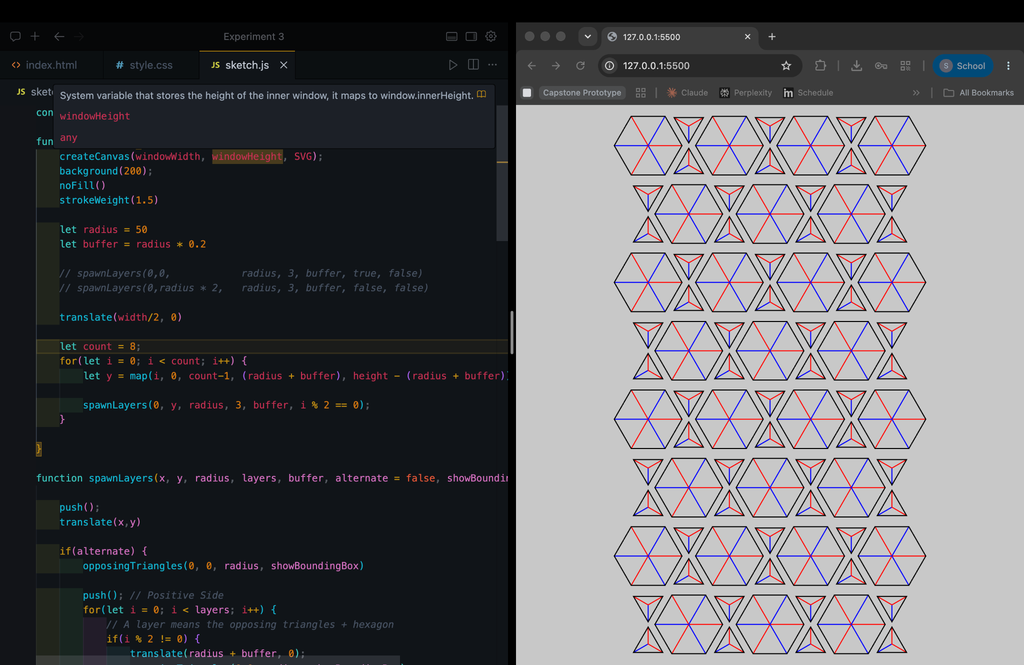
In bed later that night I realized I had been doing it all wrong. If I just worked layer by layer I would achieve the same pattern. I could also modify the length of the layers and rotation and maybe even make it circular but for the kerf design all I need is a pattern that spans the length rather than a radial one.

Initial Attempt Code

/*
Goal:
Hexagonal pattern starting from the center then triangles, then ...
Maybe recursion?
*/


const hexagon = 6
const hexagonRadius = 30;
const outerHexagonRadius = 25;


const triangle = 3
const triangleRadius = 15


const inradius = (Math.sqrt(3)) / 6


let vTriangle;
let vHexagon;


let vTriangleHeading;
let vHexagonHeading;


let offsetTriangle;
let offsetHexagon;


function setup() {
   createCanvas(windowWidth, windowHeight, SVG);
   background(220);
  
   // Seperation from the center
   offsetTriangle = hexagonRadius + (triangleRadius*inradius) + 3; // I DONT KNOW WHATS GOING ON
   offsetOuterTriangle = outerHexagonRadius + (triangleRadius*inradius) + 3; // I DONT KNOW WHATS GOING ON
   offsetHexagon = hexagonRadius + outerHexagonRadius + 10;
  
   // Initializing the vectors
   // Magnitude set to the previously calculated seperation
   vTriangle = createVector(offsetTriangle,   0);
   vHexagon =  createVector(offsetHexagon,    0);


   // Setting the heading
   vTriangleHeading = 3 * TWO_PI/6 + (PI/2)
   vHexagonHeading = -PI/3
   vTriangle.setHeading(vTriangleHeading)
   vHexagon.setHeading(-PI/3)
  
   translate(width/2, height/2)
   noFill()
  
   // Middle Hexagon
   push();
   polygon(0,0, hexagonRadius, hexagon)
   pop();


   for(let i = 0; i < 6; i++) {
       let h = i * TWO_PI/6 + PI/2
       vTriangle.setHeading(h);
       push();
       translate(vTriangle)
       polygon(0,0, triangleRadius, 3, h)
       translate(vTriangle.x *0.9, vTriangle.y *0.9);
       polygon(0,0, triangleRadius, 3, -h)
       pop();
   }
  
   for(let i = 0; i < 6; i++) {
       let h = i * TWO_PI/6;
       vHexagon.setHeading(h);
       push();
       translate(vHexagon)
       polygon(0,0,outerHexagonRadius, 6, h)
       // let a = createVector(offsetOuterTriangle + 0.8, 0)
       // let theta = 2 * TWO_PI/6 + PI/2;
       // a.setHeading(theta)
       // translate(a)
       // polygon(0,0, triangleRadius, 3, theta)
       pop();
   }
  
}


function layer(vTriangle, vHexagon, triangleRadius, outerHexagonRadius) {
   for(let i = 0; i < sides; i++) {
       let h = i * TWO_PI/sides + PI/2
       vTriangle.setHeading(h);
       push();
       translate(vTriangle)
       polygon(0,0, triangleRadius, 3, h)
       translate(vTriangle.x *0.9, vTriangle.y *0.9);
       polygon(0,0, triangleRadius, 3, -h)
       pop();
   }
  
   for(let i = 0; i < 6; i++) {
       let h = i * TWO_PI/sides;
       vHexagon.setHeading(h);
       push();
       translate(vHexagon)
       polygon(0,0,outerHexagonRadius, 6, h)
       pop();
   }
}


function draw() {
}


function polygon(x, y, radius, sides = 3, angle = 0) {
   beginShape();
   for (let i = 0; i < sides; i++) {
       const a = angle + TWO_PI * (i / sides);
       let sx = x + cos(a) * radius;
       let sy = y + sin(a) * radius;


       // Making the red and blue lines
       push();
           if(i % 2 == 0) {
               stroke(255, 0 ,0)
           } else {
               stroke(0, 0 ,255)
           }
           line(x, y, sx, sy)
       pop();


       vertex(sx, sy);
   };
   endShape(CLOSE);
};

Final Attempt Code

const inradius = (Math.sqrt(3)) / 6


function setup() {
   createCanvas(windowWidth, windowHeight, SVG);
   noFill()
   strokeWeight(1.5)


   let radius = 35
   let buffer = radius * 0.3
  
   // spawnLayers(0,0,            radius, 3, buffer, true, false)
   // spawnLayers(0,radius * 2,   radius, 3, buffer, false, false)
  
   translate(width/2, radius)


   let horizontal = 6;
   let layers = 14;


   for(let i = 0; i < layers; i++) {
       // let y = map(i, 0, layers-1, (radius + buffer), height - (radius + buffer));


       let y = i * (radius * 2) + buffer
       spawnLayers(0, y, radius, horizontal, buffer, i % 2 == 0);
   }


}


function spawnLayers(x, y, radius, layers, buffer, alternate = false, showBoundingBox = false) {


   push();
   translate(x,y)


   if(alternate) {
       opposingTriangles(0, 0, radius, showBoundingBox)


       push(); // Positive Side
       for(let i = 0; i < layers; i++) {
           // A layer means the opposing triangles + hexagon
           if(i % 2 != 0) {
               translate(radius + buffer, 0);
               opposingTriangles(0,0, radius, showBoundingBox);
           } else {
               translate(radius + buffer, 0);
               polygon(0, 0, radius, 6, 0)
           }
       }
       pop();


       push(); // Negative side
       for(let i = 0; i < layers; i++) {
           // A layer means the opposing triangles or if its odd then hexagon
           if(i % 2 != 0) {
               translate(-1 * (radius + buffer), 0);
               opposingTriangles(0,0, radius, showBoundingBox);
           } else {
               translate(-1 * (radius + buffer));
               polygon(0, 0, radius, 6, 0)
           }
       }
       pop();
   } else {
       polygon(0, 0, radius, 6, 0)


       push(); // Positive Side
       for(let i = 0; i < layers; i++) {
           // A layer means the opposing triangles + hexagon
           if(i % 2 == 0) {
               translate(radius + buffer, 0);
               opposingTriangles(0,0, radius, showBoundingBox);
           } else {
               translate(radius + buffer, 0);
               polygon(0, 0, radius, 6, 0)
           }
       }
       pop();


       push(); // Negative side
       for(let i = 0; i < layers; i++) {
           // A layer means the opposing triangles or if its odd then hexagon
           if(i % 2 == 0) {
               translate(-1 * (radius + buffer), 0);
               opposingTriangles(0,0, radius, showBoundingBox);
           } else {
               translate(-1 * (radius + buffer));
               polygon(0, 0, radius, 6, 0)
           }
       }
       pop();
   }


   pop();   
}


function opposingTriangles(x, y, radius, showBoundingBox = false) {
   rectMode(CENTER)
   if(showBoundingBox) {
       rect(0,0,radius, radius * inradius * 6)
   }
   polygon(0,radius * 2 * inradius, radius * 0.5, 3, PI/6)
   polygon(0,-1 * radius * 2 * inradius, radius * 0.5, 3, -PI/6)
}


function polygon(x, y, radius, sides = 3, angle = 0) {
   beginShape();
   for (let i = 0; i < sides; i++) {
       const a = angle + TWO_PI * (i / sides);
       let sx = x + cos(a) * radius;
       let sy = y + sin(a) * radius;


       // push();
       // if(i % 2 == 0) {
       //     stroke(255,0,0)
       // } else {
       //     stroke(0,0,255)
       // }
       // line(x,y, sx, sy);
       // pop();


       vertex(sx, sy);
   };
   endShape(CLOSE);
}


function mouseClicked() {
   save("Hexagon pattern")
}

The inradius const at the top was to get the triangles to be the right distance away from each other. An inradius is the length from the center of the triangle to the middle of the side. I tried to be as mathematically consistent throughout the sketch so that the distance between each side and another was equal. For example I originally tried to map the layers to the width but that meant the separation between layers was inconsistent. There were a few points where the measurements weren’t quite right and I tried multiplying by other numbers till it worked.

I remember being confused when trying to line up the triangle to the hexagon, I thought that in theory by having the radius be the same then they would line up perfectly assuming that the radius is equal to side length side each segment was an equilateral triangle. For whatever reason that didn’t work. Either my math and research was incorrect or I misunderstood how the code worked. Nonetheless it doesn’t have to be perfect.

Design 3:

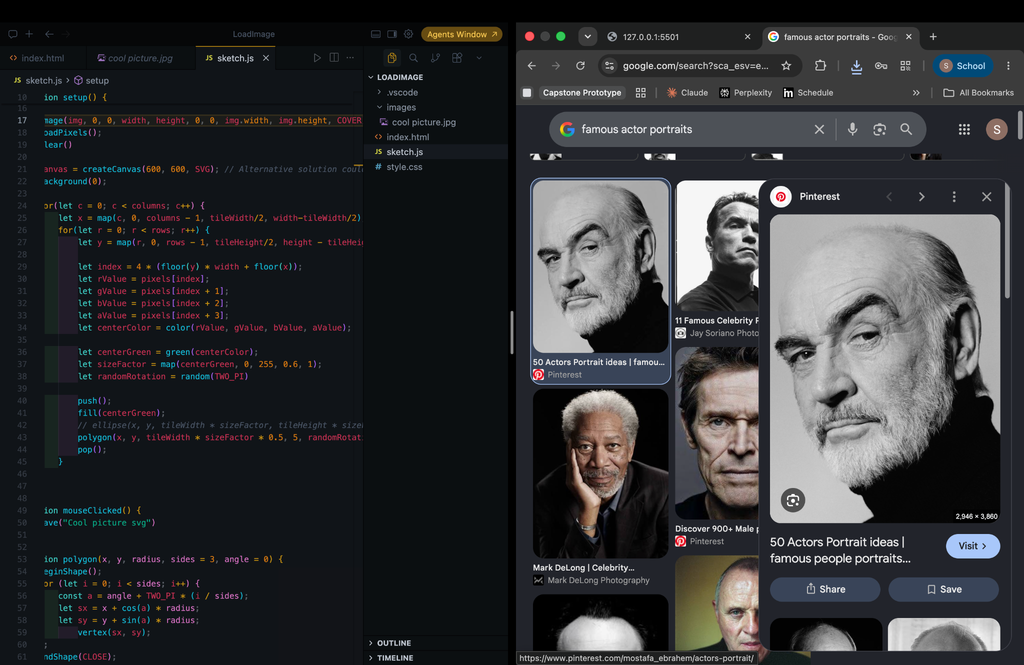
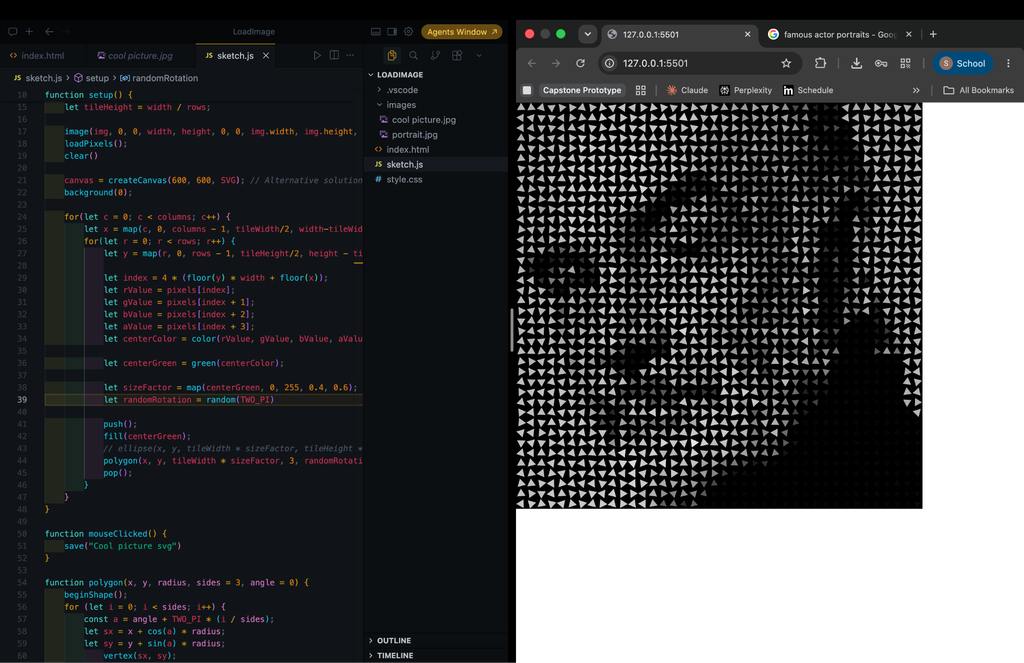
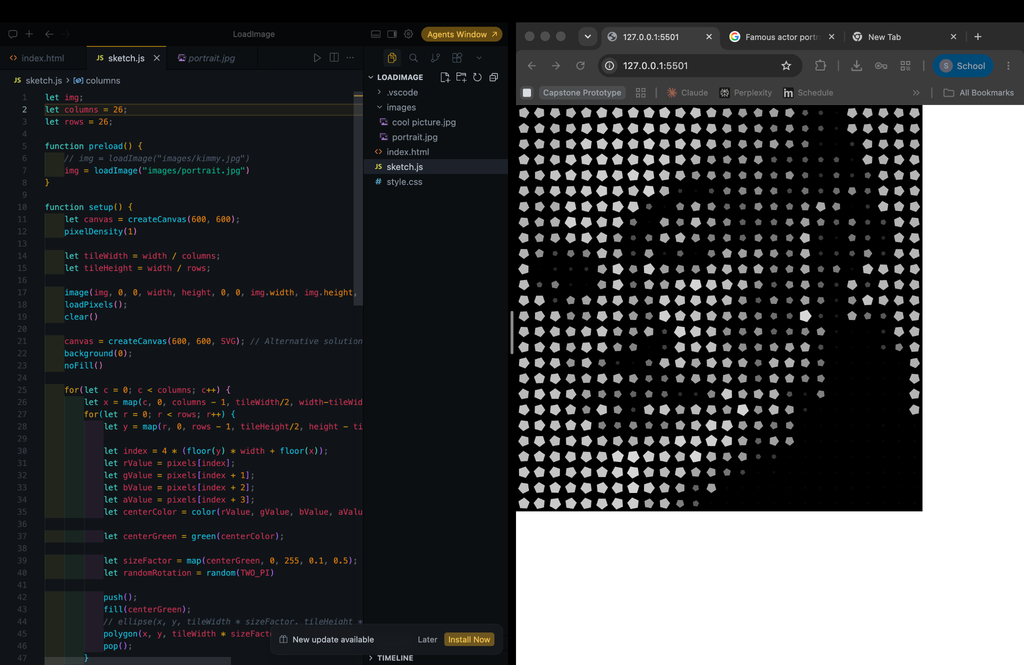
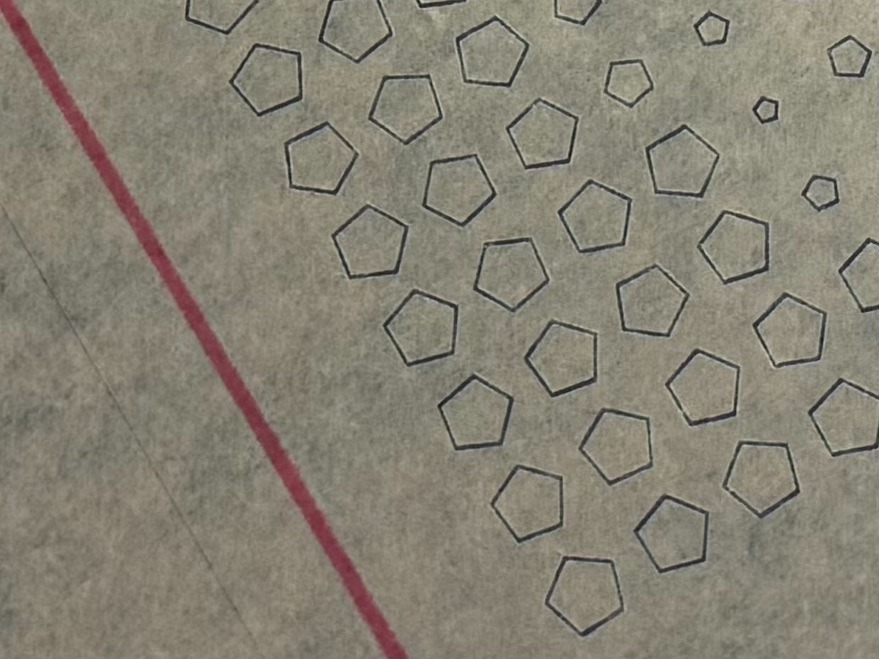
I used the code we had made in class. In class I actually tried a different image, I found a landscape photograph and since green was a prominent color I used green(centerColor) which seemed to work well but when I carried it over to the new portrait image it continued to work so I didn’t change it. In addition, for the code we made in class we used ellipses. I modified the code to use polygons and I changed the sizeFactor mapping a bit since the polygons would overlap at times.

I then experimented with the number of sides: I tried triangles and used a random rotation to make the image more interesting. I realized if I was going to use triangles the rotation would have to be intentional as if it was matching the flow of the image in some way. I tried squares, then pentagons, then hexagons but pentagons were my favorite. I preferred pentagons because the rotation was more discreet but it wouldn’t disrupt the flow of the image since for hexagons you couldn’t tell there was any random rotation unless you looked very closely and to be honest squares were boring. 

Before saving it as an SVG I removed the fill and background.

Laser Cutting

This was probably the most frustrating part of the project. I’ll say first what I should have done. I should have changed the strokes on the files to be what they should have been. I was hoping the assistant would know better because I didn’t know exactly what it should have been. I should have asked on Discord first before booking. The laser cutting took about 5 minutes for designs 1 and 2. But the technical issues and moving files around took up 90% of the time of my booking. Someone else was after me so I had to come back about an hour later for design 3 and the hexagons were engraved but the frame wasn’t cut out.

I’ve booked another session with the laser cutter later in the evening  in hopes that I can finally get design 3 to be cut properly. It was the design I was most excited about but oh well. Hopefully next time. I may also make some changes to the design.

Trying again!

(Looks best from afar)

Reflection

There were a lot of improvements to be made. I think I’ve mentioned most of the troubles I had making this but I’ll quickly summarize what I should of done:

  • Be more confident making lines closer to each other for kerf bending (see some examples online as well)
  • Have the illustrator files ready with the correct stroke thickness.
  • Try booking the laser cutter over two days if I have a lot of designs rather than one evening (can always cancel the next one if it doesn’t work out).

No Generative AI was used throughout the assignment.

Polygon code was taken from this:
https://editor.p5js.org/Ji/sketches/msBg12B1-

For some reason the example can no longer be found but when writing my code it showed up as a code autocomplete from either my p5js Snippets extension or P5 Snippets and Tools. These are the Extension ID’s respectively if you want to use them:

  • Extension ID: acidic9.p5js-snippets
  • Extension ID: Dominikasinski.p5-snippets-and-tools

Assignment 2 – Saeed and Joud

Concept

Coming into this project my understanding of using servos was limited. I had done some work in Desert Media Art early on in the class as part of an assignment and in Intro to Interactive Media but not much past that. Arduino however I was more than familiar with.

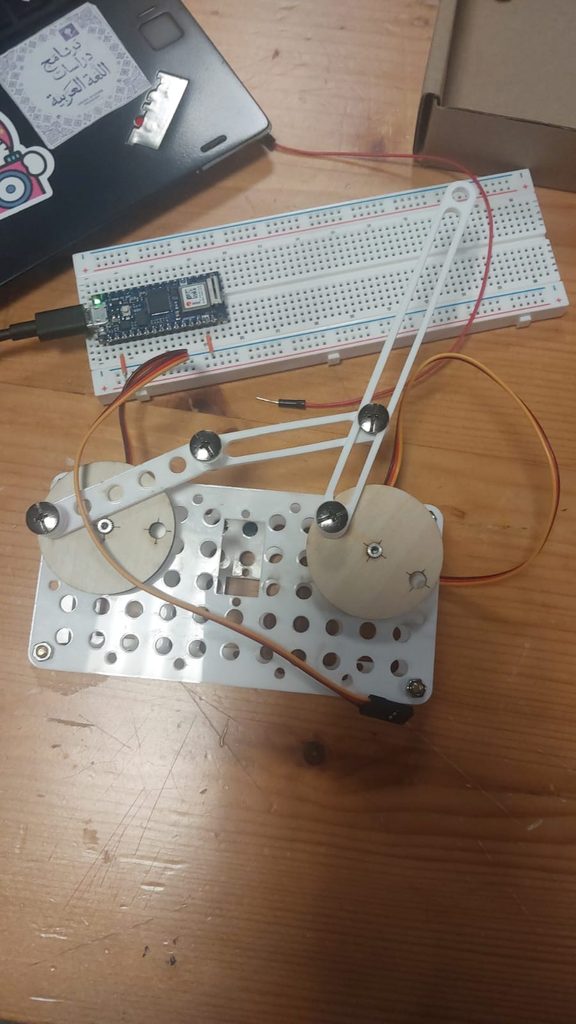
The goal for our project was primarily to learn how to use linkages and servos to draw. We were particularly interested in how to use slotted links and how that would affect the drawing. From what we learnt we planned to later implement it or that our newfound knowledge would ease making a pen-plotter later in this class.

Implementation

Before we could do any serious experiments we had to attach the servo to the plates. We struggled to find m2 screws that would fit in the gaps and keep the servos in place. We had to resort to using the second baseplate to wedge it in. It wasn’t perfect but it worked for the most part. Hopefully this didn’t cause too many problems.

Meanwhile on the breadboard we connected the 3v3 pinout to the positive line, ground to ground and the servo’s PWM port to pin 3 on the Arduino. We did this for both servos.

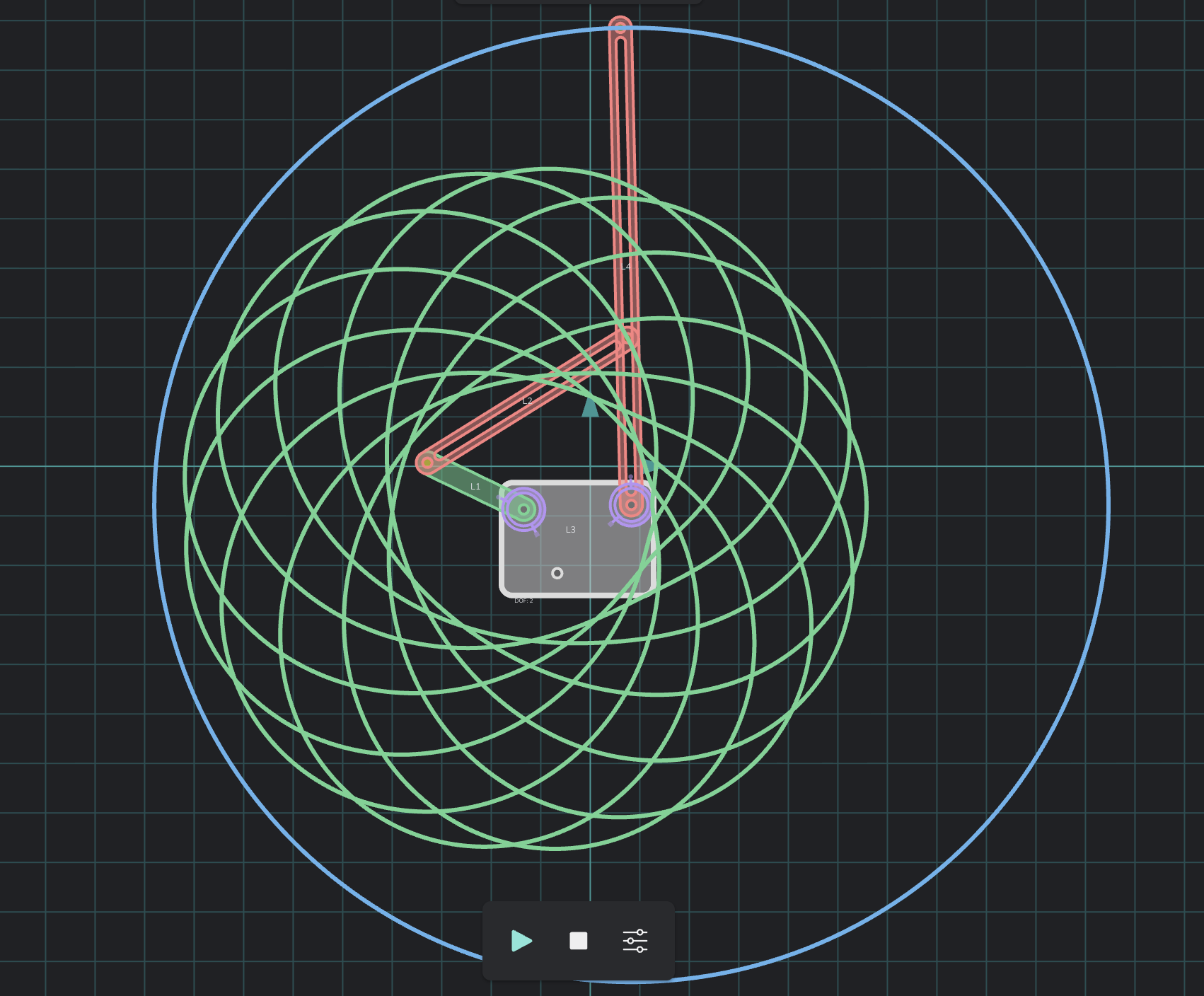
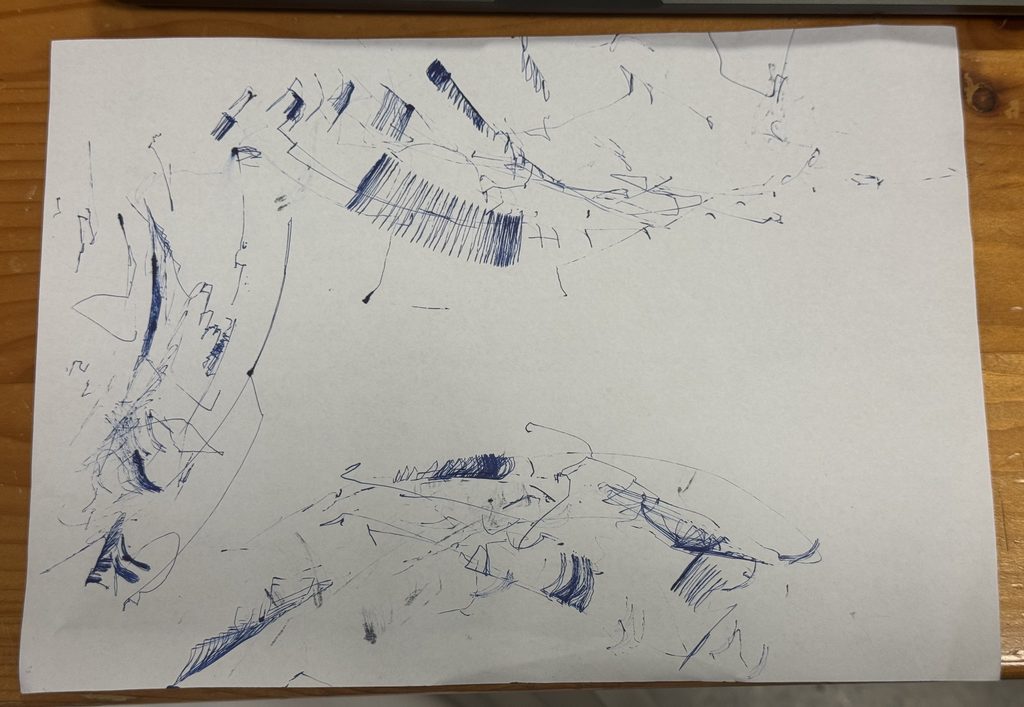
After some tinkering on MotionGen we decided to do the arrangement as seen in the screenshot above. The hope was to place the pen in the middle and get that spirographic pattern and if we placed a pen on the outside there’d be a circle. Neither happened.

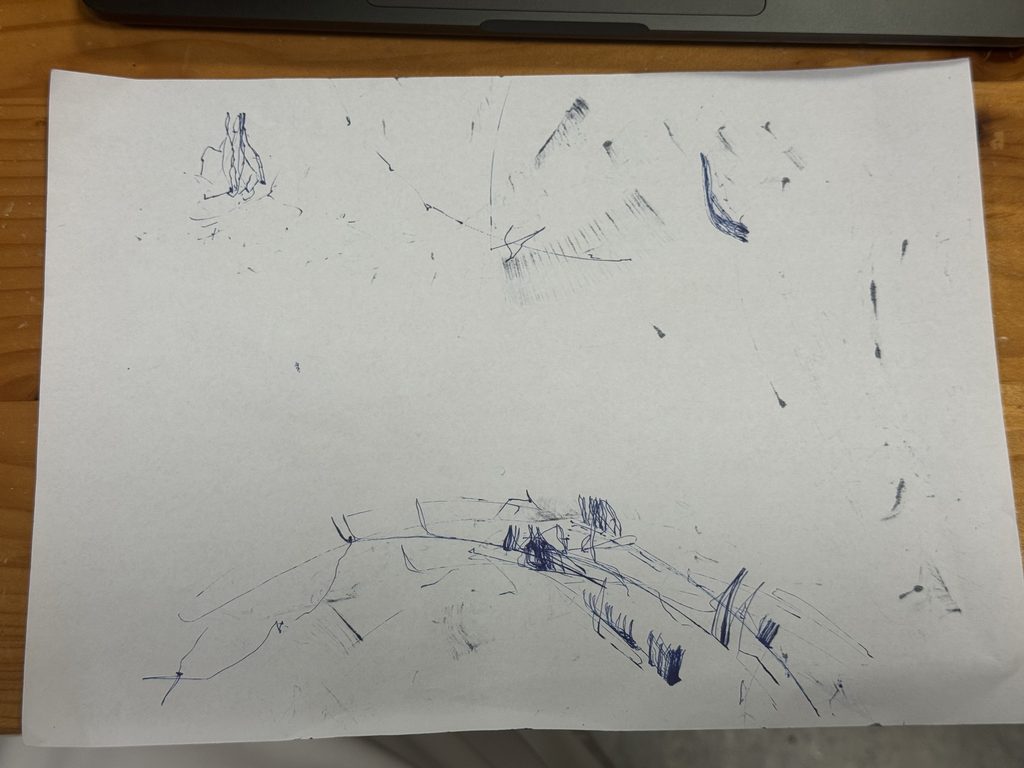
Drawing outputs

We later tried attaching the pen to the middle of the linkage as we saw on MotionGen but the results were worse. Ironically the chaos it produced is more interesting.

Reflection

Put simply, there was a lot of play in the system: The servos since they were wedged in place rather than screwed in place would move slightly creating inconsistencies, the screws to keep the linkages attached together had some play in it as well further creating inconsistencies, but most of all was the pen holder at the end which when a pen was attached would move around since it was attached to only one hole.

Rather than looking at the play as something negative it could also be seen as an artistic choice. The play in the system did mean that no two drawings were the same, you would get a slightly different output with every turn of the system.

Another thing which explains why result didn’t at all match what we had created in MotionGen were measurements, this should have been obvious. Naturally, when transferring from software to hardware you have to keep in mind the measurements: Distance between the servos, the radius of the turning circle, the length of the linkages, that the servos only turn 180 degrees etc. This led to the servos getting stuck at times. Where we expected the lines to be a smooth curve it wasn’t. In the future don’t forget to use a ruler.

Assignment 1: Are hamsters secretly artists?

Introduction

My younger brother Abdulla has two pet hamsters. He takes great care of them, giving them a large tub to stay in and every so often he takes one of them out to see the rest of the world. During the day we hardly ever see the hamsters, they are often hidden underneath the ground. This begs the question: what could they be doing underground? Could they be artists secretly perfecting their craft underground?

Abdulla insists that hamsters are nocturnal by nature; they sleep at night and only come out at night where you’ll often see them running on their hamster wheel if you’re awake at the time to see it in the first place and during the day they’re asleep. I however, have rarely seen them on their hamster wheel in the evening, usually because I’m asleep by that time, and do occasionally see them above ground in the day. I ignored my bias and instead I’ve been comparing them to the famous artist Leonardo Da Vinci.

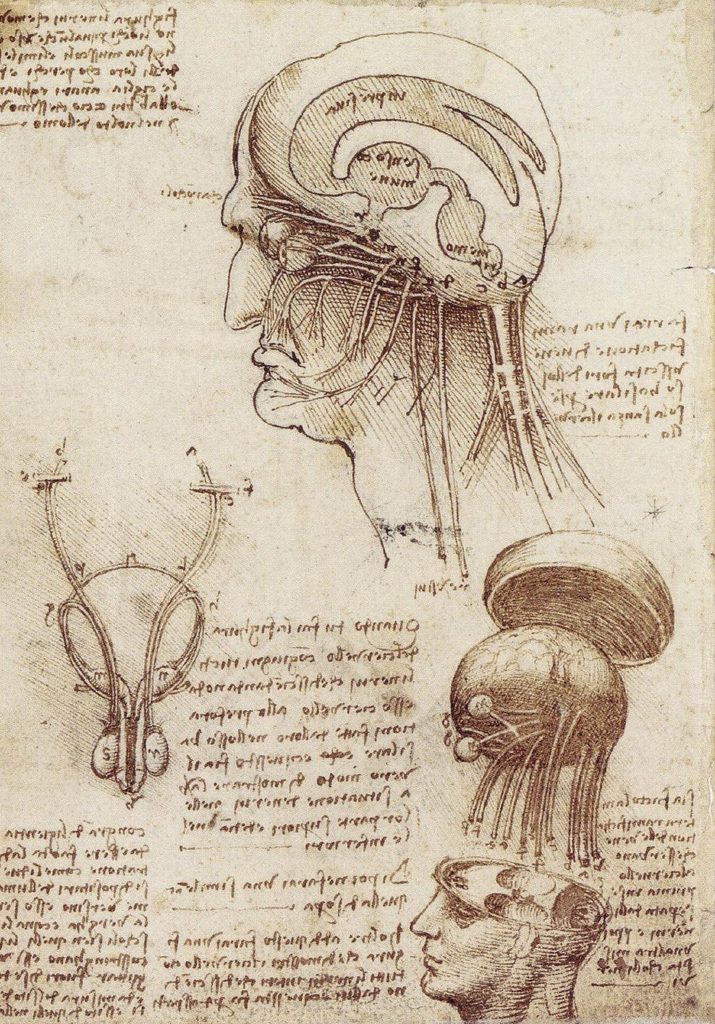
Da Vinci is often known for being an artist but not enough people realize that behind his art was an incredible effort to study the physical world: For example anatomy.

By Leonardo da Vinci – http://www2.warwick.ac.uk/fac/med/study/ugr/mbchb/societies/surgical/events/invited_lecture_-/, Public Domain, https://commons.wikimedia.org/w/index.php?curid=52376553

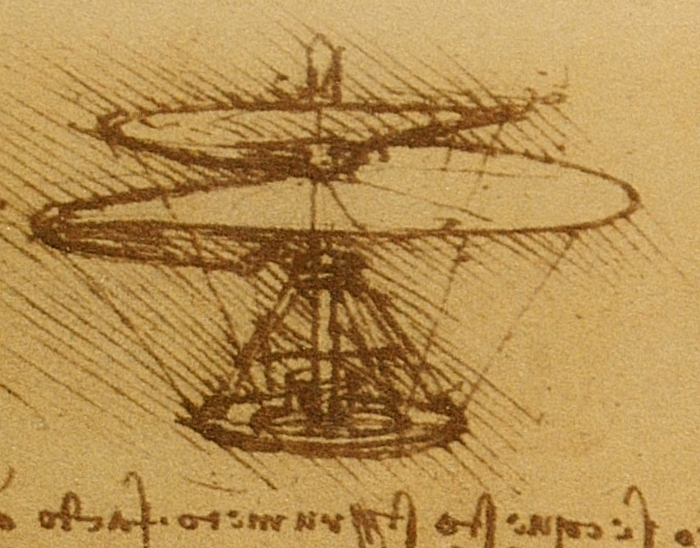
He accumulated 13,000 pages of notes throughout his life consisting of his observations developing a scientific understanding of the physical world but rather than using semantics he would often draw what he saw [1]. He would also draw his own ideas or thoughts of new creations or inventions [1].
By Leonardo da Vinci – ausschnitt aus http://commons.wikimedia.org/wiki/Image:Leonardo_da_Vinci_helicopter_and_lifting_wing.jpg, Public Domain, https://commons.wikimedia.org/w/index.php?curid=1559723
Yet only few knew or saw his personal notes during his lifetime except his pupils.

The hamsters may be exactly the same. Creating mental notes and studying the world during the day based on the observations around them but especially when Abdulla takes them out. Now all that is left is to see what they are capable of producing. I couldn’t yet tell Abdulla directly that they could be the next Da Vinci so instead I enlisted my other brother Ahmad to create a plan.

Concept

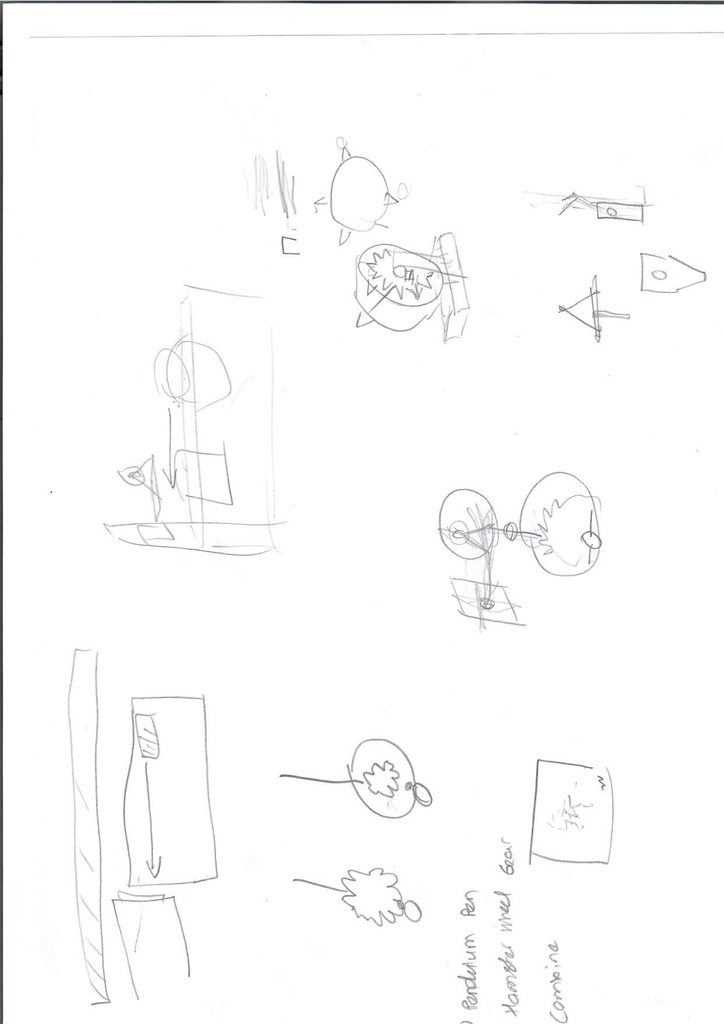
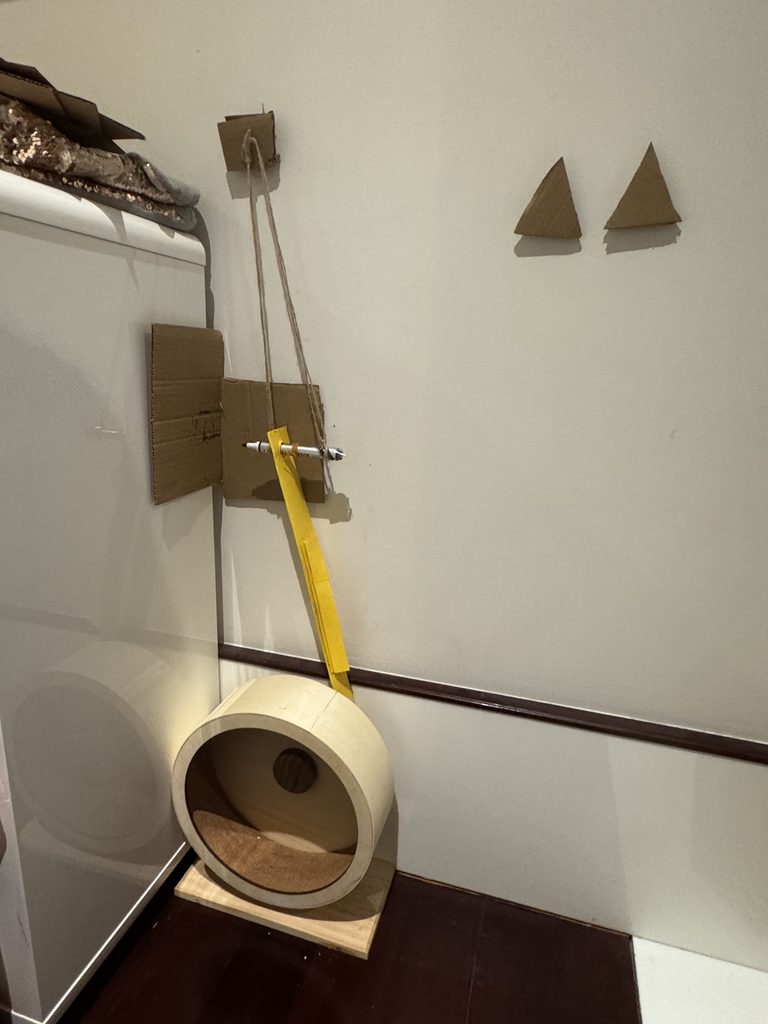
Ahmad and I arrived at the plan to direct the rotation of the hamster wheel to a pendulum with a pen attached or for short Pen Pendulum. On the back of the hamster wheel would be a gear made of cardboard. The teeth from the gears would strike an extension plate attached to the pen which would strike a piece of paper creating a drawing of some kind. The paper would be attached to a dresser near the tub.

We would create the Pen Pendulum first, then create the gear, then combine them together. Moreover, we only planned to have this setup for about 10-20 minutes just long enough to get the hamster drawing something rather than leaving it overnight. As otherwise we were worried that the marker may fall into the pen and harm the hamster in some way.

I originally proposed using a normal pen or pencil but Ahmad was right in saying a whiteboard marker would be better because the strikes will rarely hit the paper perfectly and the large tip of a marker would be far more consistent.

Ahmad and I later explained our plan to Abdulla. He was surprisingly excited and was happy to help.

Implementation

Step 1: Cleaning the wheel

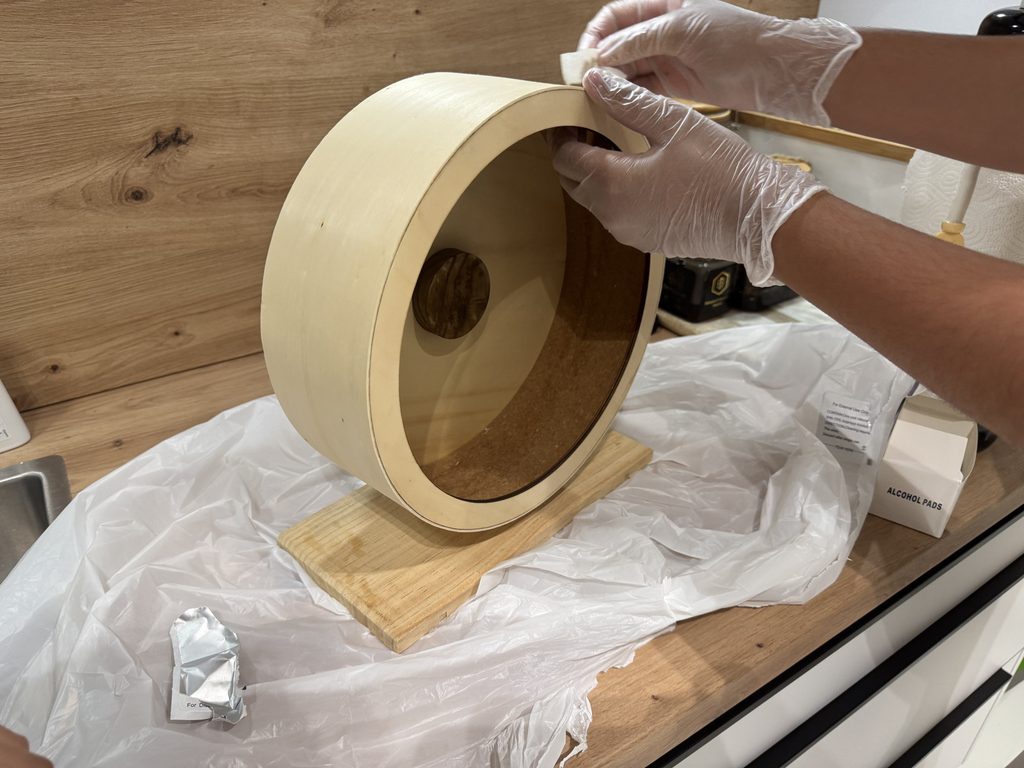
Our first step was to clean the hamster wheel for when we would later attach the gear. Abdulla explained to us that we shouldn’t use water for the wheel since it was made of wood. Instead we used alcohol wipes in moderation and let the alcohol evaporate while we went to work on the Pen Pendulum.

Step 2: Pen Pendulum

We first found an area wherein we could develop our setup before ever putting it in the tub with the hamster.

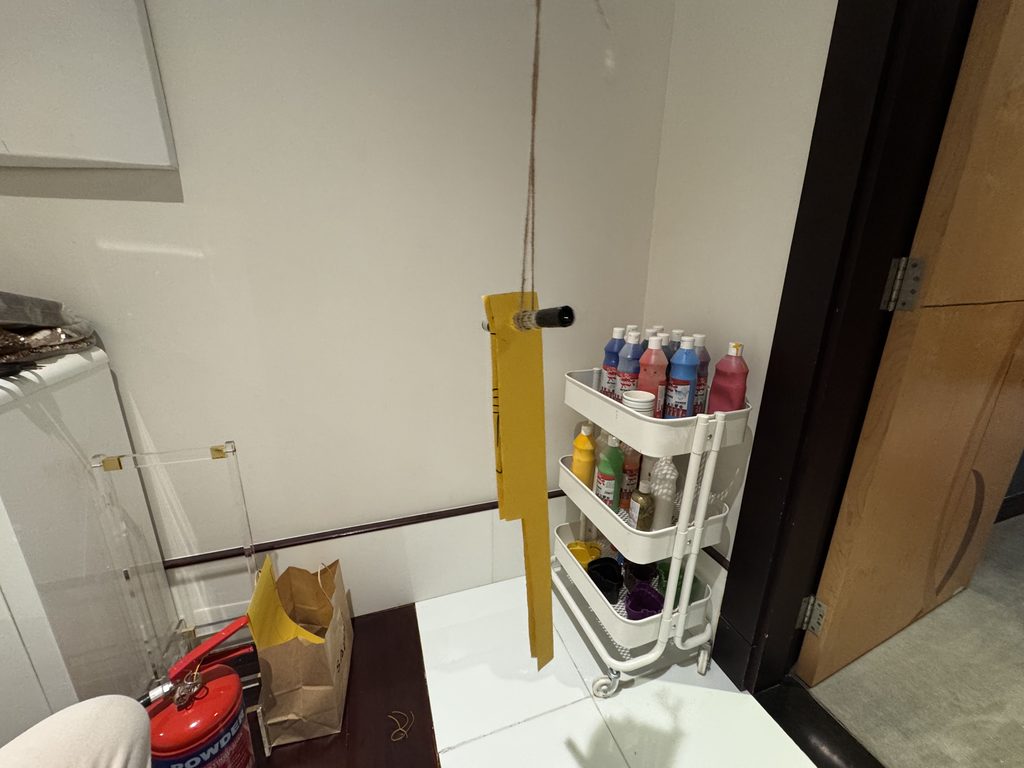
The Pendulum was by no means precise. We used double sided tape to make sure the thread stays in place. The extension plate was made of paper. Ahmad also realized as he was making the extension plate that to accommodate for the wall trim we needed to make a cutout.

Step 3: Hamster Gear

Gears attached to the hamster wheel using double sided tape

Rather than make a big gear and tape it on the back of the wheel since all we had were A4 sized sheets we used small triangles as shown. And did some quick testing wherein we realized that we had to make three changes. First, the canvas which in the picture was just cardboard needed to be offset from the dresser. Second, the paper would need to be folded in the middle since occasionally the pen would strike the side rather than just the front. Lastly, we originally planned to stick in 4 gears but reduced it to two since otherwise the hamster wheel wouldn’t give enough time for the Pen Pendulum to oscillate back.

Step 4: Putting everything together

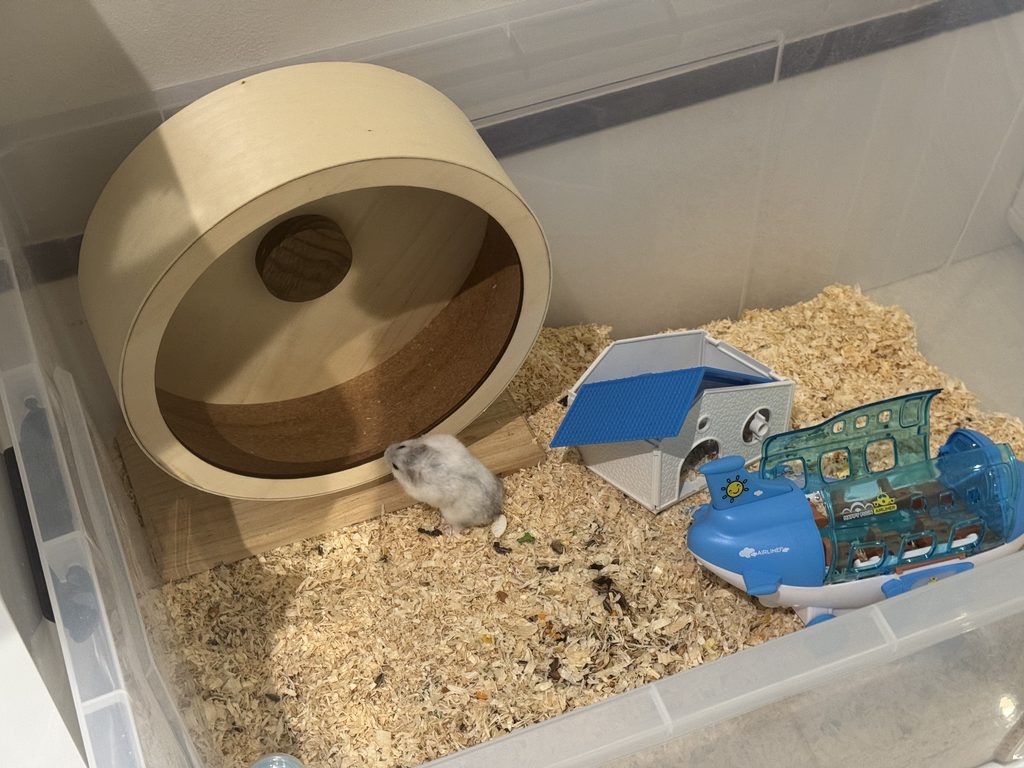
The first thing we did was put the hamster wheel in. It used to be on the right hand side of the tub but we moved it to the left side. We also gave some time for the hamster to get used to the wheel again; because we’d cleaned it, it no longer had the same familiar scent as it did before and we were sure that there was no smell of alcohol left in the wheel before ever putting it back.

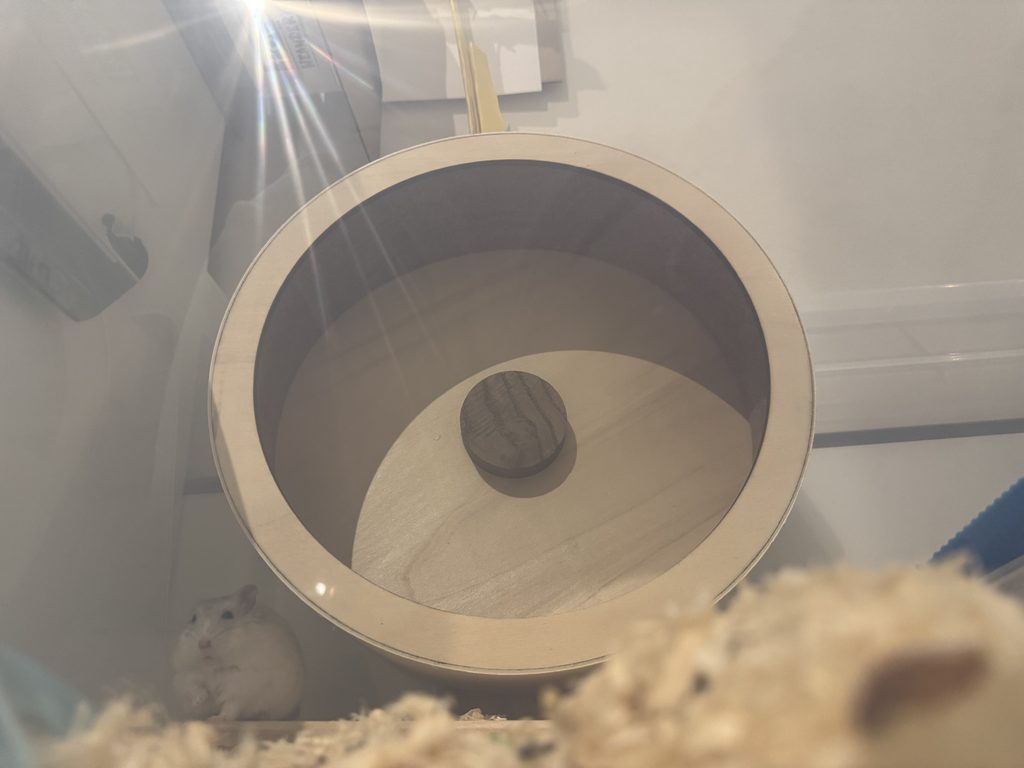
During our initial tests without the paper we were testing to see if the hamster was comfortable running on the wheel or not. During these tests we were making some adjustments to the pen and extension plate. The end result was a drawing that almost looked like a face. However, we couldn’t claim that this was the hamster’s work alone because there was human intervention.

Result

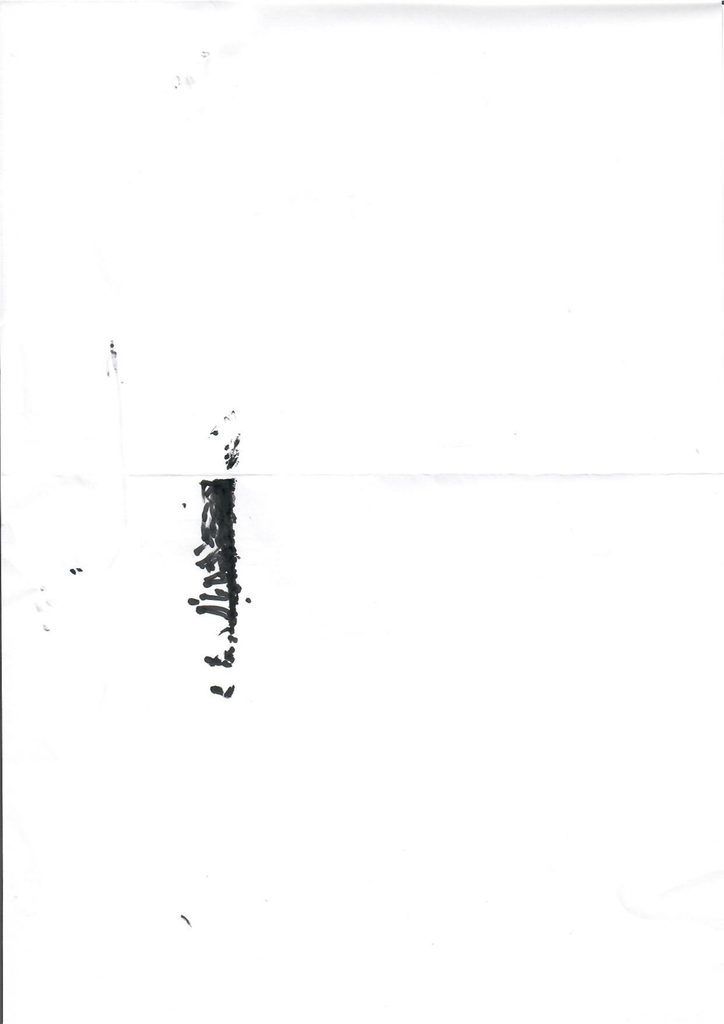
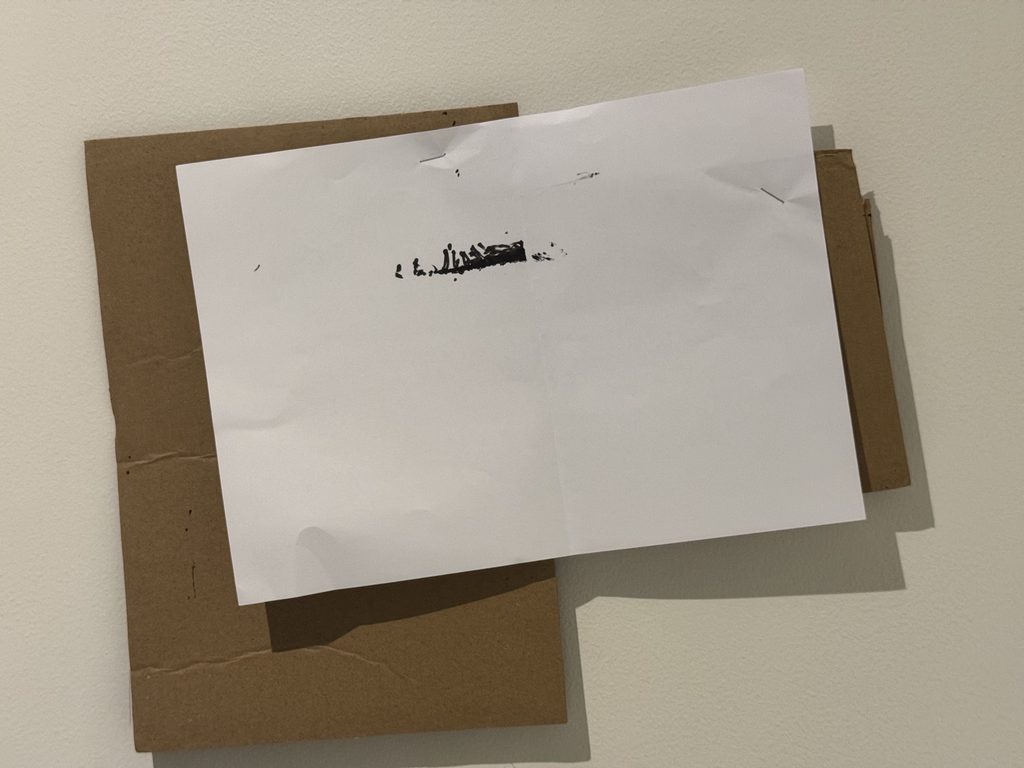
We stapled a piece of A4 paper to the cardboard while making sure to not damage the wall and waited to see what the hamster would produce.

All the hours of meticulous studying underground from observations of the world around him but without the tools necessary produce all of what he had learned. But finally, we had finally created a tool for her to express herself through art.

Improvements

There are many things that could be done in the future to improve our design.

  1. Creating a more stable Pen Pendulum
  2. The pendulum meant that the drawing could only be 1 dimensional, maybe a different design could create a 2D Image.

All things considered while our design was certainly low-tech, we’re glad that it didn’t disrupt the hamster’s lives. And since we removed the setup after about 15 minutes we didn’t have to worry about anything falling into the pen and fortunately nothing did.

Acknowledgements

Before this assignment I had hurt my ankle quite badly and wasn’t sure how I was going to complete my plan let alone start it. I can’t thank my brothers enough for helping me not only with this project but as I’ve been recovering.

Citations

[1] https://en.wikipedia.org/wiki/Leonardo_da_Vinci