Polargraph Plotter (Makelangelo)

By Shamsa and Joud

Part 1: What the machine is and how it draws

Makelangelo is an open-source, wall-mounted drawing machine created by Dan Royer, who runs the robotics company Marginally Clever. Royer explains how it works with simple geometry: if you know the distance between the two motors and how far down the pen hangs, you can use the Pythagorean theorem to calculate the length of each string. This works anywhere on the wall, so the software can work out how much each string needs to change to move the pen from point A to point B (aggrav8d).

Makelangelo draws with two motors at the top of the board. Each motor pulls a belt, and both belts are attached to the pen. As the motors reel the belts in or out, the pen moves around the wall. A third motor lifts the pen up and down so it can move between lines without dragging the pen along the paper. The software turns an image or vector file into G-code, a list of movement instructions, and the robot follows them line by line. The newest model, Makelangelo 6, draws up to A2 size (Marginally Clever).
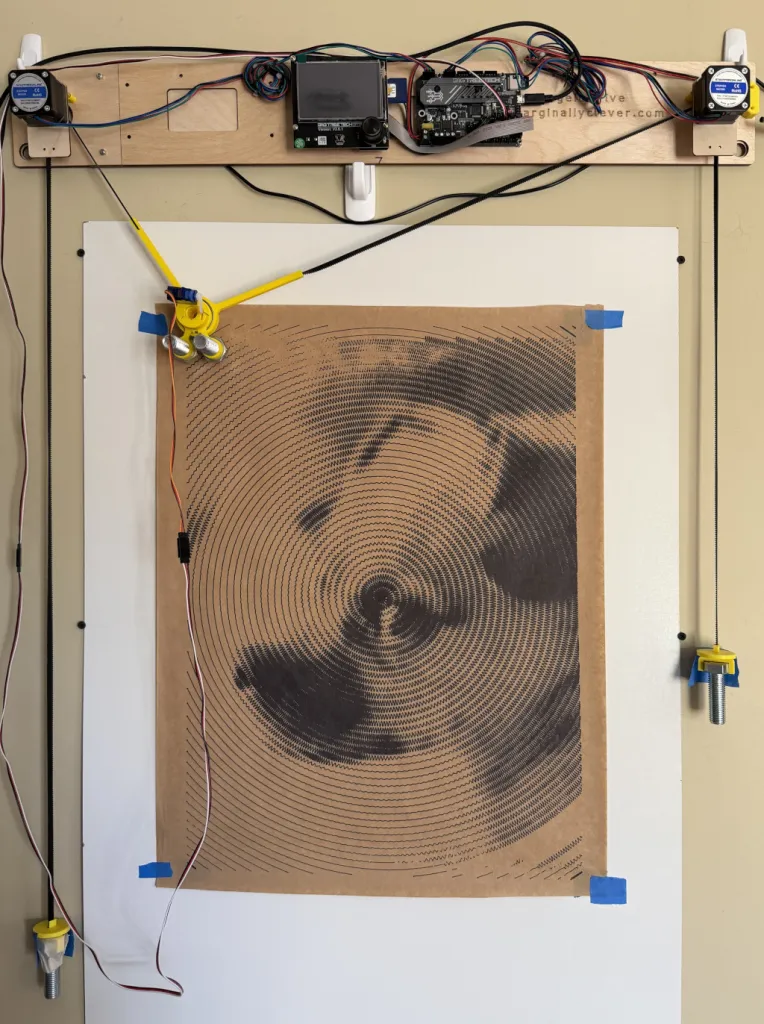
Left: Makelangelo 5, Right: Makelangelo 6

Part 2: What makes its approach to drawing interesting

What makes the Polargraph drawing machine interesting is its unusual approach to drawing. Unlike traditional methods that use a horizontal surface, the polargraph draws vertically, adding different kinds of factors such as gravity into the process. Instead of moving normally along the X and Y axes, it adjusts the lengths of two belts to position the pen. This creates an interesting relationship between digital precision and physical imperfections, as small vibrations or changes in tension which can influence the final drawing a lot. It also allows us to explore how a machine’s mechanical structure can become part of the creative process rather than simply a tool for reproducing digital images.

Hektor was created by Jürg Lehni together with engineer Uli Franke, and the tool was designed to be allowed to be imprecise. Its lightweight mechanism with two motors shakes because of gravity (Lehni, “Hektor”). John Proudlock, who designed and built his own polar plotter, says simple repetitive designs look good when drawn by his unsteady machine (Chandra). Moreover, Makelangelo 6 does not need a computer for drawing; you just save your drawing to an SD card, insert it into the robot and pick it on the touchscreen (Marginally Clever).

Part 3: The essential mechanical, electronic, and software components needed to build it

Makelangelo has its own control electronics and software. The list below is for a DIY polargraph build, based on an Instructables guide (“Polargraph Drawing Machine”).

Essential mechanical and electrical parts: 

  • 3D-printed pen holder: Holds the pen securely and moves it across the drawing surface. 
  • 2 stepper motors: Control the movement of the pen holder by adjusting the length of the belts. 
  • Timing belts: Transfer the motors’ rotational movement to the pen holder, moving it across the drawing area.
  • 2 pulleys: Attached to the stepper motors to guide and move the timing belts. 
  • Wires, screws, nuts, and connectors for assembly 
  • Counterweight: Maintains tension in the belts to ensure stable, consistent movement.    
  • Arduino Uno: Processes instructions and coordinates the machine’s movements. 
  • Compatible CNC shield: Connects the Arduino to the motor drivers controlling the stepper motors. 
  • Servo motor: Raises and lowers the pen to control when the machine draws on the surface. 
  • Power supply: powers the Arduino and the motors

Essential Software: 

  • Arduino IDE: used to upload the control program to the Arduino.
  • Inkscape (or any similar software to convert the file to G-code): prepare vector drawings and convert them into G-code using suitable extensions. 
  • Universal Gcode Sender: Transmits G-code instructions from the computer to the Arduino, allowing the machine to execute the drawing. 

Part 4: Examples of drawings or artworks produced with it

Marginally Clever lists posters, sewing patterns, maps, and art as uses for Makelangelo 6. The robot turns a digital design into a pen drawing up to A2 size, which is large enough for a poster or a map on one sheet (Marginally Clever). The Makelangelo 5 page shows sample drawings in styles such as CMYK, crosshatch, pulse line, and spiral (Marginally Clever). The Makelangelo 6 page says it is the same size as Makelangelo 5 with updated electronics, but it doesn’t list these styles for the new model (Marginally Clever).
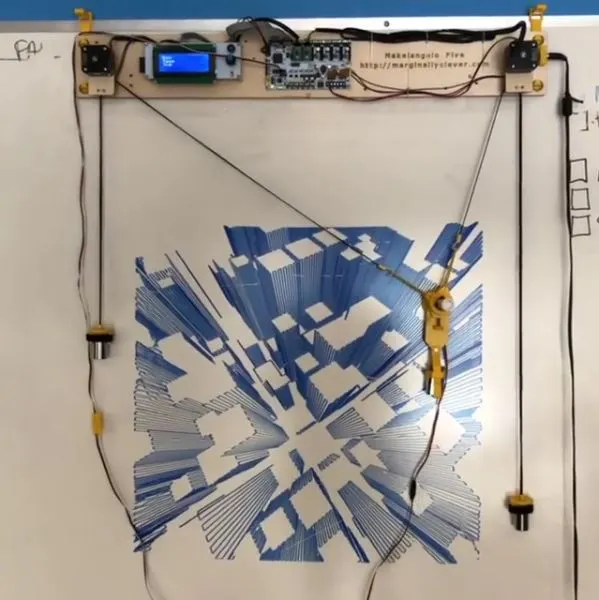
Makelangelo 5 artwork, Marginally Clever Robots
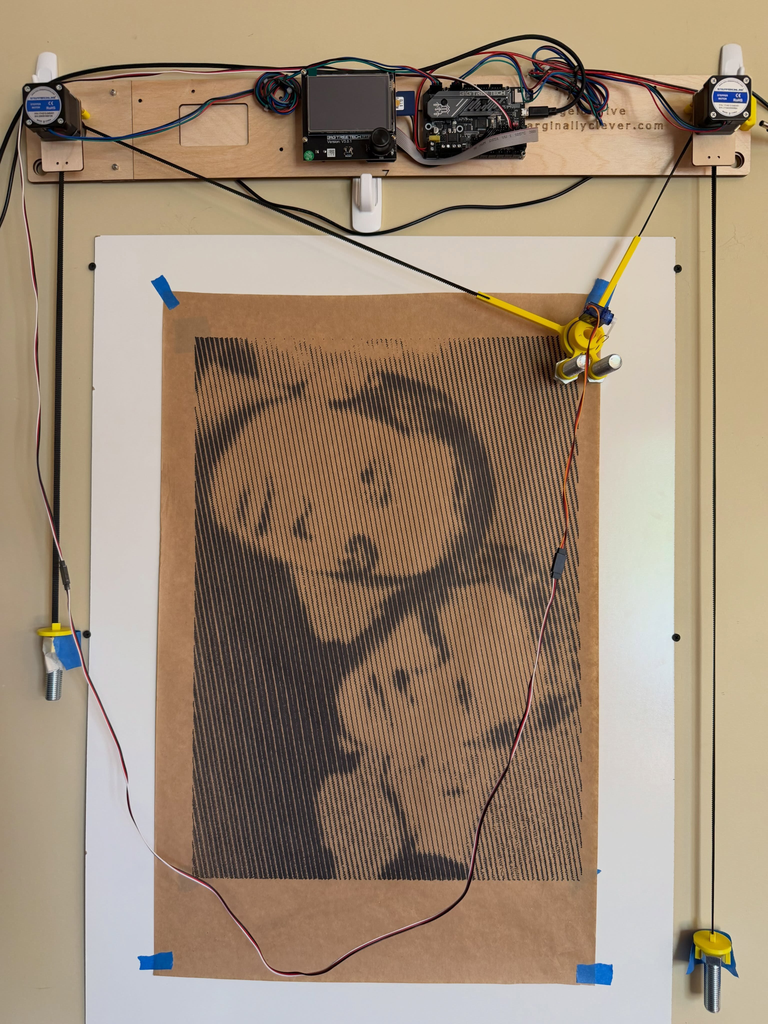
Makelangelo 6 artwork, Simon and Garfunkel. A2 size (imakerobots)

We found a few named artworks made with Makelangelo itself, so the drawings below come from a similar machine. John Proudlock, a generative artist, built his own polar plotter after being given a Raspberry Pi and seeing a video about polar plotters (Chandra). These were drawn on his plotter, not a Makelangelo.
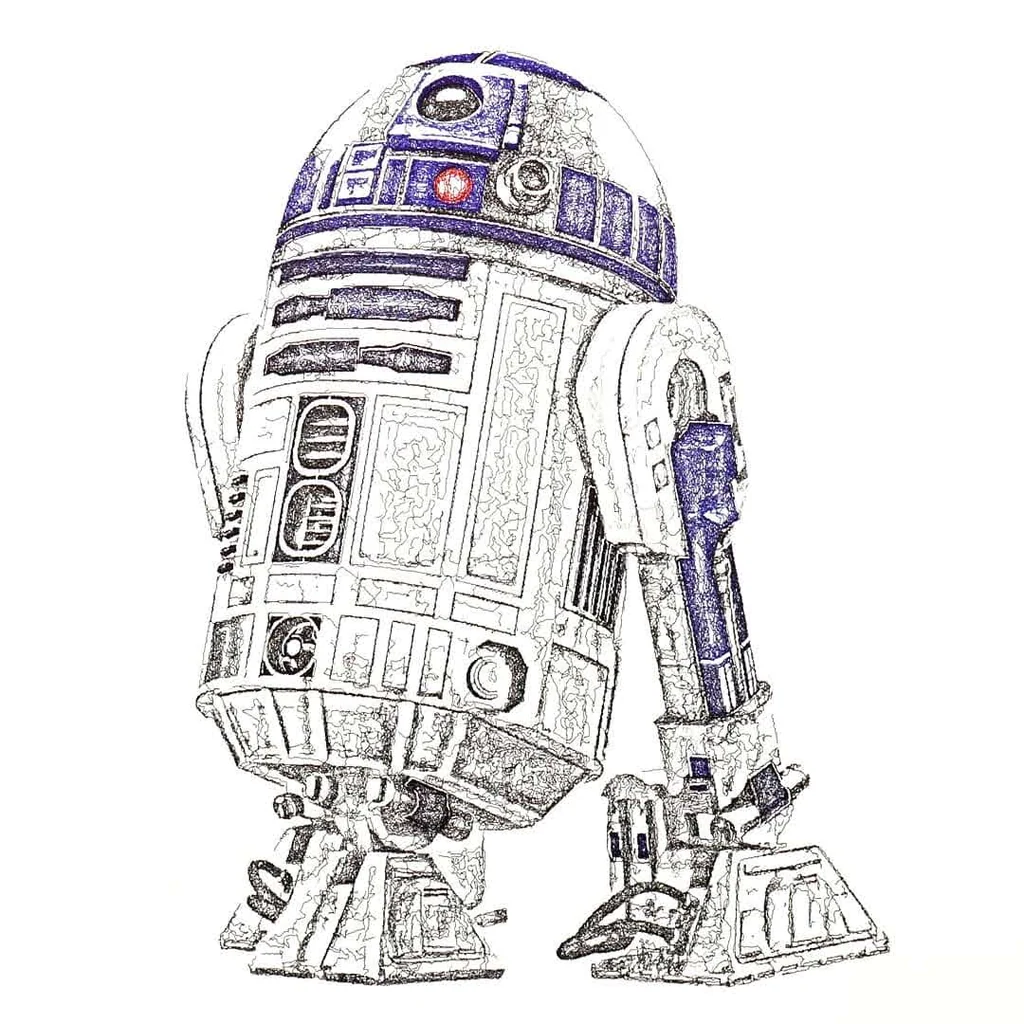
By John Proudlock
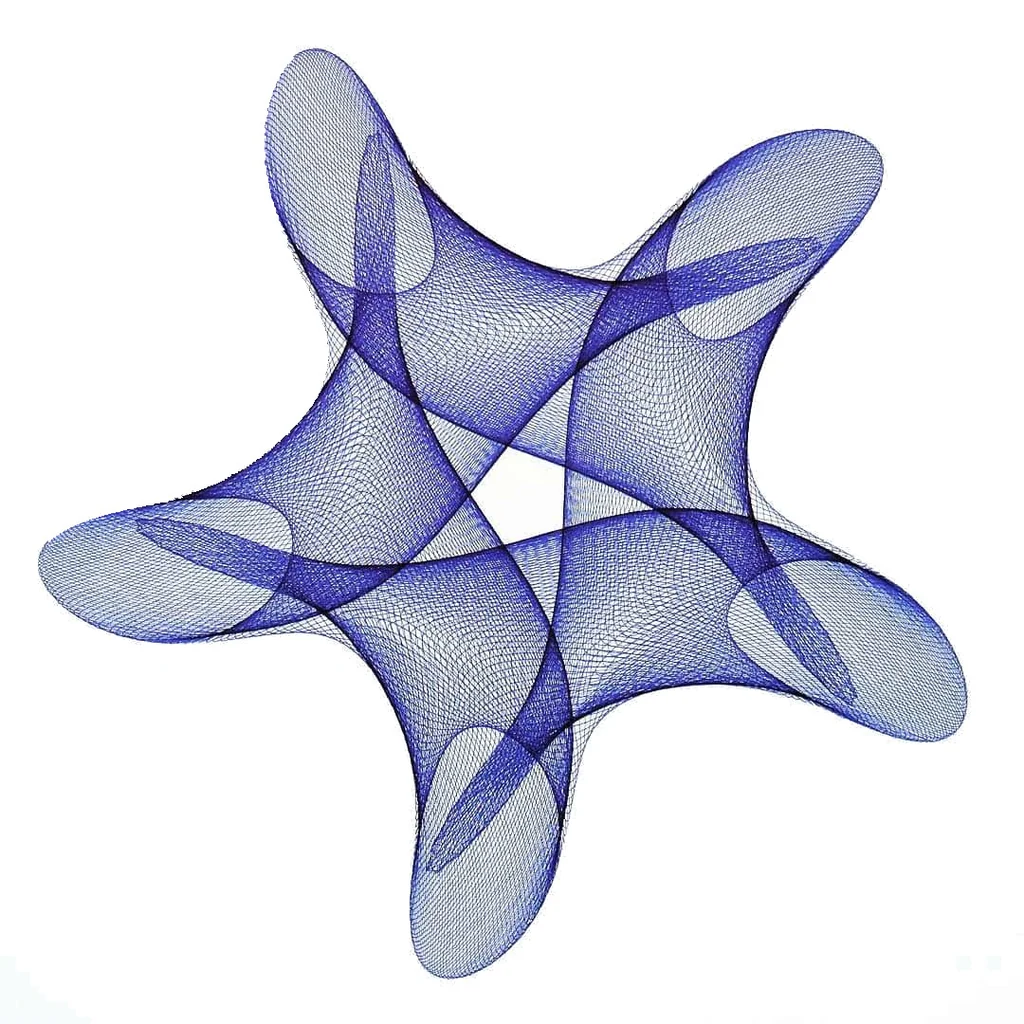
By John Proudlock
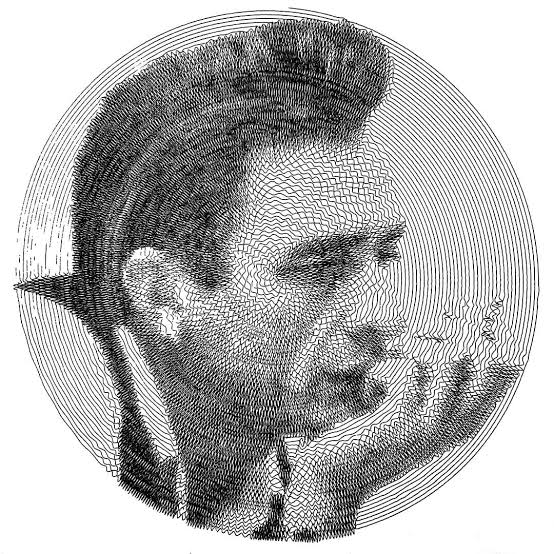
By John Proudlock
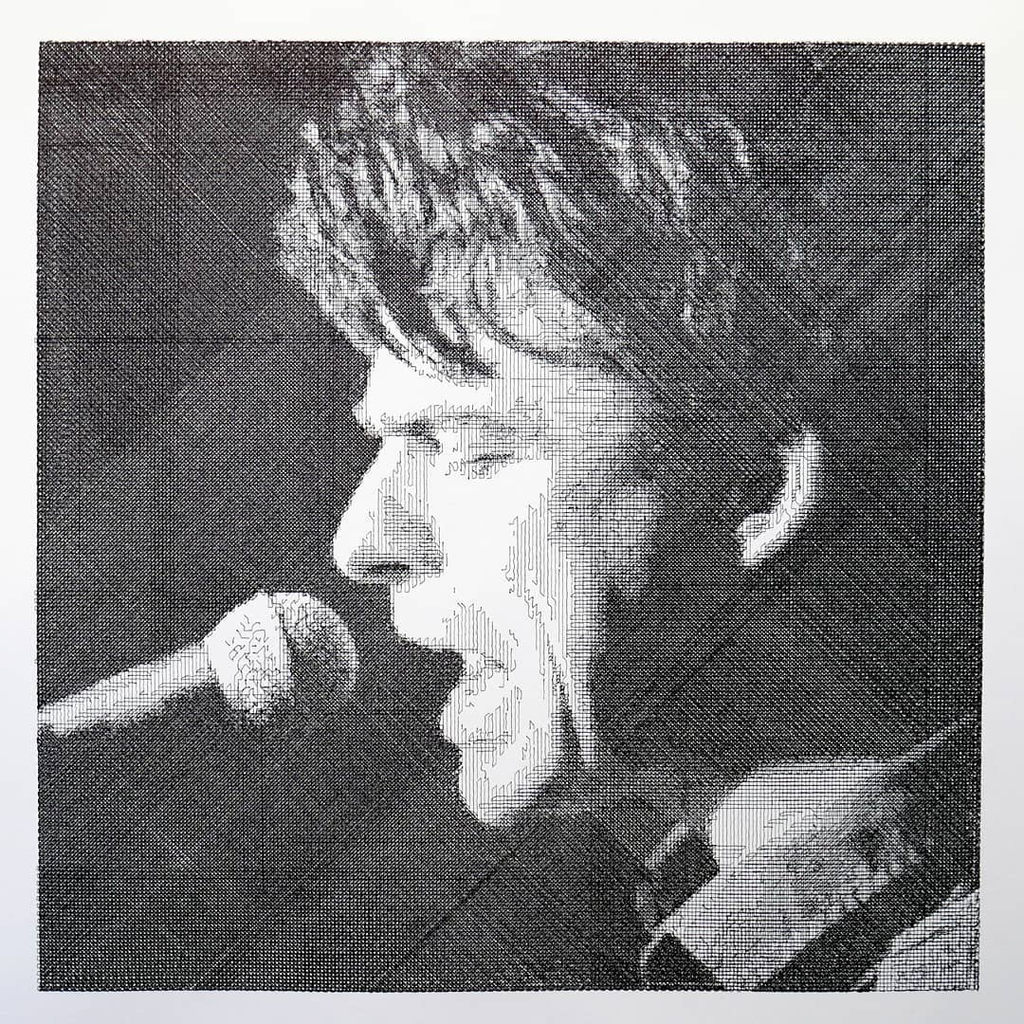
By John Proudlock
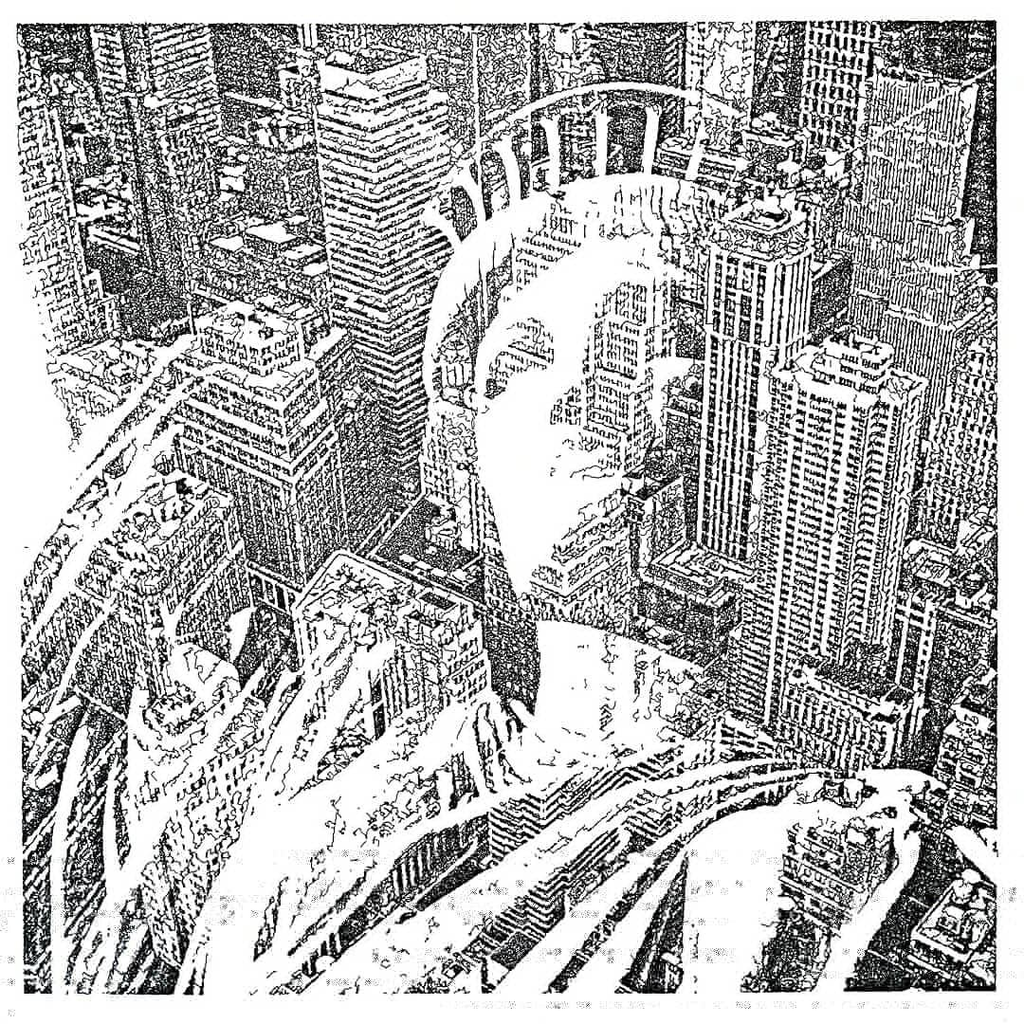
By John Proudlock

Source for these images (images 1, 2, and 5): https://www.dirtalleydesign.com/blogs/news/the-art-of-polar-plotters-john-proudlock-on-generative-portraiture-and-vertical-plotters

He also posted a lot of videos of the machine drawing these paintings: 

https://www.instagram.com/p/CXeWq9HLg7W/ This is his page if anyone is interested.

Part 5: Relevant references, projects, or artists/designers who have explored similar systems

 A few people worked with a polargraph drawing machine or something similar to it 

Viktor by Jürg Lehni: Viktor is a scalable chalk-drawing machine for large surfaces, up to 20 by 20 meters. It uses four motors and belts instead of two, so it can cover larger surfaces, position the tool better, and press just enough to leave a mark (Lehni, “Viktor”).
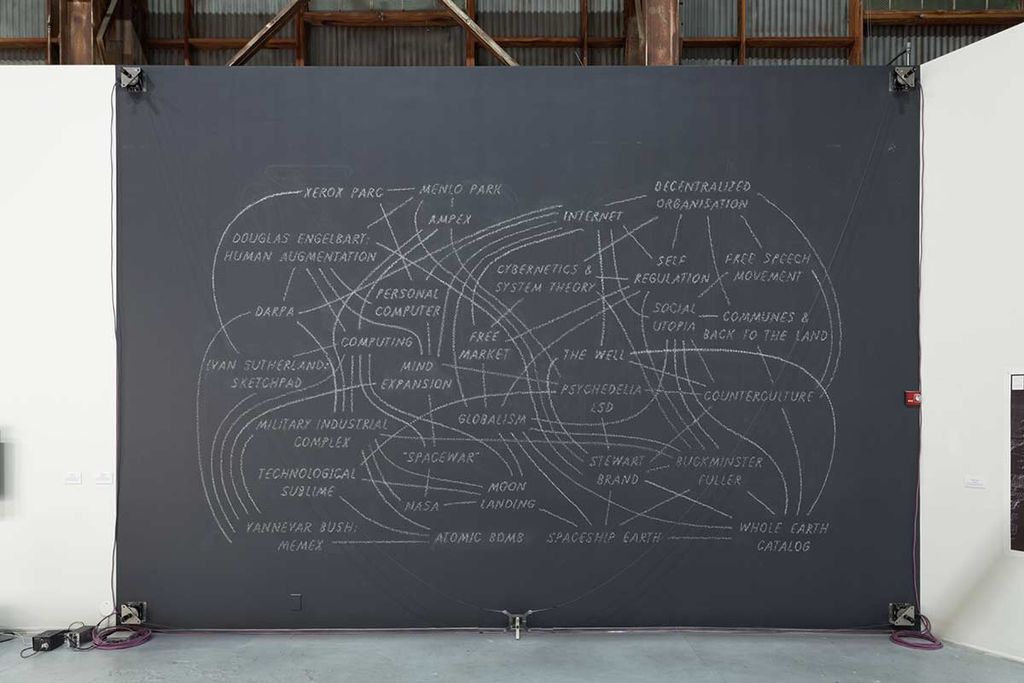
Chalk drawing of connected ideas on a black wall, made by Viktor, Jürg Lehni’s four-motor chalk-drawing machine. Source: https://longnow.org/ideas/interval-chalk-board-robot/

Hektor: Hektor is a portable machine that sprays paint from a computer-controlled spray can. Jürg Lehni and engineer Uli Franke made it in 2002 for Lehni’s diploma project at ECAL in Lausanne (Lehni, “Hektor”).
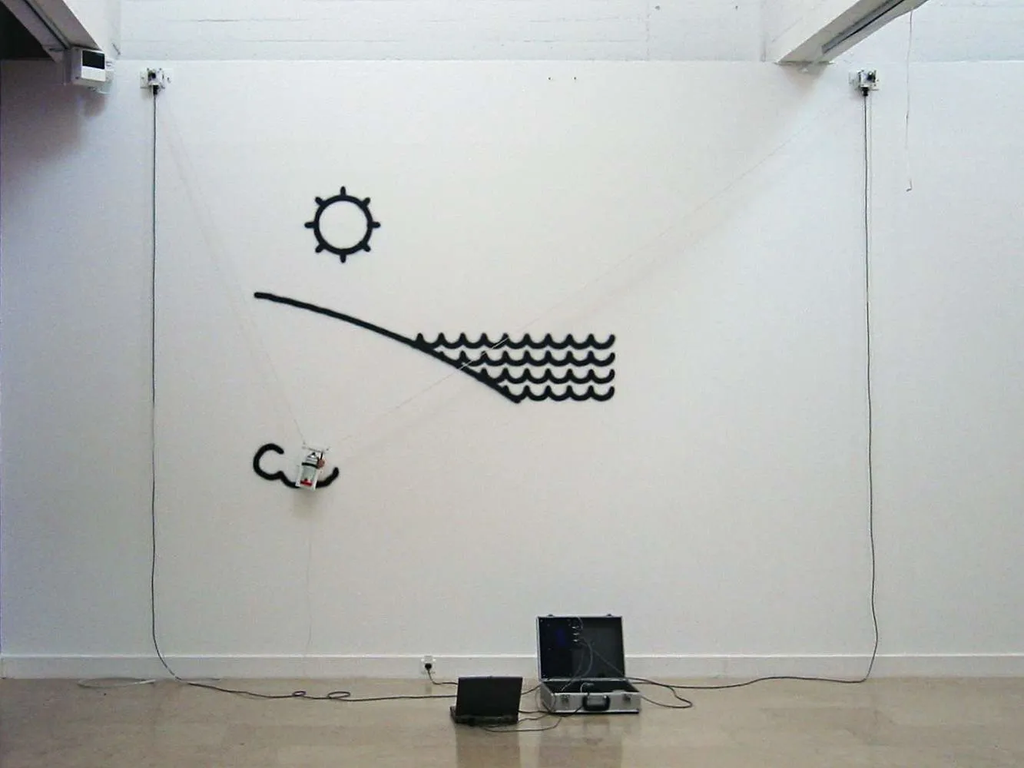
Hektor drawing a sun and waves on a wall with spray paint. Source: https://arthur.io/art/juerg-lehni/hektor
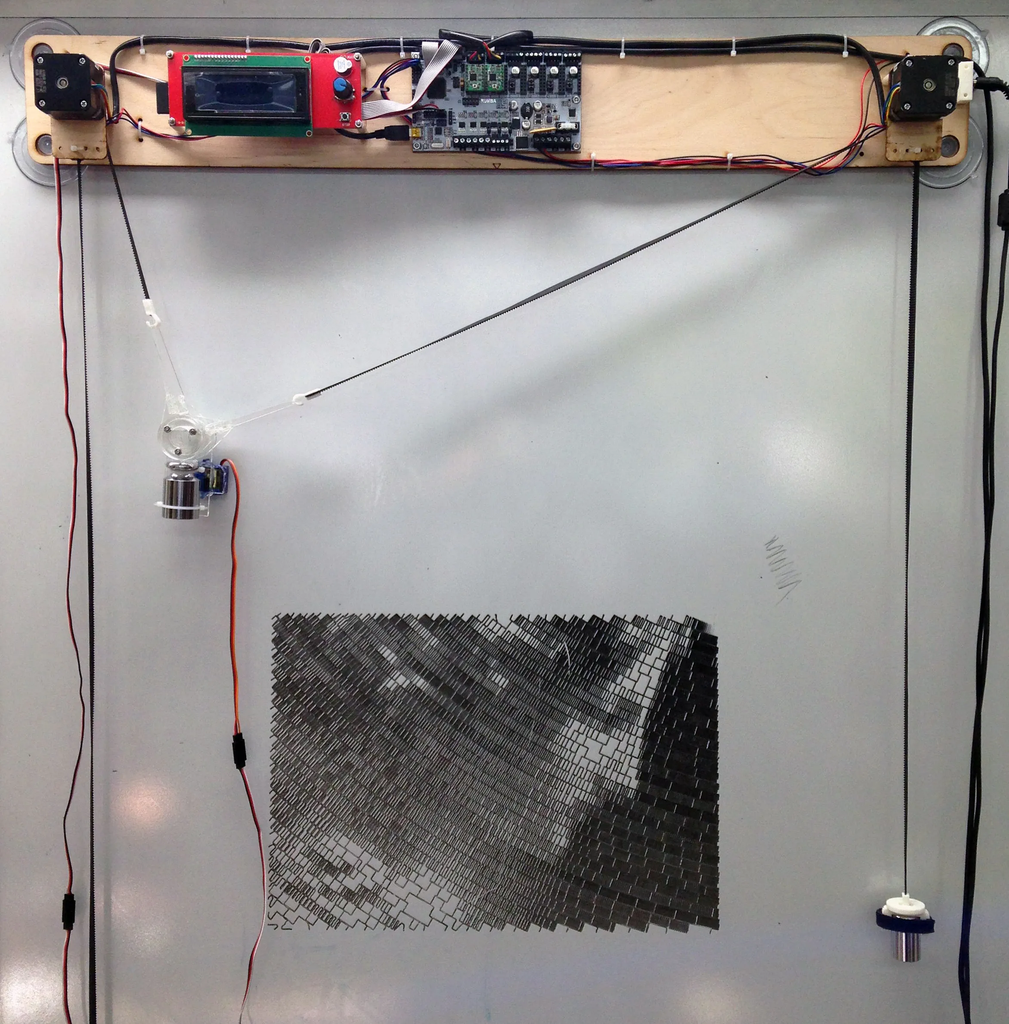
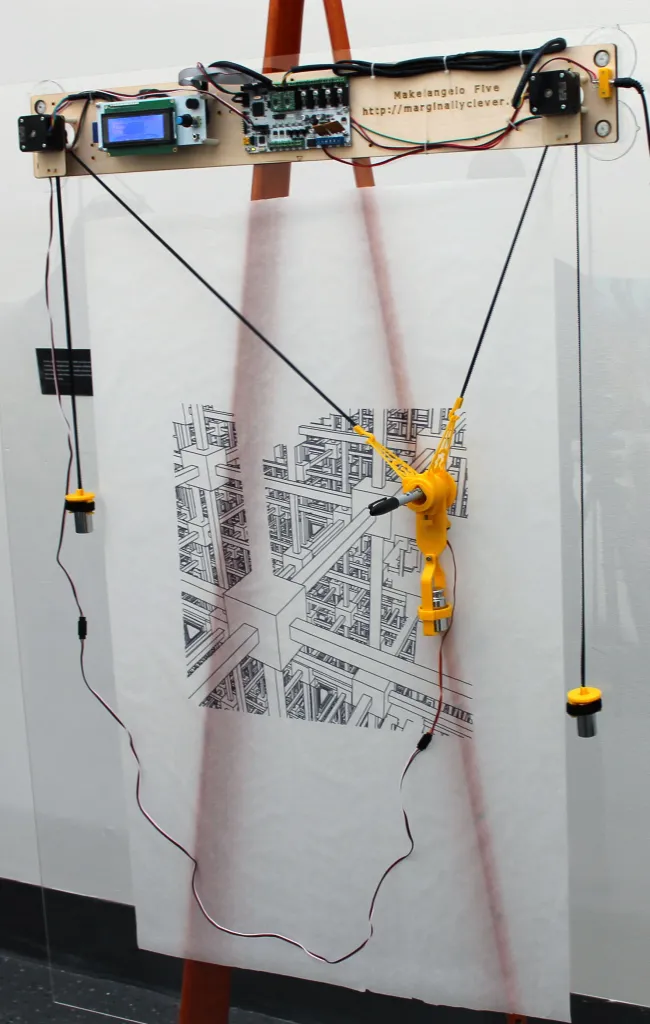
Makelangelo 5 with its control board and LCD screen mounted at the top, with a stepper motor at each corner. Source: https://www.marginallyclever.com/2016/11/makelangelo-five/

The table below compares the four machines by mechanical build and drawing technique.

ProjectMechanical BuildDrawing Technique
Makelangelo 5A vertical drawing robot that uses two motors, belts, and a suspended pen holder.Produces drawings from digital designs using controlled pen movements.
John Proudlock’s Polar PlotterA vertical machine using two motors, cords, counterweights, and a pen-lifting mechanism. Built according to the designer’s preferences.Uses generative algorithms to create patterns and portraits, including hatching techniques.
Viktor A larger robotic system using four motors and belts to control the drawing tool and its pressure against the wall.Uses chalk to produce drawings on a larger scale
Hektor A lightweight machine using two motors, timing belts, gravity, and a spray-can holder.Translates digital vector paths into wall drawings, benefiting from mechanical imperfections that influence the result.

Part 6: Sources

aggrav8d. “Makelangelo Polargraph Art Robot.” RobotShop Community, 15 Mar. 2012, community.robotshop.com/robots/show/makelangelo-polargraph-art-robot. Accessed 25 Oct. 2026.

Chandra, Michelle. “The Art of Polar Plotters: John Proudlock on Generative Portraiture & Vertical Plotters.” Dirt Alley Design, 4 Oct. 2020, www.dirtalleydesign.com/blogs/news/the-art-of-polar-plotters-john-proudlock-on-generative-portraiture-and-vertical-plotters. Accessed 25 Oct. 2026.

Lehni, Jürg. “Hektor.” Jürg Lehni, juerglehni.com/works/hektor. Accessed 25 Oct. 2026.

Marginally Clever Robots. “Makelangelo 5.” Marginally Clever Robots, www.marginallyclever.com/products/makelangelo-5/. Accessed 25 Oct. 2026.

“Makelangelo 6.” Marginally Clever Robots, 19 Oct. 2026, www.marginallyclever.com/products/makelangelo-6/. Accessed 25 Oct. 2026.

“Polargraph Drawing Machine.” Instructables, www.instructables.com/Polargraph-Drawing-Machine/. Accessed 25 Oct. 2026.

“Something Completely Different: Makelangelo DrawBot.” SketchUp Blog, blog.sketchup.com/maker/something-completely-different-makelangelo-drawbot. Accessed 25 Oct. 2026.

“Viktor.” Jürg Lehni, juerglehni.com/works/viktor. Accessed 25 Oct. 2026.

Contributions

  • Shamsa: Parts 1, 2 and 4 (what the machine is and how it draws, what makes its approach interesting, examples of drawings).
  • Joud: Parts 3, 4 and 5 (components, references and similar systems).
  • Both of us: Sources, images and final editing.
Midterm Project

Final Concept

Note: I couldn’t embed videos on this page, so my process videos are in this Google Drive folder: https://drive.google.com/drive/folders/1T3qsJq4pVoNUqj96f5aLVYbNuOmPWuFS?usp=sharing

Final Code: https://editor.p5js.org/sa8831/sketches/T_5rJRFni

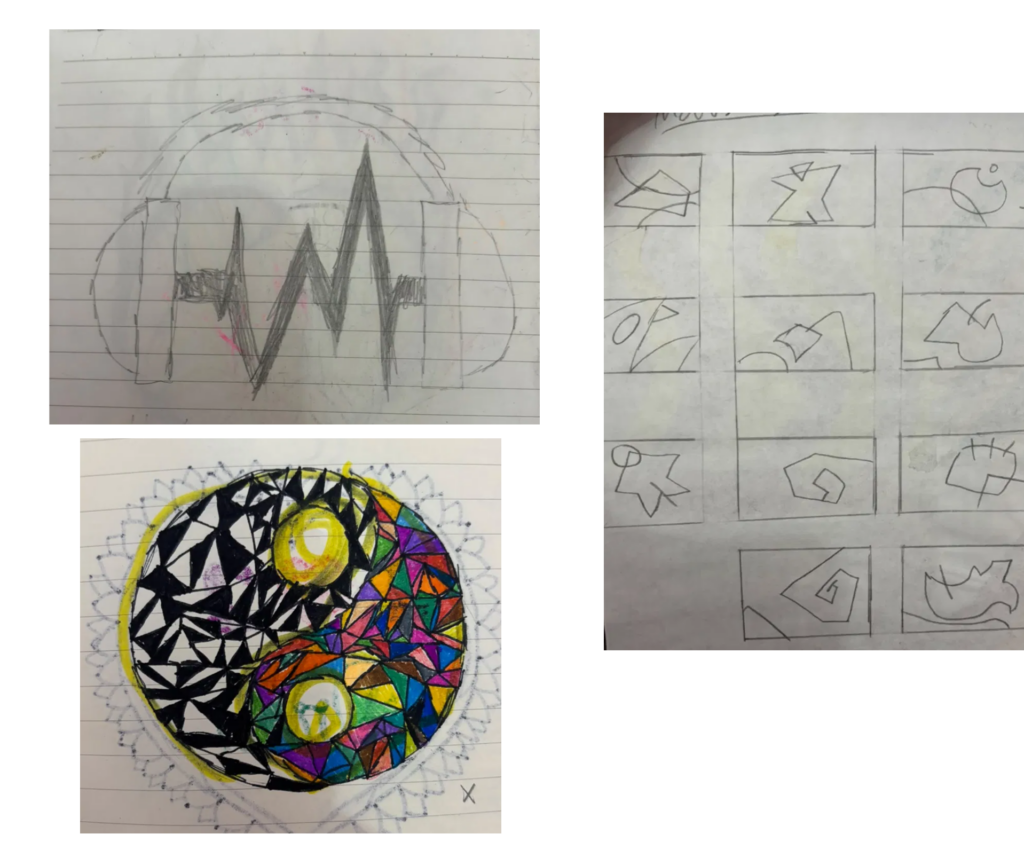
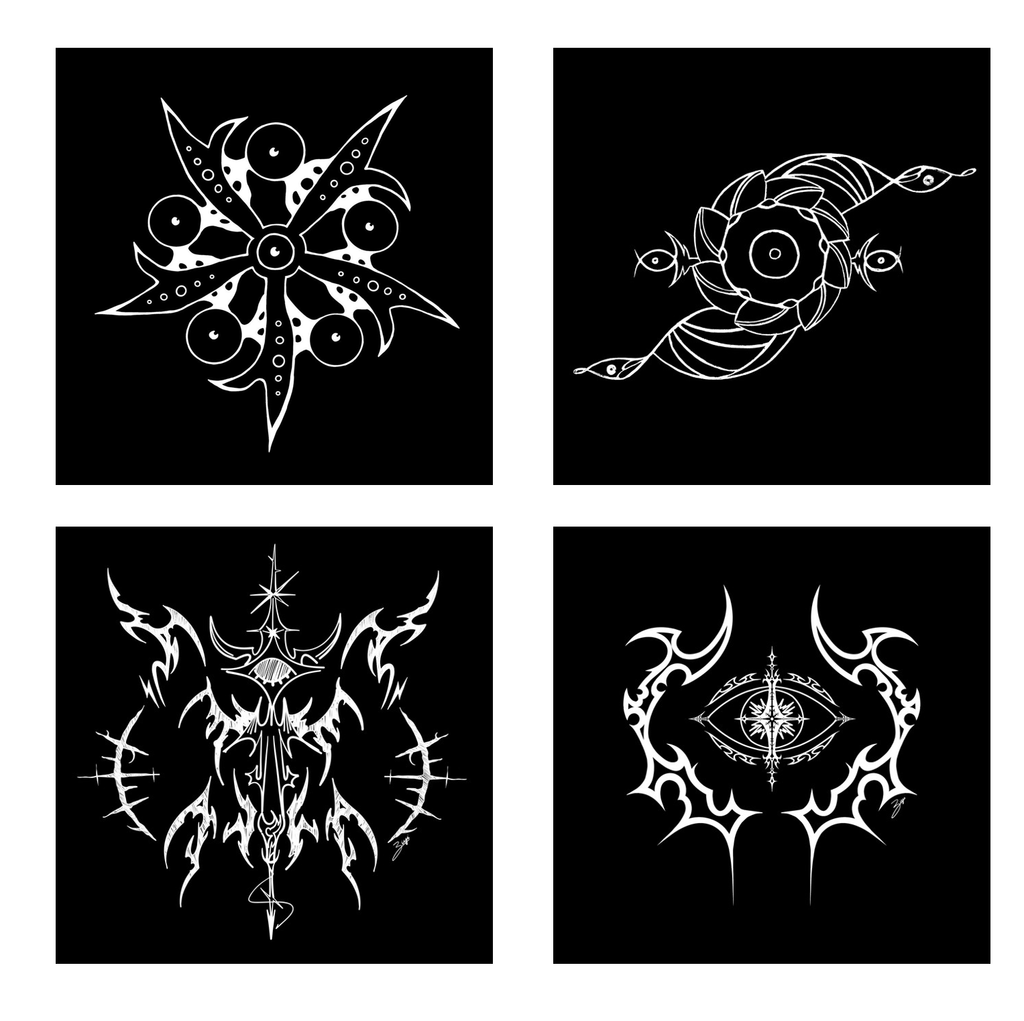
I was inspired by album covers by artists like Ptasinski and RJ Pasin, which use thin linework, mirrored symmetry, sparkles, and dotted chains. I was drawn to this style, so I compared it with my childhood drawings to see what I could make from it. My childhood drawings look nothing like those covers, since mine are round and colorful. But they have things in common: I always drew a main shape and surrounded it with smaller marks like dots, stars, and outlines, and some of my pages used zigzags and shards. I decided to turn that way of drawing into rules in p5.js.

Figure 1: Top Left, Bottom Left, and Bottom Right are album covers by Ptasinski, while Top Right is an Album cover by RJ Pasin

Figure 2: Old drawings from 2016-2018

Initial Brainstorming

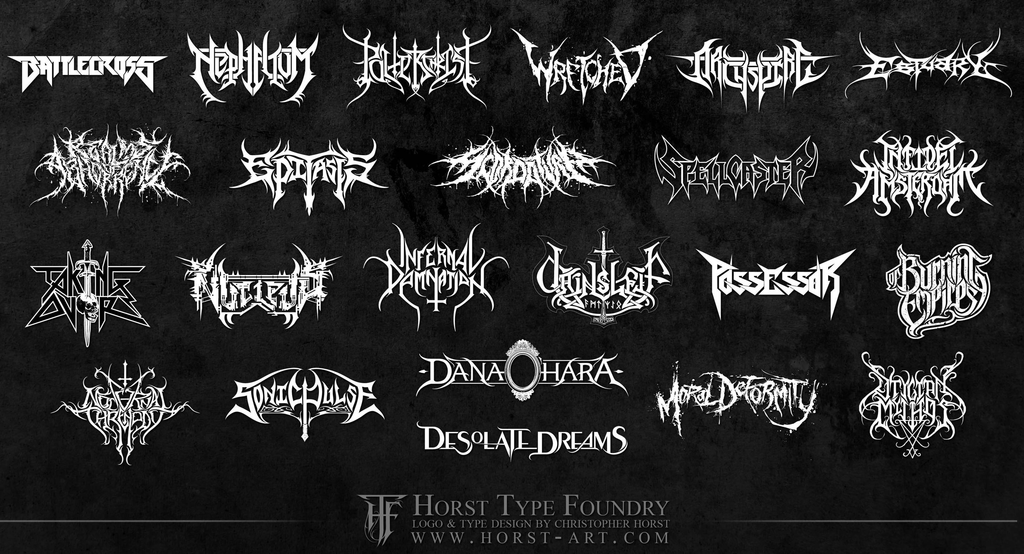
While brainstorming, I started with EKG traces and heavy metal logos and thought of combining them, since the most common thing between them was sharp spikes shooting up and down from a single line. I wasn’t sure which one to build on, so I tested a few versions in p5.js and dropped them.

Initial References:

Figure 3: Heavy Metal Band Logos References (Source: https://imodesign.wordpress.com/2012/11/05/heavy-metal-logos/?utm_source=Pinterest&utm_medium=organic)

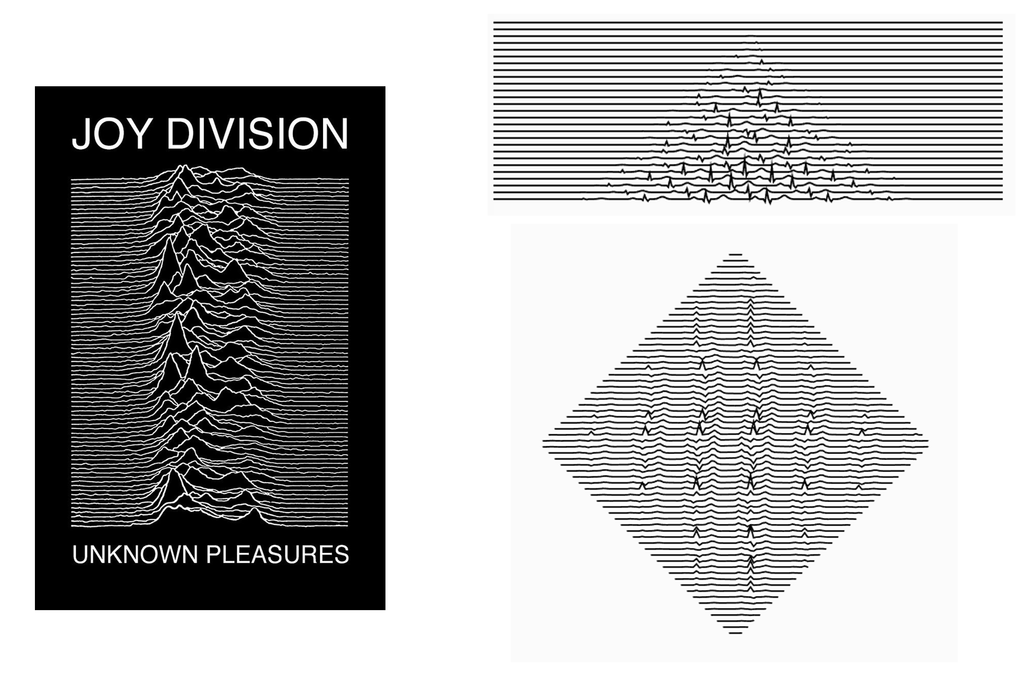
In the first versions tested on p5 (See below), each row is one straight line, and a small spike shape pushes the line up at random spots. The rows are stacked, and in the second version I cut them into a diamond. It looked too much like Unknown Pleasures by Joy Division, so I changed that idea and landed on the final concept

Figure 4: Left side is Unknown Pleasures, Right Side is code outputs

Workflow

I designed the drawings in p5.js. A seed number picks one of three forms (a vertical totem, a radial burst, or a bending vine) and all the rules, like strand count and branching chance. Each form is built around a main line, and the code picks random spots along that line to grow from, with a minimum gap so they don’t pile up. At each spot it grows two mirrored curved arms made of nested strands. The strands are pushed sideways into sharp spikes, and every spike can sprout a smaller arm through a function that calls itself, capped at 400 branches.

if (t > .1 && budget < 400 && roll < bProb * (1 - .5 * t)) {
  budget++;                       // count it, stop at 400
  let p = pts[idx];               // the spike's position
  branch(p.x, p.y, atan2(p.dy, p.dx) + ou * ang, cc, len * lf, gen + 1, side, nd);
}

Every line is stored in a paths list. For the drawings I plotted, the lines were sorted so the pen travels less and written out as an SVG with exportSVG(). The linked code saves the same lines with the p5.js-svg library instead, which keeps the order the sketch draws them in. I then opened the SVG in Inkscape and generated the G-code. The G-code came out much too big for the paper, because the tool seemed to read pixels as millimeters, so I shrank the drawing and checked its size in the G-code viewer before plotting. Then I taped the paper down, did a dry run with no pen, and plotted.
I based the rules of my code on the drawing habits I developed as a kid. I always drew a main shape with smaller marks around it, like dots and stars. In the code, this is a main line with arms growing from it, with sparkles along the arms and dotted chains at their tips. For outlines, each arm is drawn as several parallel copies of itself, which are the nested strands. For zigzags and shards, the function spike() makes each spike by adding five bumps together: one tall bump that is the spike, with small dips and bumps on either side. Each spike can also grow a smaller arm. For the mirrored symmetry of the album covers, both arms at each spot get the same random numbers, so the two arms come out identical.

Typing a number into the seedline at the top of the sketch locks a drawing, so the same number always gives the same drawing.
The Three Forms

I added a rule that makes each drawing one of three forms, chosen by the seed. I used three because a main line can only stay straight, spread out from one point, or bend. Each one changes the layout of the whole drawing while the arms, spikes, and sparkles stay the same. The totem is one vertical line down the middle, with 5 to 18 growth spots along it. Its arms and the smaller arms sprouting from them can also drip downward by a random amount.

The burst is 5 to 10 straight lines going out from the center like spokes, each with 3 to 7 growth spots. Its arms are shorter than the totem’s, and it is the only form with a large sparkle at the center.

The vine is one line that bends from side to side, starting near the bottom of the page. Its direction follows a sine wave, so no two vines curve the same way. It has 6 to 16 growth spots, and its arms are medium length.

Process and Challenges

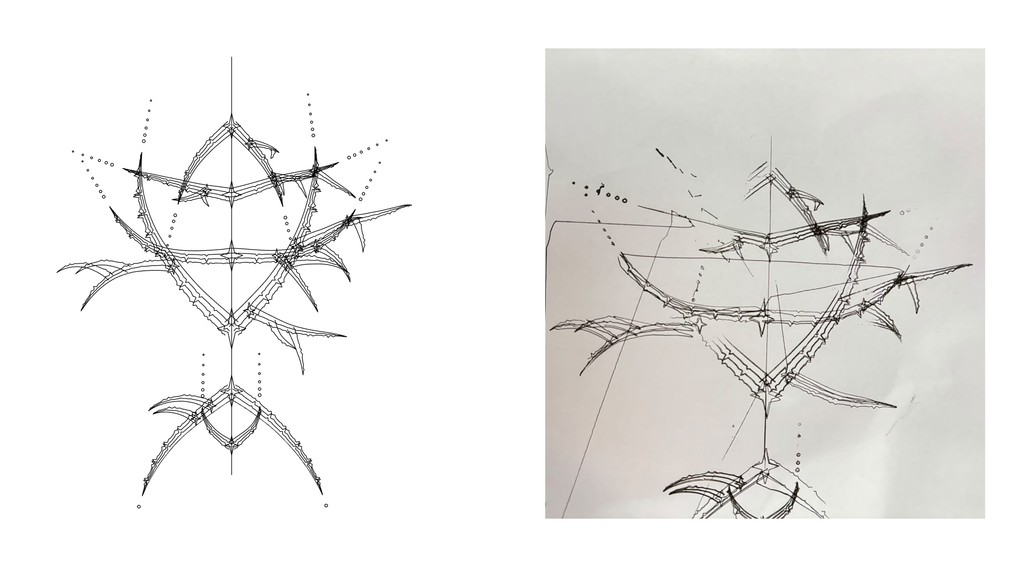
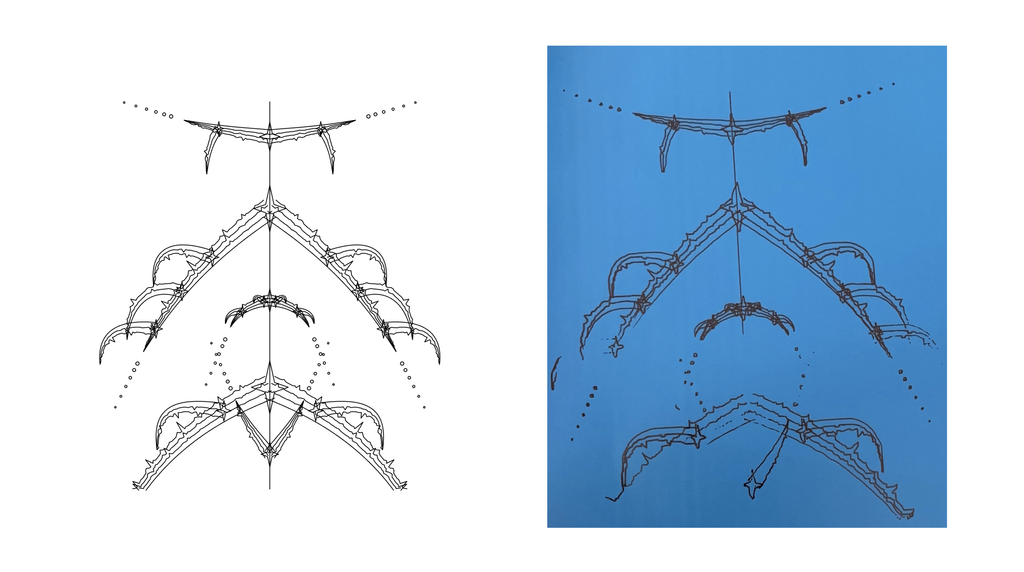
I plotted 8 trials, changing the pen, paper, layering, or workflow each time, and picked the 3 strongest (Trials 6, 7, and 8) as my final series.

G-Code straight from p5.js:

The assignment allowed exporting G-code directly from p5.js, so I wondered why the workflow usually goes through SVG and Inkscape. I was curious what would happen if I skipped that step, so I tried the direct route for two trials, with two different forms (a burst in Trial 1 and a totem in Trial 2). I didn’t know what the consequences would be. The G-code that p5.js exports uses different commands and settings from what my plotter and Universal G-code Sender expect, and the pen never lifted in either trial.

This is the export function I added to the sketch for Trials 1 and 2:

const SCALE = 0.9;
const AREA_W = 280, AREA_H = 260;      // paper or safe area in mm
const PEN_UP   = "G0 Z5";
const PEN_DOWN = "G1 Z0 F500";
const DRAW_F = 3000, TRAVEL_F = 6000;  // mm/min
const FLIP_Y = true;

function exportGcode() {
  const OX = (AREA_W - W * SCALE) / 2;
  const OY = (AREA_H - H * SCALE) / 2;
  const X = x => (x * SCALE + OX).toFixed(2);
  const Y = y => ((FLIP_Y ? H - y : y) * SCALE + OY).toFixed(2);

  let L = ["; sigil | form: " + form + " | seed: " + seed + " | scale: " + SCALE,
           "G21 ; mm", "G90 ; absolute", PEN_UP];
  for (let pa of sortPaths()) {
    L.push("G0 X" + X(pa[0][0]) + " Y" + Y(pa[0][1]) + " F" + TRAVEL_F);
    L.push(PEN_DOWN);
    for (let i = 1; i < pa.length; i++) L.push("G1 X" + X(pa[i][0]) + " Y" + Y(pa[i][1]) + " F" + DRAW_F);
    L.push(PEN_UP);
  }
  L.push("G0 X" + X(0) + " Y" + Y(H) + " ; park", "M2");
  saveStrings(L, "sigil_" + seed + "_s" + SCALE, "gcode");
}

Trial 1:

Form: burst

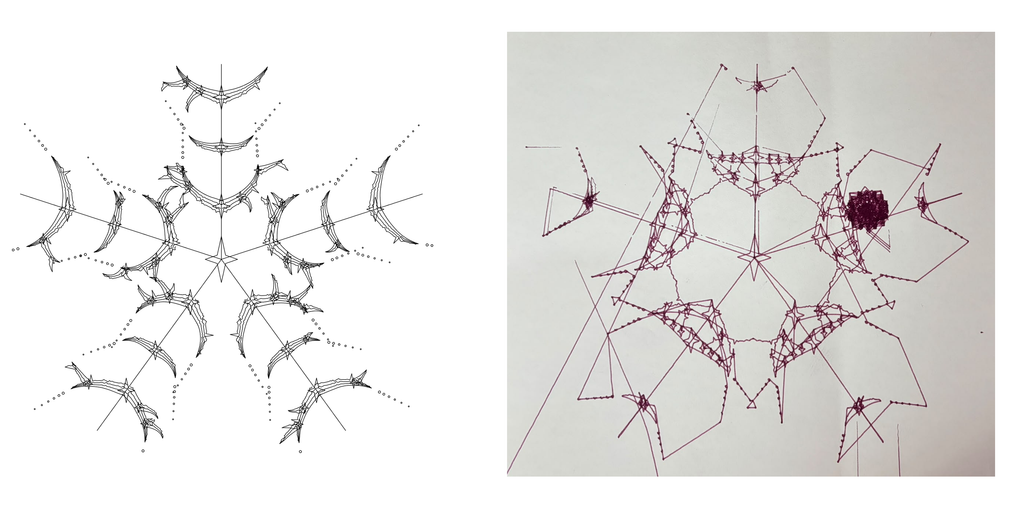
I used a purple fine tip on textured A3 test paper (not thick). The paper already had some lines and a dark blob at the top right before I plotted, so I took that into account while testing. The lines came out crisp, but the pen never lifted, so it drew long straight lines between every piece and covered the page in them.
Video Clips:

First Clip

Second Clip

Trial 2

Form: Totem

I used a black gel pen on normal A3 paper. The pen again never lifted, so long lines ran across the page and down the left edge. Partway through, I switched to exporting an SVG and generating the G-code in Inkscape, and the pen started lifting and lowering correctly. Because I changed files mid-plot, some parts were drawn twice, so some lines look repeated. The nested strands and sparkles are clean, but some lines and dotted chains look faint or broken into dashes. I first thought the pen had run out of ink, but when I paused the plot in Universal G-code Sender and checked it, it still wrote smoothly. My guess is pen positioning: the more the holder lifts and lowers, the more the pen tilts and stops holding still.

Video Clips:

First Clip

Second Clip

After these two trials, I went back to SVG → Inkscape → G-code for everything else. The Inkscape settings fixed the main problem: the pen lifts and lowers when it should.

From p5.js to SVG (Inkscape):

Trial 3

Form: Totem

I placed the drawing too close to the edge of the page, so the pen went off the paper and part of the drawing didn’t land on it. In Inkscape, the closer a drawing sits to the edge of the Laser G-code border, the less of it gets plotted. This made me think about where a drawing should sit on the page. The pen lifted well, but partway through it stopped touching the paper, so I paused the plot and adjusted it by hand. That fixed most of it, but in other spots the pen lowered and still didn’t mark, so some lines are broken or missing.
Video Clips:

First Clip

Second Clip

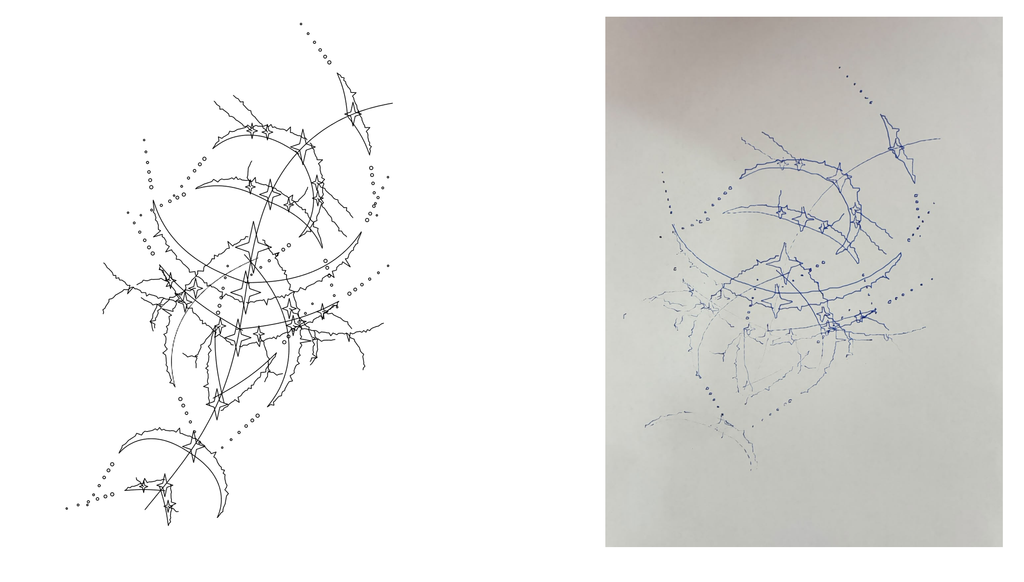
Trial 4

Form: Vine

I used a blue gel pen on normal A4 paper. The sparkles and dotted chains came out clean, but parts of some lines looked faint or dashed, as if the pen had skipped. The ink ran out partway through, which made some strokes jagged, and the pen shifted around in the holder, so lines weren’t consistently crisp. To fix the shifting, I packed paper into the holder to wedge the pen in place, which helped somewhat.
Video Clip (process)

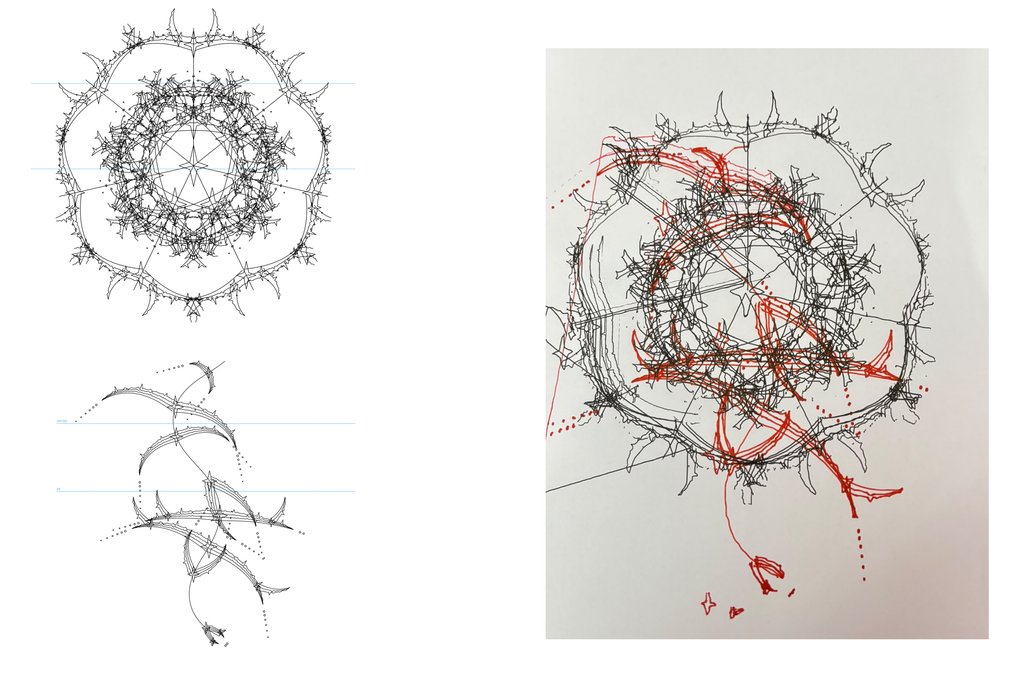
Trial 5

Forms: Burst (black) and Vine (red)

I made two different designs, a burst for the black gel pen and a vine for the red Sharpie, and exported each as its own SVG. I plotted them one after the other on A4. The red layer didn’t line up with the black, and there were stray lines outside the main shape. With the pen set too low, it dragged across the paper during travel moves even when the plotter “lifted” it, which happened with the red pen too. Raising the pen height helped. The red also doesn’t stand out as much as the black, probably because the black layer is much denser and the red is sparse. This taught me that layers need the same position and size, and that the paper can’t move between passes.

Video Clips:

First Clip

Second Clip

Trial 6

Form: Totem

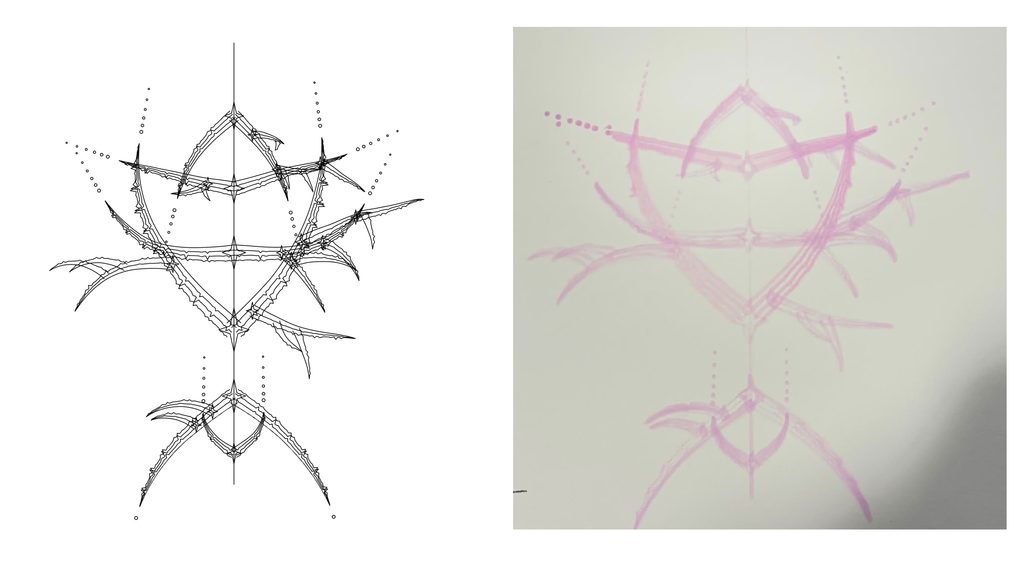
I used pink brush paint markers on thick sketchbook paper. Mechanically, this was the smoothest trial, and the pen lifted and lowered well. The marker itself was very streaky, which left dense patches, merged the nested strands into wide bands, and blunted the spikes. Line width varied across the drawing even though the height was fixed. When I did adjust the height slightly, it changed the pressure on the paper and thickened some areas further. I kept it for its soft, mirrored look.

Video Clips:

First Clip

Second Clip

Trial 7

Forms: Totem and Vine

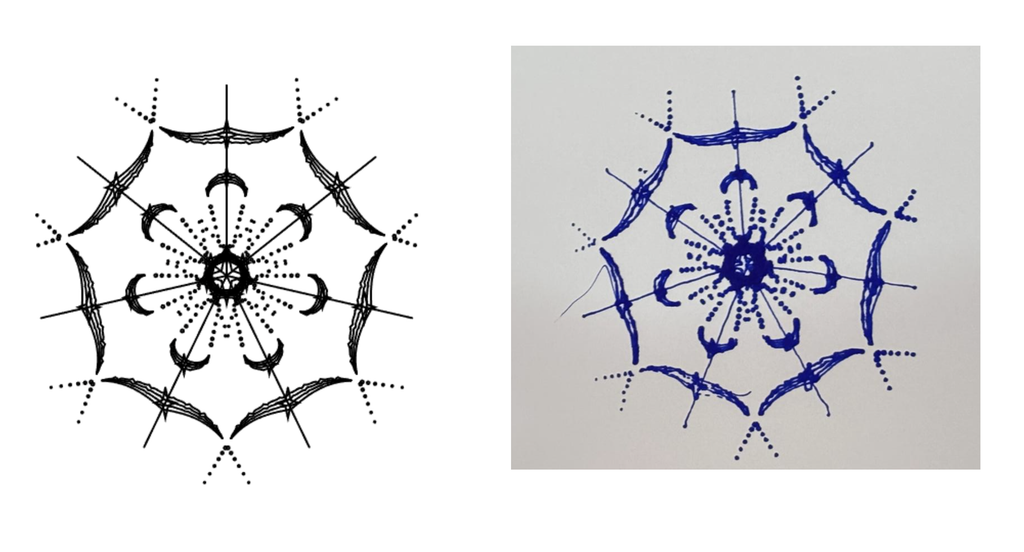
I used a blue Sharpie on normal A4. This one had the fewest problems. The center merged into a dark knot where lines crowded together, while the outer arms stayed crisp. The one flaw is a loose thread of ink at the top left. The pen shook during the plot, so I had to readjust the paper packing in the holder, and the shaking caused the thread. I kept it for its sparse, radial look.

Video Clips:

First Clip

Second Clip

Trial 8

Form: Burst

I used a blue Sharpie on normal A4. This one had the fewest problems. The center merged into a dark knot where lines crowded together, while the outer horns stayed crisp. The one flaw is a loose thread of ink at the top left. The pen shook during the plot, so I had to readjust the paper packing in the holder, and the shaking caused the thread. I kept it for its sparse, radial look.

Final Results

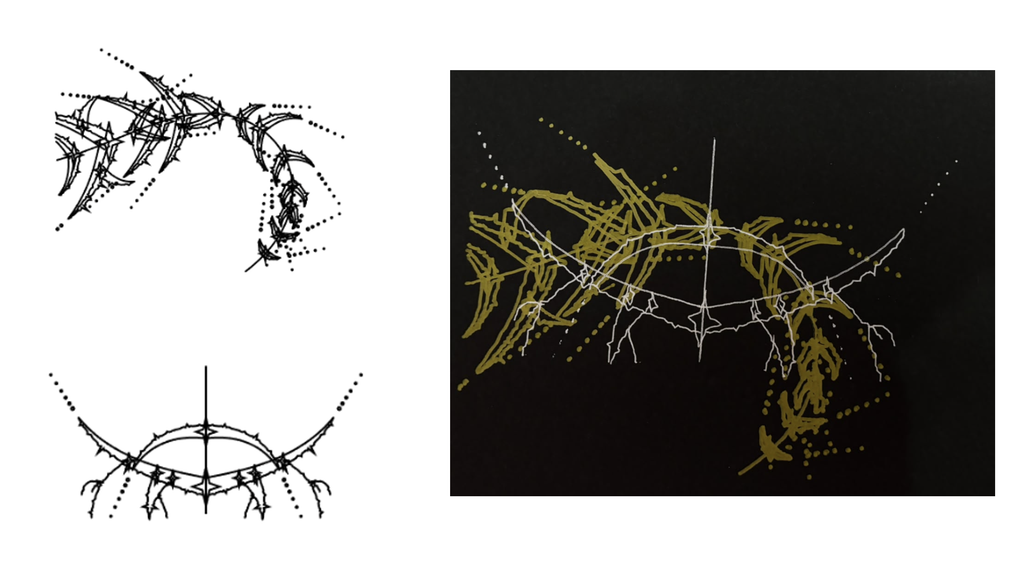
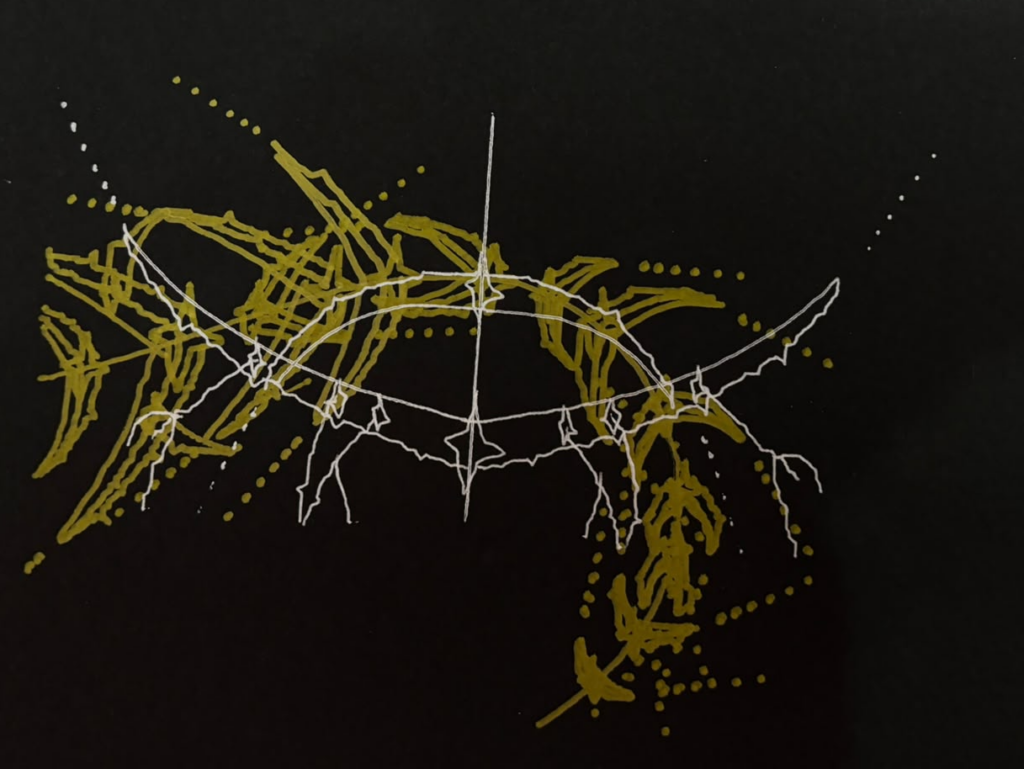
All three finals come from the same drawing system and are built from spikes, nested strands, sparkles, and dotted chains. The seed gave each one a different form (pink: totem, gold and silver: combination of totem and vine, blue: burst), and the pen and paper changed how the lines look. The pink one is soft and mirrored, the gold and silver one is dense and asymmetric, and the blue one is sparse and radial.

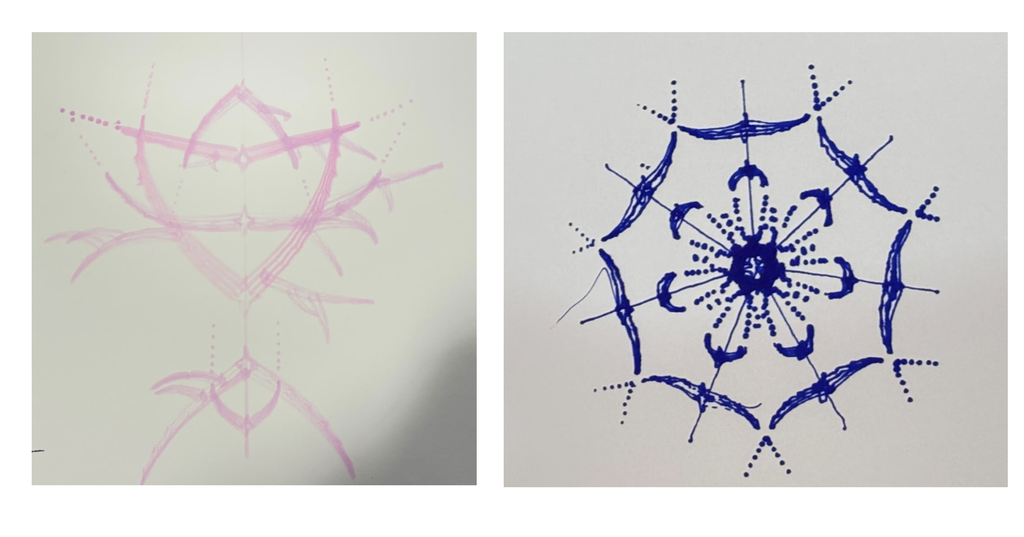
Left, Trial 6: pink brush paint markers on thick sketchbook paper (Totem, seed number (27854)). Right, Trial 8: blue Sharpie on normal A4 (Burst, seed (3613)).

Trial 7: gold marker and silver gel pen on black paper, two layers. Totem and vine, seeds (40027) and (66934). The thick gold and thin silver cross at the sparkles, and the contrast between them makes it work.

Reflection

Materials changed the drawing more than I expected. The drawing rules were the same in each case, but the ink decided how the lines read. The pink brush marker on sketchbook paper spread the nested strands into wide bands and blunted the spikes, which gave the first design its soft look. On black paper, the thick gold marker made a dense, streaky buildup, while the silver gel pen stayed thin and crisp, and that contrast is what makes the design work. The blue Sharpie made the outer arms stay crisp, though the center merged into a dark knot where the lines crowded together.

Layering and color depended on contrast. In Trial 5, the sparse red over the dense black got lost, and the layers didn’t line up. I learned they need the same position and size, and the paper can’t move between passes. In Trial 7 I aligned both designs in Inkscape first, and the thick gold with thin silver on black read clearly. Red on blue (Trial 3) had low contrast, while light metallic on black was clear. Contrast in value mattered more than the hue.

Pen stability and height affected every final. When the pen sat too low, it dragged during travel moves, and when it shook in the holder, it left stray marks. The loose thread at the top left of the blue Sharpie drawing came from that shaking. Packing paper into the pen holder helped, but I had to readjust it between plots. Adjusting the height also changed the pressure on the paper, which thickened some areas of the first design. In the future I’d try other ways to hold the pen in the plotter (such as a longer screw, or a flat 3D-printed piece that pushes the pen in and holds it firmly), which should keep pressure consistent without constant manual adjustment.

Assignment 4

Concept

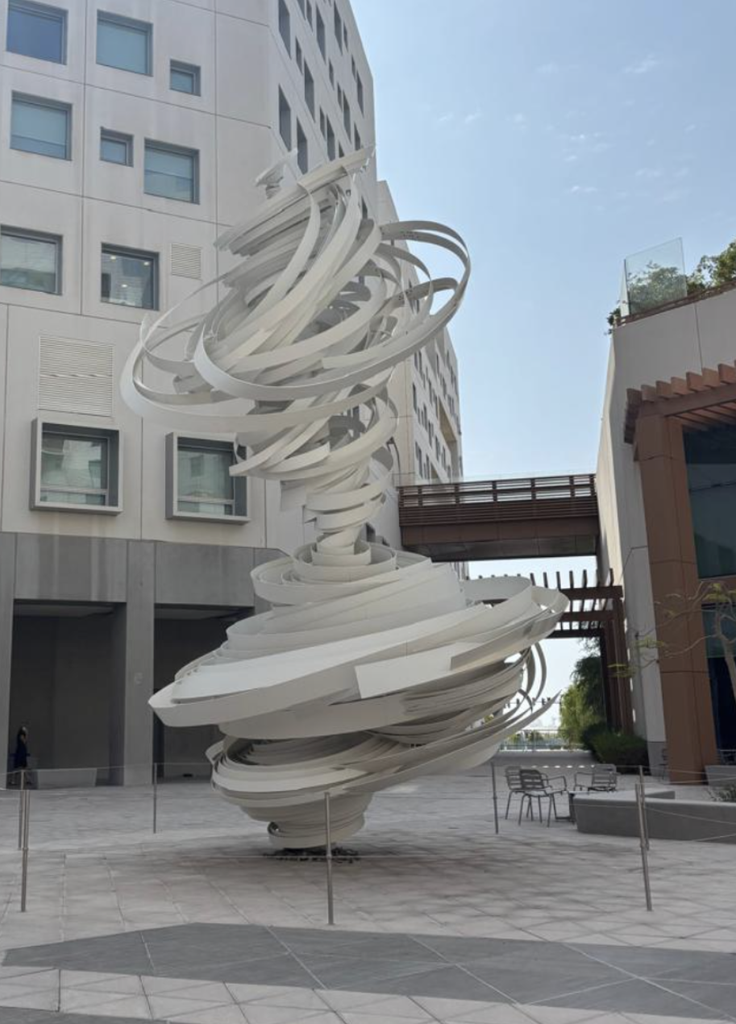
I was walking towards D1 and kept seeing this large-scale sculpture outside, and I remember when I first visited this campus seeing this, I had this first impression that it reminds me of rings or ribbons forming a pattern in rhythmic gymnastics. Now seeing this, because these shapes differ in sizes and tilts, I wanted to translate this, using this idea of repetition with imperfection into an algorithmic 3D design in p5.js.

As I made notes, I was thinking about what direction each idea could go in:

  • Stack of rings, with each ring independently sized, rotated, and tilted as the loop travels upwards along the Y axis, creating rings that will never stack together perfectly in alignment or spacing.
  • Tube swept along a spiral path, which is basically the same concept but instead it uses one shape continuously.

Workflow

I designed both directions in p5.js using buildGeometry() to combine primitives (cylinders and tori) into a single mesh, with random() values controlling each layer’s size, rotation, tilt, and offset. I exported the mesh as an .obj with saveObj(), then changed the size and orientation in TInkerCAD, then opened it in PrusaSlicer to scale it and add supports, and printed it on the Prusa.

Process and Challenges

First Direction (Stack of Rings)

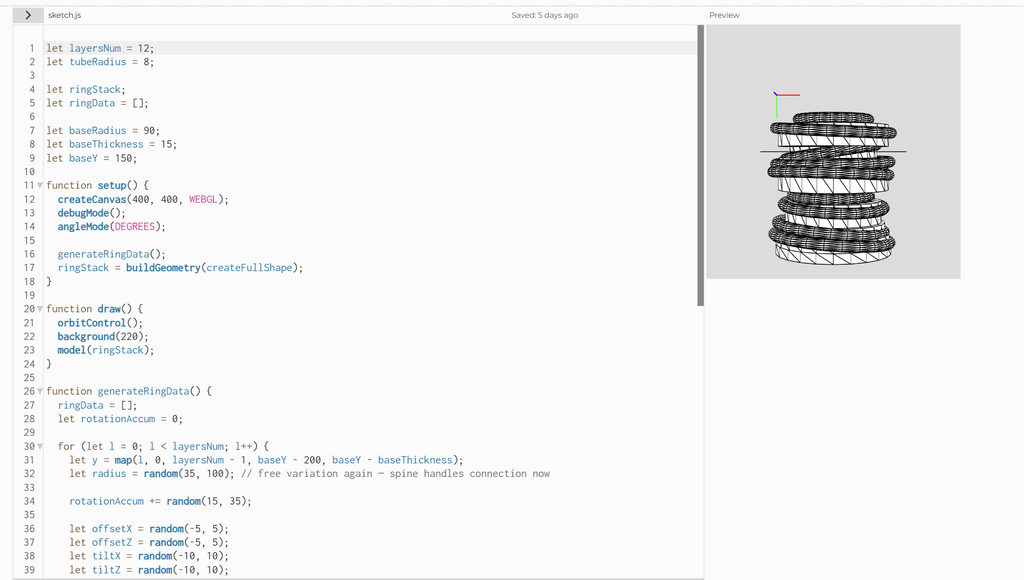
Link: https://editor.p5js.org/sa8831/sketches/-4kZhroTQ

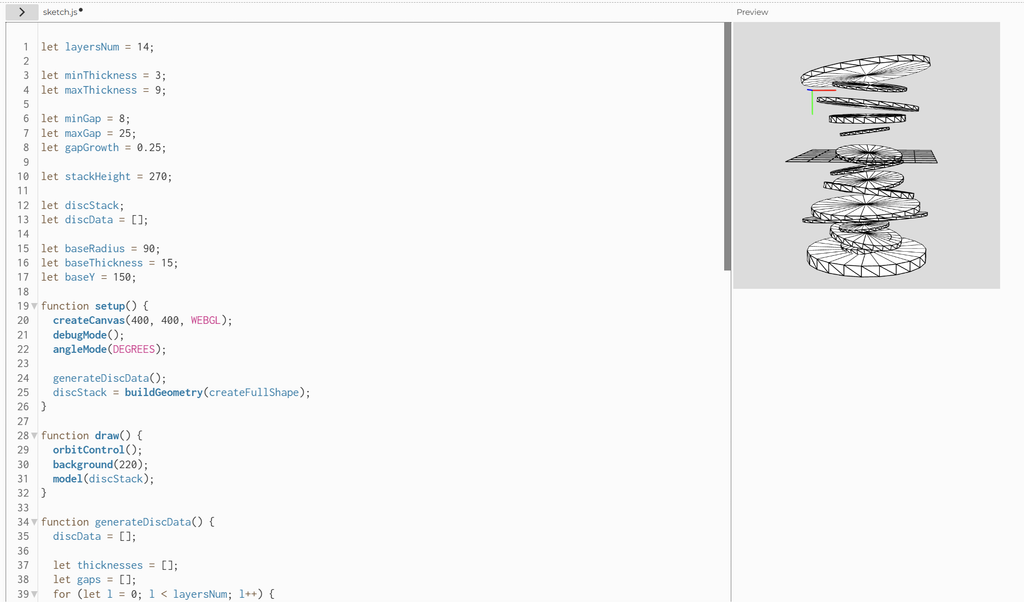
My first version stacked tilted discs of varying thickness with gaps that grew upward. It closely matched my reference, but I knew it couldn’t print: every disc floated with nothing connecting it to the base or its neighbors.

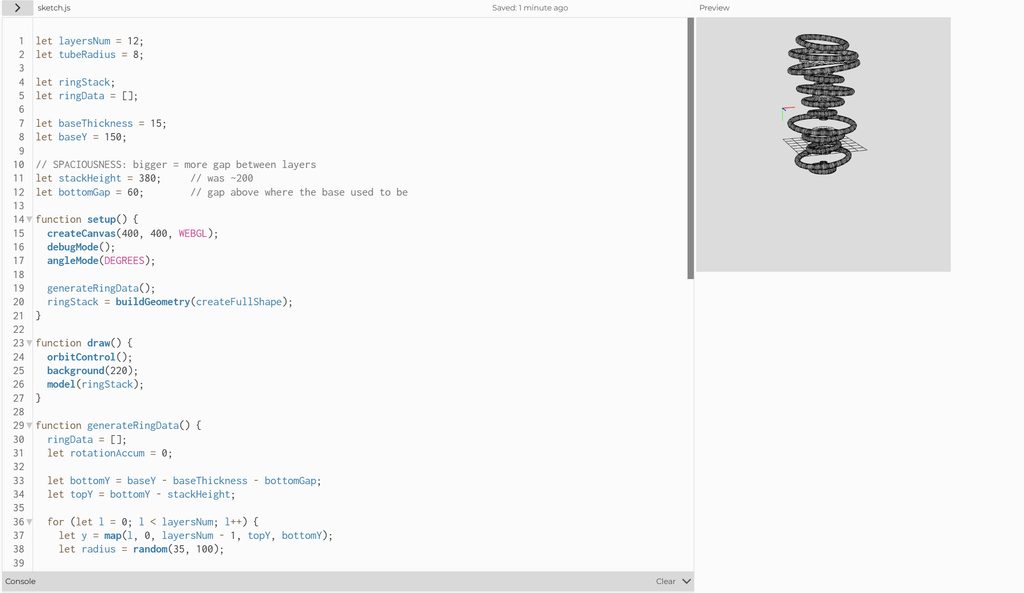
My first fix was to switch to torus rings and slot thin discs between them, hoping to hold the stack together. It failed. The discs were smaller than the ring holes and the stack was stretched to 380 units, so they touched nothing. I had also removed the base, so the piece went from 14 loose parts to 23.

The working fix was a central spine: one cylinder per ring, sized to reach into the ring’s solid tube and overlapping its neighbors vertically, plus the base. This kept each ring’s random radius, tilt, and offset, but joined everything into one body. A side effect was that the spine filled the rings in, so they became solid discs with rounded rims, which brought the form back close to my original discs.

Second Direction (Tube coil swept along a spiral path)

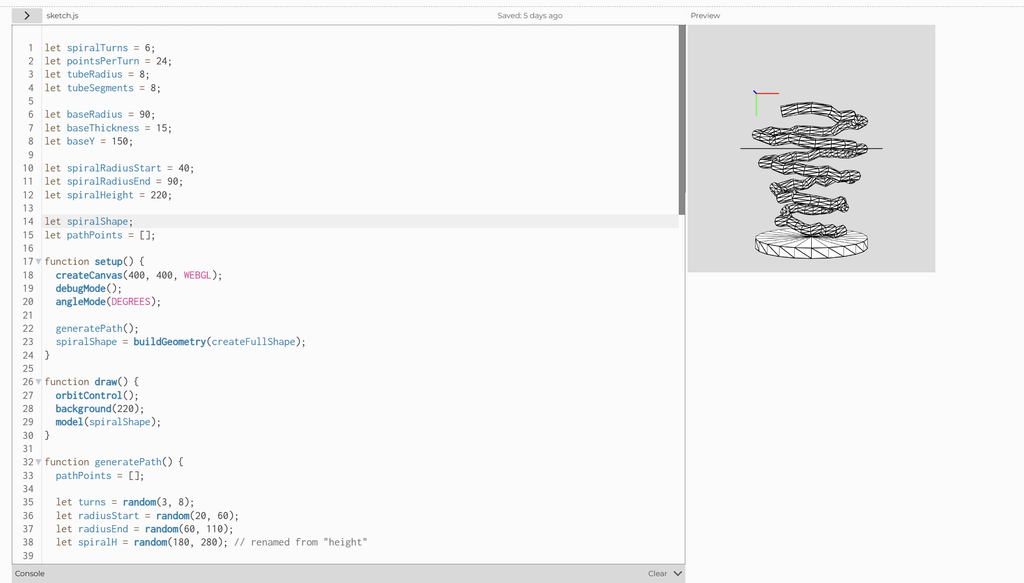
Link: https://editor.p5js.org/sa8831/sketches/CJ9PQA07M

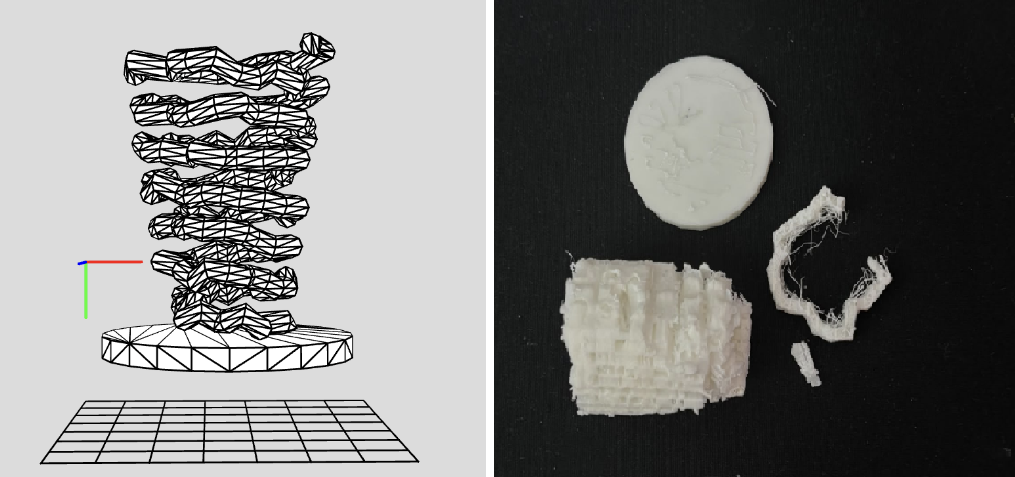
Alongside the rings, I built a continuous tube swept along a spiral path, with the number of turns, radius, and height randomized so every run gave a different coil. I wanted to see whether the same twisting, uneven idea would read differently as one unbroken form instead of stacked pieces. On screen it worked: it looked like a loose, organic spring.

The print didn’t. Every loop of the coil overhangs the one below it, so the slicer needed supports. I chose “supports everywhere,” assuming supports are easy to remove. They weren’t. The coils are small and tightly spaced, so the support material filled the gaps between them. Since the supports and the model were the same white plastic, I couldn’t tell which was which, and the thin tube snapped while I was trying to pull them away. After a tedious attempt at cleaning it up, I gave up.

That failure decided my direction. The rings stack layer on top of layer, so their overhangs are shorter and the piece could survive the print. The ring stack became my final piece because I redesigned the form around what the printer could do, not just what looked good on screen.

Final Prints: Ring Stack

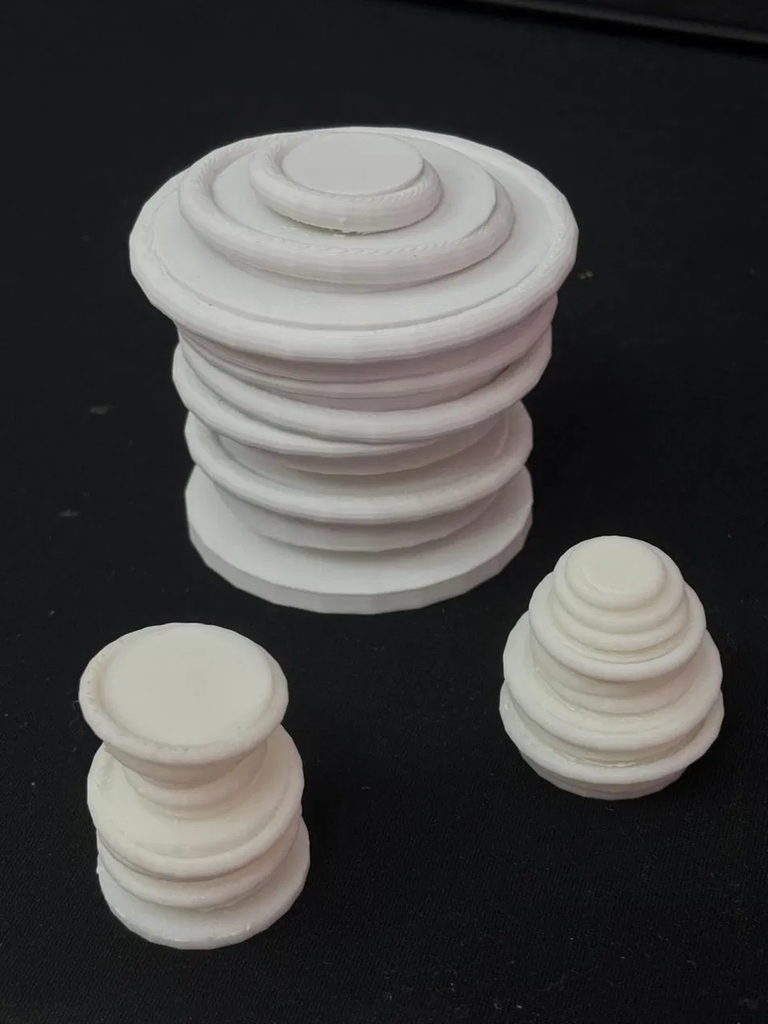
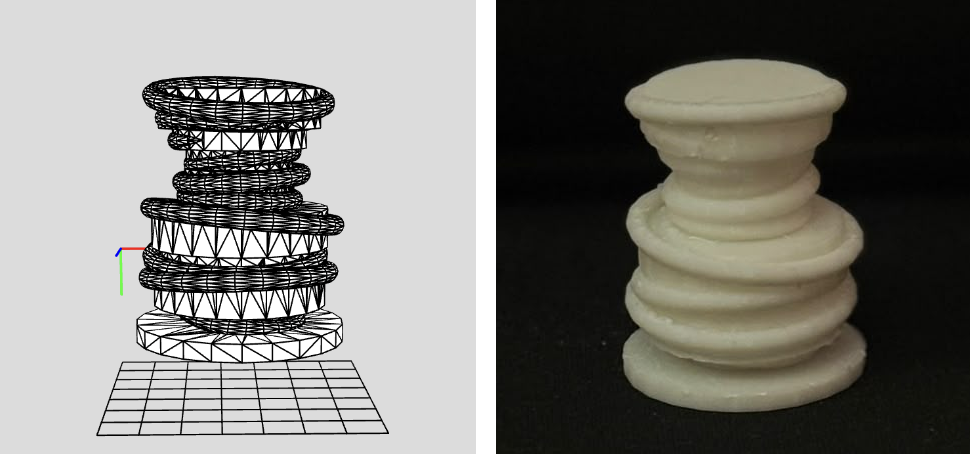
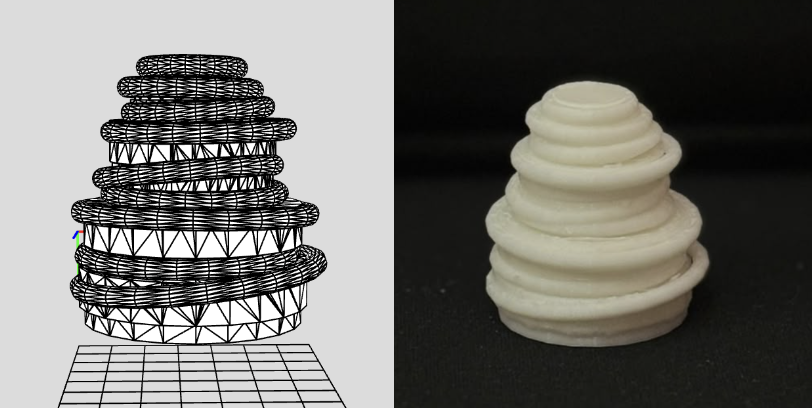
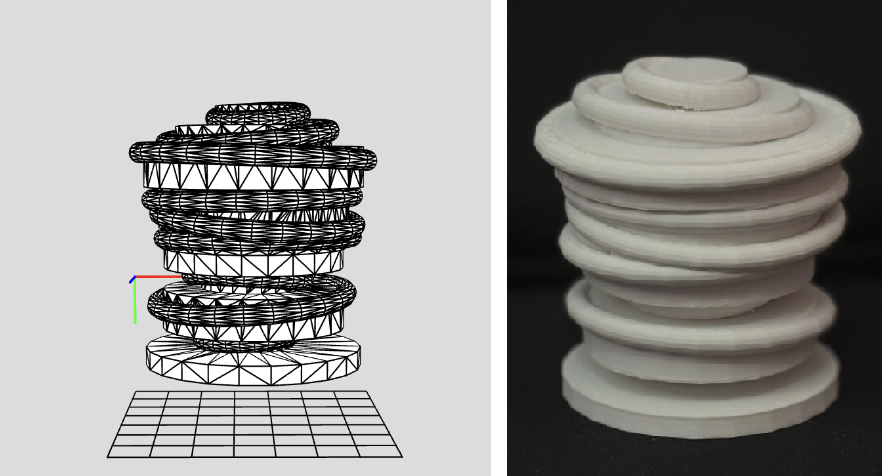
I printed three final pieces at different sizes: one large and two smaller. Every piece came from the same algorithm but a different random run, so each has its own silhouette. The large one shows the full stacking of tilted, offset layers, while the smaller two came out as a bowl-topped column and a tapering cone. I chose which outputs to print instead of designing them by hand.

Scale mattered more than I expected. On the small prints, the tilted rims and joins approach the printer’s nozzle and layer resolution, so edges look softer and some layers blend together. The supports were also tedious to remove: they sit in tiny gaps between layers, and I had to cut away each small piece by hand. The large print kept sharp, rippled edges, and its supports were far easier to reach and clean up. In the future I’d try tree (organic) supports, which touch the model at fewer points and come off much more easily than the default grid supports.

Trial 1 (Small Scale), where it looks like there is a the bowl on top of a column. Sketch (left) and print (right).

Trial 2 (Small Scale): Looks like a tapering cone, like a beehive. Sketch (left) and print (right).

Trial 3 (Large Scale): Looks like a wide stack of tilted, offset layers with a small disc on top. Sketch (left) and print (right).

Reflection

When thinking about it in 3D, I had to understand how things are on-screen versus when printing them, because unexpected things can happen (like supports and scale). So, printing forced me to think of the piece as a physical object that has to hold itself up. With that in mind, I added a base and a central spine, which changed the form itself, turning open rings into solid, rounded discs. Printing also decided which direction I took since the coil looked most interesting on screen but was the least printable, so I dropped it after the supports fused to it.

In p5.js, each run of the sketch is just a new preview, but once printed, each variation became a permanent object, so choosing which one to make became part of the design. Scale taught me a similar lesson of this idea that the same algorithm behaves differently at different sizes, because the nozzle, layer height, and support removal don’t shrink with the model. When doing this in the future, I would design with overhangs and support access in mind from the start, use tree supports, and lock a random seed so I can compare sizes directly.

Assignment 3 – Laser Fabrication

Concept

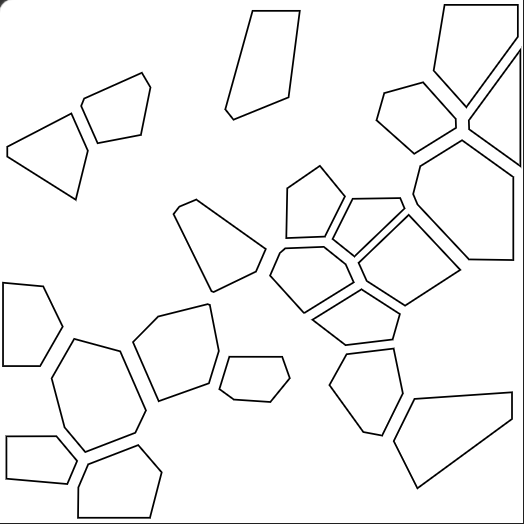
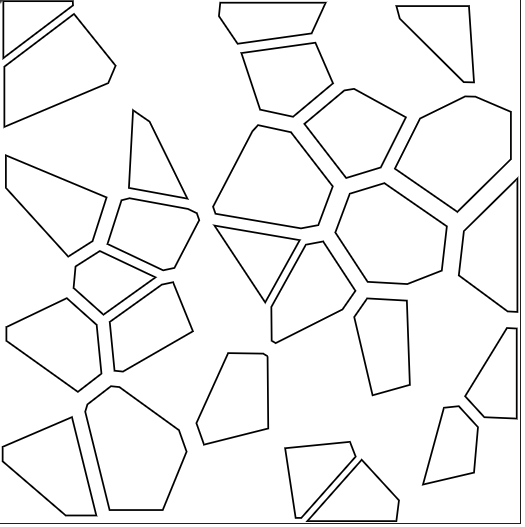
For this assignment, I worked with Voronoi patterns, which are created from the divisions of a surface into organic cells depending on the distance to randomly placed points. The main reason for choosing this design was the discovery that this structure appears in architectural designs, and how the shapes connect to each other reminded me of spider webs, since both rely on thin structural connections to hold divided space together.

Final Sketch: https://editor.p5js.org/sa8831/sketches/S_5pHkohS

Process and Challenges

Going into this process, I often wondered how I would turn a rule-based system into something you can both physically hold and physically cut. The initial inspiration was broken glass since each time glass breaks it produces a unique pattern of sharp-edged, irregular shapes that fit together without overlapping. I found that Voronoi diagrams work the same way since the patterns are never identical yet always follow the same underlying rule of dividing space based on distance to the nearest point. When applying this computationally, the algorithm divides a surface into irregular polygonal shapes based on randomly placed points, producing a different arrangement every time the code runs.

The code was written at first with a sketch that used pixel sampling to make drawings based on image brightness. I kept the same structure for SVG export but replaced the image-based input with randomly placed points that generate Voronoi cell boundaries across the canvas.

When researching how to implement this, I came across a public p5.js sketch (https://editor.p5js.org/bulkan/sketches/qbbxZzm4v) that used the D3-Delaunay library (Github: https://github.com/d3/d3-delaunay and Library: https://d3js.org/d3-delaunay/delaunay) which is an open source library that handles calculating Voronoi cells (irregular polygonal shapes). The sketch already had the library imported in its HTML, so I used that structure and added the p5.js SVG import to get both working together cleanly.

Code Snippet of HTML

<!DOCTYPE html>
<html lang="en">
  <head>
    <meta charset="utf-8">
    <!-- D3-Delaunay library -->
    <script src="https://cdn.jsdelivr.net/npm/p5@1.11.3/lib/p5.js"></script>
    <script src="https://cdn.jsdelivr.net/npm/p5.js-svg@1.6.0"></script>
    <script
      src="https://cdn.jsdelivr.net/npm/d3-delaunay@6.0.4/dist/d3-delaunay.min.js"
      integrity="sha256-78cmqorqCJf23aGYdHCdCf15F4EgjtWEfvH9NvmIaxg="
      crossorigin="anonymous"
    ></script>
    <link rel="stylesheet" type="text/css" href="style.css">
  </head>
  <body>
    <main></main>
    <script src="sketch.js"></script>
  </body>
</html>

Vector Designs

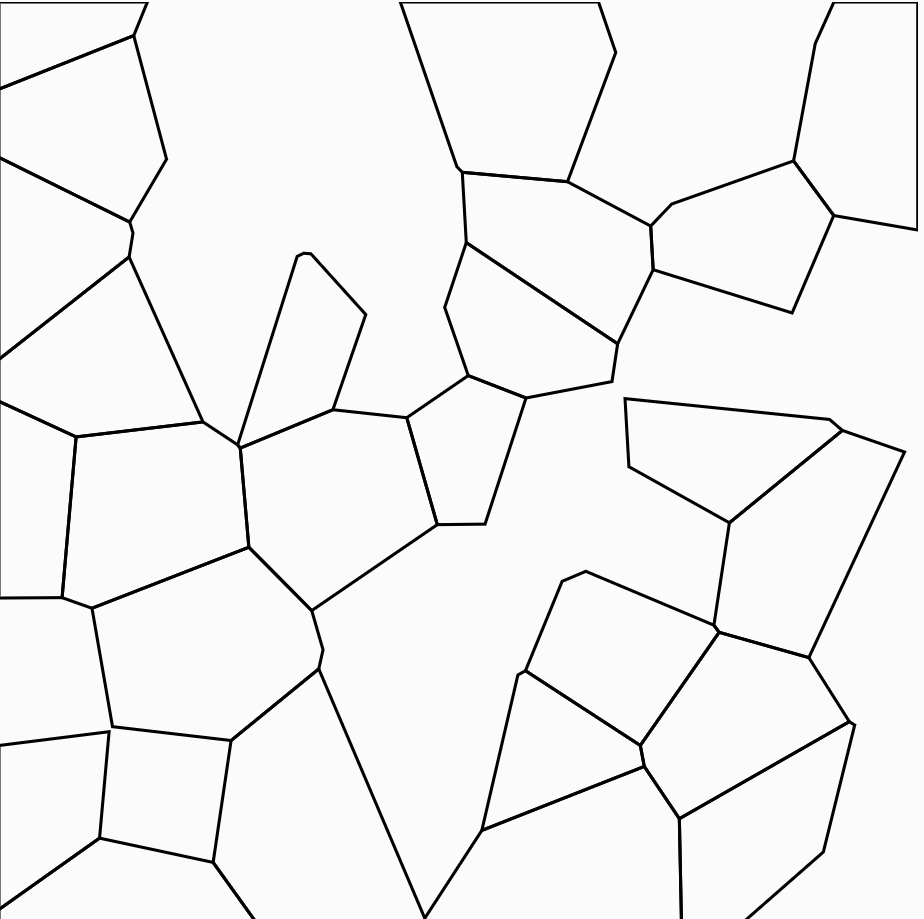
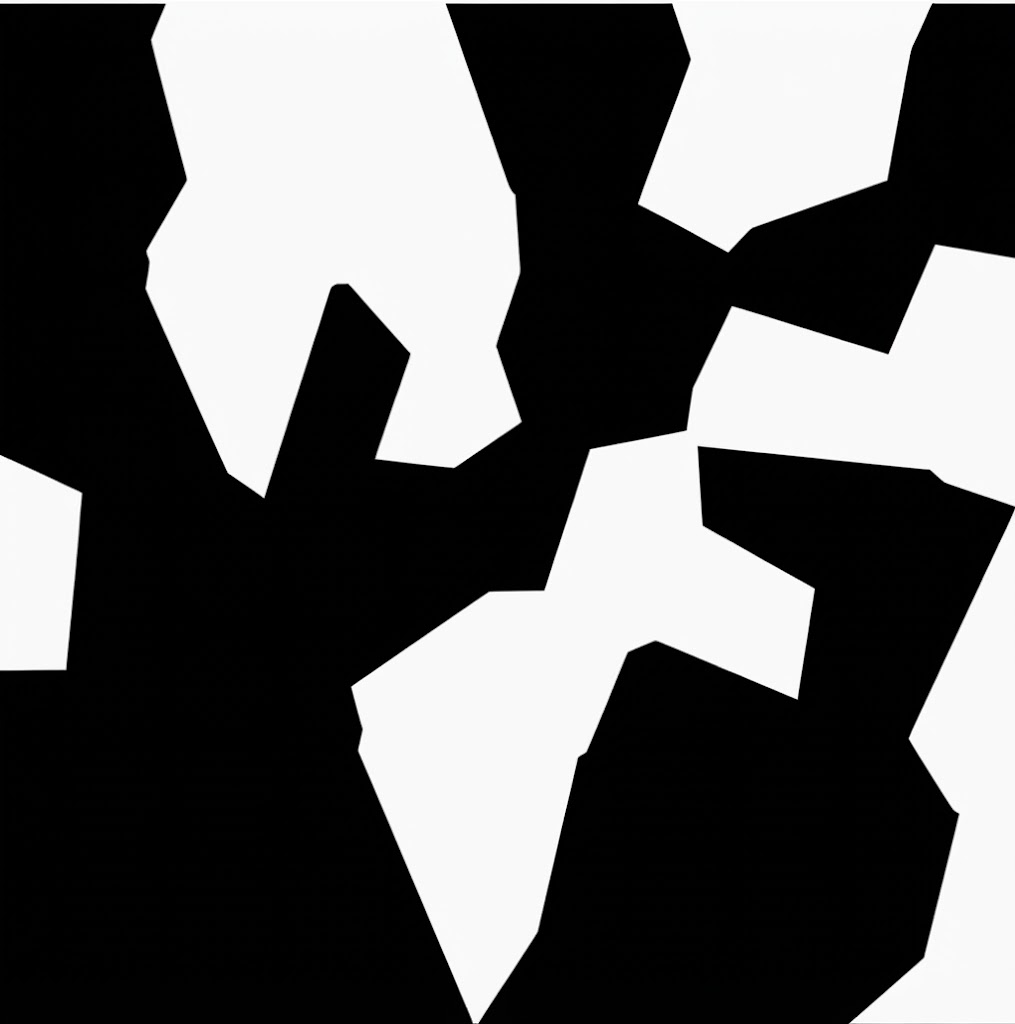
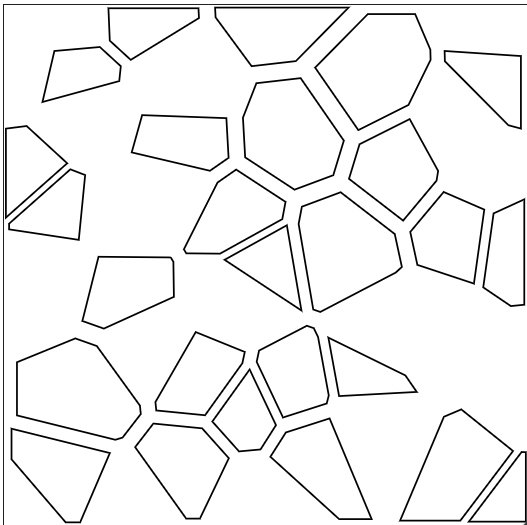
Left: SVG Design 1 (Trials 0–2). Right: SVG Design 2 (Trial 3).

Initial Sketch

The first version drew all cells with no gaps between them. Looking at this, I predicted that if I were to cut the filled shapes, the result would look like the shapes merged together into larger holes with no visible pattern.

(Caption: Possible outcome of before cutting in p5.js and after cutting and what would it look like)

To fix this, I added a spatial rule that divides the canvas into a grid of zones. Each cell is assigned to a zone based on its x and y position, and cells in alternating zones get drawn while the rest become holes.

Initial Code:

let points = [];
let numPoints = 45;
let minDist = 20; 
let maxTries = 2000; // safety limit to prevent infinite loop

function setup() {
  createCanvas(300, 300, SVG); // 300mm = 30cm panel
  noFill();
  stroke(0);
  strokeWeight(1); 
  generatePoints();
  drawVoronoi();
}

function generatePoints() {
  let tries = 0;
  while (points.length < numPoints && tries < maxTries) {
    let candidate = [random(width), random(height)];
    let tooClose = false;
    for (let p of points) {
      let d = dist(candidate[0], candidate[1], p[0], p[1]);
      if (d < minDist) {
        tooClose = true;
        break;
      }
    }

    if (!tooClose) {
      points.push(candidate);
    }
    tries++;
  }
}

function drawVoronoi() {
  // connect each point to its nearest neighbors
  let delaunay = d3.Delaunay.from(points);

  // calculate cell boundaries from those connections
  let voronoi = delaunay.voronoi([0, 0, width, height]);

  for (let i = 0; i < points.length; i++) {

    // divide canvas into buckets and alternate keep/skip to create voids
    let bucketSize = 40;
    let bx = floor(points[i][0] / bucketSize);
    let by = floor(points[i][1] / bucketSize);
    let keep = (bx + by) % 2 === 0;

    if (keep) {

      // get the corner coordinates of this cell
      let cellPoints = voronoi.cellPolygon(i);
      if (cellPoints) {
        beginShape();
        for (let pt of cellPoints) {
          vertex(pt[0], pt[1]);
        }
        endShape(CLOSE);
      }
    }
  }
}

function mouseClicked() {
  save("voronoi_lattice.svg");
}

When writing the code and going through the D3-Delaunay library, I understood that it works by taking the randomly placed points and calculating which areas of the canvas are closest to each one, then drawing the boundaries where those territories meet. What mattered to me was that the resulting shapes and patterns were accurate and different every time, so the D3 library handled the calculation so I could focus on how the design looked and how it would behave when cut.

However, even with the filtering, the remaining cells were still touching at their edges. I added a shrinkPolygon function that pulls each cell inward toward its own center point, creating a gap between every shape.

Code Snippet (with the use of shrinkAmount ):

let shrinkAmount = 0.15;
function shrinkPolygon(pts, amount) {
  let cx = 0, cy = 0;
  for (let p of pts) {
    cx += p[0];
    cy += p[1];
  }
  cx /= pts.length;
  cy /= pts.length;

  let shrunk = [];
  for (let p of pts) {
    let newX = lerp(p[0], cx, amount);
    let newY = lerp(p[1], cy, amount);
    shrunk.push([newX, newY]);
  }
  return shrunk;
}

shrinkAmount = 0.15 tells the code to pull each cell inward toward its own center. The shrinkPolygon function does this by calculating the center point of each cell and using lerp to move every corner slightly closer to it. Without this, the laser would burn through the material between adjacent cells and either fuse them together or leave edges too fragile to hold.

Laser Fabrication

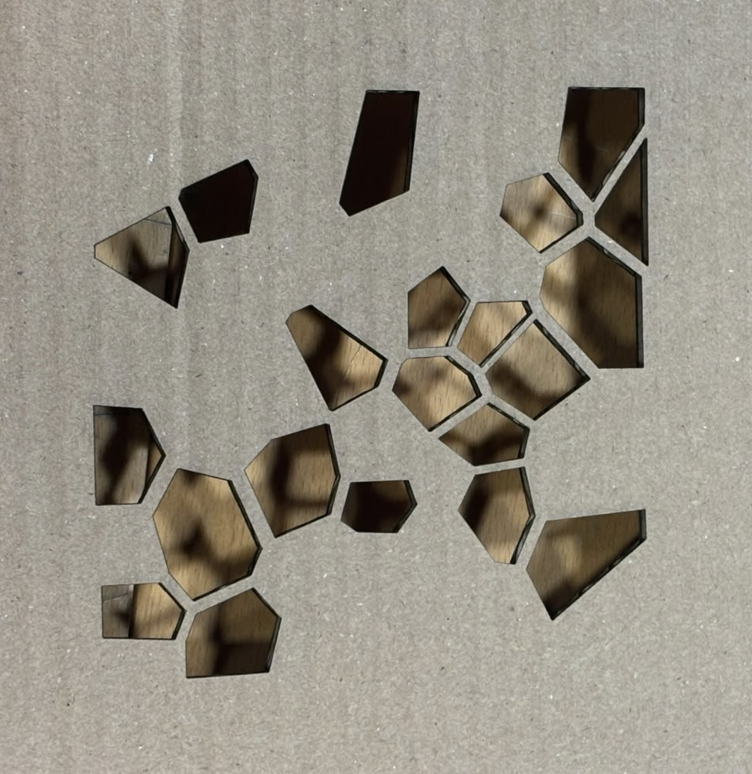
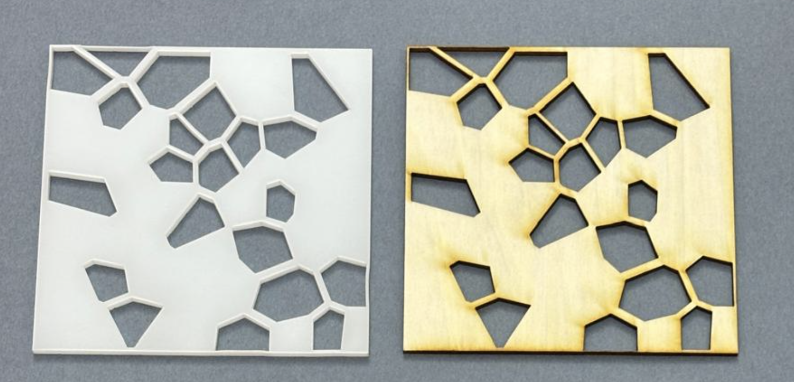
Before testing it on wood and acrylic, I was concerned about whether the thin junctions between shapes would hold since some gaps in the design were very narrow. However, after running a test cut on cardboard (Trial 0) with the first SVG design, the structure held and gave me confidence to proceed with harder materials.

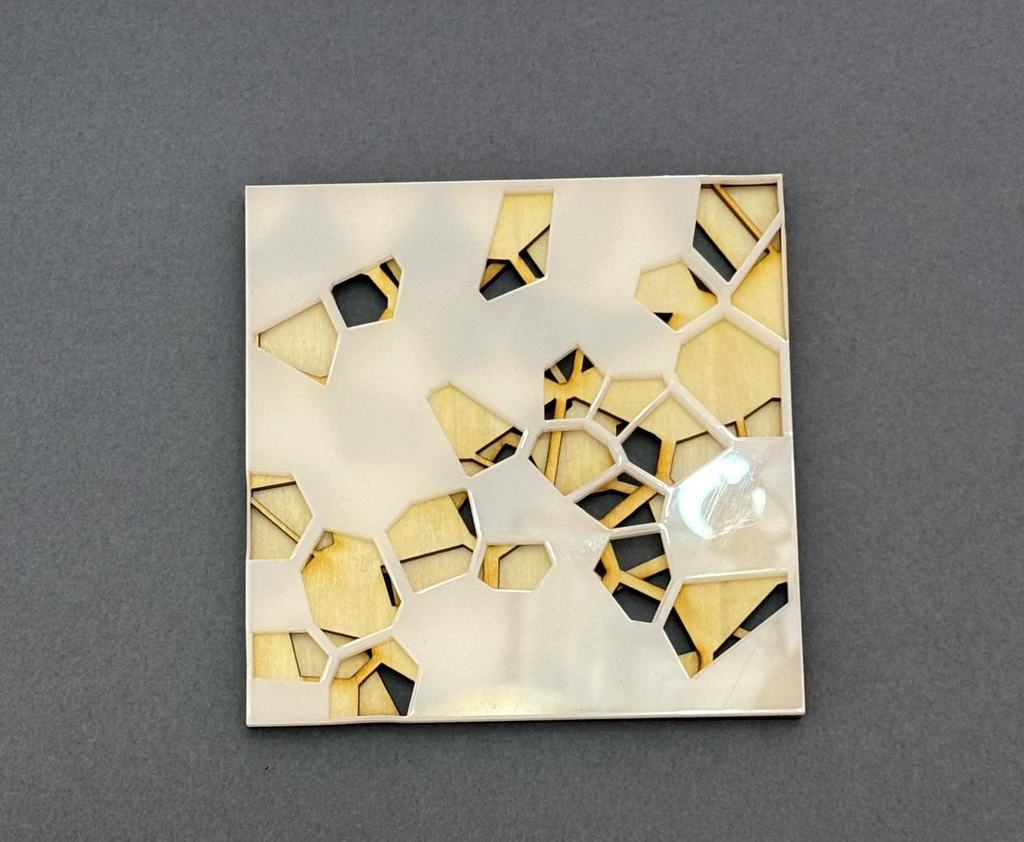
Left: SVG design. Right: Trial 0 cut in cardboard.

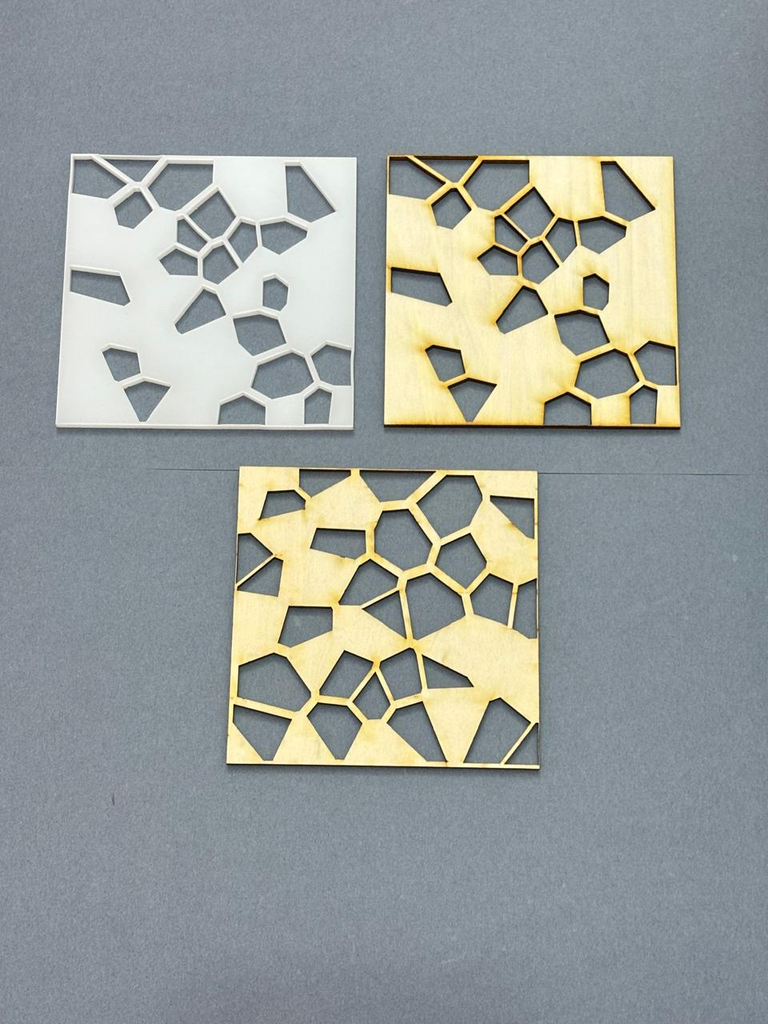
For the first trial (Trial 1), the first SVG design was cut in wood. It shows a long path pattern of shapes where the cells connect and flow into each other across the whole piece. However, the edges showed slight stress at the corners where the junctions were thinnest. Although the junctions do hold, it revealed the tolerance limits of the design.

I did a second trial with the same design but cut in acrylic to see how the same design would behave in a different material. The edges came out cleaner and sharper, and the connecting pieces between shapes were visibly thicker compared to wood.

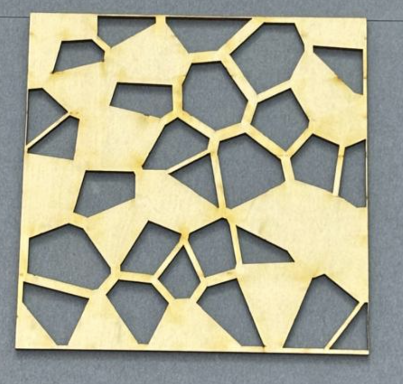
For the third trial (Trial 3), I re-ran the code to generate a new composition and cut it in wood. Even though the same rules applied, the different random seed produced a denser arrangement since the solid parts connected across the whole piece. This showed that the same algorithm can produce fundamentally different spatial outcomes depending on where the random points land.

Left: SVG design. Right: Trial 3 cut in wood.

Reflection

Laser fabrication forced me to think about the design in ways that a screen-based project never would. Given that the laser removes material at a width of roughly 0.1 to 0.3mm, parts come out slightly smaller than drawn. Because of this, I used shrinkAmount to pull each cell inward, guaranteeing a physical gap between every shape so they would not fuse during cutting. Without it, the gaps between cells would have been too tight after cutting, or worse, the shapes would have fused together.

After fabricating all three trials, I stacked them together to see what would happen. Where the holes in one piece aligned with the solid parts of another, the wood showed through the acrylic creating a new composition that none of the individual pieces could produce alone. This made me think that each time the code runs, it makes a distinct piece that can interact with other runs physically.

Assignment 2

Concept

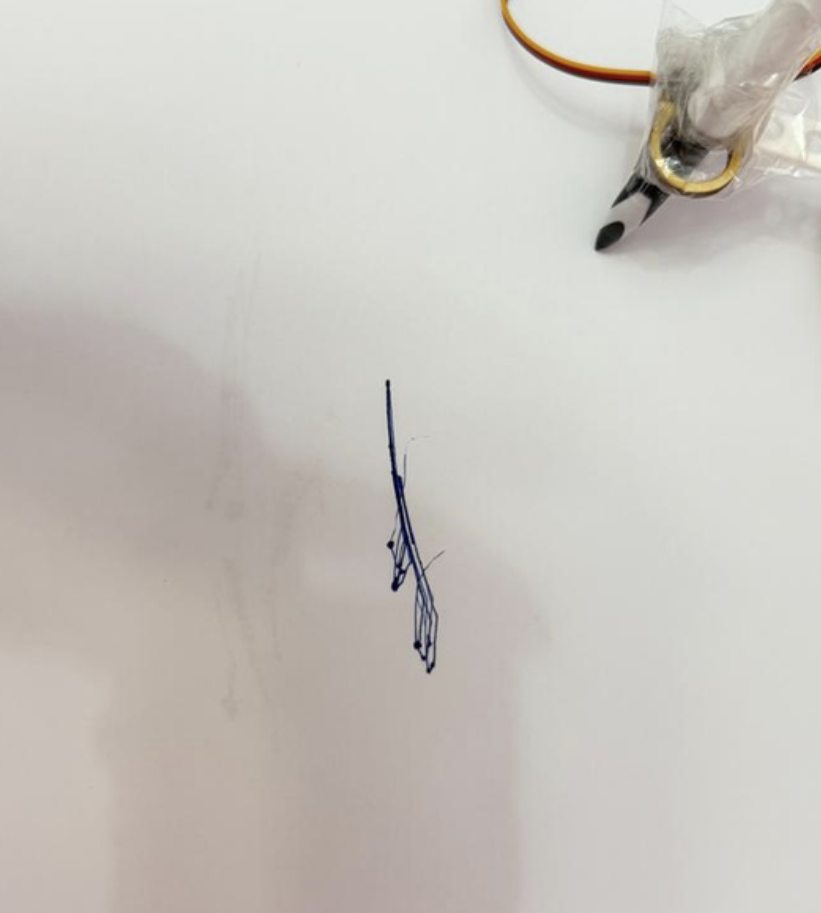
For this assignment, the drawing machine uses two servo motors connected through an acrylic linkage system to move a pen across paper. The concept of using two servos to mimic X and Y axis motions was appealing since the thought process was that if both servos had different motions, the combined output of both will result in a consistent process. However, the result was far more interesting than the initial process since the limitations of the linkages made sure that both servos could not move independently so as opposed to X and Y motions.

Process and Challenges

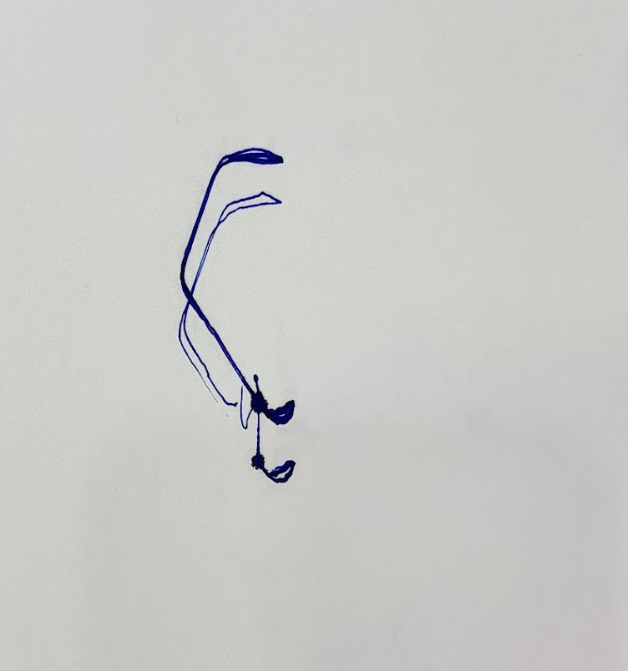
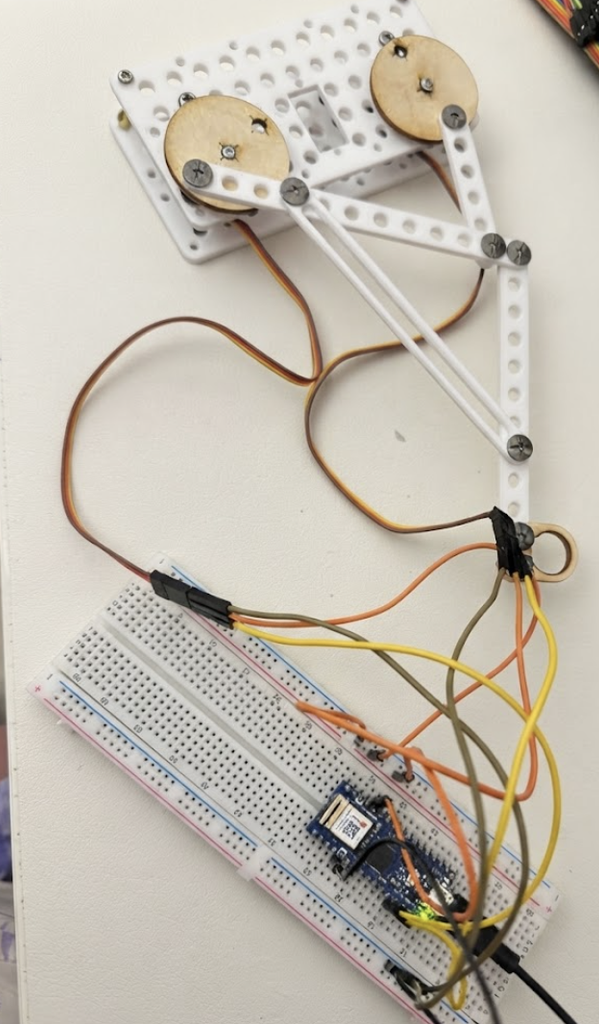
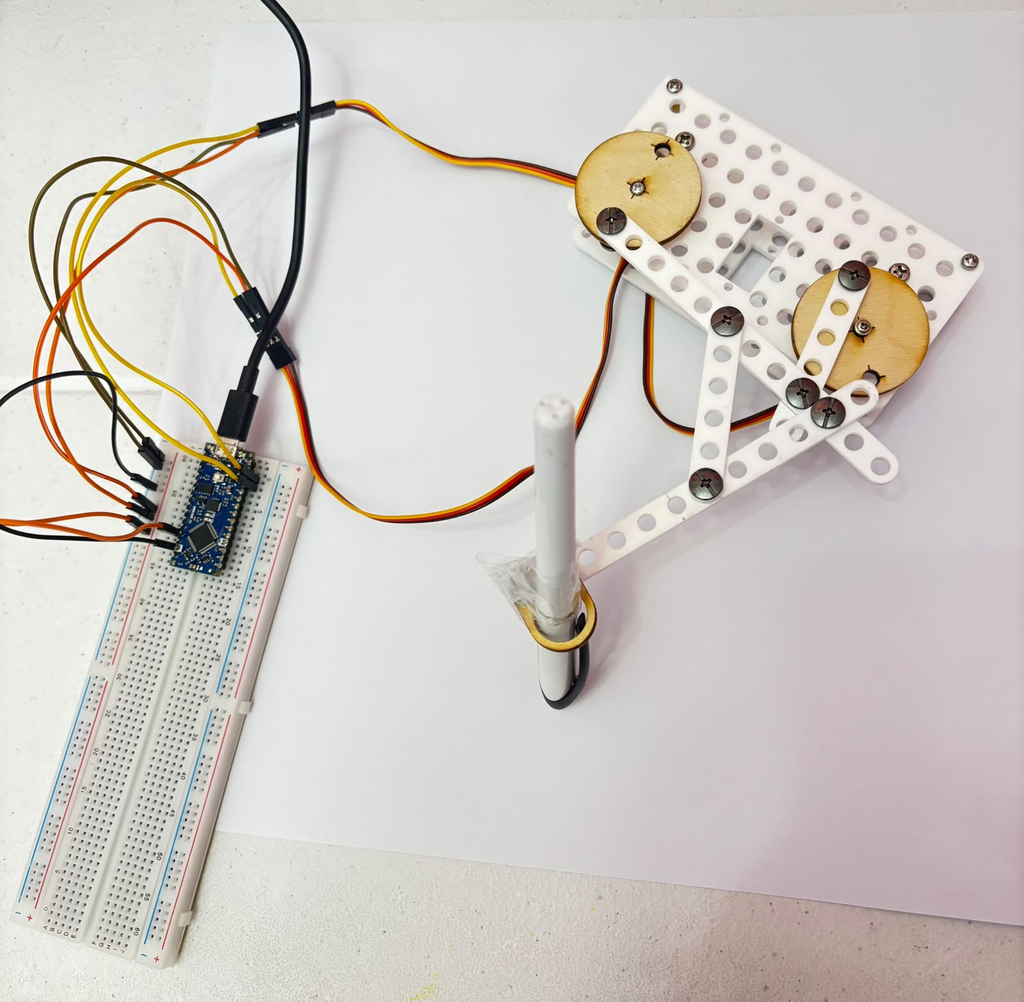
So, I decided to adjust the assembly between 4 trials to see how each change would affect the output. The first two trials (Image 1) used the original longer linkage configuration, and the last two (Image 2) used a tighter, shorter setup after I rearranged the arm positions.

Image1: Setup used for Trials 1 and 2 (AI Disclosure: Gemini was used to remove the black background and replace it with a white one for clarity)
Image2: Setup used for Trials 3 and 4

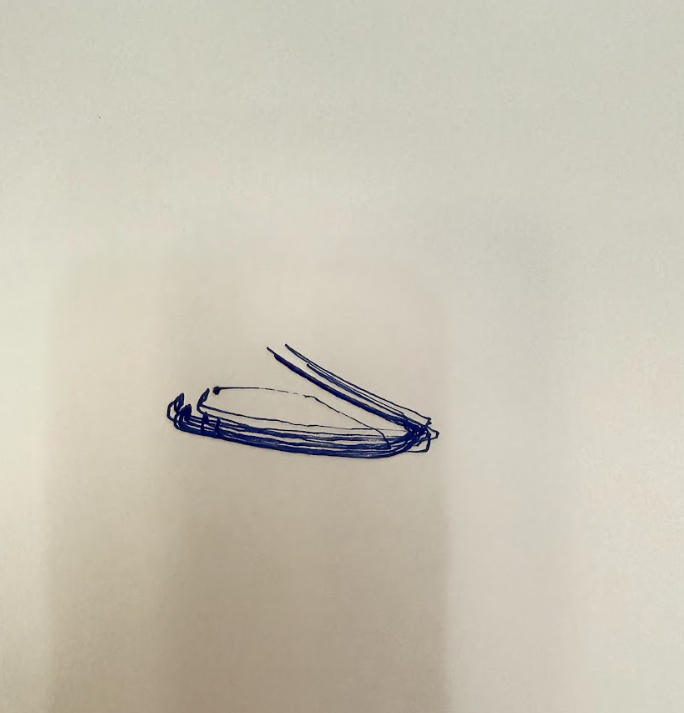
Trial 1 (Both servos in opposite directions with a delay of 15ms)

Code Snippet

#include <Servo.h>

Servo servo1;
Servo servo2;

void setup() {
  servo1.attach(9);
  servo2.attach(10);
}

void loop() {
  for (int pos = 0; pos <= 180; pos++) {
    servo1.write(pos);
    servo2.write(180 - pos);
    delay(15);
  }
  for (int pos = 180; pos >= 0; pos--) {
    servo1.write(pos);
    servo2.write(180 - pos);
    delay(15);
  }
}

Video and Results

Trial 2 (Both servos in opposite directions with a delay of 5ms)

Code Snippet (only changed the delay)

void loop() {
  for (int pos = 0; pos <= 180; pos++) {
    servo1.write(pos);
    servo2.write(180 - pos);
    delay(5);
  }
  for (int pos = 180; pos >= 0; pos--) {
    servo1.write(pos);
    servo2.write(180 - pos);
    delay(5);
  }
}

Video and Results

Trial 3 (both servos move in the same direction with delay of 15ms )

Code Snippet

void loop() {
  for (int pos = 0; pos <= 180; pos++) {
    servo1.write(pos);
    delay(15);
  }
  for (int pos = 180; pos >= 0; pos--) {
    servo1.write(pos);
    delay(15);
  }

  for (int pos = 0; pos <= 180; pos++) {
    servo2.write(pos);
    delay(15);
  }
  for (int pos = 180; pos >= 0; pos--) {
    servo2.write(pos);
    delay(15);
  }
}

Video and result

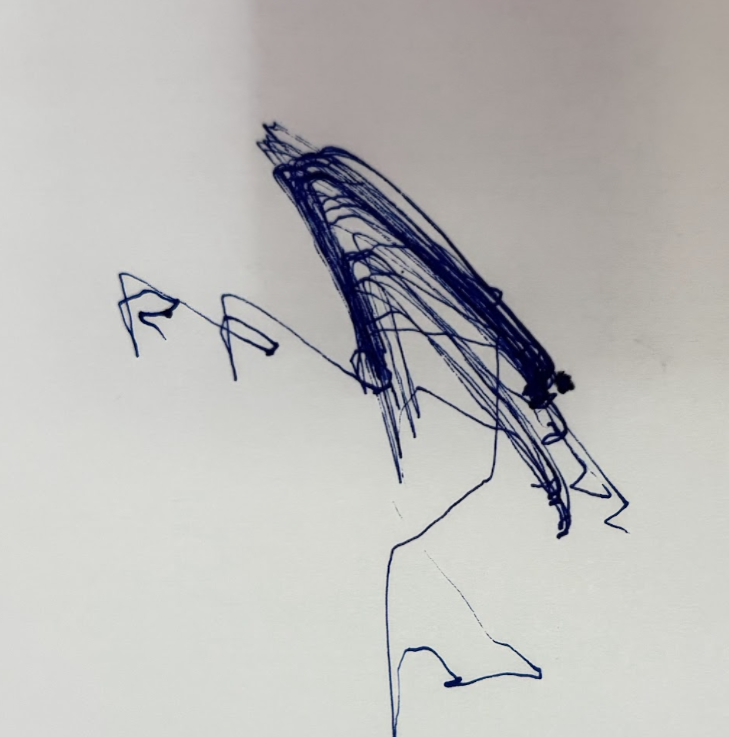
Trial 4 (servo 1 completes full sweep, then servo 2, with delay in 15ms)

Code Snippet

void loop() {
  for (int pos = 0; pos <= 180; pos++) {
    servo1.write(pos);
    servo2.write(pos); // same direction now!
    delay(15);
  }
  for (int pos = 180; pos >= 0; pos--) {
    servo1.write(pos);
    servo2.write(pos); // same direction!
    delay(15);
  }
}

Video and results

Reflection

In Trial 1, both servos moved in opposite directions at a delay of 15ms. The result was a compressed oval shape with two lines extending from the top right corner. The oval formed from the pen repeatedly tracing the same path, and the ink built up most where the machine slowed down to reverse direction.

In Trial 2, I increased the speed by changing the delay from 15ms to 5ms. The result is a dense, layered mass of overlapping lines in the upper area, with long loose trails extending outward. I figured the faster speed meant the pen covered the same path more times before I stopped the machine, which built up a thick textured body of marks. The trailing lines at the bottom and left look almost like the machine was reaching for something it couldn’t quite get to.

In Trial 3, I changed both servos to move in the same direction instead of opposing each other, keeping the delay at 15ms. The result was a thin vertical line with small angular marks clustered at the bottom, almost like a stick figure. When the servos oppose each other they create tension that spreads the pen across a wider area, but when they move the same way that tension disappears and the movement collapses into a much smaller, more concentrated path.

In Trial 4, I ran the servos sequentially — Servo 1 completed its full sweep first, then Servo 2 did the same. The drawing produced open crossing arcs similar to Trial 1, but with two distinct ink blobs at the bottom where each servo paused before the other took over. The crossing point in the middle is where both paths intersected, where it shows where one servo’s movement ended and the other’s began.

Assignment 1: Low-Tech Drawing Machine!

Concept

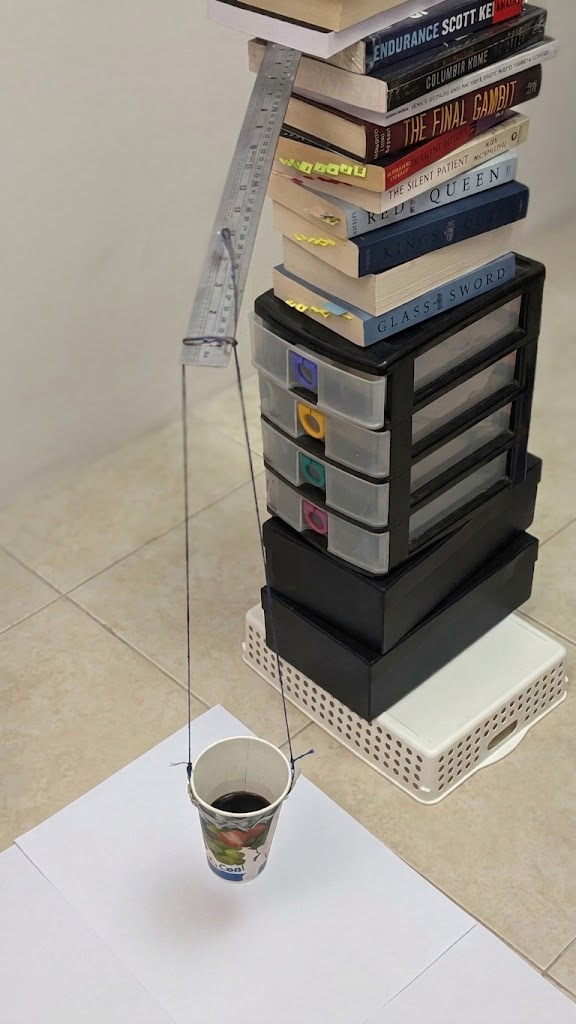
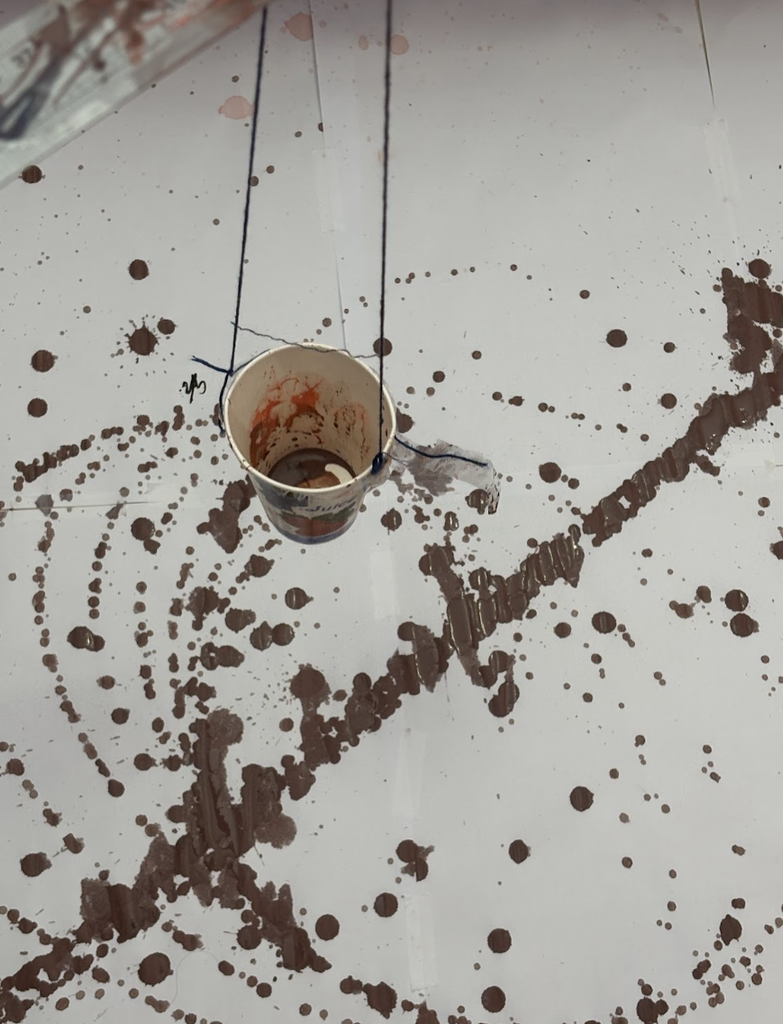
For this assignment, I built a Low-tech pendulum drawing machine using a paper cup filled with watered-down paint attached to two strings. The paper cup has a small hole punched into it, allowing paint to drip from it onto the paper underneath as it swings. The idea is that the unpredictability comes from how the material flows across the canvas (in this case, paper), with the use of the swing’s angle, speed, and the type of material and how they each affect the marks left, but not in a way I can fully predict or control in the moment.

Video

Process and Challenges

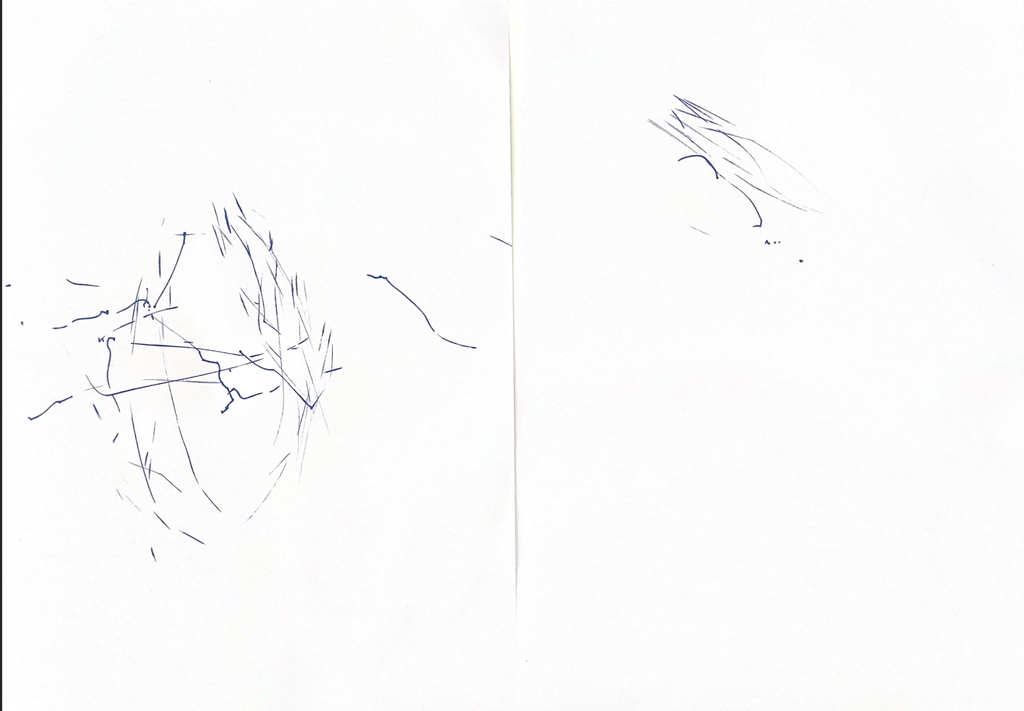
I built the base of my machine by stacking boxes and books into a tower, with a metal ruler laid across the top to suspend two strings. My first attempts used embroidery thread attached to a paint marker, then a paintbrush as drawing tools. However, I found that all three methods caused the friction between the tip and paper kept interrupting the swing, which made short streaks. I thought the reason could be the height of the pendulum but even when I lowered the string so the tip barely grazed the paper, the friction still caught and stalled the motion.

Trial 1 (With a Paint Marker), the swing looped over the same spot, which resulted in streaks.
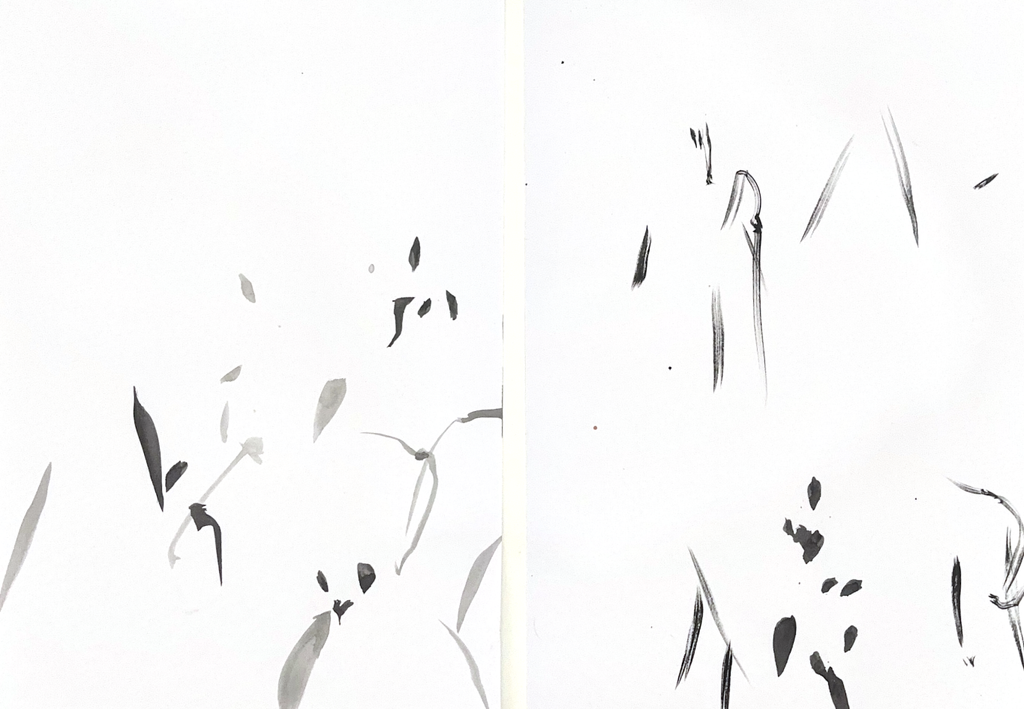
Trial 2 (With a Paintbrush dipped in ink), short strokes and scattered dots from the brush’s movement.

As a result, I decided to experiment further and switched to a paper cup filled with watered-down acrylic paint, with a hole poked in the bottom. This let the paint drip out as the cup swung, and let me control the flow through the angle and speed of the swing. Surprisingly, the biggest challenge was the paint’s consistency (thickness), since if it was too thick, it dropped in blobs instead of flowing into lines, and if it was too thin, the color became barely visible against the white paper.

After mixing colors, it thickens the consistency, so I added more water to bring it back to a flowing consistency. In addition to this, taping and releasing the cup was also tricky, since paint started leaking the moment the tape came off, so I had to move quickly once I started.

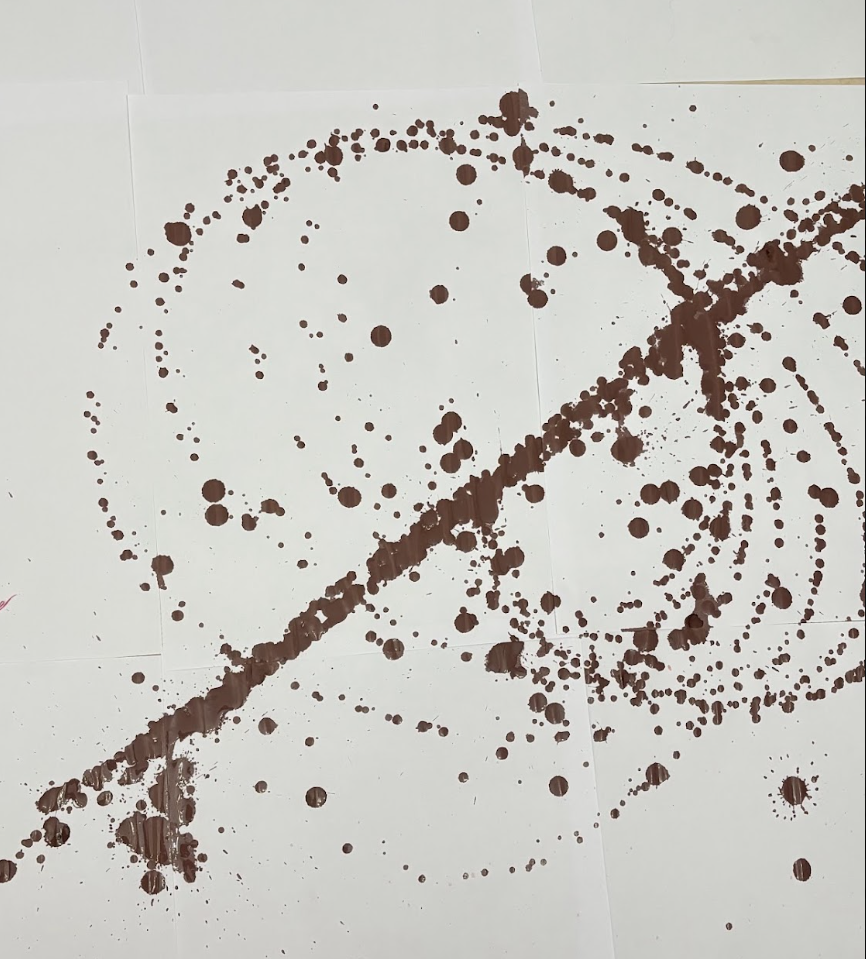
Final Result with paint

Reflection

In relation to Sol LeWitt’s Paragraphs on Conceptual Art, the “idea” of my drawing resides in the machine and my design choices since the pendulum system itself was set from the start, though it took some exploring to find what tool to pair it with, but once running, the machine determined the specific marks I couldn’t control.

Sol LeWitt in his Paragraphs on Conceptual Art argues that once an artist sets the basic rules of a plan, the fewer decisions made afterward, and removing the arbitrary and the subjective from the process (13). In my case, I only arrived at using a cup of paint after testing a paint marker and a paintbrush. Even once I landed on this tool, I kept changing paint consistency, switching colors, re-thinning the mixture.

In addition to this, he says the basic form used should be simple and uninteresting, so the focus stays on the arrangement it creates, not the object itself (LeWitt 13). In my case, the pendulum’s swing isn’t interesting on its own, but the marks it produced are. He also argues that the in-between steps of making art, like testing, adjusting, and failed attempts, matter just as much as the final piece, since they show the artist’s thought process, which is sometimes more interesting than the final product (LeWitt 14). Looking at my own process this way, it taught me that I figure things out by physically testing them to see what the results are like.