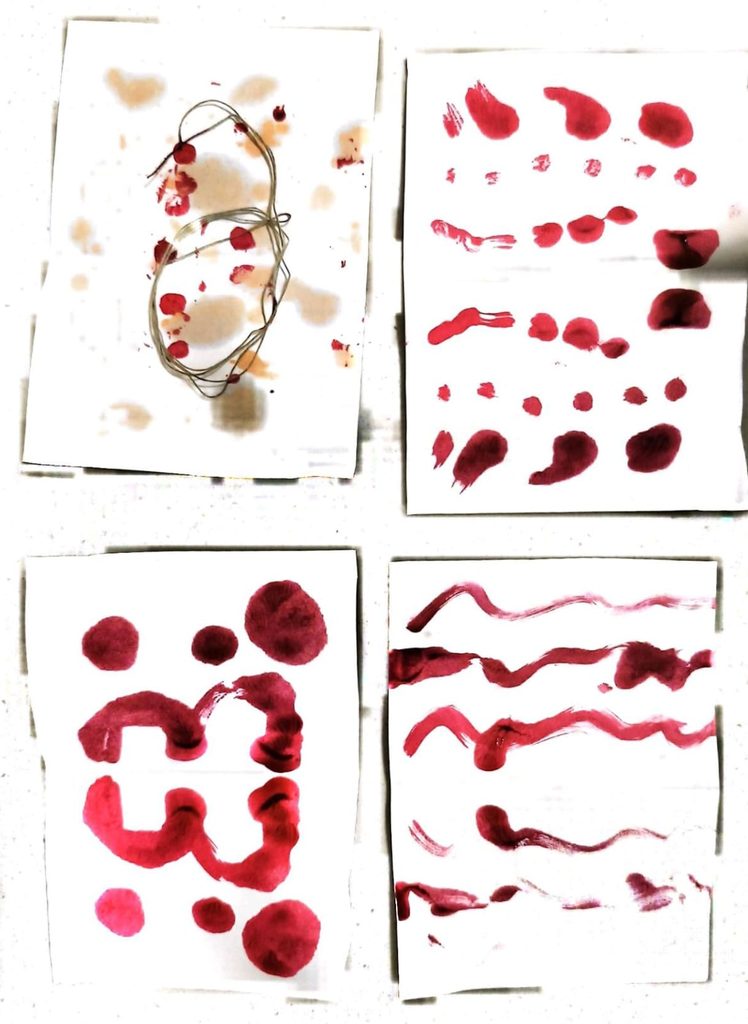
I wanted to experiment the Rorschach test for this assignment. My main objects were my lip stain, concealer a paper and a thread. The variables that I kept changing was the amount of pressure I applied to get the color on the paper. In the very initial trial, i used both the lip stain and a concealer and tapped very lightly on the paper. The lip stain worked very fine but the concealer left no color and only an oily stain. For the first trail I also had a thread laid out that I then pulled out to see if the color would flow across the paper. It did flow but it wasn’ t a very successful one. I then folded the paper in half and pressed it to get the final pattern. For the following ones I kept on trying with different angles of dropping the lip stain and with different hardness to see how it looked and then after each experiment I folded the paper in half for the final result.
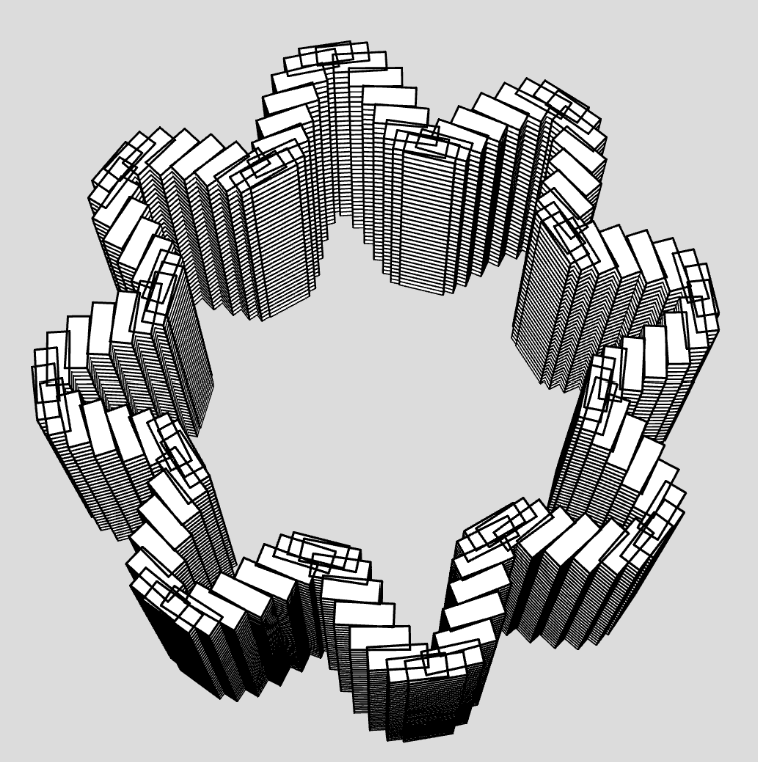
For this assignment, I played off with the ways WEBGL can make different cylindrical shapes with waves, twists and barrel-like structures. I started off with changing each and every one of the variables from the code that we had done in class. But the variable that worked the most was deleting the theta offset.
let outer = [], inner = [];
  for (let i = 0; i <= N; i++) {
    let theta = map(i, 0, N, 0, 360);
    let r = profile(v) + sin(K * theta + twist * v) * 2.2;
    let x = cos(theta), z = sin(theta);
    outer.push(createVector(r * x, y, r * z));
    let ri = r - wall;
    inner.push(createVector(ri * x, y, ri * z));
  }
The profile(V) function defines the radius of the shape at the very bottom and the top. The 3*(1-V) helps to pull in the radius by 3 units at the base and extruding it outwards at the top. The sin function helps in determining how many times the shape will pulsate by moving out and then coming back in. Or in other words that will give it a barrel shape
return 26 + 6 * sin(v * 160) - 3 * (1 - v);
function outerR(theta, v) {//for the ridges
  let r1 = sin(K * theta - twist * v);//twist clockwise
  let r2 = sin(K * theta + twist * v);//twist anticlockwise
  let weave = (r1 + r2) * 1.6;//put them together
  return profile(v) + weave;
}
To make the ridges twist, I again applied the sin function and added for the clockwise twist and subtracted for the anti clockwise twist. r1 and r2 are identical ridge patterns that twist in opposite directions as v increases. Summing them creates a weave look. 1.6 scales the depth of the weave texture.
The third image looks most different because I had decreased the scale depth and also tried changing the shape from box to triangles for smoother movements and curves. I figured the easiest way to draw the triangle would be by using the vertex function. In the build function, it draws each layer at a time. So what happens is that for every segment, it takes the previous point and the next point in terms of a and b and then sends it to the strip function. The function below draws the shape in the format of a triangle strip. and by giving each point a value of x, y and z. I took some help from this documentation on the p5.js reference page : Triangle Strip
function strip(a, b) {
  beginShape(TRIANGLE_STRIP);
  for (let i = 0; i <= N; i++) {
    vertex(a[i].x, a[i].y, a[i].z);
    vertex(b[i].x, b[i].y, b[i].z);
  }
  endShape();
}
I also wanted to test how it would look like if I only kept one of the rings. Doing that added alot of simplicity to the shape. I decided what if the radius of the shape increased till 36 in the middle to see how it would look. It looked the exact same with only the sin function and no matter how many large number I kept adding there wasnt much difference. So i decided to mulpiply the result with the power ranging from 0.4 to 0.9, just below 1. The best result that I liked was at power 0.6
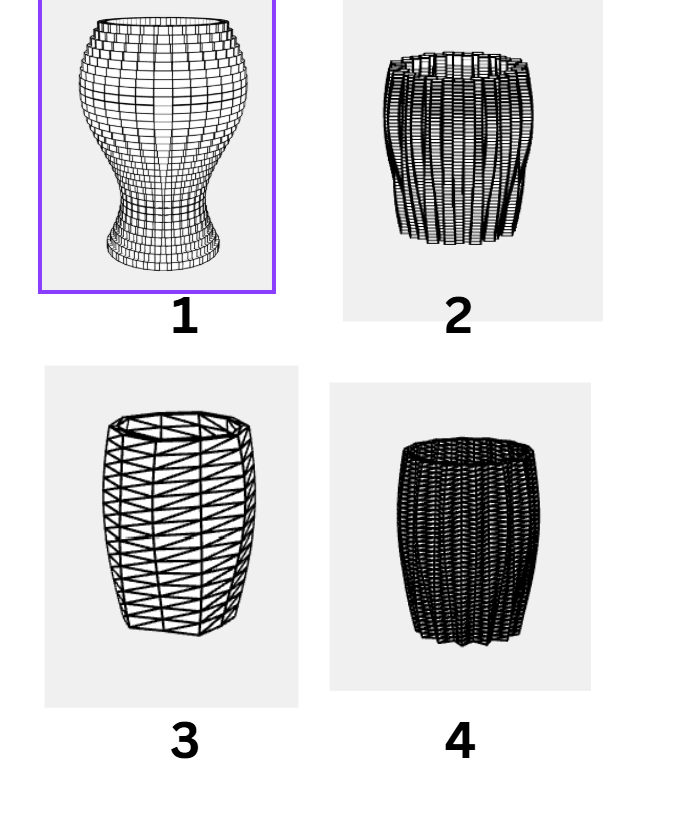
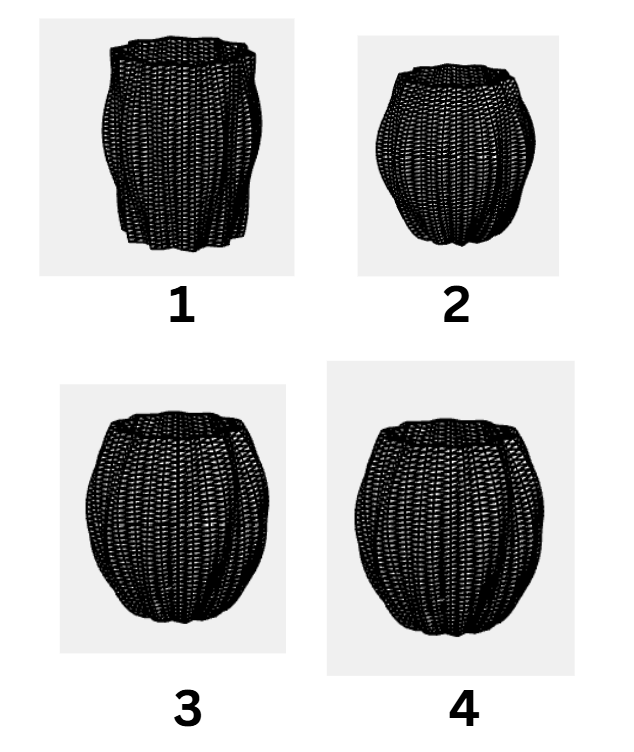
The rest of the code is pretty much the same. In the beginning I changed the shape of the object to a triangle so that the curves are a lot more smoother with getting the barrel kind of a shape. The below shows the different iterations and the final look after getting it printed.
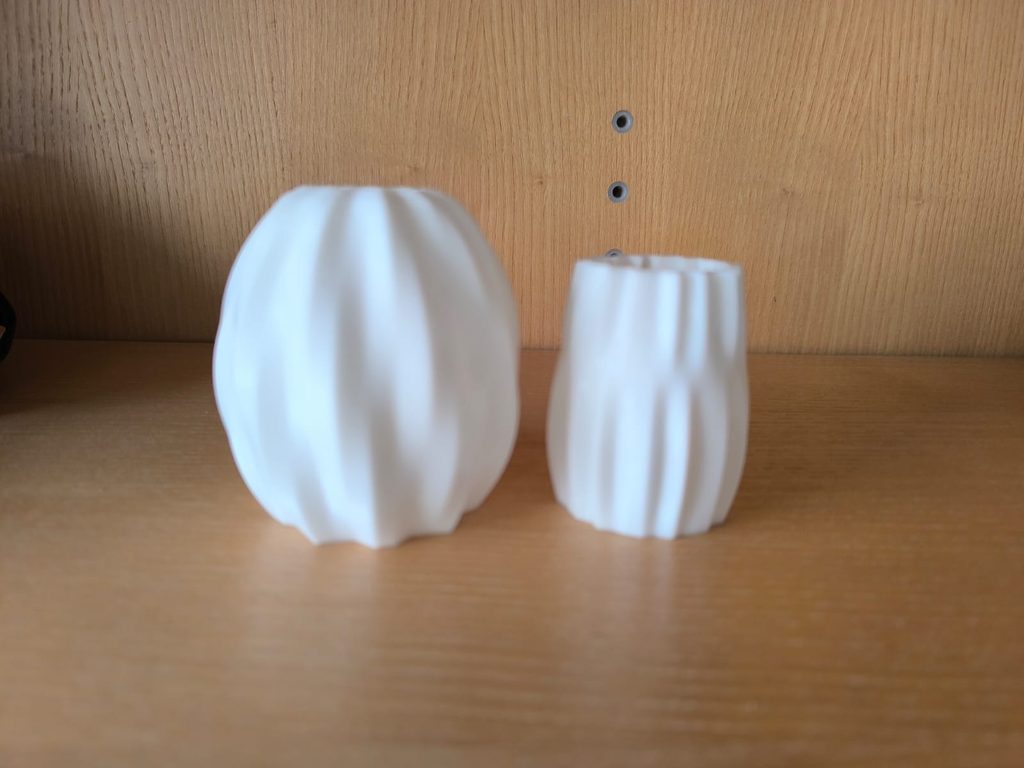
Below are how the final prints look like:
A very interesting thing that I noticed after I had downloaded the stl file and opened it in the Prusa for slicing is that the object was enormous. I wonder if this is because we have multiple layers, or if it is because of the box size that we initialize in p5.js for the drawing. But I’m glad that we have the option to scale the object down in Prusa and by doing so the prints came out all right.
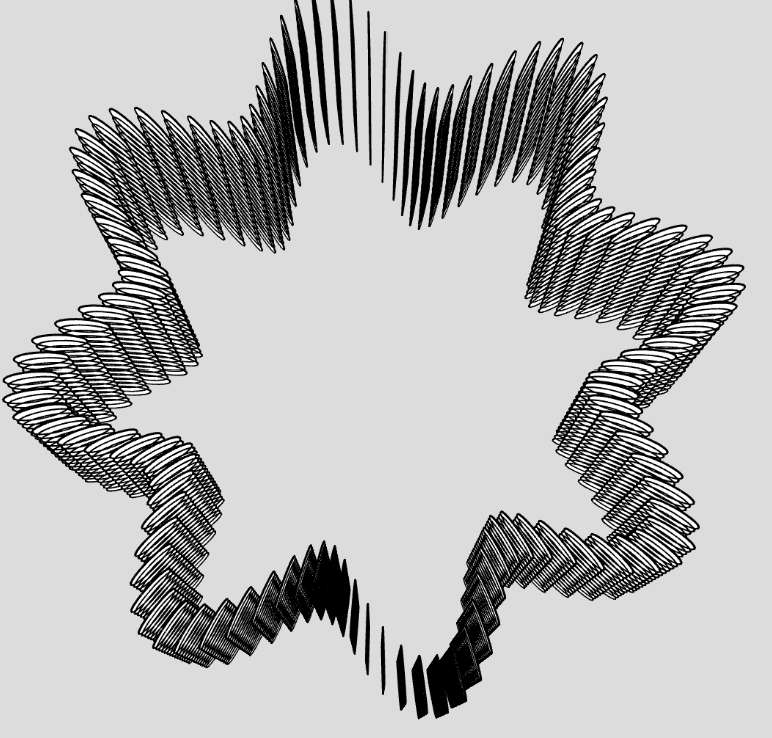
I had initially planned to just have the above two objects as the final prints. (They also look very nice as my drom decor 🙂 ). But after Mondays class, I was wondering if I could make another one with the sin function in a shape of a flower. Not the map function because with the map the starting and ending points arent the same and the 3d printer wont be a big fan of that.
So I started off with having the y axis work in a very similar manner the way it was working for the above two prints. That is by building one layer at a time. The main changes that I made were in the x-axis where I added an angle variable that would rotate it around and the radius variable that would help it in getting the shape of the flower. This is very similar to what professor has taught us in class. And then it just drew it in the shape of the boxes.
function build() {
  for (let l = 0; l < layersNum; l++) {
    let y = map(l, 0, layersNum - 1, 0, 150);
    for (let i = 0; i < boxesNum; i++) {
      let angle = map(i, 0, boxesNum, 0, 360);
      let radius = map(sin(angle * 8), -1, 1, 100, 150); // flower logic
      push();
      rotateY(angle);
      translate(radius, y);
      box(10, 10, 25);
      pop();
    }
  }
}
You see how in the above image since its made out of boxes, the curves aren’t very smooth, I wondered how it would look like if I changed it into ellipsoid. Very interestingly, it drew it from up to down with the layers not joined together. I wonder if it is because I was using the function in the wrong manner or the way the for loop was running. Because when I saw how its been drawn, I did start to doubt my own understanding of how these for loops build the figure.
special thanks to the peer tutor Zaid (CS) and my frend Abbad Shazly (Mechanical Engineer) for their immense help! (zso211 & ahs9048)
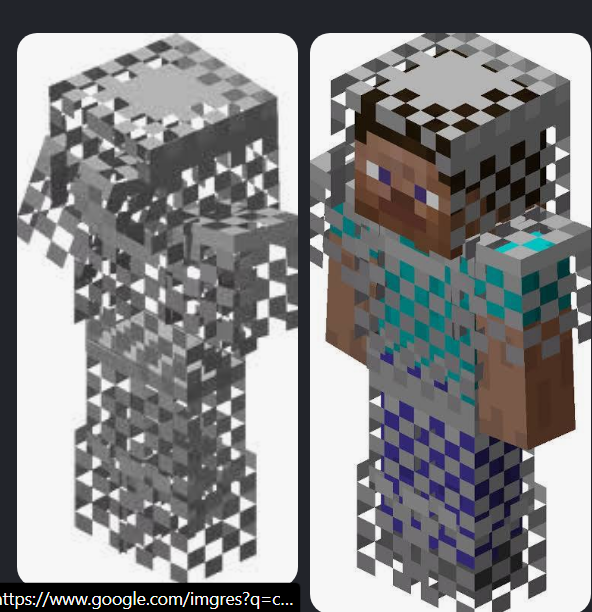
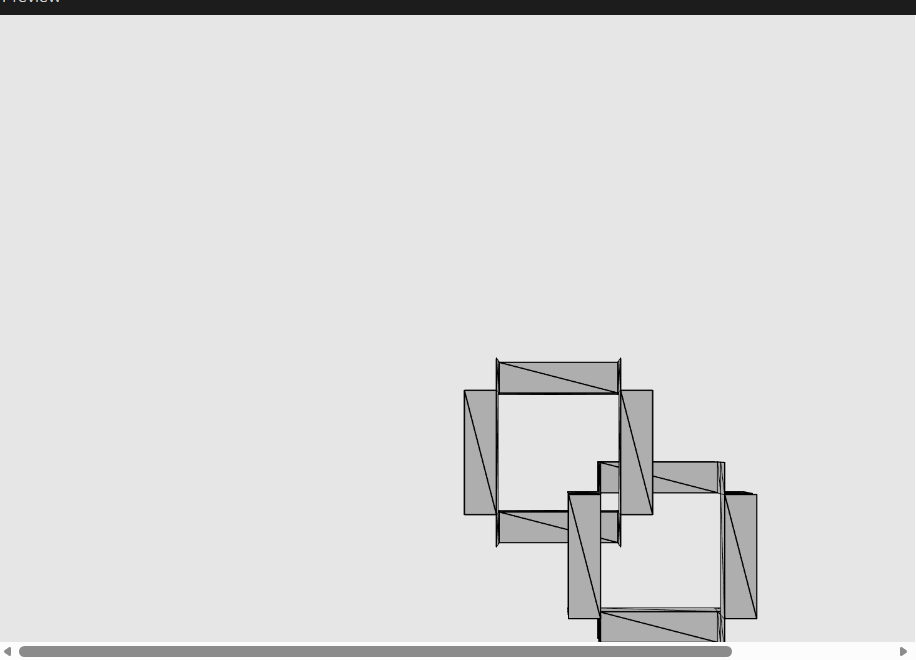
So who wasn’t heard of the infamous Chainmail armor for minecraft.
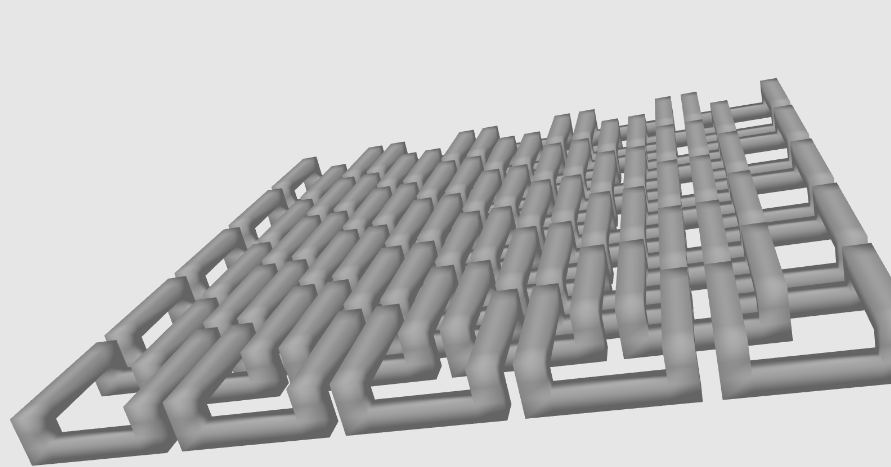
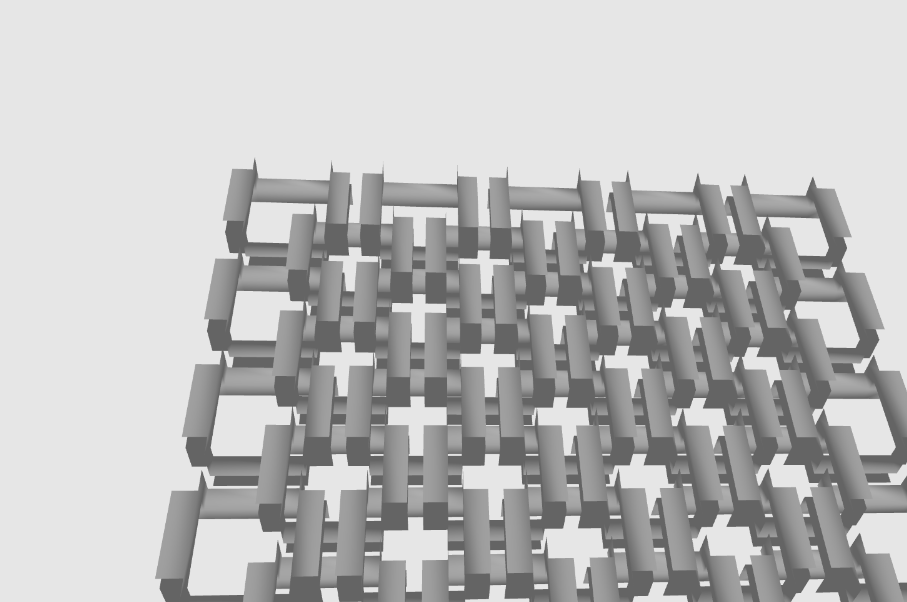
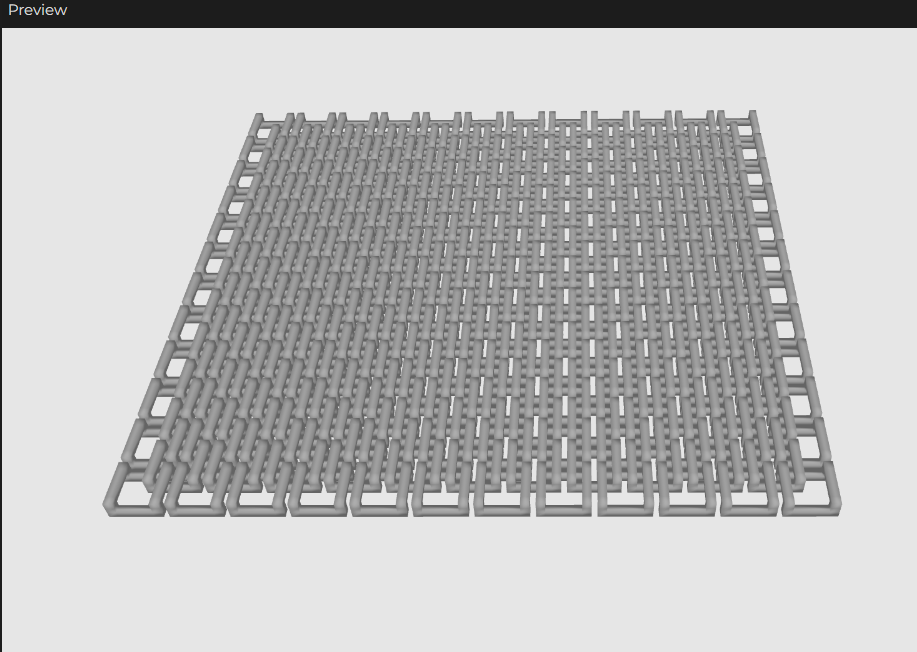
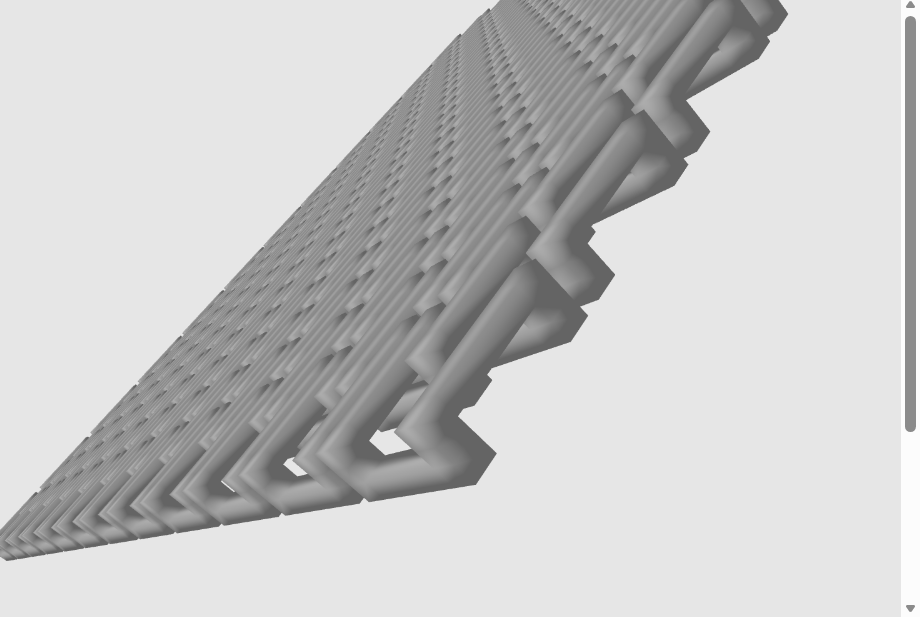
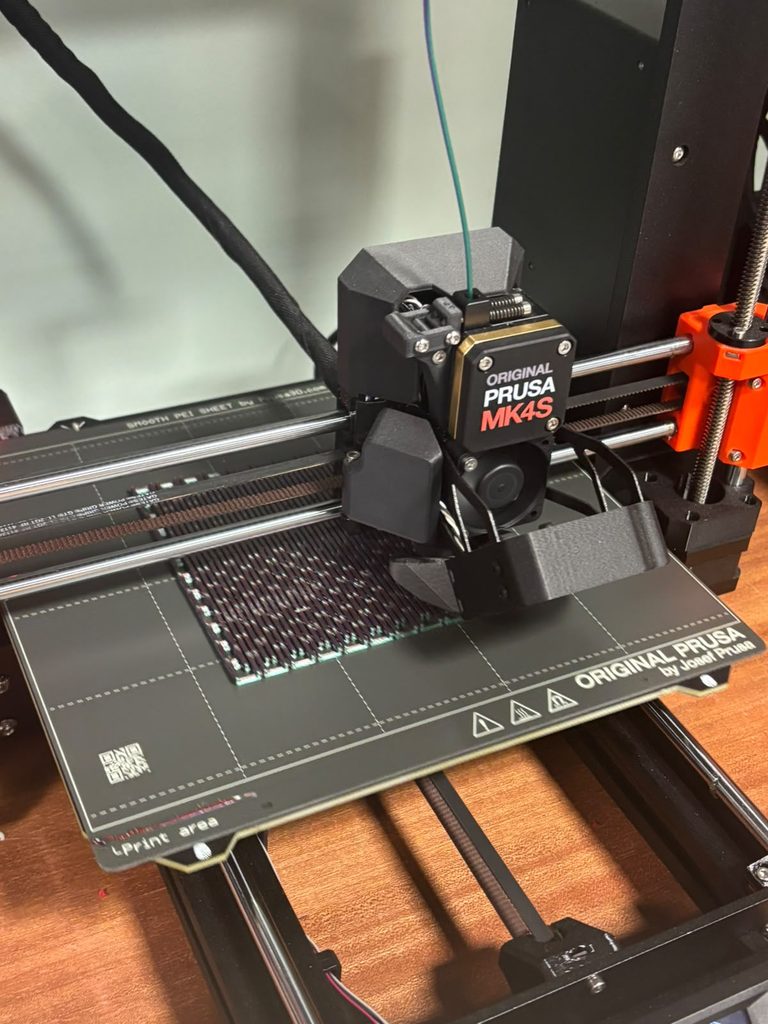
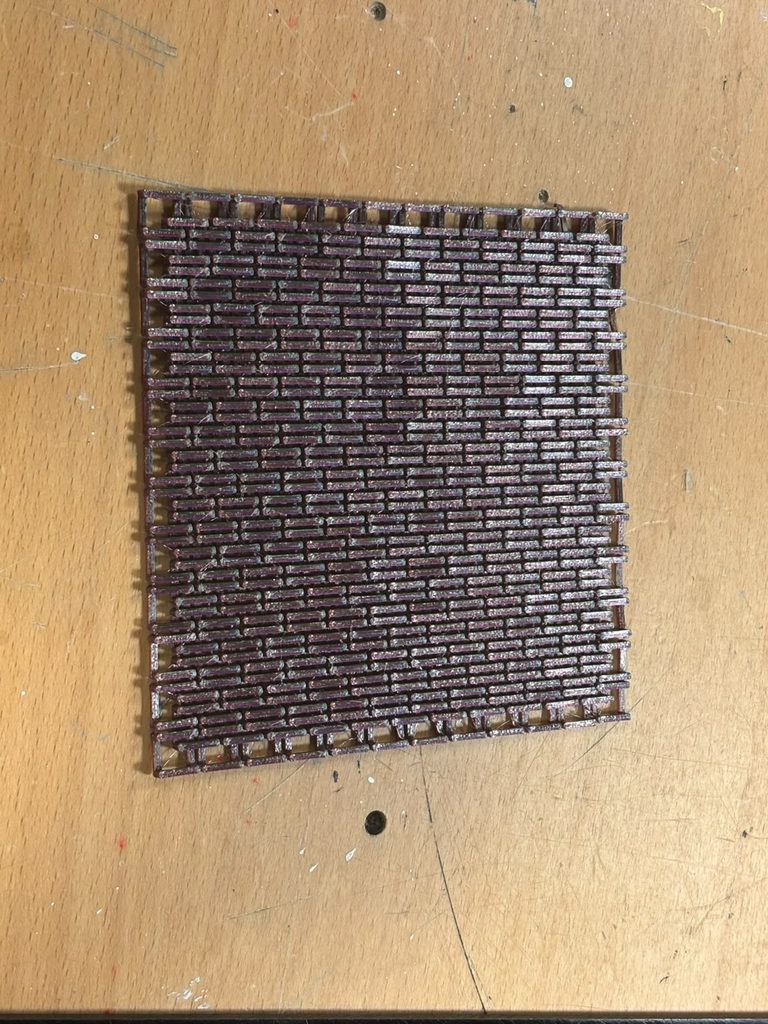
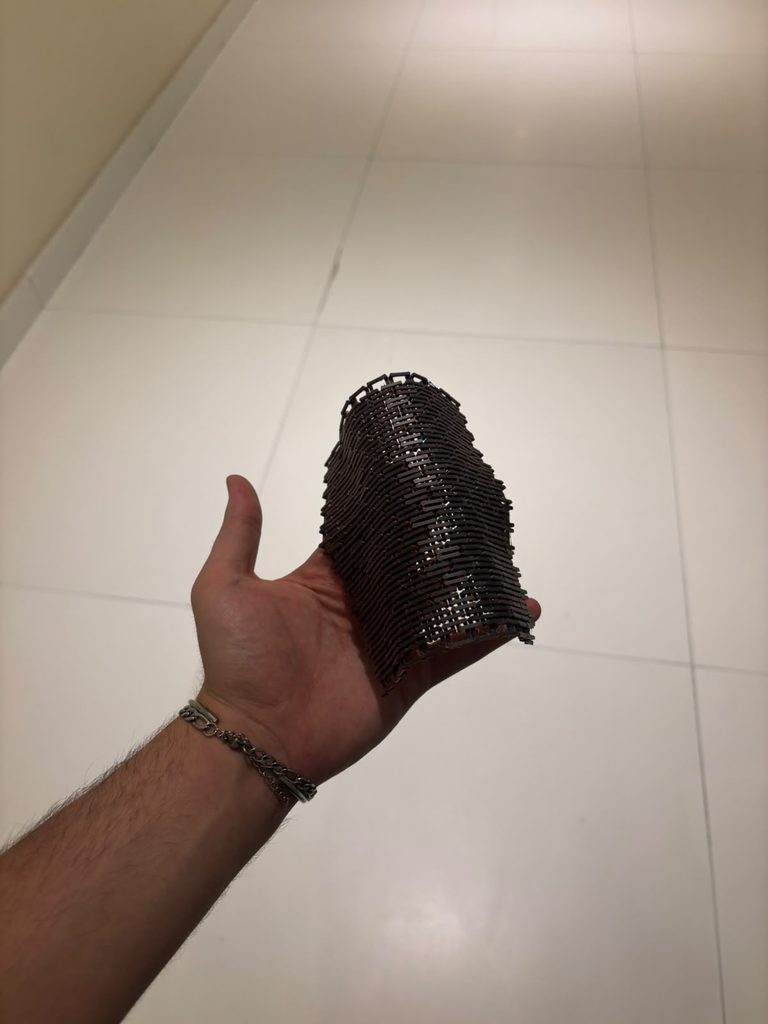
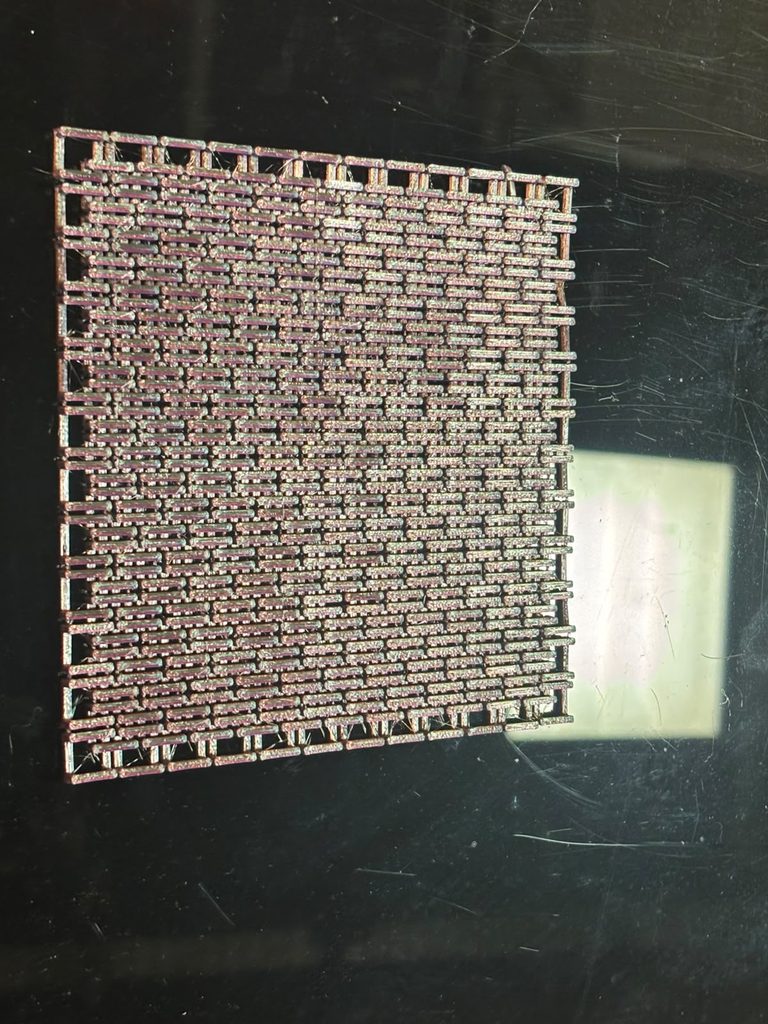
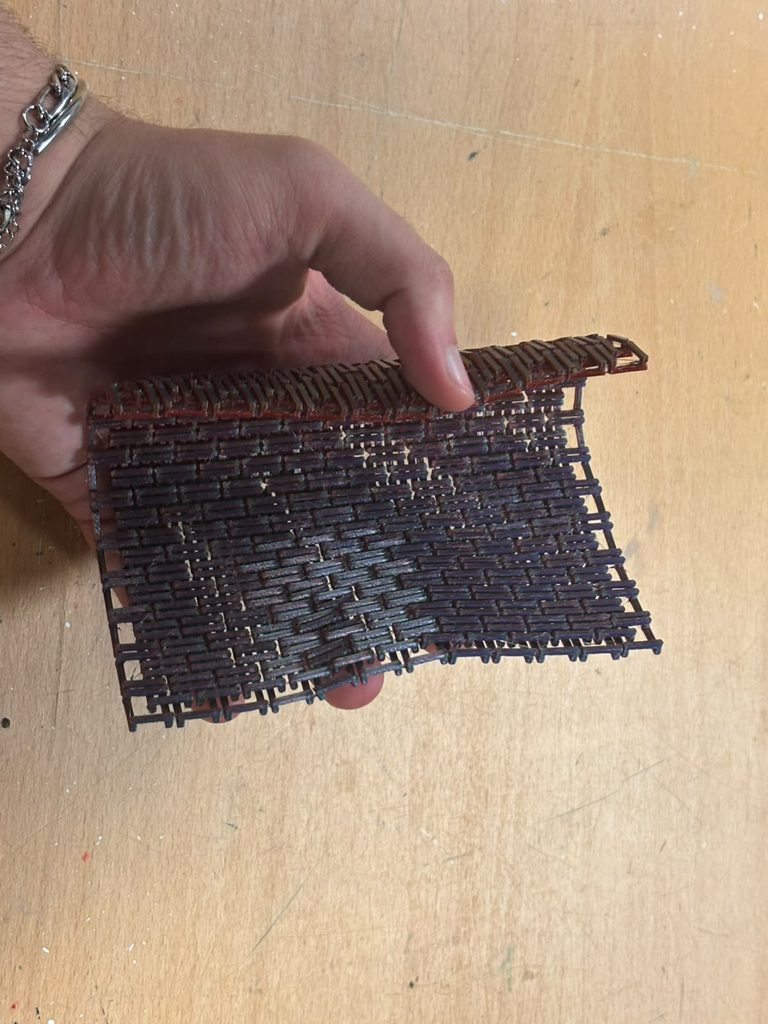
I’ve always hated and loved this thing, it was a very rare arnour created by getting the unobtainable fire object but then the recipe was removed from the game but the armour wasn’t. I wanted to create something that looked like it and based on the algorithmic design of chains linking together I knew it was able to be coded and procedurally generated. I also recently looked into the idea of making flexible things from rigid objects. This interest came from an idea the professor showed us in class called Kerf Bending. So, here’s my attempt to make a plane out of PLA that is supposed to be rigid but is not flexible because of certain algorithmic cuts. I won’t spoil, final results are at the end of the page.
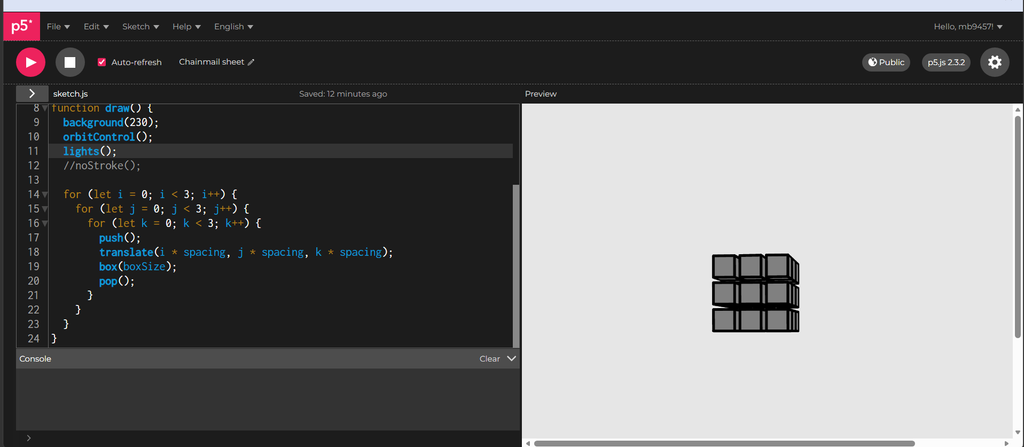
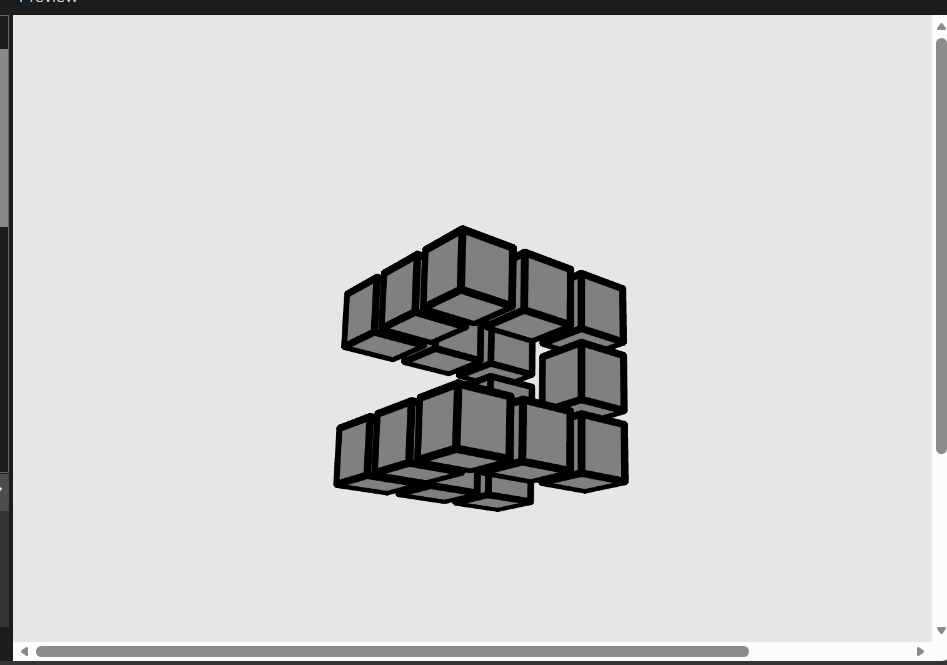
I started with a basic 3x3x3 cube because that’s how you craft in minecraft. JK. it’s actually needed so I can have control on each specific bit of a chain
Now I wrote a function that is basically the rule that decides which of the 27 positions should exist and which should be empty. This is the part that turns a solid cube into a hollow picture-frame shape.
function isVoxelSolid(i, j, k) {
  let sideX = i !== 1;
  let sideY = j !== 1;

  if (sideX && sideY) {
    return true;
  }
  if (sideY && k === 0) {
    return true;
  }
  if (sideX && k === 2) {
    return true;
  }
  return false;
}
sideX && sideY ->solid. If you’re on an edge column and an edge row (so one of the 4 corners: (0,0), (0,2), (2,0), (2,2), at any height k), you’re a corner post. Corner posts are solid at every height that’s why there’s no k condition here; they run the full height of the link, connecting the low bars to the high bars.
sideY && k === 0 ->solid. If you’re on an edge row (top or bottom) but in the middle column (i === 1), and you’re at the bottom layer (k === 0) you’re part of a low horizontal bar running left-right.
sideX && k === 2 ->solid. Same idea rotated: edge column, middle row, top layer, a high bar running front-back.
Anything else including the very center (1,1,anything) and the middle layer (anything,anything,1) when not covered above is empty. The empty middle layer at k=1 is deliberately the air gap: it’s where a neighboring link’s high bar will later pass through this link’s low bar without touching it.
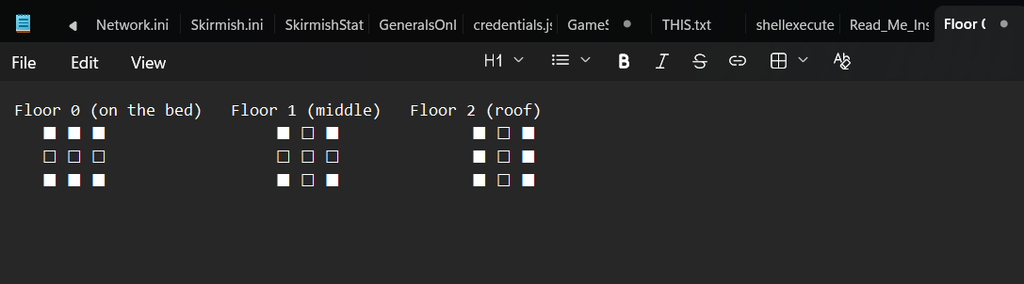
in other words:
Rule 1: corners are filled on every floor. Those are four pillars standing at the corners of the square, running from the bed to the roof.
Rule 2: on the ground floor, the front and back rows are filled. That gives two bars lying flat on the bed, running left to right between the pillars.
Rule 3: on the roof, the left and right columns are filled. That gives two bars across the top, running front to back and resting on the pillars like little bridges.
Rule 4: everything else is empty. The center is empty on every floor, and that’s the hole of the ring. The middle floor is empty except for the pillars, and that’s the air gap.
Then I applied this checker to each of the cubes when drawing them.
  for (let i = 0; i < 3; i++) {
    for (let j = 0; j < 3; j++) {
      for (let k = 0; k < 3; k++) {
        if (isVoxelSolid(i, j, k)) {
          push();
          translate(i * spacing, j * spacing, k * spacing);
          box(boxSize);
          pop();
        }
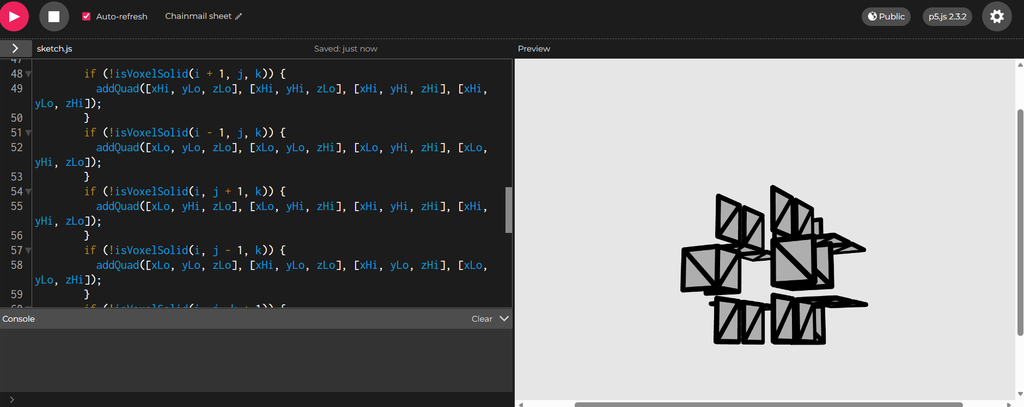
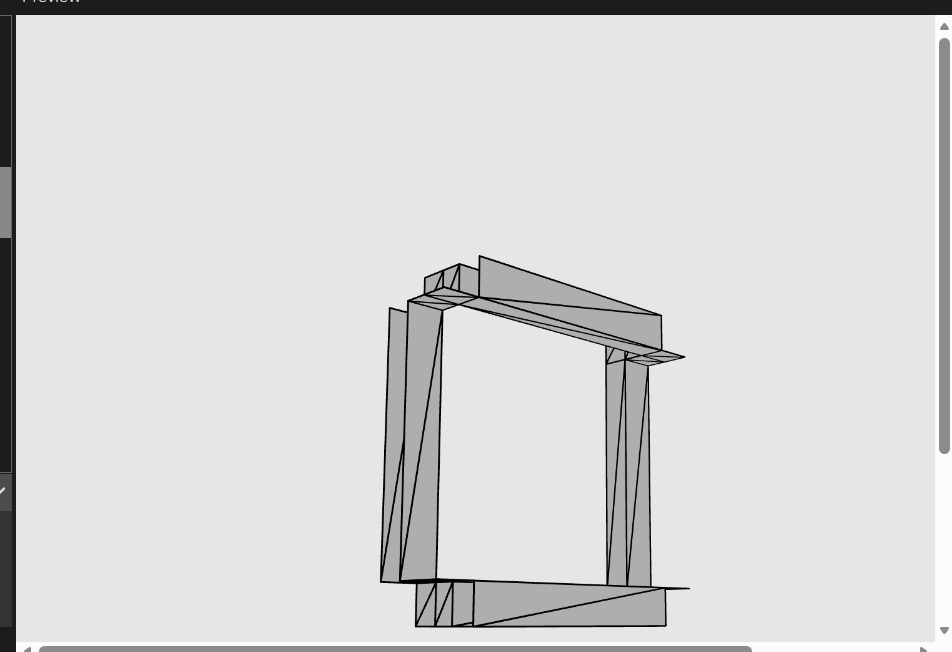
Right now each solid voxel is its own separate box() if you tried to export that as an .obj, you’d get 12 overlapping little boxes per link instead of one clean, watertight shape. To 3D print correctly, we need real triangles. This undesrtanding comes from my extensive work in 3D modeling before. I used to make those 2016 youtube intros that dance around and stuff.
I will use AI to explain this part here because I don’t know how to convey it correctly:
The if (!isVoxelSolid(neighbor)) checks are the actual new idea. For each solid voxel, we look at its 6 neighbors (one step in each of +x, -x, +y, -y, +z, -z). If a neighbor is empty, that means this voxel has a visible face on that side — so we draw a quad there. If a neighbor is solid, that face is buried inside the shape (touching another solid voxel) and should not be drawn — otherwise we’d have invisible internal walls inside a supposedly-hollow print, wasting material and confusing the slicer. This is the difference between “27 separate boxes” (step 4) and “one shell” (this step): we’re not drawing each voxel as a whole box anymore, we’re drawing only the outward-facing skin of the whole cluster.
addQuad(cornerA, cornerB, cornerC, cornerD) — a quad (4-cornered flat face) isn’t a primitive p5/GPUs understand directly; everything ultimately has to be triangles. So this helper takes 4 corners going around in order, and splits them into 2 triangles: (A,B,C) and (A,C,D). That diagonal split is why it looks a little odd — those 2 triangles share the edge from A to C, and together they cover the same square the 4 corners describe.
beginShape(TRIANGLES) / endShape() — this tells p5 “I’m about to feed you a flat stream of triangle corners via vertex() calls, group every 3 into one triangle.” That’s different from box(), which was a single self-contained call. Here we control every vertex ourselves, which is exactly what we need for a custom, exportable shape.
xLo/xHi/yLo/yHi/zLo/zHi — for one voxel at center (x,y,z) with half-width half, these are just “the low edge and high edge of this box on each axis.” We computed them once per voxel and reused them in all 6 face checks rather than recomputing each time.
Each face’s 4 corners are listed in a consistent rotational order (not scrambled) — this matters because the order determines which way the triangle “faces” (its normal direction). Get it backwards and the face renders as invisible/inside-out from outside the shape.
The function drawLinkShell(cx,cy) is basically a translate function but except we’re doing the offset manually in the coordinates themselves rather than moving the whole coordinate system with translate. we do this because ware inside of 1 beginShape and you can not push pop translate inside of the beginshape. The mathematical formula for the spacing is is 4 * (barWidth + gapXY) easoning: the pitch needs to be big enough that a link’s bar width plus its clearance gap (gapXY, the horizontal breathing room between neighboring links so they don’t fuse together when printed) fits proportionally into the repeating grid unit. The 4 * factor comes from how the link’s frame geometry divides into that spacing.
linkHalfSize = (3 * linkPitch) / 8 is how far each link’s frame extends from its own center, as a fraction of the pitch. This specific ratio (3/8) is what makes the next link’s frame, placed one pitch away, land its bars exactly inside this link’s gap, not too far in and not too shallow (they wouldn’t overlap at all, so no interlock).
function drawLinkShell(centerX, centerY) {
  let halfBarWidth = barWidth / 2;
  let xEdges = [-linkHalfSize - halfBarWidth, -linkHalfSize + halfBarWidth, linkHalfSize - halfBarWidth, linkHalfSize + halfBarWidth];
  let yEdges = xEdges;
  let zEdges = [0, barThickness, barThickness + gapThickness, sheetThickness];

  for (let i = 0; i < 3; i++) {
    for (let j = 0; j < 3; j++) {
      for (let k = 0; k < 3; k++) {
        if (!isVoxelSolid(i, j, k)) {
          continue;
        }

        let xLo = centerX + xEdges[i], xHi = centerX + xEdges[i + 1];
        let yLo = centerY + yEdges[j], yHi = centerY + yEdges[j + 1];
        let zLo = zEdges[k], zHi = zEdges[k + 1];

        if (!isVoxelSolid(i + 1, j, k)) {
          addQuad([xHi, yLo, zLo], [xHi, yHi, zLo], [xHi, yHi, zHi], [xHi, yLo, zHi]);
        }
        if (!isVoxelSolid(i - 1, j, k)) {
          addQuad([xLo, yLo, zLo], [xLo, yLo, zHi], [xLo, yHi, zHi], [xLo, yHi, zLo]);
        }
        if (!isVoxelSolid(i, j + 1, k)) {
          addQuad([xLo, yHi, zLo], [xLo, yHi, zHi], [xHi, yHi, zHi], [xHi, yHi, zLo]);
        }
        if (!isVoxelSolid(i, j - 1, k)) {
          addQuad([xLo, yLo, zLo], [xHi, yLo, zLo], [xHi, yLo, zHi], [xLo, yLo, zHi]);
        }
        if (!isVoxelSolid(i, j, k + 1)) {
          addQuad([xLo, yLo, zHi], [xHi, yLo, zHi], [xHi, yHi, zHi], [xLo, yHi, zHi]);
        }
        if (!isVoxelSolid(i, j, k - 1)) {
          addQuad([xLo, yLo, zLo], [xLo, yHi, zLo], [xHi, yHi, zLo], [xHi, yLo, zLo]);
        }
      }
    }
  }
}
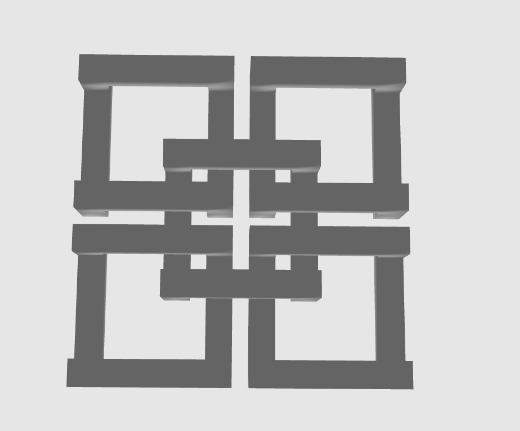
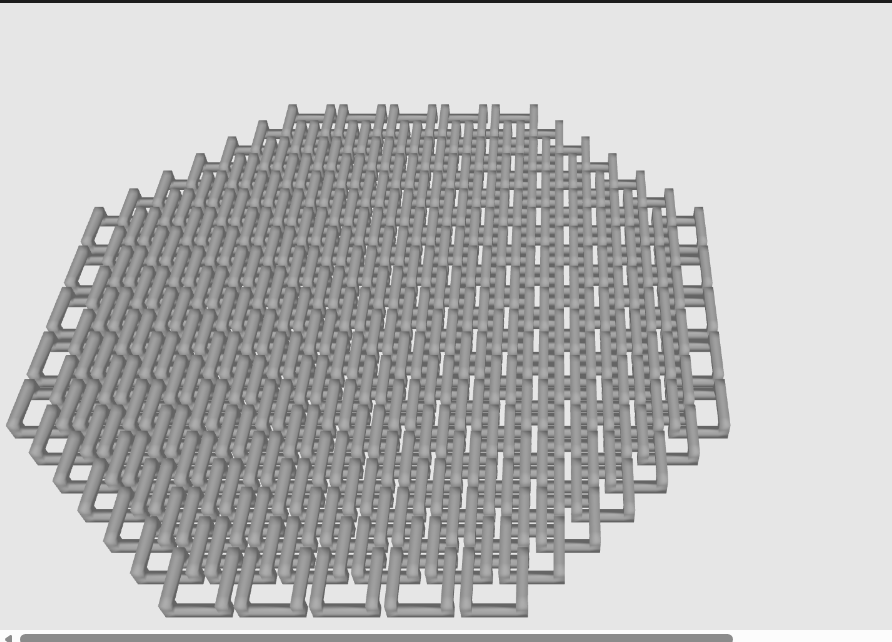
This is how gradually adding the links looks like
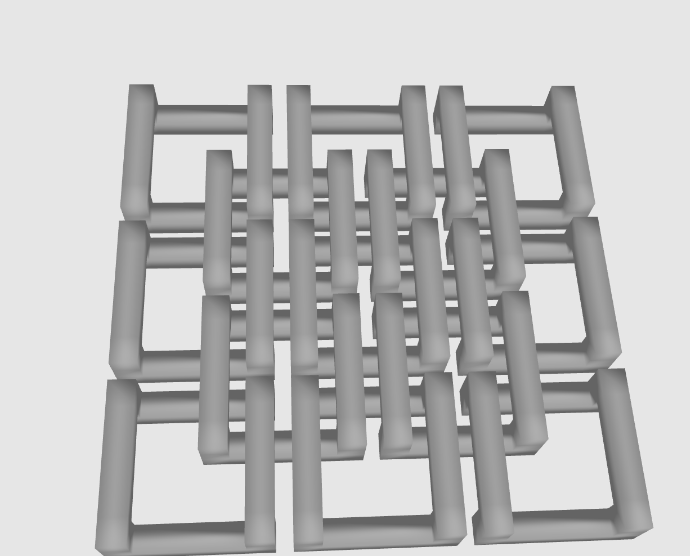
So with basically repeating this idea, we geat something like this with some rotation here and there on different axis.
play with the parameters and add some config and you’ll get the final design
So now, putting everything together, let’s explain this mess haha.
The parameters at the top control the whole sheet. cols and rows set the grid size. shape cuts the sheet into a rectangle or a circle. barWidth and layerHeight describe the physical dimensions the printer uses. Everything else in the file comes from these few numbers.
snapToLayerHeight rounds a thickness to the nearest whole multiple of the print’s layer height. A wall that isn’t layer-aligned comes out thin or warped. This function makes barThickness and gapThickness land on a clean layer boundary. It sets a floor of one full layer.
inShape decides if a given grid point exists. For a rectangle, it returns true always. For a circle, it checks the distance from the point to the center of the grid against the radius. This lets the same code produce a square panel or a round panel. The shape variable controls the choice.
linkCenters decides the layout. The grid holds two kinds of links. Main-grid links sit on the intersection points. Offset-grid links sit at the center of every 2×2 block of them. An offset link gets created only if at least two of its four adjacent main-grid points exist. This lets the circle cut produce a fully connected mesh near the edges, without loose half-links. Any main-grid point that never gets claimed by a neighbor gets dropped. A link with nothing to interlock with ends up as a loose piece in the print.
if (sideX && sideY) return true;
if (sideY && k === 0) return true;
if (sideX && k === 2) return true;
isVoxelSolid gives one link its shape. Each link gets modeled as a 3x3x3 grid of tiny voxels. A rule sets which voxels are solid. The four corners stay solid at every height. Those corners become the posts. The middle-edge voxels stay solid only at the bottom on two sides and only at the top on the other two. Those become the low bars and the high bars. The middle layer stays empty. That gap lets an adjacent link’s high bar pass through this link’s low bar. The two never touch.
linkCenters decides the layout. The grid holds two kinds of links. Main-grid links sit on the intersection points. Offset-grid links sit at the center of every 2×2 block of them. An offset link gets created only if at least two of its four adjacent main-grid points exist. This lets the circle cut produce a fully connected mesh near the edges, without loose half-links. Any main-grid point that never gets claimed by a neighbor gets dropped. A link with nothing to interlock with ends up as a loose piece in the print.
buildChains is the simple part. It gets every position from linkCenters. For each position, it stamps down the same triangle list from unitLinkTriangles. Each stamp shifts by that link’s x and y. All of this happens inside one beginShape(TRIANGLES) block. The whole sheet becomes one continuous mesh, not dozens of separate objects.
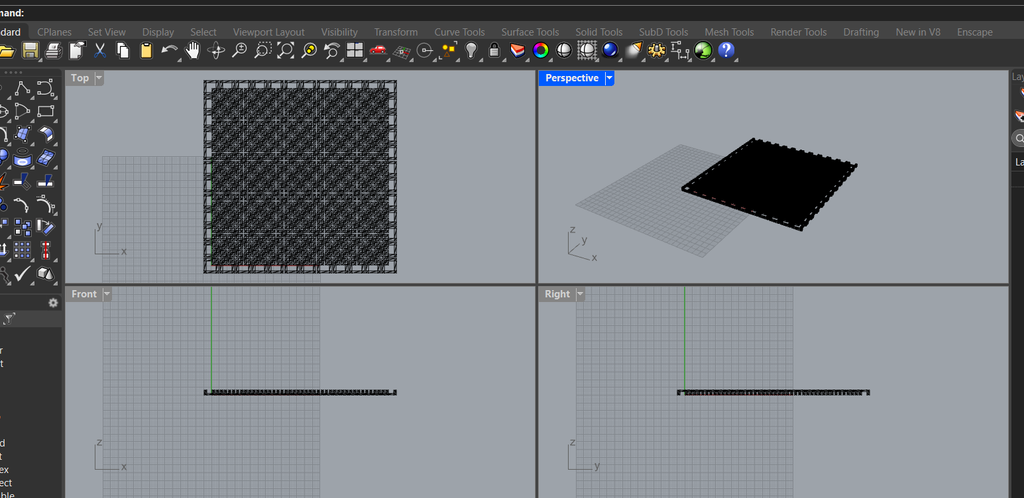
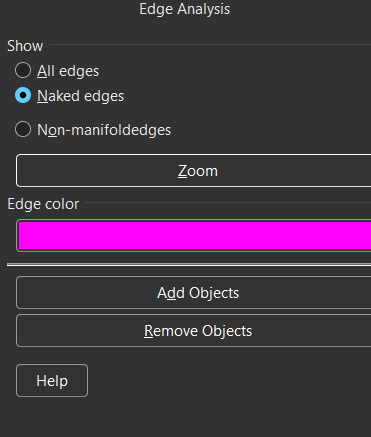
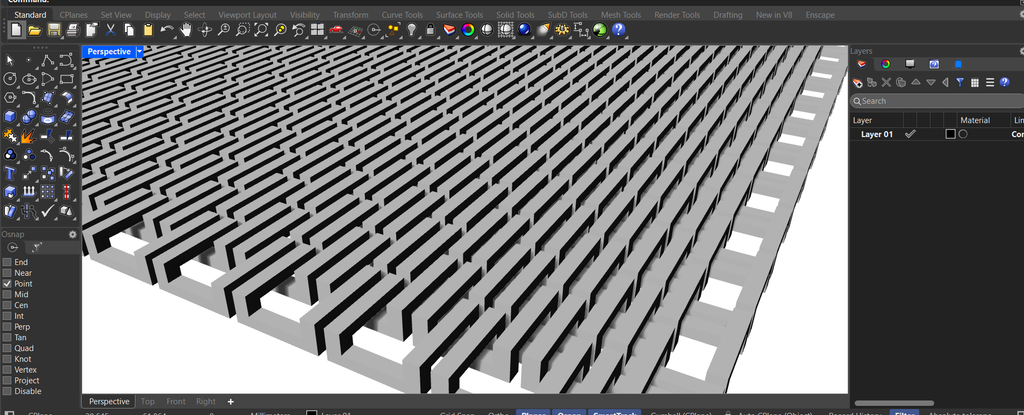
I then exported the OBJ and opened it in Rhino. Rhino showed the mesh cleanly. I checked the geometry for naked edges. A naked edge means the mesh is not watertight there. I also checked wall thickness against the printer’s nozzle size. I checked the overlap between neighboring links. Rhino’s section tool let me slice through a link and see the gap directly. The gap measured correctly. I moved the file to the slicer after that.
And you can see there are no pink edges so there are no naked edges and no manifolded edges
I also checked the volume command to verify the mesh is closed. It only returns a number if a mesh is closed.
Then I checked the barThickness/gapThickness/sheetThickness. the mesh can be perfectly watertight and still have the gap sized wrong, which would print the links fused together.
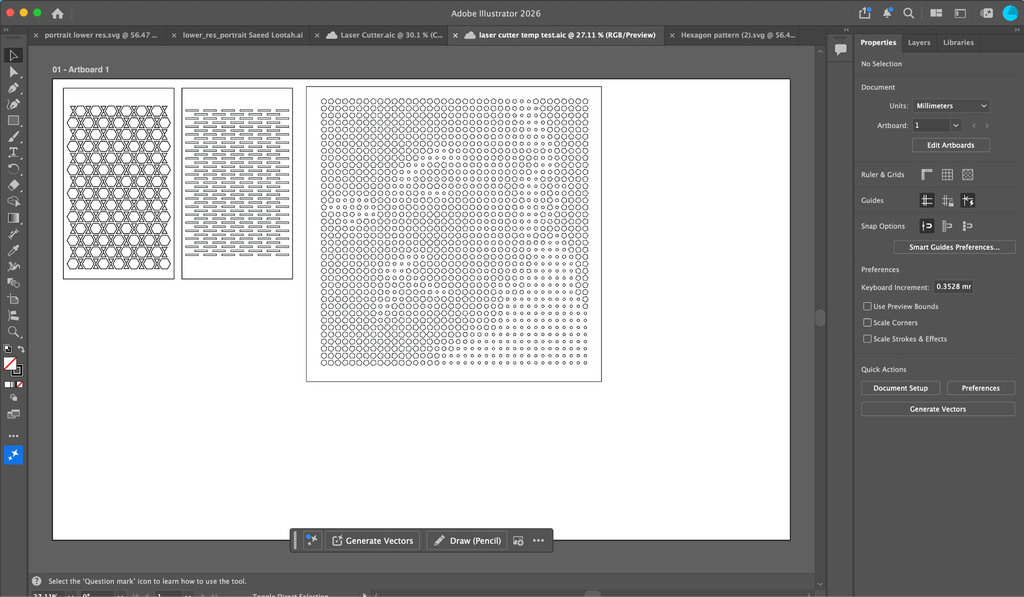
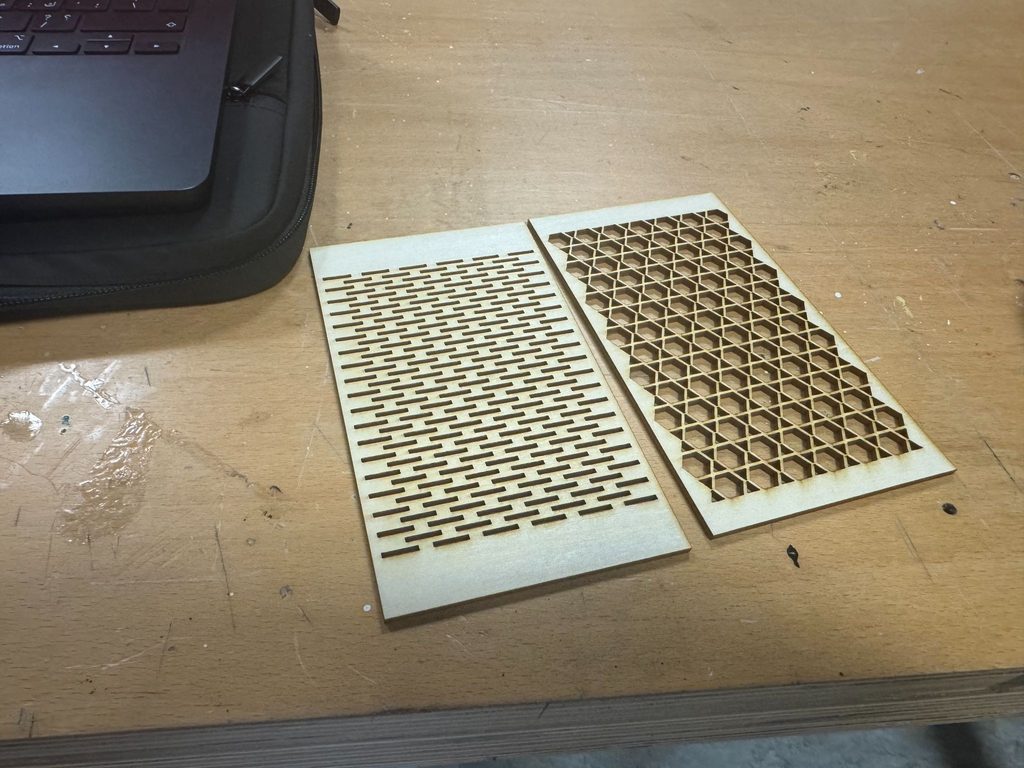
I wanted to try out three different designs. Two were related to kerf bending my own design compared to the kind of kerf bending using plywood and another using acrylic which I based off of a portrait.
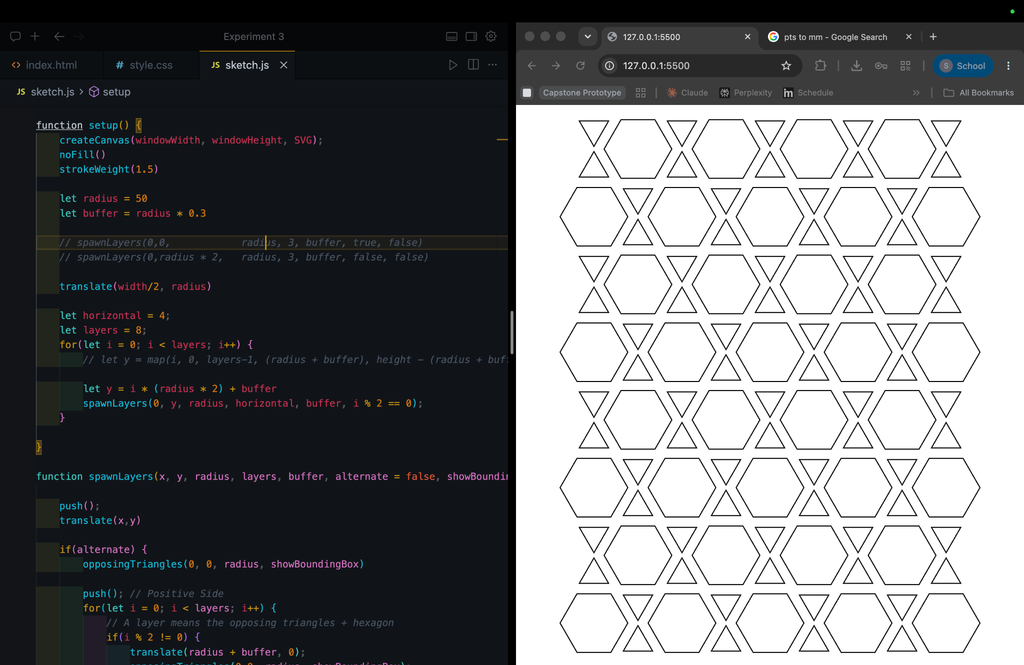
For the kerf bending I tried to experiment with hexagons and triangles to make a repeating pattern. I hypothesized that by using such a pattern not only would it become more flexible but also could bend from other directions. As for the acrylic design, I would use engraving rather than cutting and my hope was that because I would use a black acrylic the engraving would come out as white making an interesting pattern.
Designs
Design 1: Generic Kerf Bending
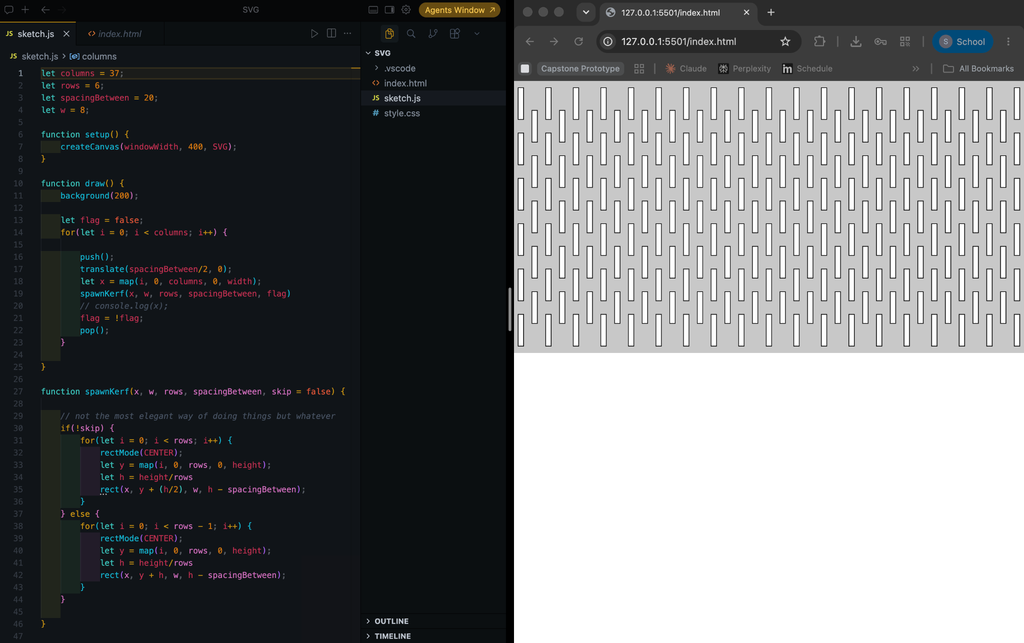
let columns = 37;
let rows = 6;
let spacingBetween = 20;
let w = 8;


function setup() {
   createCanvas(windowWidth, 400, SVG);


   noFill()
   let flag = false;
   for(let i = 0; i < columns; i++) {


       push();
       translate(spacingBetween/2, 0);
       let x = map(i, 0, columns, 0, width);
       spawnKerf(x, w, rows, spacingBetween, flag)
       // console.log(x);
       flag = !flag;
       pop();
   }
}


function draw() {
   // background(200);
}


function spawnKerf(x, w, rows, spacingBetween, skip = false) {


   // not the most elegant way of doing things but whatever
   if(!skip) {
       for(let i = 0; i < rows; i++) {
           rectMode(CENTER);
           let y = map(i, 0, rows, 0, height);
           let h = height/rows
           rect(x, y + (h/2), w, h - spacingBetween);
       }
   } else {
       for(let i = 0; i < rows - 1; i++) {
           rectMode(CENTER);
           let y = map(i, 0, rows, 0, height);
           let h = height/rows
           rect(x, y + h, w, h - spacingBetween);
       }
   }

}


function mouseClicked() {
   save("Kerf-bending test")
}
For this design I just wanted to make a design similar to what we saw in class but without using online resources . I wanted to experiment, figure it out myself, I thought it wouldn’t be that hard (foreshadowing). I did make a mistake however: I should have been more brave and made more rows and columns, I worried that the plywood may break or the laser cutter may not be able to cut so close to other lines and it may break during the process.
The next design used lines that were far closer to each other and that was when I really learned what was possible. It was also while I was in the IM Lab that I saw someone write on the wall that the laser cutter kerf was 0.2-0.3mm. If I understood that correctly it means that the thickness of the cut left behind by the laser is 0.2-0.3mm which I will keep in mind for future projects.
Design 2:
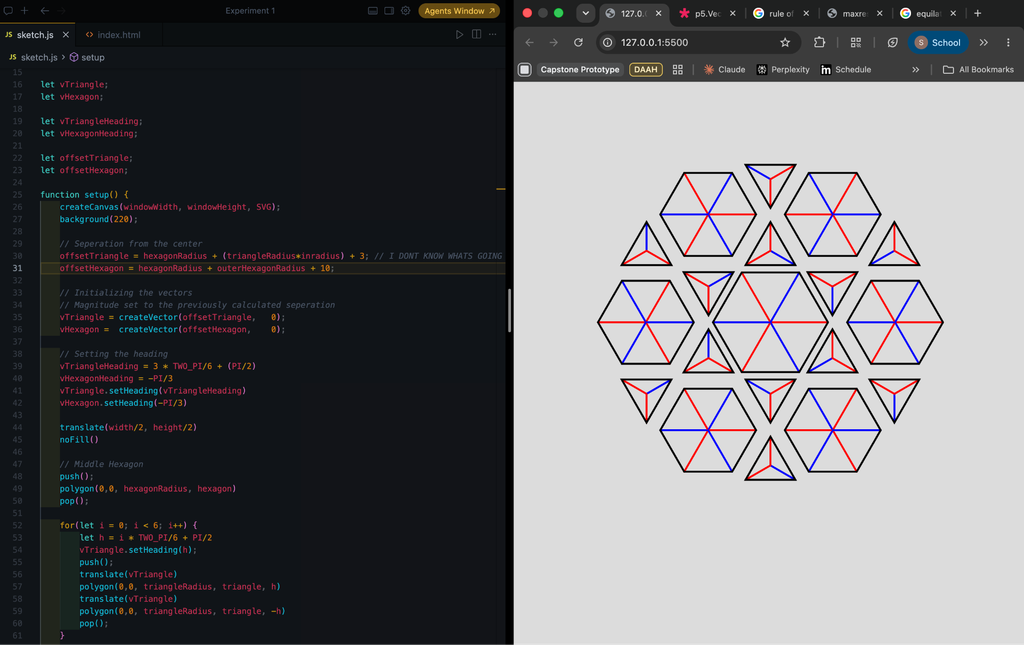
Initial attempt: See more below
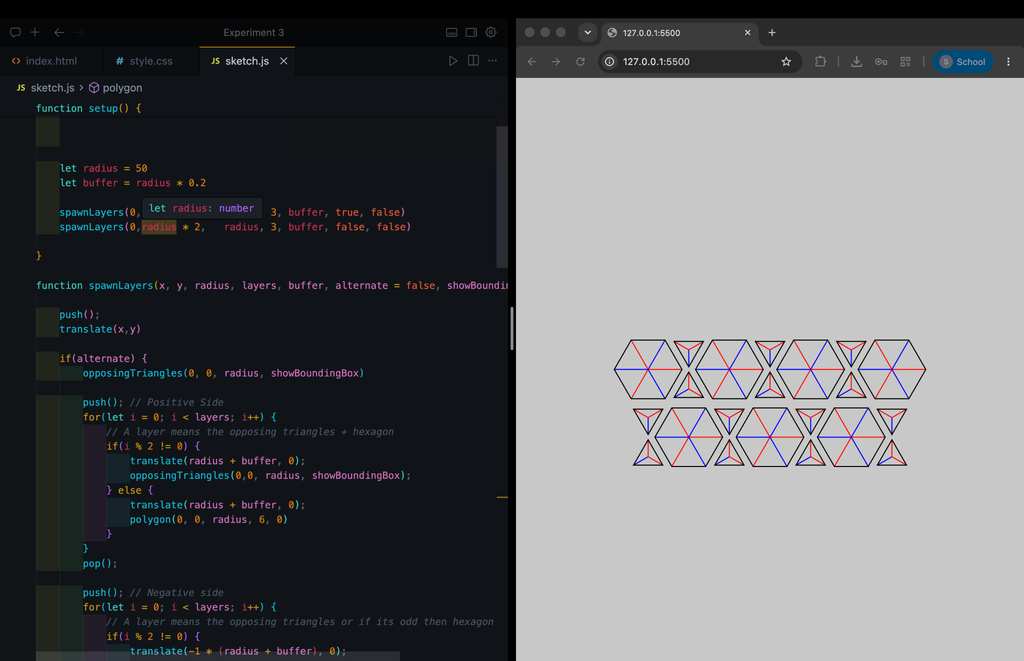
Second attempt: Trying out a new technique which ended up working out
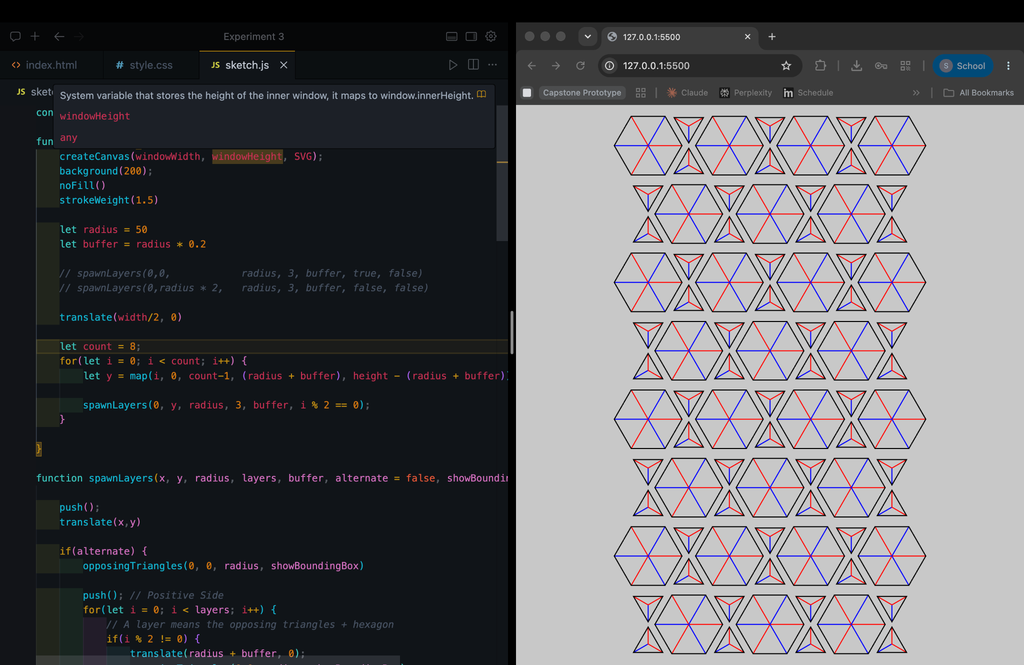
Final result: Removed the red and blue lines indicating how the polygons were drawn, and I removed the background.
You may have noticed that I tried two different methods of achieving this pattern. Put simply, I was overthinking it. In the beginning I tried starting from the center, and spawning the hexagons and triangles outward from the center. Doing this for n layers was much harder than I thought it would be, the first image was as far as I got. In desperation I started using vectors and the translate function more often but to no avail.
In bed later that night I realized I had been doing it all wrong. If I just worked layer by layer I would achieve the same pattern. I could also modify the length of the layers and rotation and maybe even make it circular but for the kerf design all I need is a pattern that spans the length rather than a radial one.
Initial Attempt Code
/*
Goal:
Hexagonal pattern starting from the center then triangles, then ...
Maybe recursion?
*/


const hexagon = 6
const hexagonRadius = 30;
const outerHexagonRadius = 25;


const triangle = 3
const triangleRadius = 15


const inradius = (Math.sqrt(3)) / 6


let vTriangle;
let vHexagon;


let vTriangleHeading;
let vHexagonHeading;


let offsetTriangle;
let offsetHexagon;


function setup() {
   createCanvas(windowWidth, windowHeight, SVG);
   background(220);

   // Seperation from the center
   offsetTriangle = hexagonRadius + (triangleRadius*inradius) + 3; // I DONT KNOW WHATS GOING ON
   offsetOuterTriangle = outerHexagonRadius + (triangleRadius*inradius) + 3; // I DONT KNOW WHATS GOING ON
   offsetHexagon = hexagonRadius + outerHexagonRadius + 10;

   // Initializing the vectors
   // Magnitude set to the previously calculated seperation
   vTriangle = createVector(offsetTriangle,   0);
   vHexagon =  createVector(offsetHexagon,    0);


   // Setting the heading
   vTriangleHeading = 3 * TWO_PI/6 + (PI/2)
   vHexagonHeading = -PI/3
   vTriangle.setHeading(vTriangleHeading)
   vHexagon.setHeading(-PI/3)

   translate(width/2, height/2)
   noFill()

   // Middle Hexagon
   push();
   polygon(0,0, hexagonRadius, hexagon)
   pop();


   for(let i = 0; i < 6; i++) {
       let h = i * TWO_PI/6 + PI/2
       vTriangle.setHeading(h);
       push();
       translate(vTriangle)
       polygon(0,0, triangleRadius, 3, h)
       translate(vTriangle.x *0.9, vTriangle.y *0.9);
       polygon(0,0, triangleRadius, 3, -h)
       pop();
   }

   for(let i = 0; i < 6; i++) {
       let h = i * TWO_PI/6;
       vHexagon.setHeading(h);
       push();
       translate(vHexagon)
       polygon(0,0,outerHexagonRadius, 6, h)
       // let a = createVector(offsetOuterTriangle + 0.8, 0)
       // let theta = 2 * TWO_PI/6 + PI/2;
       // a.setHeading(theta)
       // translate(a)
       // polygon(0,0, triangleRadius, 3, theta)
       pop();
   }

}


function layer(vTriangle, vHexagon, triangleRadius, outerHexagonRadius) {
   for(let i = 0; i < sides; i++) {
       let h = i * TWO_PI/sides + PI/2
       vTriangle.setHeading(h);
       push();
       translate(vTriangle)
       polygon(0,0, triangleRadius, 3, h)
       translate(vTriangle.x *0.9, vTriangle.y *0.9);
       polygon(0,0, triangleRadius, 3, -h)
       pop();
   }

   for(let i = 0; i < 6; i++) {
       let h = i * TWO_PI/sides;
       vHexagon.setHeading(h);
       push();
       translate(vHexagon)
       polygon(0,0,outerHexagonRadius, 6, h)
       pop();
   }
}


function draw() {
}


function polygon(x, y, radius, sides = 3, angle = 0) {
   beginShape();
   for (let i = 0; i < sides; i++) {
       const a = angle + TWO_PI * (i / sides);
       let sx = x + cos(a) * radius;
       let sy = y + sin(a) * radius;


       // Making the red and blue lines
       push();
           if(i % 2 == 0) {
               stroke(255, 0 ,0)
           } else {
               stroke(0, 0 ,255)
           }
           line(x, y, sx, sy)
       pop();


       vertex(sx, sy);
   };
   endShape(CLOSE);
};
Final Attempt Code
const inradius = (Math.sqrt(3)) / 6


function setup() {
   createCanvas(windowWidth, windowHeight, SVG);
   noFill()
   strokeWeight(1.5)


   let radius = 35
   let buffer = radius * 0.3

   // spawnLayers(0,0,            radius, 3, buffer, true, false)
   // spawnLayers(0,radius * 2,   radius, 3, buffer, false, false)

   translate(width/2, radius)


   let horizontal = 6;
   let layers = 14;


   for(let i = 0; i < layers; i++) {
       // let y = map(i, 0, layers-1, (radius + buffer), height - (radius + buffer));


       let y = i * (radius * 2) + buffer
       spawnLayers(0, y, radius, horizontal, buffer, i % 2 == 0);
   }


}


function spawnLayers(x, y, radius, layers, buffer, alternate = false, showBoundingBox = false) {


   push();
   translate(x,y)


   if(alternate) {
       opposingTriangles(0, 0, radius, showBoundingBox)


       push(); // Positive Side
       for(let i = 0; i < layers; i++) {
           // A layer means the opposing triangles + hexagon
           if(i % 2 != 0) {
               translate(radius + buffer, 0);
               opposingTriangles(0,0, radius, showBoundingBox);
           } else {
               translate(radius + buffer, 0);
               polygon(0, 0, radius, 6, 0)
           }
       }
       pop();


       push(); // Negative side
       for(let i = 0; i < layers; i++) {
           // A layer means the opposing triangles or if its odd then hexagon
           if(i % 2 != 0) {
               translate(-1 * (radius + buffer), 0);
               opposingTriangles(0,0, radius, showBoundingBox);
           } else {
               translate(-1 * (radius + buffer));
               polygon(0, 0, radius, 6, 0)
           }
       }
       pop();
   } else {
       polygon(0, 0, radius, 6, 0)


       push(); // Positive Side
       for(let i = 0; i < layers; i++) {
           // A layer means the opposing triangles + hexagon
           if(i % 2 == 0) {
               translate(radius + buffer, 0);
               opposingTriangles(0,0, radius, showBoundingBox);
           } else {
               translate(radius + buffer, 0);
               polygon(0, 0, radius, 6, 0)
           }
       }
       pop();


       push(); // Negative side
       for(let i = 0; i < layers; i++) {
           // A layer means the opposing triangles or if its odd then hexagon
           if(i % 2 == 0) {
               translate(-1 * (radius + buffer), 0);
               opposingTriangles(0,0, radius, showBoundingBox);
           } else {
               translate(-1 * (radius + buffer));
               polygon(0, 0, radius, 6, 0)
           }
       }
       pop();
   }


   pop();
}


function opposingTriangles(x, y, radius, showBoundingBox = false) {
   rectMode(CENTER)
   if(showBoundingBox) {
       rect(0,0,radius, radius * inradius * 6)
   }
   polygon(0,radius * 2 * inradius, radius * 0.5, 3, PI/6)
   polygon(0,-1 * radius * 2 * inradius, radius * 0.5, 3, -PI/6)
}


function polygon(x, y, radius, sides = 3, angle = 0) {
   beginShape();
   for (let i = 0; i < sides; i++) {
       const a = angle + TWO_PI * (i / sides);
       let sx = x + cos(a) * radius;
       let sy = y + sin(a) * radius;


       // push();
       // if(i % 2 == 0) {
       //     stroke(255,0,0)
       // } else {
       //     stroke(0,0,255)
       // }
       // line(x,y, sx, sy);
       // pop();


       vertex(sx, sy);
   };
   endShape(CLOSE);
}


function mouseClicked() {
   save("Hexagon pattern")
}
The inradius const at the top was to get the triangles to be the right distance away from each other. An inradius is the length from the center of the triangle to the middle of the side. I tried to be as mathematically consistent throughout the sketch so that the distance between each side and another was equal. For example I originally tried to map the layers to the width but that meant the separation between layers was inconsistent. There were a few points where the measurements weren’t quite right and I tried multiplying by other numbers till it worked.
I remember being confused when trying to line up the triangle to the hexagon, I thought that in theory by having the radius be the same then they would line up perfectly assuming that the radius is equal to side length side each segment was an equilateral triangle. For whatever reason that didn’t work. Either my math and research was incorrect or I misunderstood how the code worked. Nonetheless it doesn’t have to be perfect.
Design 3:
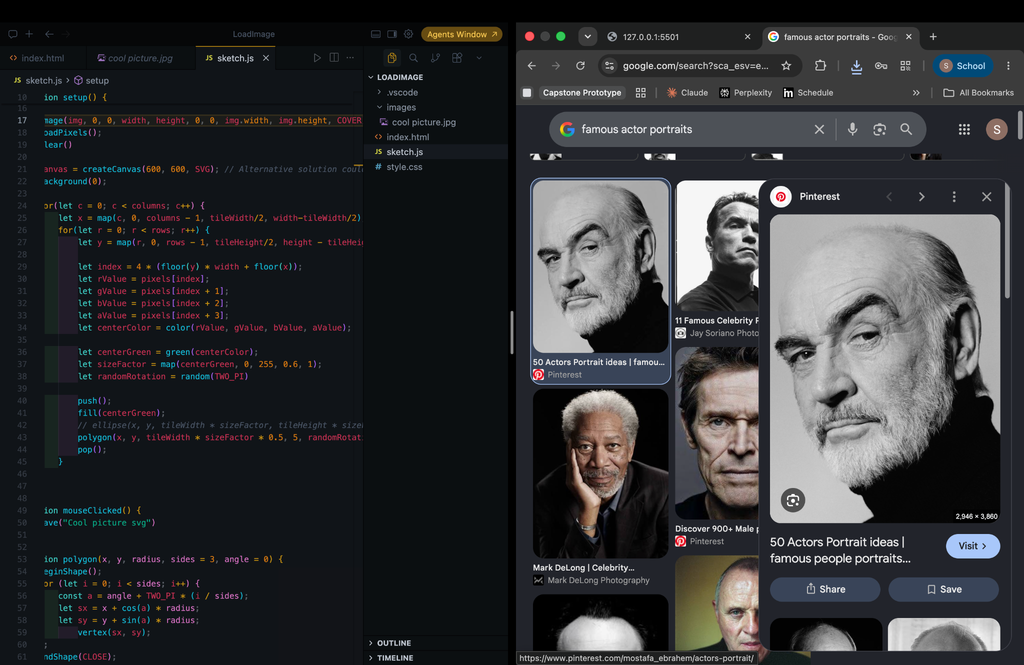
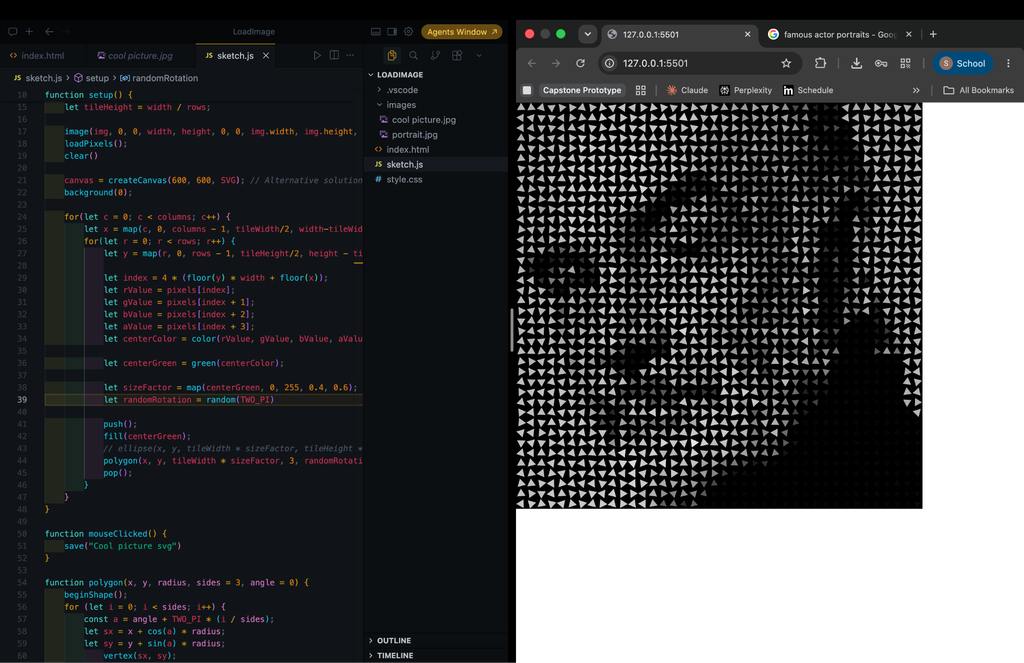
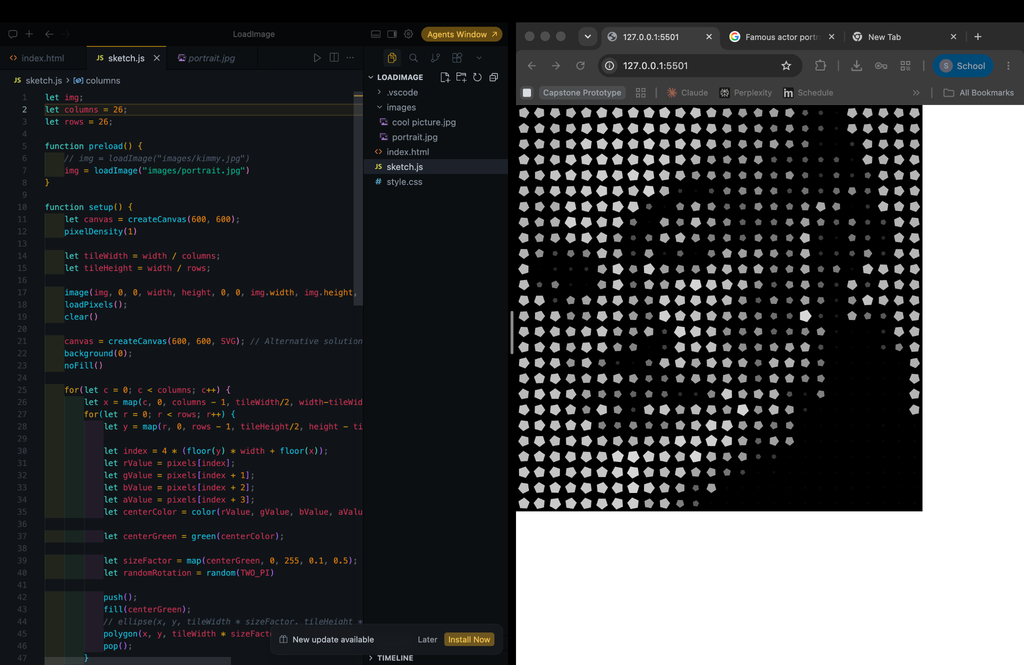
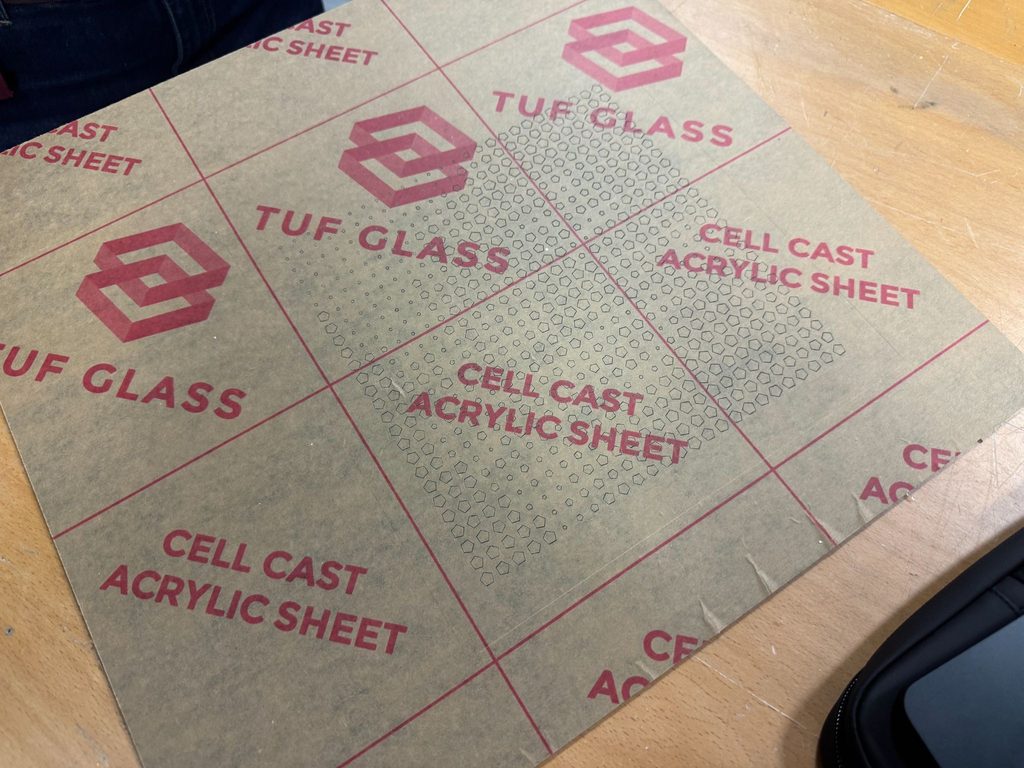
I used the code we had made in class. In class I actually tried a different image, I found a landscape photograph and since green was a prominent color I used green(centerColor) which seemed to work well but when I carried it over to the new portrait image it continued to work so I didn’t change it. In addition, for the code we made in class we used ellipses. I modified the code to use polygons and I changed the sizeFactor mapping a bit since the polygons would overlap at times.
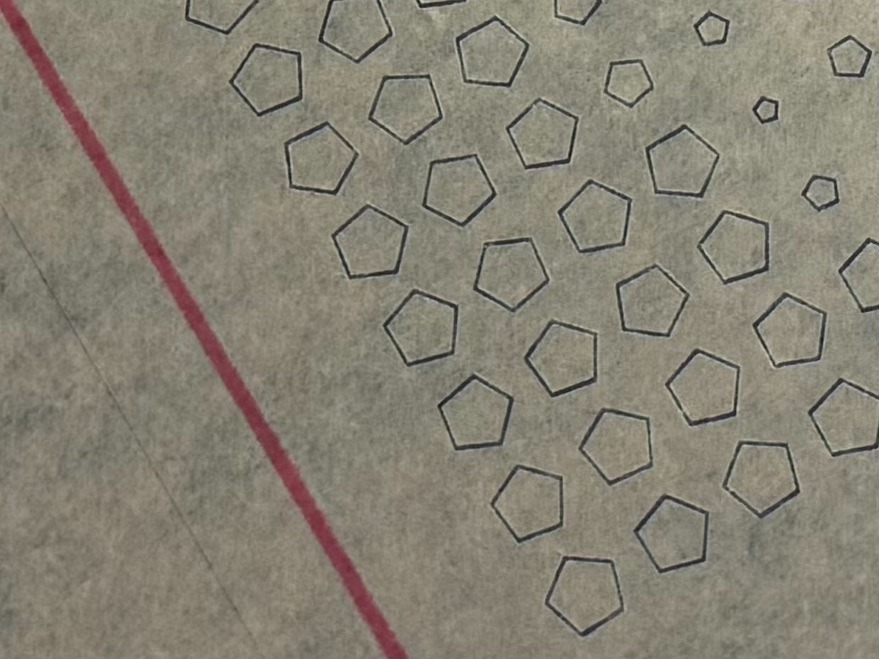
I then experimented with the number of sides: I tried triangles and used a random rotation to make the image more interesting. I realized if I was going to use triangles the rotation would have to be intentional as if it was matching the flow of the image in some way. I tried squares, then pentagons, then hexagons but pentagons were my favorite. I preferred pentagons because the rotation was more discreet but it wouldn’t disrupt the flow of the image since for hexagons you couldn’t tell there was any random rotation unless you looked very closely and to be honest squares were boring.
Before saving it as an SVG I removed the fill and background.
Laser Cutting
This was probably the most frustrating part of the project. I’ll say first what I should have done. I should have changed the strokes on the files to be what they should have been. I was hoping the assistant would know better because I didn’t know exactly what it should have been. I should have asked on Discord first before booking. The laser cutting took about 5 minutes for designs 1 and 2. But the technical issues and moving files around took up 90% of the time of my booking. Someone else was after me so I had to come back about an hour later for design 3 and the hexagons were engraved but the frame wasn’t cut out.
I’ve booked another session with the laser cutter later in the evening in hopes that I can finally get design 3 to be cut properly. It was the design I was most excited about but oh well. Hopefully next time. I may also make some changes to the design.
Trying again!
(Looks best from afar)
Reflection
There were a lot of improvements to be made. I think I’ve mentioned most of the troubles I had making this but I’ll quickly summarize what I should of done:
Be more confident making lines closer to each other for kerf bending (see some examples online as well)
Have the illustrator files ready with the correct stroke thickness.
Try booking the laser cutter over two days if I have a lot of designs rather than one evening (can always cancel the next one if it doesn’t work out).
No Generative AI was used throughout the assignment.
For some reason the example can no longer be found but when writing my code it showed up as a code autocomplete from either my p5js Snippets extension or P5 Snippets and Tools. These are the Extension ID’s respectively if you want to use them:
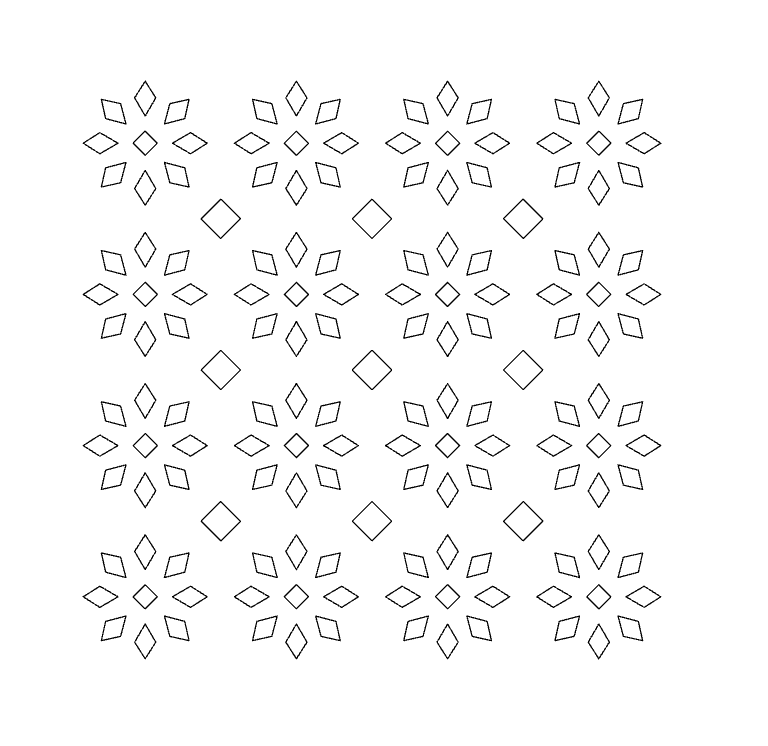
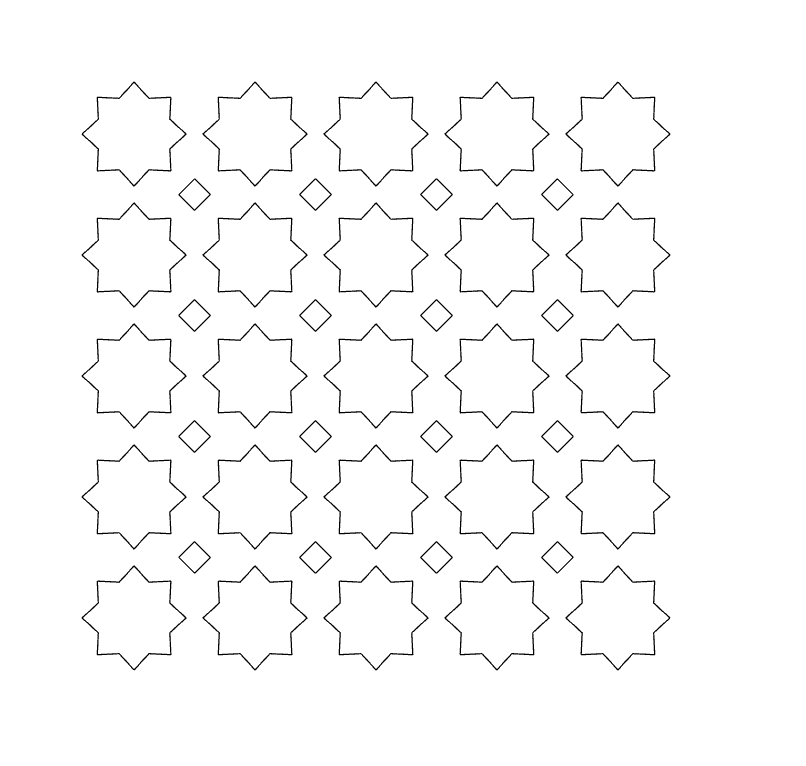
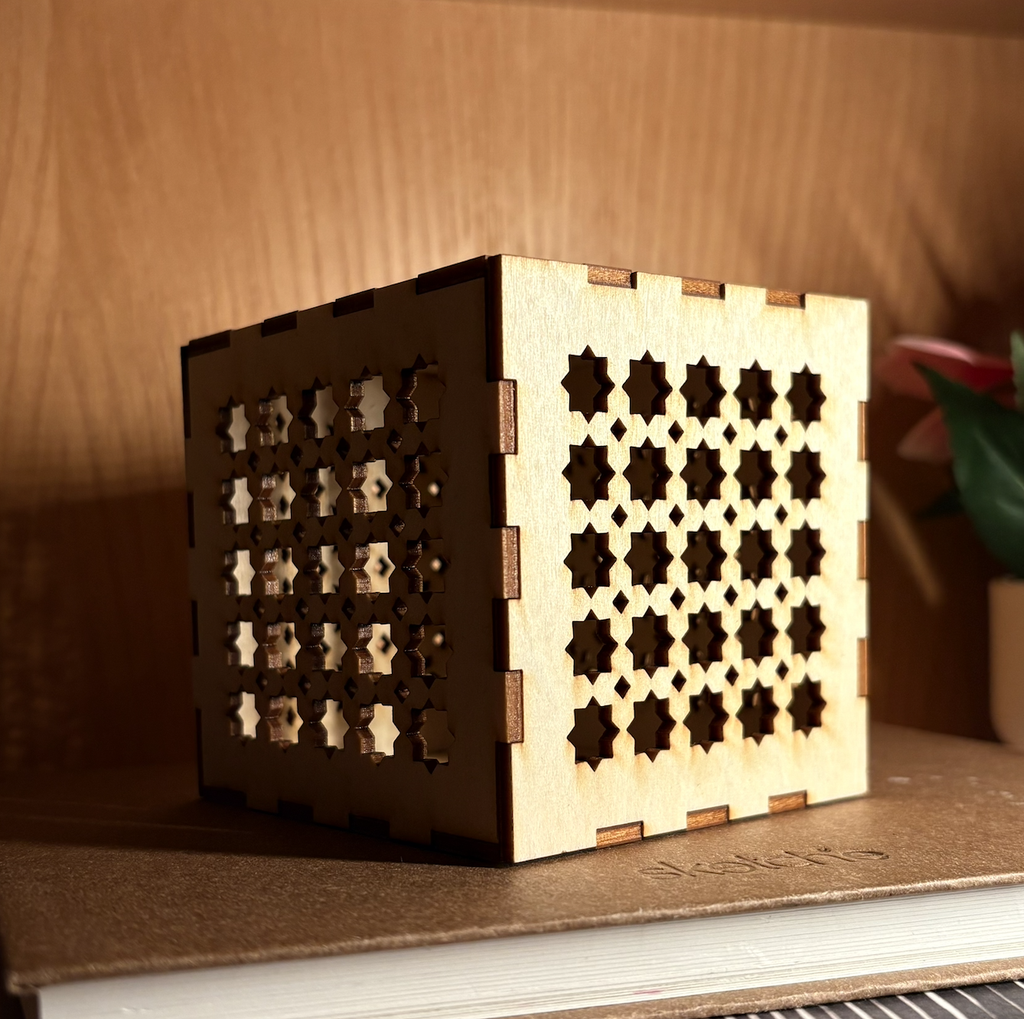
I wanted to make something I could actually keep in my room, so I decided on a small patterned lamp. I’ve made laser-cut boxes before and already knew my way around a box template. This time I wanted to design the cutouts myself. I started experimenting with geometric shapes inspired by Islamic geometric designs and motifs, especially the way a simple shape can become much more interesting and beautiful through repetition.
p5.js sketch
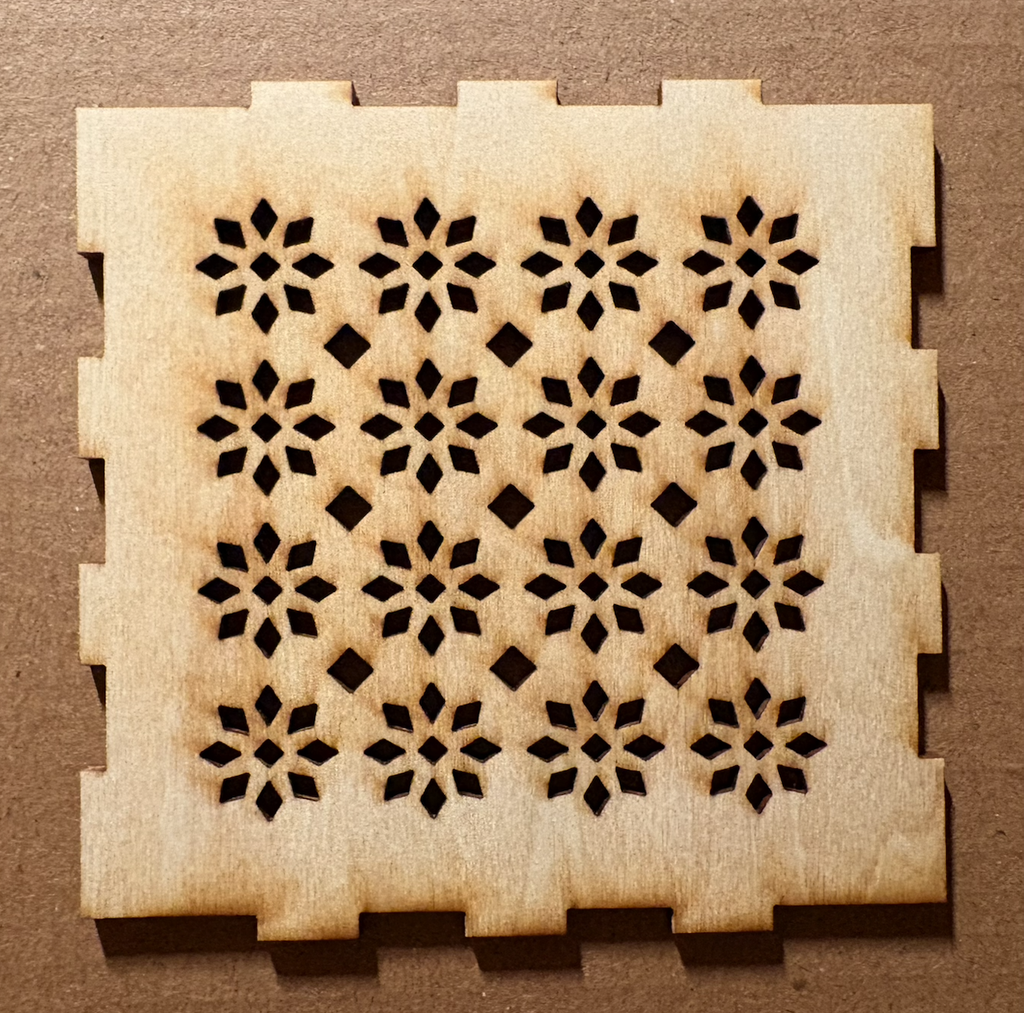
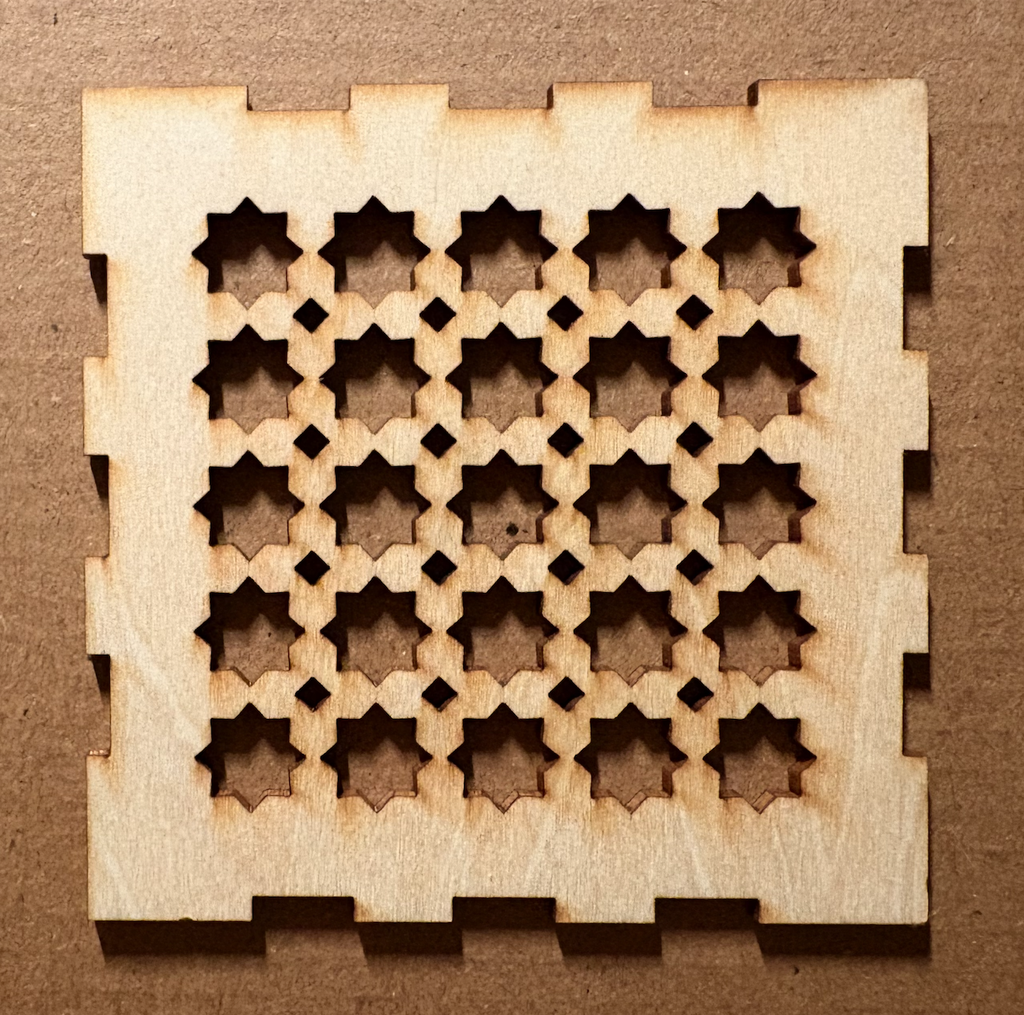
I made two patterns in p5.js. One repeats eight-pointed stars with little diamonds in the gaps. The other builds flowers from eight rotated petals, again with diamonds between them.
My first attempts had far too much wood and not enough cutout, so I kept adjusting the size and spacing of the shapes. I wanted them close together, but there still had to be enough wood between the holes for the panel to hold together.
Vector design and cutting
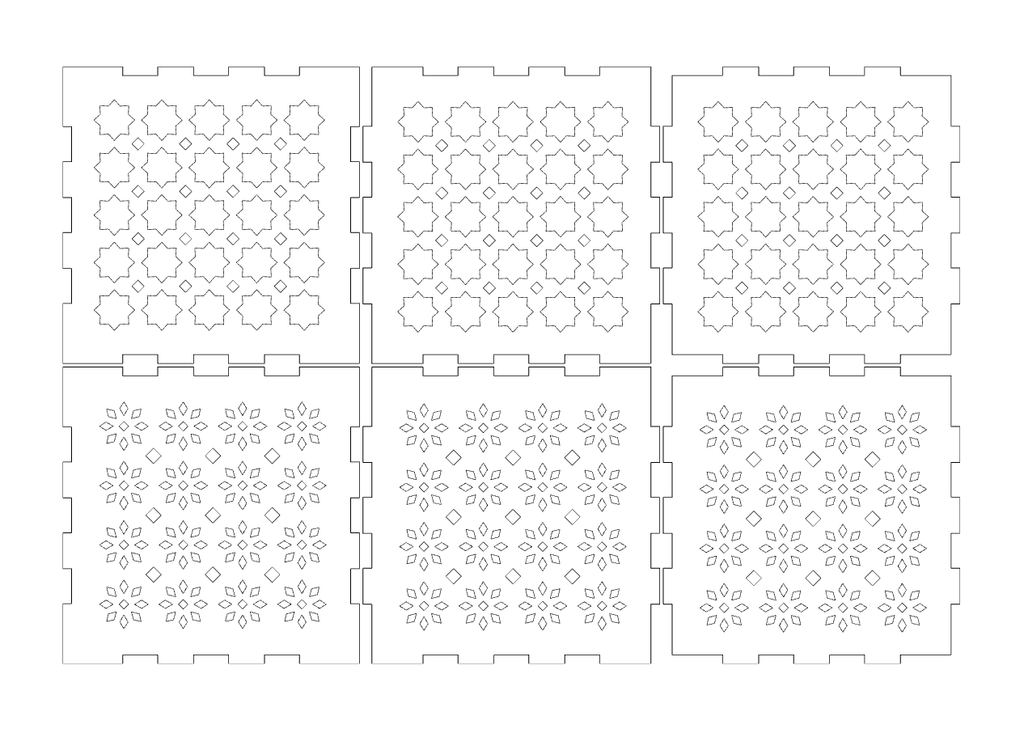
I placed the SVG patterns inside a box template, leaving a clear border for the finger joints. I planned for the box to be 12 cm, but somehow it came out 8 cm after preparing the files for cutting. I’m still not entirely sure where those four centimetres went, haha. Luckily, I like it at this size.
I cut both patterns as physical tests. The flower version has lots of tiny openings and looks lovely up close. The stars are bolder and much easier to read from a little farther away, so I used both for the assembled box.
Process and challenges
The main challenge was getting the density right. On the screen, I kept wanting to push the shapes closer together. Once I thought about actually cutting them, I had to pay attention to the thin strips of wood left between the holes. I also had to keep the pattern away from the joints, because making a beautiful panel that could no longer fit into the box would have been a bit unfortunate.
My favourite part of the finished box is the corner. The pattern carries onto the next face, but the two sides catch the light differently. I also really like the dark edges left by the laser. I hadn’t planned for those while drawing thin black lines on a white canvas, but they make the openings feel much more defined.
Reflection
My takeaway from this assignment is realising there are so many things I could do with laser cutting beyond making flat shapes. I’m excited to experiment more, and I’d especially love to try kerf bending next.
The box is smaller than I intended, but I’m happy with how it turned out. More importantly, it feels like something I would actually keep in my room
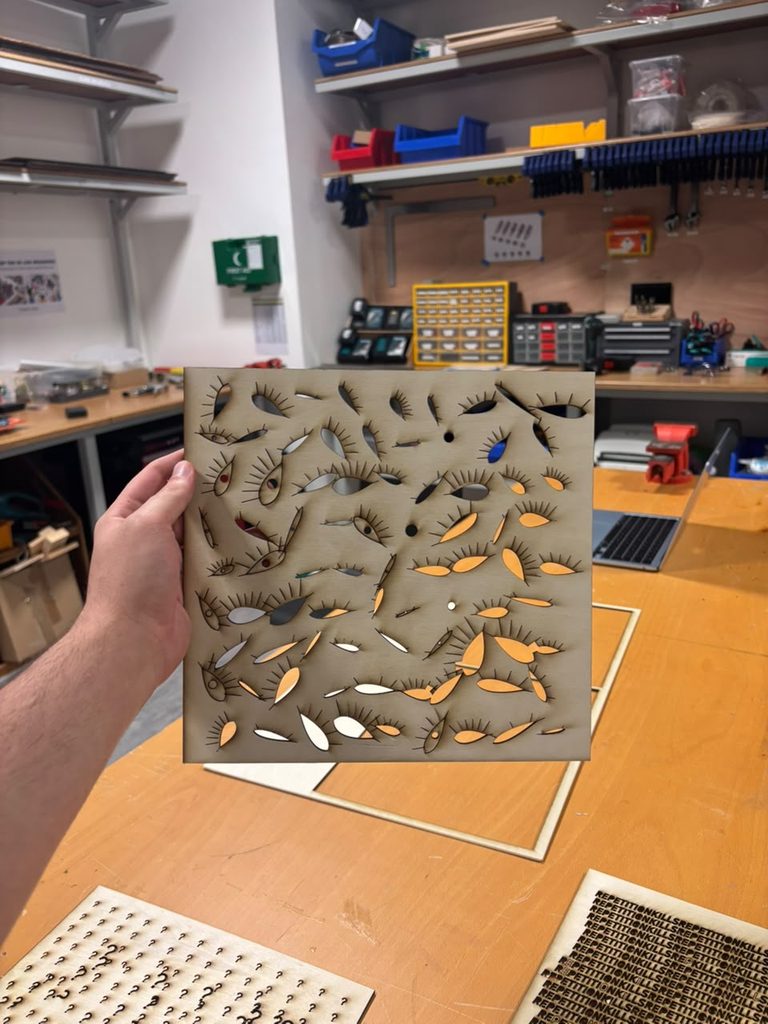
I’ve been a motion graphics designer for almost 10 years now. I used After Effects for years but now I am learning this new node-based motion tool called Cavalry. I knew I wanted to do something with text and/or with psychedelic visuals as this is an aesthetic I am pretty known for. I looked through this website where people share their projects called Scenery.io. I suggest everyone to check it out as what this program can do with very little nodes is just amazing. Anyway, I found a lot of isnpirations but what caught my attention the most is text. I love typography. Most of my projects are typography based like this Unfinished project that I worked on for a couple of days.
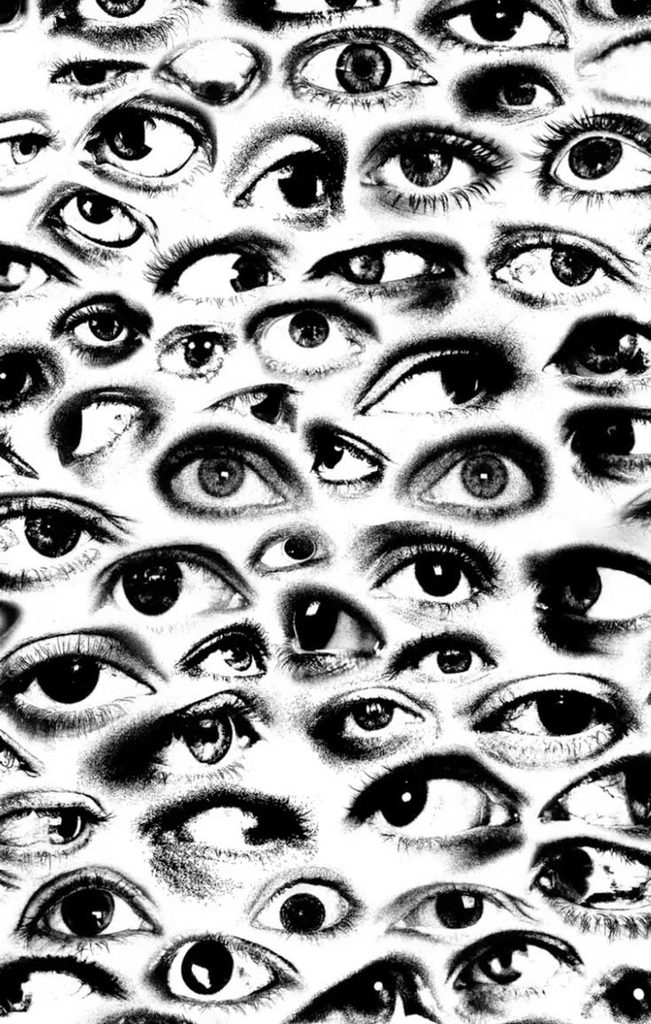
But I got stuck with the project being static as it needs to be laser cut because I really wanted to make motion graphics with code through p5 but I understand this might be a little too challenging and not even suitable for the assignment and I tried to recreate a picture I saw before expermenting with the final design with text. Here’s the picture I found.
So here’s my best attempt at it, the eyes generate procedurally and randomly. through a function and different parameters. (I added background to the sketch)
I was like ok. cool. not how i like it but cool. let me try with text. Little did I know that that was a mistake because had I laser cut this before coding the next sessions I would have learned about an issue that I will talk about later in this post.
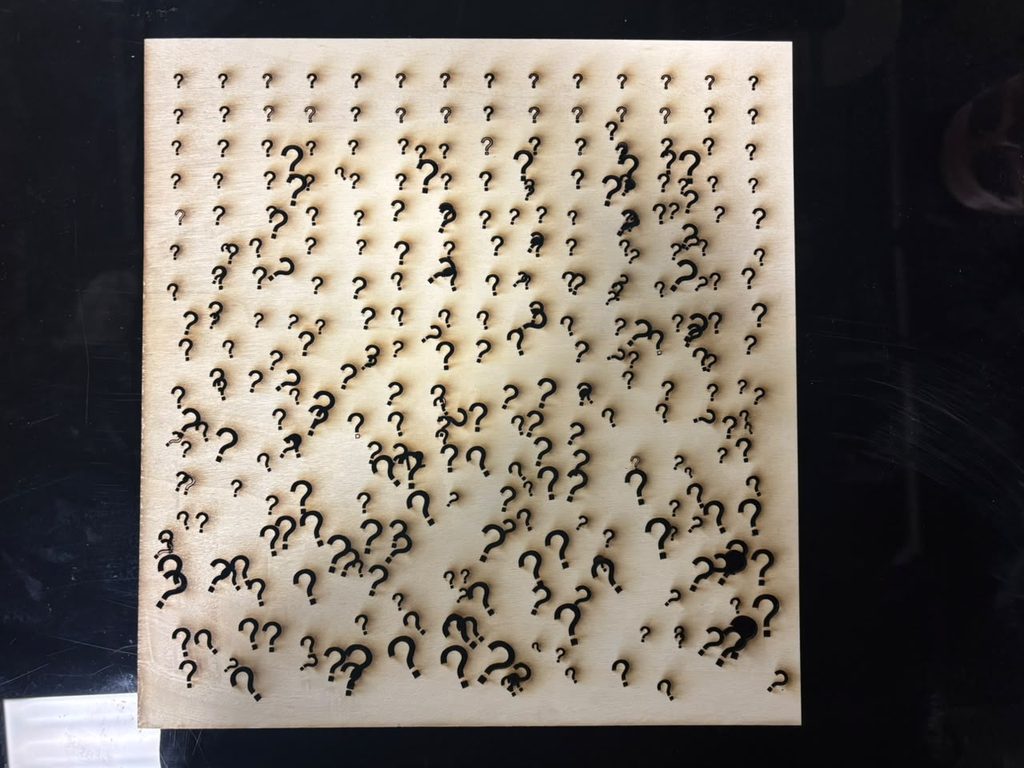
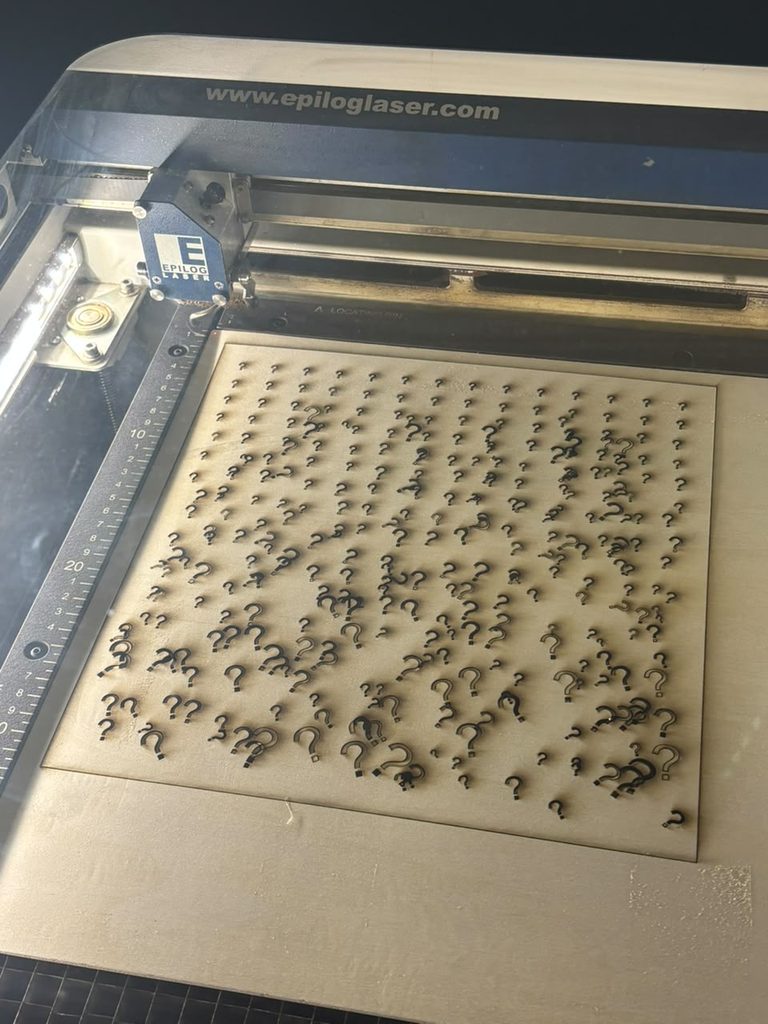
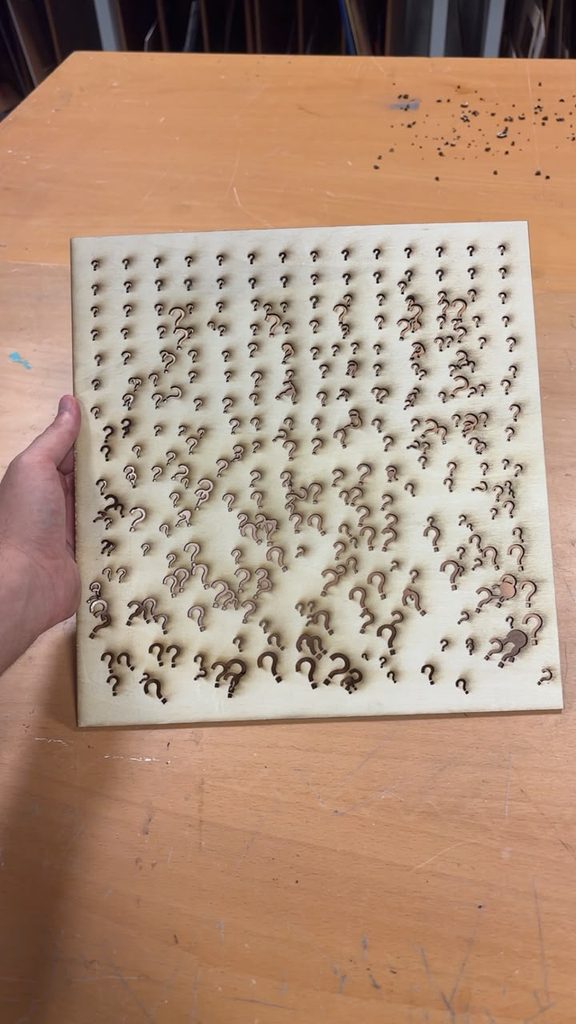
I got inspired by one of the sketches professor jack showed us where he tried to replicate randomness and I wanted to do it with question marks. Here’s my attempt at that (I love it). It is also randomly generated.
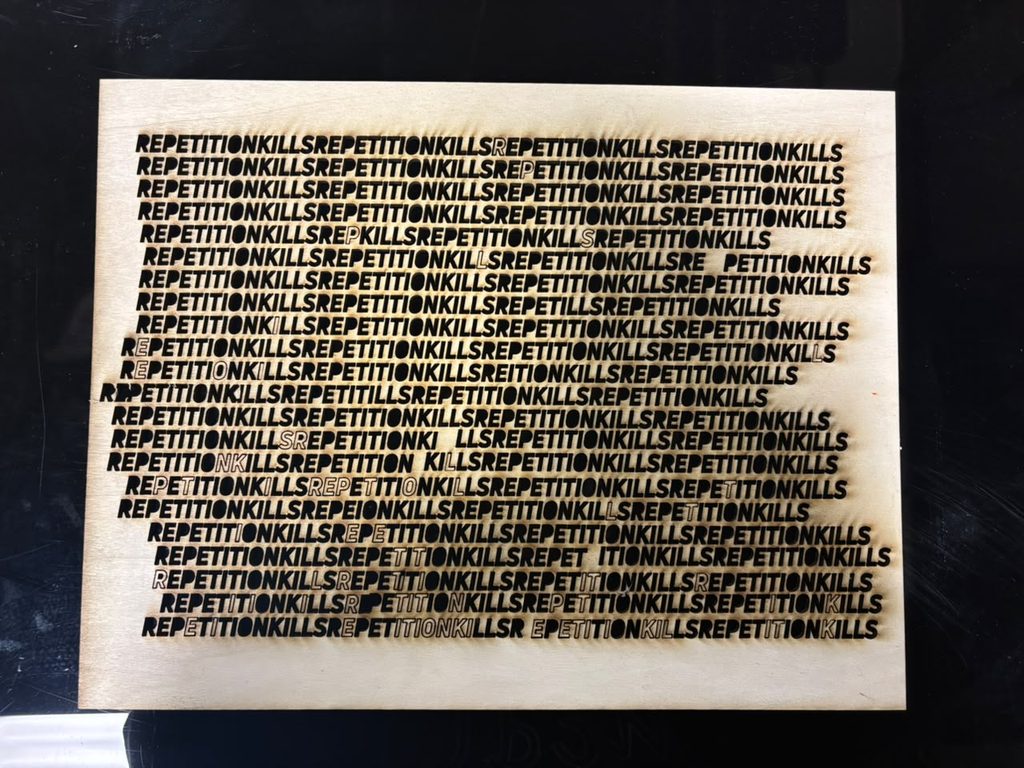
The last attempt was with text. This cut took 35 freaking minutes!!!! Now I know to go for more simplistic designs haha. I also used the custom font UniNeue-Trial-HeavyItalic.ttf
I would say the issues I have had with minimal as I am comfortable with laser cutting. This is probably the assignment I enjoyed the most in uni and I will be doing a lot of this to decorate my room. I just need to keep in mind the print time. I really wanted to work with etching and engraving but the lab assistants told me lets not do that for now. maybe next time 🙂
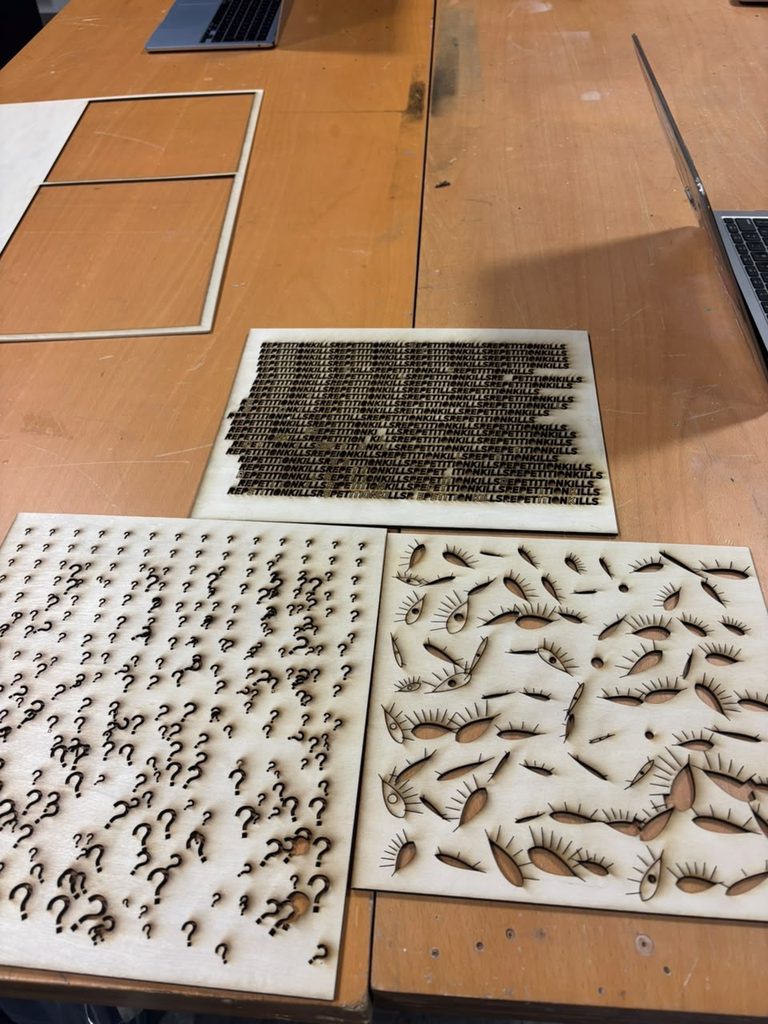
I think the thing that really challenged my way of thinking is that I always like to go for colors. This time since i am laser cutting, I payed special attention to contrast and to not worry about that honestly I just went for black and white. but still, the possibilties are endless! what if I could tell the machine at some parts to not burn as hard while im engraving and create shades? also, the burn marks that are left on the wood really added to my design aesthetics: here are the final results:
You can see the eye one got messed up because I didnt think that I was also cutting around the puple and that there will be nothing to hold the pupils in the middle. So, the more you learn!
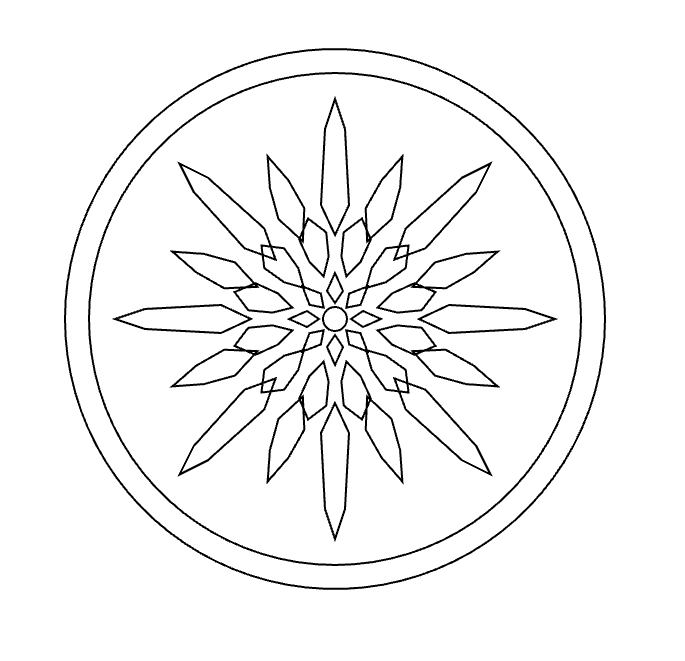
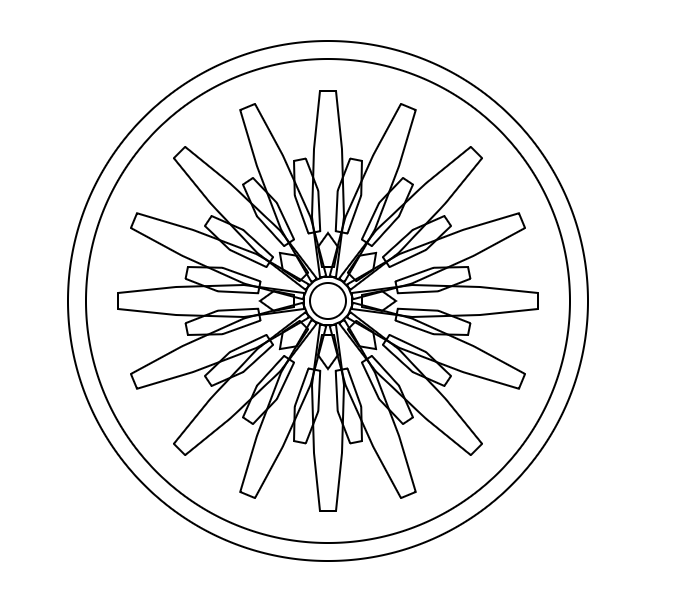
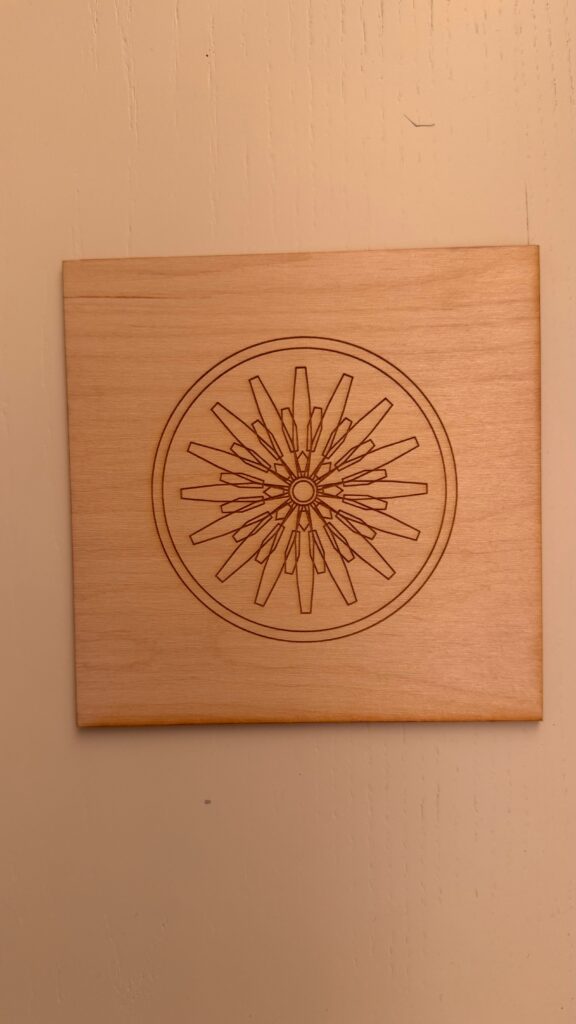
For this project, I wanted to create a radial design based on repetition and rotation. I started with one simple geometric shape and used p5.js to repeat and rotate it around a center point. I liked how a basic shape could become something much more complex just by changing its position and angle.
And i made two variatiosn of the design in order to play around with the code a little. The final designs started to remind me of a mix between a mechanical object, a flower, and a sunburst. I added the circular borders around it because I wanted the repeated shapes to feel contained instead of floating on their own, in a way.
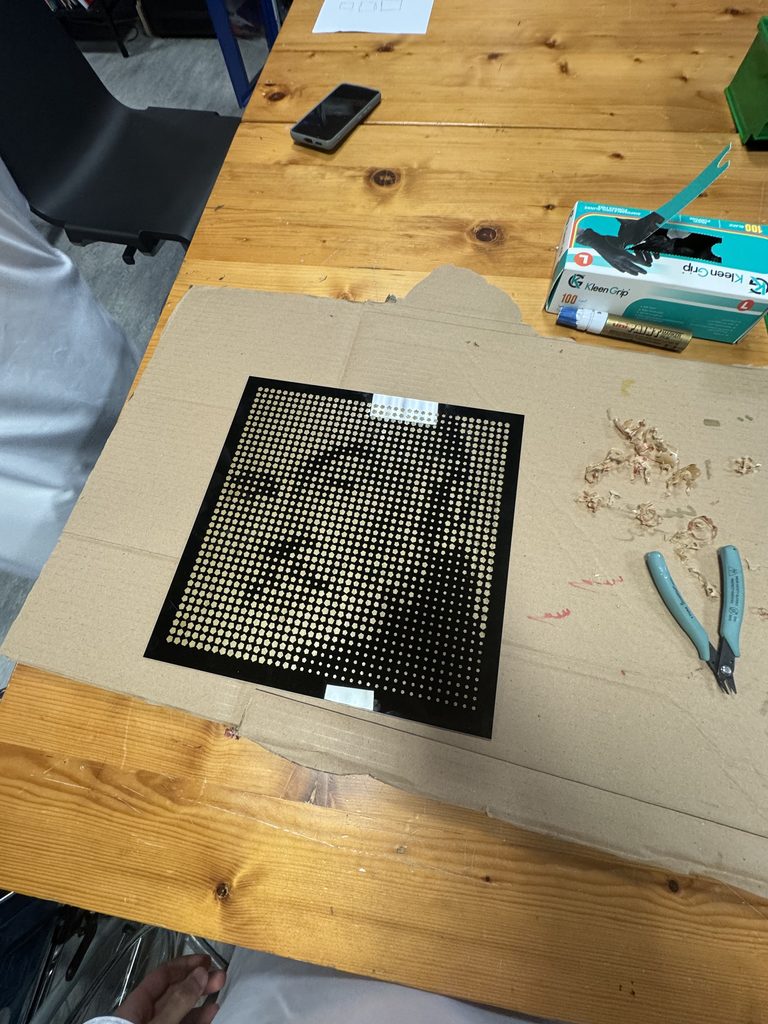
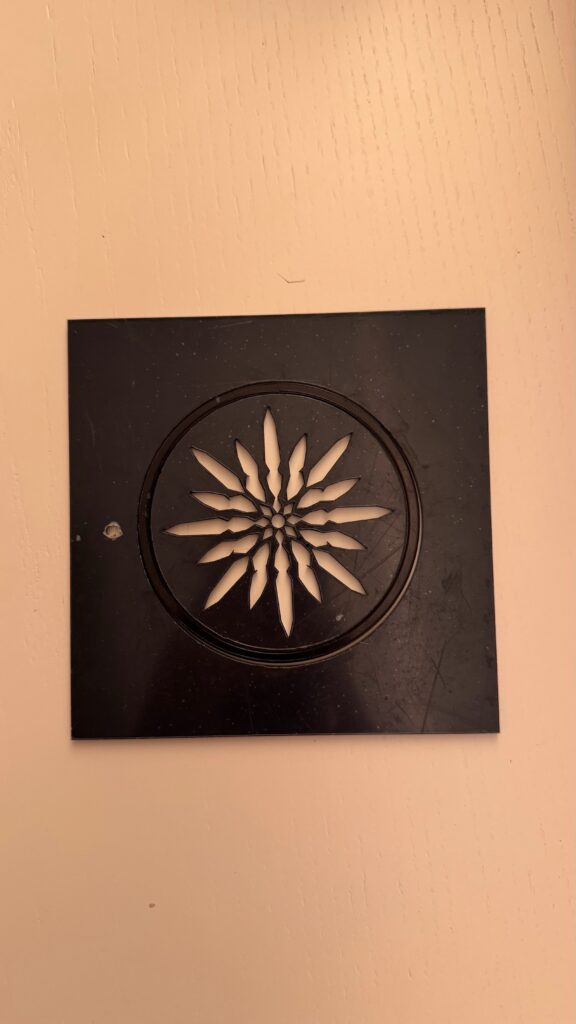
I also wanted to experiment with how the same idea would look when fabricated using different materials, and ways of fabrication. I decided to test it first on wood and then on black acrylic. This allowed me to experiment with both engraving and cutting, rather than only producing the same result twice.
p5.js Sketch / Code
The main rule was to create one geometric shape and then rotate it around the center multiple times.
Instead of manually drawing every section, I used a loop so that p5.js could calculate the rotation for me. This made the pattern very even and symmetrical. I also used multiple circles to create the outside border and smaller shapes toward the center to make the pattern more detailed.
One thing I liked about working this way was that changing one number in the code could affect the entire design. For example, changing the number of sections, the size of a shape, or its distance from the center could create a completely different variation.
const W = 400;
const H = 400;

function setup() {
  createCanvas(W, H, SVG);
  angleMode(DEGREES);
  noLoop();
}

function draw() {
  background(255);
  translate(width / 2, height / 2);

  noFill();
  stroke(0);
  strokeWeight(1);

  circle(0, 0, 260);
  circle(0, 0, 242);

  let sections = 16;

  for (let i = 0; i < sections; i++) {
    push();
    rotate(i * (360 / sections));

    beginShape();
    vertex(12, -4);
    vertex(42, -8);
    vertex(76, -7);
    vertex(105, -4);
    vertex(105, 4);
    vertex(76, 7);
    vertex(42, 8);
    vertex(12, 4);
    endShape(CLOSE);

    pop();
  }

  for (let i = 0; i < sections; i++) {
    push();
    rotate(i * (360 / sections) + 11.25);

    beginShape();
    vertex(35, -3);
    vertex(55, -6);
    vertex(72, -3);
    vertex(72, 3);
    vertex(55, 6);
    vertex(35, 3);
    endShape(CLOSE);

    pop();
  }

  let innerSections = 8;

  for (let i = 0; i < innerSections; i++) {
    push();
    rotate(i * 45);

    beginShape();
    vertex(17, -3);
    vertex(27, -5);
    vertex(34, 0);
    vertex(27, 5);
    vertex(17, 3);
    endShape(CLOSE);

    pop();
  }

  circle(0, 0, 18);
}

function mouseClicked() {
  save("version1.svg");

}
const W = 400;
const H = 400;

function setup() {
  createCanvas(W, H, SVG);
  angleMode(DEGREES);
  noLoop();
}

function draw() {
  background(255);
  translate(width / 2, height / 2);

  noFill();
  stroke(0);
  strokeWeight(1);

  circle(0, 0, 270);
  circle(0, 0, 246);

  let sections = 16;

  for (let i = 0; i < sections; i++) {
    push();

    rotate(i * (360 / sections));

    let end;

    if (i % 2 === 0) {
      end = 110;
    } else {
      end = 88;
    }

    beginShape();

    vertex(42, 0);
    vertex(57, -7);
    vertex(end - 15, -5);
    vertex(end, 0);
    vertex(end - 15, 5);
    vertex(57, 7);

    endShape(CLOSE);

    pop();
  }

  let secondRing = 12;

  for (let i = 0; i < secondRing; i++) {
    push();

    rotate(i * (360 / secondRing) + 15);

    beginShape();

    vertex(22, 0);
    vertex(31, -5);
    vertex(43, -7);
    vertex(52, 0);
    vertex(43, 7);
    vertex(31, 5);

    endShape(CLOSE);

    pop();
  }

  let centerPetals = 8;

  for (let i = 0; i < centerPetals; i++) {
    push();

    rotate(i * 45);

    beginShape();

    vertex(8, 0);
    vertex(14, -4);
    vertex(23, 0);
    vertex(14, 4);

    endShape(CLOSE);

    pop();
  }

  circle(0, 0, 12);
}

function mouseClicked() {
  save("version2.svg");

}
Vector Design
After creating the designs in p5.js, I exported them as an SVG so that they could be prepared for the laser cutting.
At this stage, I realized that something looking correct on my laptop did not automatically mean that it would work correctly with the laser cutter. I had to pay much more attention to the vector lines, especially their thickness and how close they were to each other.
I also had to think about the designs for when I wanted to engrave and when I wanted to cut. This became especially important when I moved from wood to acrylic.
Test 1 – Wood
For my first physical test, I used wood. I mainly experimented with engraving the design into the surface.
I liked this version because the wood kept a lot of the smaller details from my original digital design. The repeated lines were clearly visible, and I could see the different layers of the pattern.
This test helped me understand how the laser translated my vector lines into an actual material. It also showed me that line thickness and laser settings mattered much more than I originally expected.
Test 2 – Black Acrylic
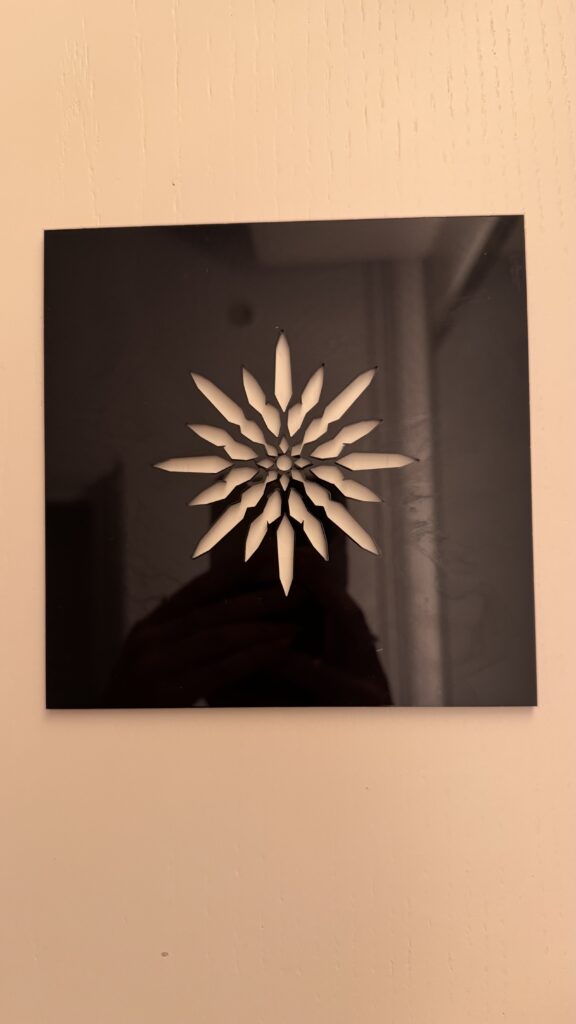
For my second version, I changed the material to black acrylic and experimented more with cutting and negative space.
This produced a very different result even though it came from the same original idea. Instead of only seeing lines engraved onto a surface, parts of the repeated pattern were physically removed.
I actually liked how the acrylic version simplified the pattern. The empty spaces became part of the design and made the radial shape stand out more strongly.
I expirmented with and without the surrounding circle because the lines engraving and cutting were giving me a hard time with my specfic design so that definitely helped me gain the skill to perfect the design for the given task.
Process and Challenges
One of my biggest challenges was making sure that my design was actually suitable for laser fabrication. The lines looked clear on the computer, but I had to make sure that their thickness was appropriate and that the laser settings were correct for both engraving and cutting. If the lines were too thin or the settings were not strong enough, some details would not be visible. At the same time, I did not want the lines to become so heavy that I lost the smaller details of the pattern.
Another challenge was working with the difference between engraving and cutting. The wood version could keep many overlapping lines because they were engraved onto the surface, while with the acrylic version I had to think about what would physically happen when areas were completely cut out. This made me pay much more attention to negative space and the connections between shapes.
A more practical challenge was booking time in the IM Lab. I didnt realize that i had booked time just for one of the tiles, so I had to book another appoinment in order to laser cut the second variation. Next time, I would book my lab time for longer so that I have more time for testing and making adjustments if something does not work as expected.
Reflection
This project changed the way I think about computational design because I realized that the code is only one part of the final result.
When I first created the design in p5.js, I was mostly thinking about what looked interesting on the screen. Once I started using the laser cutter, I had to think about completely different things, like line thickness, material, engraving, cutting, negative space, and whether small details would actually survive fabrication.
The biggest difference for me was seeing the wood and acrylic versions next to each other. The wood kept more of the detailed line work, while the acrylic created stronger negative spaces because parts of the material were cut away. I did not expect the material to change the feeling of the design this much.
I also learned that testing is really important. A design can look finished digitally but still need changes once it becomes physical. If I continued developing this project, I would experiment with changing the number and size of the repeated shapes and possibly create more variations using different materials.
Overall, laser fabrication did not just reproduce my computational design. It actually changed the way I designed it, because I had to start thinking about how every digital line would behave as a physical object.
For this assignment, I wanted to create a simple computational pattern using repetition, rotation, and randomness in p5.js and then turn it into a physical object using the laser cutter.
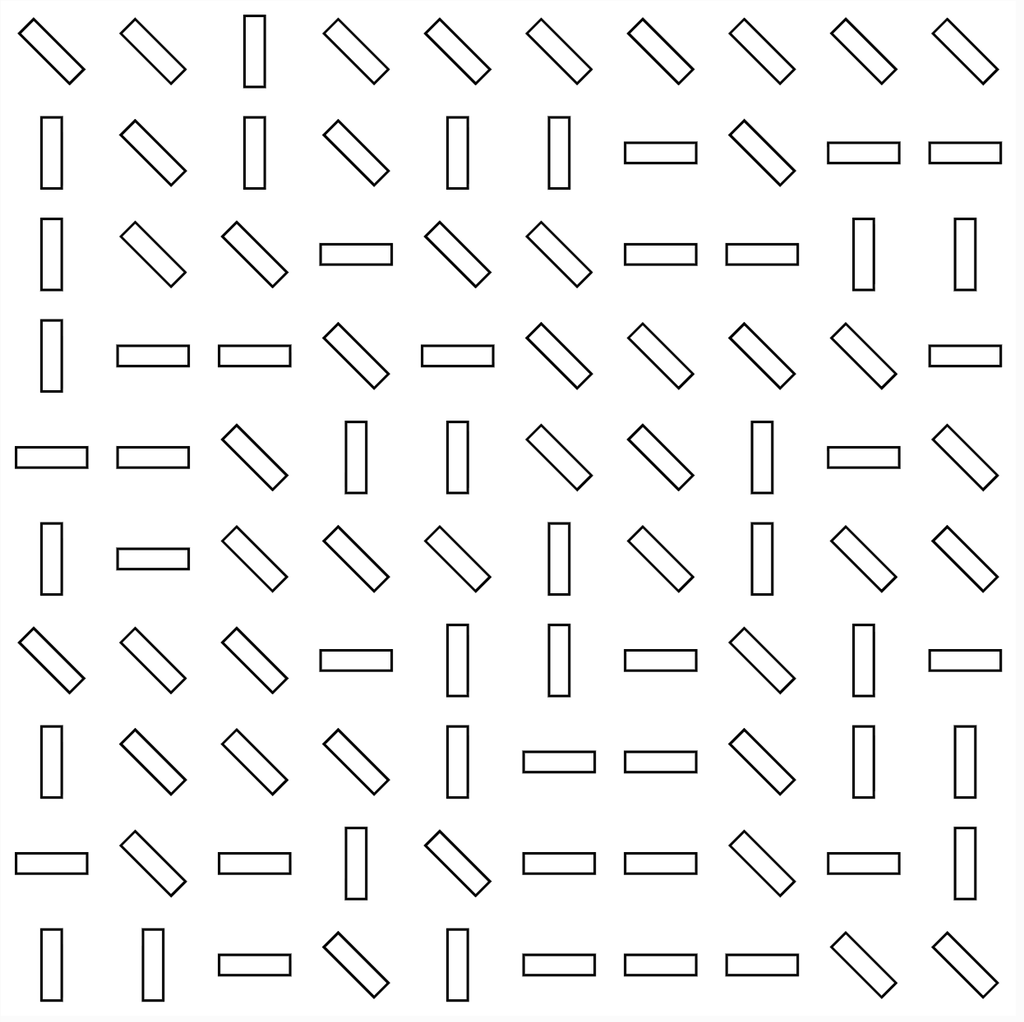
I created two different designs using the same 10 × 10 grid system. For my first design, I used small rectangles that randomly rotate between 0°, 45°, and 90°. For my second design, I created a flower shape using circles and repeated it across the same grid.
I wanted to see how changing the shape while keeping the same basic system would affect the final result. Even though both designs are based on repetition and a grid, they ended up looking very different once they were laser cut.
p5.js Sketch / Code
Design 1: Random Rectangle Pattern
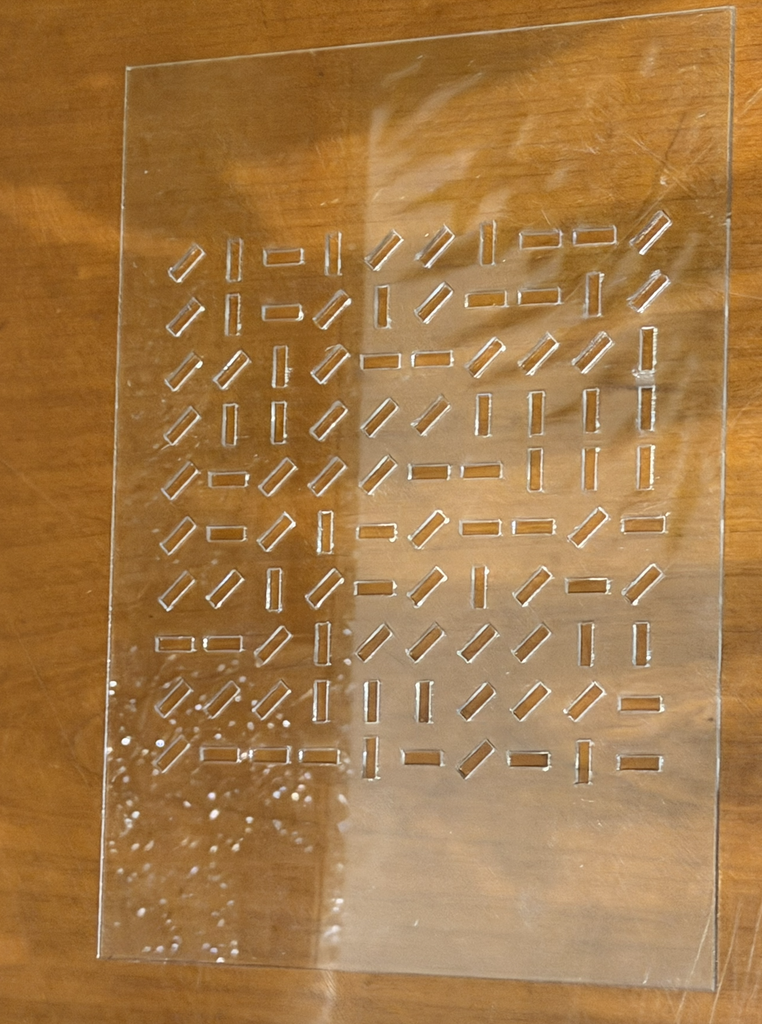
For my first design, I divided the canvas into 10 columns and 10 rows. At every point in the grid, the code creates a thin rectangle. I used random([0, 45, 90]) to randomly choose the rotation of each rectangle. This made the pattern feel less repetitive even though all of the rectangles are the same size.
let cols = 10;
let rows = 10;

function setup() {
createCanvas(400, 400, SVG);
angleMode(DEGREES);
rectMode(CENTER);
noLoop();
}

function draw() {
background(255);
noFill();
stroke(0);

let tileWidth = width / cols;
let tileHeight = height / rows;

for (let c = 0; c < cols; c++) {
for (let r = 0; r < rows; r++) {


 let x = map(c, 0, cols - 1,
              tileWidth / 2,
              width - tileWidth / 2);

  let y = map(r, 0, rows - 1,
              tileHeight / 2,
              height - tileHeight / 2);

  push();
  translate(x, y);

  rotate(random([0, 45, 90]));

  rect(0, 0, tileWidth * 0.7, tileHeight * 0.2);

  pop();
 }

}

save("pattern.svg");
}
Design 2: Flower Pattern
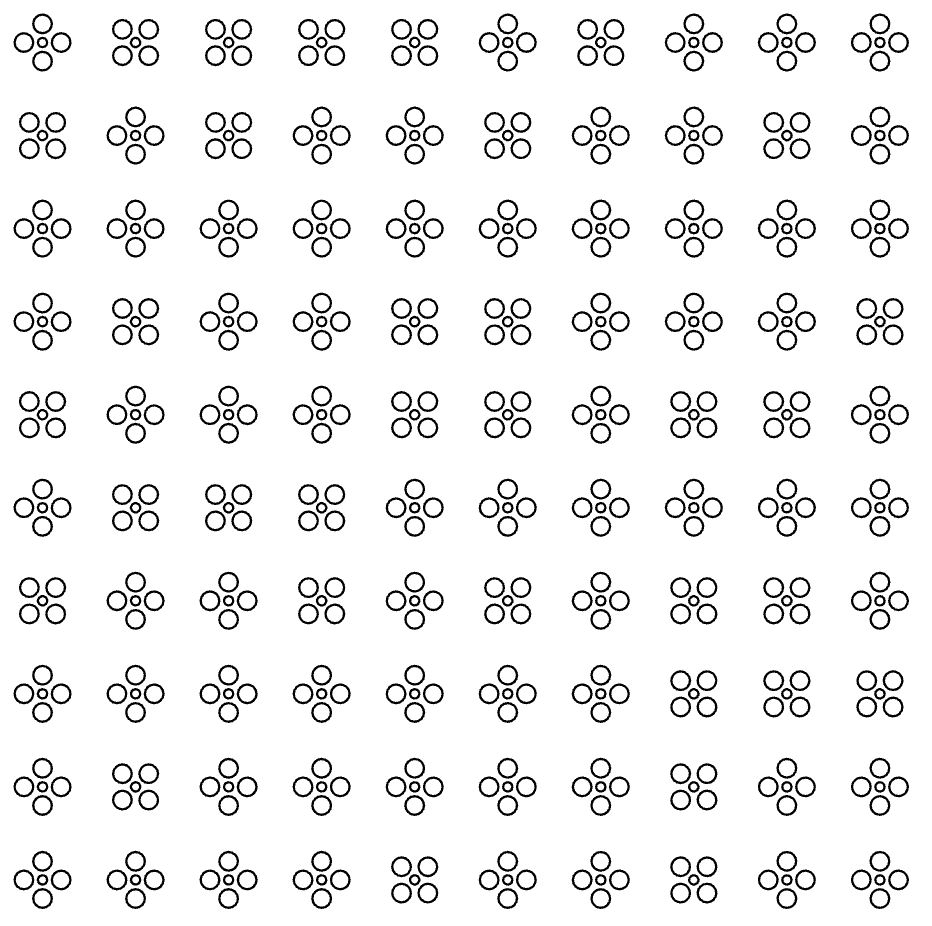
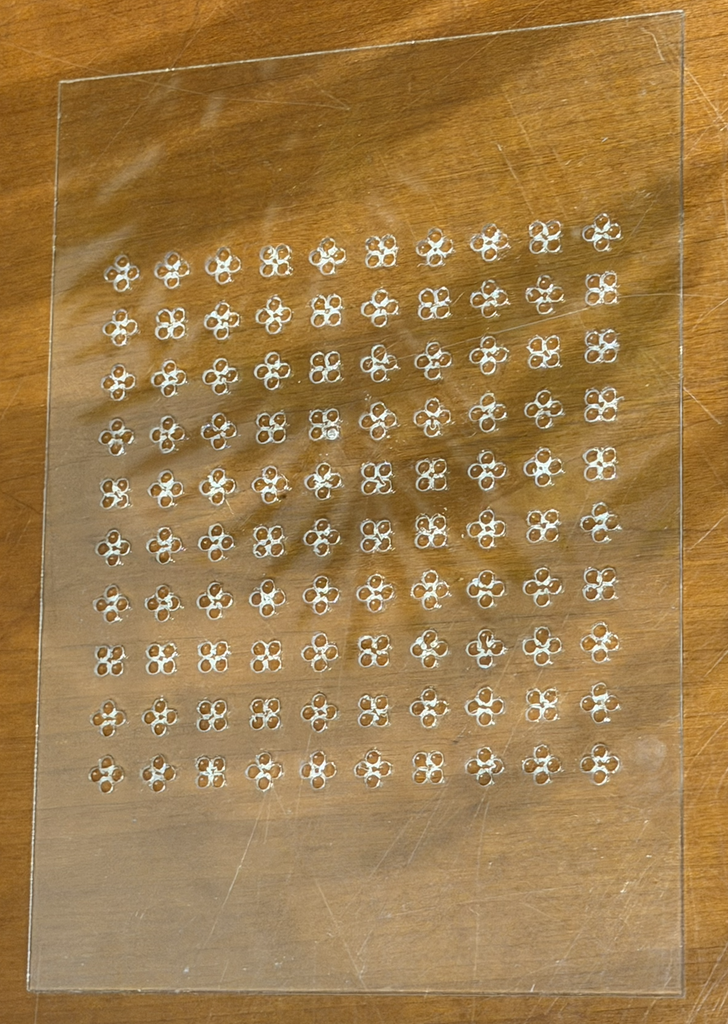
For my second design, I kept the same 10 × 10 grid but changed the shape. I created a small flower using four circles around a smaller circle in the center. The flower is then repeated across the grid.
I also kept the random rotation from the first design. The rotation is less noticeable with the flowers because they are more symmetrical, but the code still uses the same rule-based system.
let cols = 10; let rows = 10;
function setup() { createCanvas(400, 400, SVG); angleMode(DEGREES); noLoop(); }
function draw() { background(255); stroke(0); noFill();
let tileWidth = width / cols; let tileHeight = height / rows;
for (let c = 0; c < cols; c++) { for (let r = 0; r < rows; r++) {
let x = map( c, 0, cols - 1, tileWidth / 2, width - tileWidth / 2 );
let y = map( r, 0, rows - 1, tileHeight / 2, height - tileHeight / 2 );
After creating the patterns in p5.js, I exported both of them as SVG files so that I could use them with the laser cutter.
The first vector design is made from repeated rectangles at different angles. The second uses repeated flower shapes made from circles. Both follow the same grid system, but changing the geometry gave each one a completely different look.
The SVG format was important because it allowed the shapes created through my code to become vector paths that could be used for laser fabrication.
Laser Cutting and Physical Tests
I laser cut both designs onto 5 × 7 inch clear acrylic sheets, which is around 12.7 × 17.8 cm. I kept the material and size the same for both tests but changed the geometry of the pattern.
Test 1: Rectangle Pattern
For my first physical test, I used the rectangle pattern. The laser created the repeated rectangular shapes across the clear acrylic. Because the rectangles randomly rotate between 0°, 45°, and 90°, some are horizontal, some are vertical, and others are diagonal.
I think the randomness became much easier to notice in the physical version. From far away, you can still see the organized grid, but when you look closer, every row has a different combination of directions.
Test 2: Flower Pattern
For my second physical test, I changed the geometry from rectangles to flowers. Each flower is created from four larger circles with a smaller circle in the middle.
This version looks more detailed because there are several small shapes making up every flower. When all of them are repeated together, the pattern feels more decorative and organic compared to the first design.
Process and Challenges
I started by creating the grid in p5.js using nested for loops. The loops allowed me to repeat a shape across 10 rows and 10 columns without having to manually place every shape. I then used random() to introduce variation into the rotation.
Once I was happy with the patterns, I exported them as SVG files and prepared them for the laser cutter. I tested two different geometries to see how they would look when turned from digital designs into physical pieces.
One thing I noticed during the process was that the design looks different on the computer compared to the acrylic. On screen, I was mainly looking at black outlines on a white background. Once it was laser cut, those lines became physical cuts in a transparent material.
The flower design was also more detailed than the rectangle design because it contained many small circles close to each other. This made me think more about the spacing between the shapes and how small details would actually come out when using the laser cutter.
Reflection
This assignment made me think differently about computational design because I wasn’t only designing something to stay on a screen. I had to think about what would happen when my code became a physical object.
The biggest thing I noticed was how important negative space became. In p5.js, I was thinking about drawing rectangles and circles, but after laser cutting, those shapes became openings in the acrylic. The empty areas became part of the design instead of just being the background.
Making two versions also helped me see how changing one part of a computational system can create a very different result. Both designs use a 10 × 10 grid, repetition, and the same basic code structure, but changing the geometry from rectangles to flowers made the final pieces look completely different.
Overall, laser fabrication made me pay more attention to scale, spacing, geometry, and material. I liked being able to take something I created through code and actually hold the final result physically.
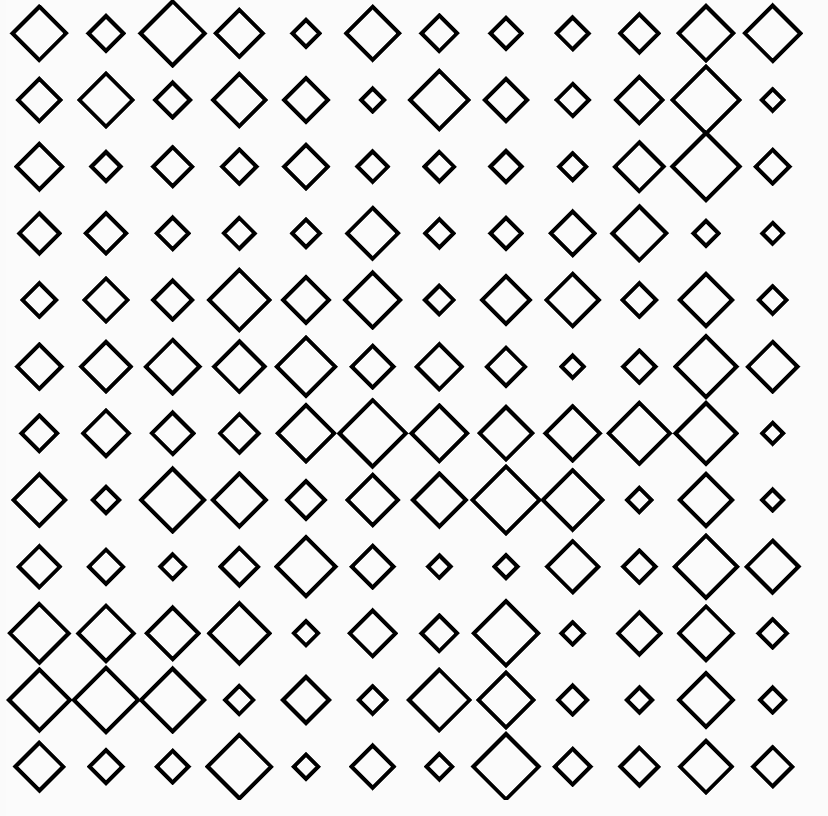
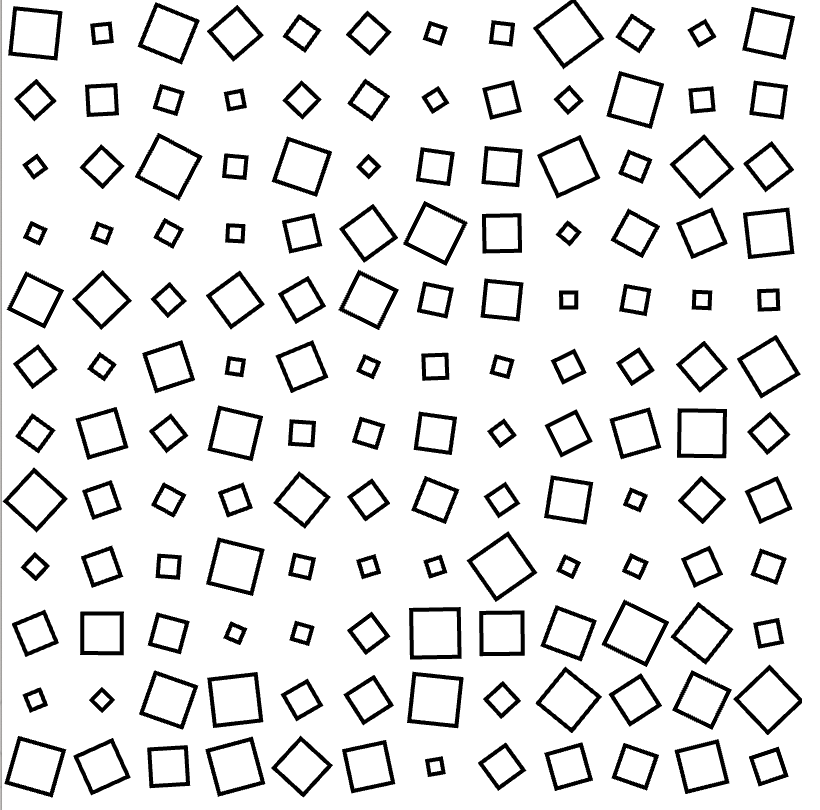
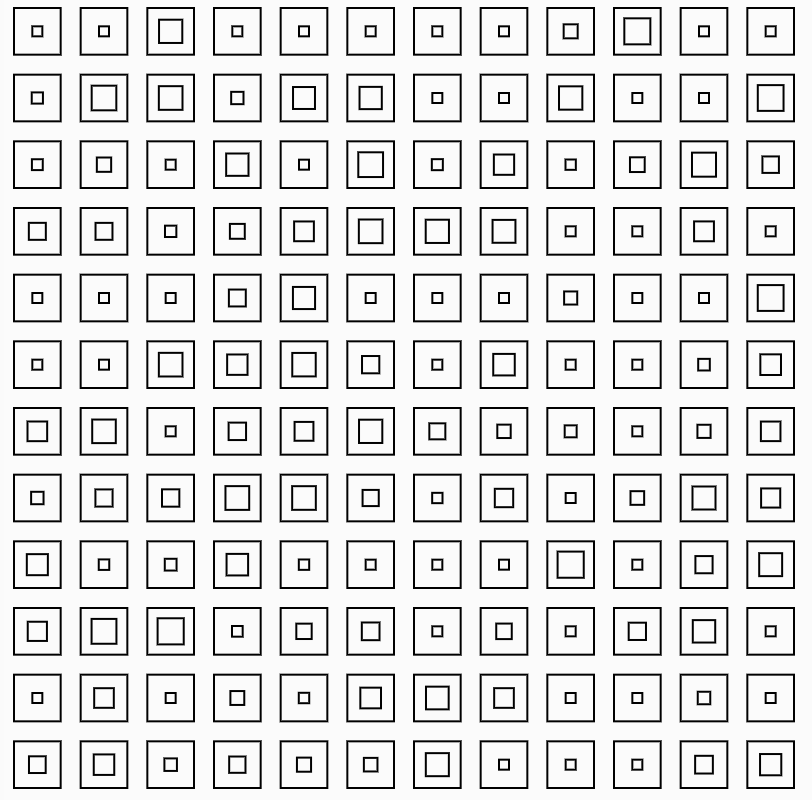
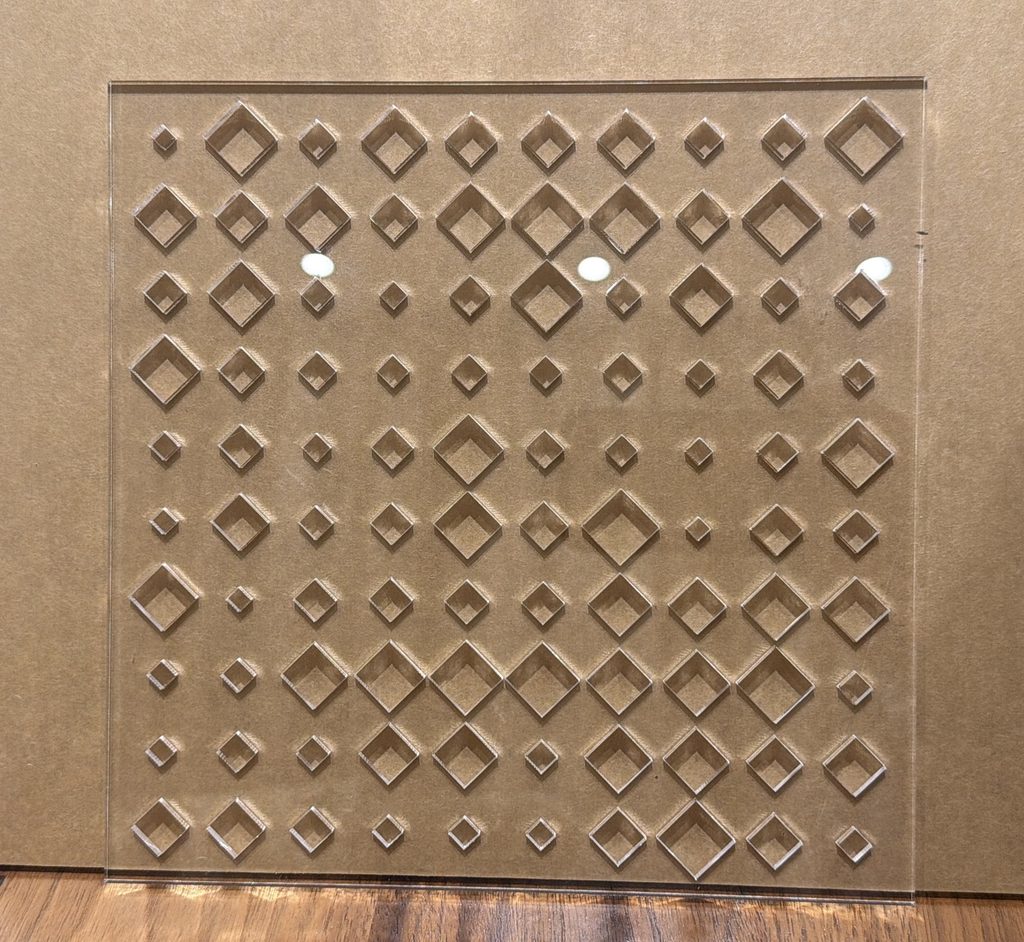
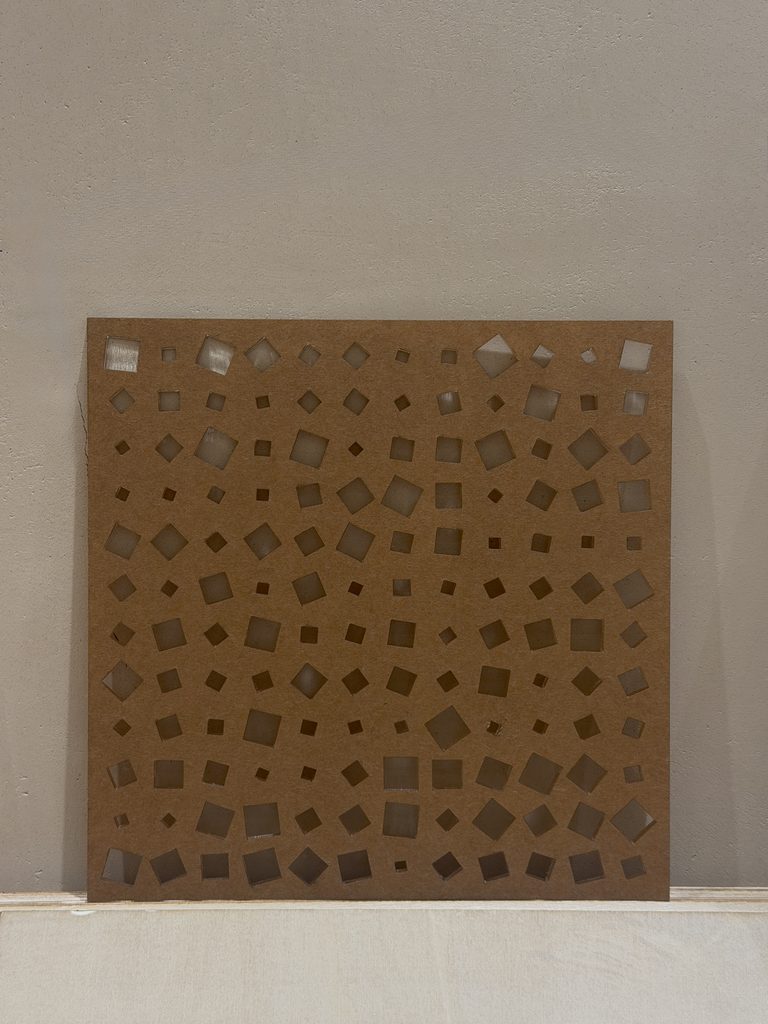
My concept was heavily inspired by Vera Molnár’s Des Ordres (1974). The work creates a structured pattern of squares that is randomly disrupted, creating a contrast between order and disorder. I wanted to take this idea and translate it into laser fabrication, rather than simply recreating the same square pattern. Instead of engraving the squares onto the material, I decided to laser cut them, allowing the pattern to physically change the material itself. I experimented with two versions of the design. In the first, the squares stay at a fixed angle, while their sizes are randomized. In the second, both the size and rotation are randomized, with each square able to rotate anywhere within 360 degrees. This allowed me to keep the idea of controlled randomness while developing it into my own design. I also tested the design using both acrylic and wood to see how the same computational pattern changed depending on the material.
p5.js Sketch / Code
Code for Square 1
let cols = 12;
let rows = 12;
let tileW, tileH;

function setup() {
  createCanvas(400, 400, SVG);
  angleMode(DEGREES);
  noLoop();

  tileW = width / cols;
  tileH = height / rows;

}

function draw() {
  stroke(0);
  noFill();
  strokeWeight(2);

  for (let c = 0; c < cols; c++) {
    for (let r = 0; r < rows; r++) {

      // base grid position
      let x = c * tileW + tileW / 2;
      let y = r * tileH + tileH / 2;

      push();
      translate(x, y);

      rectMode(CENTER);
      // fixed rotation
      rotate(45);

      //RANDOM SCALING
      let scaleFactor = random(0.35, 1.2);

      let baseSize = min(tileW, tileH) * 0.6;
      let finalSize = baseSize * scaleFactor;

      rect(0, 0, finalSize, finalSize);

      pop();
    }
  }
}

function mouseClicked() {
  save("square1.svg");
}
Code for Square 2
let cols = 12;
let rows = 12;
let tileW, tileH;

function setup() {
  createCanvas(400, 400, SVG);
  angleMode(DEGREES);
  noLoop();

  tileW = width / cols;
  tileH = height / rows;

}

function draw() {
  stroke(0);
  noFill();
  strokeWeight(2);

  for (let c = 0; c < cols; c++) {
    for (let r = 0; r < rows; r++) {

      // base grid position
      let x = c * tileW + tileW / 2;
      let y = r * tileH + tileH / 2;

      push();
      translate(x, y);

      //FULL 360° RANDOM ROTATION
      rotate(random(0, 360));

      rectMode(CENTER);

      //RANDOM SCALING
      let scaleFactor = random(0.35, 1.2);

      let baseSize = min(tileW, tileH) * 0.6;
      let finalSize = baseSize * scaleFactor;

      rect(0, 0, finalSize, finalSize);

      pop();
    }
  }
}

function mouseClicked() {
  save("square2.svg");
}
The code generates the square pattern using rules for position, size, and rotation. Although the system follows a fixed grid, randomness is introduced through the changing size and rotation of each square.
Vector Design
Squares 1
Squares 2
These SVGs shows one version of the generated pattern. The grid creates a sense of order, while the changing sizes of the squares interrupt that consistency. ( I uploaded them as images because an SVG file is not supported)
Experimental – This design seemed too close to the original work and I wanted to adapt the design and approach it differently by laser cutting instead of copying it and laser engraving it since it will look exactly like the original. After generating the pattern, I converted/exported the design as an SVG vector file so that it could be read by the laser cutter. My first designs experimented with squares inside other squares, similar to the visual structure of my reference artwork. However, when thinking about how I wanted to laser cut the material I developed the design.
Final Results
Square 1 Clear Acrylic
Square 2 Wood
Process and Challenges
One of my main challenges was creating a design that could actually be laser cut while still keeping the randomness of the original idea. My first draft used a square within a square, which was closer to Molnár’s original visual structure. However, I realized that this worked better as an image or engraving than as a laser cut object. Because I wanted to physically cut through the material, I had to rethink the design. I changed it into individual squares and introduced randomness through their size and rotation instead. Another part of the process was experimenting with how much randomness I wanted. One version kept the rotation fixed and only changed the size, while another randomized both the size and the rotation. This helped me compare how changing one rule could completely change the final pattern.
Reflection: How Laser Fabrication Changed My Computational Design
Laser fabrication directly shaped the way I developed my computational design. At first, I was thinking mainly about how the pattern looked on the screen. My original design used a square within a square, similar to my reference.Once I was reflecting with my first design I felt that I wanted to develop the original and laser cut it . The design needed to work structurally as a physical object. Because of this, I changed each element into a single square. Instead of losing the randomness from my original idea, I moved that randomness into other variables, especially size and rotation. The fabrication process therefore did not just reproduce my computational design. It actually changed the design itself. The limitations of laser cutting pushed me to develop a different version of the idea, while still keeping the contrast between order and disorder that originally inspired the project.
Concept For this assignment, I wanted to see how simple geometric shapes could become more complicated designs through repetition, scale and rotation. I started playing with different designs in p5.js based on rule-based systems, and then I started thinking about how to translate these from a digital design to a physical object using the laser cutter. I went through a few patterns and then narrowed it down to my two favourite designs. In both final designs I concentrated on how the position of each shape in relation to the centre could control the way in which the pattern changed.
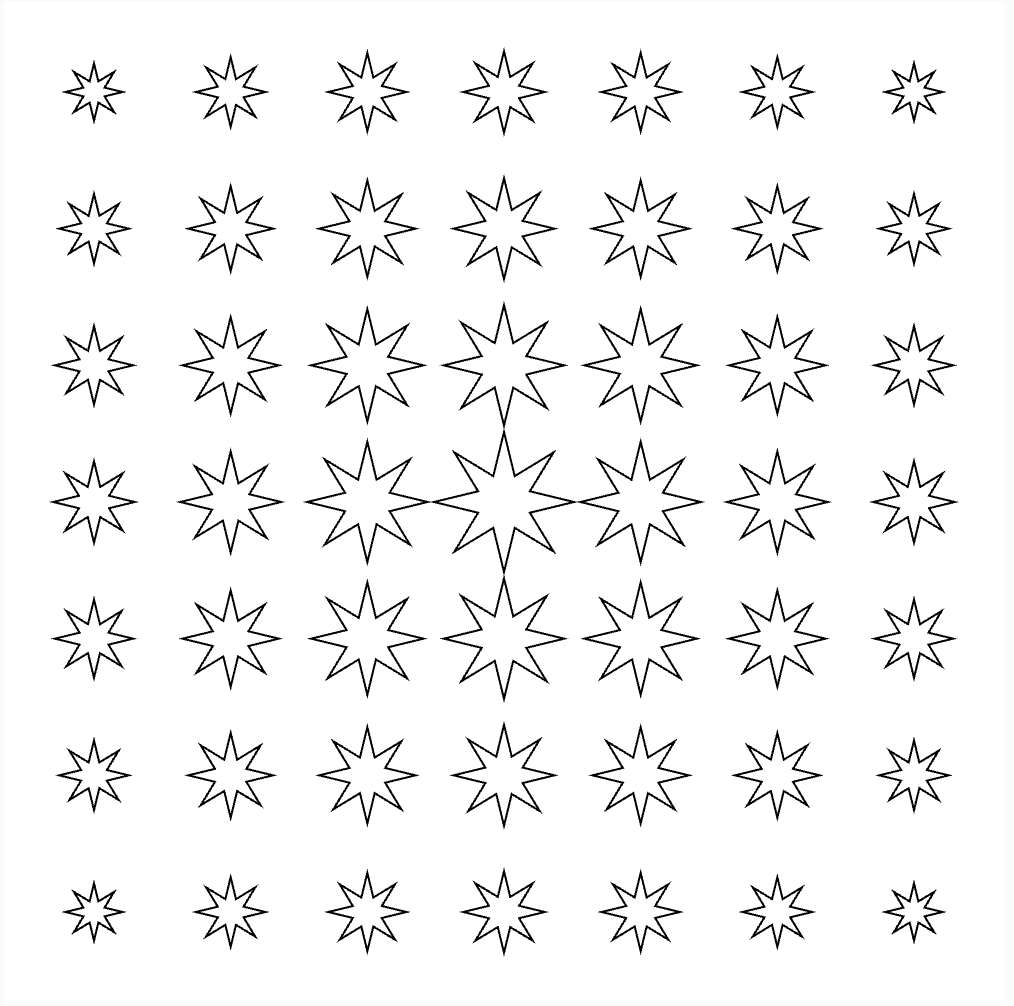
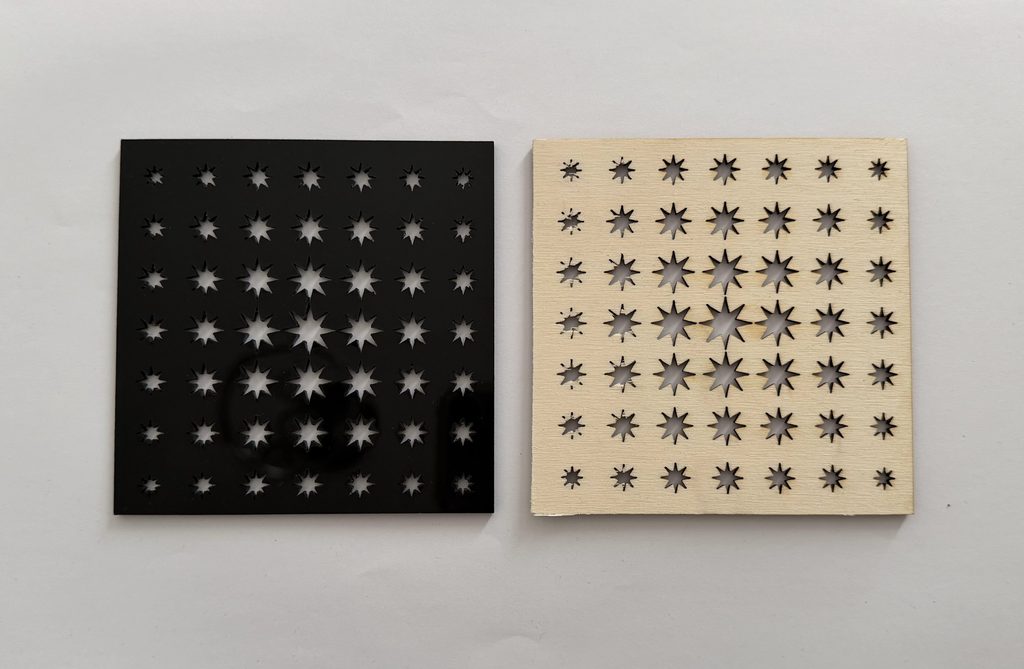
My first final design uses repeated eight-point stars. The size of each star is determined by its distance from the centre of the canvas. The stars are largest near the centre and gradually become smaller toward the edges. I really wanted this change in scale to create a clear focal point while still using the same repeated shape throughout the design.
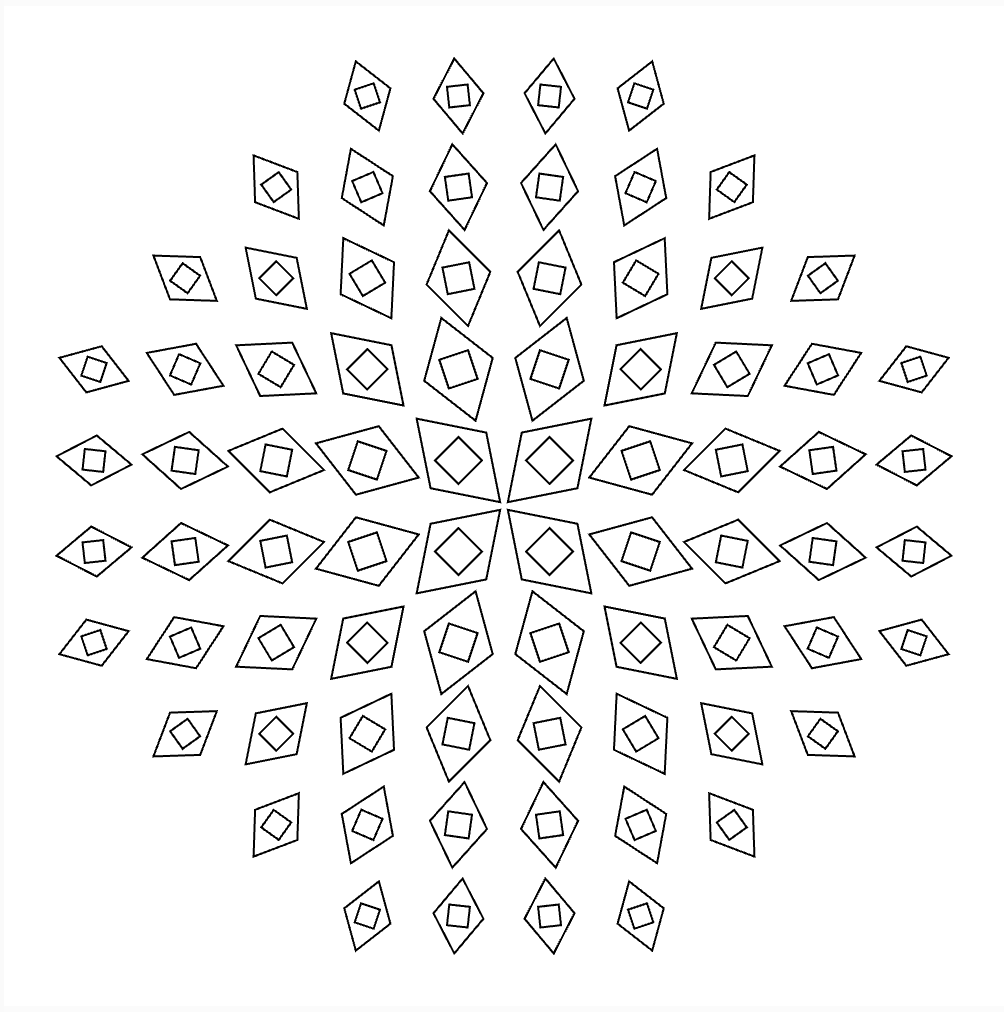
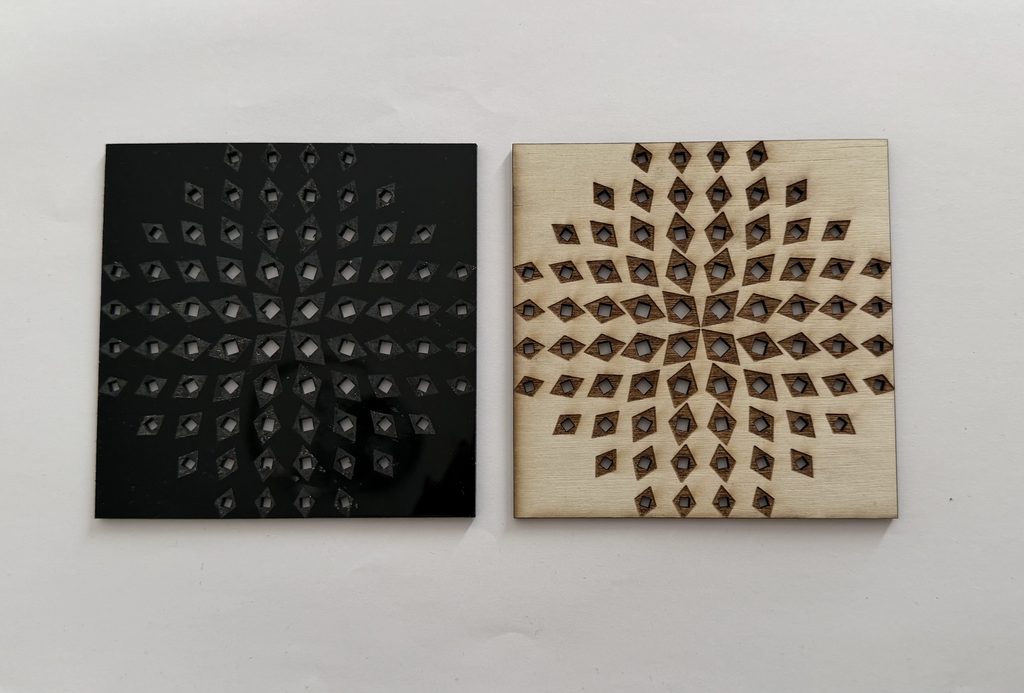
For my second design I used a motif of two diamond shapes. The motif is repeated around the composition, a larger diamond contains a smaller rotated diamond. Its size depends on how far it is from the centre, and its rotation depends on where it is around the centre. That creates a more circular, dynamic pattern, even with the shapes initially being placed on a grid.
Both start with pretty simple geometry, but the different rules used for them lead to very different results.
Design 1: Star Gradient For my first design, I made a grid of eight-point stars then used dist() to calculate the distance between each star and the centre of the canvas. I then used map() to connect this distance to the size of the star, which means that I didn’t manually decide the size of every individual star. Instead, the code follows one rule: distance from the centre -> size of the star. So the stars closest to the centre are the largest, while the stars gradually become smaller as they move farther away.
let cols = 7;
let rows = 7;

function setup() {createCanvas(500, 500, SVG);

  background(255);
  noFill();
  stroke(0);
  strokeWeight(1);

  let margin = 45;
  let spacingX = (width - margin * 2) / (cols - 1);
  let spacingY = (height - margin * 2) / (rows - 1);
  for (let r = 0; r < rows; r++) {
    for (let c = 0; c < cols; c++) {
      let x = margin + c * spacingX;
      let y = margin + r * spacingY;
      // Distance from centre
      let d = dist(x, y, width / 2, height / 2);
      // Larger near centre
      let size = map(d, 0, 350, 35, 10);
      size = constrain(size, 10, 35);
      push();
      translate(x, y);
      drawStar(0, 0, size * 0.4, size, 8);
      pop();
    }
  }
}

function drawStar(x, y, inner, outer, points) {
  let step = TWO_PI / points;
  beginShape();
  for (let i = 0; i < points; i++) {
    let a = i * step - HALF_PI;
    vertex(x + cos(a) * outer, y + sin(a) * outer);
    let b = a + step / 2;
    vertex(x + cos(b) * inner, y + sin(b) * inner);
  }
  endShape(CLOSE);
}

function mouseClicked() {
  save("star-gradient.svg");
}
Design 2: Geometric Vortex For my second design I wanted to play more with rotation. I made a repeated motif of one large diamond with a small rotated diamond inside it. As with the first design, I used the distance from the centre to control the scale of each motif. But I also calculated the position of each motif around the centre and used this to control its rotation. This creates a circular composition: the diamonds appear to rotate around the centre. I also confined the motifs to a circular area, rather than over the entire square canvas. The main rules for this design are: distance from centre -> size & position around centre -> rotation.
let cols = 10;
let rows = 10;

function setup() {
  createCanvas(500, 500, SVG);

  background(255);
  noFill();
  stroke(0);
  strokeWeight(1);

  let margin = 45;
  let spacingX = (width - margin * 2) / (cols - 1);
  let spacingY = (height - margin * 2) / (rows - 1);
  for (let r = 0; r < rows; r++) {
    for (let c = 0; c < cols; c++) {
      let x = margin + c * spacingX;
      let y = margin + r * spacingY;
      // Distance from centre
      let d = dist(x, y, width / 2, height / 2);
      // Only draw shapes inside a circular area
      if (d < 220) {
        // Angle of each shape around the centre
        let angle = atan2(y - height / 2, x - width / 2);
        // Outer diamonds get smaller toward the edge
        let outerSize = map(d, 0, 220, 42, 24);
        // Inner diamonds get smaller
        let innerSize = map(d, 0, 220, 25, 14);
        push();
        translate(x, y);
        rotate(angle + HALF_PI);
        drawDiamond(outerSize, outerSize * 1.5);
        push();
        rotate(radians(45));
        drawDiamond(innerSize, innerSize);
        pop();
        pop();
      }
    }
  }
}

function drawDiamond(w, h) {
  beginShape();
  vertex(0, -h / 2);
  vertex(w / 2, 0);
  vertex(0, h / 2);
  vertex(-w / 2, 0);
  endShape(CLOSE);
}

function mouseClicked() {
  save("geometric-vortex.svg");
}
Other Design Experiments Before deciding on my final two designs, I created two other patterns in p5.js. I liked how these experiments looked digitally, but while preparing them for fabrication, I realised that they would not work properly with the laser cutter. The main issue was that I had initially been thinking about the lines as outlines on a screen rather than as actual cut paths. Some of the shapes overlapped or were positioned in ways that could create loose and disconnected pieces once the laser followed those lines.
These experiments were still useful because they changed the way I approached the final designs. They made me think more carefully about negative space, the distance between shapes, and what would actually remain after the material was cut.
Vector Designs Once I had chosen my final two designs, I exported them from p5.js as SVG files so they could be prepared for the laser cutter. Exporting the designs as vectors was important because the laser cutter follows the paths created by the code. At this stage, I had to look at the designs differently from how I viewed them in p5.js. Instead of only considering the overall visual pattern, I had to consider what each individual line would do when it became a cut.
Fabrication and Testing For my physical tests, I used the two final designs. The first test used the star gradient pattern. This allowed me to test how the gradual change in the scale of the stars translated from the digital version into a physical material. The second test used the geometric vortex pattern. This design has more detail because each repeated unit contains both an outer and inner diamond. I wanted to see how the changing scale, rotation, and smaller negative spaces would translate when fabricated.
Test 1 Design: Star Gradient Material: Wood & Acrylic
Test 2 Design: Geometric Vortex Material: Wood & Acrylic
Process and Challenges One of my main struggles throughout the process was finding the balance between making the designs visually interesting and keeping the computational rules clear. Some of my first experiments were more focused on making an interesting pattern but I eventually wanted the changes in the design to have a clearer relationship to the code. This made me use position and distance as variables for controlling scale and rotation. Another challenge was understanding the difference between designing for a screen and designing for fabrication. A line in p5.js might just be an outline, but for the laser cutter the same line is an actual cut. It was especially true for the two previous designs I decided not to build. They seemed to be successful in the digital world but when cut parts of the pattern would have become disconnected or loose pieces.
I also experienced challenges during the laser-cutting stage itself. Because of difficulties with the laser cutter and the limited amount of time available to use it, I was not able to return to my two earlier designs, redesign them, and test whether I could make them suitable for fabrication. Instead, I focused the available time on testing the two designs that I had already developed further. The process therefore became partly about deciding what was realistically possible to fabricate within the available time, rather than only choosing the patterns I liked visually.
Reflection This assignment changed the way I thought about computational design because I had to consider both the digital and physical results of my code. At the beginning, I was mainly thinking about whether a pattern looked visually interesting in p5.js. Once I began preparing the designs for laser cutting, I realised that every line generated by the code could have a physical consequence. This was especially noticeable with the two designs that I was not able to fabricate. They worked as digital patterns, but their overlapping or disconnected geometry created problems when I considered them as cut paths. This made me pay more attention to negative space, connections, spacing, and the size of smaller details.
The limitations I had with the laser cutter were part of the process also. I would have wanted to go back to my earlier experiments and redesign them based on what I had learned but time constraints did not permit me to re-test them. If I were to continue with the project I would develop those designs to make sure the separate shapes were connected and play around more with the use of negative space being incorporated into the pattern. Overall, the assignment helped me understand that designing computationally for fabrication is not only about what the code produces on screen. The material, cutting process, negative space, and limitations of the fabrication method all influence the final design.