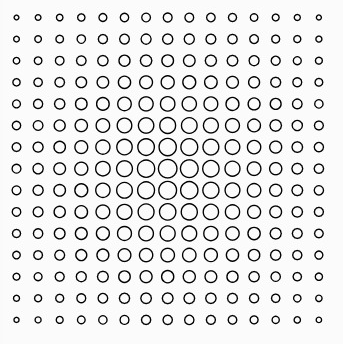
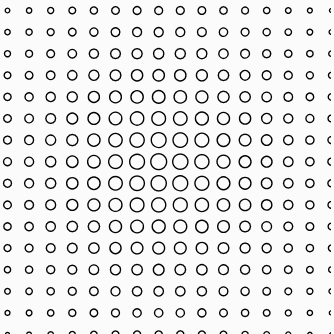
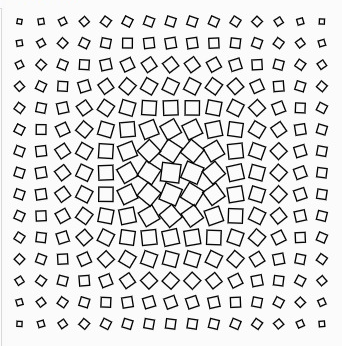
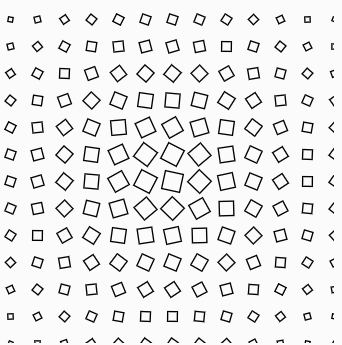
My design explores how a simple shape can create a more complex visual pattern through repetition and variation. I began with a grid of repeated shapes and used a rule based on distance from the center. This allowed the individual shapes to change gradually across the design rather than just translating identical shapes.
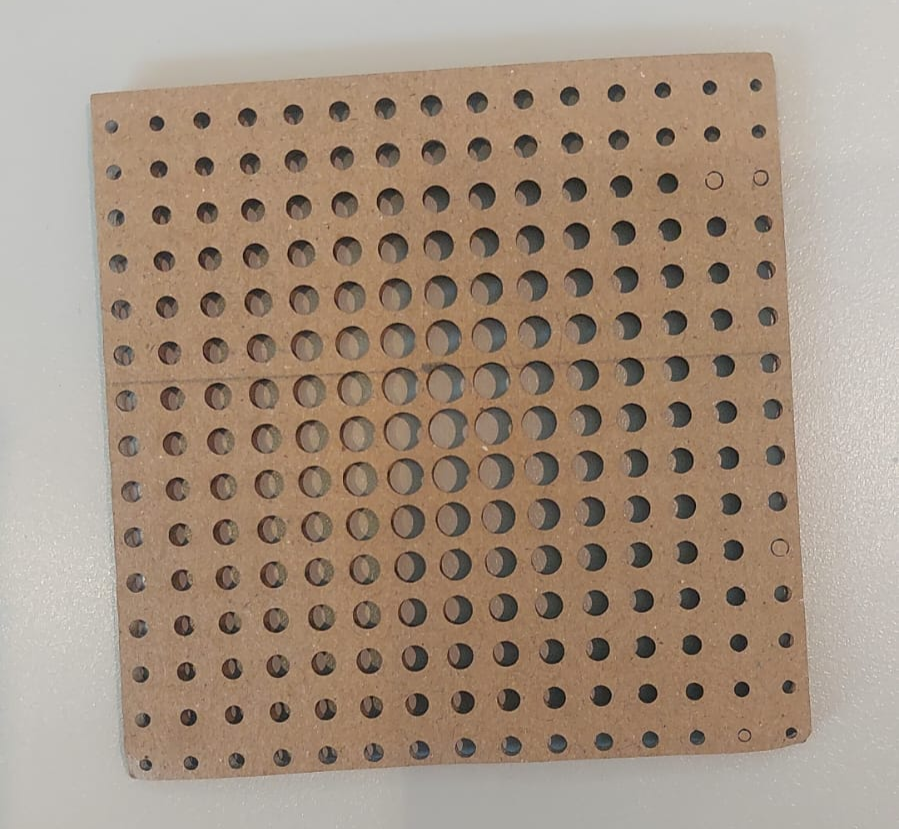
I experimented with this pattern with circles and squares. In the circle design, the circles become larger toward the center and smaller toward the edges. For the square design, I added variation by changing both the size and rotation of the squares based on their distance from the center of the grid.
The goal was to see how a simple variation could produce a more complex overall physical pattern when fabricated.
Digital experimentation
I first experimented with the spacing and size of the repeated shapes in p5.js. I changed the spacing between the shapes and the maximum size of the shapes to see how these changes affected the density of the pattern.
I then used the distance of each shape from the center to control its size. This created a gradual transition from smaller shapes on the edges to larger shapes moving toward the center.
After testing the circle version, I experimented with squares. The square design introduced another variable, which is rotation. The amount of rotation changed depending on the square’s distance from the center, just like the size, creating a more dynamic pattern than the circle version.
Code for squares:
let cols = 15; let rows = 15; let spacing = 16; let maxSize = 14;
function setup() {
createCanvas(250, 250, SVG);
noFill(); stroke(0); strokeWeight(1);
drawPattern();
noLoop(); }
function drawPattern() {
let centerX = width / 2; let centerY = height / 2;
for (let row = 0; row < rows; row++) {
for (let col = 0; col < cols; col++) {

  let x = 10 + col * spacing;
  let y = 10 + row * spacing;

  let distance = dist(
    x,
    y,
    centerX,
    centerY
  );

  let size = map(
    distance,
    0,
    170,
    maxSize,
    3
  );

  push();

  translate(x, y);

  rotate(distance * 0.03);

  square(
    -size / 2,
    -size / 2,
    size
  );

  pop();
}
I fabricated multiple versions of the designs to compare how the digital patterns translated into physical material would look. The first physical version used the circular pattern using cardboard. The result showed a clear gradient in the size of the openings, with larger openings toward the center and smaller openings toward the edges.
Trial 1:
Circles getting bigger as closer to the center, cardboard
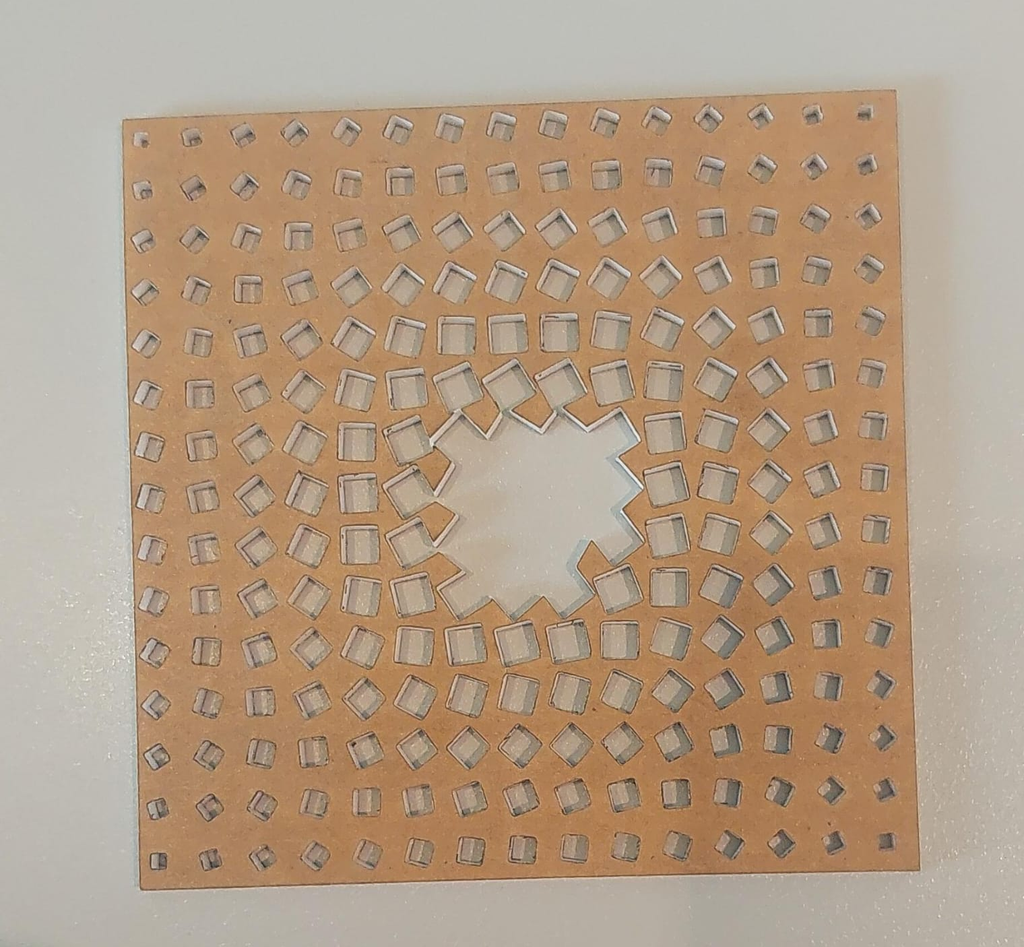
I then fabricated the square pattern using acrylic. During fabrication, I encountered a problem in the center of the design. Because the spacing and geometry caused the material between some of the openings to become too thin, the center of the piece became weaker than intended, so the pieces close to the center started falling.
Trial 2
Squares, getting bigger as closer to the center, deformed, using acrylic
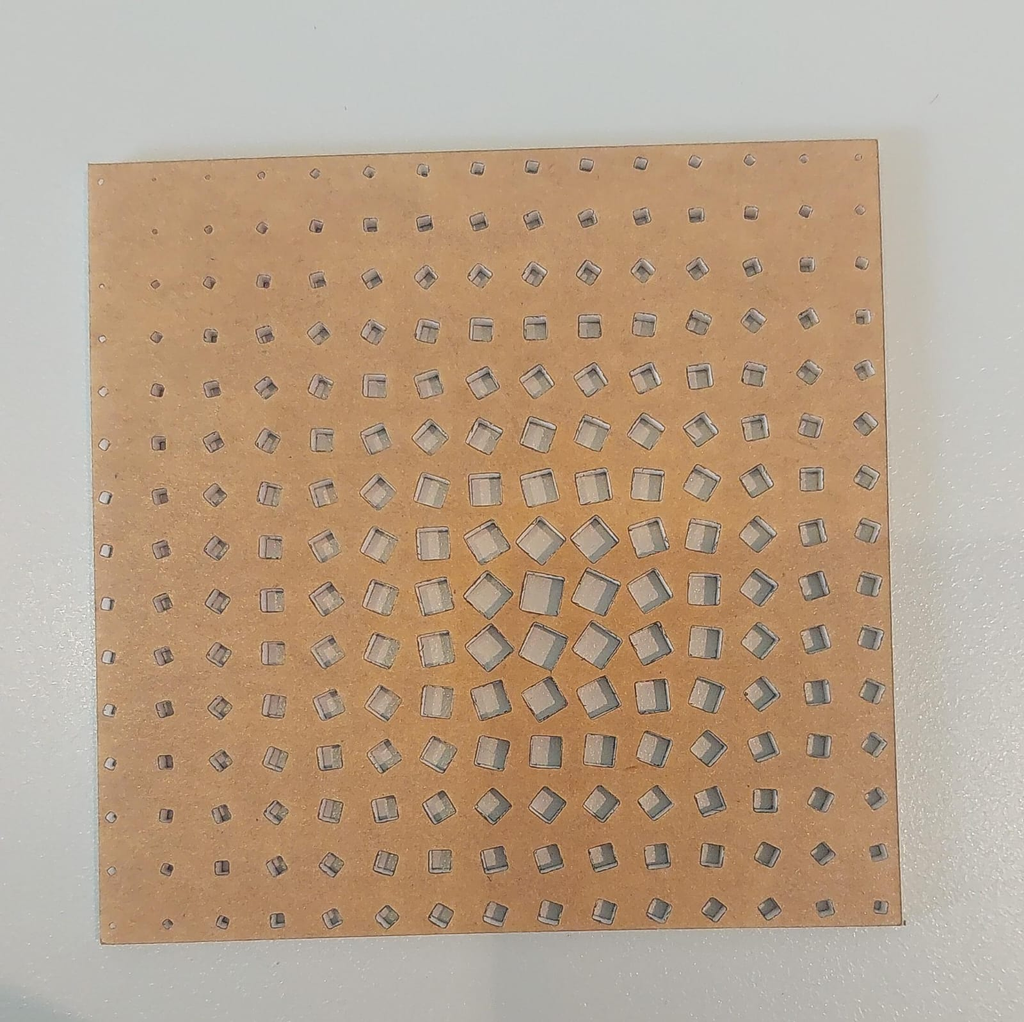
In the next version, the design remained based on the same square pattern, but the adjustment caused the overall pattern to shift slightly from the center. Although this was not exactly the result I originally intended, it became another useful observation about the relationship between the digital design on p5.js and the physical fabrication process.
Squares, getting bigger as closer to the center, using acrylic
Reflection
Overall, I experimented with shape, size, spacing, rotation, and the relationship between the digital pattern and the physical material. The physical results helped me understand how generative design needs to account for both visual rules and material constraints.
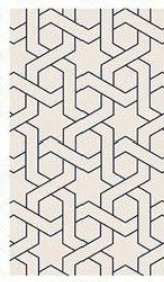
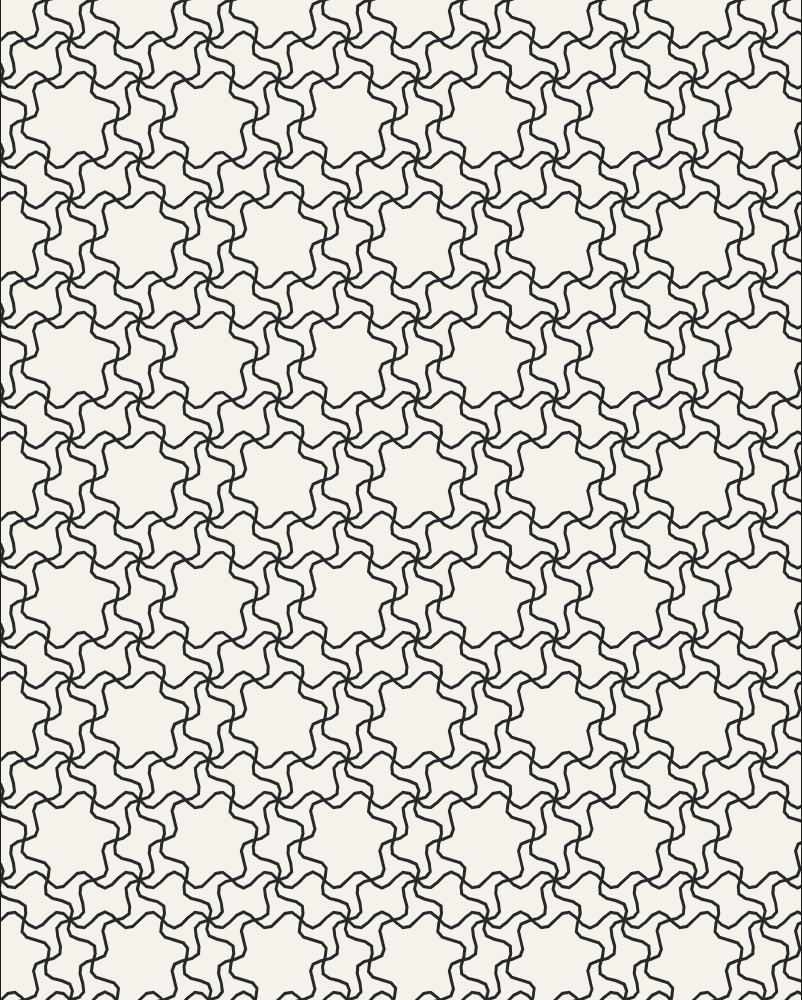
I took my initial inspiration from the image below. Some people classify it as the Moroccan geometric pattern while others consider it within the category of Islamic geometric pattern.
P5.js sketch
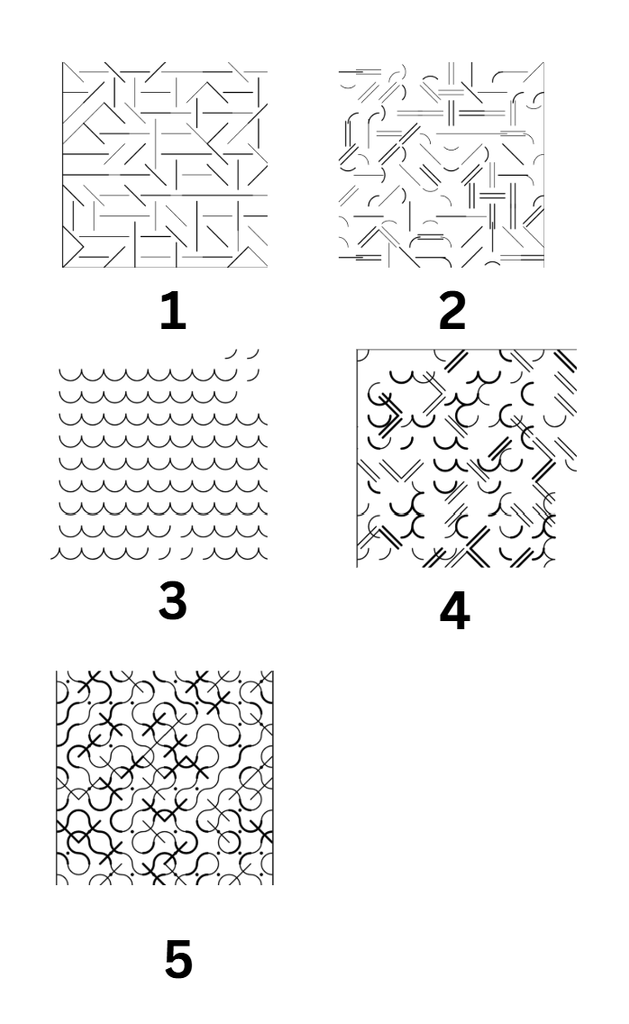
I started off by first playing with the angles on the lines by randomizing them and seeing how they looked. then I added some arcs with the lines and double lines at different stroke weights. I tried to see how it would all look in the case where I only added the arcs and then used that with the lines to make some kind of very random patterns. At this point I attached put all of the next to each other so that they make a random grid and then added lines and dots at random places to add some more diversity.
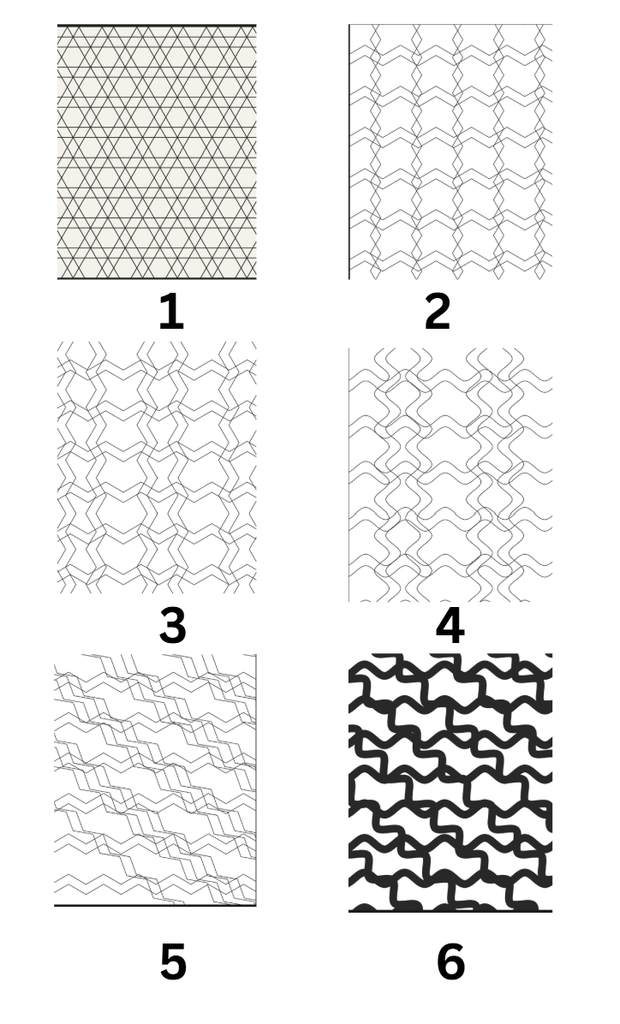
Now I decided what if I removed the element of randomness from my code and experiment with zigzag lines since that is the main element from my inspiration. In the very first image, you can see how there are horizontal lines and then lines going diagonal. This was achieved by drawing a repeating grid of 6-pointed starts. The code first figured the spacing between the star center (hexW, hexH) using hexagon geometry, hen it just looped through the columns and rows by placing the hexagon star at the middle. Every other row, it shifts a little sideways so that it looks like an interlocked honeycomb. The Drawstar() function drew the star by overlapping two triangles and rotating the second one at 60 degrees.
Since I wanted the lines to be zigzag on their own, I used the cos and sin function to make them wave line. If you look closely one verticle line faces left while the next one faces right. I was able to achieve this by using a vector direction concept. So whatever way the prev line was facing the next line would be multiplied by -1. The second one the very next line the direction concept was applied to, while since I was drawing double lines, I wanted the next two lines to be in the opposite direction. This was very had to achieve, because if I am using the if statement, how do I make it work on the every third and fourth line only. I was able to resolve this by using another variable that kept track of it and updated accordingly with the space between two lines. In the fourth trial, I tried making the zigzag lines into the curves by adding a new function that stored all of the points in an array first and then applied Bezier curve to it. In my inspiration the curved lines are going diagonal. In the first trail this was easy to achieve because the zigzag and curve logic wasn’t being applied. But now I played with angles and the starting point of the vertical lines. By making them to start drawing before the x axis, I got the diagonal curved lines. I tried playing with the stroke Weight here and removed the double line concept to see how it works. I think this was pretty successful.
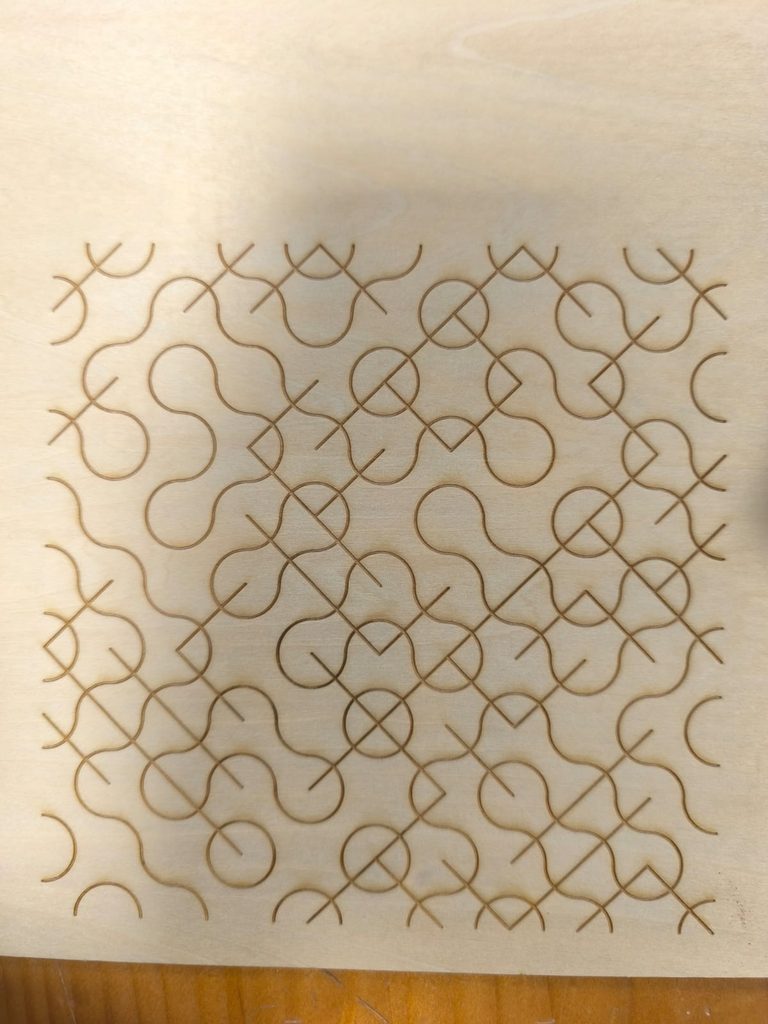
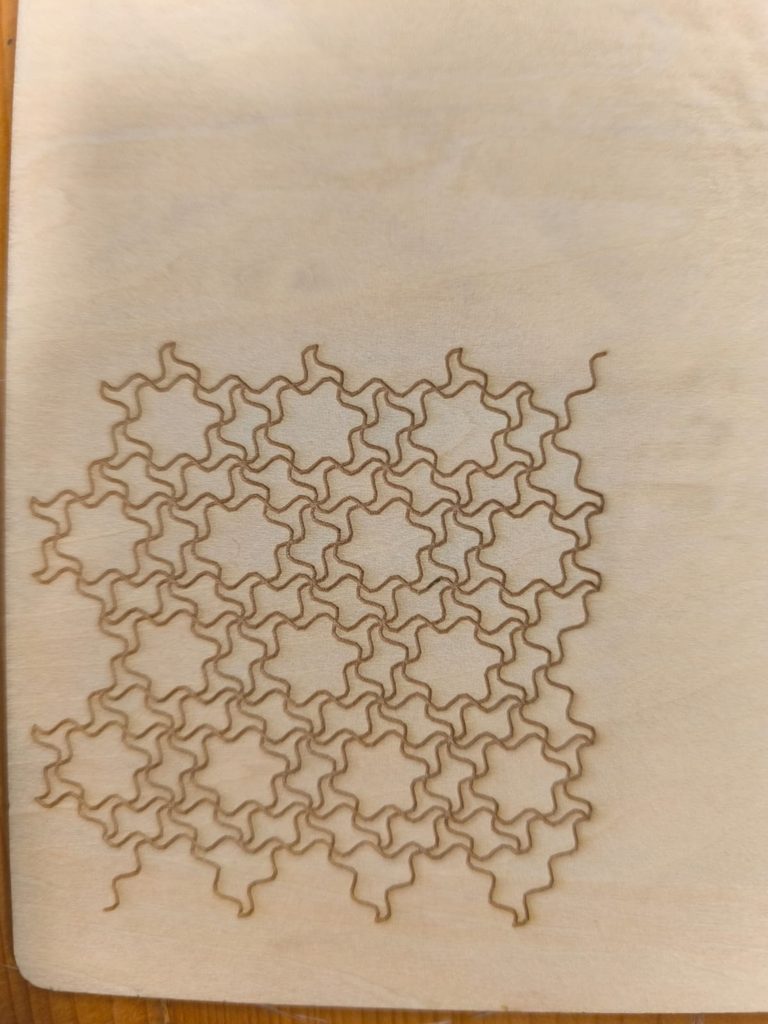
Finally, I combined this logic of zigzag diagonal lines into the very first trail where the lines were been drawn to make the hexagon. And the below is the final result.
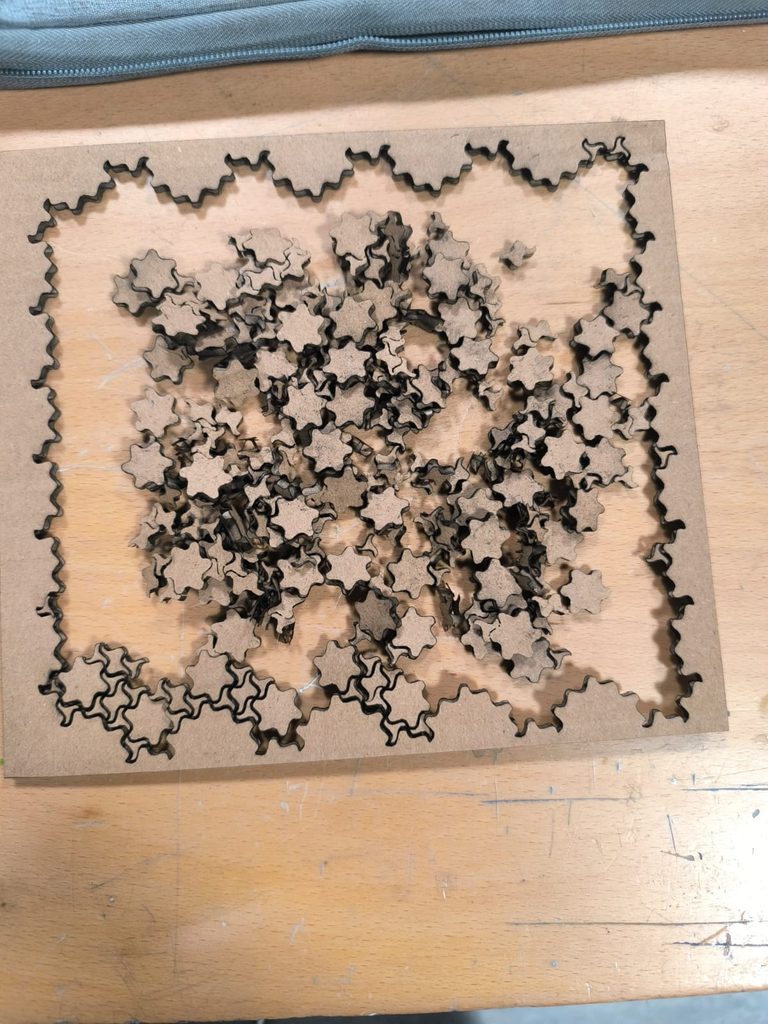
For the very first laser cut of the above image, the laser cut through it completely which resulted in the small pieces falling off. So, for the next two laser cuts that I did, instead of having the laser cut through it completely, it engraved the piece.
For this assignment, I focused on expanding upon what was taught in class regarding the drawing of patterns based on the divisions of tiles according to the screen width and height. Instead of always preparing a pattern from the same image of a silly cat, this time I used a random image pulled from a website.
That is why it is called “Pattern from the Internet.” A pattern that is randomly generated according to a specified algorithm in which is always (not in an infinite way of course) random.
What image was this? Is it possible to decipher what it was before the algorithm?
p5.js sketch and code
The code was too large to explain, so here are the link to the sketch with the code (most of it commented), and also the basics of how it works:
Note: I tried embedding the sketch, but for some reason, the embedding it is not working.
First, an image is preloaded from https://picsum.photos/, with a random ID generated by the program.
After it is preloaded, the p5.js sketch is then prepared by dividing the screen into tiles, as taught in class on Wednesday.
After it is divided, we enter the for loop for the 2D arrays.
In this 2D array, according to the tile, the image from the internet is first analyzed to determine how big the geometrical figure will be.
After determining how big it will be, we use a random chance to determine if it will be drawn on the tile. This is a 1 in 5 chance.
If it is determined that the tile can be drawn, another random number from 0 to 4 is generated.
According to the number generated, a random geometric figure will be drawn.
This process is repeated until the for loop ends.
Vector design
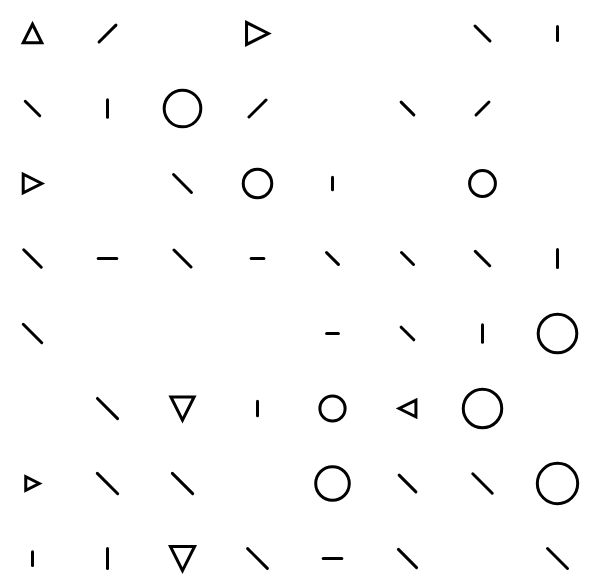
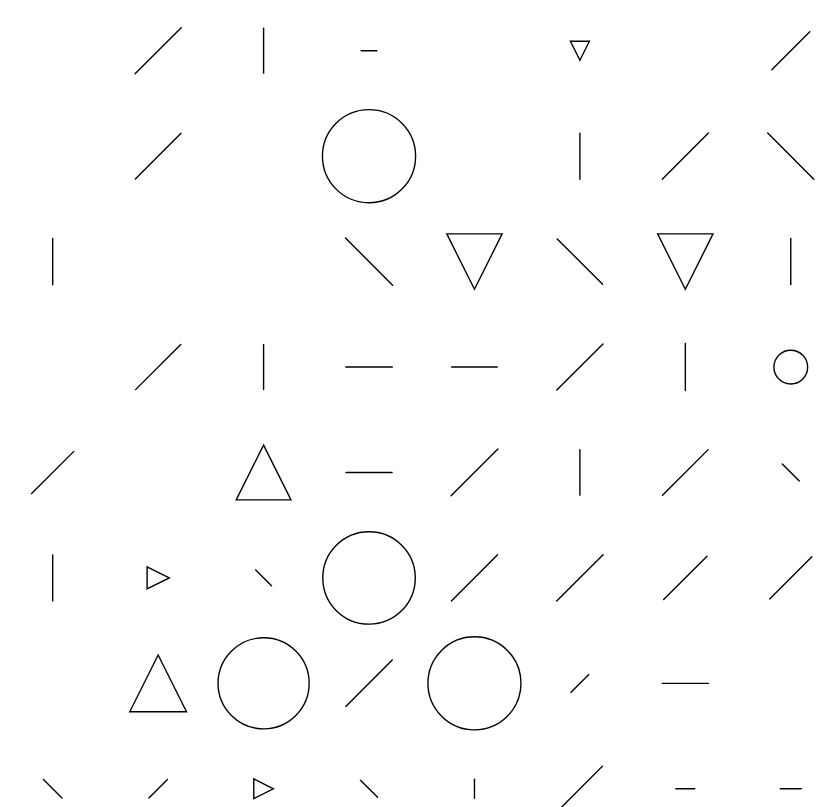
The two vector designs that I got to print are the following:
svg_from_the_internet_1.svg
svg_from_the_internet_2.svg
I mainly designed this in a way that would not cause any trouble during the laser-cutting process. In previous classes, I encountered issues where my pattern was way too complex, and it would end up ruining the base. So, in order to avoid that, I went with this minimalistic approach.
Final fabricated result
The laser cut process itself was very straightforward, and there are the two results I got from it. Each one made out of different materials with a different pattern.
Pattern from svg_from_the_internet_1.svg, made with plywood.
Pattern from svg_from_the_internet_2.svg, made with acrylic
Process and challenges
The process itself was very straightforward
The biggest challenge I encountered was conceptual. I found myself getting stuck on some ideas. While I would have loved to try new ideas or new concepts for this assignment, I felt that leaving the code we developed during class would be a bad idea. After all, there could be many implementations with the tile and image system. However, when I thought about the laser-cutting process, I had to limit myself to very simple shapes that I knew the machine could laser cut without any issues. That is why I took the approach of using geometric figures. They were simple, easy to laser cut, and would not give me as much trouble as some of my previous designs did.
Although, indeed, I believe that conceptually there could have been more to the project aside from just random figures with random chances.
Technically, there were no problems. I tried to expand more on some ideas I had, but technically, I would enter the realm of cheating if I just tried them, as I did not have a clear idea of how to implement some of these ideas. In other words, I did not want to purely rely on generative AI for them.
Reflection on how laser fabrication changed or shaped your computational design.
While it did not greatly change my perspective on computational design, as I had already done this before, it helped me remember how making a design for laser cutting has to be thoughtful. Your design cannot be too chaotic, since the laser cutting machine will probably just tear the material. Instead, you have to think about your design under certain restrictions in order to achieve the best output.
It is a collaboration between humans and machines that I find quite interesting. You can only work within the parameters and limitations set by the machine, and therefore, your designs will probably reflect some of these limitations. This is not to say that the designs will never be complicated, no. They just require more thinking outside the box. After all, what I consider to be genius are things that are made under certain restrictions.
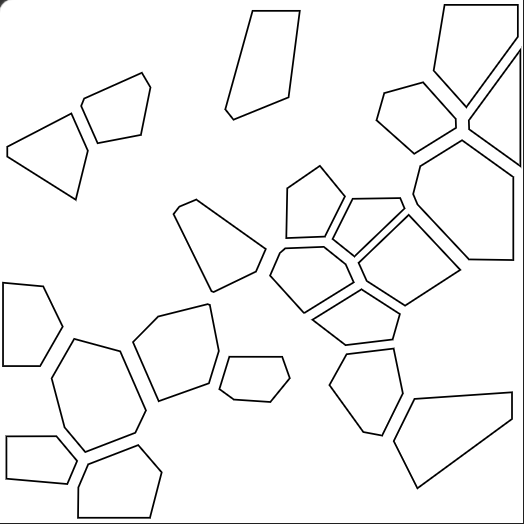
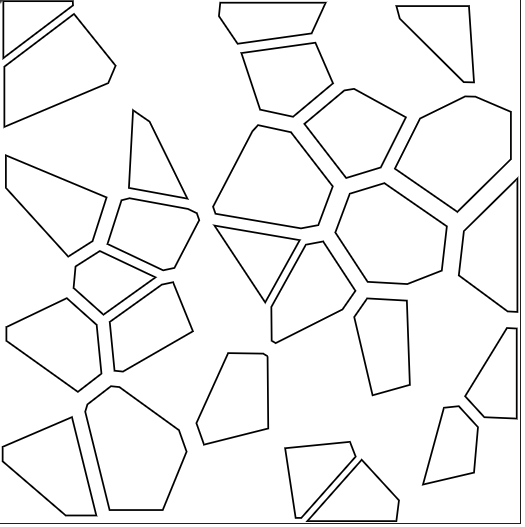
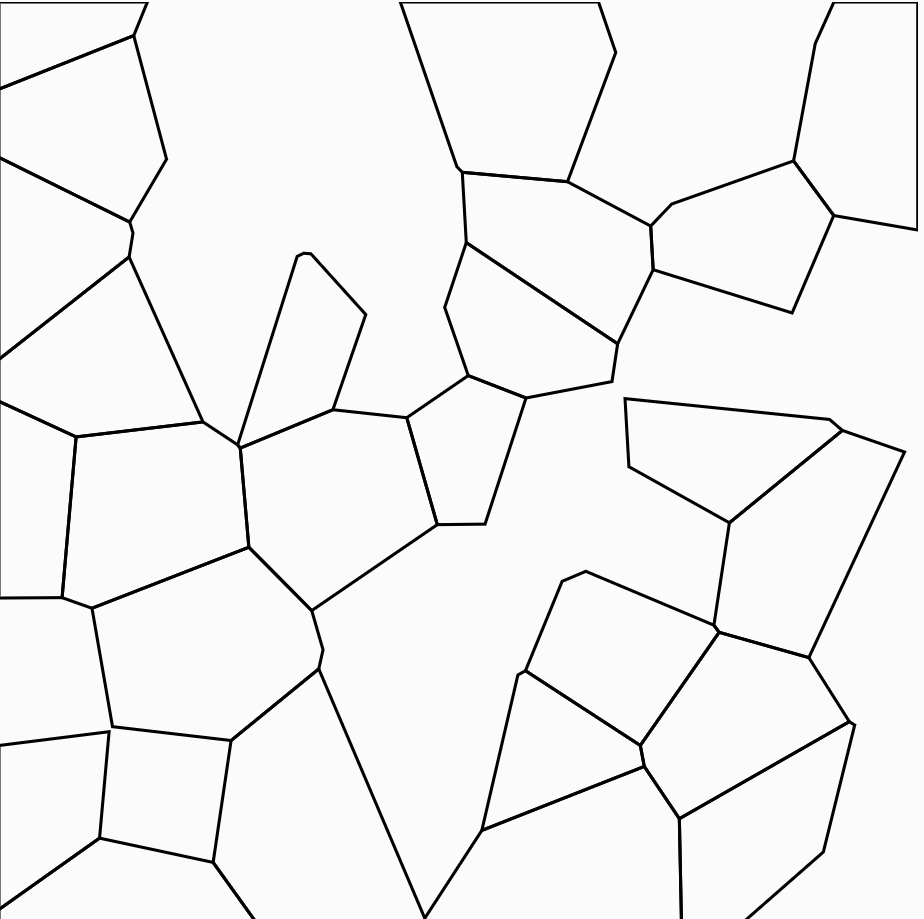
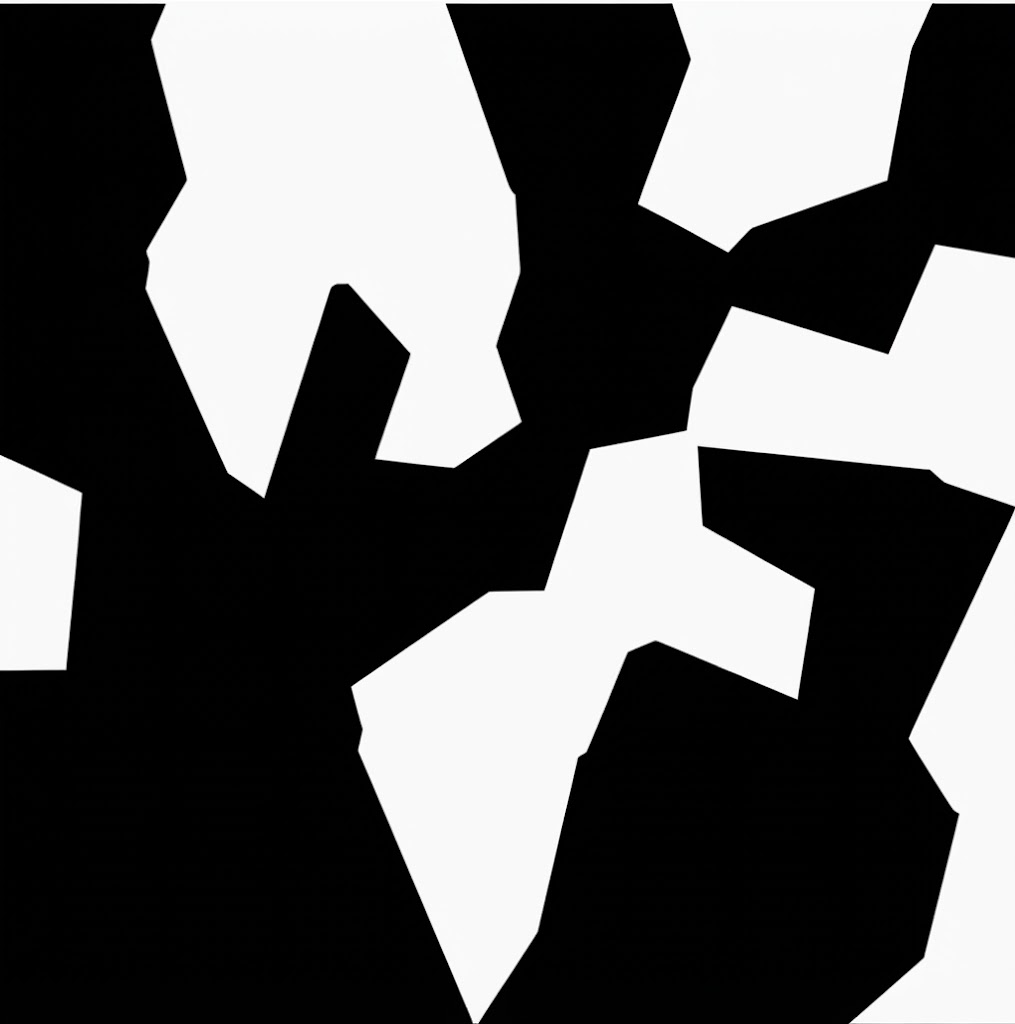
For this assignment, I worked with Voronoi patterns, which are created from the divisions of a surface into organic cells depending on the distance to randomly placed points. The main reason for choosing this design was the discovery that this structure appears in architectural designs, and how the shapes connect to each other reminded me of spider webs, since both rely on thin structural connections to hold divided space together.
Going into this process, I often wondered how I would turn a rule-based system into something you can both physically hold and physically cut. The initial inspiration was broken glass since each time glass breaks it produces a unique pattern of sharp-edged, irregular shapes that fit together without overlapping. I found that Voronoi diagrams work the same way since the patterns are never identical yet always follow the same underlying rule of dividing space based on distance to the nearest point. When applying this computationally, the algorithm divides a surface into irregular polygonal shapes based on randomly placed points, producing a different arrangement every time the code runs.
The code was written at first with a sketch that used pixel sampling to make drawings based on image brightness. I kept the same structure for SVG export but replaced the image-based input with randomly placed points that generate Voronoi cell boundaries across the canvas.
When researching how to implement this, I came across a public p5.js sketch (https://editor.p5js.org/bulkan/sketches/qbbxZzm4v) that used the D3-Delaunay library (Github: https://github.com/d3/d3-delaunay and Library: https://d3js.org/d3-delaunay/delaunay) which is an open source library that handles calculating Voronoi cells (irregular polygonal shapes). The sketch already had the library imported in its HTML, so I used that structure and added the p5.js SVG import to get both working together cleanly.
The first version drew all cells with no gaps between them. Looking at this, I predicted that if I were to cut the filled shapes, the result would look like the shapes merged together into larger holes with no visible pattern.
(Caption: Possible outcome of before cutting in p5.js and after cutting and what would it look like)
To fix this, I added a spatial rule that divides the canvas into a grid of zones. Each cell is assigned to a zone based on its x and y position, and cells in alternating zones get drawn while the rest become holes.
Initial Code:
let points = [];
let numPoints = 45;
let minDist = 20;
let maxTries = 2000; // safety limit to prevent infinite loop

function setup() {
  createCanvas(300, 300, SVG); // 300mm = 30cm panel
  noFill();
  stroke(0);
  strokeWeight(1);
  generatePoints();
  drawVoronoi();
}

function generatePoints() {
  let tries = 0;
  while (points.length < numPoints && tries < maxTries) {
    let candidate = [random(width), random(height)];
    let tooClose = false;
    for (let p of points) {
      let d = dist(candidate[0], candidate[1], p[0], p[1]);
      if (d < minDist) {
        tooClose = true;
        break;
      }
    }

    if (!tooClose) {
      points.push(candidate);
    }
    tries++;
  }
}

function drawVoronoi() {
  // connect each point to its nearest neighbors
  let delaunay = d3.Delaunay.from(points);

  // calculate cell boundaries from those connections
  let voronoi = delaunay.voronoi([0, 0, width, height]);

  for (let i = 0; i < points.length; i++) {

    // divide canvas into buckets and alternate keep/skip to create voids
    let bucketSize = 40;
    let bx = floor(points[i][0] / bucketSize);
    let by = floor(points[i][1] / bucketSize);
    let keep = (bx + by) % 2 === 0;

    if (keep) {

      // get the corner coordinates of this cell
      let cellPoints = voronoi.cellPolygon(i);
      if (cellPoints) {
        beginShape();
        for (let pt of cellPoints) {
          vertex(pt[0], pt[1]);
        }
        endShape(CLOSE);
      }
    }
  }
}

function mouseClicked() {
  save("voronoi_lattice.svg");
}
When writing the code and going through the D3-Delaunay library, I understood that it works by taking the randomly placed points and calculating which areas of the canvas are closest to each one, then drawing the boundaries where those territories meet. What mattered to me was that the resulting shapes and patterns were accurate and different every time, so the D3 library handled the calculation so I could focus on how the design looked and how it would behave when cut.
However, even with the filtering, the remaining cells were still touching at their edges. I added a shrinkPolygon function that pulls each cell inward toward its own center point, creating a gap between every shape.
Code Snippet (with the use of shrinkAmount ):
let shrinkAmount = 0.15;
function shrinkPolygon(pts, amount) {
  let cx = 0, cy = 0;
  for (let p of pts) {
    cx += p[0];
    cy += p[1];
  }
  cx /= pts.length;
  cy /= pts.length;

  let shrunk = [];
  for (let p of pts) {
    let newX = lerp(p[0], cx, amount);
    let newY = lerp(p[1], cy, amount);
    shrunk.push([newX, newY]);
  }
  return shrunk;
}
shrinkAmount = 0.15 tells the code to pull each cell inward toward its own center. The shrinkPolygon function does this by calculating the center point of each cell and using lerp to move every corner slightly closer to it. Without this, the laser would burn through the material between adjacent cells and either fuse them together or leave edges too fragile to hold.
Laser Fabrication
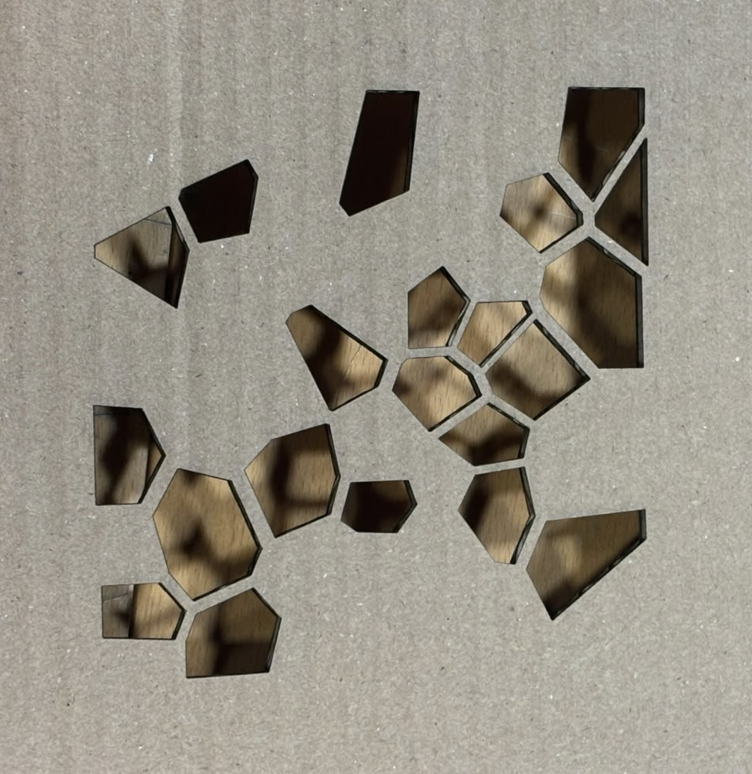
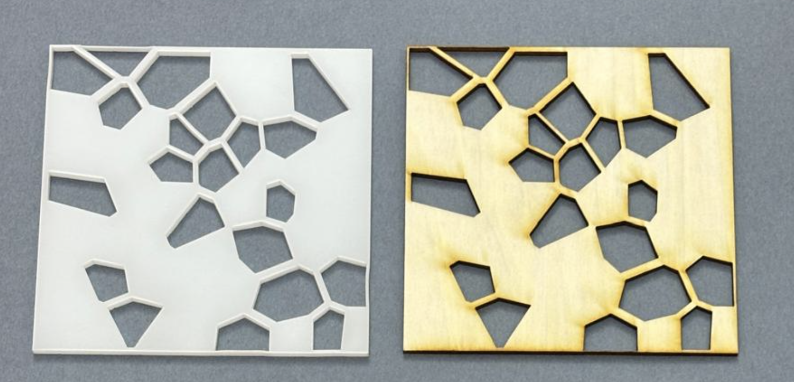
Before testing it on wood and acrylic, I was concerned about whether the thin junctions between shapes would hold since some gaps in the design were very narrow. However, after running a test cut on cardboard (Trial 0) with the first SVG design, the structure held and gave me confidence to proceed with harder materials.
Left: SVG design. Right: Trial 0 cut in cardboard.
For the first trial (Trial 1), the first SVG design was cut in wood. It shows a long path pattern of shapes where the cells connect and flow into each other across the whole piece. However, the edges showed slight stress at the corners where the junctions were thinnest. Although the junctions do hold, it revealed the tolerance limits of the design.
I did a second trial with the same design but cut in acrylic to see how the same design would behave in a different material. The edges came out cleaner and sharper, and the connecting pieces between shapes were visibly thicker compared to wood.
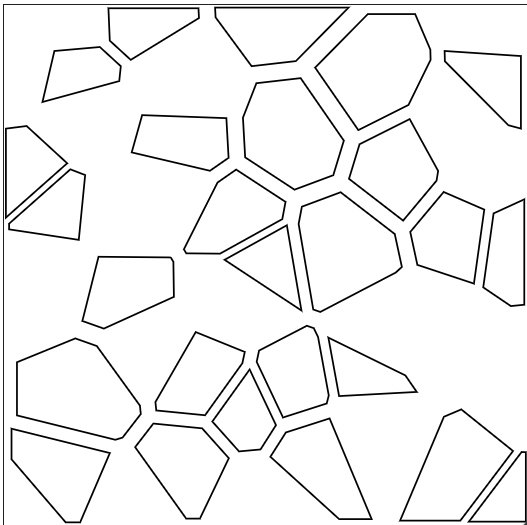
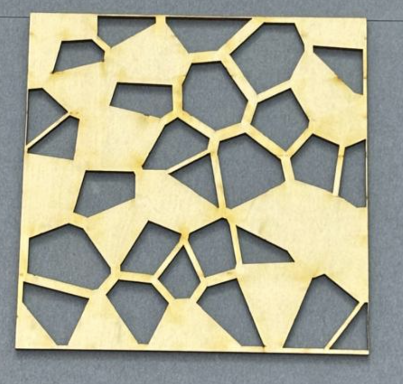
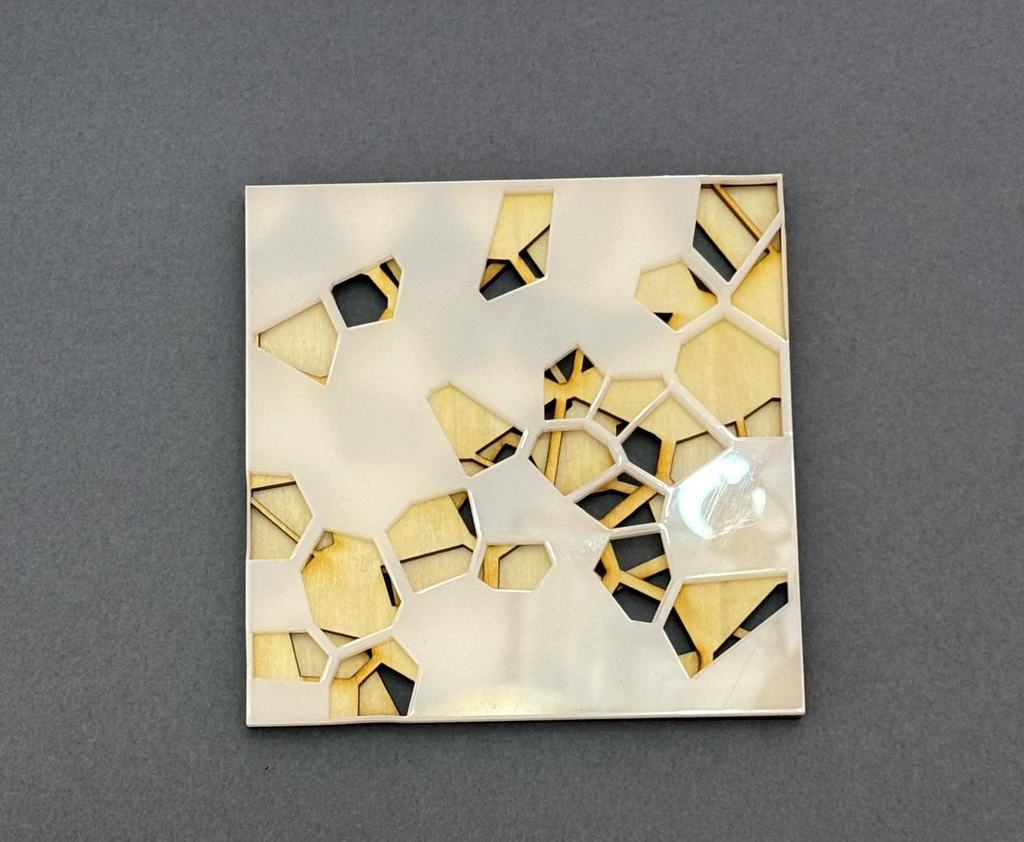
For the third trial (Trial 3), I re-ran the code to generate a new composition and cut it in wood. Even though the same rules applied, the different random seed produced a denser arrangement since the solid parts connected across the whole piece. This showed that the same algorithm can produce fundamentally different spatial outcomes depending on where the random points land.
Left: SVG design. Right: Trial 3 cut in wood.
Reflection
Laser fabrication forced me to think about the design in ways that a screen-based project never would. Given that the laser removes material at a width of roughly 0.1 to 0.3mm, parts come out slightly smaller than drawn. Because of this, I used shrinkAmount to pull each cell inward, guaranteeing a physical gap between every shape so they would not fuse during cutting. Without it, the gaps between cells would have been too tight after cutting, or worse, the shapes would have fused together.
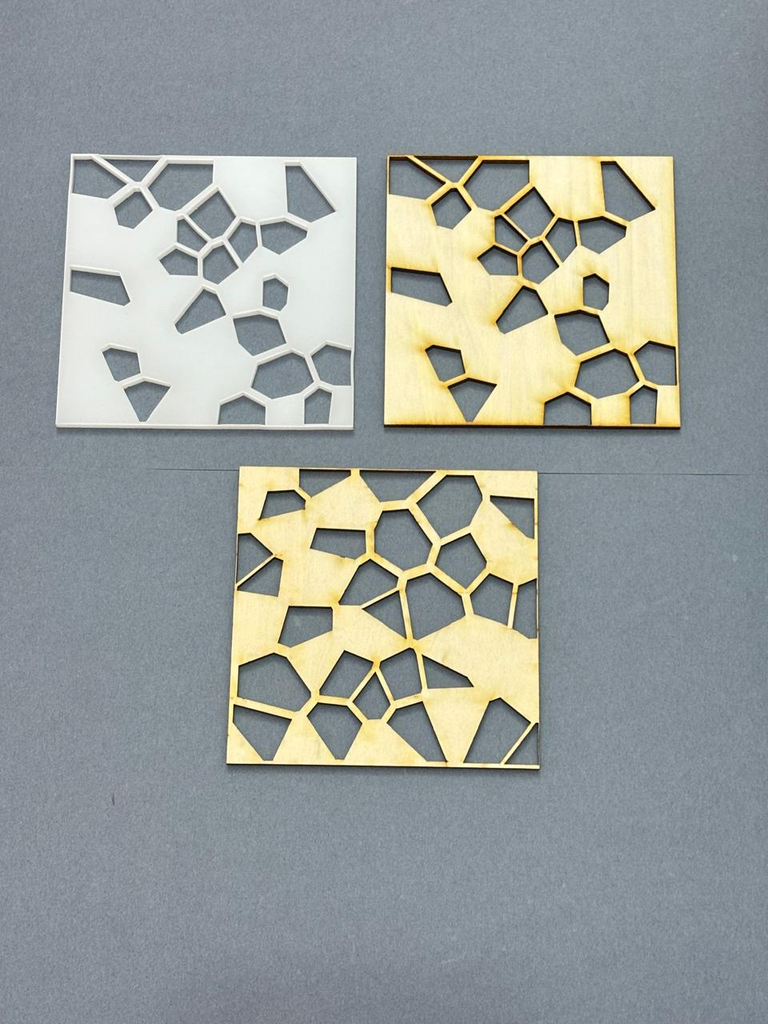
After fabricating all three trials, I stacked them together to see what would happen. Where the holes in one piece aligned with the solid parts of another, the wood showed through the acrylic creating a new composition that none of the individual pieces could produce alone. This made me think that each time the code runs, it makes a distinct piece that can interact with other runs physically.
For this project, I wanted to create a simple low-tech drawing system that combines my control with an element of randomness. My idea was to use a spherical object covered in paint and allow it to move across a sheet of paper, creating lines and marks as it moves. I would control the marble’s movement indirectly by tilting or moving the surface. The marble rolls, changes direction, and interacts with the edges of the surface, making it difficult to predict the exact drawing in advance. I was curious to explore how a simple system could produce a result I could influence but not fully control.
The Drawing Machine
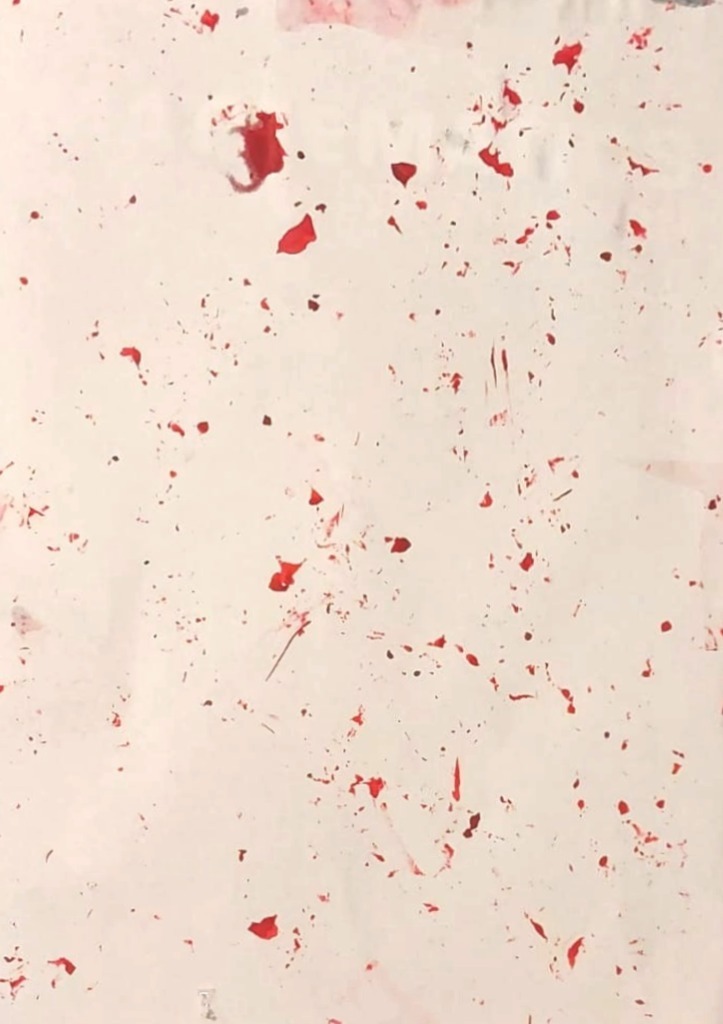
My drawing machine was made using a hard surface (my discrete book) that I can move, a blank sheet of paper, edges made of paper board, ink, and a roughly spherical object made from paper and a marble covered in tape. I taped the paper to the surface and placed the edges so that the marble wouldn’t fall out, and covered the marble and the paper object with red ink. I then moved the surface in different directions, allowing the ball to roll across the paper and leave paint marks behind. The surface provided a stable ground for the marble to move freely. However, its uneven shape made its path less predictable. The machine’s focus was on the process of producing the drawing rather than on building a complicated mechanism.
Below are a couple of trials where I was testing how much the edges could remain in place when moving the marble and the paper around.
Drawing Outputs
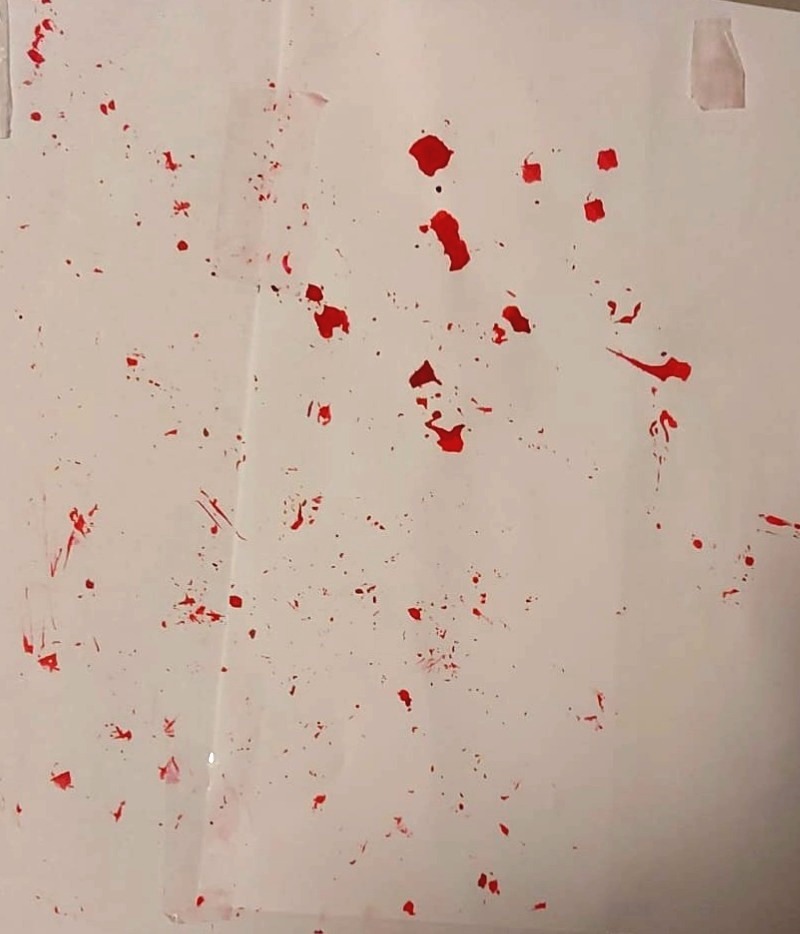
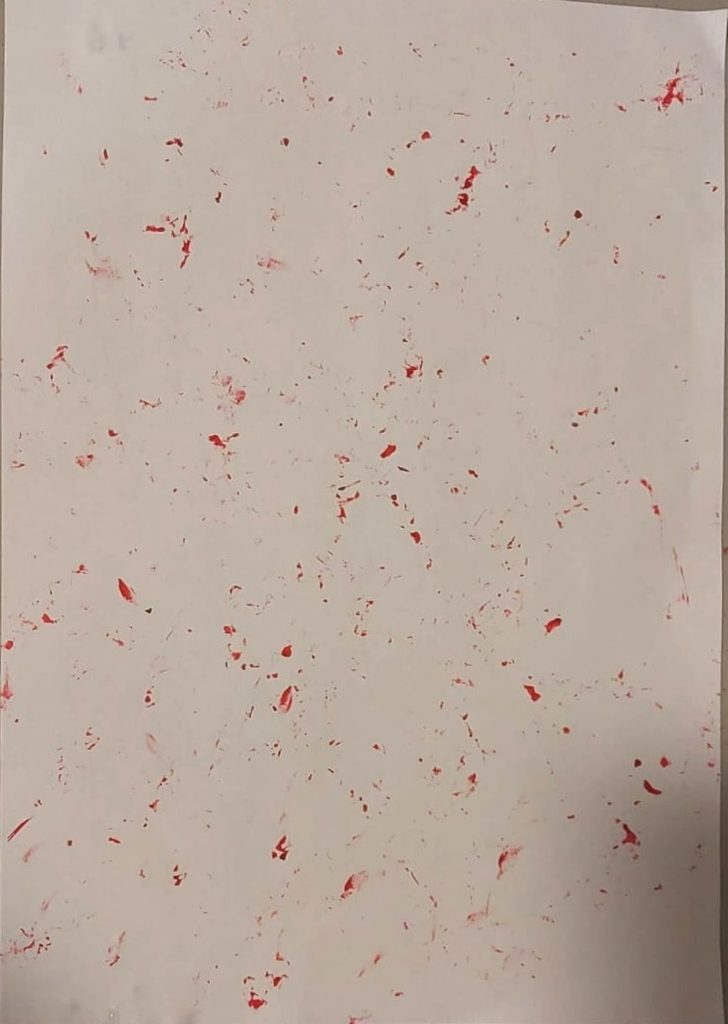
I produced several drawings by changing the way I moved the surface. In some attempts, I moved the surface slowly and gently, which allowed the ball to create more controlled lines. In other attempts, the marble would get stuck near the edges, and the paper sphere often stopped producing more irregular and overlapping marks. The amount of paint and the shape of the ball also affected the results. Although I could influence the general movement, I could not determine the exact path of every line. This made each drawing unique, even though they were created using the same objects. Trial 1 output:
Trial 2 output:
Trial 3:
Process and Challenges
The process began with finding materials that could work together to create a simple drawing machine. One challenge was finding a suitable spherical object. Since I did not initially have a marble available, I considered making one from aluminum foil. However, the object did not end up being perfectly spherical, but its irregular shape could actually contribute to the unpredictability of the drawing. Another challenge was controlling the amount of paint. Too much paint could create large smudges, while too little might make the marks difficult to see. I also had to experiment with how much to tilt or move the surface. Through these experiments, I learned that small changes in the materials or movement could produce noticeably different results. Also, one challenge was that while the marble moved more or less normally, the spherical paper ball barely moved, which made the results unexpected. In addition to the way I tried to tape everything together, sometimes the tape would not hold the edges properly, which caused the marble to fall out of the edges.
Reflection: Control, Chance, and Authorship
This project made me think about the difference between controlling a drawing and creating the conditions for a drawing to happen. I controlled the materials, the design of the machine, the amount of paint, and the general movement of the surface. However, I did not control the exact path of the marble or the final drawing. The imperfect shape of the marble, its interactions with the surface, and the movement of the paint introduced an element of chance. I still consider myself the author of the work because I designed the system and made the decisions that allowed the drawings to exist. In addition to moving the surface. However, the final images were produced through a collaboration between moving the surface by myself, the machine itself, and the unpredictable movement of the imperfect marble.
Relation to Sol LeWitt’s Paragraphs on Conceptual Art
In relation to Sol LeWitt’s Paragraphs on Conceptual Art, I think the main idea of my drawing is in the way I designed the machine and the process I used. The final drawing is important, but I think the idea behind how it was made matters more. I chose the materials and decided how the ball would move, but I couldn’t fully control the lines it created. The machine and chance helped shape the final result. For me, the drawing is about the process and the balance between what I control and what I leave to chance.
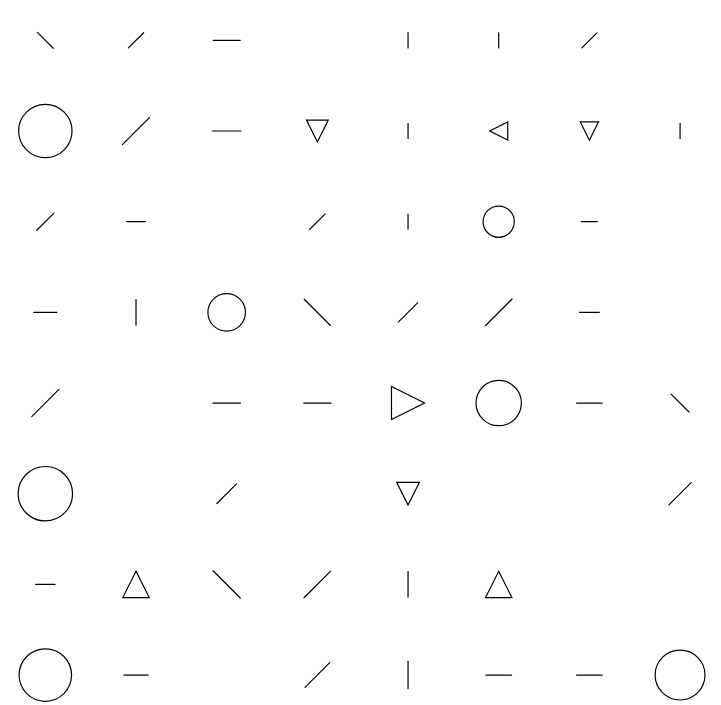
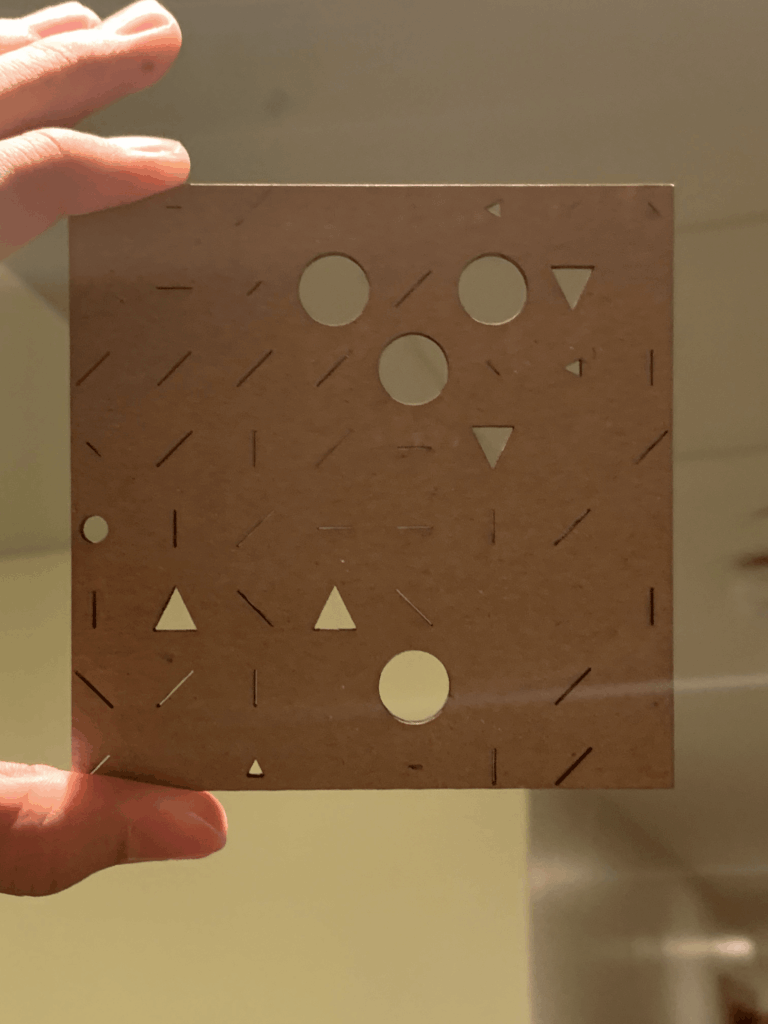
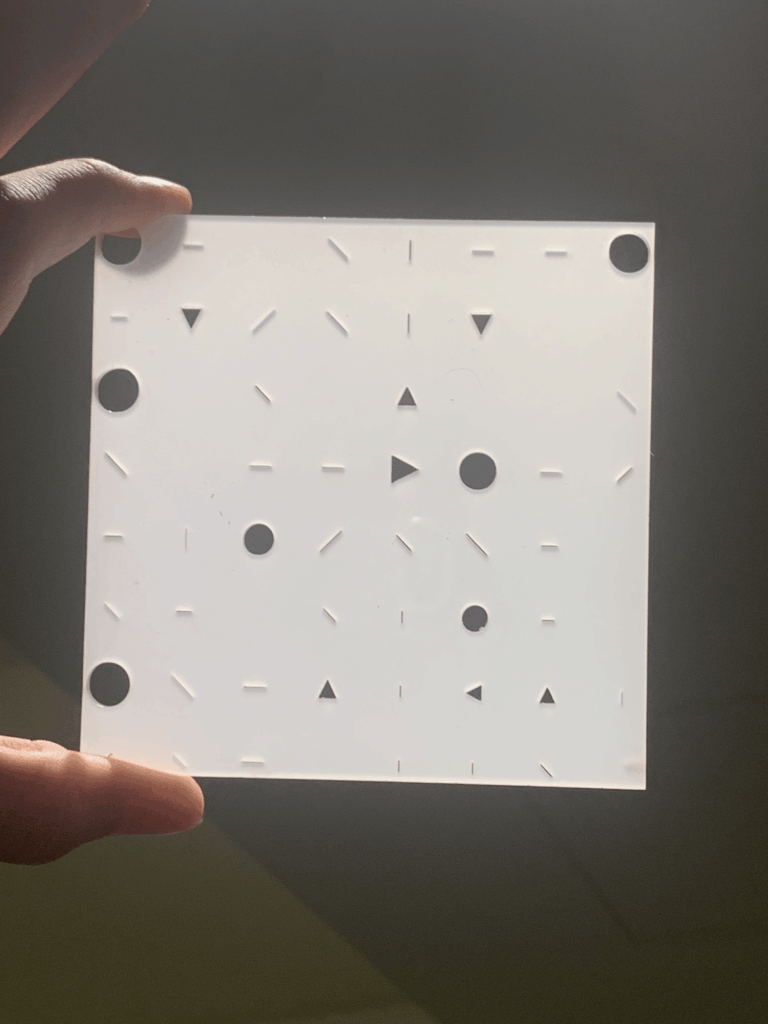
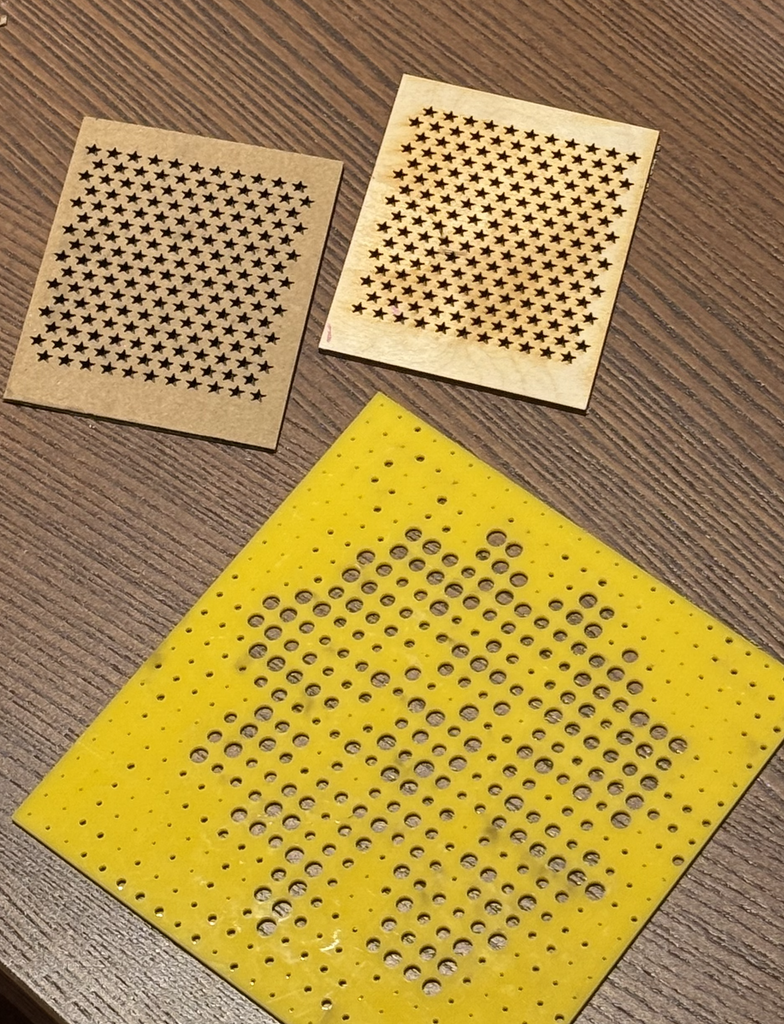
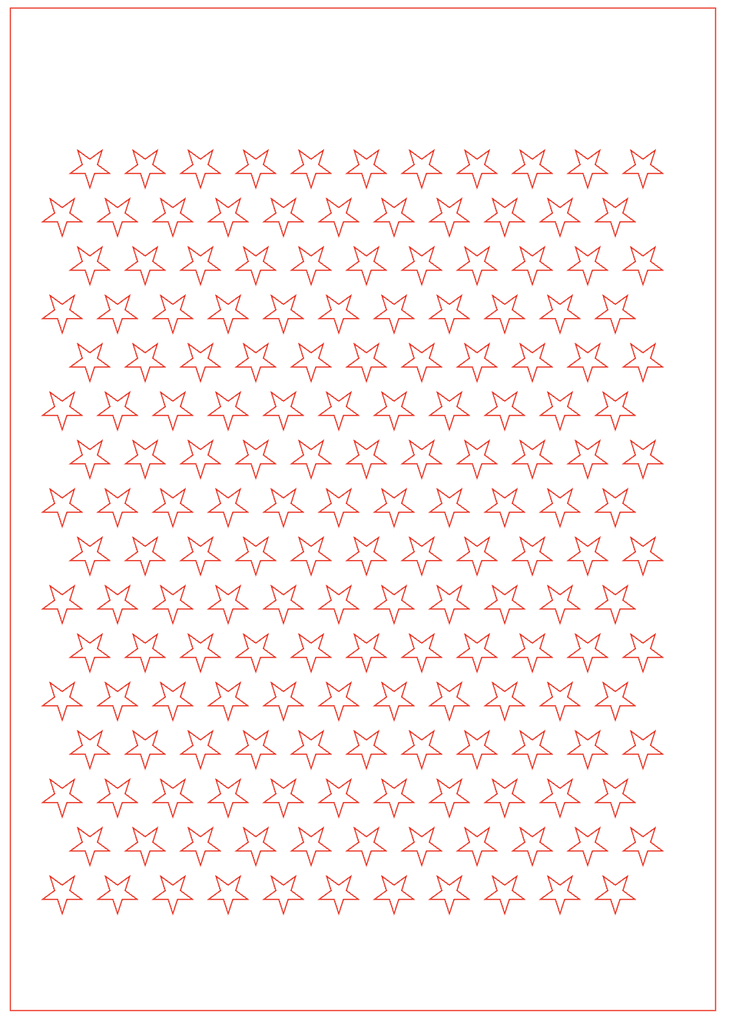
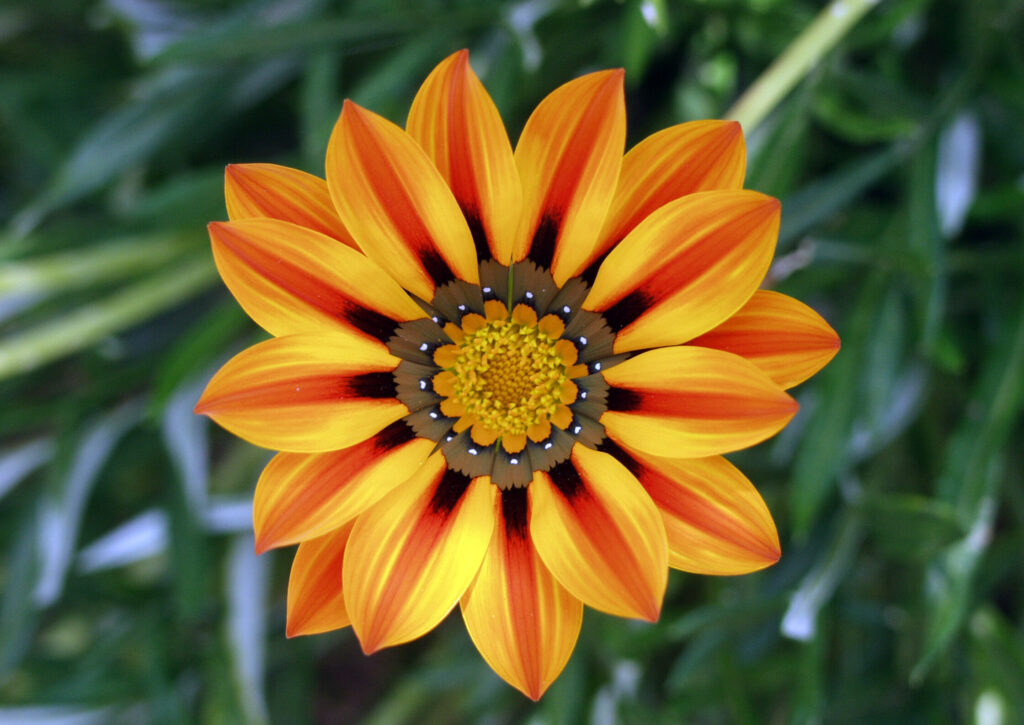
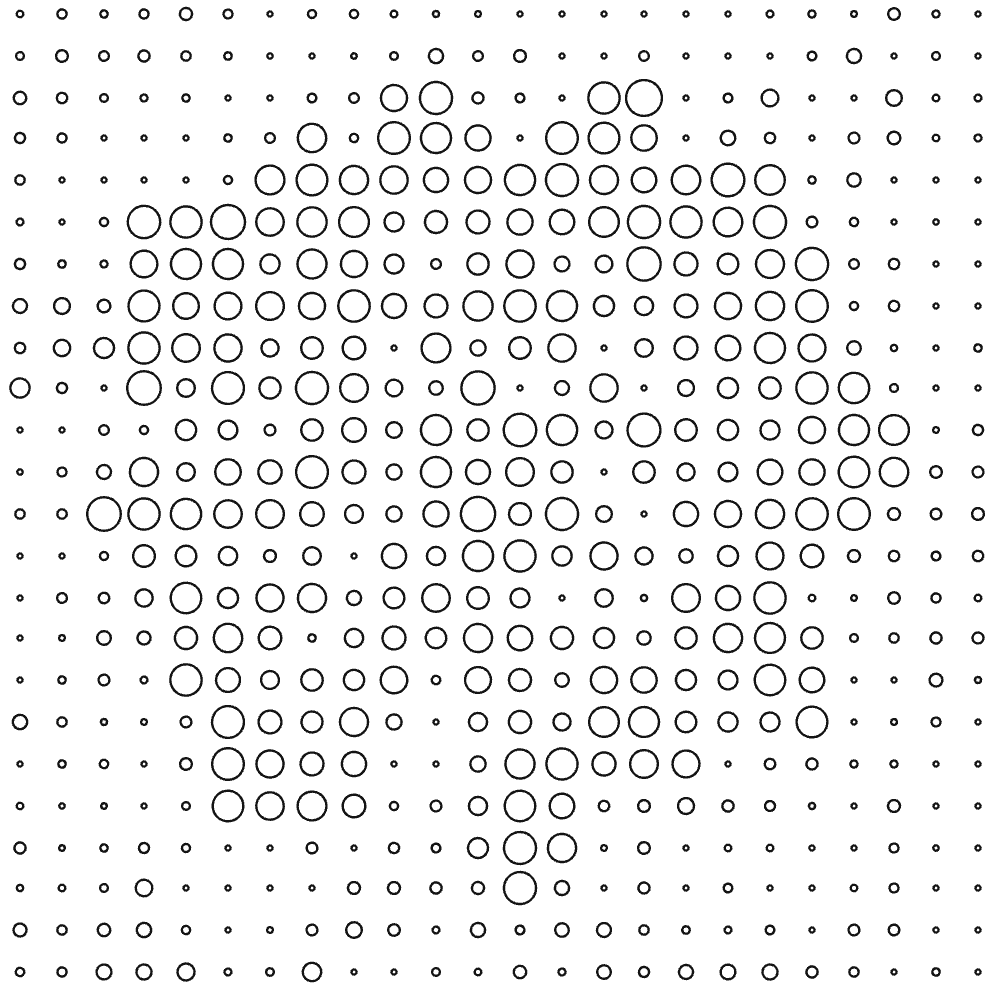
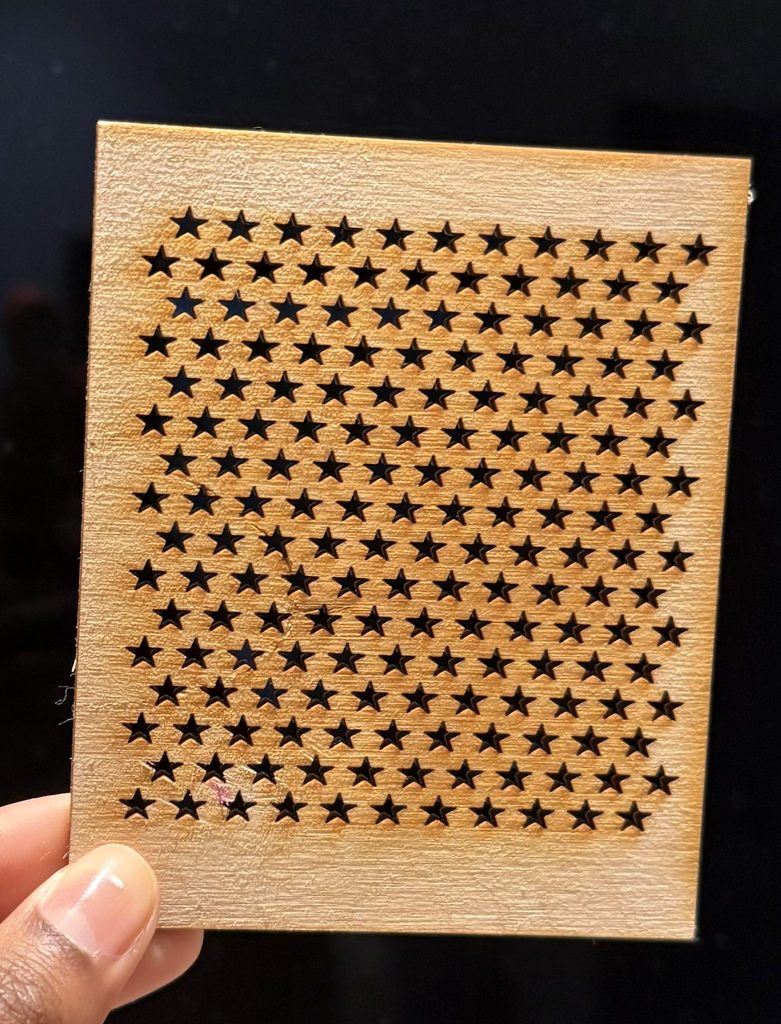
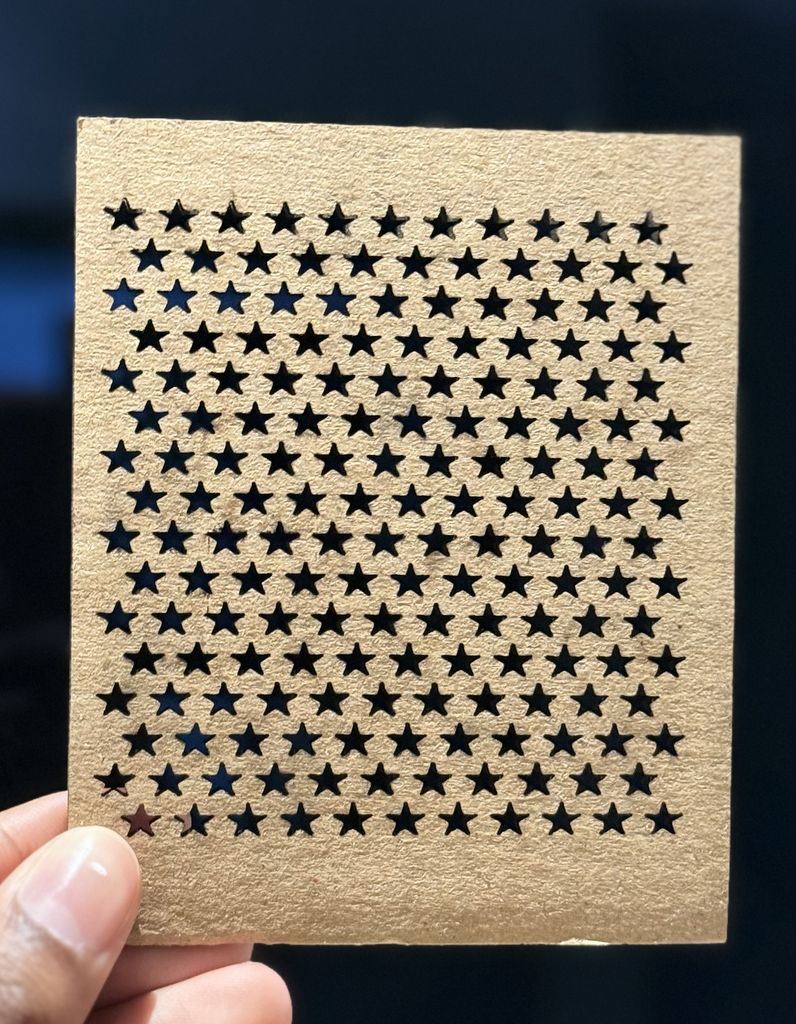
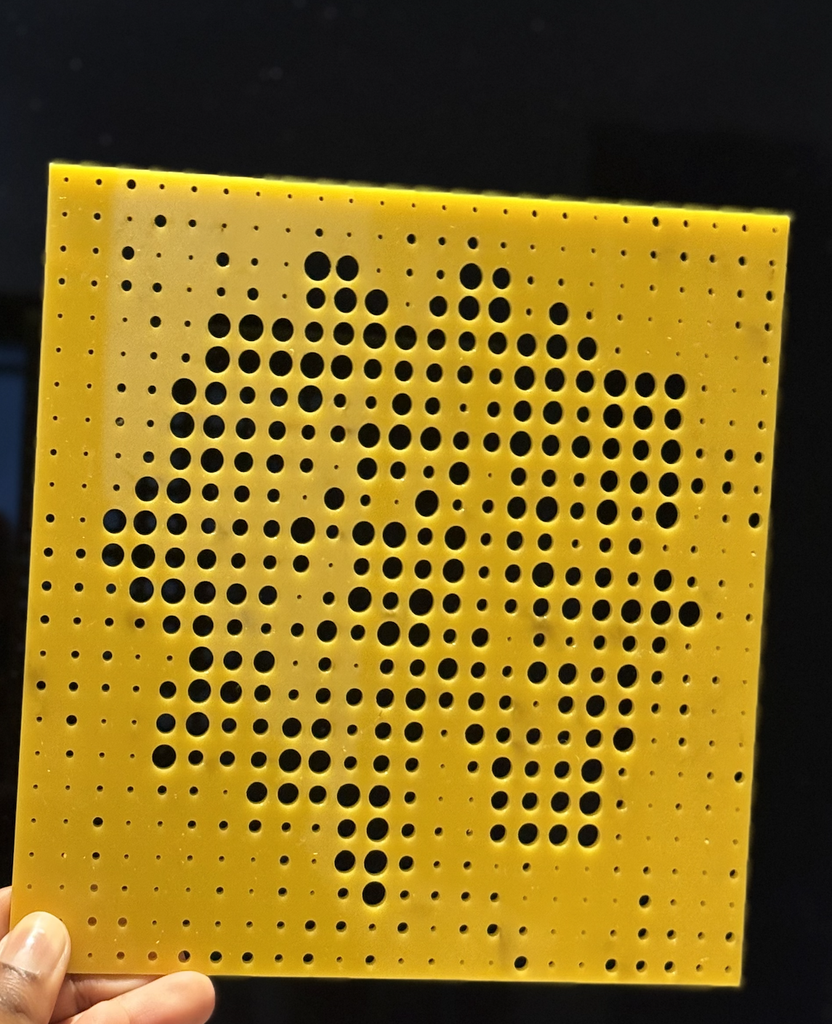
For this assignment, I wanted to explore how a simple computational pattern could become a physical object through laser cutting. I created two different designs and executed them on three different materials: wood, cardboard, and acrylic. The first was a repeated star pattern arranged in rows, which I laser cut on both cardboard and wood. The second design was based on a flower image. I used a similar code to what we learned in class on Wednesday to translate the image into a grid of circles with different sizes, where the larger and smaller circles helped show the shape and details of the flower. I laser cut this design onto acrylic. I liked using these two designs because one was based on a very regular geometric pattern, while the other used an image to create a more organic pattern. Although it was difficult to learn how to draw a star on P5 js, I looked through many online tutorials to get the shape I was looking for.
The designs also used simple rule-based systems to create repetition and variation. In the star pattern, I repeated the same shape across a grid and shifted every other row, which created a consistent rhythm while still making the layout feel less rigid. In the flower design, the circles repeated across the whole surface, but their sizes changed depending on the image data, so the variation came from the photograph rather than randomness. Because I was designing specifically for laser fabrication, I had to think about negative space, spacing between shapes, and how much material would remain after cutting. Very small gaps or shapes placed too close together could weaken the material and maybe cause a crack, so the digital pattern had to work physically as well as visually.
I also chose the materials based on both the fabrication process and experimentation. I used cardboard first because it was useful for testing the design quickly and seeing whether the scale and spacing worked before using a more permanent material. I then used wood for the star pattern because it felt stronger and more finished, so the final design had a more permanent quality. I used acrylic only once for the flower because it took the longest to laser cut, so I wanted to save it for the more detailed design where the material and spaces would have the most visual impact. All of the materials were recycled from the IM Lab, which also influenced my choices because I wanted to focus on reusing available resources rather than using new material.
let flower;
let cols = 24;
let rows = 24;

let img;
let targetR;
let targetG;
let targetB;

function preload() {
  flower = loadImage("flower.jpg");
}

function setup() {
  createCanvas(500, 500, SVG);

  img = createGraphics(500, 500);
  img.pixelDensity(1);

  // draw the flower image onto the hidden graphics canvas
  img.image(flower, 0, 0, width, height);

  img.loadPixels();

  findFlowerColor();
  drawCircles();
}


function findFlowerColor() {

  let totalR = 0;
  let totalG = 0;
  let totalB = 0;
  let count = 0;

  // look at the middle part of the image
  for (let y = 100; y < 350; y += 4) {

    for (let x = 100; x < 400; x += 4) {

      let index = (x + y * width) * 4;

      totalR += img.pixels[index];
      totalG += img.pixels[index + 1];
      totalB += img.pixels[index + 2];

      count++;
    }
  }

  // average flower color
  targetR = totalR / count;
  targetG = totalG / count;
  targetB = totalB / count;
}


function drawCircles() {

  background(255);

  noFill();
  stroke(20);
  strokeWeight(1.2);

  let spaceX = width / cols;
  let spaceY = height / rows;

  for (let x = 0; x < cols; x++) {

    for (let y = 0; y < rows; y++) {

      let posX = x * spaceX + spaceX / 2;
      let posY = y * spaceY + spaceY / 2;

      let index = (floor(posX) + floor(posY) * width) * 4;

      let r = img.pixels[index];
      let g = img.pixels[index + 1];
      let b = img.pixels[index + 2];

      // compare pixel color with flower color
      let colorDifference = dist(
        r,
        g,
        b,
        targetR,
        targetG,
        targetB
      );

      // closer colors make bigger circles
      let circleSize = map(
        colorDifference,
        0,
        160,
        spaceX * 0.95,
        spaceX * 0.12
      );

      circleSize = constrain(
        circleSize,
        spaceX * 0.12,
        spaceX * 0.95
      );

      ellipse(
        posX,
        posY,
        circleSize,
        circleSize
      );
    }
  }
}


// click to download SVG
function mouseClicked() {
  save("flower.svg");
}
let scale = 6;

function setup() {
  createCanvas(105 * scale, 148 * scale, SVG);
  noLoop();
}

function draw() {
  background(255);

  noFill();
  stroke(255, 0, 0);
  strokeWeight(1);

  // border
  rect(
    1.5 * scale,
    1.5 * scale,
    102 * scale,
    145 * scale
  );

  // rows of stars
  for (let row = 0; row < 16; row++) {

    let y = (148 - (18.5 + row * 7)) * scale;

    let offset = 0;

    if (row % 2 == 1) {
      offset = 4;
    }

    // stars in each row
    for (let col = 0; col < 11; col++) {

      let x = (9 + offset + col * 8) * scale;

      star(x, y);
    }
  }
}


function star(x, y) {

  let outer = 3 * scale;
  let inner = 1.15 * scale;

  beginShape();

  for (let i = 0; i < 10; i++) {

    let angle = radians(-90 + i * 36);

    let radius;

    if (i % 2 == 0) {
      radius = outer;
    } else {
      radius = inner;
    }

    let starX = x + cos(angle) * radius;
    let starY = y - sin(angle) * radius;

    vertex(starX, starY);
  }

  endShape(CLOSE);
}


// click anywhere to save
function mouseClicked() {
  save("stars.svg");
}
Vector Designs:
Design #1: Stars
Design #2: Flower
FinalResults:
I’m really happy with how the final pieces turned out. Since this was my first time ever using a laser cutter, it was exciting to see my digital designs become real physical objects. I learned a lot through testing different materials and understanding how the laser responds to each one. Overall, it was a really good first experience with laser cutting, and it made me more confident and interested in experimenting with digital fabrication in future projects.
Process and Challenges:
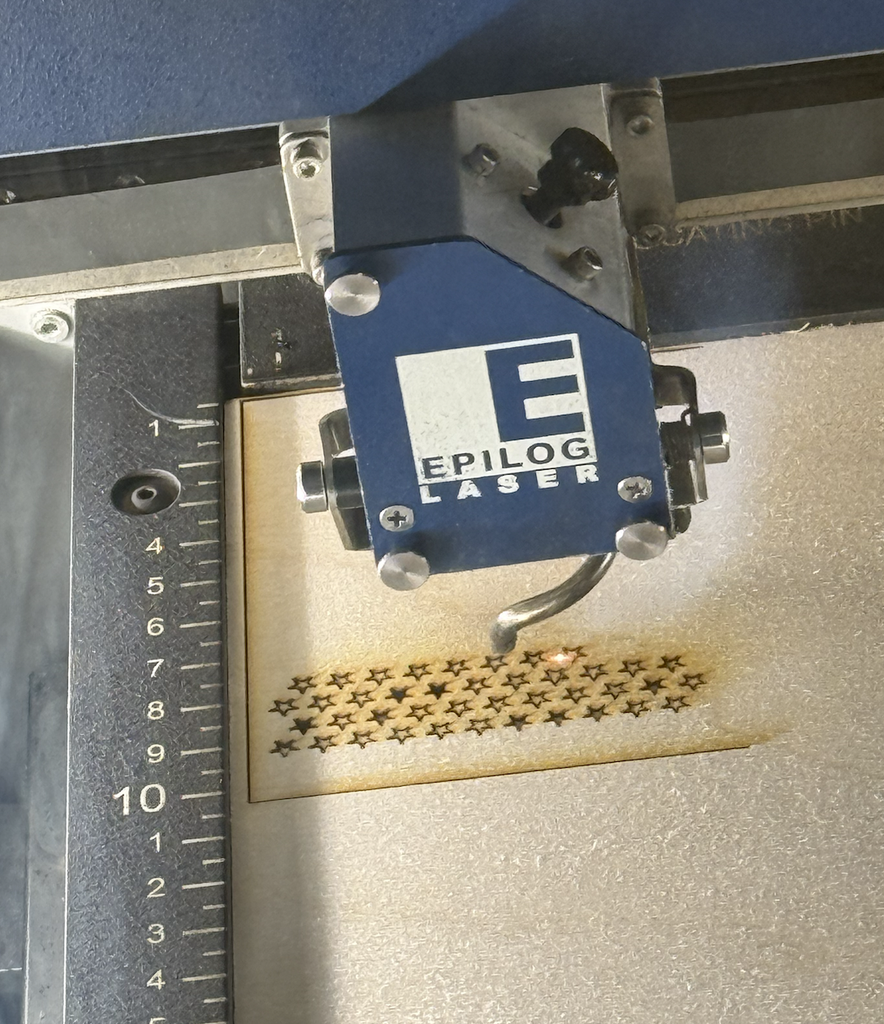
I created the vector designs using p5.js and exported them as SVG files so they could be used with the laser cutter. For the star design, I used loops to repeat the same star across the page and offset some of the rows to create a packed pattern. For the flower, the code looked at the colors in the original photograph and changed the size of each circle depending on the image. This was my first time working with this type of computational design and laser cutting, so one challenge was understanding how something on the computer would actually translate into a physical material. I also had to think about spacing, the size of the shapes, and whether the laser could successfully cut very small details. An issue I ran into was that my star shape was so small on the material that it didn’t just cut smoothly, I had to push it out of the wood and cardboard because the shape was getting stuck. This process was very tedious because it took a while to push all the stars out of the materials and took the efficiency out of the laser cutting process.
Using three materials also showed me that the same type of digital design can behave very differently depending on what it is cut into. The stars worked well on both cardboard and wood, but each material gave the pattern a different appearance. The cardboard felt lighter and more experimental, while the wood made the repeated stars look more finished and polished. The acrylic flower was more challenging because it contained many circles of different sizes. Some of the smallest holes were very delicate and I had to push the circles out of the acrylic material because like the small stars they also got stuck, while the larger circles made the flower image much easier to recognize, especially when light passed through the acrylic.
Reflection:
Overall, I really enjoyed this assignment! Laser fabrication changed the way I thought about my computational designs because I had to design for a physical process instead of only thinking about how the pattern looked on a screen. While coding, it is easy to make shapes extremely small or place them very close together, but laser cutting made me think more carefully about material thickness, spacing, scale, and how much material would remain between each cut. The flower design especially showed me that changing only the size of repeated circles could transform a photograph into a physical image.
I also liked seeing the difference between the SVG vector designs and the final laser-cut pieces. The digital file looked very clean and exact, but the material added texture, depth, shadows, and small imperfections. This made the final outcomes more interesting to me. The process helped me understand that computational design does not have to stay on a screen, and code can become a tool for making real physical objects, and the limitations of fabrication can actually influence and improve the design.
Coming into this project my understanding of using servos was limited. I had done some work in Desert Media Art early on in the class as part of an assignment and in Intro to Interactive Media but not much past that. Arduino however I was more than familiar with.
The goal for our project was primarily to learn how to use linkages and servos to draw. We were particularly interested in how to use slotted links and how that would affect the drawing. From what we learnt we planned to later implement it or that our newfound knowledge would ease making a pen-plotter later in this class.
Implementation
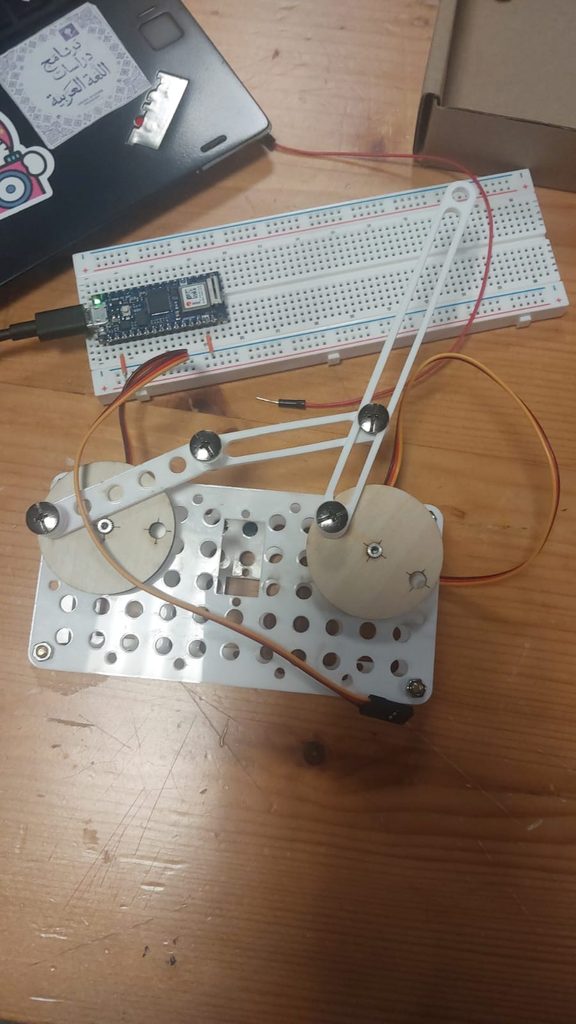
Before we could do any serious experiments we had to attach the servo to the plates. We struggled to find m2 screws that would fit in the gaps and keep the servos in place. We had to resort to using the second baseplate to wedge it in. It wasn’t perfect but it worked for the most part. Hopefully this didn’t cause too many problems.
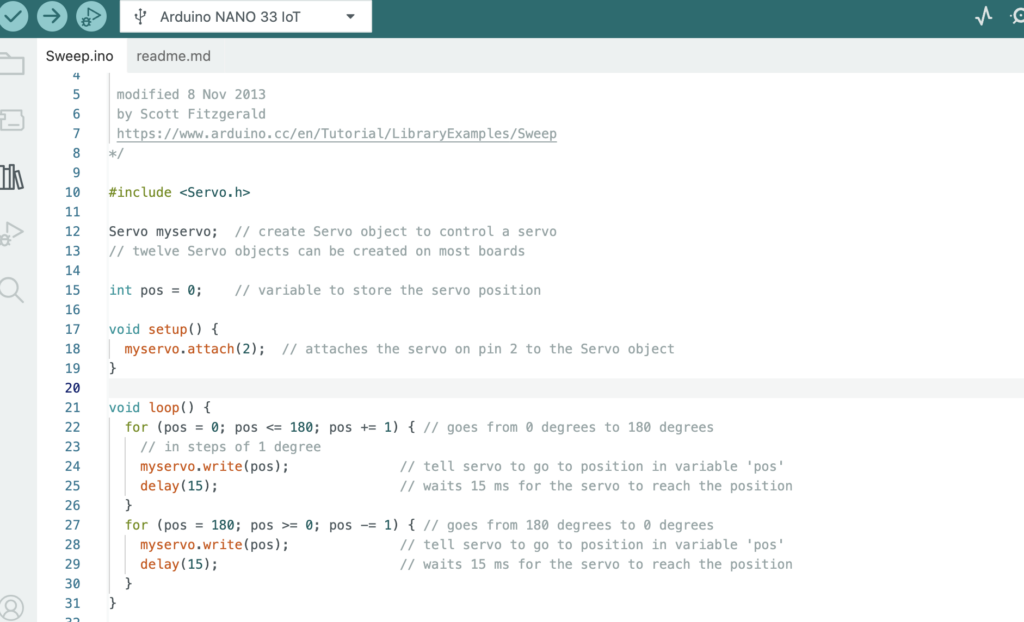
Meanwhile on the breadboard we connected the 3v3 pinout to the positive line, ground to ground and the servo’s PWM port to pin 3 on the Arduino. We did this for both servos.
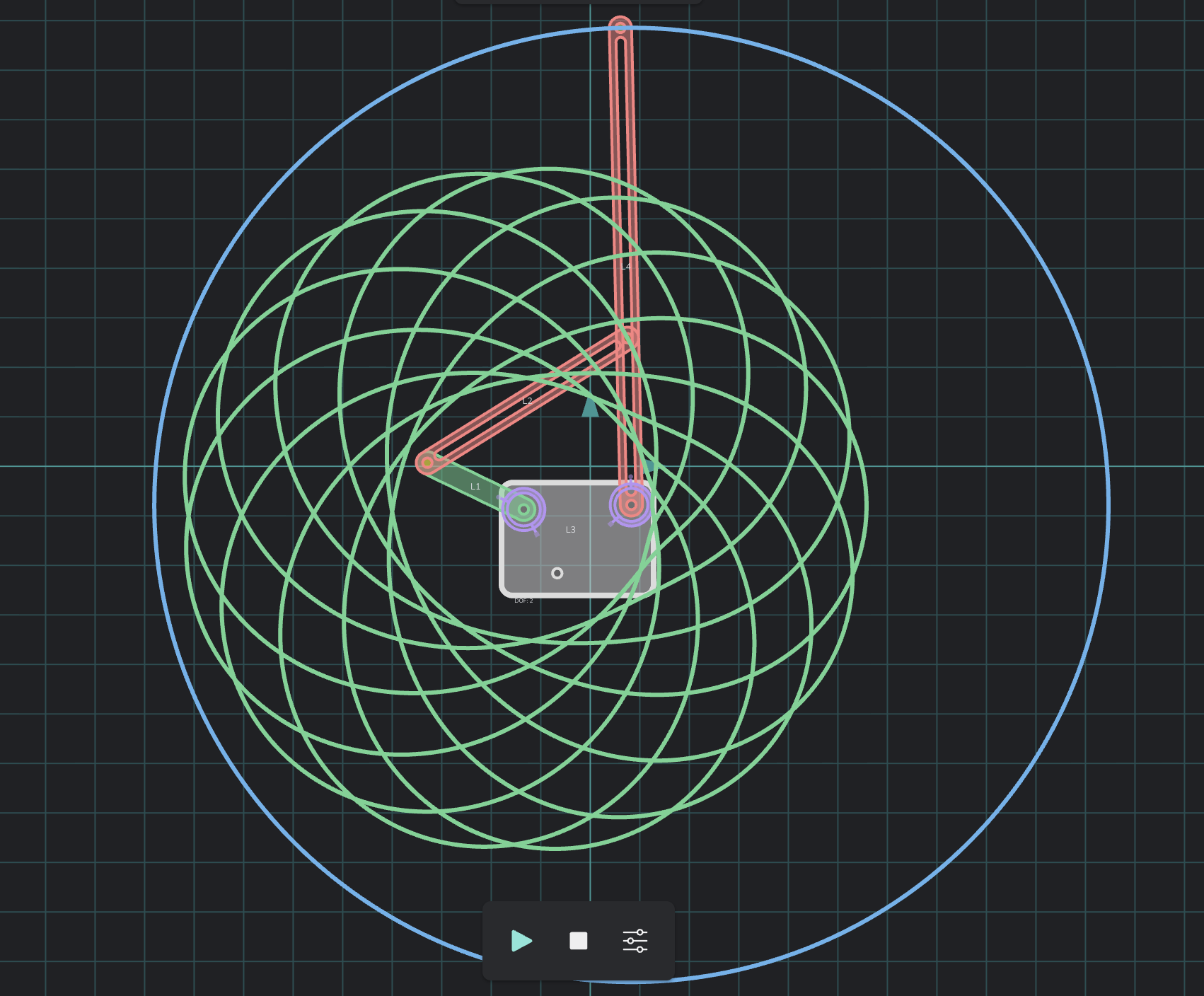
After some tinkering on MotionGen we decided to do the arrangement as seen in the screenshot above. The hope was to place the pen in the middle and get that spirographic pattern and if we placed a pen on the outside there’d be a circle. Neither happened.
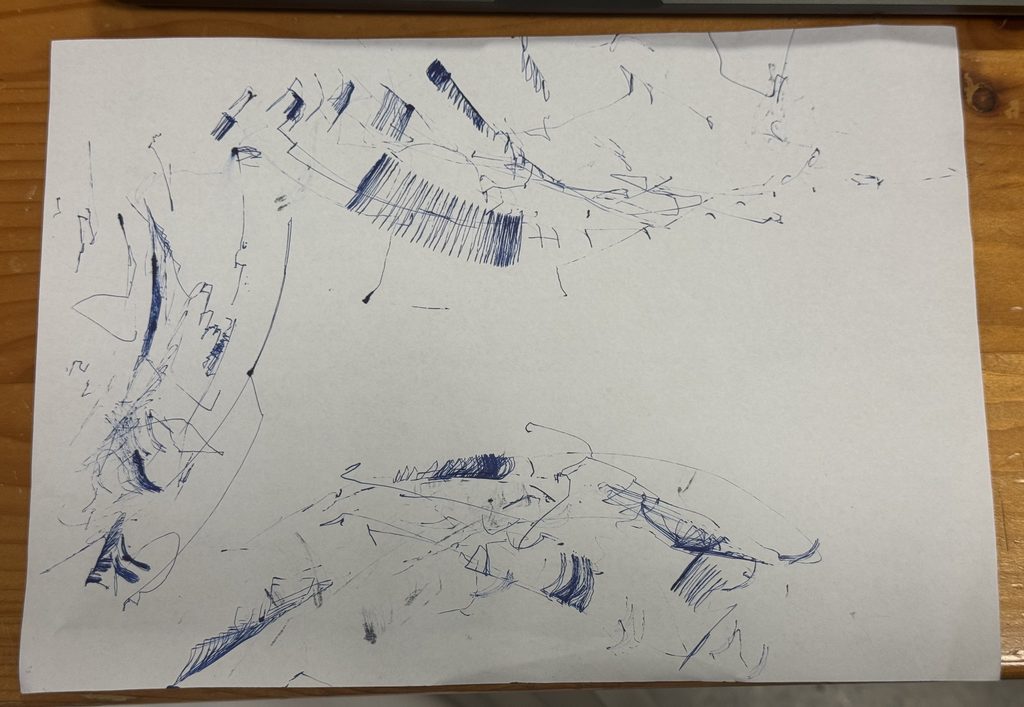
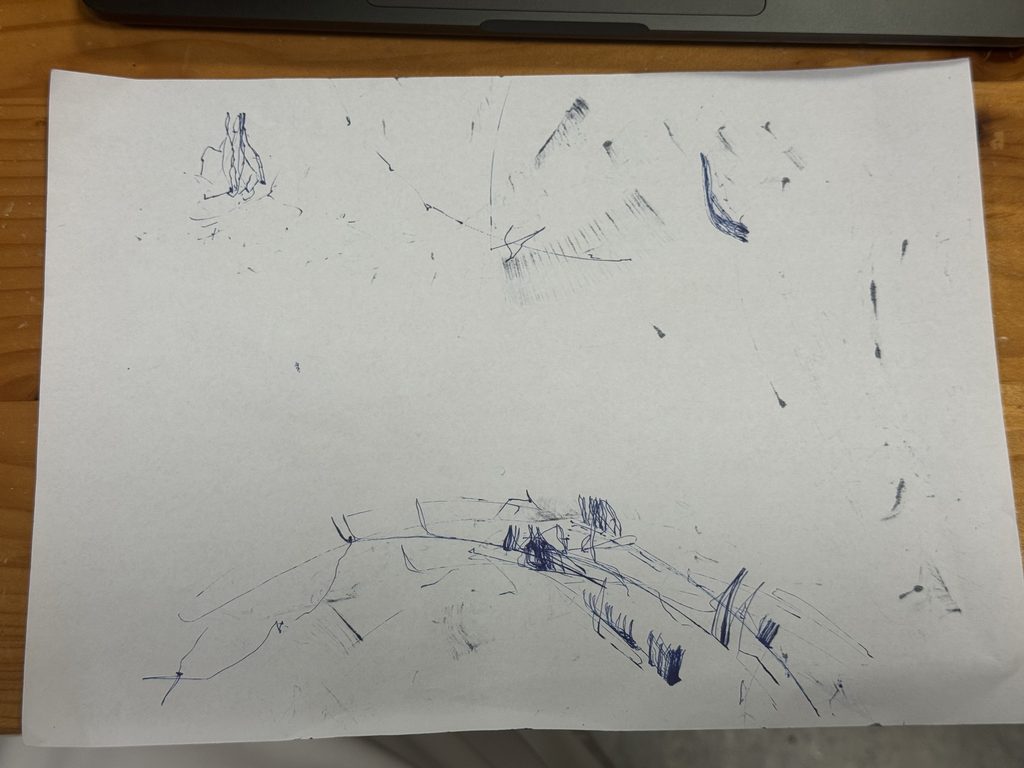
Drawing outputs
We later tried attaching the pen to the middle of the linkage as we saw on MotionGen but the results were worse. Ironically the chaos it produced is more interesting.
Reflection
Put simply, there was a lot of play in the system: The servos since they were wedged in place rather than screwed in place would move slightly creating inconsistencies, the screws to keep the linkages attached together had some play in it as well further creating inconsistencies, but most of all was the pen holder at the end which when a pen was attached would move around since it was attached to only one hole.
Rather than looking at the play as something negative it could also be seen as an artistic choice. The play in the system did mean that no two drawings were the same, you would get a slightly different output with every turn of the system.
Another thing which explains why result didn’t at all match what we had created in MotionGen were measurements, this should have been obvious. Naturally, when transferring from software to hardware you have to keep in mind the measurements: Distance between the servos, the radius of the turning circle, the length of the linkages, that the servos only turn 180 degrees etc. This led to the servos getting stuck at times. Where we expected the lines to be a smooth curve it wasn’t. In the future don’t forget to use a ruler.
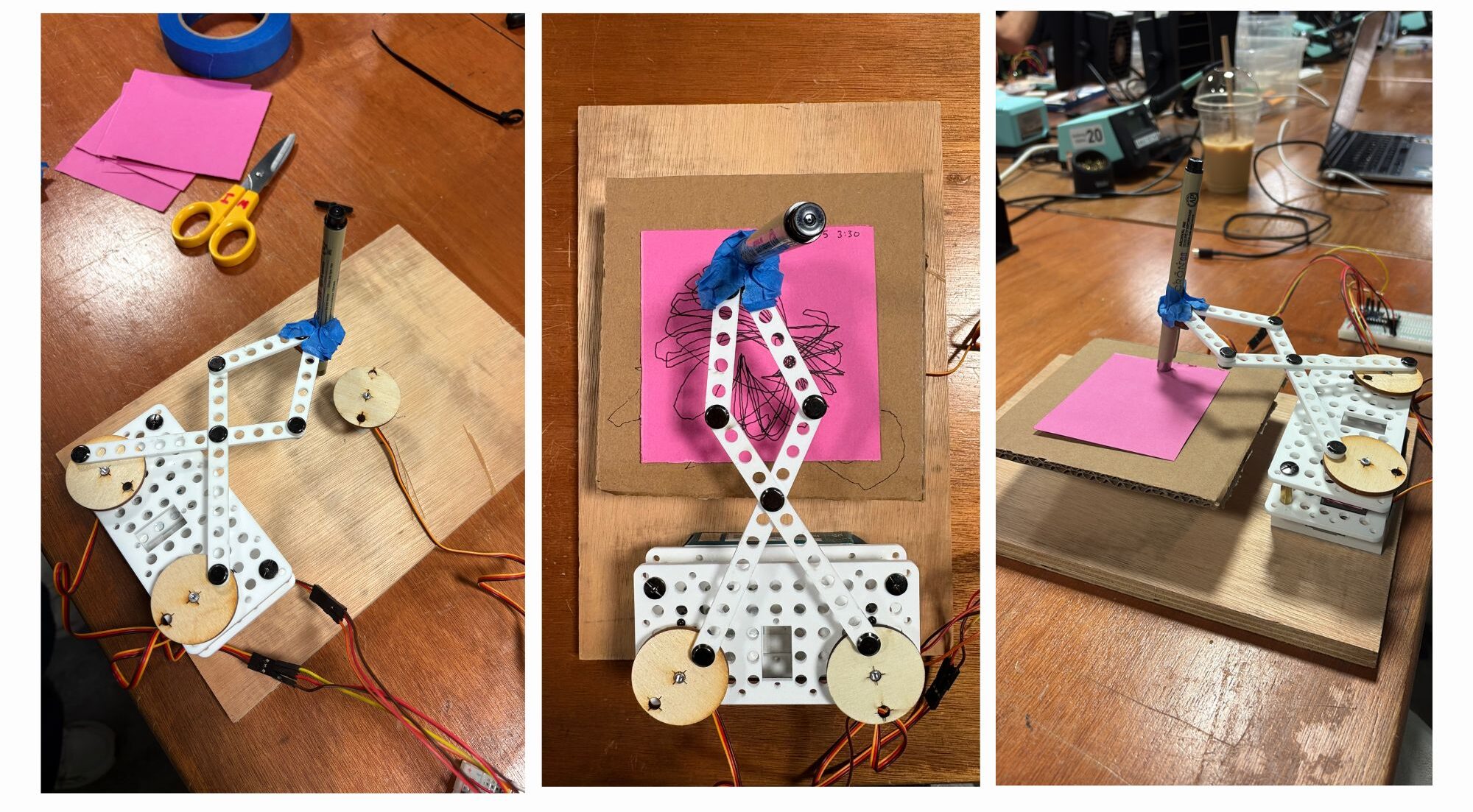
For this assignment, the drawing machine uses two servo motors connected through an acrylic linkage system to move a pen across paper. The concept of using two servos to mimic X and Y axis motions was appealing since the thought process was that if both servos had different motions, the combined output of both will result in a consistent process. However, the result was far more interesting than the initial process since the limitations of the linkages made sure that both servos could not move independently so as opposed to X and Y motions.
Process and Challenges
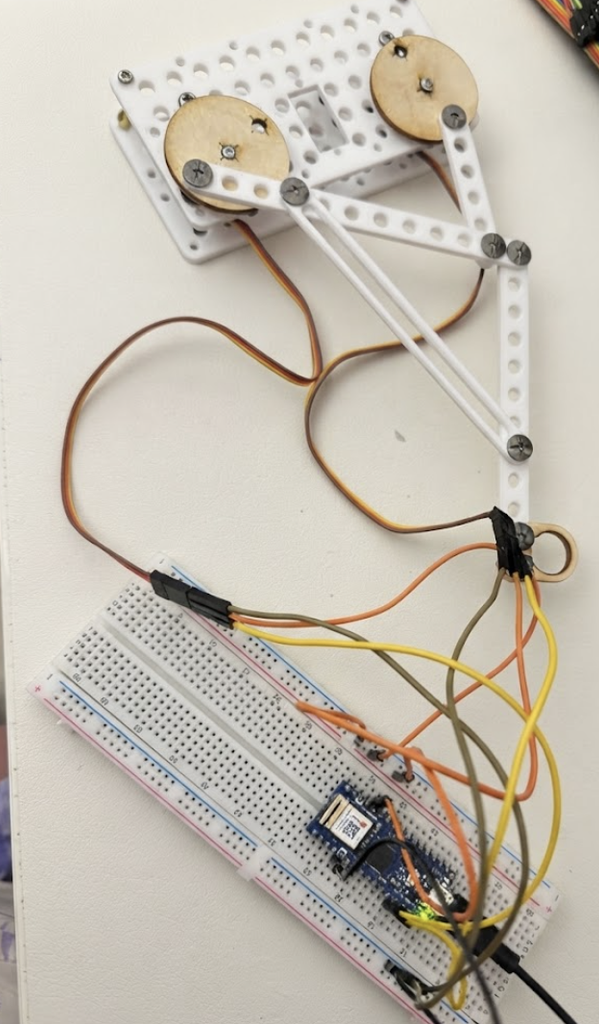
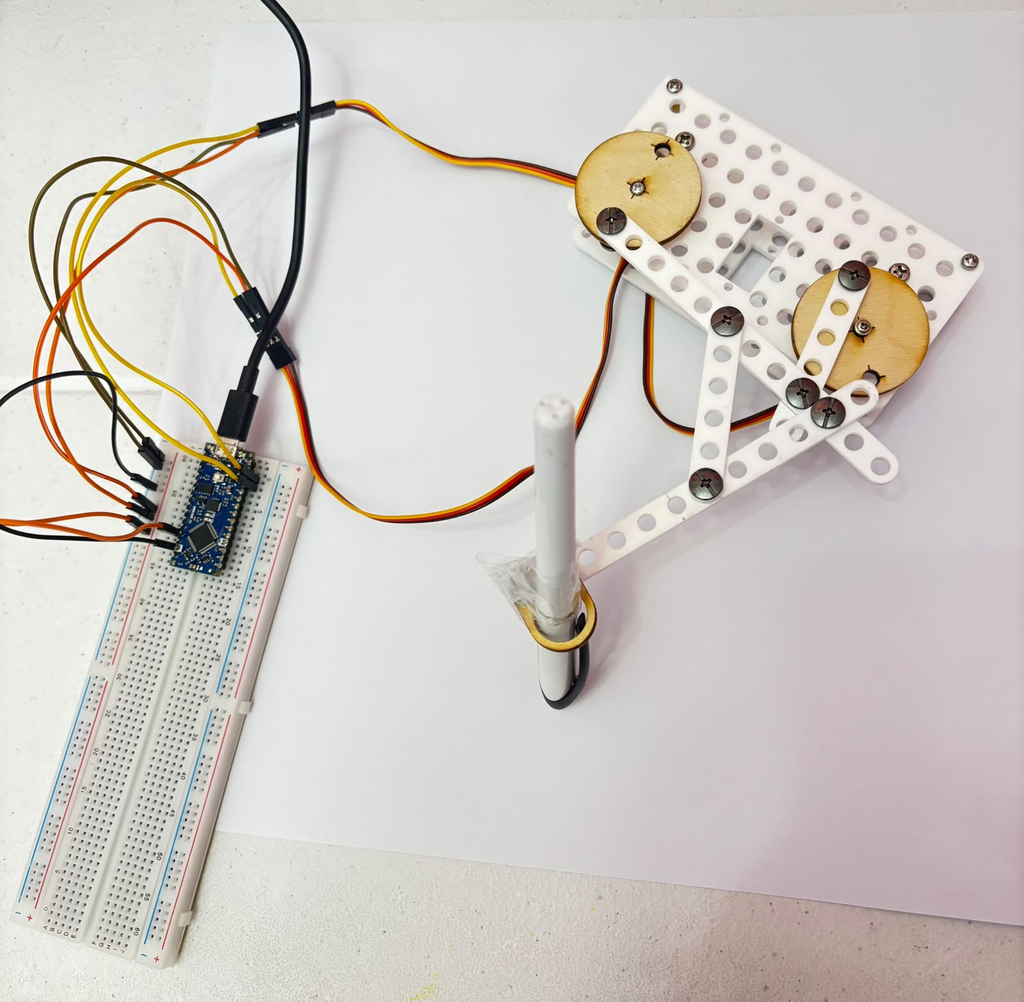
So, I decided to adjust the assembly between 4 trials to see how each change would affect the output. The first two trials (Image 1) used the original longer linkage configuration, and the last two (Image 2) used a tighter, shorter setup after I rearranged the arm positions.
Image1: Setup used for Trials 1 and 2 (AI Disclosure: Gemini was used to remove the black background and replace it with a white one for clarity)Image2: Setup used for Trials 3 and 4
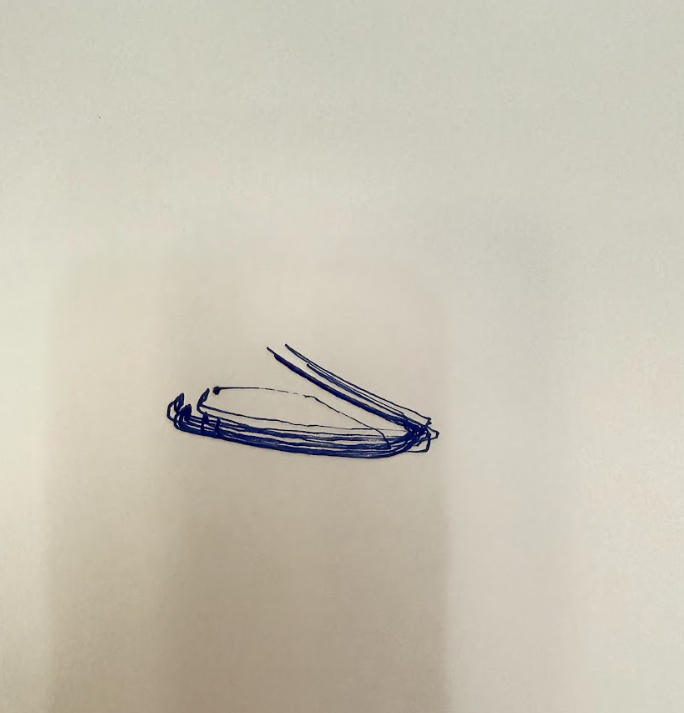
Trial 1 (Both servos in opposite directions with a delay of 15ms)
Trial 4 (servo 1 completes full sweep, then servo 2, with delay in 15ms)
Code Snippet
void loop() {
  for (int pos = 0; pos <= 180; pos++) {
    servo1.write(pos);
    servo2.write(pos); // same direction now!
    delay(15);
  }
  for (int pos = 180; pos >= 0; pos--) {
    servo1.write(pos);
    servo2.write(pos); // same direction!
    delay(15);
  }
}
Video and results
Reflection
In Trial 1, both servos moved in opposite directions at a delay of 15ms. The result was a compressed oval shape with two lines extending from the top right corner. The oval formed from the pen repeatedly tracing the same path, and the ink built up most where the machine slowed down to reverse direction.
In Trial 2, I increased the speed by changing the delay from 15ms to 5ms. The result is a dense, layered mass of overlapping lines in the upper area, with long loose trails extending outward. I figured the faster speed meant the pen covered the same path more times before I stopped the machine, which built up a thick textured body of marks. The trailing lines at the bottom and left look almost like the machine was reaching for something it couldn’t quite get to.
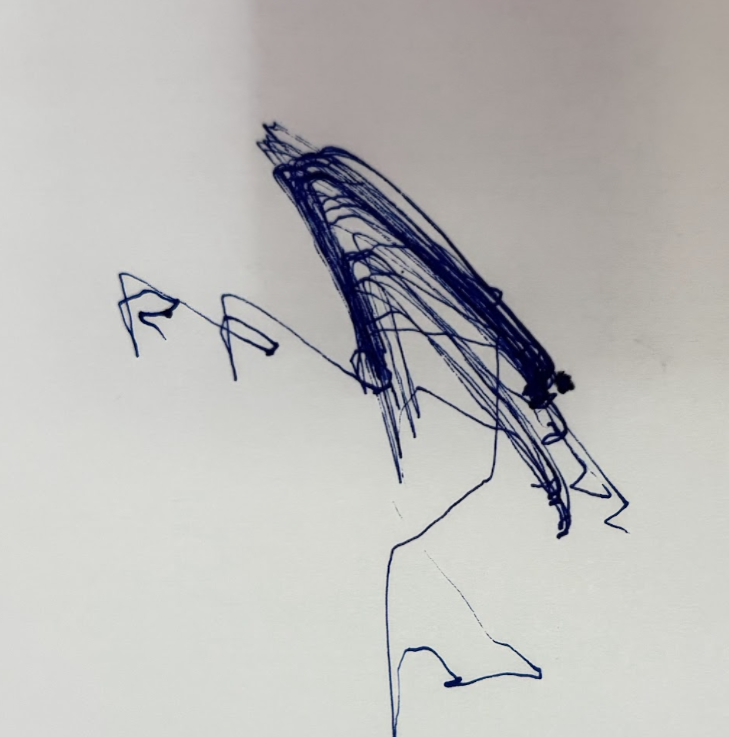
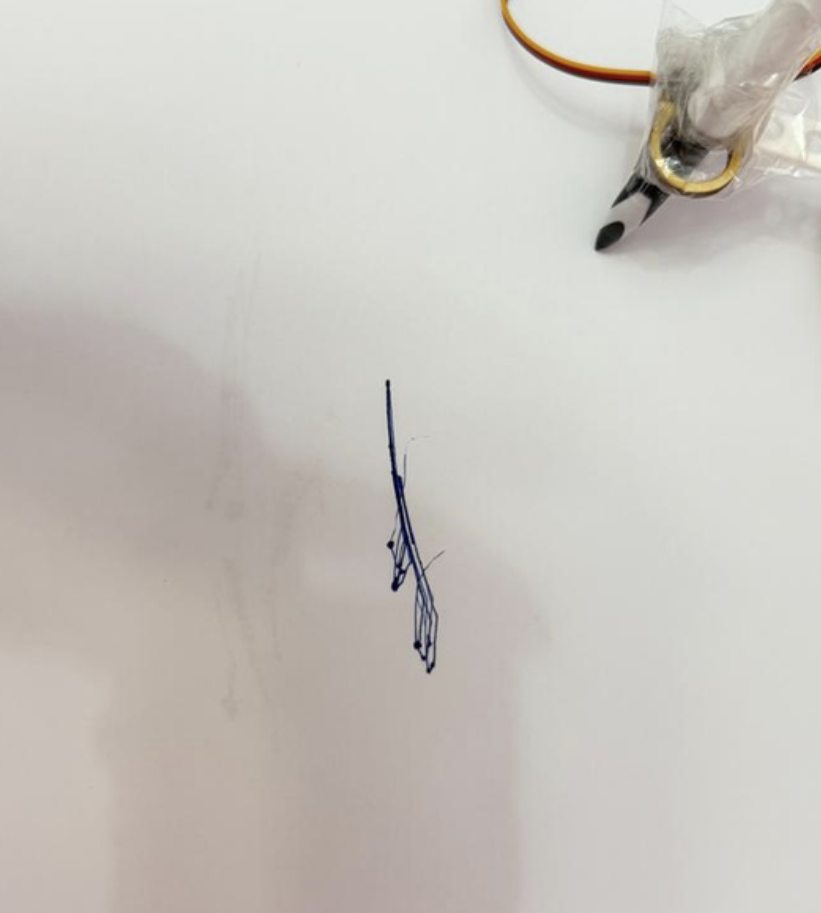
In Trial 3, I changed both servos to move in the same direction instead of opposing each other, keeping the delay at 15ms. The result was a thin vertical line with small angular marks clustered at the bottom, almost like a stick figure. When the servos oppose each other they create tension that spreads the pen across a wider area, but when they move the same way that tension disappears and the movement collapses into a much smaller, more concentrated path.
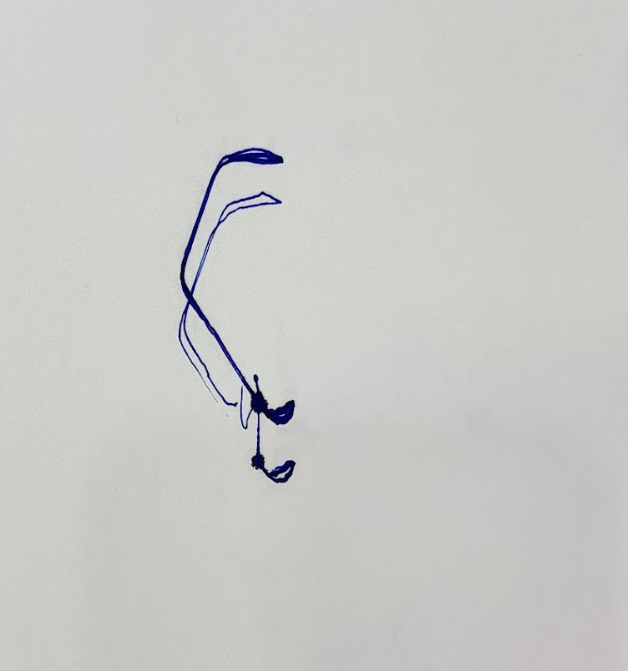
In Trial 4, I ran the servos sequentially — Servo 1 completed its full sweep first, then Servo 2 did the same. The drawing produced open crossing arcs similar to Trial 1, but with two distinct ink blobs at the bottom where each servo paused before the other took over. The crossing point in the middle is where both paths intersected, where it shows where one servo’s movement ended and the other’s began.
We started out really wanting to make a spirograph. Then we reread the brief and remembered we could only use servos, and our servos only turn 180 degrees, which is half a circle, which turned out to be a problem because the entire premise of a spirograph is that something goes around 360 degrees without stopping. We spent a while trying to get around this (we looked into whether ours were secretly the continuous kind, we were not so lucky) before accepting that the constraint was not going anywhere and we should probably design with it instead of against it.
The machine
We built a four bar linkage. Two servos sit bolted to the base, each one drives a long link out to an elbow, and then two shorter links run back inward and meet at a single joint where the pen is taped. They both push at the same time and the pen goes wherever those four links allow it to go.
Then we put a third servo across this mechanism and made it turn a cardboard turn-table with the paper while the arms were drawing, and that turned out to be the backbone of our entire project. Without it the pen just retraces the same figure over and over until you stop it.
Outputs
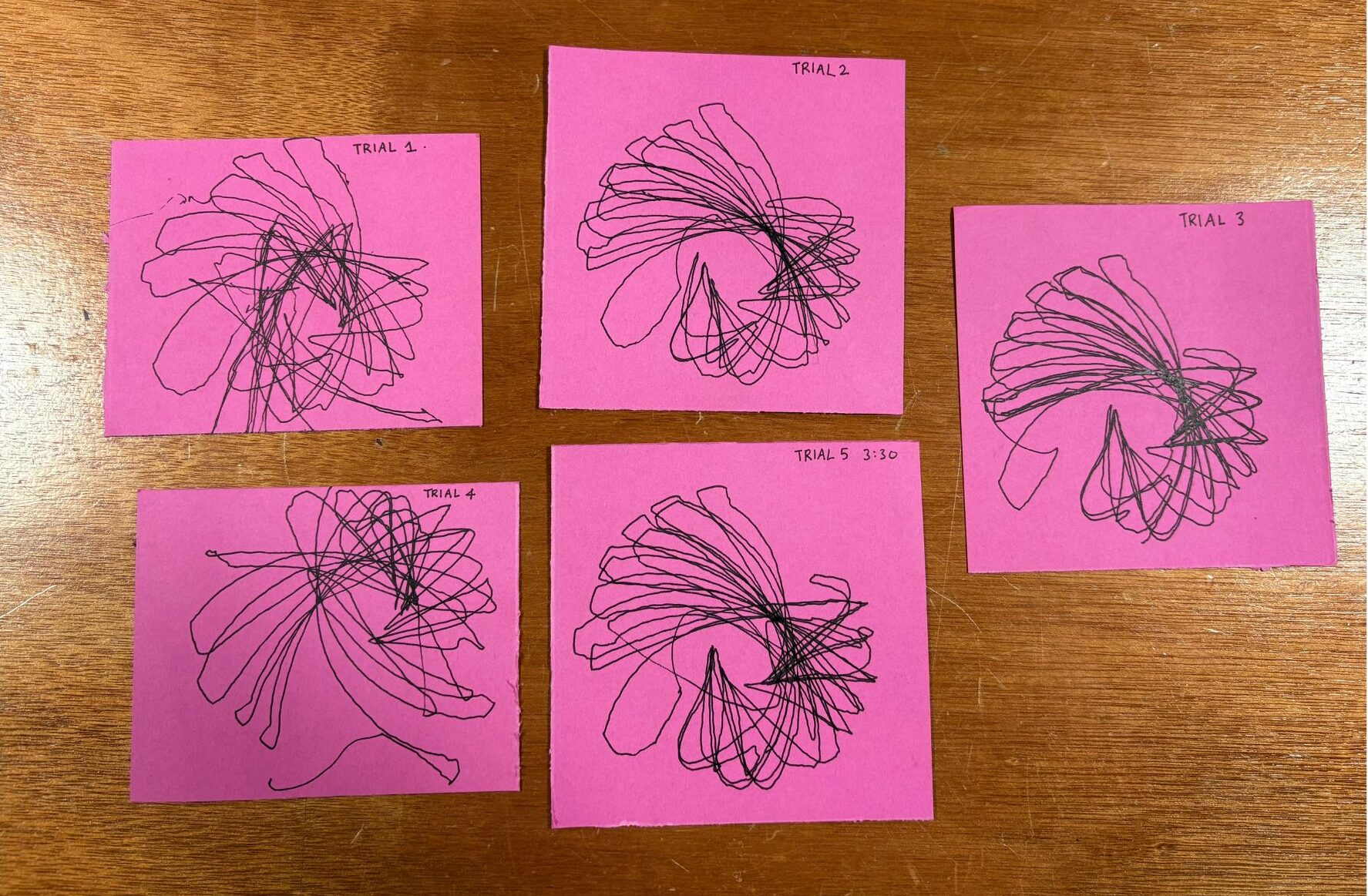
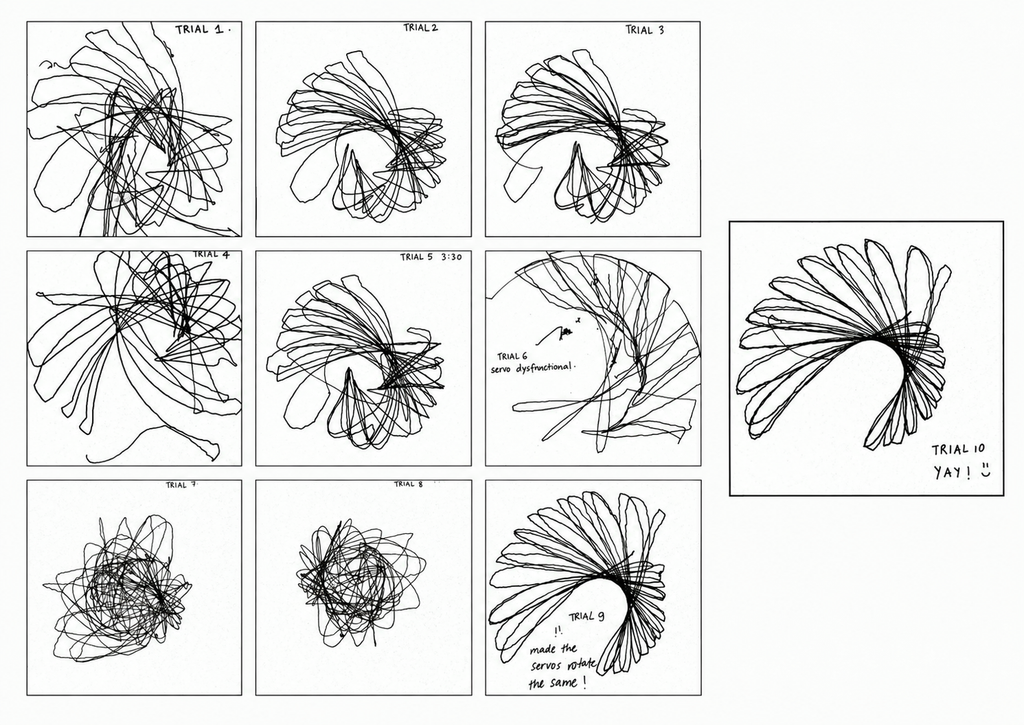
We did ten runs and the short version is that trials 1 to 5 use our first version of the code where the two arms swing in opposite directions at different speeds (the second arm running at 1.7 times the first, which is deliberately not a whole number so the two never line back up and the pattern keeps drifting), trial 6 is where a servo stopped cooperating, trials 7 and 8 are what happened when we tried to fix it and made it much worse, and trials 9 and 10 are the final version where both arms move together.
The bird
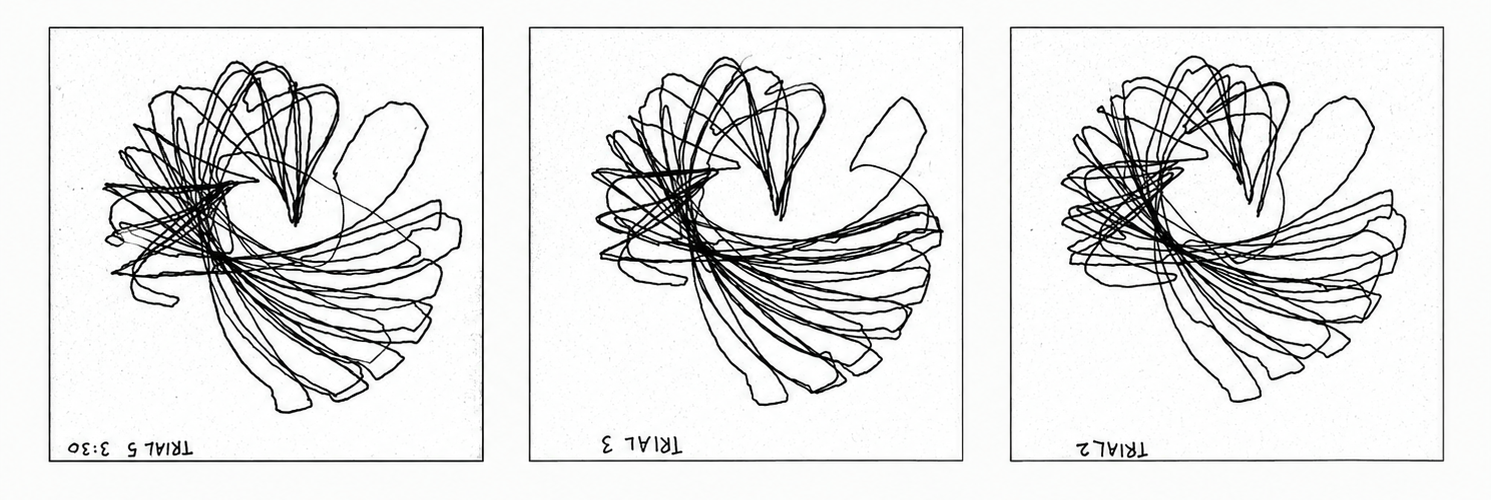
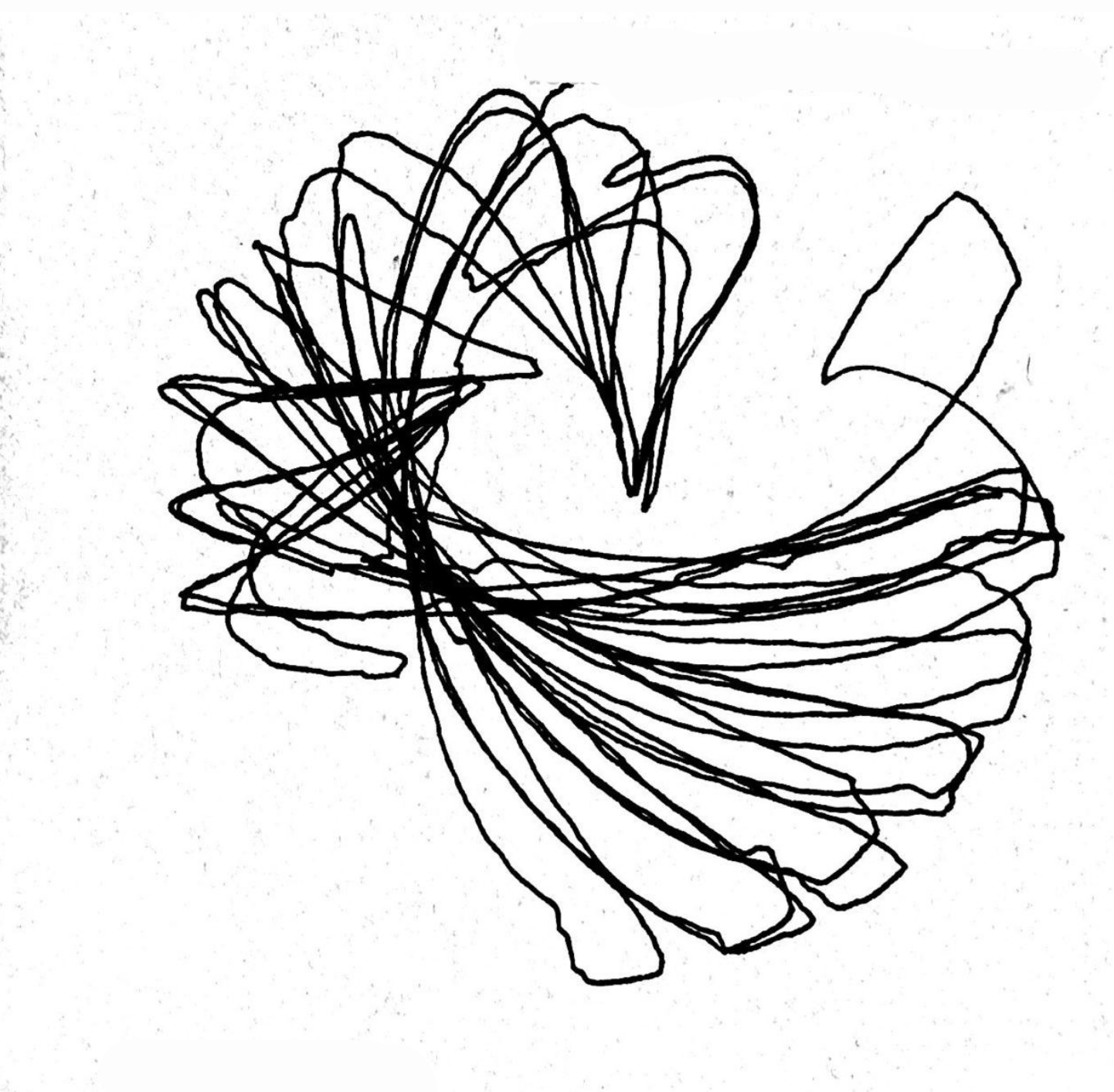
Trials 2, 3 and 5 are our favourites and here is why.
They look like a bird! which might sound like a reach until you look at one properly and cannot unsee it. There is a body in the middle where all the lines converge and get dense, there is a tail sweeping out low and wide to one side in long overlapping strokes that genuinely taper the way feathers taper, and up at the top there is a crest fanning open in these pointed loops that come to a sharp tip, which is the beak and then curl back.
This bird is more beautiful to us than what a completed geometric spirograph ever could’ve been.
Process and challenges
Trial 6 is where things went sideways, because one of the servos stopped holding its position properly and the other one started essentially dragging the entire linkage around by itself, and you can actually see the exact moment it happens in the drawing, because half of it has clear structure and the other half is just one arm being hauled sideways by the other
We decided the problem must be tension in the joints and loosened the screws, which felt like a reasonable thing to do at the time and was completely wrong. Trials 7 and 8 came out as a dense scribble sitting in the middle of the page with absolutely no structure holding it together, because loose joints mean every link gets to shift a little before it actually starts moving the next one along, so the whole machine wobbles instead of tracing anything.
Which is a good lesson, even though it cost us two drawings, because eight trials in, the single change that affected the marks the most was not anything in the code, it was how tight a screw was.
For the last two runs we stopped being clever about it and just made both arms move in the same direction to see what would happen, and that gave us the flower.
Reflection
The thing we actually learned is that the mechanism and the code are not two separate variables that you tune independently.
The screws prove it going one way, because the code was identical across trials 5 and 7 and the only thing that changed was how tight the joints were, and the drawings do not look like they came from the same machine.
And then the code proved it going the other way, which is slightly embarrassing but is genuinely the most interesting thing we found. In the final version both arms run at the same speed in the same direction, at this point they stopped functioning as two separate inputs and started functioning as one, so the linkage effectively went rigid and stopped contributing anything, and the only part of the machine still generating a pattern was the turn-table. That is exactly why trials 9 and 10 look so clean and so resolved and so finished.
Which is also the whole reason we prefer the bird. The petal drawings might be objectively prettier but we are prouder of the mess, because the mess is the one where all three parts of the machine were harmoniously functioning together to create this unintended but highly appreciated creature.
Moving forward we want to try different speed ratios between the arms, add phase offsets so they start out of step with each other, and run the table much faster and much slower against the same arm motion to see how much of the character comes from that one servo. We want more birds!!!
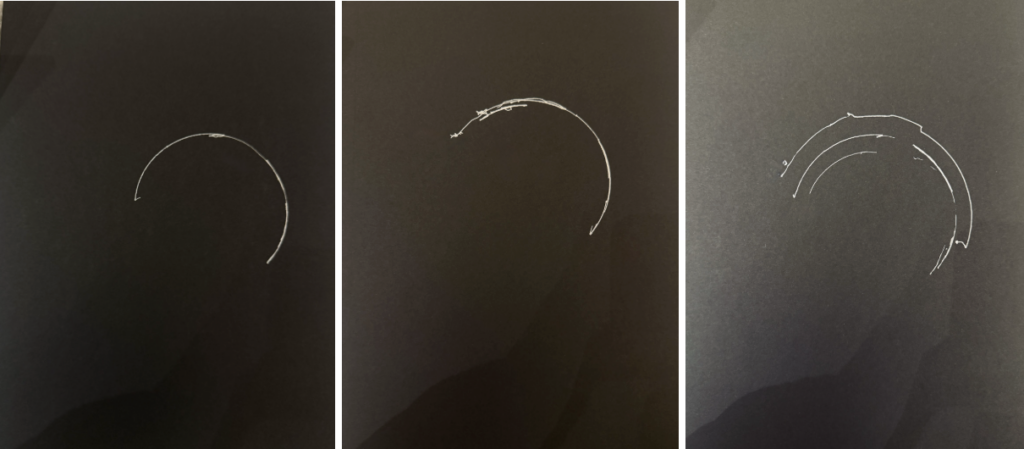
Our concept was to create abstract geometric drawings using curved lines. We connected the pen to a long arm attached to the servo motor so that the movement of the servo naturally creates smooth curves. The potentiometer controls the position of the servo, so as we continue turning it back and forth, the pen shifts within a certain range and creates more curves on top of each other. This allows the drawing to build up over time and create different geometric patterns.
Process and Challenges
One of the main challenges was building the physical machine itself. It was difficult to make the structure stand properly while also keeping the servo and pen stable. We experimented with different ways of attaching the arm and positioning the pen. Some designs were either too unstable or did not allow the pen to move smoothly. After experimenting, we found that having one long arm connected directly to the servo was the most effective design because it was simple, stable, and produced smooth curves.
Another challenge was the pressure of the pen on the paper. If the pen was pressing too hard, the servo struggled to move. We had to adjust the pen so that it was touching the paper lightly while still being able to draw.
For the different outputs, we experimented with how we moved the potentiometer. Moving it across a larger range created wider curves, while using a smaller range created more concentrated curves. We also changed how quickly and how often we turned the potentiometer, which caused the lines to overlap differently. Even though the machine uses the same basic movement, each drawing developed into a slightly different pattern.
Reflection
The mechanism had a large effect on the resulting marks. Since the pen is connected to a fixed arm, its movement naturally follows a curved path instead of moving in a straight line. The length and position of the arm also determine how large the curve can be.
We also noticed that the potentiometer changes how the drawing develops. Moving it slowly creates smoother and more controlled curves, while moving it more quickly creates faster overlapping marks. Repeatedly moving between different positions builds more curves within the same area and makes the drawing more complex.