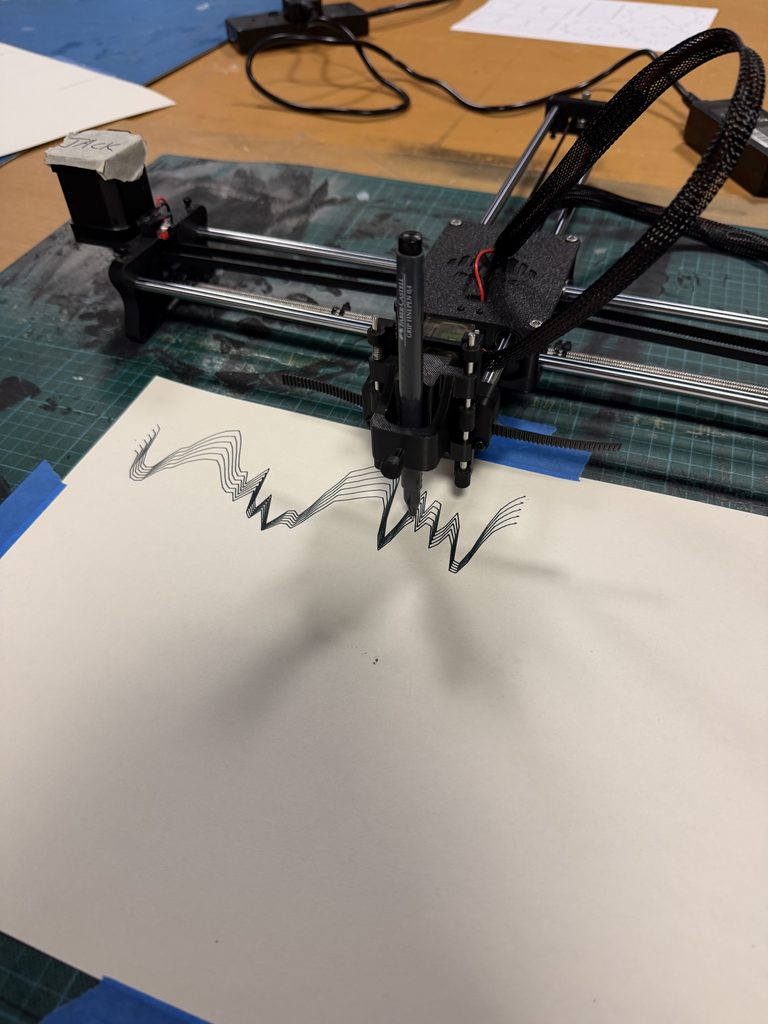
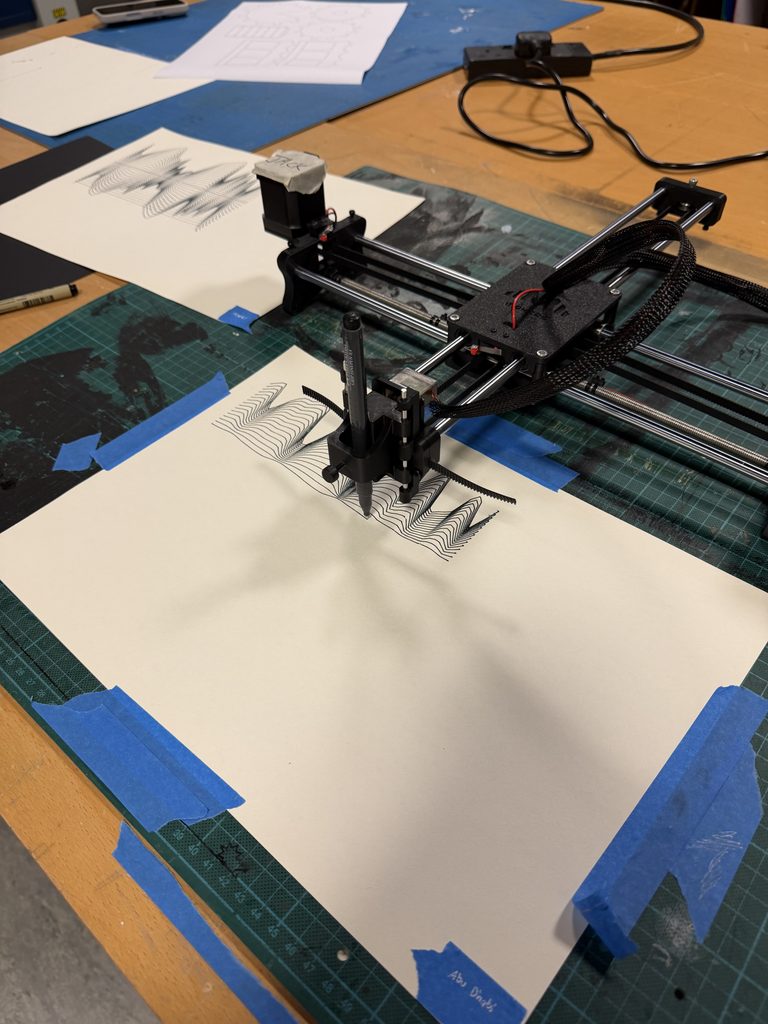
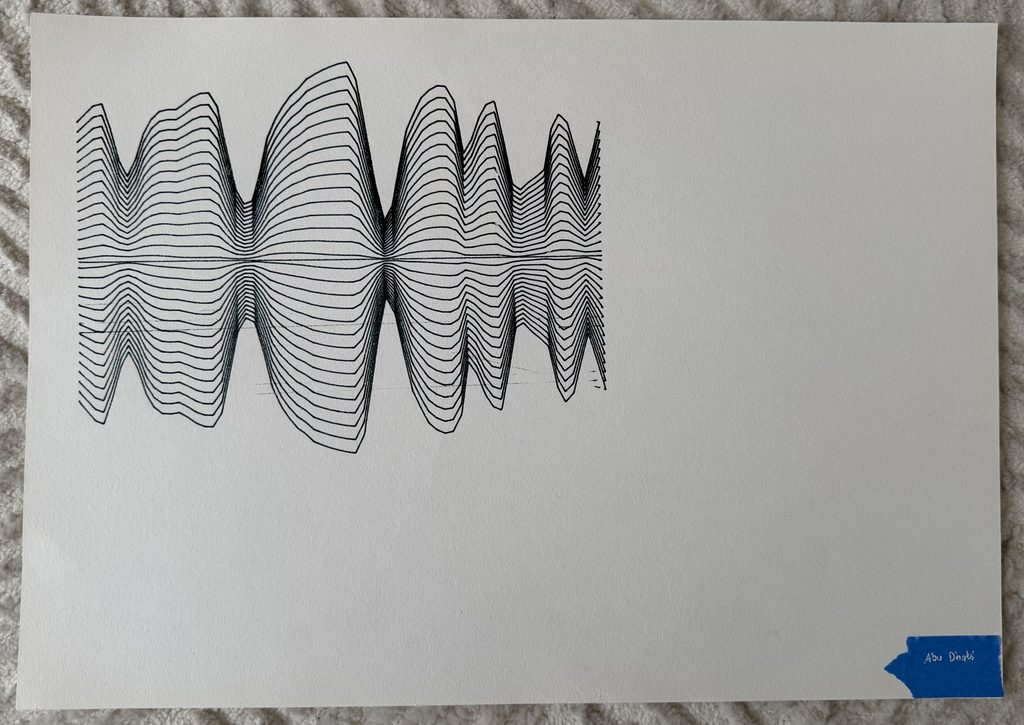
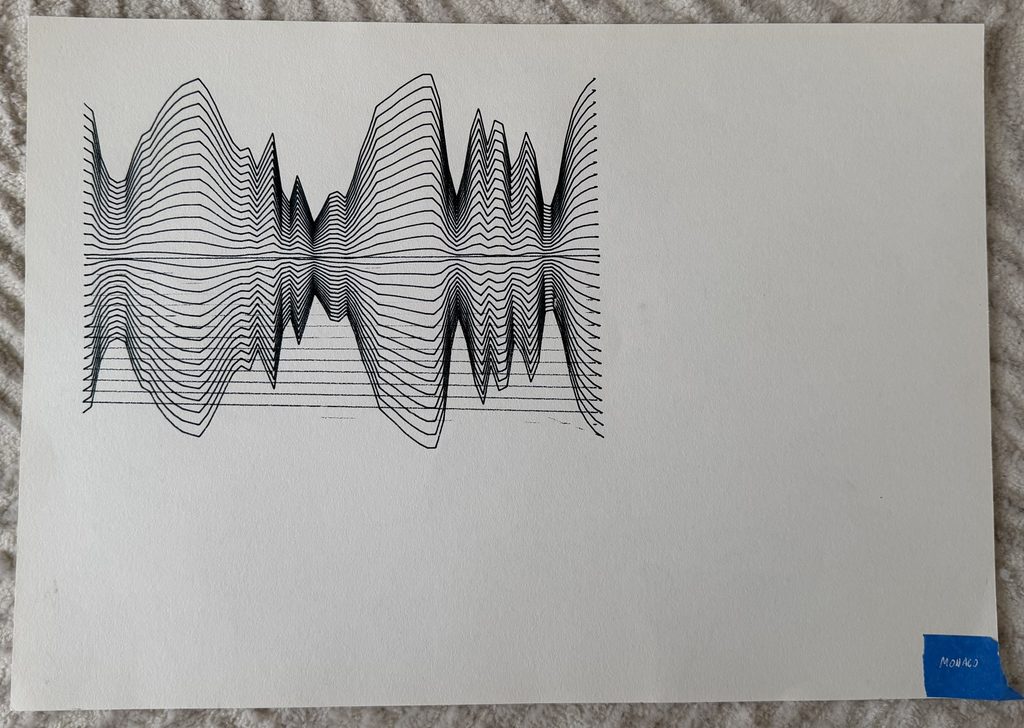
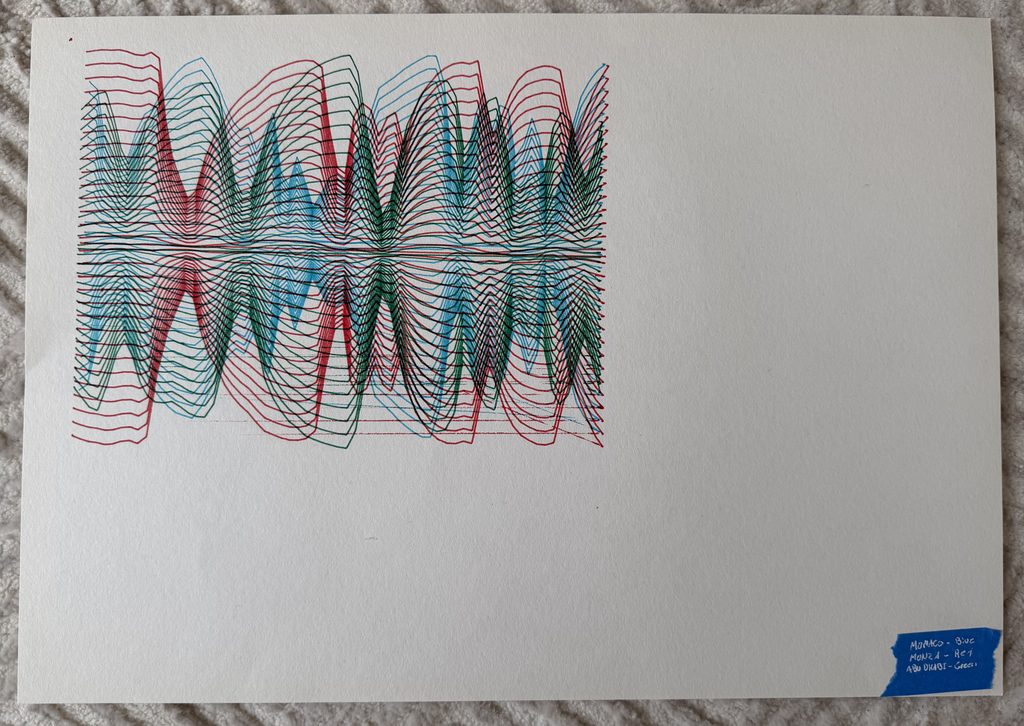
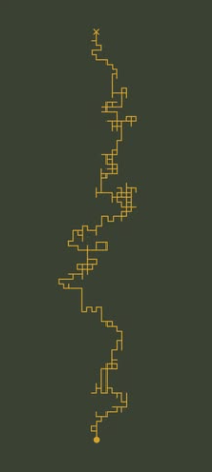
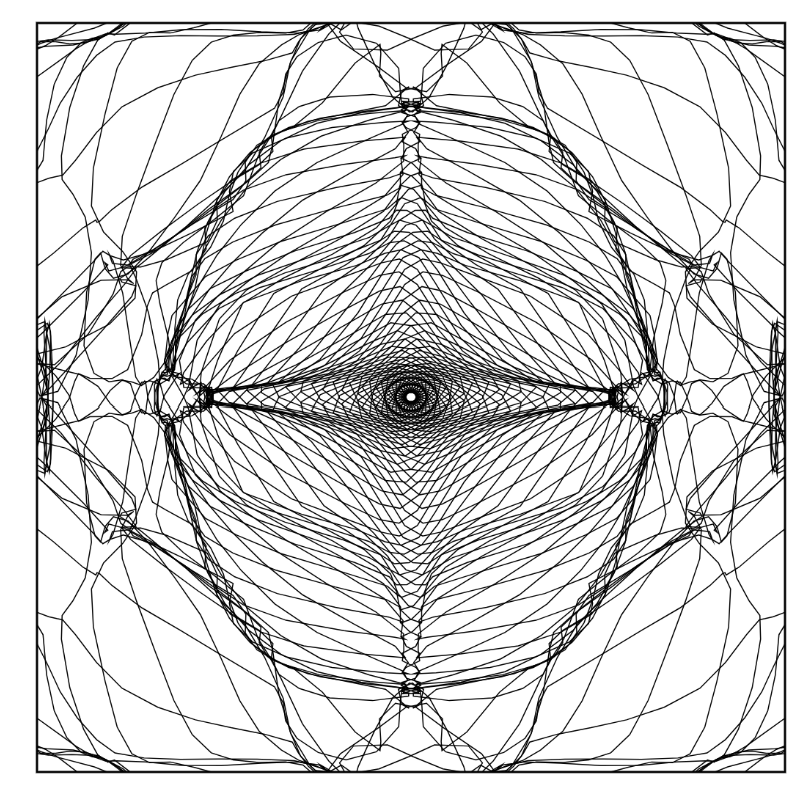
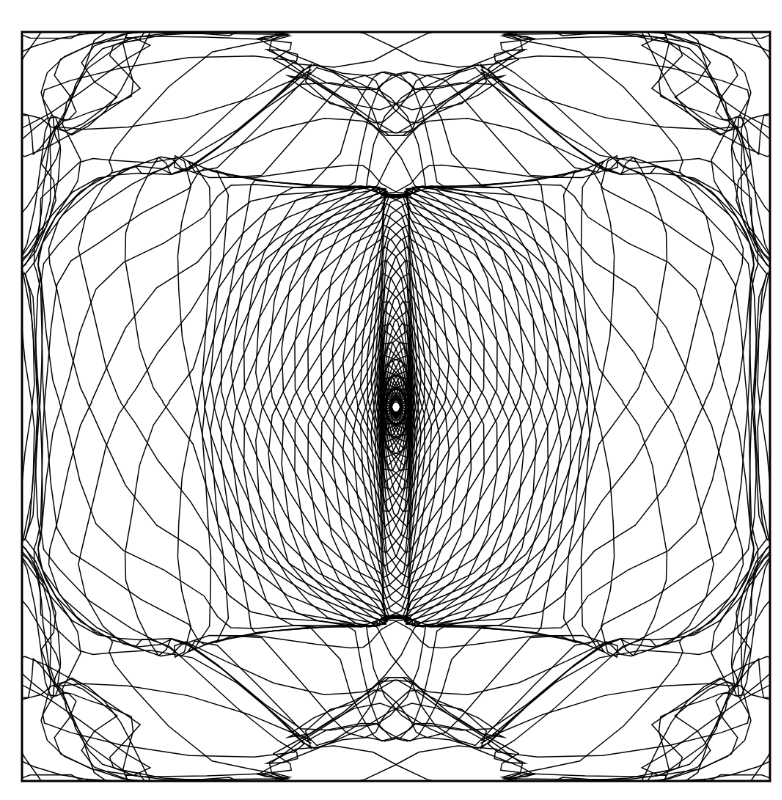
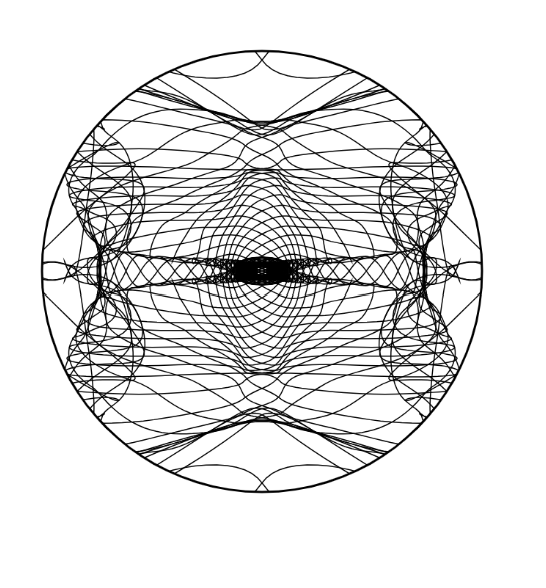
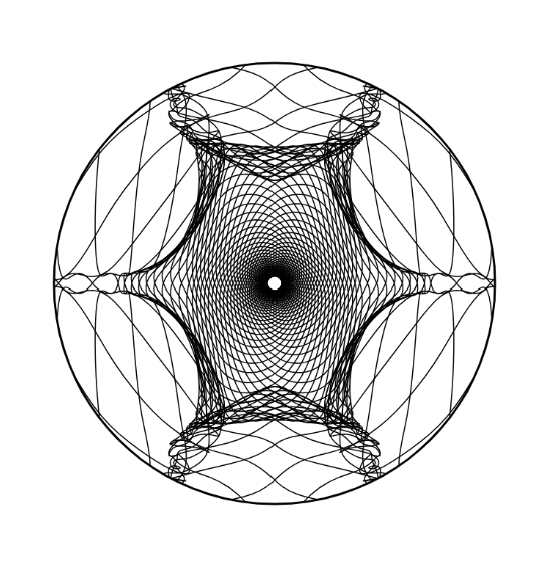
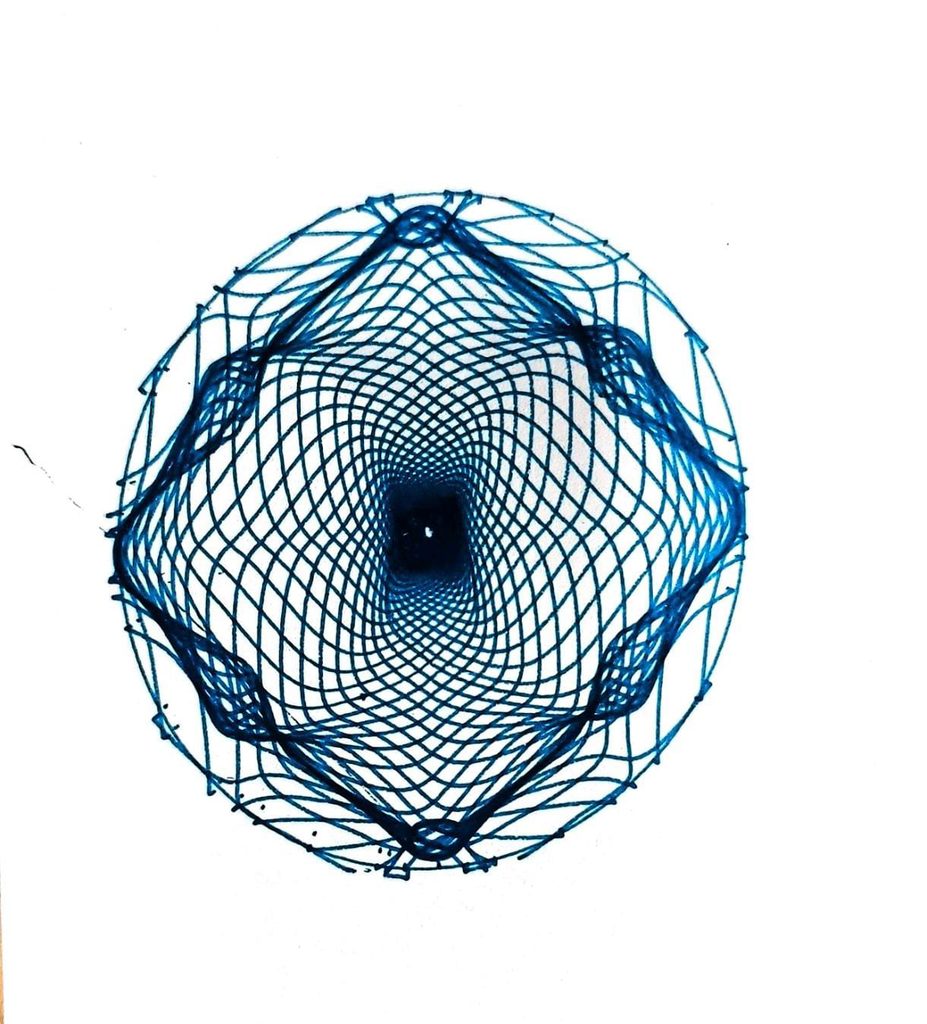
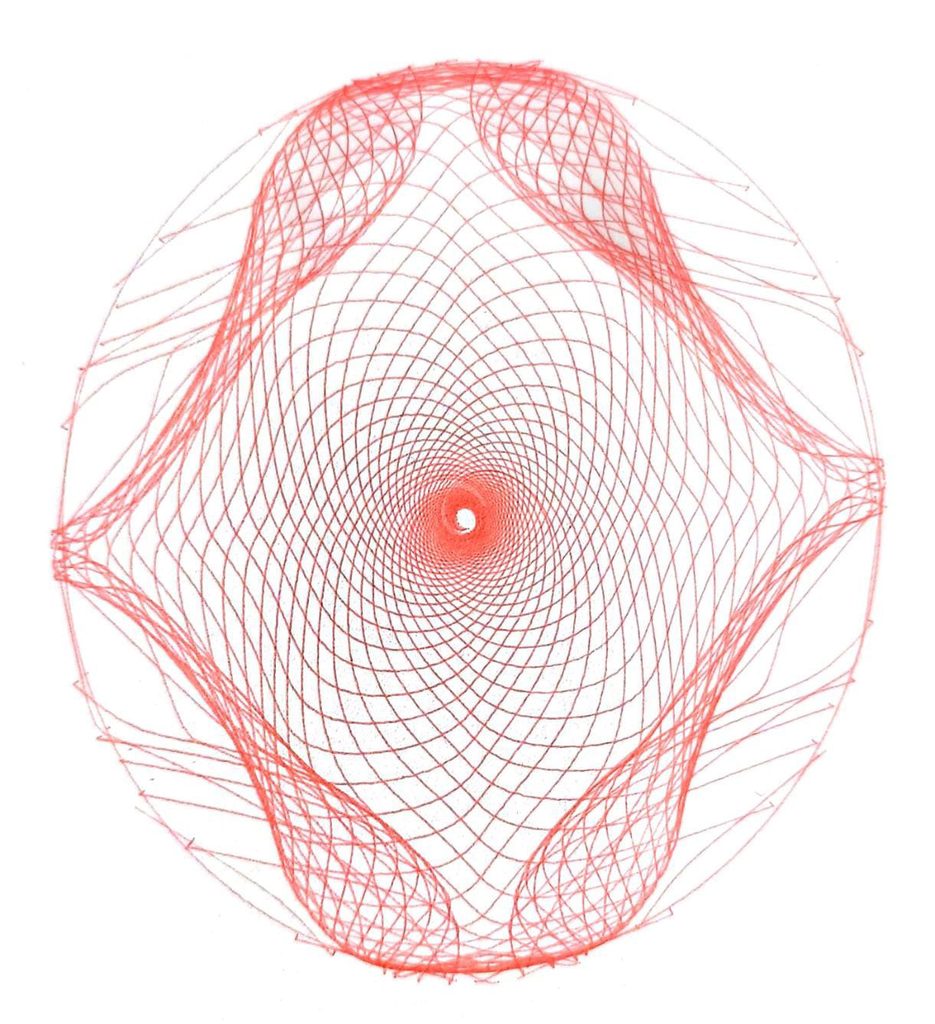
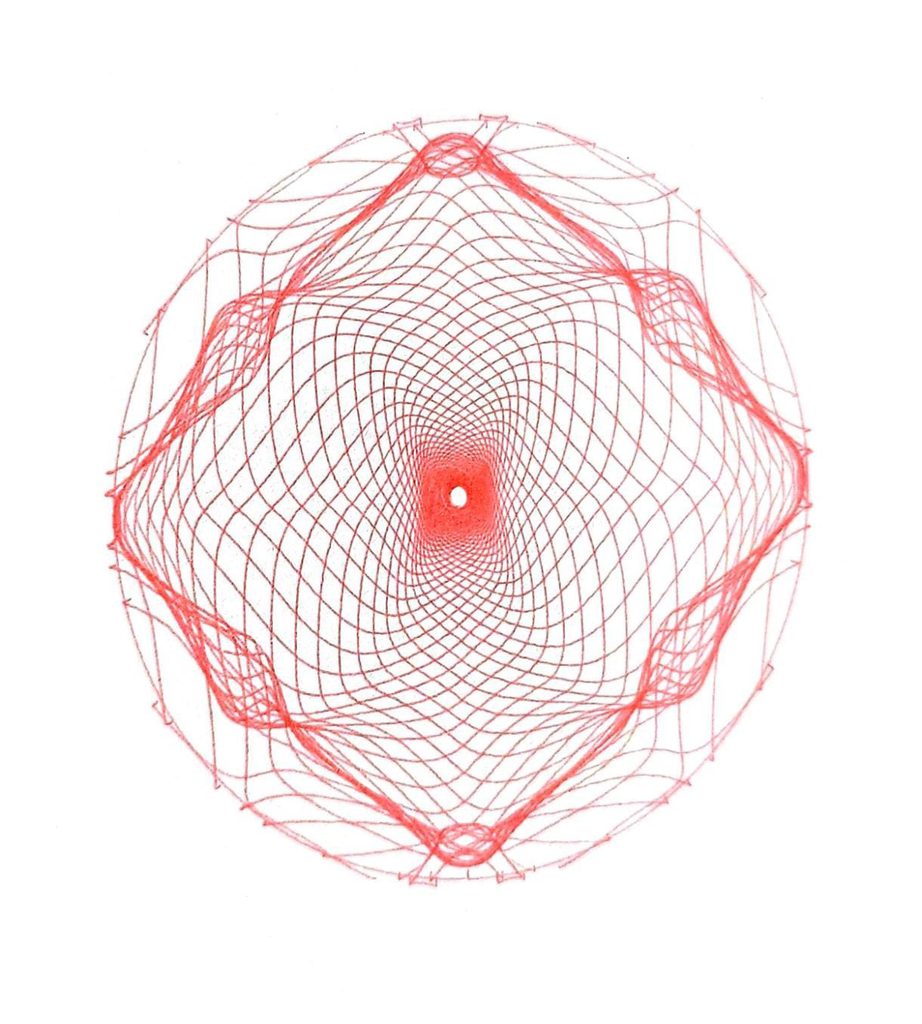
For my midterm project I wanted to combine my interests in Formula 1 and computational drawing. So I decided to investigate how speed can be turned into abstract visual patterns using a pen plotter. I concentrated on Lewis Hamilton’s 2025 races at three different circuits, Monaco, Monza and Yas Marina. I created a drawing system in p5.js that uses the speed measurements from each circuit to measure the lines expanding with high speed and getting closer with low speed. The idea was to make three drawings with the same algorithm but with different speeds, so they would produce different compositions. I also wanted to try overlapping the drawings in different colours to see how the three circuits could interact in one artwork.
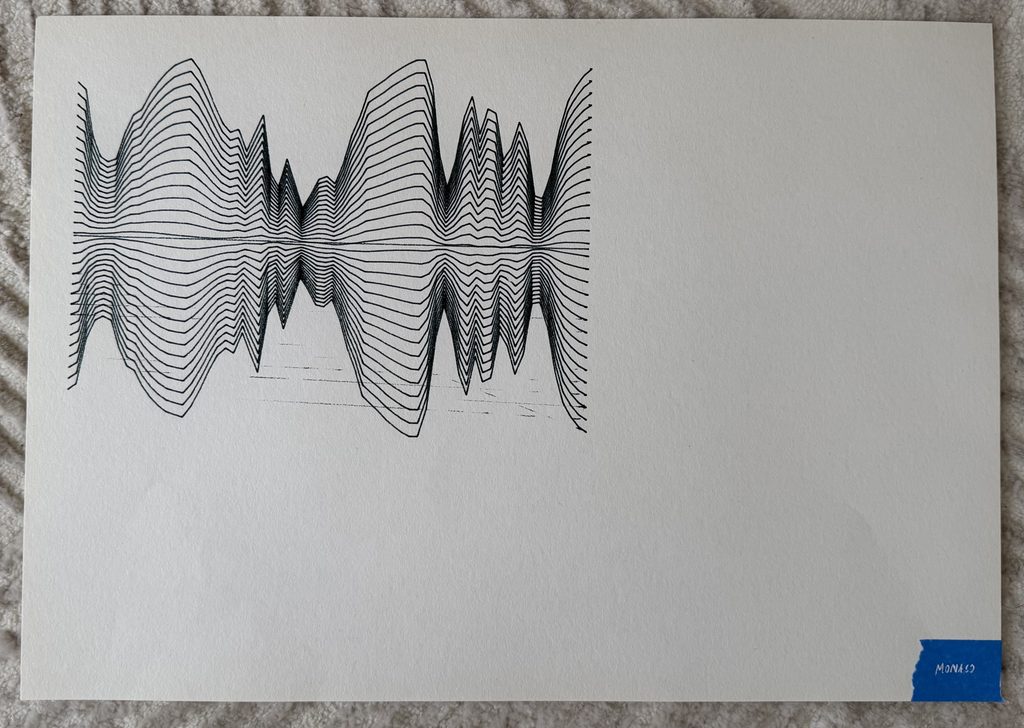
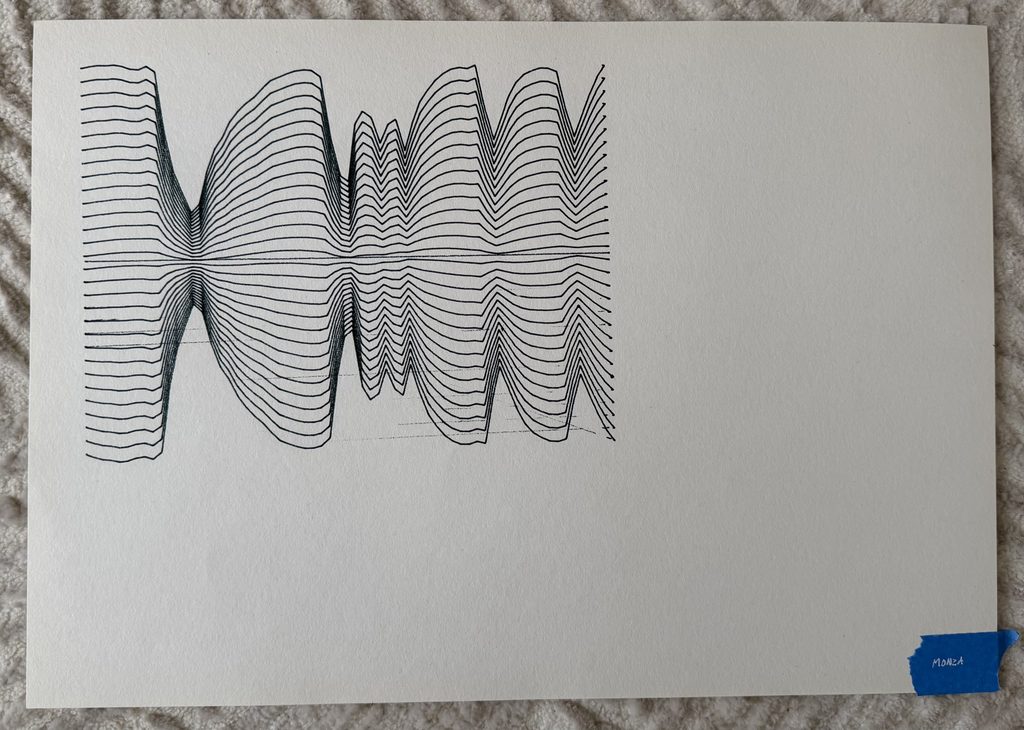
I collected speed measurements from the graphs on The Field F1 and entered them into p5.js. I then adjusted the data so that each circuit used 65 measurements. The algorithm generates 30 repeated lines, with the horizontal position representing progress through the lap and the speed controlling how far the lines expand from the centre. Faster sections create wider shapes, while slower sections bring the lines closer together. I also added a slight wave movement to make the drawings more fluid. Using the same rules for all three circuits allowed the speed data to create different patterns.
Once I was happy with the digital drawings I exported each as an SVG file directly from p5.js. I then converted the SVG files into G-code using Inkscape so the pen plotter could follow the line paths and reproduce the drawings on paper.
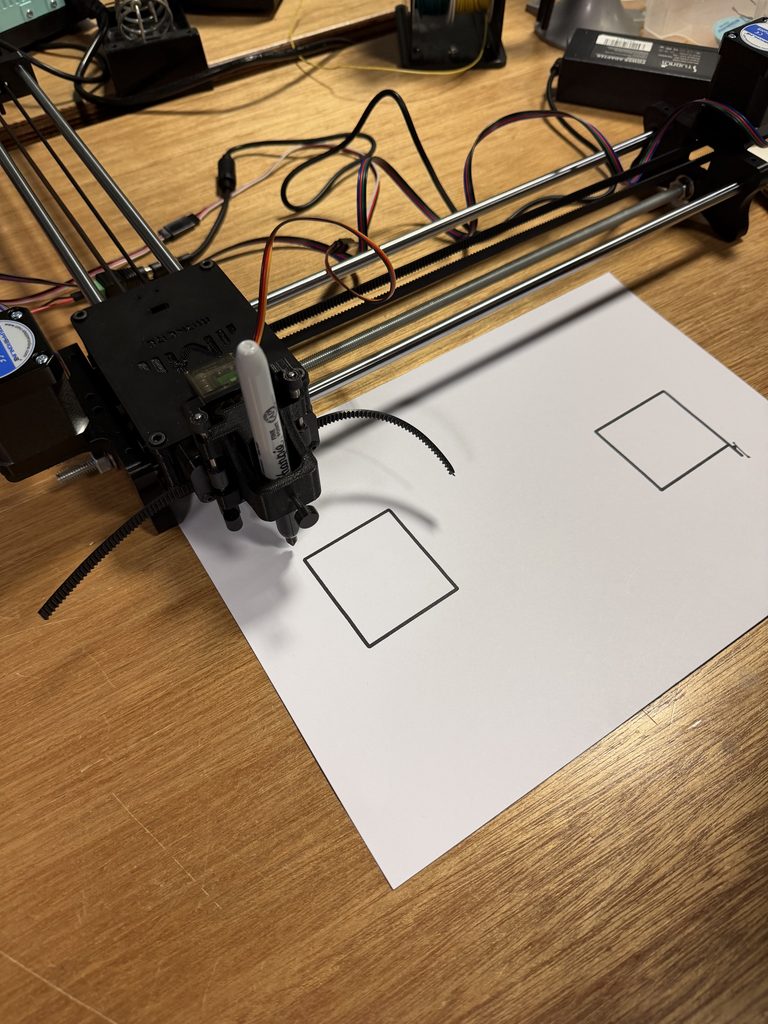
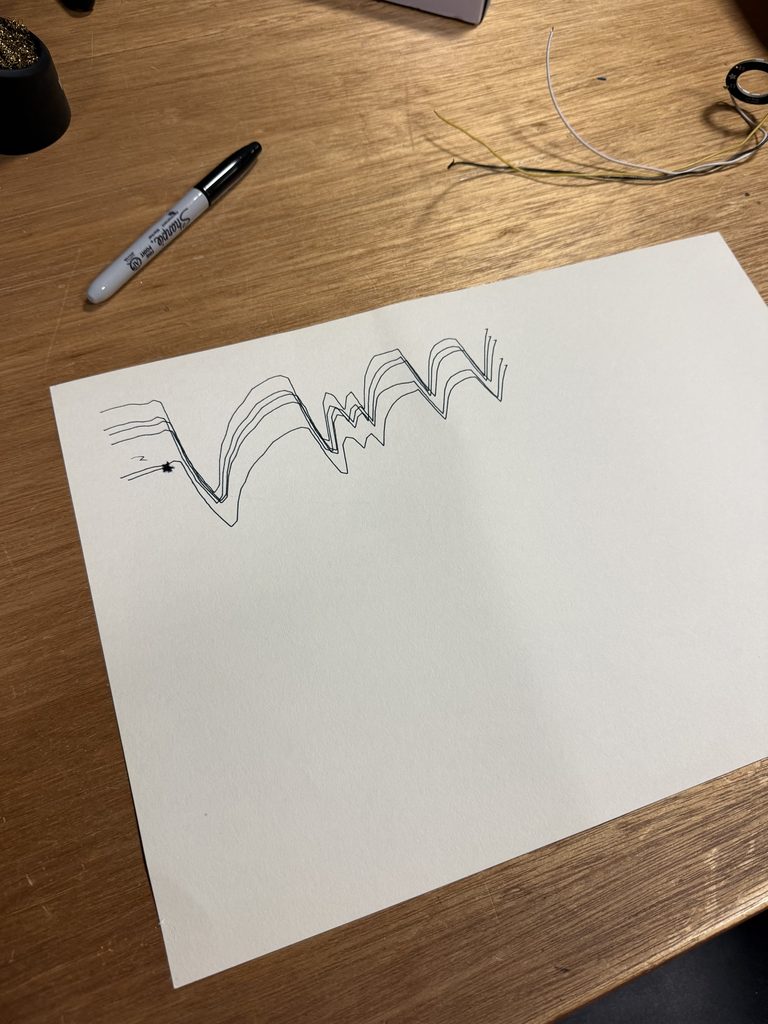
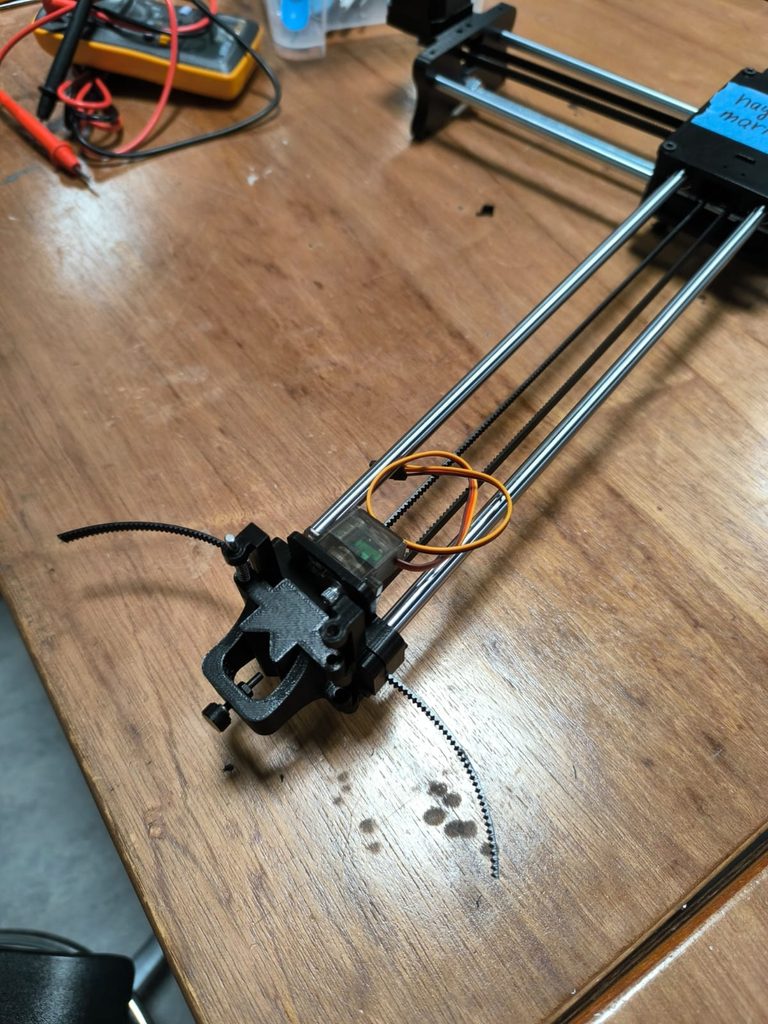
One of the biggest challenges I faced was getting the pen plotter to finish a drawing. The first few times I tried it, the machine would shut down after about 20 seconds, which made it difficult to produce a full result. Even when the machine was working I had to sometimes readjust the height of the pen. If the pen was in the wrong position you would have unwanted lines on the paper. It made me realise how much the physical setup of the machine could impact the end result even when the digital drawing would seem to be correct.
Playing with Colour and Layers
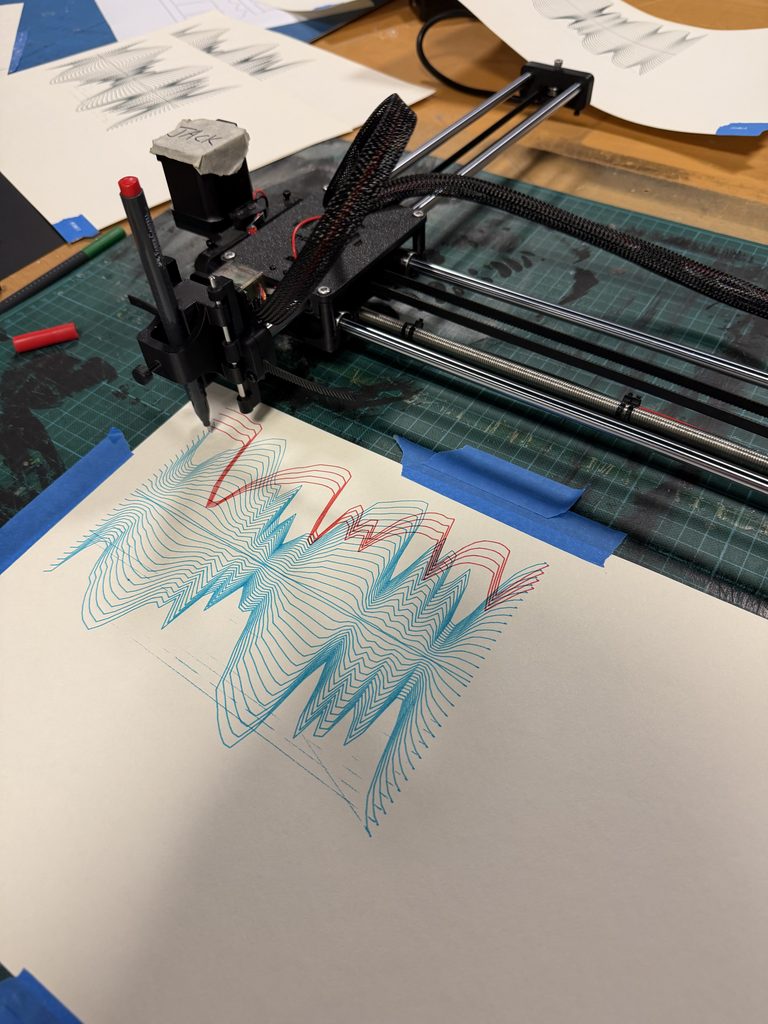
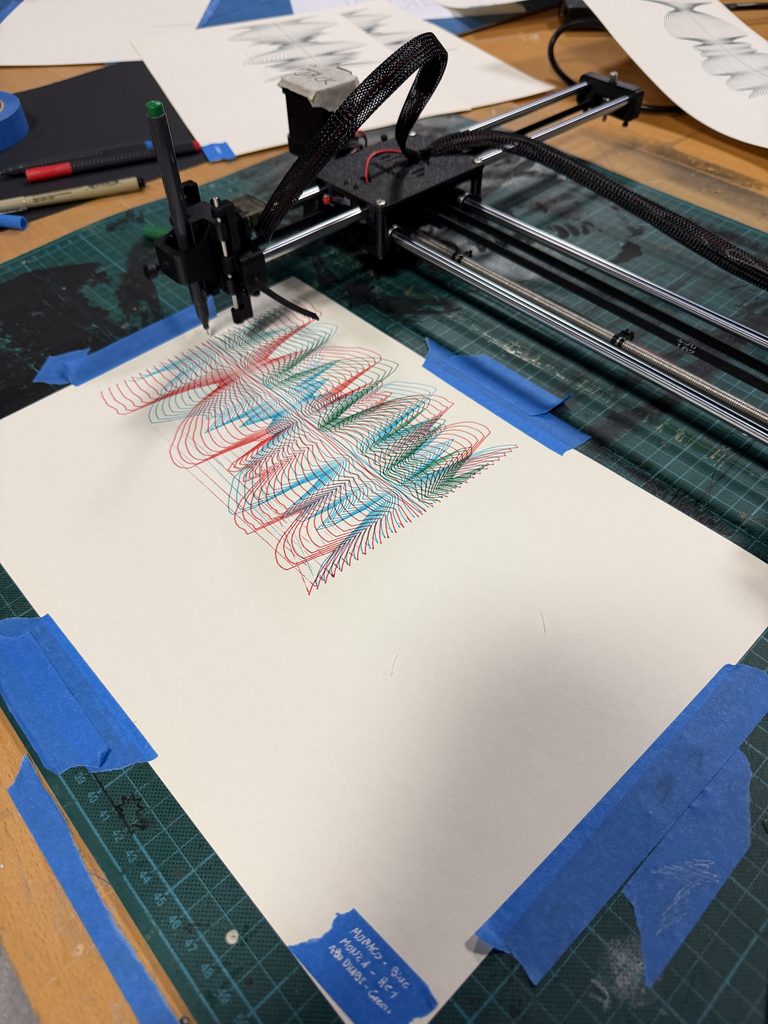
Along with the three individual circuit drawings, I also tried combining all three races into one composition using different pen colours. Each colour represented a different circuit and the drawings were layered on each other. I wanted to see how the different speed patterns would interact when layered on top of one another, rather than viewed individually. The overlapping lines made the composition more complex and let me compare the three circuits in one artwork. This experiment also gave me a chance to explore how colour and layering could change the experience of the same algorithmic drawings.
Series Finale
My final series comprises three individual pen-plotter drawings each plotting Lewis Hamilton’s speed during his fastest lap at Monaco, Monza and Yas Marina in 2025. For all three, I used the same p5.js algorithm, letting the differences in the speed data determine how each drawing looked. I also made an experimental composition with all three circuits layered in different colours. While the individual drawings are concerned with the speed pattern of each race, the combined version is concerned with the relationship between them.
(Each race track is labeled with blue tape on bottom right corner)
Additional experiments:
Self-reflection
With this project, I learned that drawing with code is different from drawing physically with a pen plotter. I could control the shapes and lines in p5.js but the physical process brought challenges I did not predict. During the first couple of tests, the machine kept stopping, which was frustrating because I couldn’t finish the drawings as planned. Fortunately, I was able to use Professor Jack’s pen plotter to complete the project. I also had to be careful with the pen height as even a small change could affect the quality of the line or create marks that were not part of the original design. This made me see the pen plotter as not just a tool to faithfully reproduce a digital image. Its movement, set-up and interaction with the paper will determine the final outcome.
I also had a lot of fun experimenting with overlaying the three drawings in different colours. It was interesting to see how the individual speed patterns could be combined to form a new composition but still be representing the same data. I think that was one of the most interesting parts of the project because it showed me how the same algorithm could be used to explore relationships between different sets of data rather than just visualizing them individually.
If I were to take this project further I would be interested in collecting the data of speed from all of Lewis Hamilton’s races across a whole season of Formula 1 and create a larger series of drawings. This could show how his speed patterns change across different circuits and how each track creates its own visual identity. Another approach would be to compare different drivers on the same circuit, each with a different colour, and overlap their drawings. I think this could be interesting especially as it would allow me to visualise the differences in their driving patterns and see where their speeds are similar/different throughout a lap. I could also try experimenting with layering more drawings, changing the scale or using different materials and see how these choices affect the final composition.
Overall, this project allowed me to combine my interest in formula 1 and computer art. It helped me understand the relationship between data, code and physical drawing better, and it also showed me that technical challenges and experimentation can influence the creative process. I also saw that this drawing system has the potential to go beyond the three circuits I chose and could grow into a much bigger exploration of Formula 1 data through art.
For the concept of this assignment, I wanted to explore how I can play around with noise and topographic memory to create some compelling visuals. I am still contemplating how I can add personal touch/ a unique variety to each itration.
Algorithm
after getting second last image, tried adding a new feature to the code. that is storing each line as two numbers [ the angle the line points in, how far the line is shifted sideways from the canvas center]
P5.js
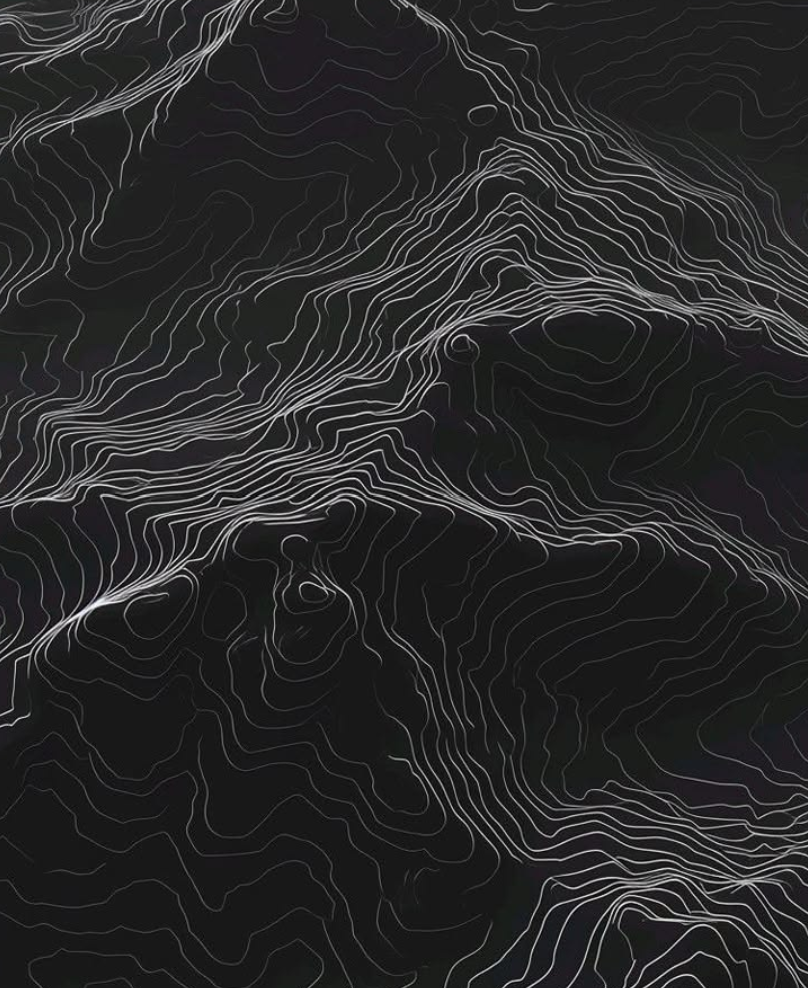
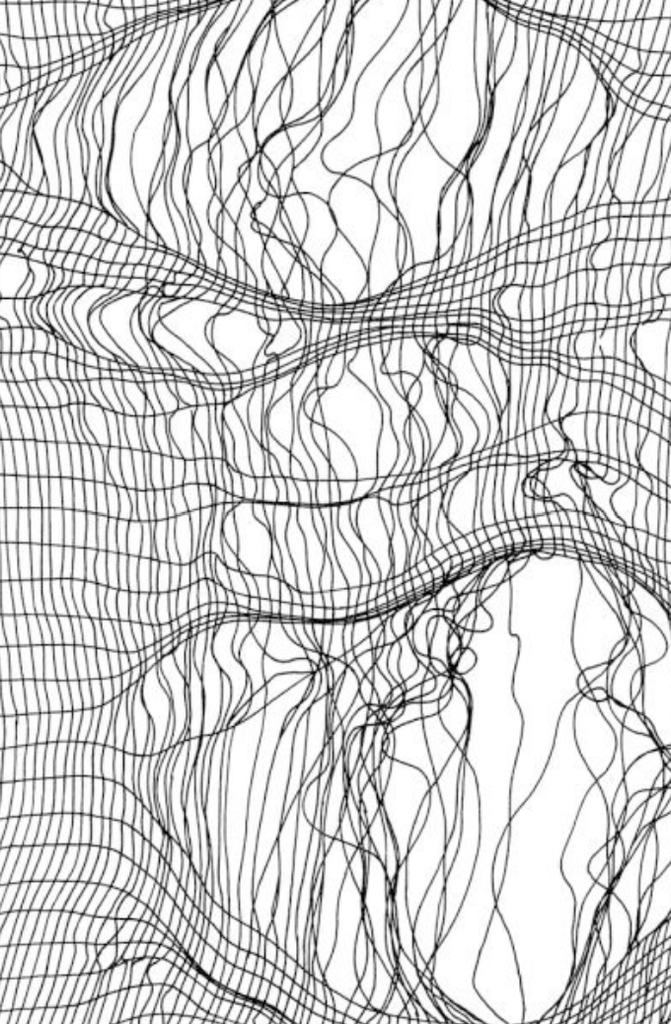
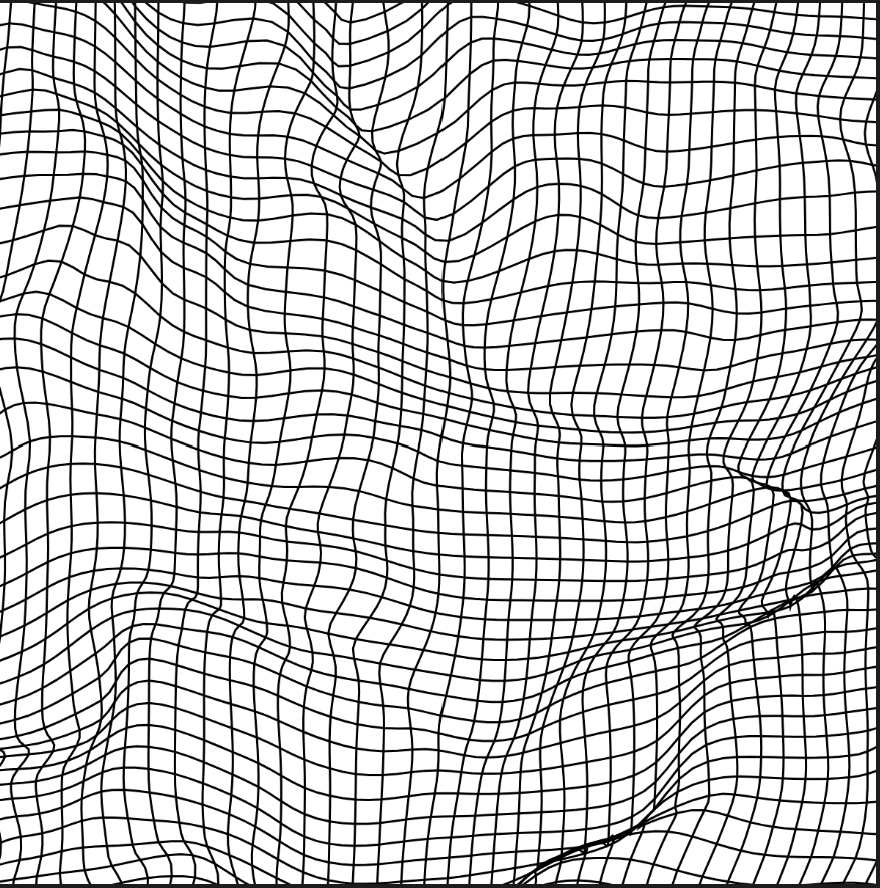
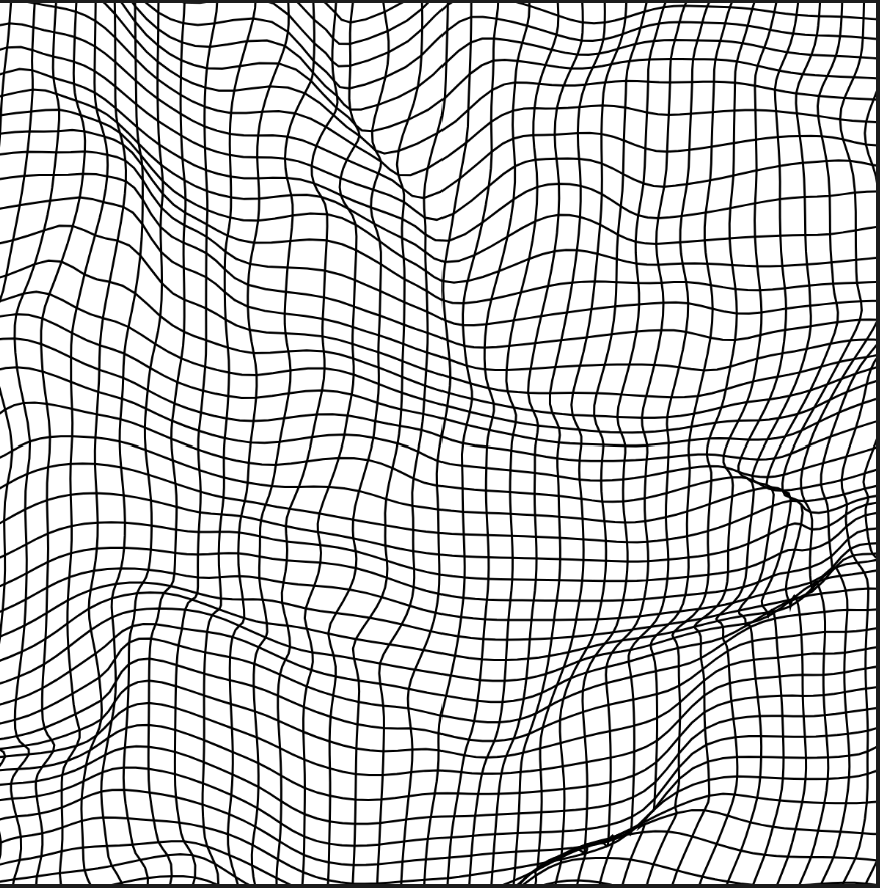
My initial idea for this project was to make a visual very similar to memory topographic. But I also know how with making a grid and adding some noise a smooth silk cloth like effect can be achieved.
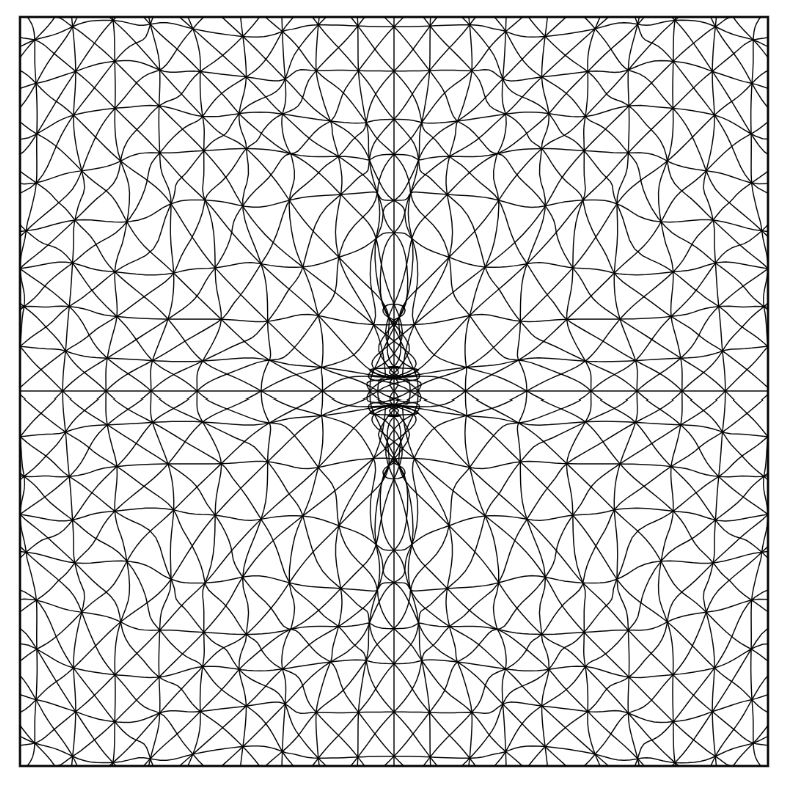
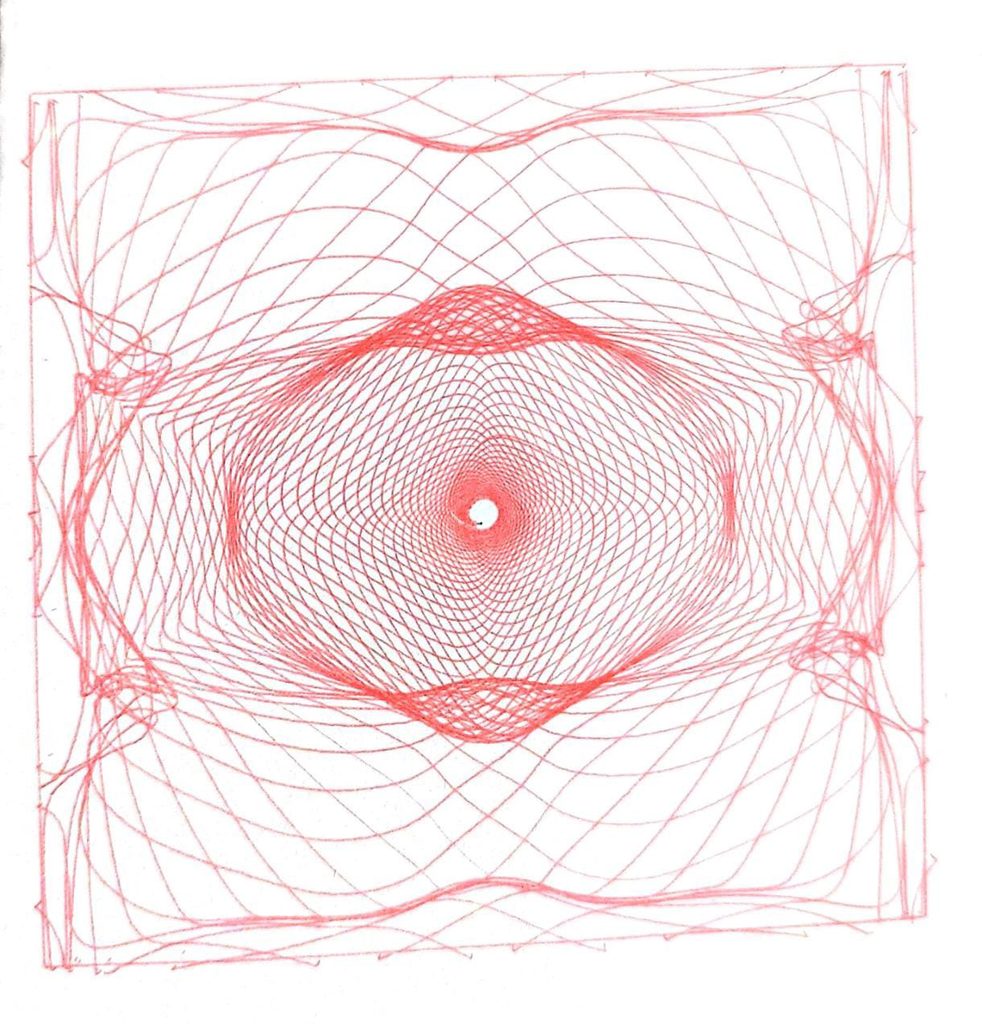
For the code for the picture on the left I added a function called wrap. This function first gets random numbers on the canvas using map. it also adds 50 to each number to that the numbers are different. Then it takes those points and apply noise again, this helps to make the wobbly kind of effect. At the end it adds or subtracts 0.5 so that each value goes in a different direction. This is done to the whole x and y grid and hence the result on the left is achieved.
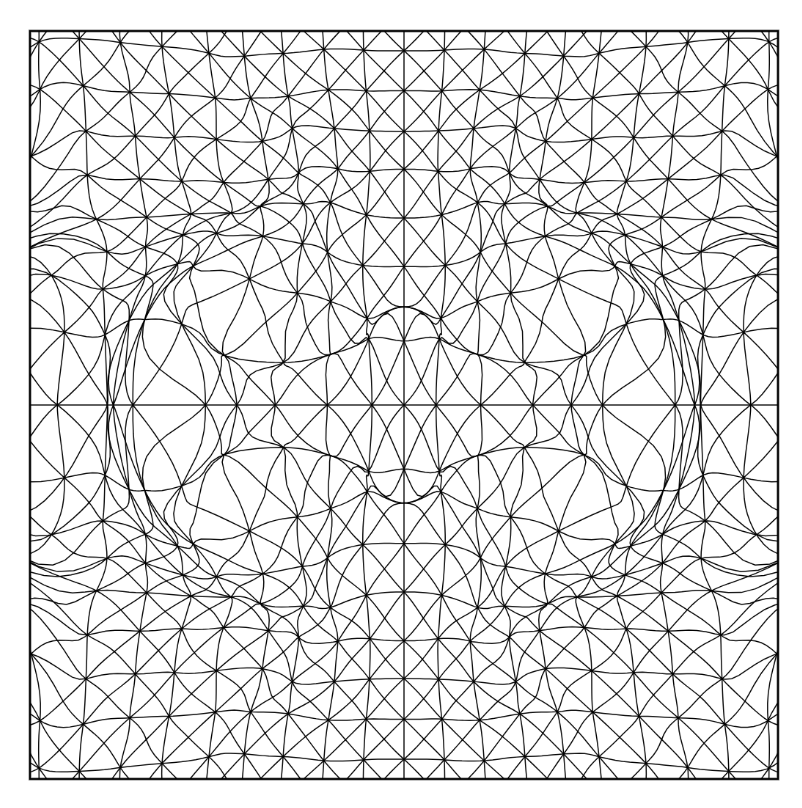
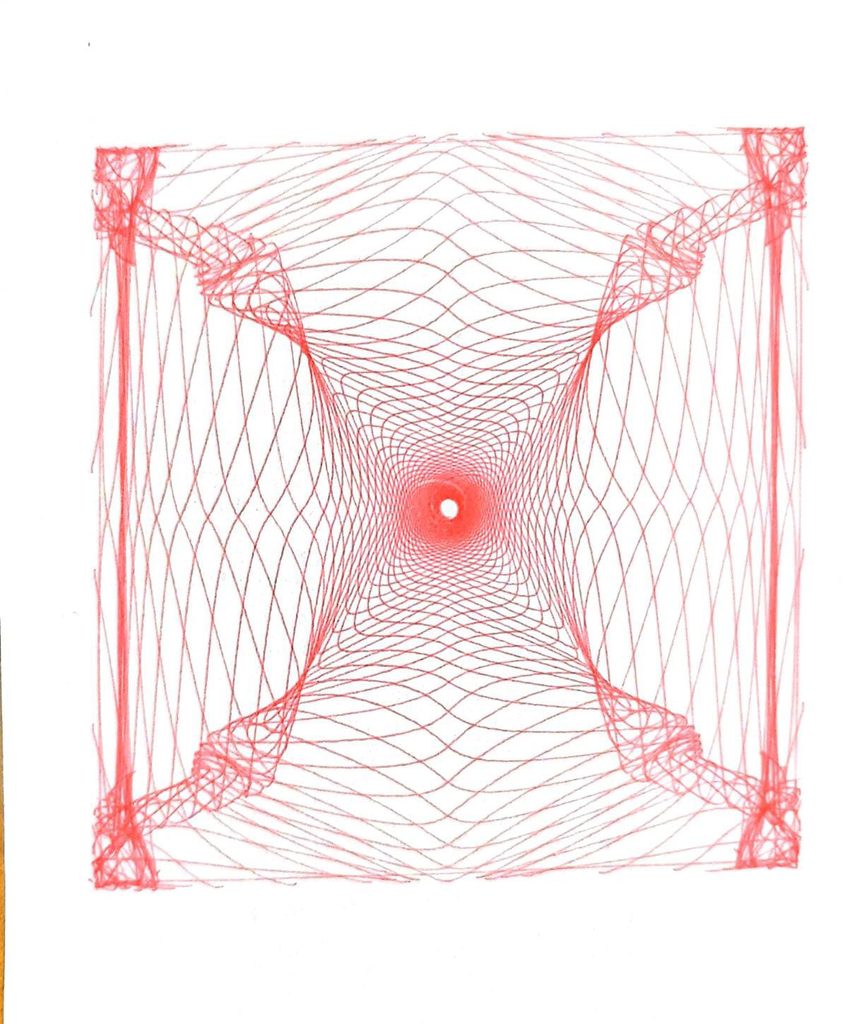
The same is done here but instead a focal pint is added. So now each point is moved closer to the focus along the straight line between them. The point’s direction stays the same, and only its distance shrinks. with each line going through the same wrap function as described above. Inside the wrap function here, two more things happen. The first one is pinch. It pulls the point toward the focus, so lines squeeze together. The second one is turn the point around the focus, so lines swirl.
At this point I was still not sure where the code would be going and how I can play around it to get the memory topographic result. I also wasn’t sure if the approach that I have taken is going to take me closer to my initial idea or to something totally different. After looking at the above code, I realized there was a small bug in it. I was converting the angle from degree to radians but instead dividing it by 180 I was dividing it by 90. [code 6] I also played around with the pinch and focus settings. By decreasing the pitch, I was able to get more lighter attraction force and by increasing it the attraction force became stronger.
I tried Appling the same new updated wrap function to the original x and y grid that I had made was pretty surprised the results. However, it still wasn’t going anywhere. And i also felt completely lost in terms of ideas and what to make next.
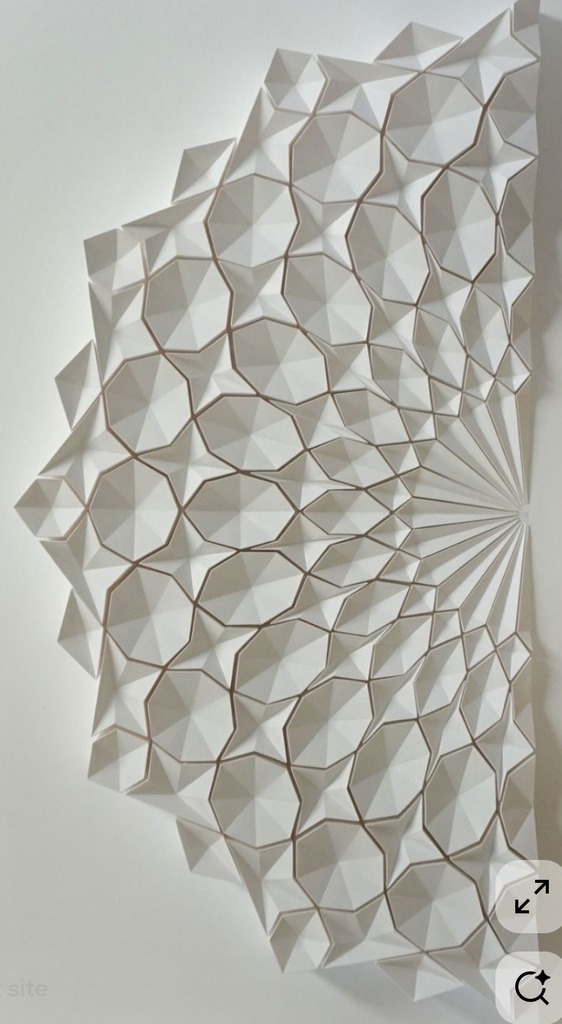
While scrolling on Pinterest I saw this image of Islamic Geometric pattern and was wondering what if by converging and diverging the lines at specific angles I can make them look like the pattern on the left
A main thing about Islamic geometric pattern is how they replicate and mirror themselves. So, for instance, what is on the left side of the pattern, would also be on the right side of the pattern. The very initial warp function that I made, I used that here. This was done because it had more smoothness to it compared with the one that was using focus and pinch. The focus version bends everything toward a few set points, so the lines get squeezed hard in some places and stay plain in others. The noise version has no set points. It pushes every line a little by smooth random waves, so the bending flows gently across the whole picture with no sudden tight spots. On top of that, I made the picture a mirror image across the middle, both up-down and left-right, so it looks balanced and a bit like a kaleidoscope. To keep the mirror clean, the push fades to nothing right at the center lines, so the two halves meet smoothly with no gaps or overlaps.
To make it look neater and smoother, I tried playing around with the attraction force. I set it very high to 10000 to see how tightly to converge with each other. I actually really liked the output the code gave here.
But the only problem was for each output, I kept thinking how it would look with drawn with the pen plotter. The problem with the results right now is that there are two many lines mostly straight, curved or bending a bit. In my vision I kept thinking how it would look very messy with drawn from the pen plotter.
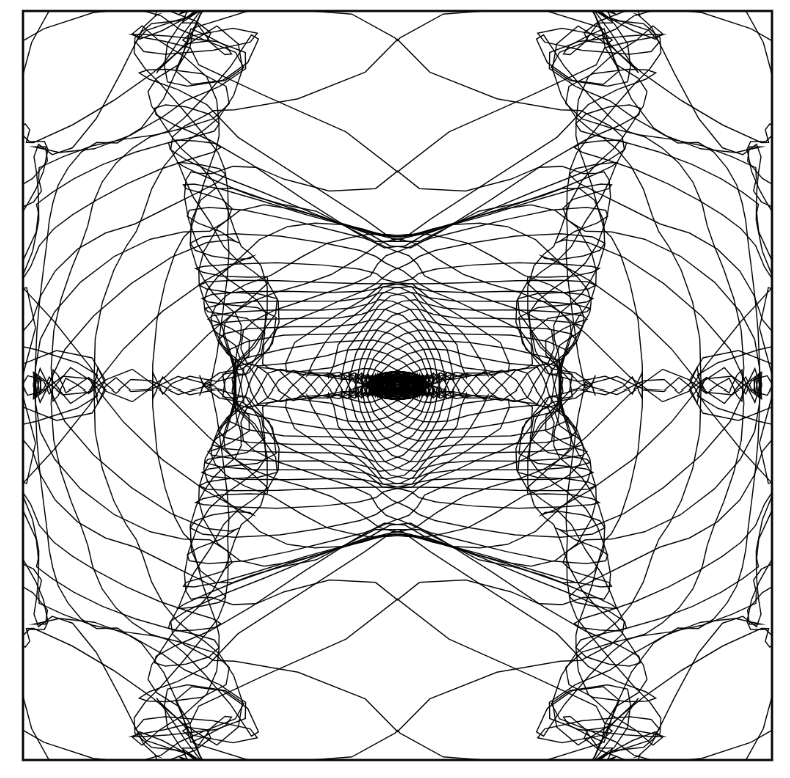
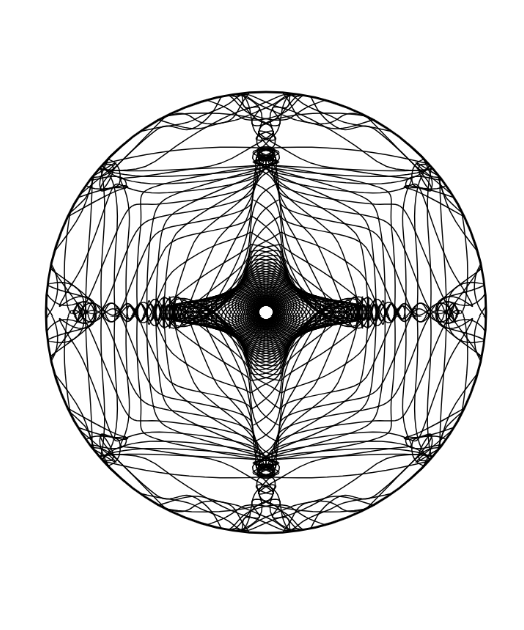
I tried changing the ways the lines were drawn. So instead of them being straight lines, I tried how they would look if they were a bit more curved or circular. I tried with some spiral lines. Instead of straight up-down, side-to-side, and diagonal lines, it makes curved lines that wind outward from the center. Each one starts near the middle and swirls out like a snail shell. The farther out it goes, the wider the turns get. The way I was approaching this was kind of messy and kept giving an error of infinite loop being runned. I took some help from AI here to help me in achieving the results.
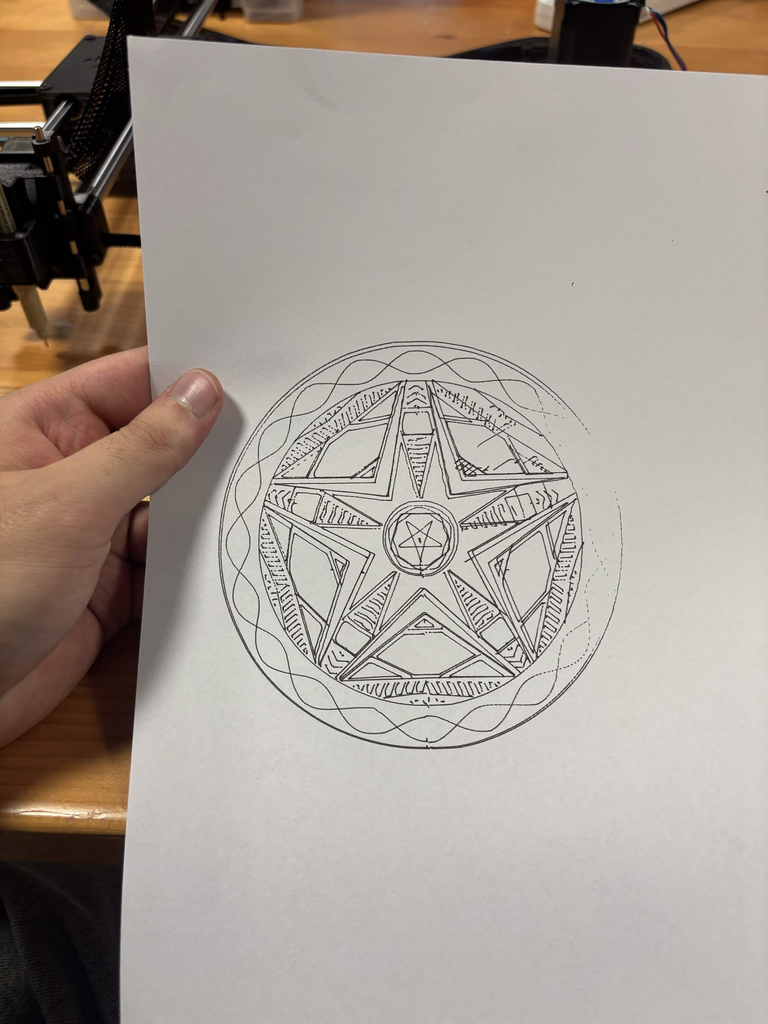
At this stage, I wondered how it would look like if I only took the middle part and the same code is used twice: it draws the border, and it hides anything that spills outside of it. I was pretty much satisfied with how the output looked right now and decided to make these the final drawings that i would give to the pen plotter
SVG/G-code workflow,
After finalizing with the drawing in p5.js, I saved it as SVG. Then i put the file in Inkscape and saved it as the G-code. This was done by downloading the extension, saving it there and then turning it into g-code using the help of the extension. Before turning the file into g-code I changes the dimension of the paper. Initially i kept it 280 to 260 as told by the professor. But for most of my drawings, I felt they would work fine too of I made the page smaller. So, the final page dimensions that i decided on were 180×160.
test drawings and iterations
The first time when I uploaded the code to the Universal G-code there was a technical problem. The code kept stopping midway repeatedly every time after running a couple of lines. Professor Jack suggested that this might be an Arduino problem and we changed the Arduino. It worked after that!!
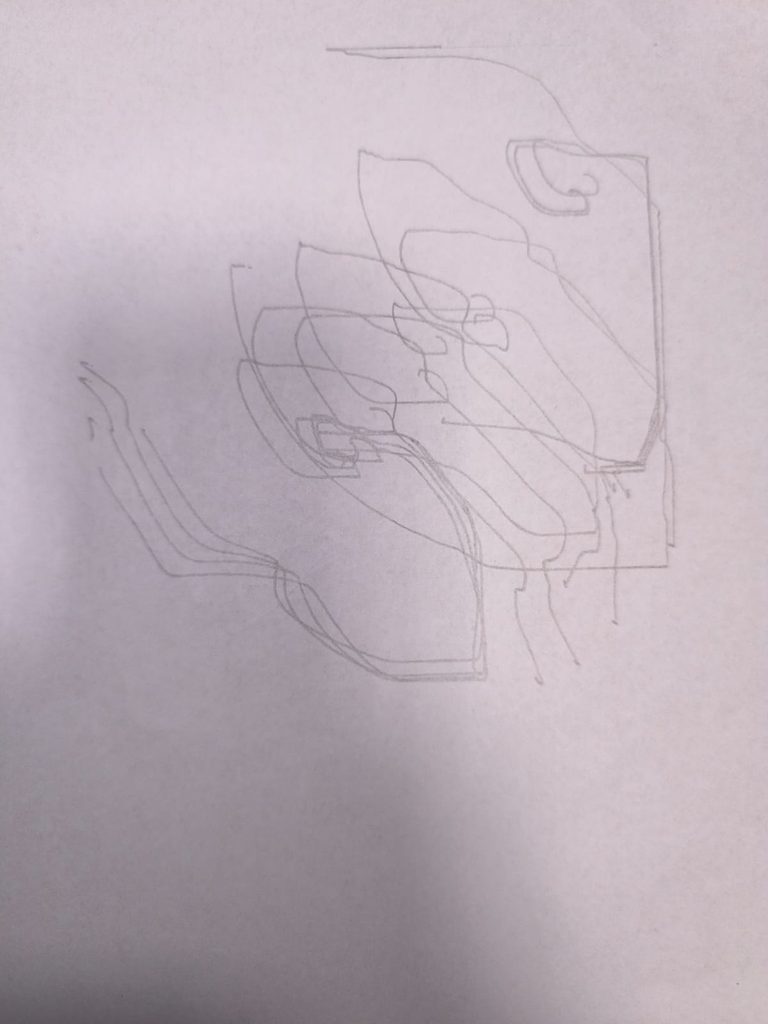
After changing the Arduino, the next time when I was using the pen plotter to draw the code it was acting in a very interesting way. Instead of drawing in a designated area on which it was supposed to draw, it kept going down and down. So, each stroke after the other was drawn at a bit lower position. I tried changing everything here and I think there was the problem with the g -code. After changing that, the pen plotter drew pretty smoothly. The below picture shows what the plotter was doing.
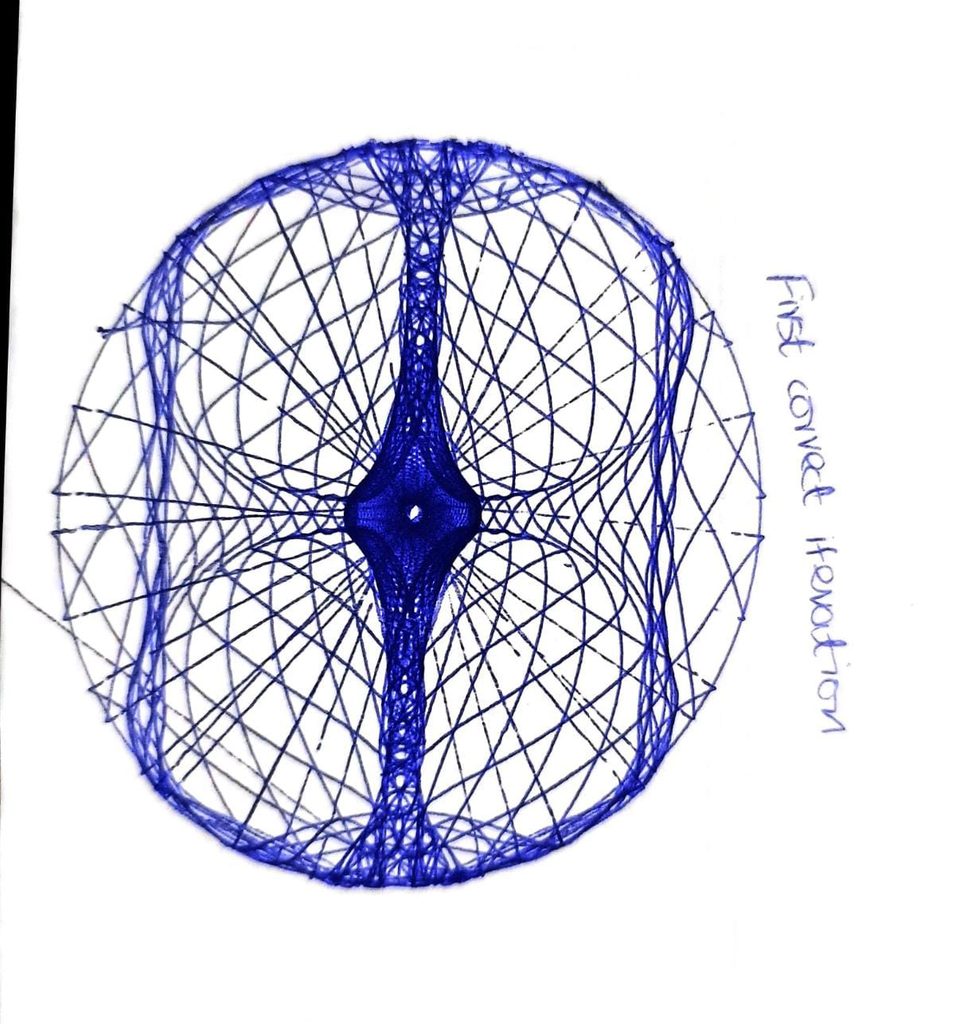
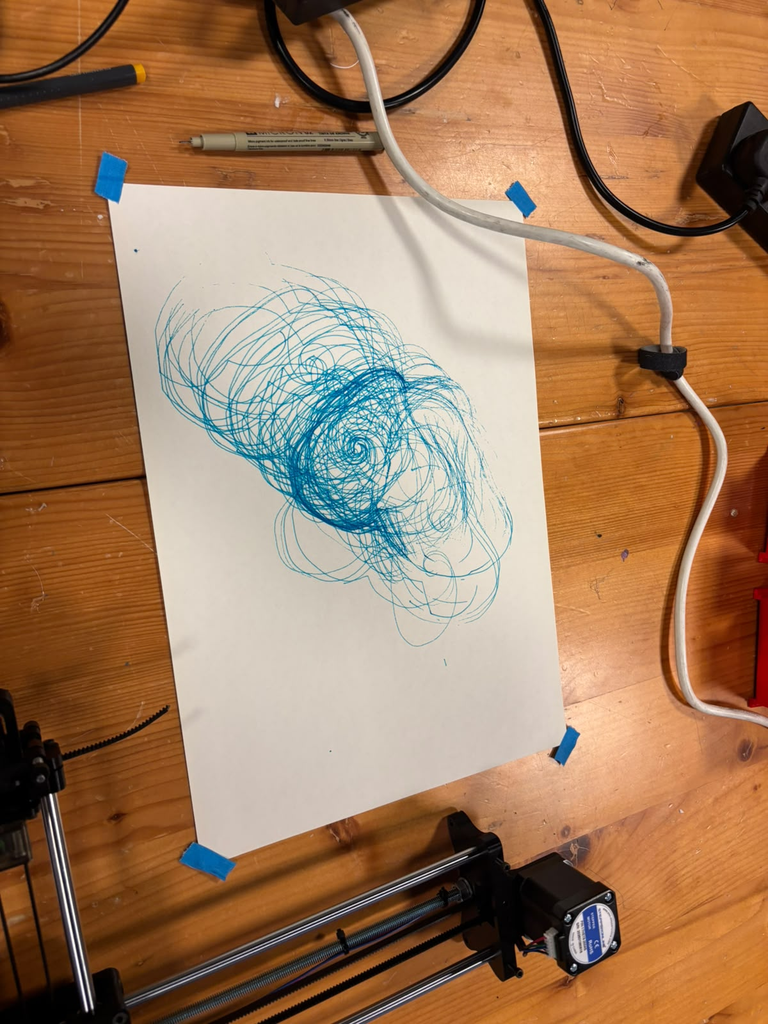
Now that i had gotten the plotter to work, I tried using different pens and different types of paper. I first tried a ball pen on a normal A4 sheet. this drew a very interesting pattern and I really liked it. especially given that this was the first successful attempt after a dozen unsuccessful ones.
After that the next iteration, i tried switching to a different thicker paper but the same pen. The problem here was that the pen got lighter at some parts while it stayed dark at others.
Spo i tried the same paper but different pen. This was a pointer. Since in my patter it requires some part of the pattern to be drawn repeatedly, the paper kind of started to get soften and tear down from the center.
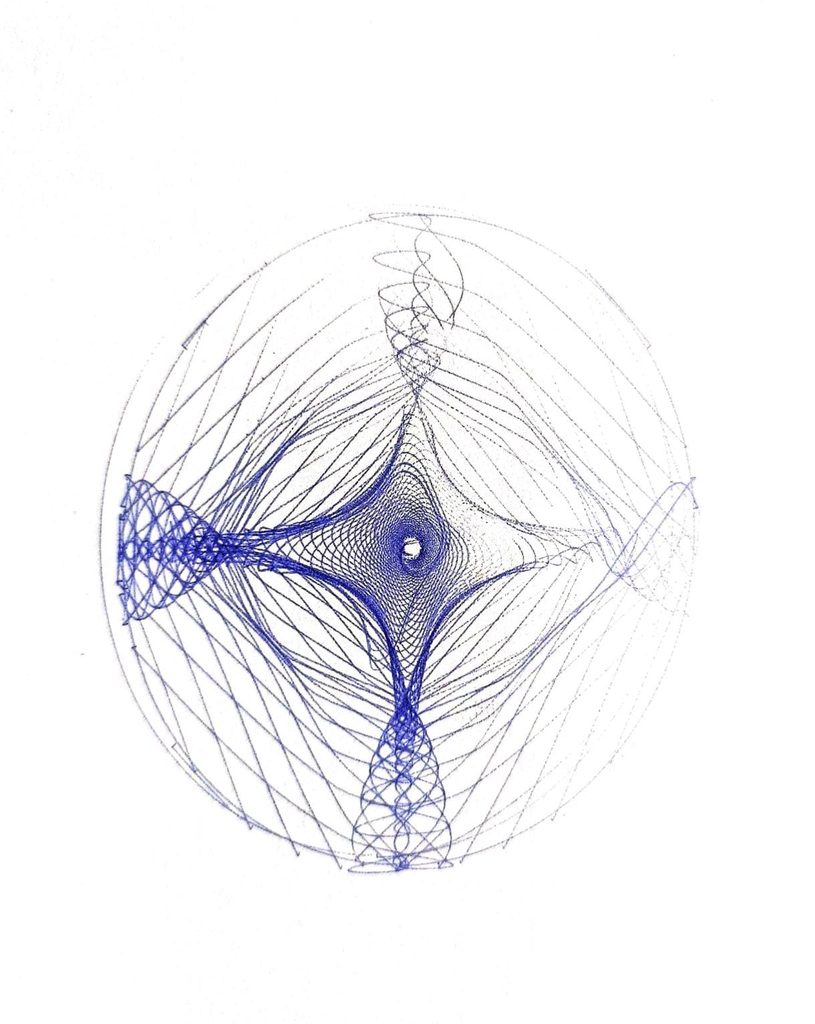
So I changed to a pink ballpointer with the same thick paper. And I think I really liked how the results started to look. Hence my four final drawings are by the same colroed pen.
the final series of at least three drawings
So in the final series I chose my four most favorite patterns generated by the code. I love how at the end, they all have a perfect circle in the center. For the third image, my friend said this kind of reminded her of the sunrise. I particularly love the last one, because all of the other patterns were being generated the same in both circle and rectangle. but the last one I only saw being made in the rectangular mode. I am guessing this is because in the rectangle mode, it was able to cover some more area hence it got the curves. It kind of reminds me of DNA which is pretty cool. I still am not sure if I had more time how i would be developing it more. Also, I know these images kind of loom skewed here, but ig that if because of the formatting.
critical reflection on how the pen plotter, color, layering, and physical materials shaped the final work.
I think a critical part of a pen plotter is how all of the lines of the drawing have the same strike width because of the same pen it uses. I love how in p5js you can play with the stroke width and get different interesting visuals. If I had more time i would definitely love to explore that more and see how it would look to use different pens. But ig there is still the problem that if a thicker pen is used its ink kind of spreads. Also, I tried two different kind of papers with different thickness. I think keeping the pattern that i made in p5.js in mind, for my patterns the thicker the paper, the more interestingly and smoothly the pen was able to draw the patterns.
Overall, this was a very fun experience, and I really loved assembling the pen plotter and then figuring out how it draws and then watching it draw. This was so satisfying to see a whole week’s hard work come into life.
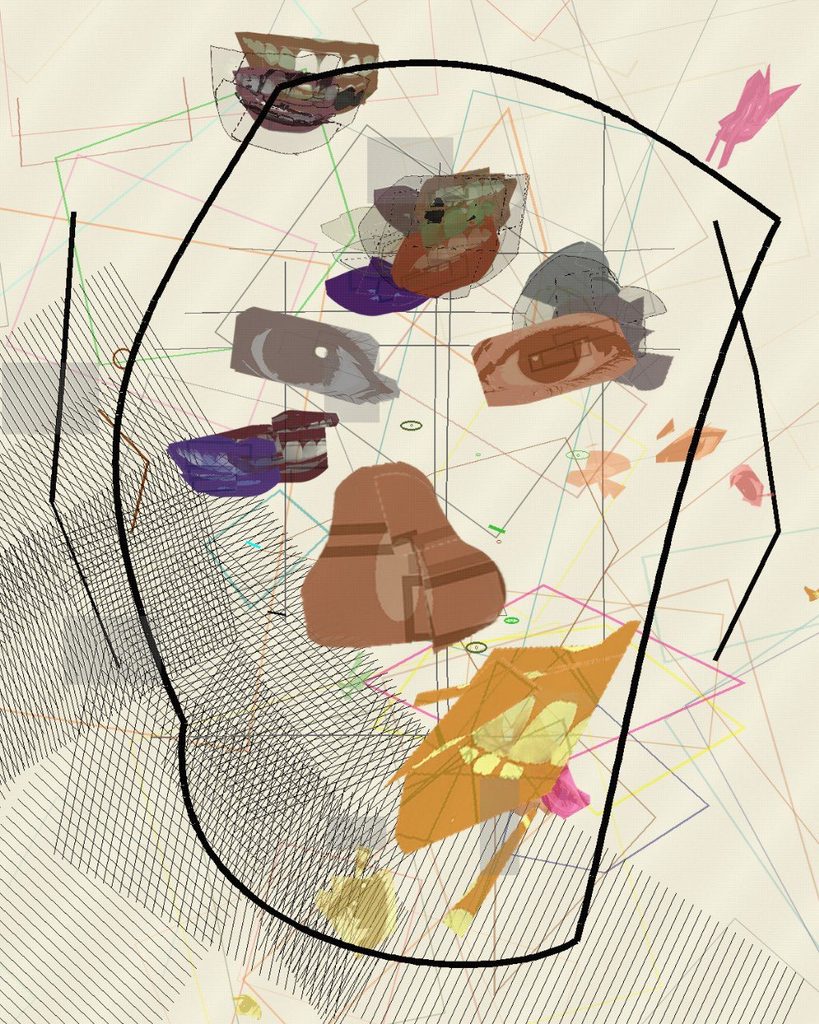
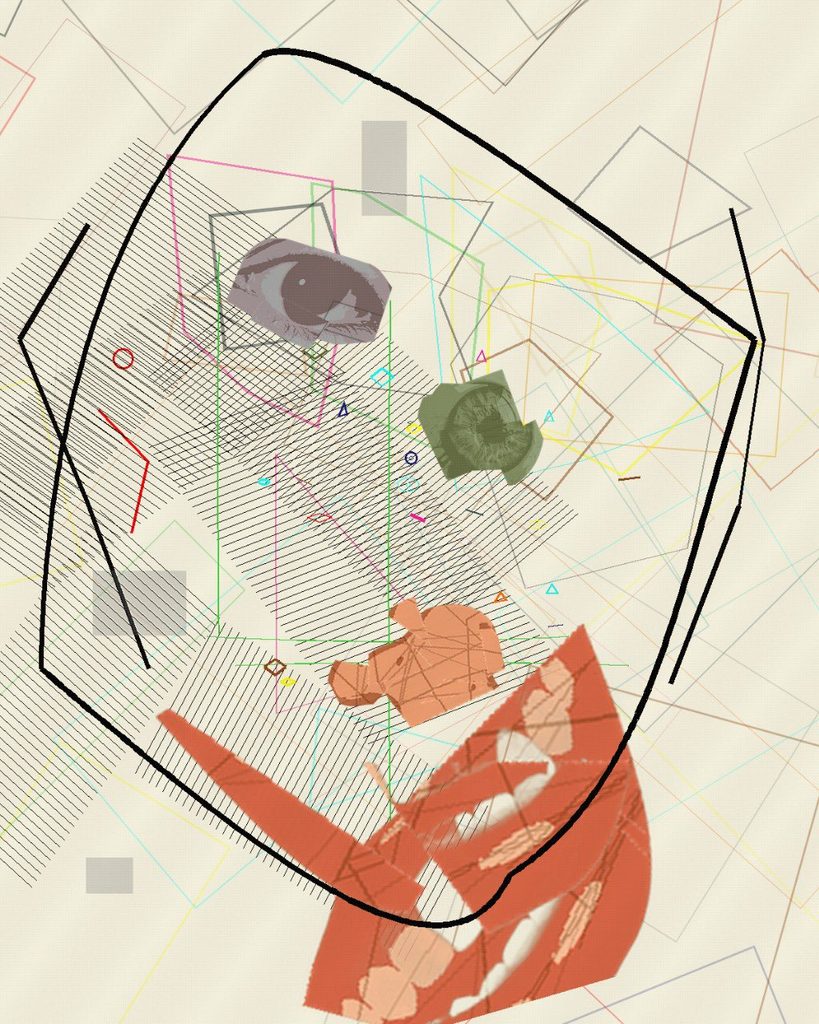
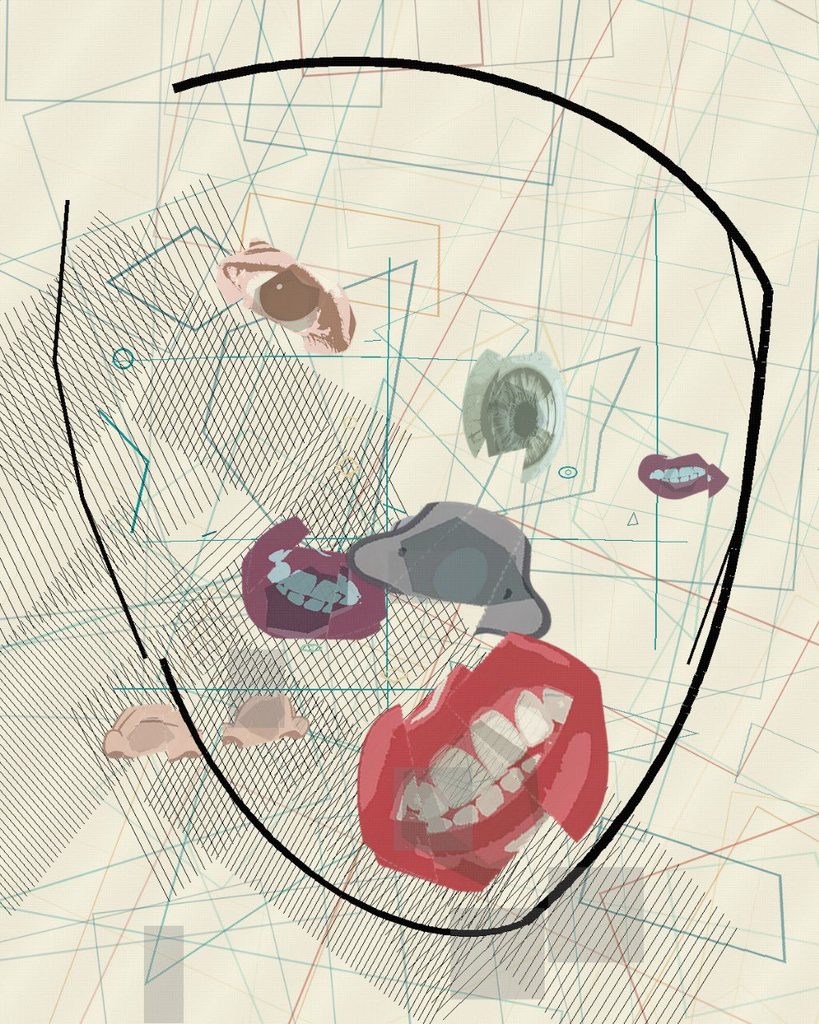
Two years ago I made Dichotomy, a Cubist series that broke a face apart to show a mind divided between mania and depression. Mixed States is its continuation. It keeps the same rule-based, chance-driven method, but it leaves the face behind and moves from the screen onto paper, drawn line by line by a pen plotter.
Dichotomy is a conceptual, cubist series that explores the fractured identity of the disorder. Positioned between mania and depression, it invites viewers to look through the lens of a mind at war with itself.
The intent of this piece is to externalize the inner duality of bipolar disorder through a Cubist deconstruction of the face, using rule‑based procedures and chance. The piece’s thesis is that identity is an algorithmic concept that is continuously recombined by perception, memory, and mood states.
This series draws deep inspiration from Picasso’s Cubism, particularly his ability to fragment the human form to reveal multiple perspectives at once. Just as Picasso broke away from traditional representation to expose the hidden dimensions of reality, Dichotomy fractures the face to externalize the inner conflict of bipolar disorder. His radical deconstruction of identity became a framework for us to translate psychological dualities into visual form, where the chaotic overlap of lines and shapes mirrors the volatility of the mind.
Coming back to the series, I wanted to test the claim at its center: that identity is algorithmic and constantly recombined by mood. Dichotomy showed that recombination in a portrait. This new work asks what happens to the drawing when the two states stop taking turns and begin to happen at the same time, which is a real state that a person with bipolar disorder, called a Mixed State.
The word dichotomy means a division into two opposite parts. The first series was built on that split: blue for depression, warm colours for mania, two sides of one face in conflict. Looking back, that framing was clear but incomplete.
Bipolar disorder is not always a clean switch between two poles. Clinicians describe mixed features, when the energy and restlessness of mania arrive together with the low mood of depression. Many people describe these periods as among the hardest to live through, because there is no single state to name or wait out.
Mixed States is my attempt to draw that overlap. Instead of placing the two moods side by side, it gives each one its own behaviour and then lets them occupy the same space.
Dichotomy looked at the person from the outside. Its subject was a face, and the disorder showed up as distortion: features moved, split and placed by rules. In Mixed States there is no face. The drawing tries to show the state itself, the inner weather that the face in Dichotomy was reacting to.
The Cubist thread continues, but it shifts from Picasso’s fractured portraits toward the flatter, grid-like planes of Analytic Cubism, where a subject dissolves into small facets of the same surface. Here the facets are the whole picture.
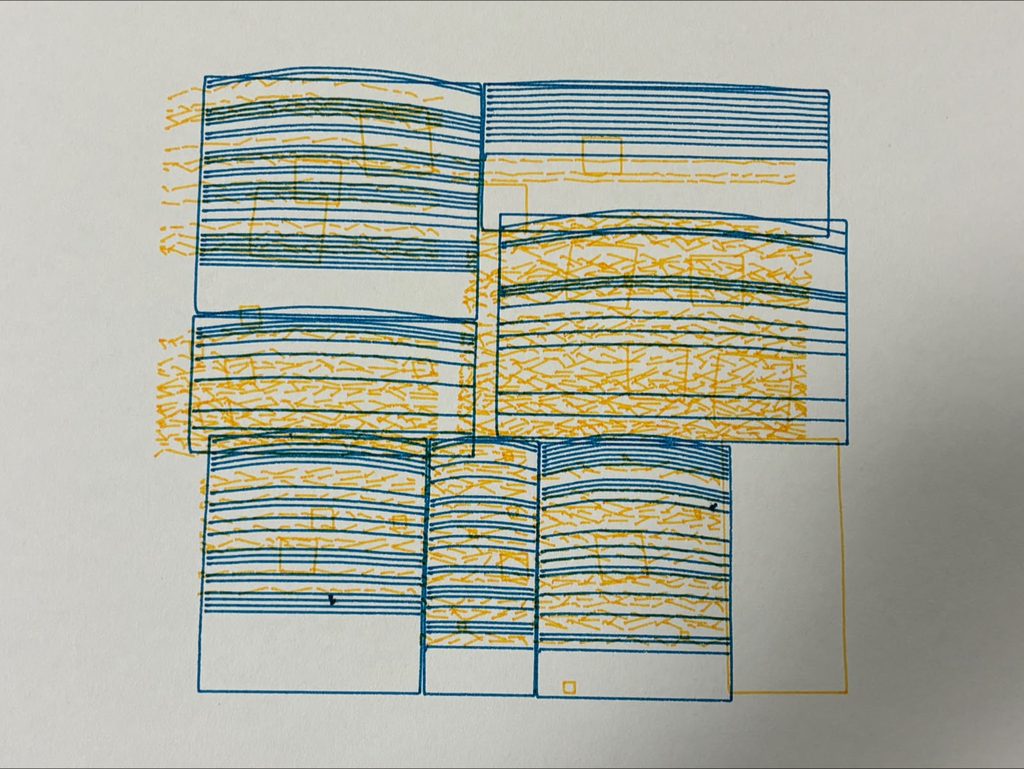
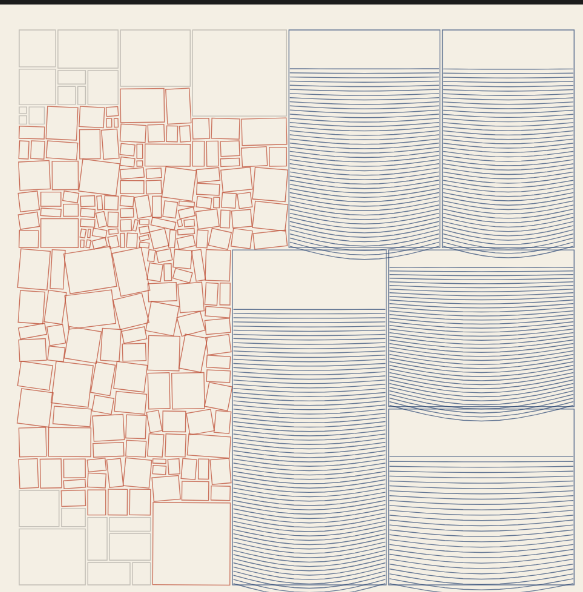
In this sheet the two moods share the whole page. Blue hatching fills every block, and orange dashes crack through the lines. Small tilted squares crowd the heavy blocks. On the left edge the orange marks spill past the blue outlines onto bare paper. Nothing on this sheet stays still.
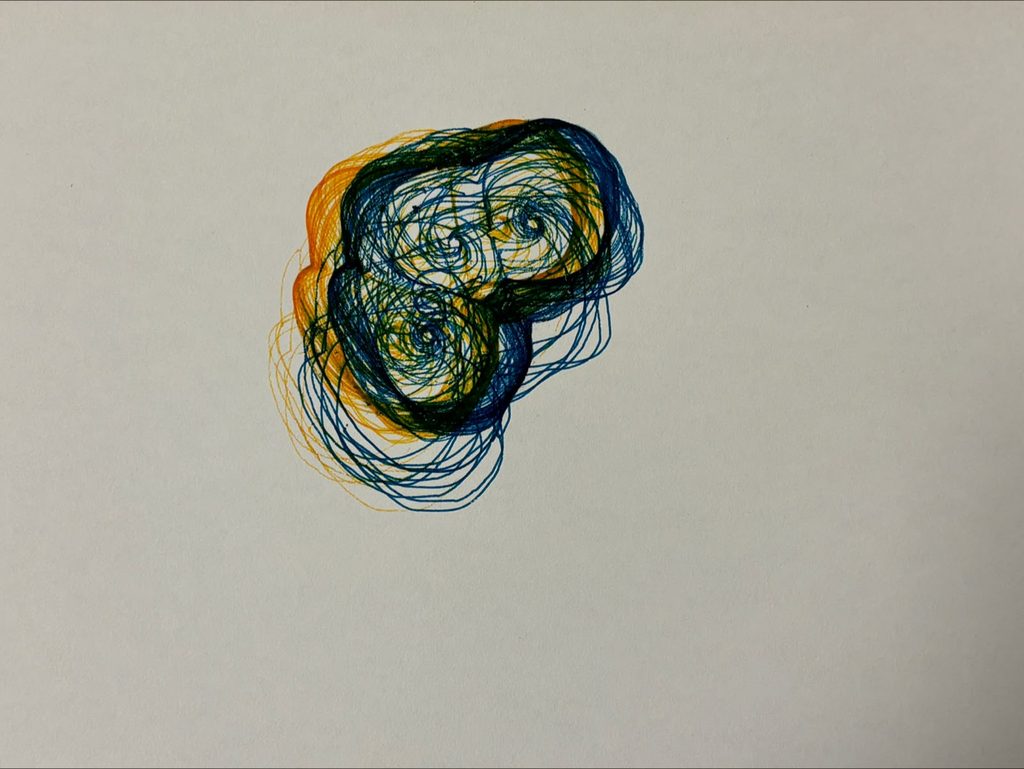
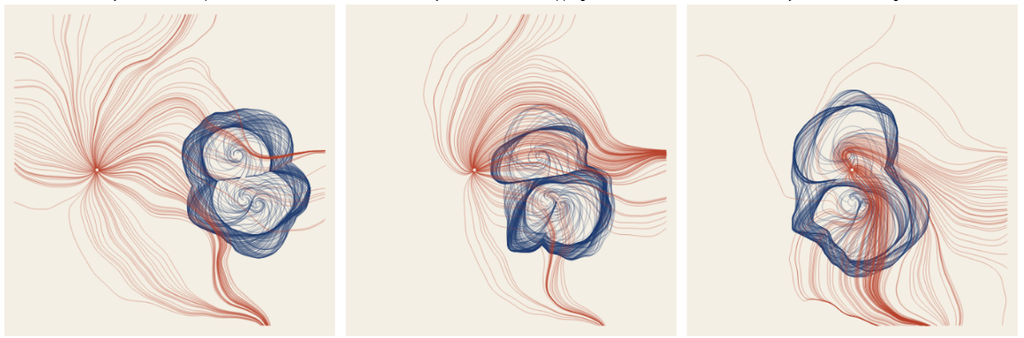
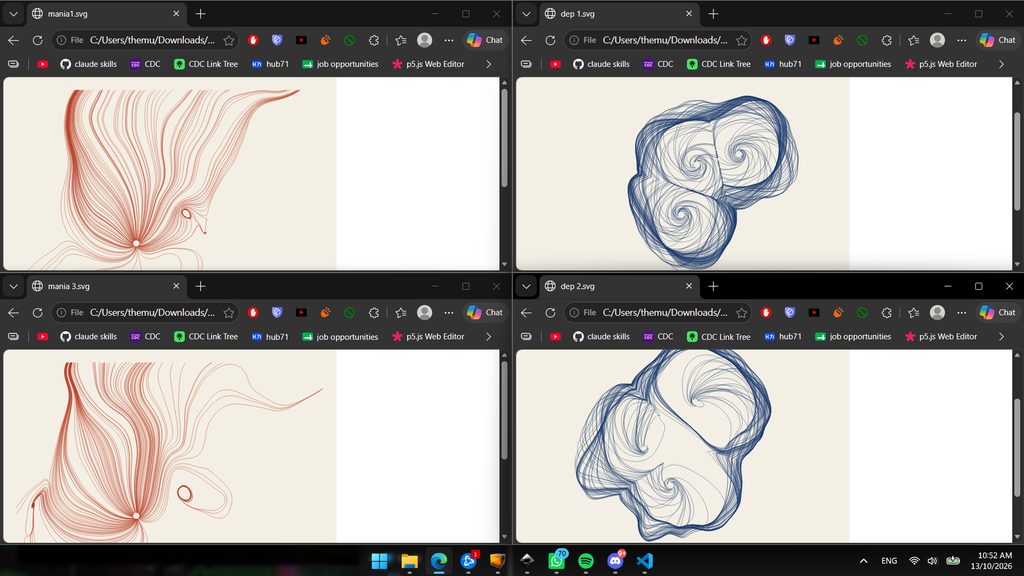
This drawing comes from the earlier line system that I will show below. The blue lines circle three centres and pile up against a wall they cannot pass. The orange lines wrap around the same knot. Where the two inks cross, the paper turns a deep green. The overlap gives a colour that neither pen carries alone.
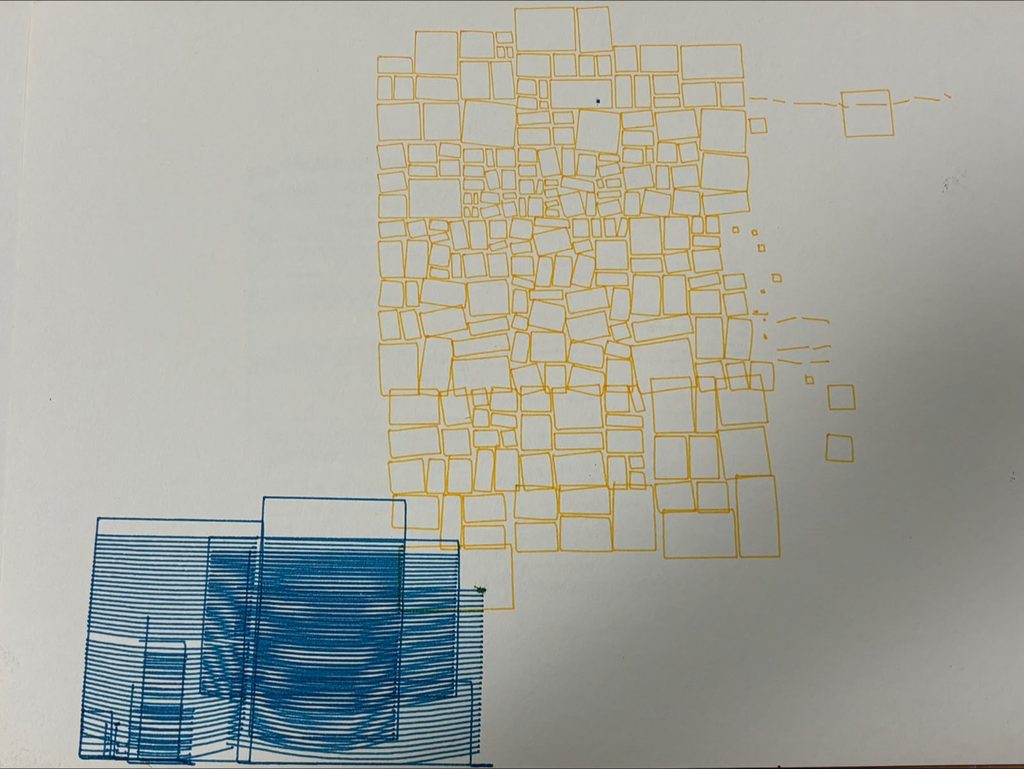
This sheet keeps the two moods apart and utilizes negative space. Orange tiles shatter into smaller pieces in the upper right, and a few loose fragments drift toward the edge. The blue blocks sink into the lower left corner and run off the paper. Their hatching stacks into a dark, heavy mass. Most of the sheet stays blank, and the empty paper holds the quiet of the depressive state.
The color and texture of the paper is very intentional, I wanted to convey the complexity of a brain mood state through a grainy texture and an atypical off-white color for the paper.
The papers are also uncut to convey the manic state of starting something you’re really drawn to and stopping mid-way as you fade from the manic state to the depressive state, hence a step against perfecting the drawing by not adding last touches like cutting the papers and getting rid of the points where the pen drops at the beginning of the sketch.
From the feedback: This piece gives a feeling of discomfort, which is conceptually what I wanted to convey. Discomfort comes from something you don’t fully understand and you’re not fully familiar with, this encapsulates my concept as every mixed state is exactly the confusion a person with bipolar feels. A person with bipolar also can not certainly recognize whether they’re having a depressive or a manic episode, and this introspective clarity is very important to deal with this disorder.
The algorithm’s implementation:
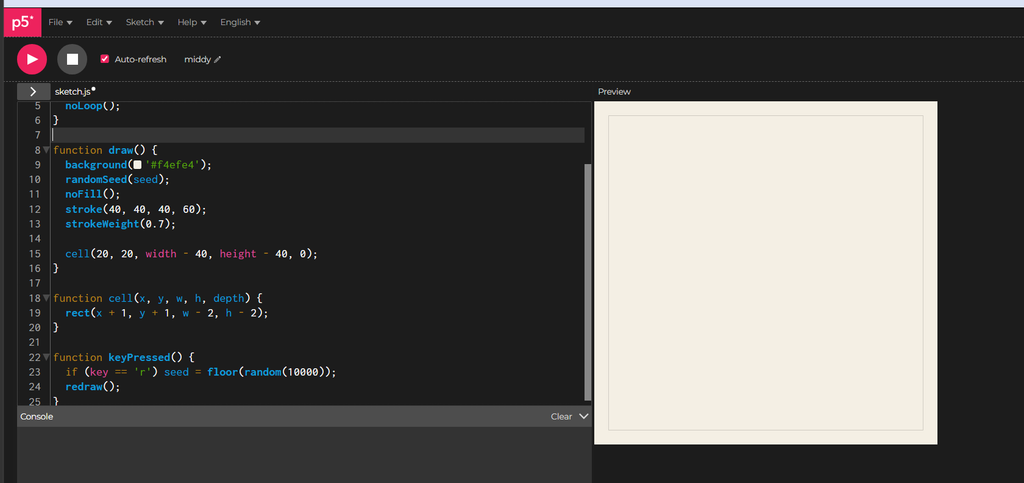
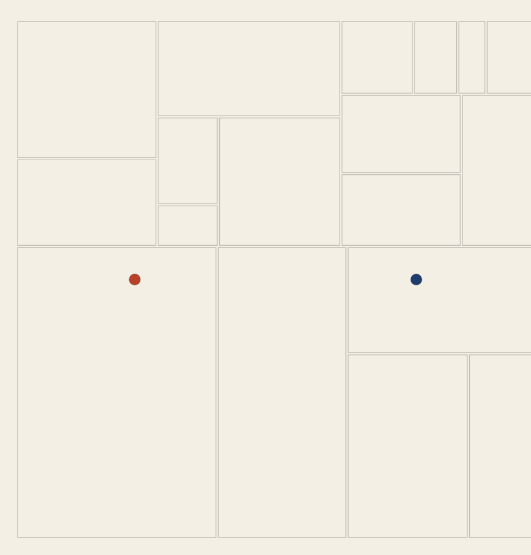
I first started with the skeleton, setting a seed and making the cell function function cell(x, y, w, h, depth) { rect(x + 1, y + 1, w - 2, h - 2); }
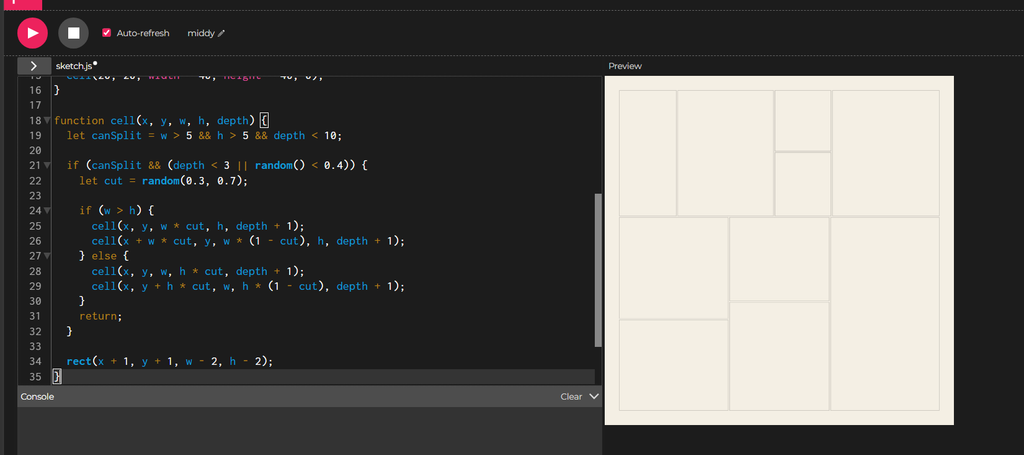
I then implement something called recursive subdivision,I think of the canvas as a sheet of paper that I keep cutting in two. Each piece can get cut again, and the code does this by letting a cell hand its area to two smaller cells.
I set a floor on the size. A piece that gets too small stops splitting. I also cap how many rounds of cutting can happen. These two rules give the process an end.
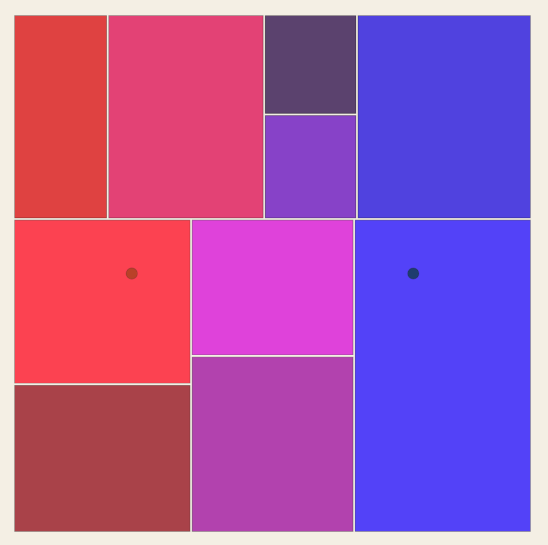
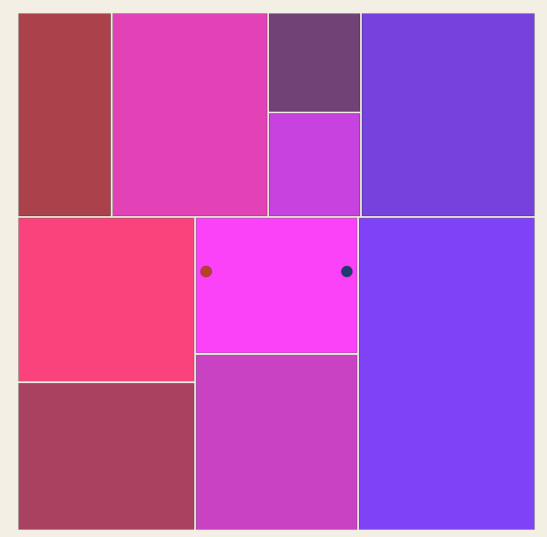
Early on, I force the cutting. The first few (3) rounds always cut, which gives me a handful of pieces to start with and keeps the page from staying one big box. After that, each piece flips a weighted coin and splits about four times in ten. Some areas keep breaking into smaller pieces while others stay whole. That difference gives the image its uneven texture.
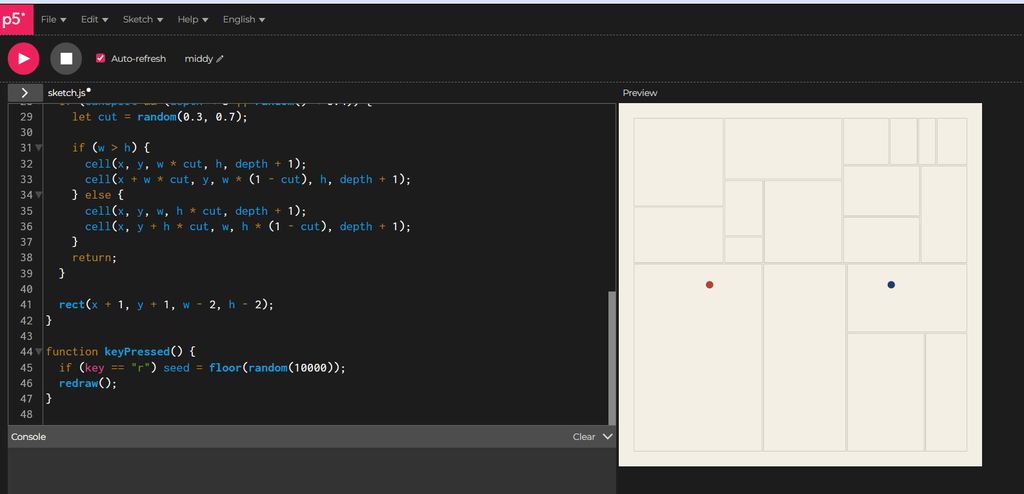
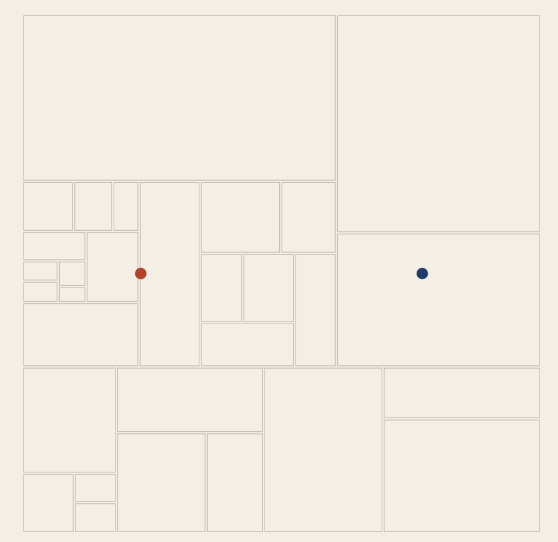
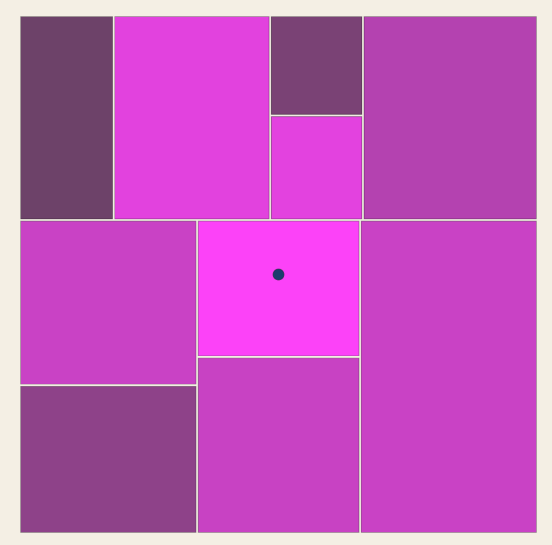
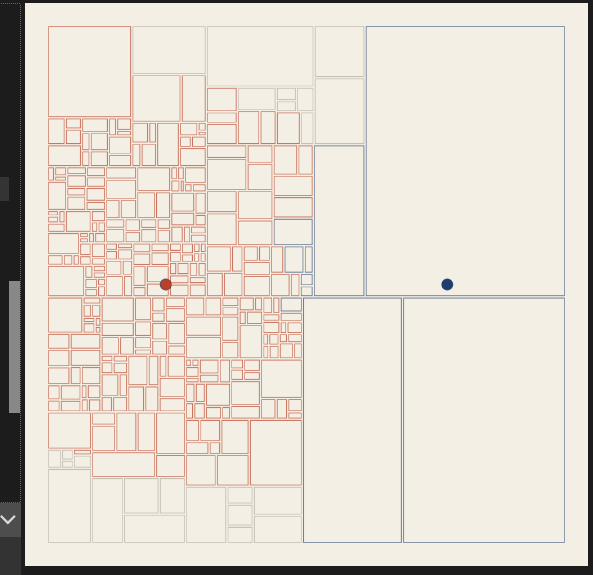
I imagine two invisible sources of emotion on the canvas. One is mania and the other is depression. Each source is a single point, and the rest of the piece will react to how close each cell sits to those points.
I place mania on the left and depression on the right, both halfway down the page.
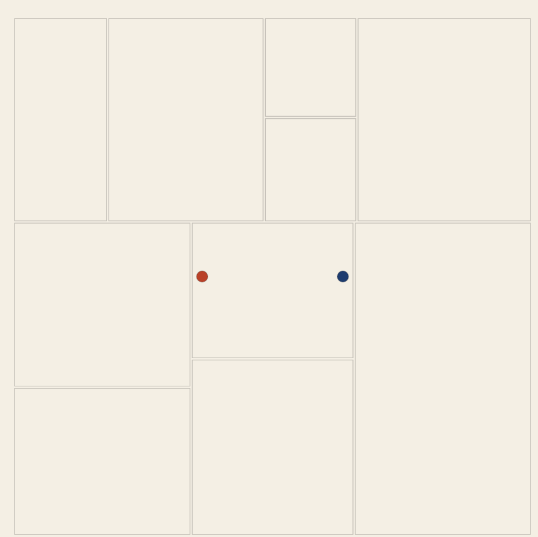
The two dots are scaffolding. They make the invisible centers visible while I build, and I delete them later. The red-orange and the blue are the same colors the finished piece uses for the two emotions.
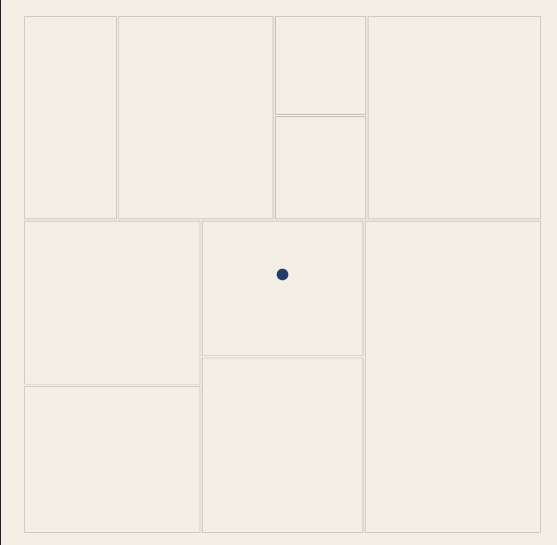
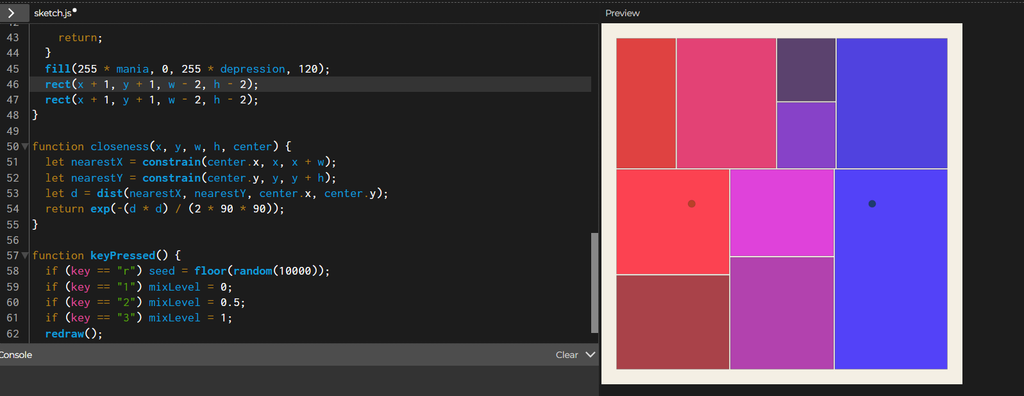
Then I add some code to control where the points are based on 1,2,3 inputs.
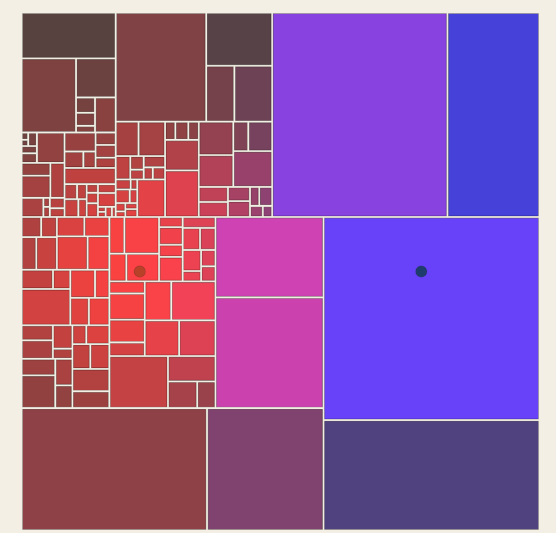
I want every cell to know how much of each emotion reaches it. The function closeness answers that with a number between 0 and 1. A cell sitting right on a center scores 1, and a cell far away scores close to 0.
function closeness(x, y, w, h, center) {
let nearestX = constrain(center.x, x, x + w);
let nearestY = constrain(center.y, y, y + h);
let d = dist(nearestX, nearestY, center.x, center.y);
return exp(-(d * d) / (2 * 90 * 90));
}
(AI disclosure: this I didn’t know how to write this function so AI helped me here, thanks Claude!)
The first two lines find the point inside the cell that sits nearest to the center. A cell that contains the center gets that very point back, and a cell elsewhere gets the closest spot on its edge. Measuring from the nearest point treats big cells fairly. A big cell that touches the center feels the full emotion, even when the middle of that cell lies far from it.
The last line turns the distance into a score. Zero distance gives 1, and the score falls away smoothly as the distance grows, along a bell curve. The 90 sets how wide the bell is. A larger number spreads each emotion across more of the canvas, and a smaller number squeezes it into a tight area around the center.
The fill is temporary. Red grows with mania and blue grows with depression. I delete this fill when the real styling arrives.
Then I make the split based on this:
let maniaWins = mania > depression;
let splitChance = 0.4 - depression * 0.4;
if (maniaWins) splitChance = 0.4 + mania * 0.6;
if (canSplit && (depth < 3 || random() < splitChance)) {
Now I remove the fill and add this instead:
if (depression > 0.35) {
stroke(30, 60, 110, 170);
rect(x + 1, y + 1, w - 2, h - 2);
} else if (mania > 0.2) {
stroke(185, 65, 40, 180);
rect(x + 1, y + 1, w - 2, h - 2);
} else {
stroke(40, 40, 40, 60);
rect(x + 1, y + 1, w - 2, h - 2);
}
The checks run in order, and the first one that passes decides the style. Depression comes first. A cell that feels depression above 0.35 gets a blue outline. A cell that fails that check moves on to the next one, where mania above 0.2 gives it a red-orange outline. A cell that feels neither strongly enough keeps a faint gray outline.
} else if (mania > 0.2) {
restless(x, y, w, h, mania);
} else {
function restless(x, y, w, h, energy) {
stroke(185, 65, 40, 180);
push();
translate(x + w / 2, y + h / 2);
rotate(random(-1, 1) * energy * 0.4);
rectMode(CENTER);
rect(0, 0, w - 2, h - 2);
pop();
}
Each blue cell becomes a container that fills from the bottom, like liquid settling. The depression score decides how full it gets. A higher score gives a taller fill, tighter lines and a deeper sag.
The lines start at the bottom and climb. Each one bows downward in the middle. The function sin(t * PI) is 0 at both ends and 1 in the center, and y grows downward on the canvas, so adding it pulls the middle of the line down. The bend shrinks as the lines climb. The lowest lines carry the most weight and sag deepest, and the top lines sit almost flat.
Scrapped concepts:
This like failed hard when I tried to draw it.
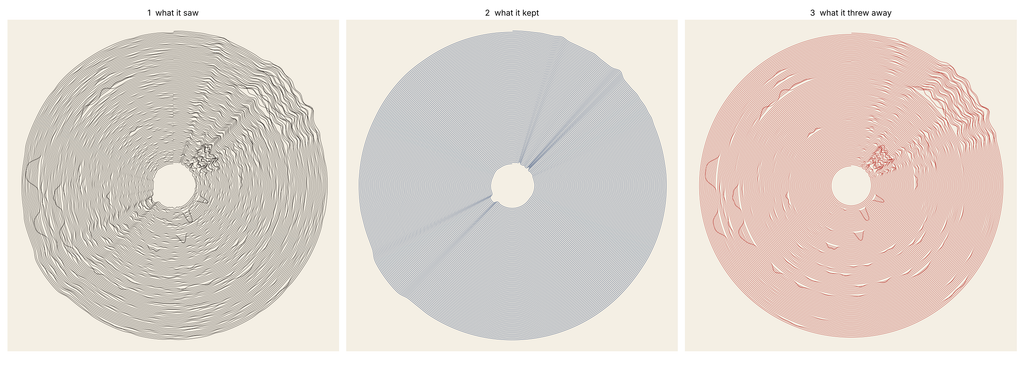
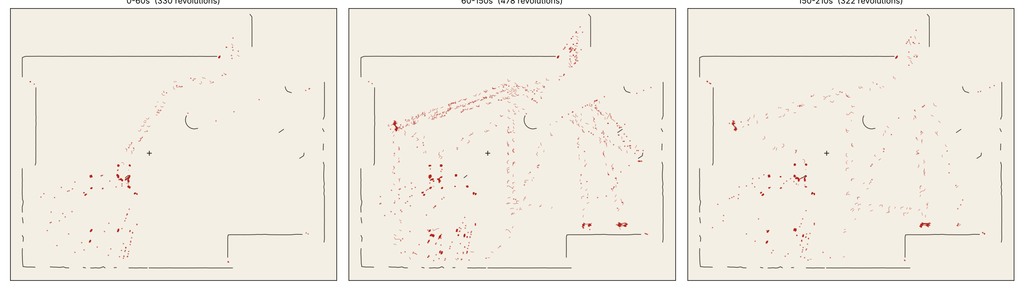
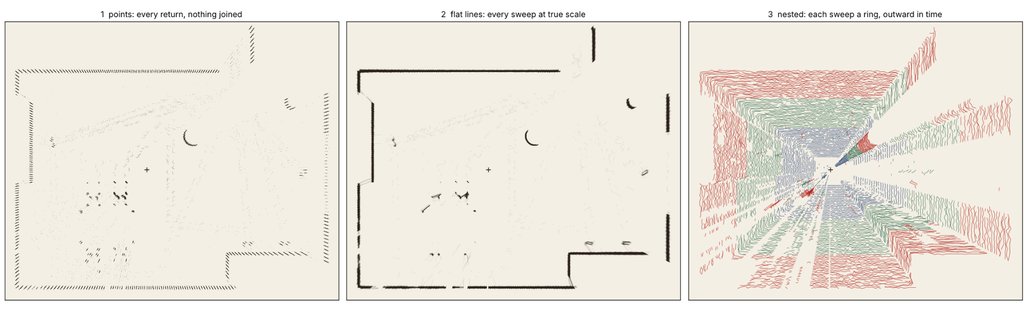
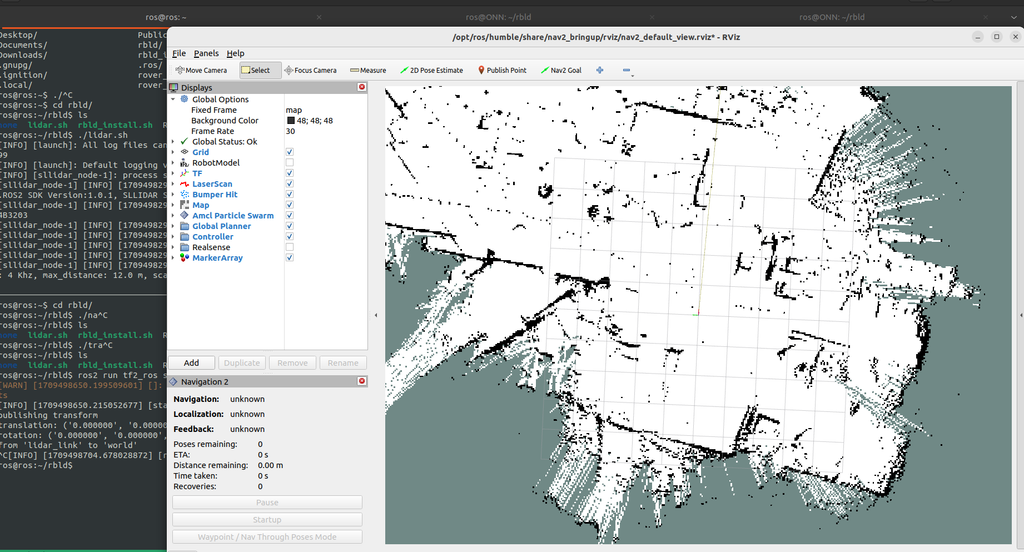
2. The first direction for this project came from a LIDAR sensor. In my robotics research, my hand once entered the sensor’s field, and the screen showed it as a loose cluster of points. The points of my hand looked the same as the points of the wall behind it. I planned to turn that moment into drawings. A robot maps a room by keeping whatever stays still and discarding whatever moves, and the people in the room become noise in that map. The drawings separated the room the robot keeps from the bodies it throws away. A second machine, the pen plotter, drew both layers with the same indifferent line. The idea built on Deborah Lupton’s argument that data represents bodies in “very limited, impoverished ways” from the book The Quantified Self.
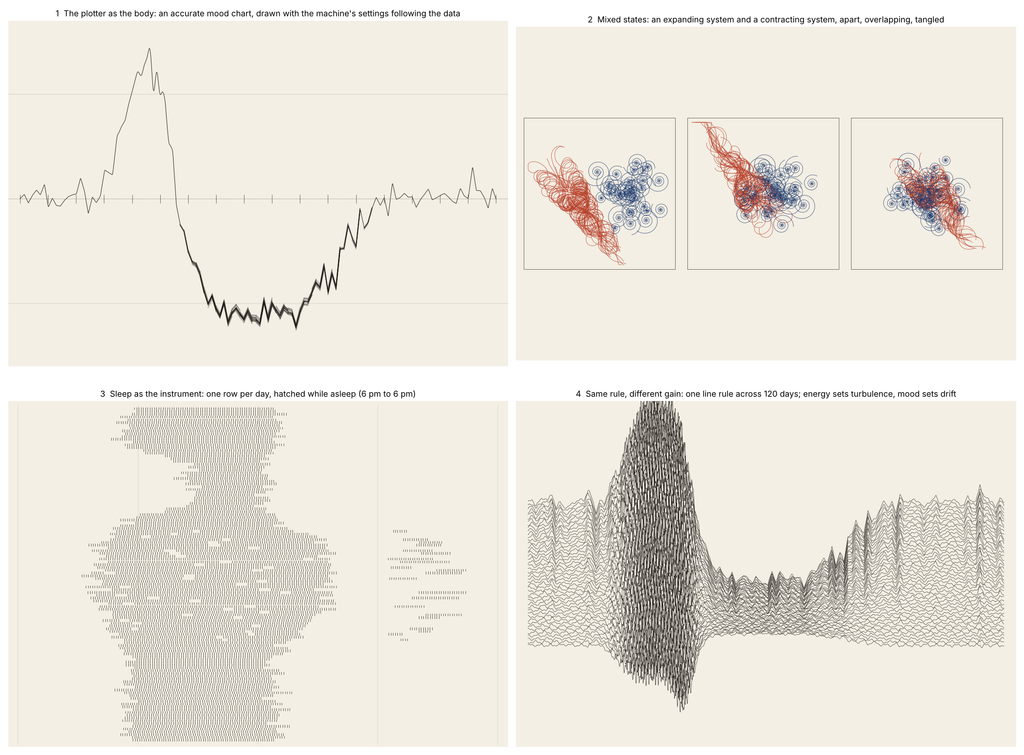
3) I wanted to map music into something. I just didn’t do anything for this idea just scrapped it fully.
4) I didn’t know how to build upon Dichotomy so I tried this
I took the idea of mixed states and turned it into Geometry. Here’s my Gcode and my SVGs
Here are also some scrapped implementations
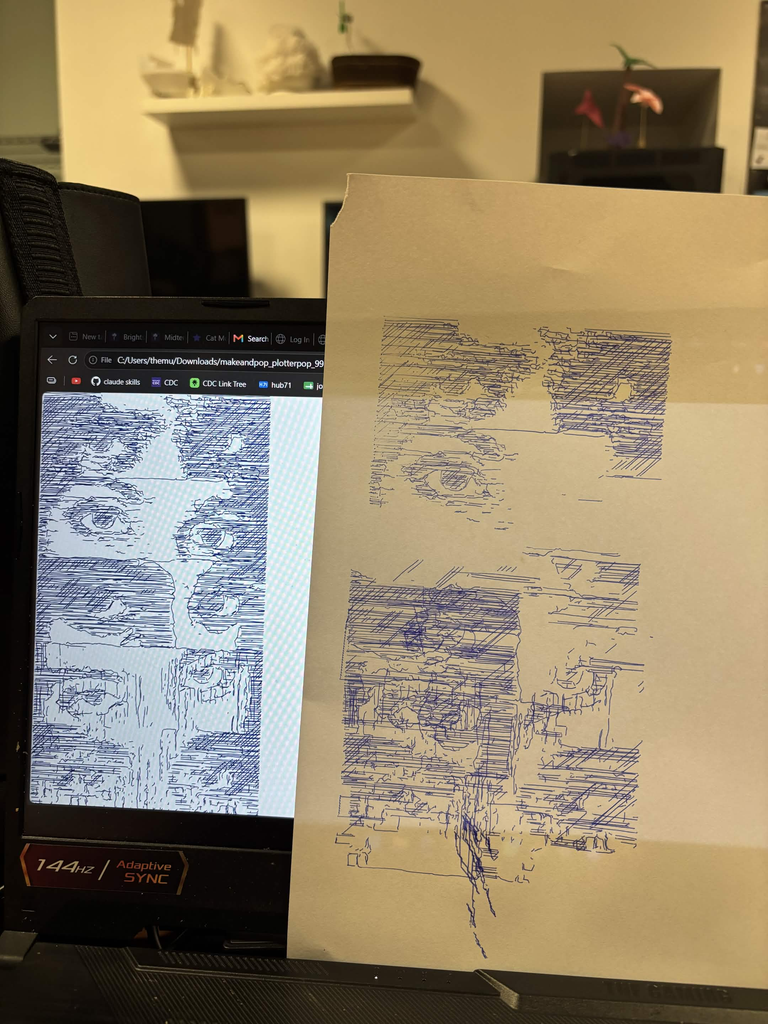
also here’s a failed attempt
Here are some other random attempts as well for random things:
critical reflection on how the pen plotter shaped the final work.:
The plotter changed this work more than any line of code did. On screen, the lines were see-through and the blocks looked light. Every pass puts down full ink, and the blocks on paper came out way heavier than the preview. In the code, the blue hatch lines sat three to six pixels apart. On paper the ink spread into those gaps, and the lines melted into one dark mass. At first I thought I’d messed up. Now I think the heavy blocks fit depression better than my screen version ever did.
I kept the colours from Dichotomy: blue for depression, warm colours for mania. For mania I went with an orange pen. Orange feels restless on white paper, and it stays lighter than the blue. Then the flow field sheet surprised me. Where the orange and blue lines crossed, the inks mixed into a deep green. The mixed state made its own colour on the paper, and I never coded any green.
Each mood saves as its own SVG layer, and the plotter draws one layer per pen. I swapped the pens by hand in between. The second layer didn’t land in exactly the same spot as the first. On the tangled sheet, the orange dashes spill a few millimetres past the left edge of the blue blocks. In the code every dash stays inside its block, and the shift came from the machine and the paper. I left it in. The restless marks escape the heavy blocks, and honestly the image is better for it.
Layering shaped the empty parts too. The grey cells in the neutral zone only showed up on screen. The export skipped them, and on paper that whole area went blank. On the apart sheet, blank paper takes up most of the page. I didn’t plan that space. Now it holds the quiet of depression.
The paper and pens left their own traces. You can see small ink blots where the pen paused at the start of a line. On the apart sheet the drawing sat low on the page, and the blue blocks run off the bottom edge. The weight sinks right out of the frame.
The plotter also showed me where the system falls short. The hatching ate up most of the plotting time. On the tangled sheet the orange covers a lot of the blue, and the heavy blocks lose their shape. Next time I want wider hatch spacing and fewer cracks on the tangled sheet. The screen preview hid all of this. The first plot on paper showed it right away.
Going into this assignment felt intimidating. Looking at the PDF with the steps it seemed like it might be hard to follow. Moreover, there were a lot of 3D printed parts and it wasn’t clear at first what went where. It wasn’t easy, it did take a lot of time, but it was simpler than it seemed.
Assembly
Beginning
The beginning was fairly straightforward. The images on the PDF with the instructions were often more helpful than the worded instructions. However, it was useful to look back and see if we had the right screws with the right lengths so that we knew we were doing it right.
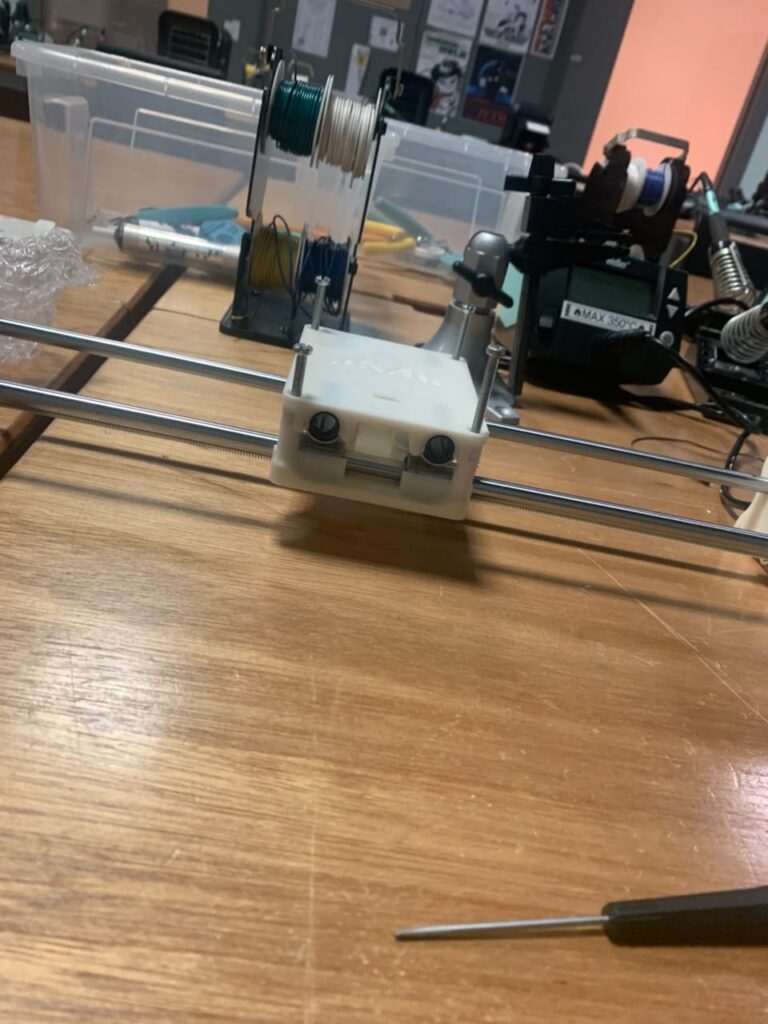
Installing the large rods, attaching the bearings, installing the servo motors. None of it was very difficult. It took some time but fortunately nothing went wrong during this part.
Halfway there
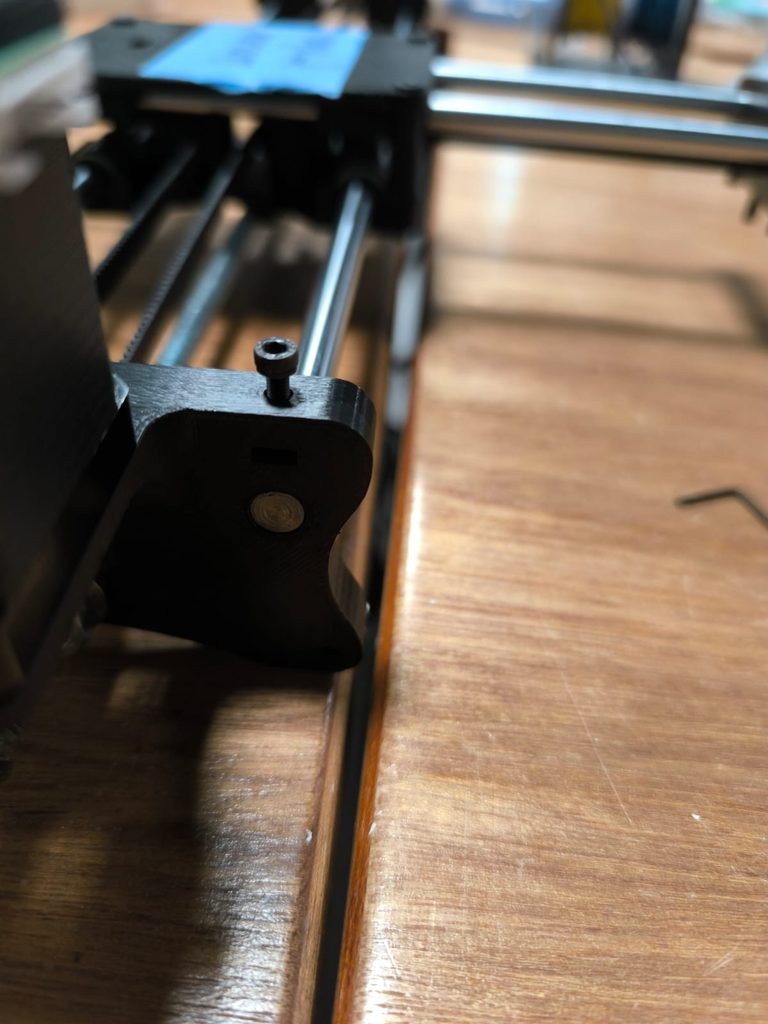
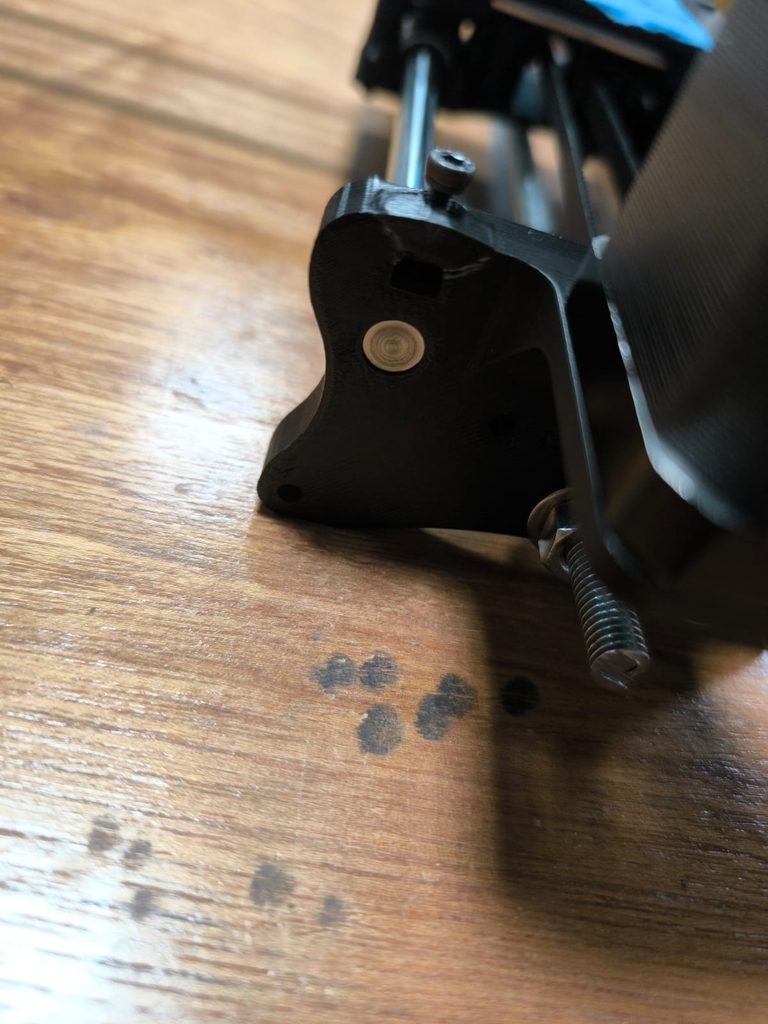
It was at this point that we had our first most frustrating part of this entire project: Assembling the y-axis. This was the first indication that some of the holes in the 3D printed parts were not correctly sized for the bolts. All of them were too small. Moreover, specifically for this part, there were plastic washers that we had to install as well.
The way we approached this was by first using one of the screws to tap each hole including the plastic washers. Then when first placing the screws into the top half we screwed the washers onto it. Only after that were we able to screw it in.
As we were screwing it in we realized that we were tightening the corners in the incorrect order. Tightening one corner too much than the others meant the plate would start to warp. I was glad that I realized this somewhat early and that the plate didn’t snap during this process. It took some time, and patience, to screw the plate down evenly.
Installing the belt, the z-axis, and the CNC shield
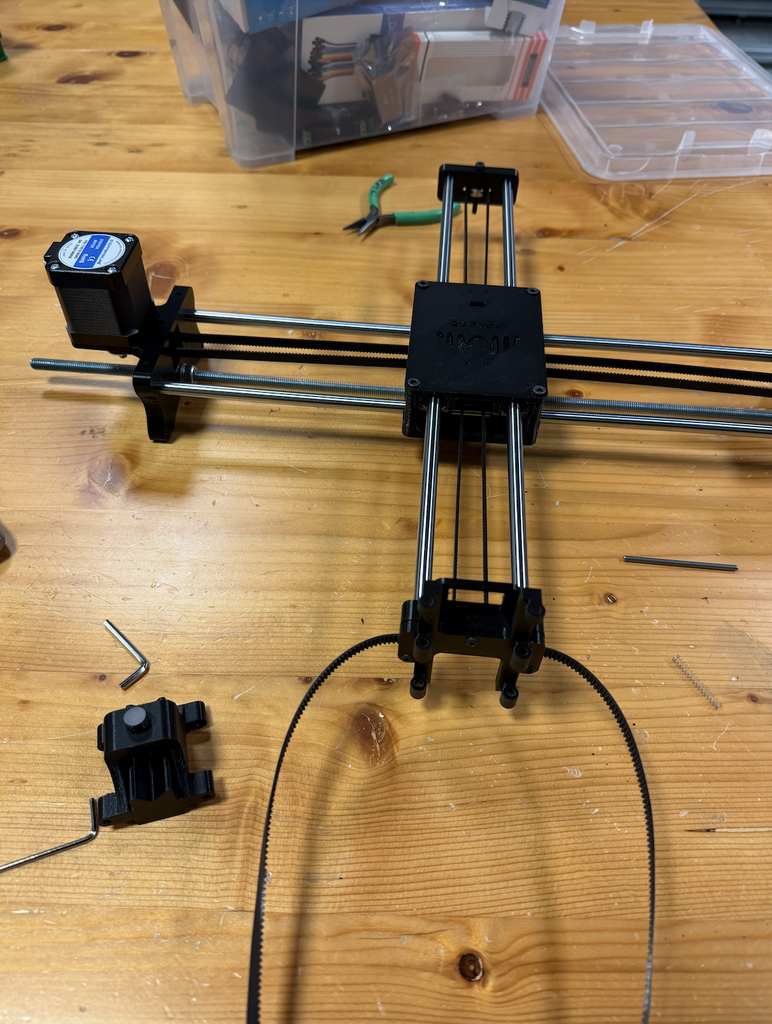
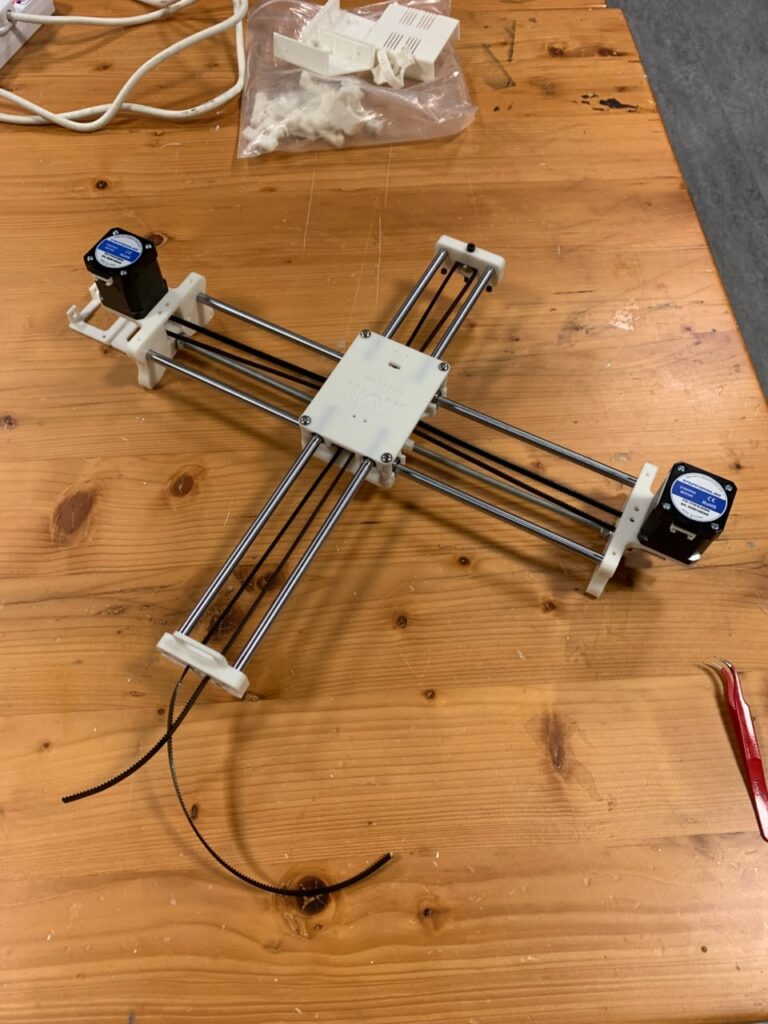
Installing the belt was the next most difficult part of this entire process. The professor had mentioned that most people find installing the belt to be the most difficult. I thought it wouldn’t be that hard. Fortunately, following the steps was simple. But, reaching through the middle to grab the belt was more irritating than I imagined. Irritating because: The belt was too long, reaching through the middle plates was difficult, and because the belt was long sometimes you’d get the orientation wrong and would only realize later on.
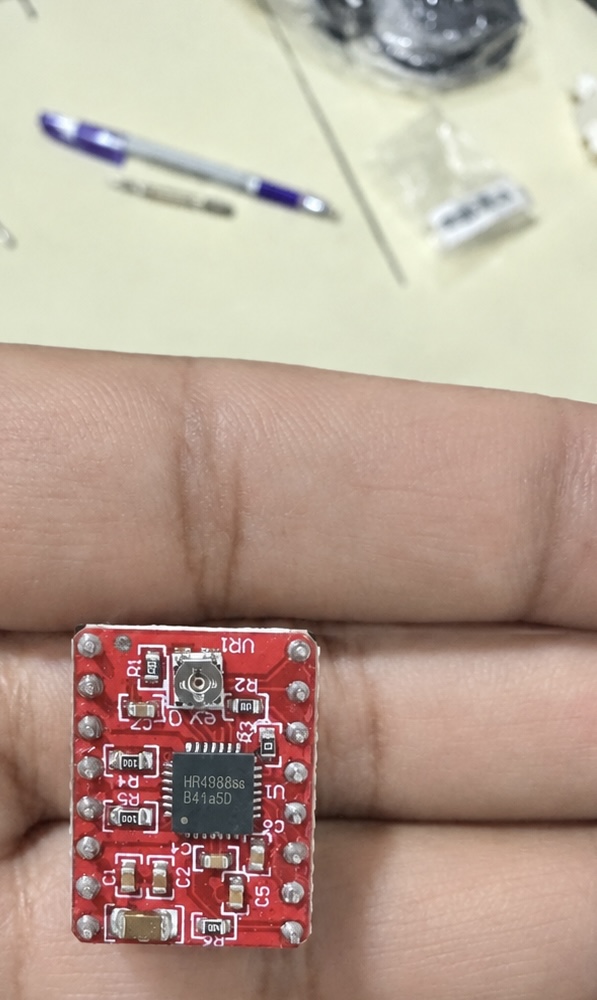
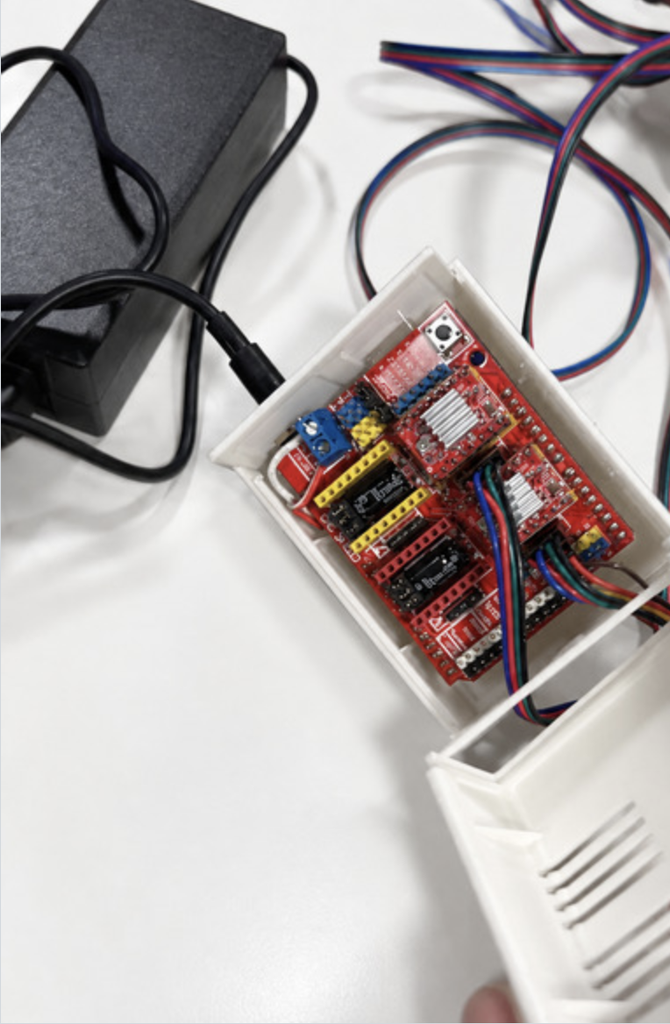
After this the other steps were straightforward. Installing the Arduino UNO then the CNC shield on top was perhaps the easiest part of this entire process, and installing the z-axis was also straightforward.
We had one problem early on and that was the linear rods for the z-axis. They were shorter than the ones in the images. It still seemed to work
Completed Assembly
Problems Encountered
3D Printed Rods:
3D printed parts were not as smooth to work with when installing any kind of screws; for some parts, we needed to go through the part with a screwdriver so it is easier to insert the screw later on.
Belt installation:
As mentioned before it was difficult to pass the belt through the middle and to get the orientation right. This was largely due to the belt being so long. In hindsight, maybe we should have installed at least part of the belt through the middle before attaching the top plate.
Linear Rods:
By the time we reached installing the linear rods for the pen holder, the rods we found were shorter than expected.
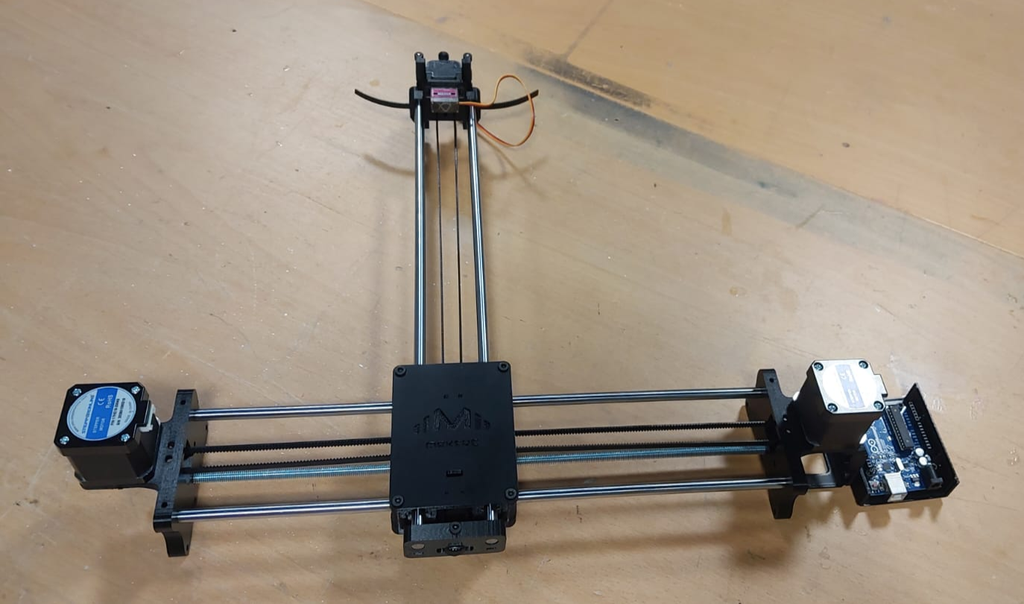
For this assignment, we worked together to assemble the pen plotter using the provided 3D-printed parts and the other components needed for the structure.
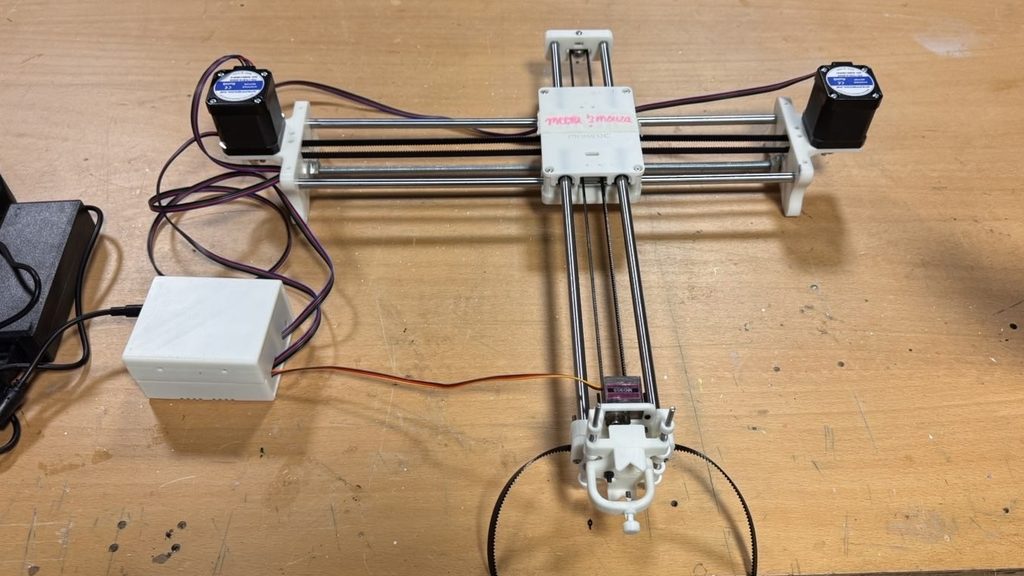
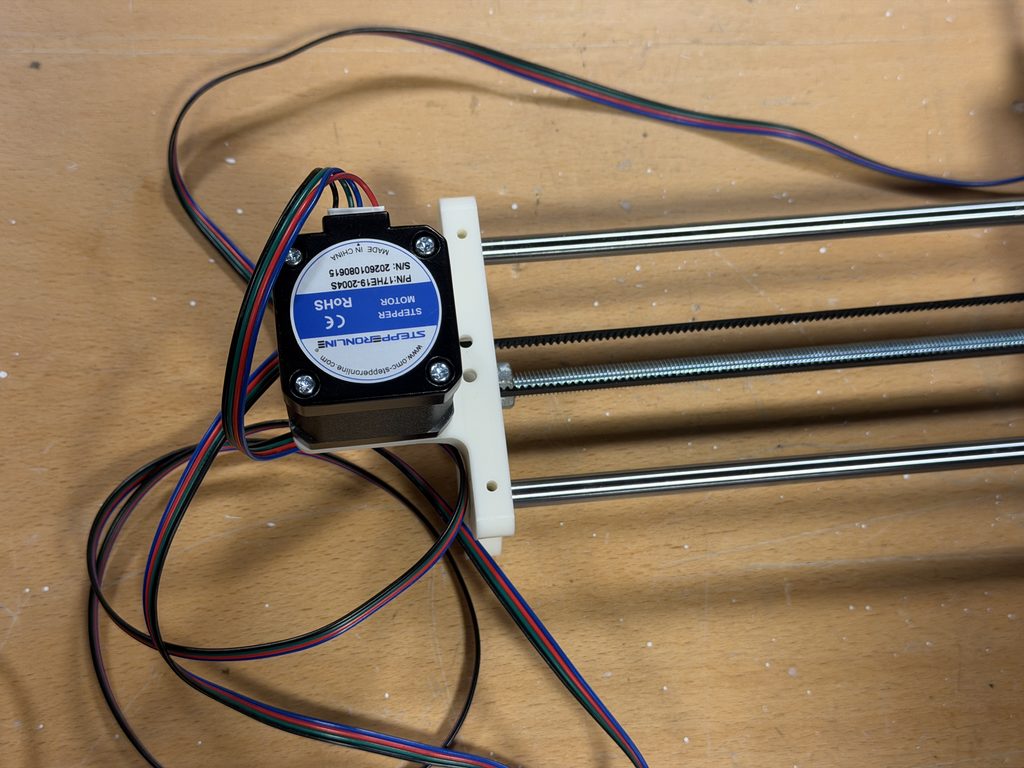
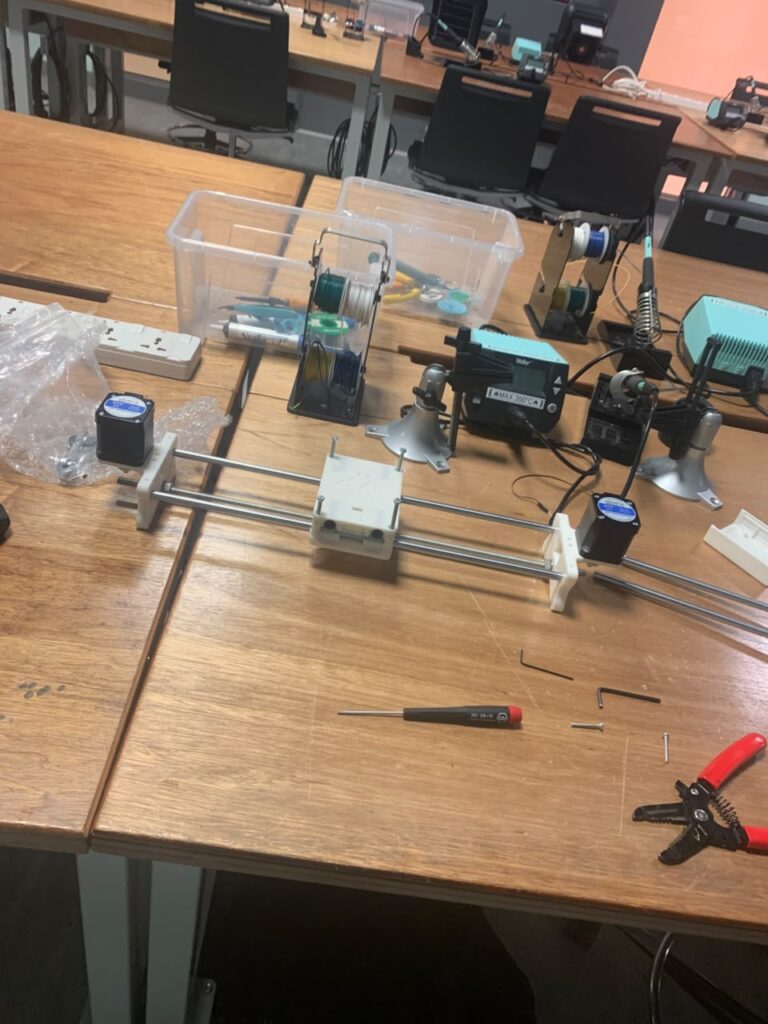
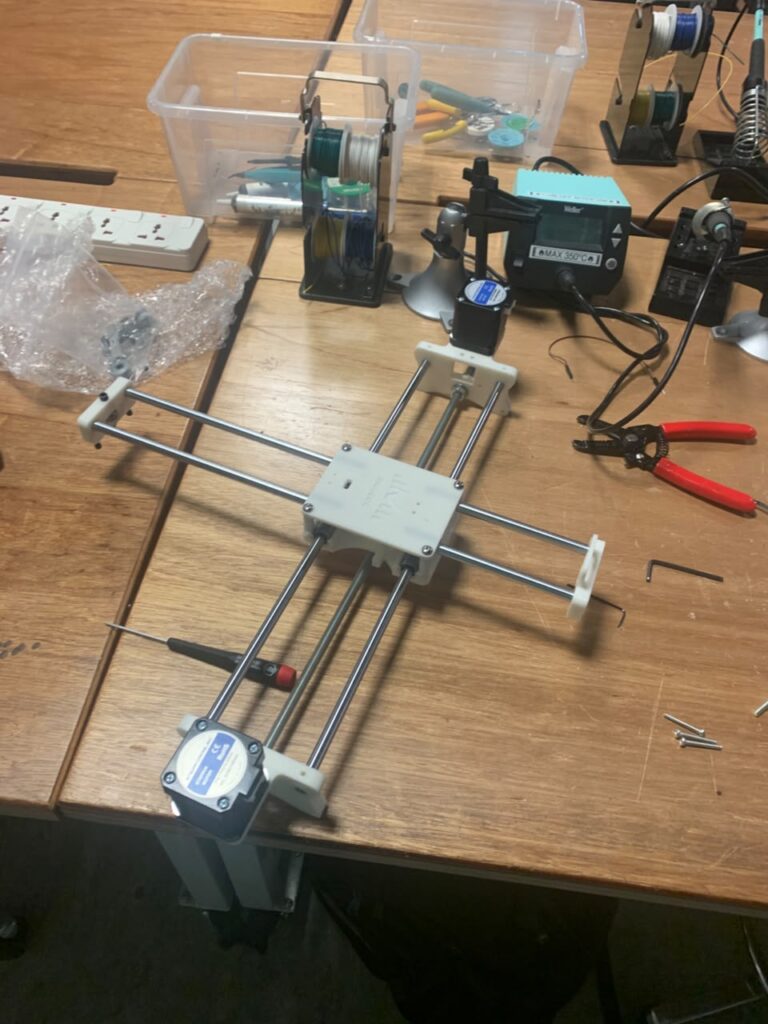
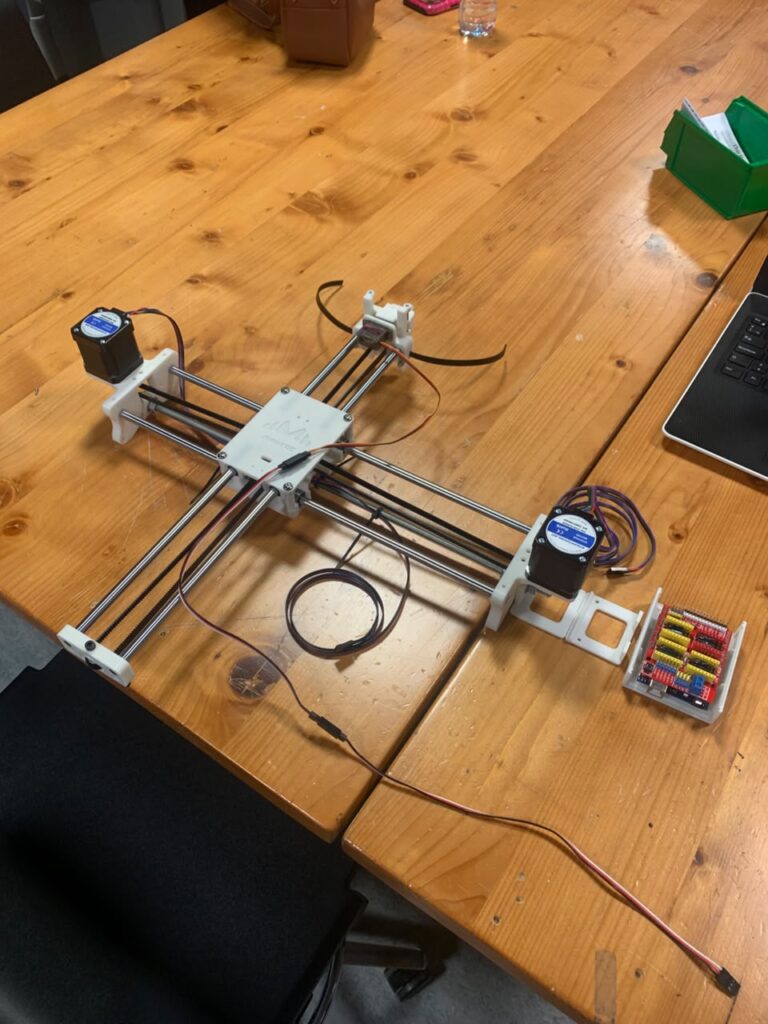
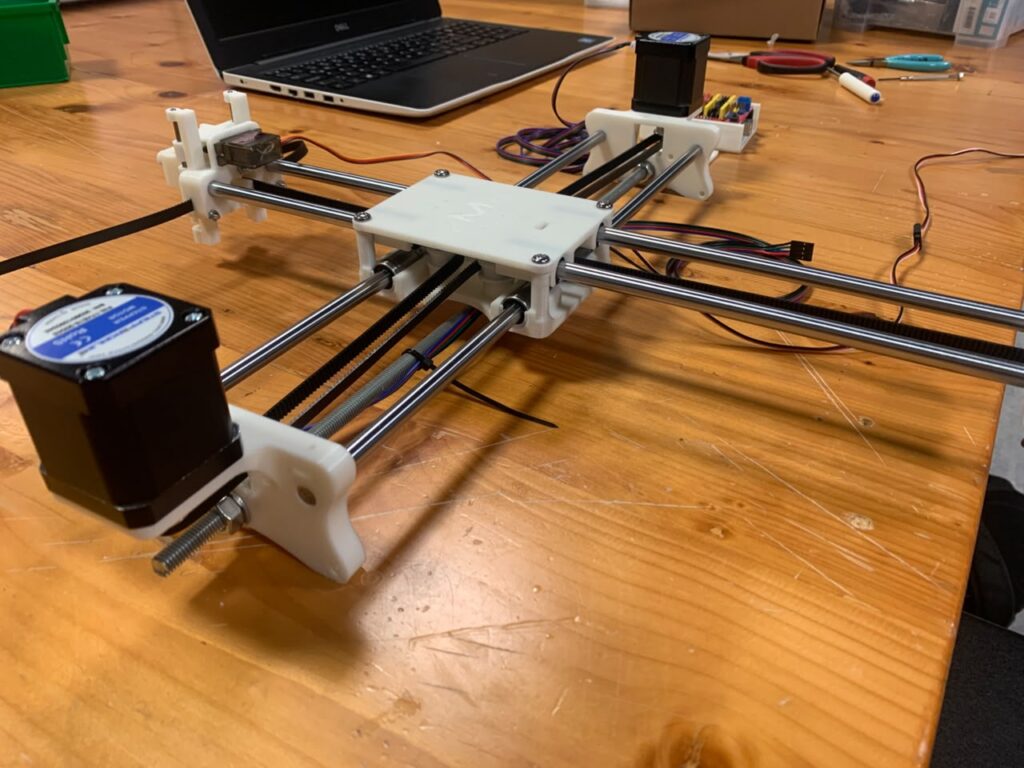
We started by assembling the X-axis, where we inserted the metal rods into the supports and put together the middle carriage/clamshell. We then continued building the rest of the structure and attached the stepper motors to each side. After finishing that part, we moved on to the Y-axis and connected it through the middle section of the plotter.
We also installed the timing belts around the structure. We had to make sure that the belts were going through the correct parts and that they were tight enough to stay in place. We checked them as we continued assembling the plotter to make sure everything was positioned correctly.
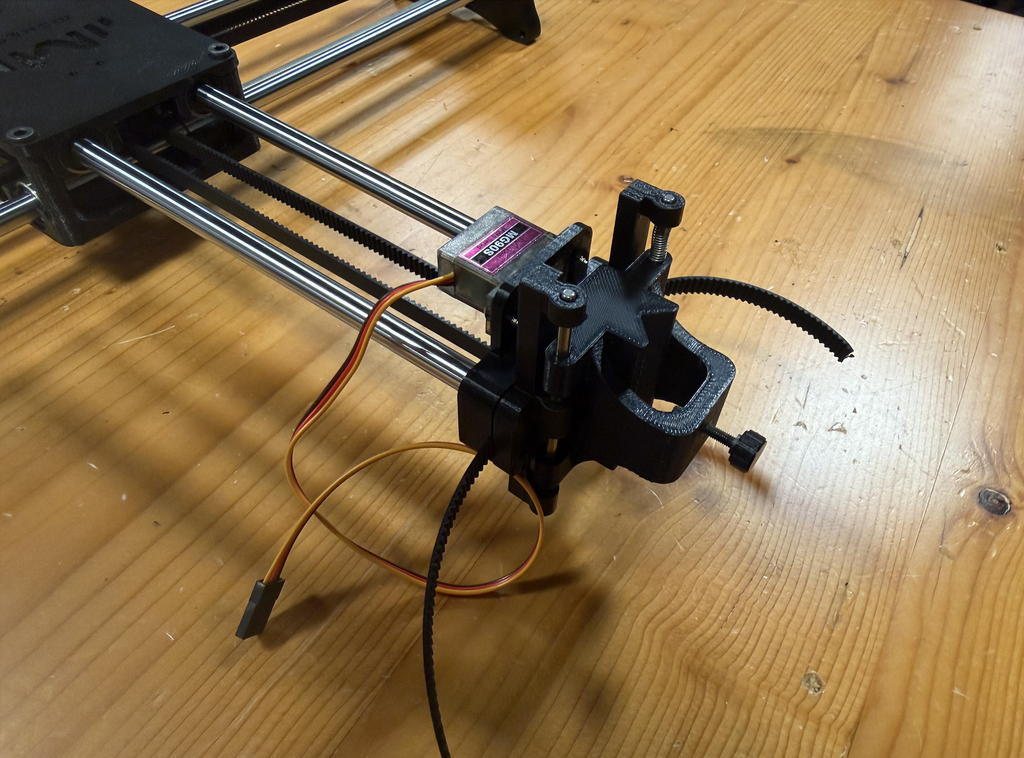
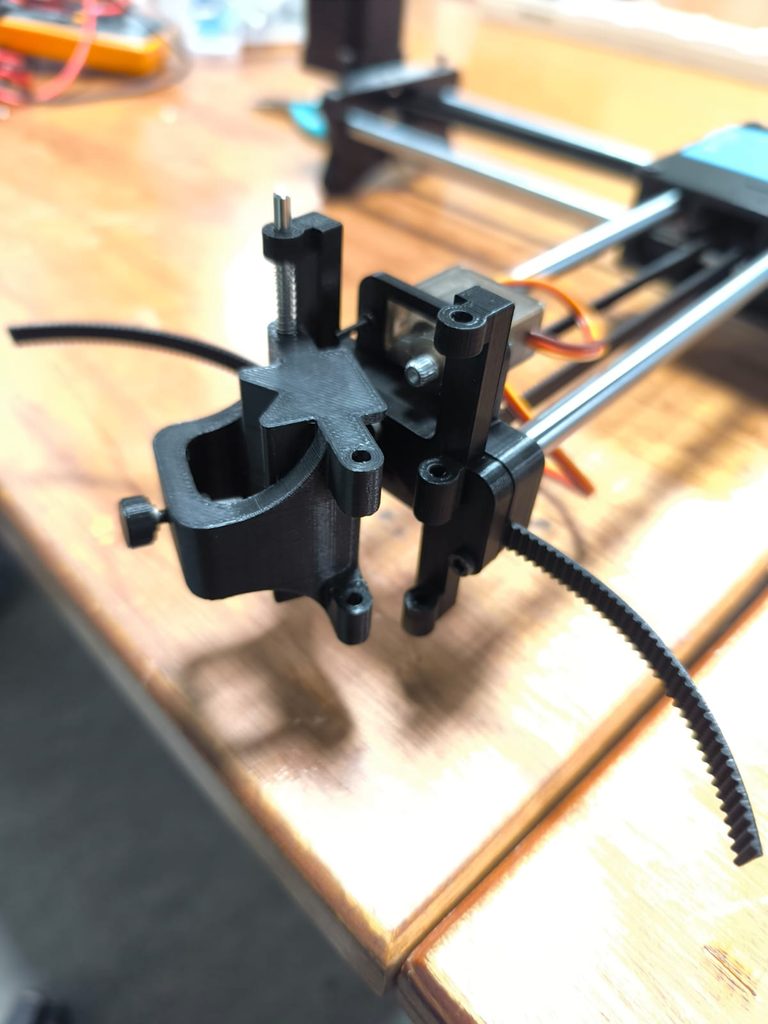
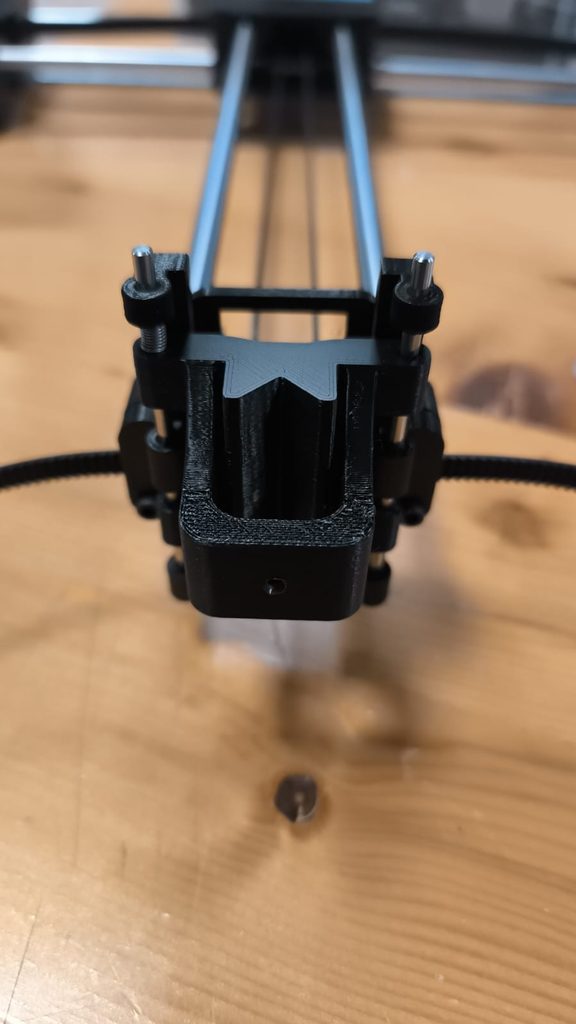
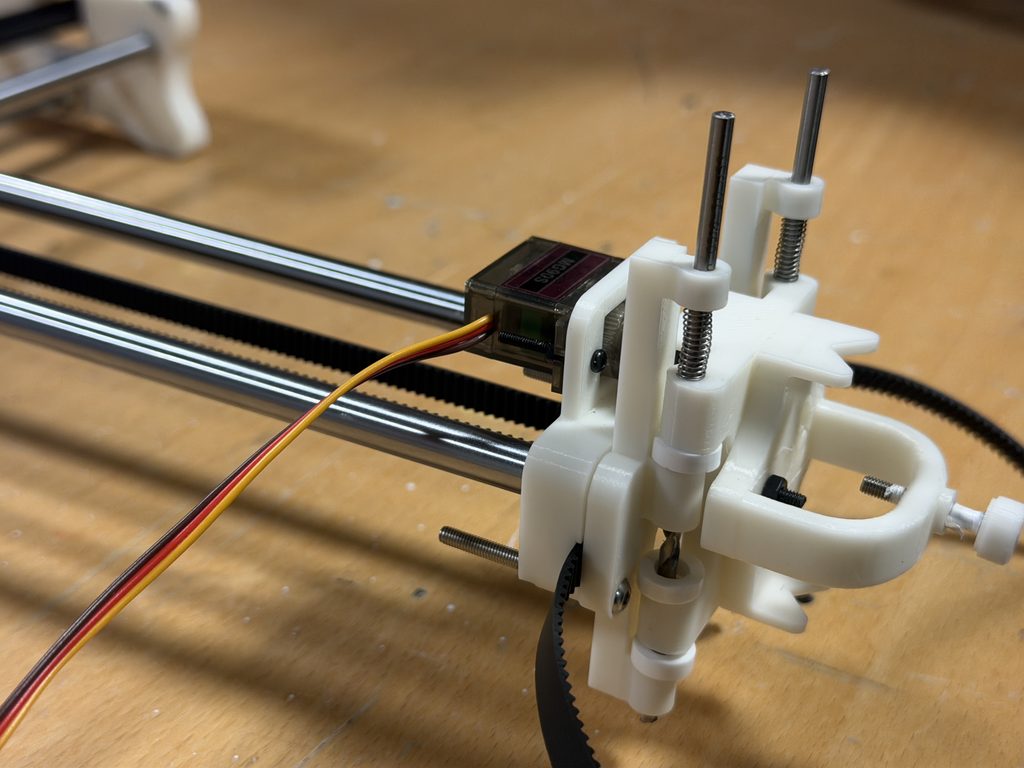
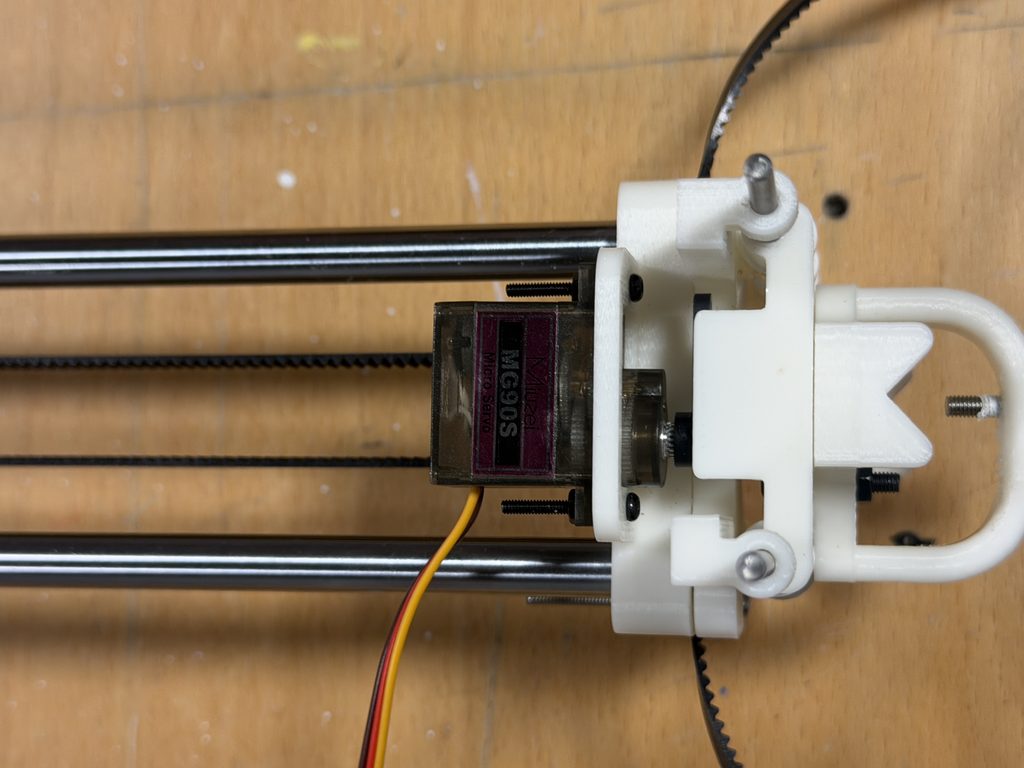
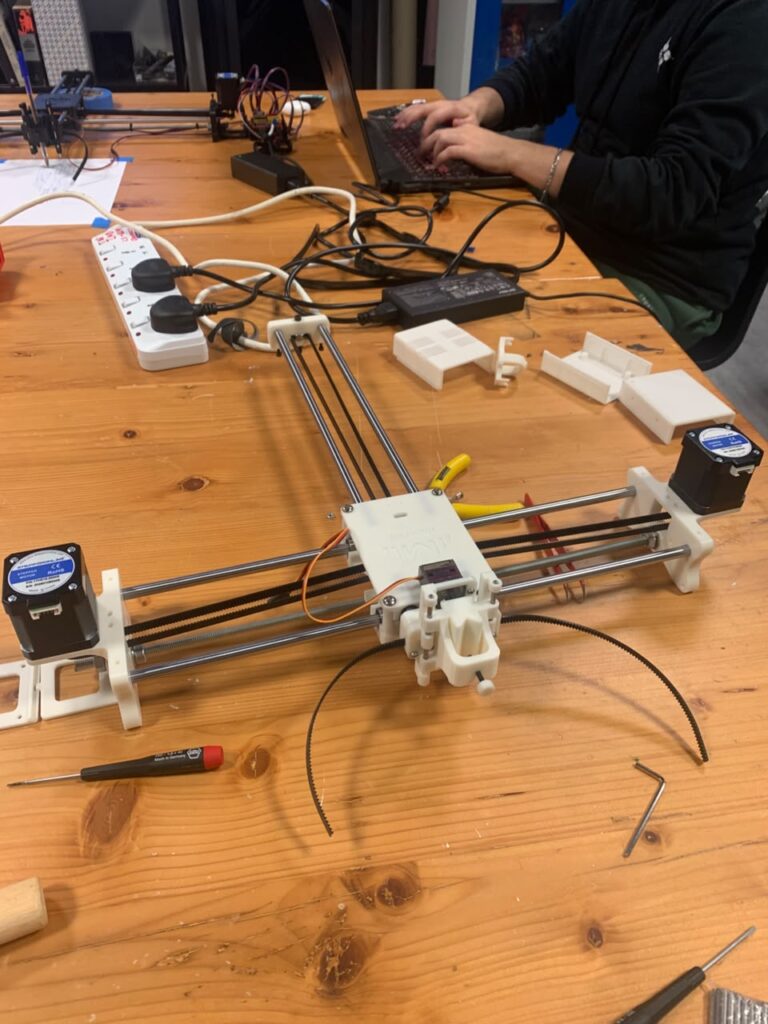
Next, we worked on the pen holder at the end of the Y-axis. We assembled the different 3D-printed pieces that make up the pen holder and attached the servo motor to the mechanism. We made sure that all the pieces were in the correct position before securing them together.
After assembling all the main parts, we looked over the whole structure and checked that everything was attached correctly. We made sure that the rods, timing belts, motors, and pen holder were all properly in place and that nothing was loose.
Problems and Challenges
One problem we had was while assembling the middle carriage/clamshell. There were four screws that had to be tightened separately, but whenever we tried to tighten one of them, the screw would push upward and slightly lift the middle part instead of staying in place. Once we finished one screw and moved on to the next one, the same problem would happen again. We ended up having this issue with all four screws, which made this part of the assembly more difficult and took us longer than we expected. We had to keep adjusting the middle part while tightening each screw until we eventually managed to get all four screws tightened properly and keep the whole section in place.
Another problem we had was with the servo motor on the pen holder. We initially forgot to attach the servo motor before we finished putting that section together. We only realized after we had already assembled the other parts around it. Because of this, we had to go back and reopen part of the pen-holder assembly that we had just finished. We then placed the servo motor in the correct position, screwed it in properly, and put the section back together again. It added an extra step to the process, but we were able to fix it without having to redo the entire pen holder.
Final Assembly
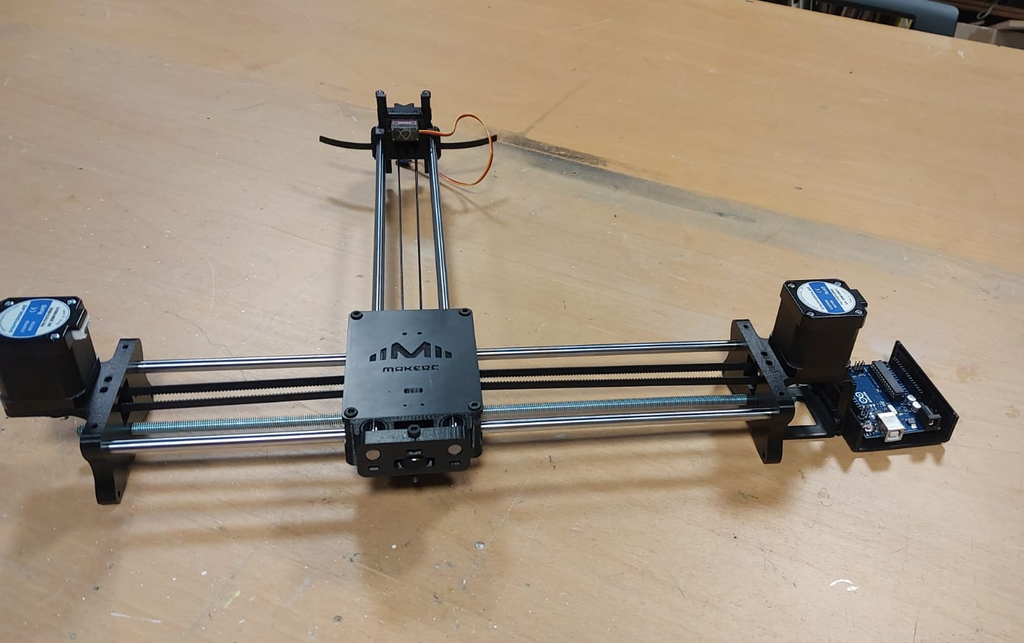
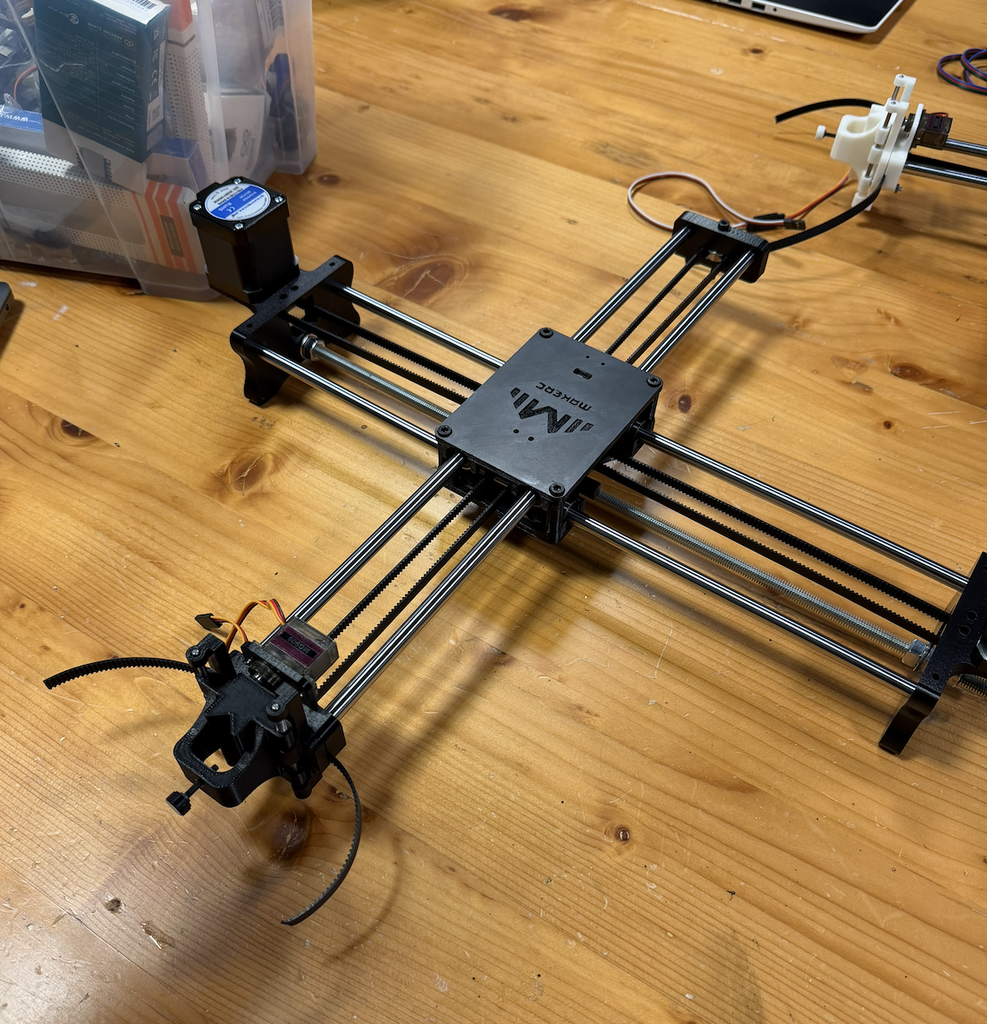
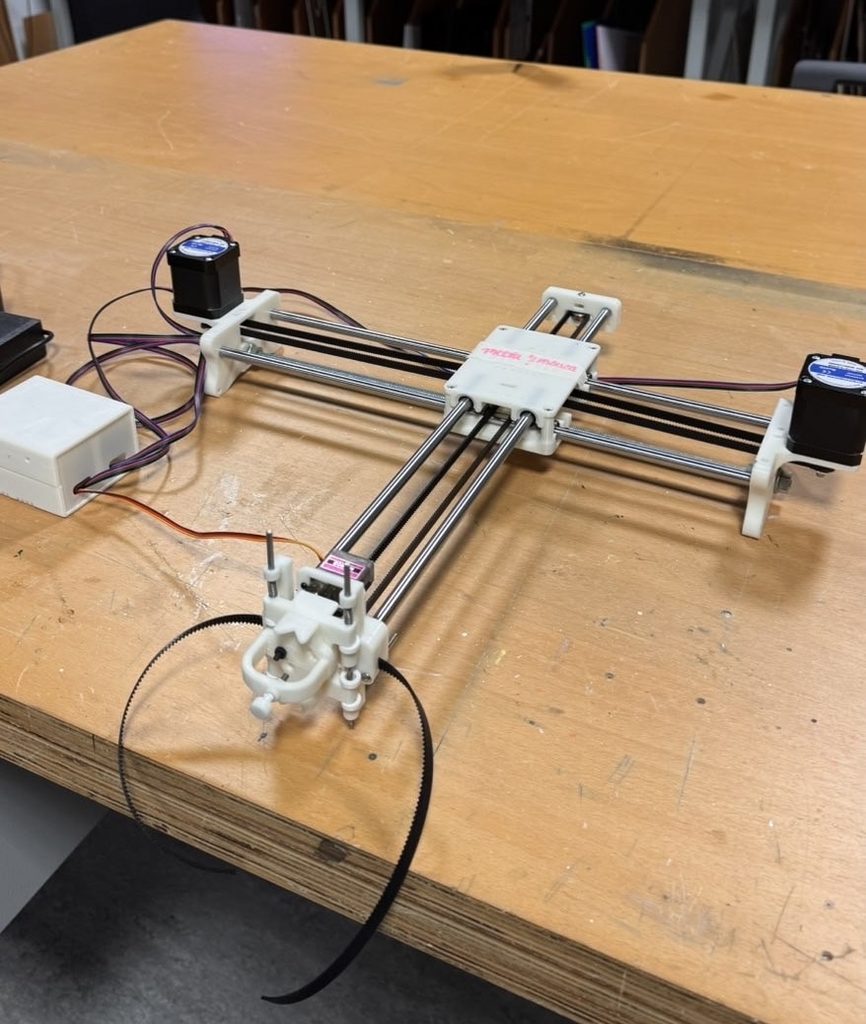
After fixing these problems, we were able to complete the physical assembly of the pen plotter. The final structure included the X and Y axes, the middle carriage/clamshell, stepper motors, timing belts, and the pen holder with its servo motor. We checked everything again at the end to make sure all the parts we had assembled were secure and in the correct positions.
Overall, assembling the pen plotter involved a lot of different parts, and we had to pay attention to how each piece connected to the next. Some sections were easier to put together, while others took more trial and error. The middle carriage/clamshell and the pen holder were probably the most challenging parts for us because of the problems we had with the screws and forgetting the servo motor. Even though we had to go back and fix a few things, we were able to work through the problems and complete the physical assembly of the pen plotter.
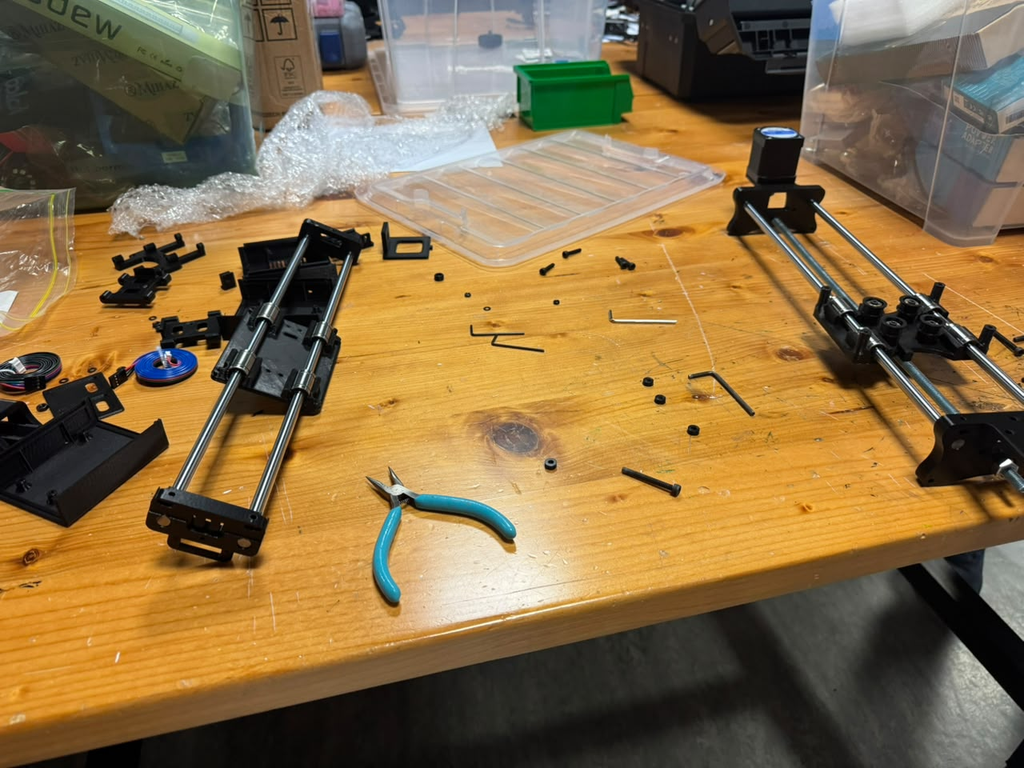
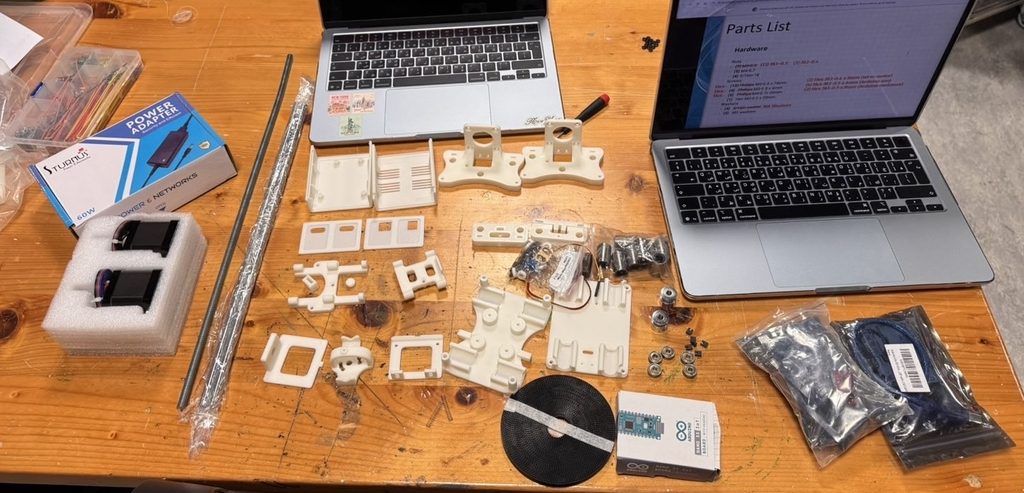
Step 1 – Collecting all parts for smoother assembly process
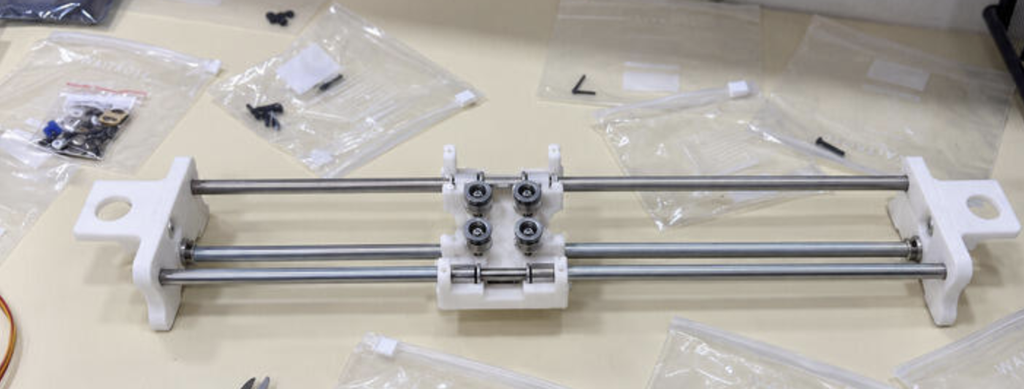
Step 2-Assembling X axis
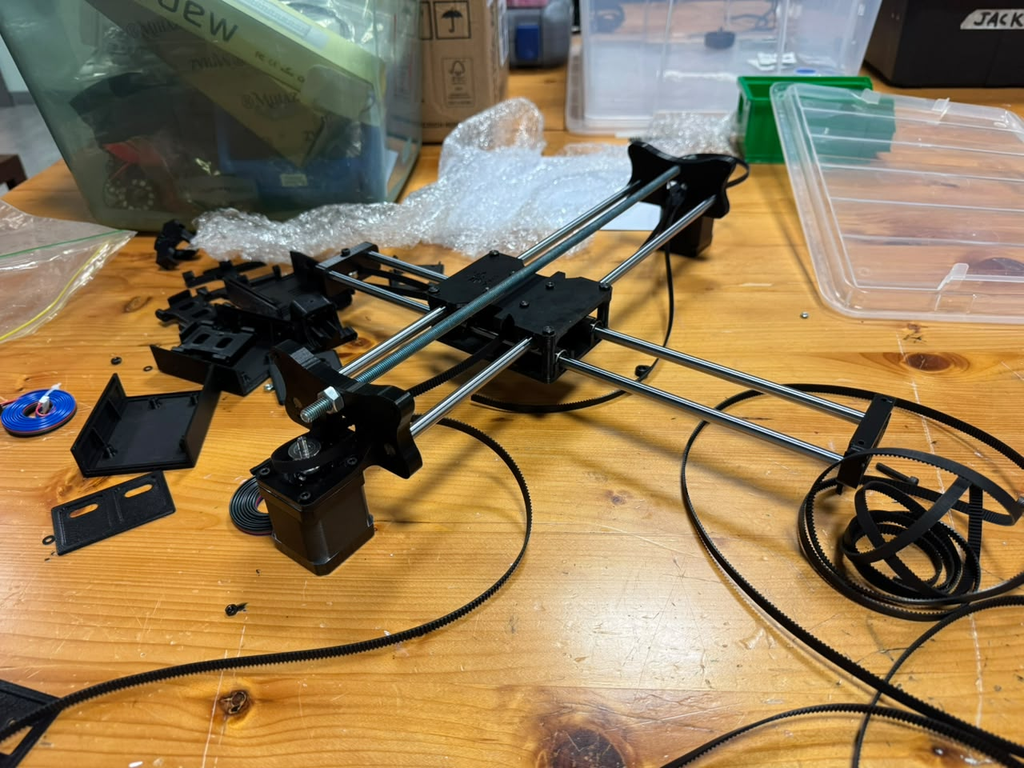
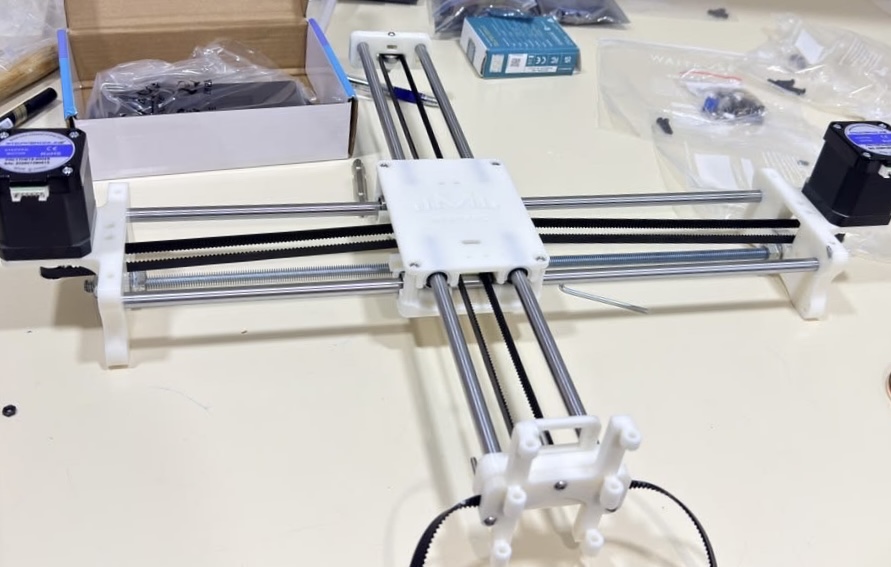
Step 3 – Attaching Y axis and looping belt
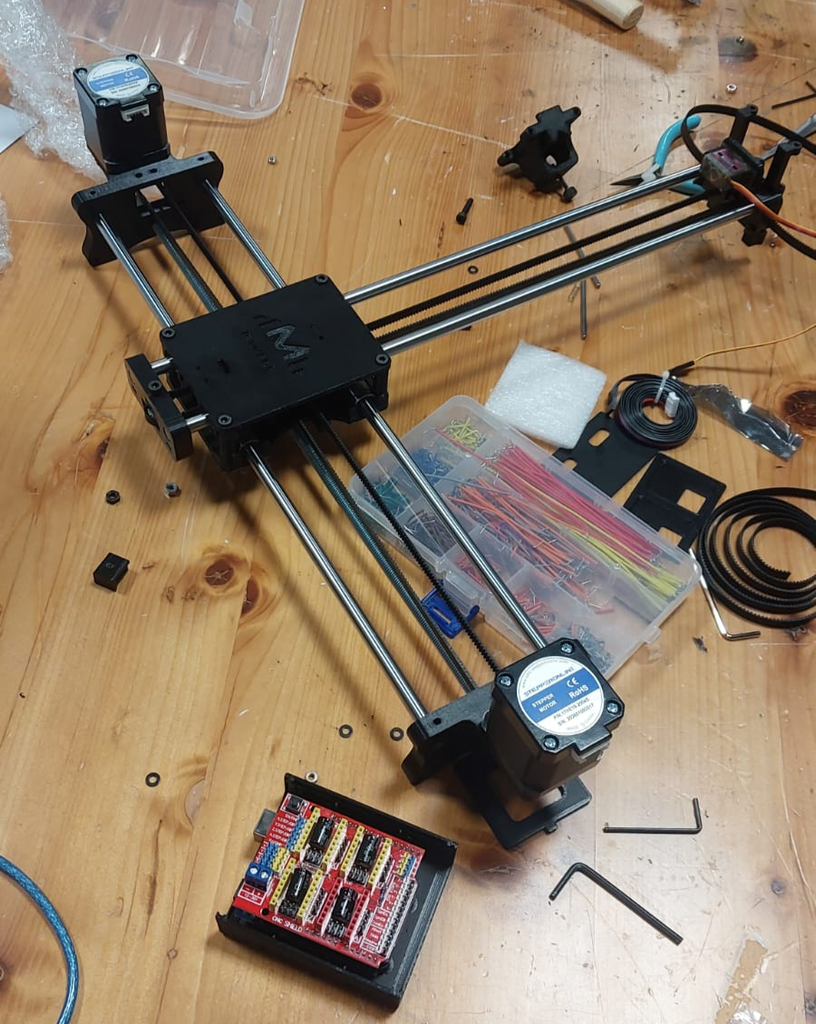
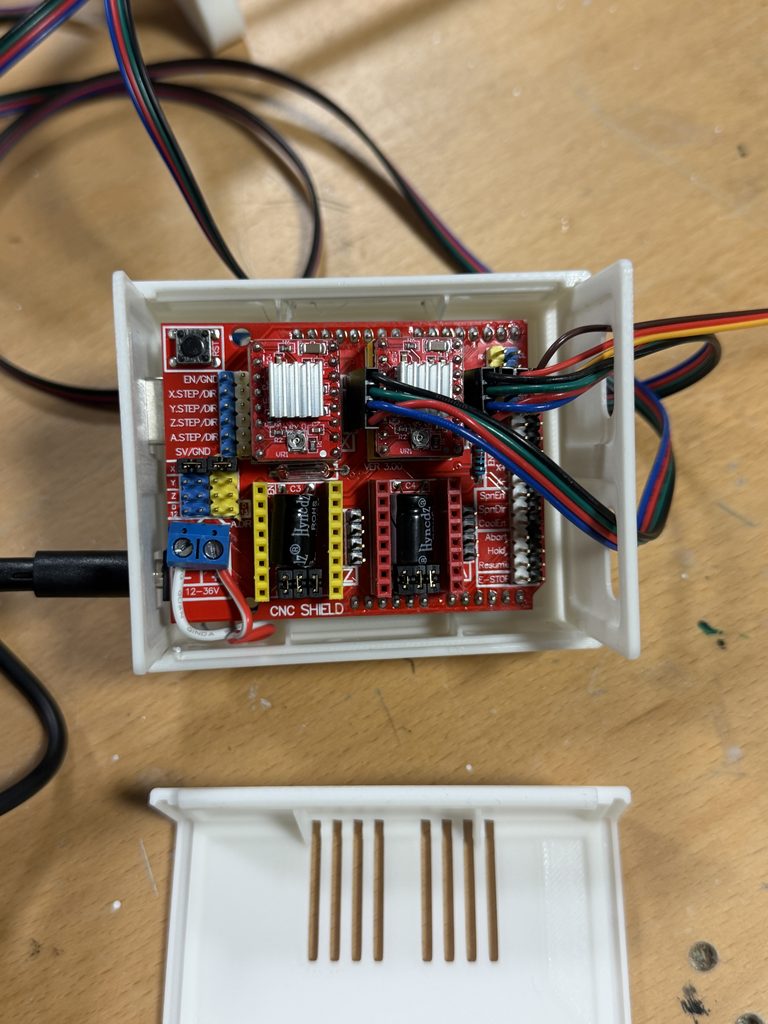
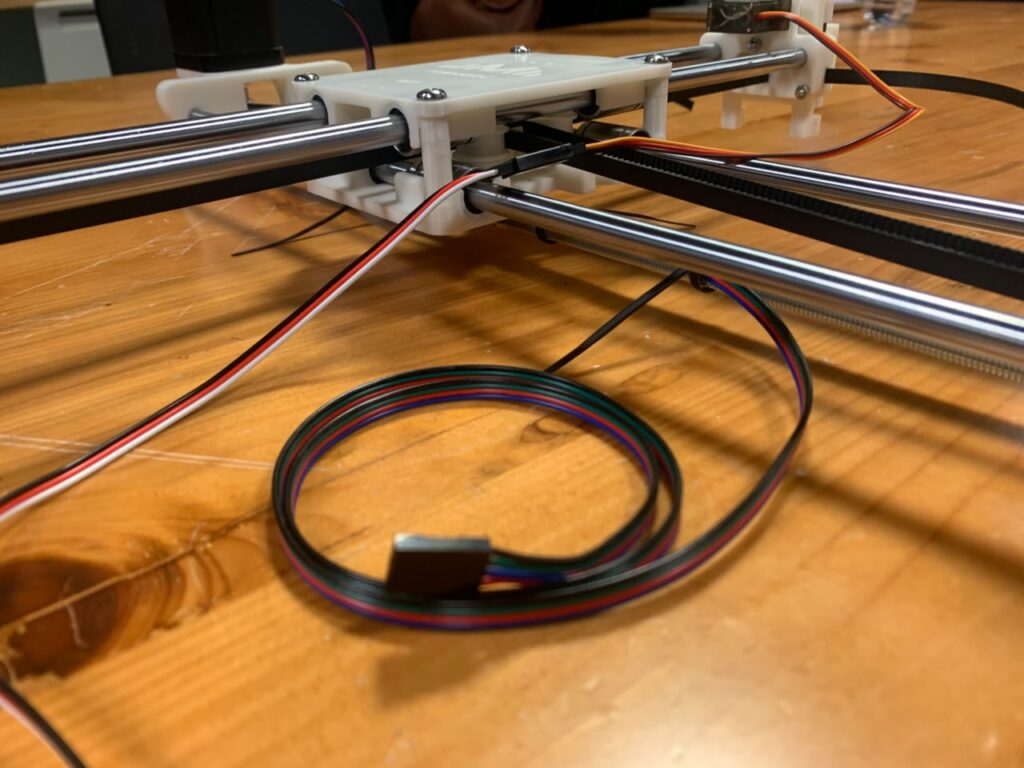
Step 4- Wiring and connecting Arduino to Pen Plotter
Photo of the completed assembly
Video of the completed assembly
Problems encountered and how you addressed them
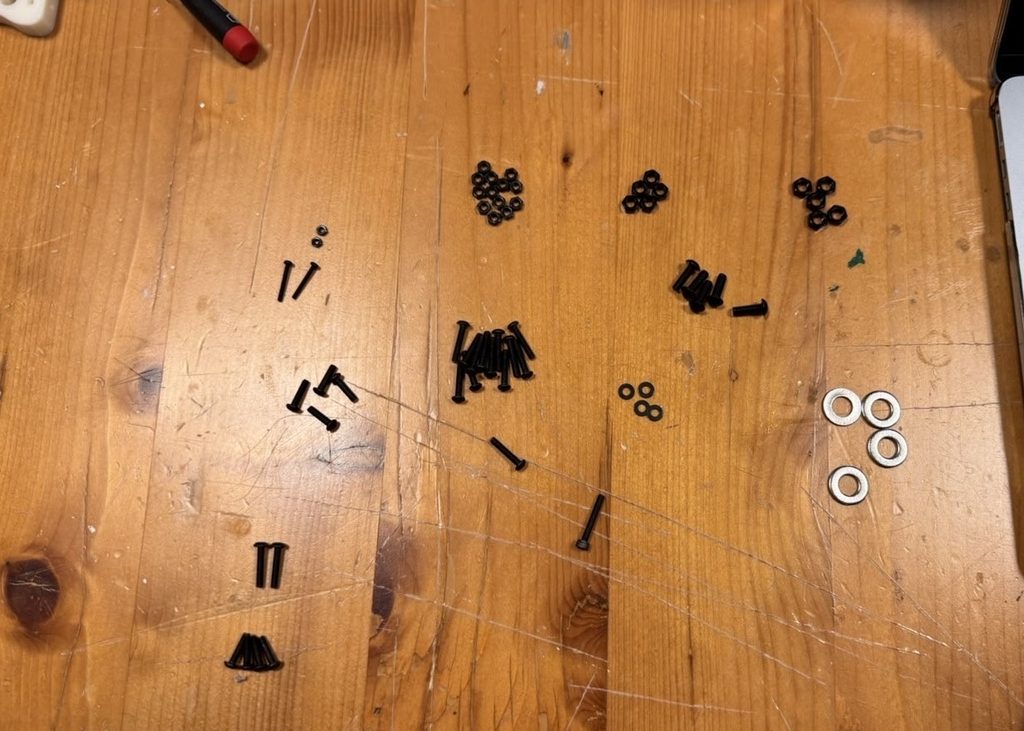
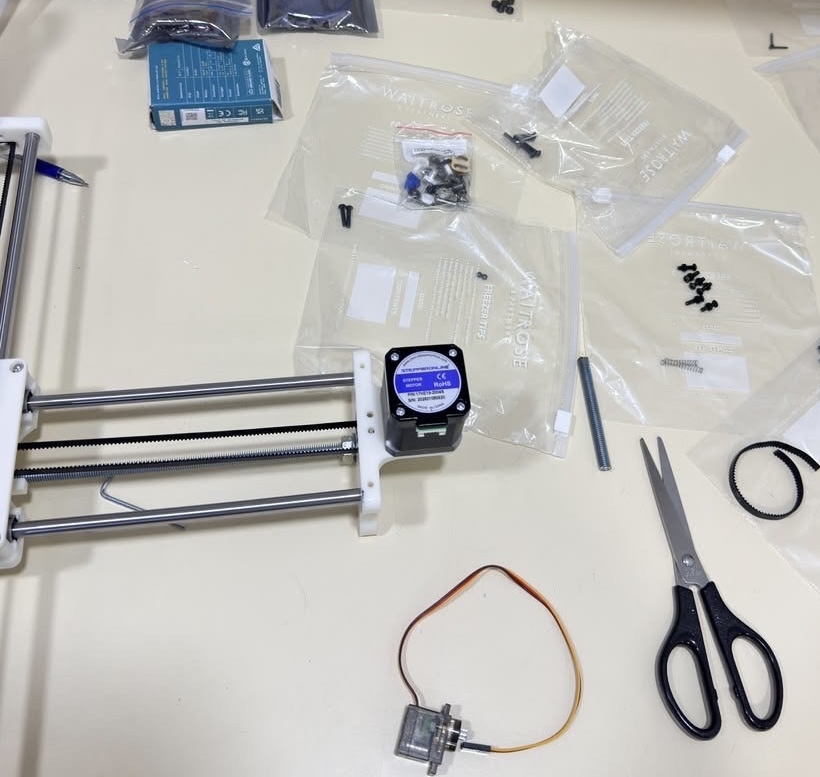
One of the main problems we encountered was assembling all the parts correctly. There were many small pieces, and some of the screws and bolts looked very similar, so it was easy to use the wrong one in the wrong place. To make the process easier, we laid out all the parts before starting and separated the screws, bolts, and other pieces into individual bags. This helped us stay organized and made it easier to know which parts we needed for each step. We also checked the fit of the pieces before tightening everything so we would not have to take the machine apart again.
Another problem we encountered was using the correct screws. Some screws were only the same size but different lengths. Keeping the different screws separated helped a lot because we could quickly see which ones were meant for each section.
We also had some difficulty with the belt alignment. The belts needed to be straight and tight enough for the pen plotter to move smoothly along the frame. At first, the belt was not sitting correctly, which could have caused uneven or unstable movement. We adjusted the belt a few times and checked how it moved across the rails until it was properly aligned. We also made sure it was not too loose or too tight, since both could affect the movement of the machine.
Overall, the assembly process involved a lot of trial and error. We sometimes had to remove a part and put it back together differently after realizing it was not positioned correctly. Working together helped because one of us could hold or align the parts while the other attached the screws. As we continued building, the process became easier because we understood how the different parts connected and how the movement of the pen plotter depended on everything being properly aligned.
Assembling this pen plotter wasn’t as difficult as understanding the instructions. We started the assignment by first putting together the X-axis. It took us some time to understand what the instructions were asking us to do, but the images were really helpful in guiding us through the process.
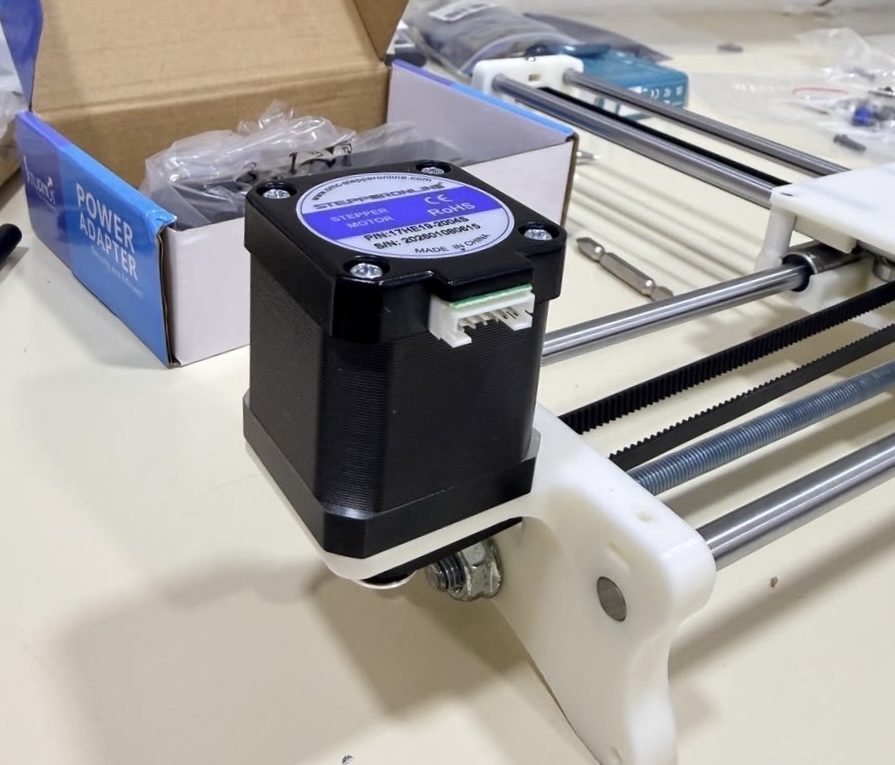
After the very first step, we learned about the wonderful properties of the mallet. At some point, using it almost felt like therapy. Once we had placed the X-axis rods into the X supports, we added the bearings. This took us quite a while because we had to remove the supports from the 3D-printed parts, figure out which screws and bearings went where, and understand how all the pieces fit together.
While putting the rods into the Y-axis, I used the mallet a little too forcefully, which caused one of the bearings to come out. We also spent a good amount of time figuring out what the 20-tooth pulley was and how it was supposed to attach to the stepper motor. Referring to the professor’s assembled pen plotter was very helpful during this process, as it gave us a better idea of how the different parts were supposed to fit together.
Another time-consuming step was inserting and tightening all the bolts. While inserting one of the bolts into the x-axis holder, the plastic started bulging out. This made it look like the plastic was about to rip into two parts. Eventually we ended up not screwing the bolts completely and letting it go just before it started to feel tight.
Step 1 – Collecting all parts for smoother assembly process
Step 2-Assembling X axis
Step 3 – Attaching Y axis and looping belt
Step 4- Wiring and connecting Arduino to Pen Plotter
Photo of the completed assembly
Problems encountered and how you addressed them
One of the main problems we encountered was assembling all the parts correctly. There were many small pieces, and some of the screws and bolts looked very similar, so it was easy to use the wrong one in the wrong place. To make the process easier, we laid out all the parts before starting and separated the screws, bolts, and other pieces into individual bags. This helped us stay organized and made it easier to know which parts we needed for each step. We also checked the fit of the pieces before tightening everything so we would not have to take the machine apart again.
Another problem we encountered was using the correct screws. Some screws were only the same size but different lengths. Keeping the different screws separated helped a lot because we could quickly see which ones were meant for each section.
We also had some difficulty with the belt alignment. The belts needed to be straight and tight enough for the pen plotter to move smoothly along the frame. At first, the belt was not sitting correctly, which could have caused uneven or unstable movement. We adjusted the belt a few times and checked how it moved across the rails until it was properly aligned. We also made sure it was not too loose or too tight, since both could affect the movement of the machine.
Overall, the assembly process involved a lot of trial and error. We sometimes had to remove a part and put it back together differently after realizing it was not positioned correctly. Working together helped because one of us could hold or align the parts while the other attached the screws. As we continued building, the process became easier because we understood how the different parts connected and how the movement of the pen plotter depended on everything being properly aligned.
Note: This is told as if it was some sort of story, that is why the photos are not labelled. You see the photo, then read what we have to say. :)
Building this machine proved to be very time-consuming. We did not expect it to take so many hours between assembling and testing why some screws worked while others did not at all. In other words, while we expected it to take not much time, it proved to be very time-consuming.
Nevertheless, we found the process interesting, painful, but interesting.
Here are the pictures of the process with some relevant caption with some difficulties we found:
These two pictures represent hours of suffering. As you might notice, these are not the screws that were originally intended to be used. Sadly, due to maybe a printing issue, the original screws proved to be impossible to add. Not only this, but there were also many mistakes that we did, such as putting screws that were too long and interfered with some parts.
We should have read better the instructions before going speedy, but at least when we tried some screws that were less wide they went through normally.
Now, here during this step there was another flaw that we got due to not reading enough… The four spacers. When we put the top carcass, we noticed that the top rods did not go through at all. Even when we pushed and moved the circles that are on the bottom carcass, they still did not go through. And as you might know now why… it is because we missed THE FOUR 3D PRINTER SPACERS!
Still, at least we noticed, but it did not make the problem of the screws any easier. At least we found a trick by then.
When we were working with the belt, this step was surprisingly easy for us. We were at first confused as to why the belt was not strong or straight at first, but we just needed to pull it a bit more.
Also, compared to other steps, this was the less painful one. Maybe most people had issues with the assembly of the part that gave us problems? Probably.
After some final cable installation and cable management, here is the final result:
In conclusion, this drawing machine proved to be painful (at least Marcos’s hand was left hurting) and time-consuming. Although, it would be a lie to say that we did not learn from this experience. There is an interesting aspect to it, the fact that with sufficient time and planning, we can make such machines come into fruition.
Of course, the scheme, and materials were already handed to us, but there is a world out there in which such machines exist, and it is a matter of just exploring them.
This is my first proper time designing something for the purpose of 3D printing, so I wanted to make something relatively simple. I forgot my little fidget toys when I was packing for this semester so they’re currently underutilized back home and my hands are currently understimulated here. I have a preference for making things I would actually utilize so why not use this opportunity to make my own fidget toy?
The concept I eventually landed on was a fidget toy with no moving parts; this led me to think about what type of play factors I can make without any moving parts. It would just be something I could twirl around using my fingers.
Process and challenges
I didn’t have a good grasp of scale when I was designing in p5 but what mattered for now was that I understood the relative size of each segment compared to the others.
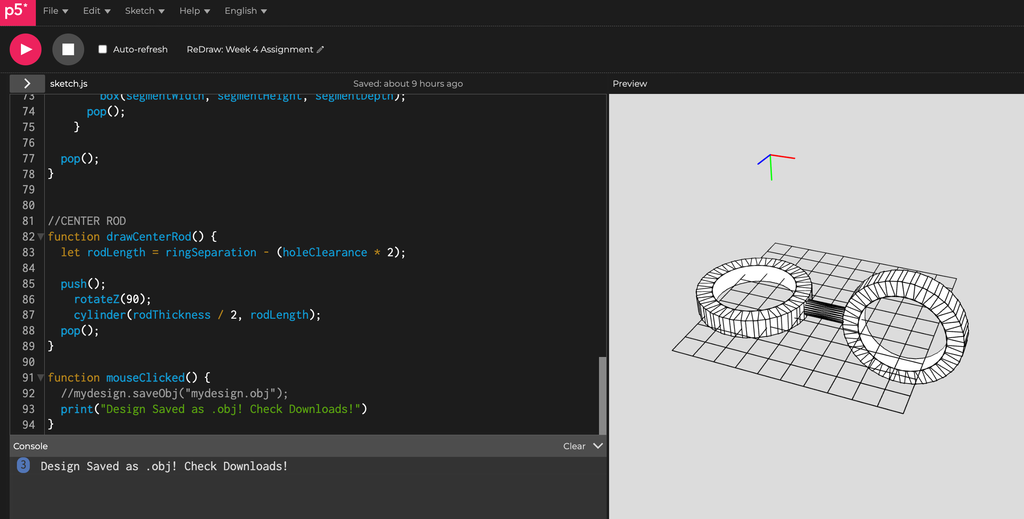
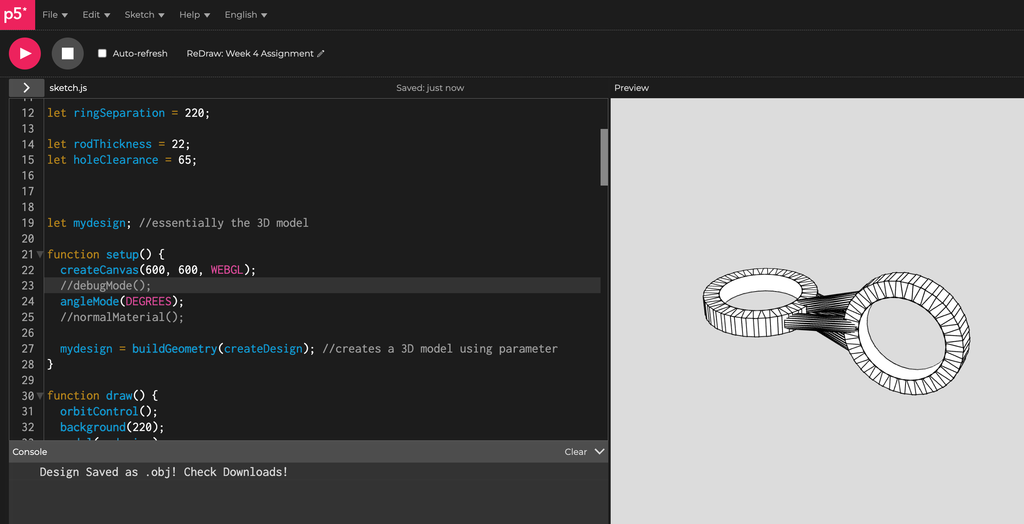
I started the design process with a for loop to create the ring just like the one I made during class time, then I created a cylinder to connect the two.
Originally I only had one singular cylinder connecting the two rings; I wanted to make sure that there were no parts that would potentially snap under pressure. This is what it looked like earlier on.
However, even if the durability wasn’t a concern I just thought the model looked like it was missing something. I didn’t want to complicate the design too much but I did want to make it more structurally sound. This led me to come up with the design I have now; afterall, triangles are the sturdiest support structure.
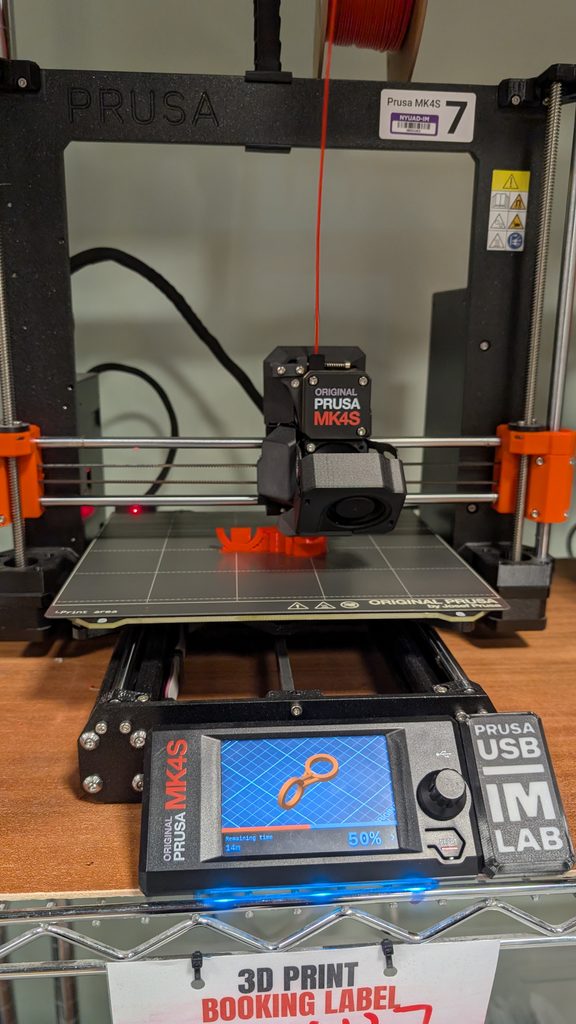
When I loaded up Prusa I still had a little bit of doubt regarding what size it should be. I only really figured out what size it should be when I referenced the grids on the 3D printer compared to the software preview.
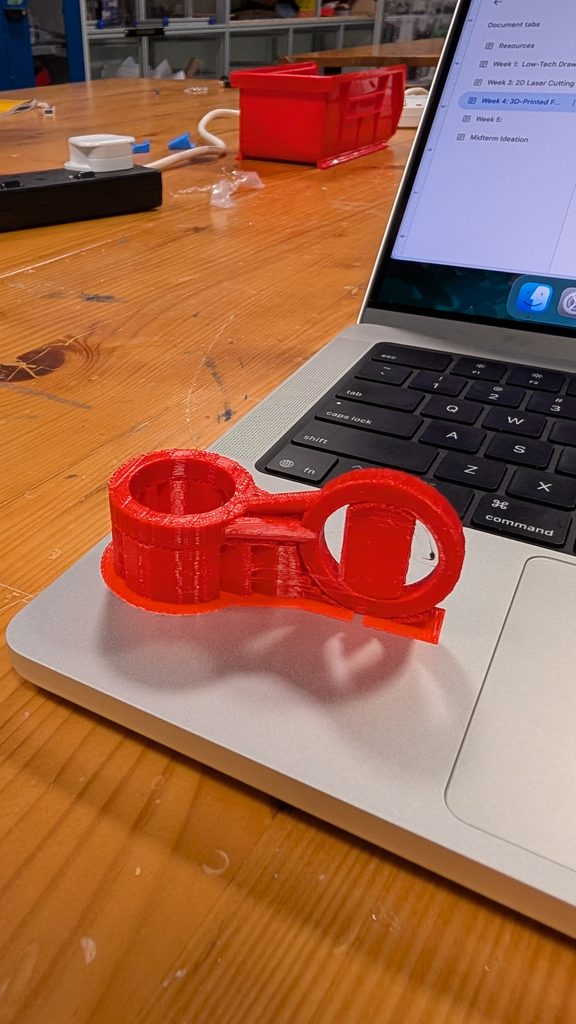
Since my design was a bit unorthodox and lacked a base, the IM assistants were a little concerned whether it would print properly but choosing “Everything” for the supports ended up working great.
On the p5 side, Marcos advised me to set up my system with multiple functions and saving it in a variable “mydesign”, then create “mydesign” with buildgeometry().
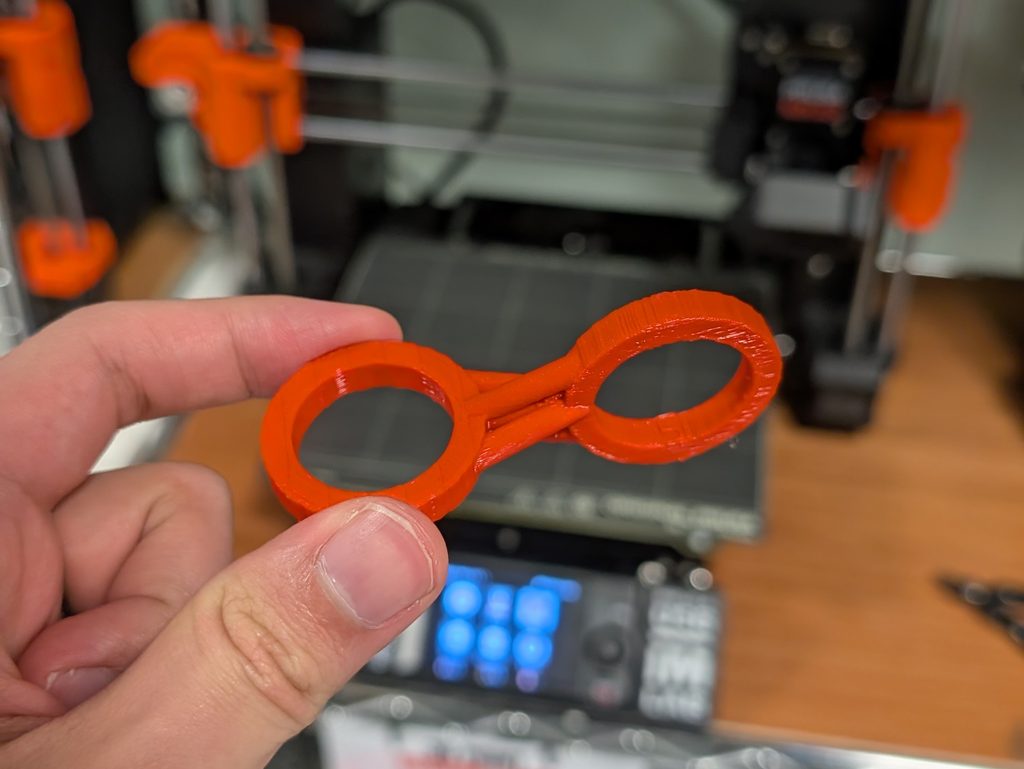
Photos of Final Print
Reflection on how 3D printing changed or shaped your computational design
Since I was designing what’s essentially a toy, as opposed to an object designed for display, the design itself would have to be structurally sound to sustain continued touch and usage. I also had to consider the weight of the ring so it would have some momentum when I spun it.
It was a bit intimidating at first to design a 3D model using p5.js but I actually quite enjoyed the process. It was a very different thought process from designing on blender.